
Wallet System
Wallet System for Magento provides a secure customer wallet for adding funds, paying orders, tracking transactions, and managing wallet balances with ease.
Wallet System is a Magento extension that adds a built-in customer wallet to your store. Customers can add funds, pay for orders using their wallet balance, view their transaction history, and request a bank transfer of their funds, while the admin keeps full control over recharges, refunds, and manual balance adjustments. It supports multiple payment methods for top-ups, minimum and maximum recharge limits, and restricting wallet use to selected customer groups, with all customer wallet details, transactions, refunds, and bank transfer requests managed in one place. It is aimed at Magento store owners who want to speed up repeat checkout and encourage return purchases through stored balances.
TL;DR: Wallet System for Magento provides a secure customer wallet for adding funds, paying orders, tracking transactions, and managing wallet balances with ease.
This guide covers: ✅ Let’s begin with the “Wallet Management Settings.” · ✅ Wallet Refund Settings · ✅ Bank Transfer Settings · Buy a Product with Wallet Balance

This wallet system extension for Magento provides a built-in wallet for customers to store and manage funds securely. It allows customers to add money to their wallet, pay for orders using wallet balance, and even transfer funds to their bank account if needed. At the same time, the admin gets full control over wallet operations, including recharges, refunds, and manual adjustments.
With this extension, customers can track their wallet balance and transaction history easily, making payments faster and more convenient. The system supports multiple payment methods, sets minimum and maximum recharge limits, and restricts wallet usage to selected customer groups.
For the admin, the wallet system makes management easy. It shows complete customer wallet details, transactions, refunds, and bank transfer requests in one place. This improves the overall shopping experience. It also helps increase customer engagement, repeat purchases, and keeps wallet records clear and organized.
Features
- Enable Wallet: Activate this to show the wallet feature in the customer account.
- Allow Customer to Recharge Wallet: Enable this to show the “Add Money to Wallet” button for customers.
- Wallet Recharge Product Name: Set the product name displayed in cart and checkout during recharge.
- Wallet Recharge Product Image: Upload an image that will appear in the cart and checkout page. The default image is used if none is added.
- Minimum Recharge Amount: Set the lowest amount a customer can add to their wallet.
- Maximum Recharge Amount: Define the highest recharge limit for a single transaction.
- Allowed Payment Methods for Recharge: Choose payment methods available for wallet recharge.
- Allowed Customer Groups: Restrict wallet usage to selected customer groups.
- Enable Refund to Wallet: Activate this to allow refunds directly to customer wallets.
- Allow Payment Methods for Refund: Select eligible payment methods for wallet refunds.
- Enable Bank Transfer: Activate this to allow customers to transfer wallet balance to their bank.
- Minimum Transfer Amount: Set the minimum balance required for a bank transfer request.
- Bank Transfer Request Notification Email: Enter the email to receive bank transfer requests.
- Pay Orders Using Wallet: Allow customers to pay fully or partially using wallet balance.
- Admin Wallet Management: This allows the admin to manage customer wallets by adding, deducting, or refunding funds directly from the admin panel.
- Bank Transfer Requests: Allow the admin to approve or update wallet-to-bank transfer requests easily.
- Admin View Customer Wallet: Admin can see the full wallet balance and transaction history for each customer.
Overview of the Module
- Go to the Stores menu and select the Configuration option to access the Module core settings.
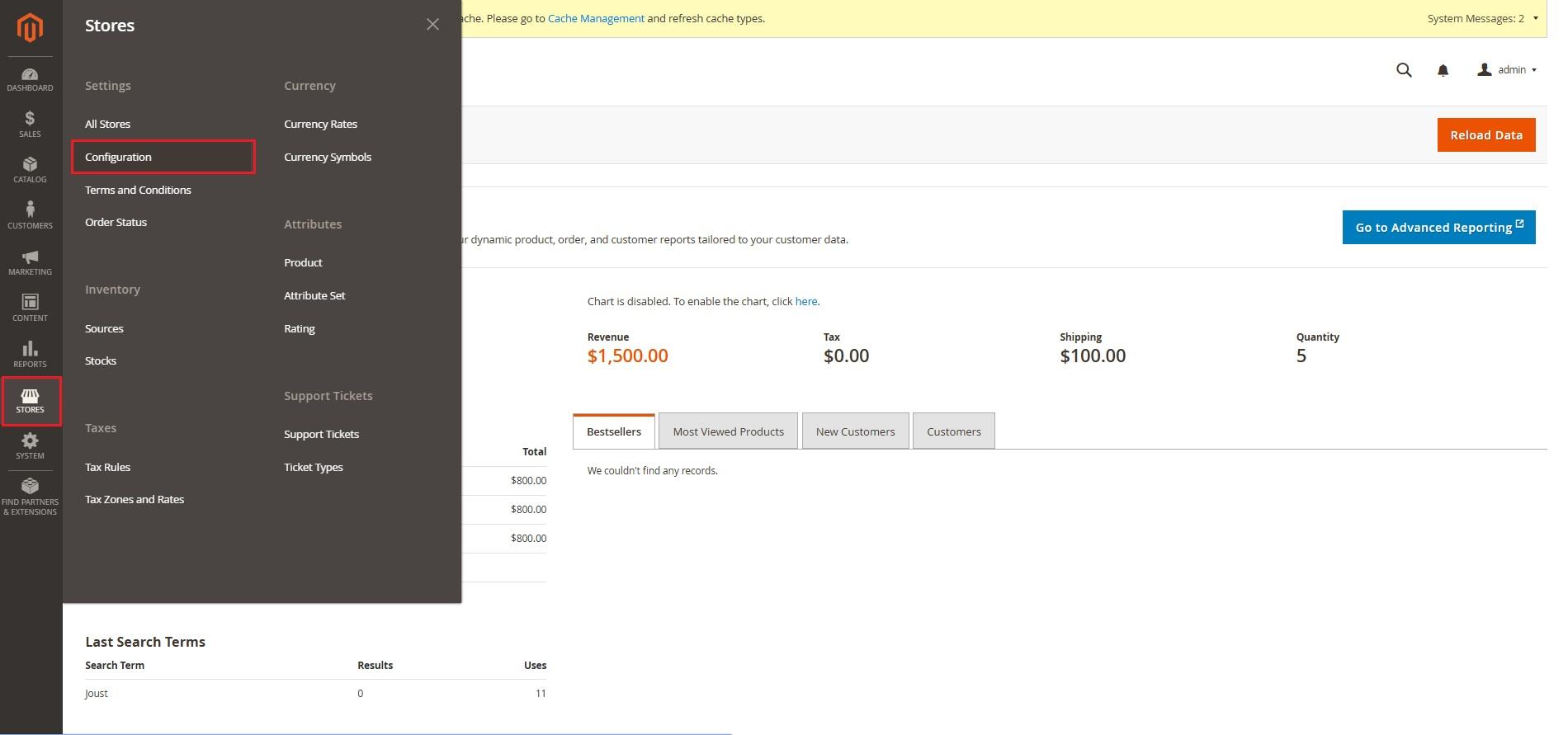
Manage the wallet system through three main configuration options: Wallet management settings, wallet refund settings, and bank transfer settings.
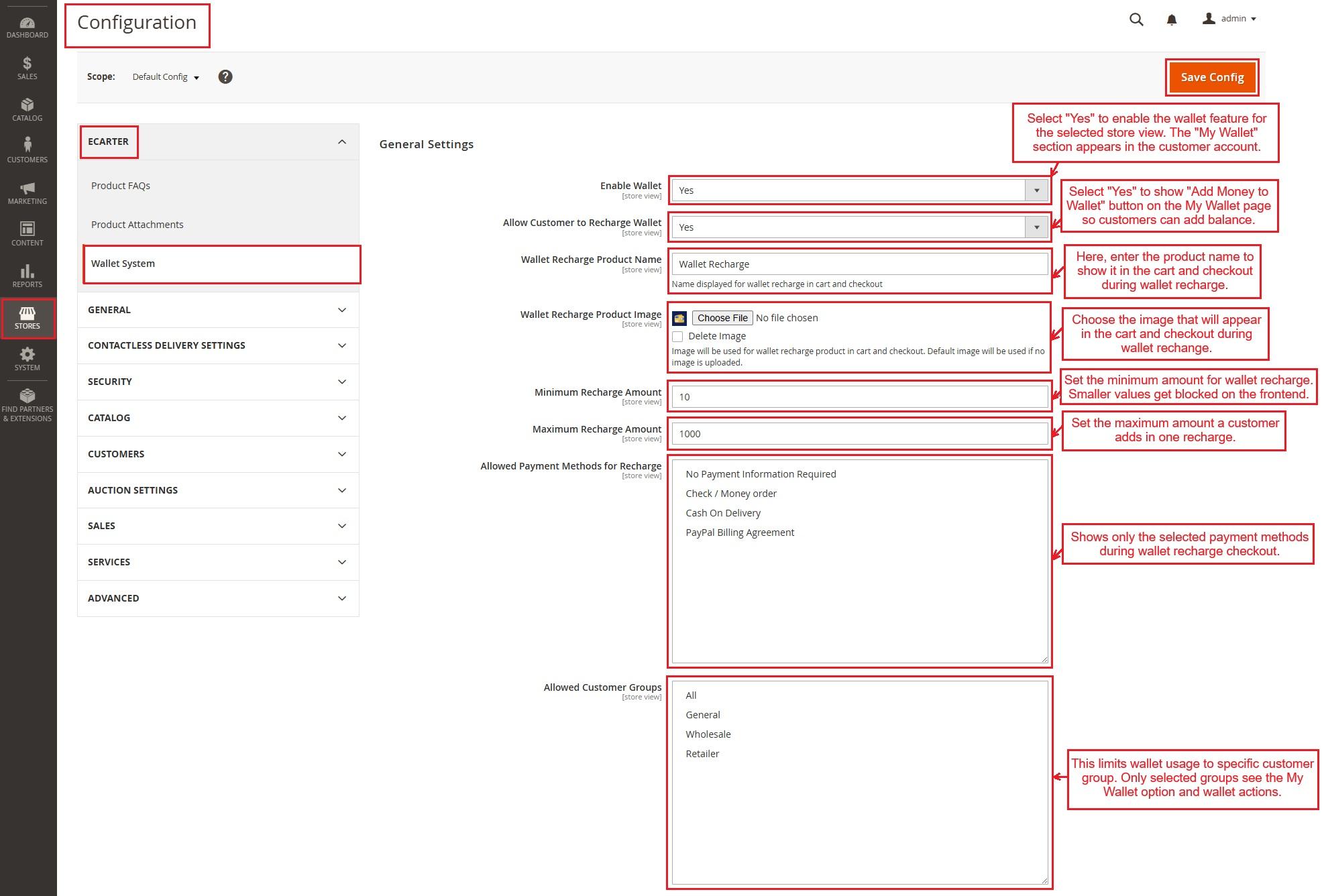
✅ Let’s begin with the “Wallet Management Settings.”
- Enable Wallet: Select “Yes” to show the wallet feature for the selected store view. Once enabled, the My Wallet section appears in the customer account area.
- Allow Customer to Recharge Wallet: Select “Yes” to show the Add Money to Wallet button on the My Wallet page. Customers use this option to add balance to their wallet.
- Wallet Recharge Product Name: Enter the product name in the field to show it in the cart and checkout during wallet recharge.
- Wallet Recharge Product Image: Choose the product image that will appear in the cart and checkout during wallet recharge. If no image is uploaded, the default image is used.
- Minimum Recharge Amount: Set the lowest amount a customer can add to the wallet. The system blocks smaller values on the frontend.
- Maximum Recharge Amount: Set the highest recharge limit. Customers cannot add more than this amount in a single recharge.
- Allowed Payment Methods for Recharge: Controls which payment methods appear while recharging the wallet. Only the selected methods show during checkout.
- Allowed Customer Groups: This limits wallet usage to specific customer groups. Only selected groups see the My Wallet option and wallet actions.
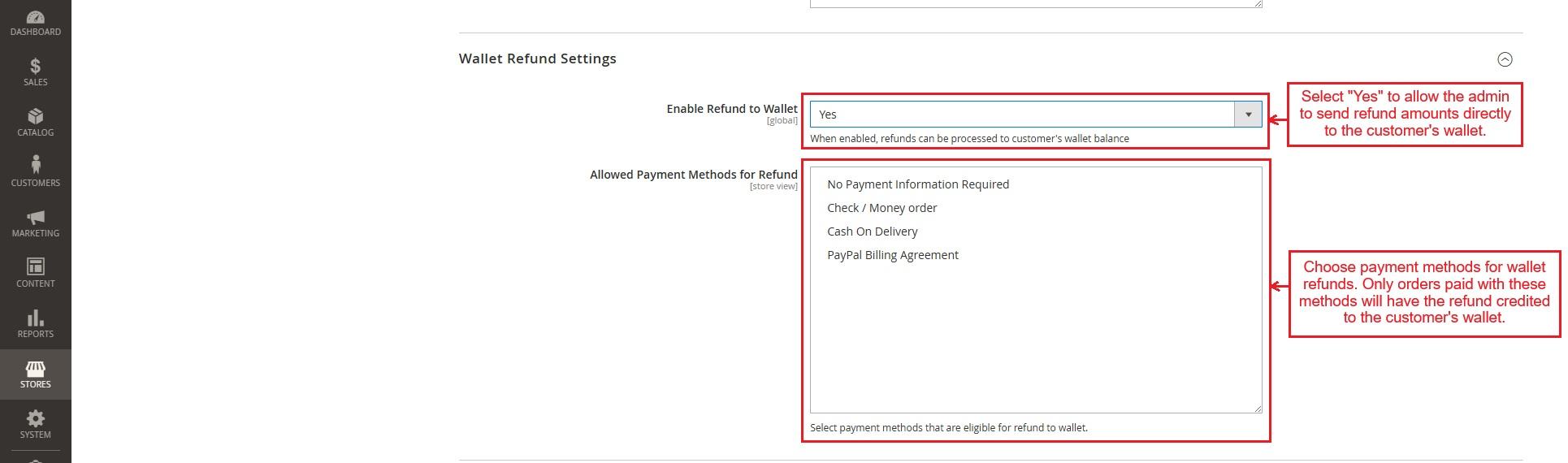
✅ Wallet Refund Settings
- Enable Refund to Wallet: Select “Yes” to allow the admin to send refund amounts directly to the customer’s wallet.
- Allow payment methods for Refund: Use this option to select the payment methods eligible for wallet refunds. Only orders paid using these methods get the refund amount credited to the customer’s wallet.
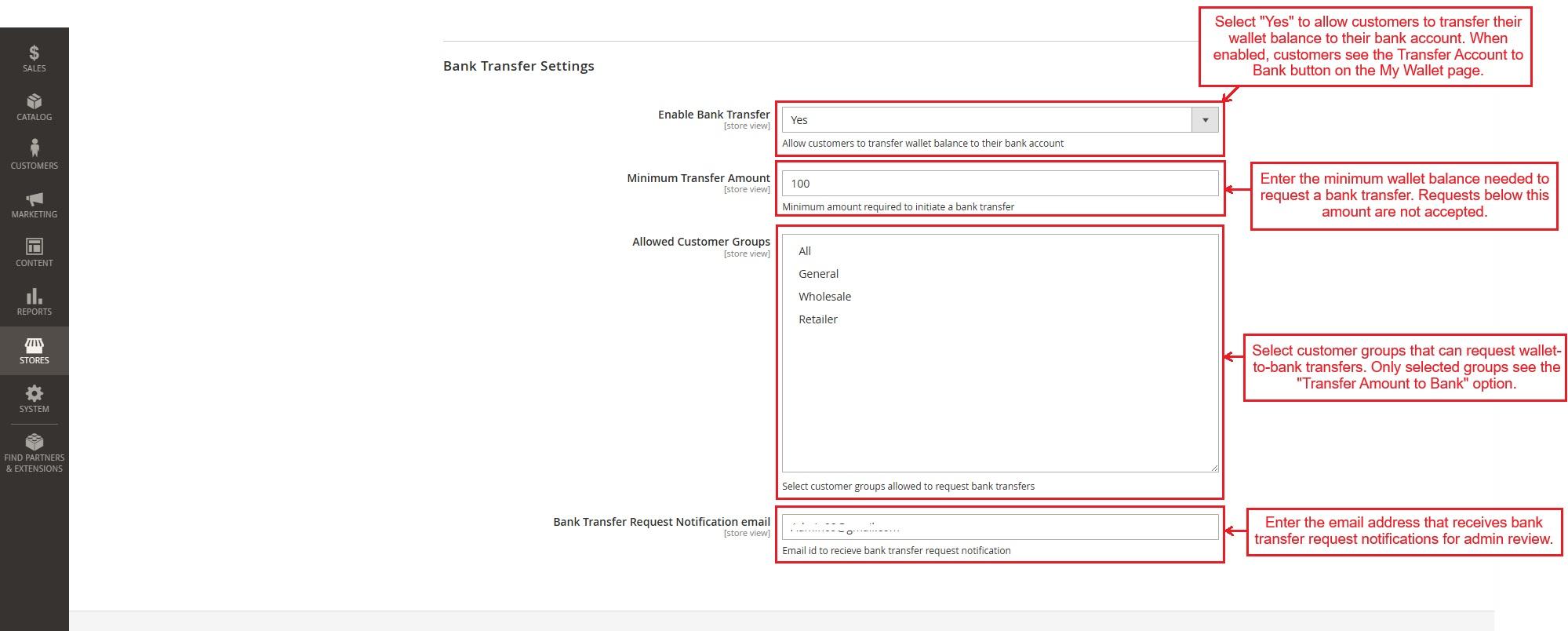
✅ Bank Transfer Settings
- Enable Bank Transfer: Select “Yes” to allow customers to transfer their wallet balance to their bank account. When enabled, customers see the Transfer Amount to Bank button on the My Wallet page.
- Minimum Transfer Amount: This defines the minimum wallet balance required to request a bank transfer. Customers cannot submit a transfer request below this amount.
- Allowed Customer Groups: Controls which customer groups can request wallet-to-bank transfers. Only selected groups see the Transfer Amount to Bank option in their account.
- Bank Transfer Request Notification Email: Enter the email address that receives bank transfer request notifications for admin review.
Note: Once the configuration settings are updated, clear the cache from Cache Management and hard refresh the storefront using Ctrl + Tab + R.
Using Wallet on Storefront
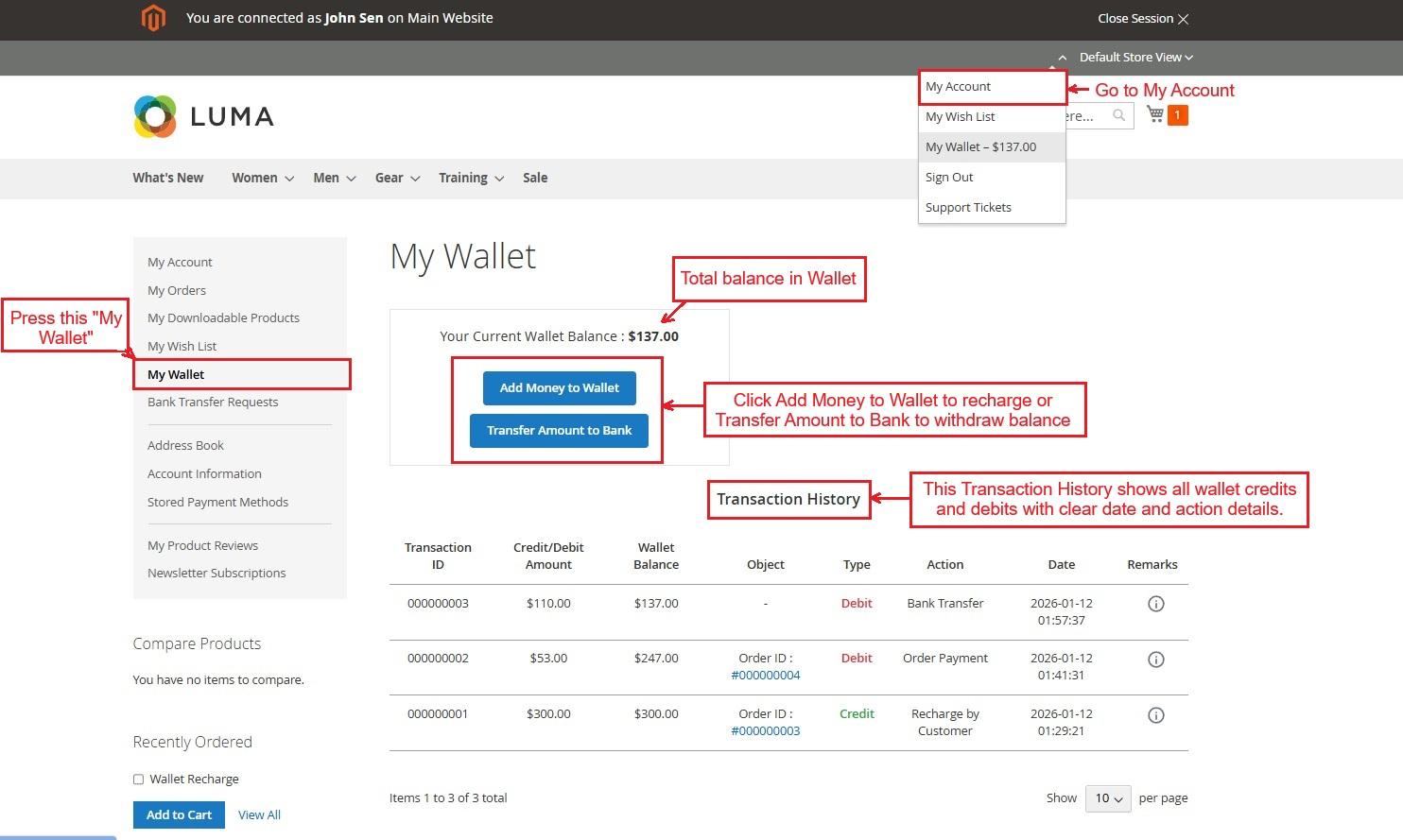
- The customer opens My Account and goes to My Wallet. Here, the customer views the current balance at the top, customer adds money to the wallet or transfers the amount to a bank, based on enabled settings. Below, the Transaction History shows all wallet activities in order, including recharges, order payments, and bank transfers, with clear details of credits, debits, and dates.
Open My Account ➡️ Click on My Wallet ➡️ Use Add money to wallet or Transfer the amount to a bank ➡️Below, the Transaction History appears
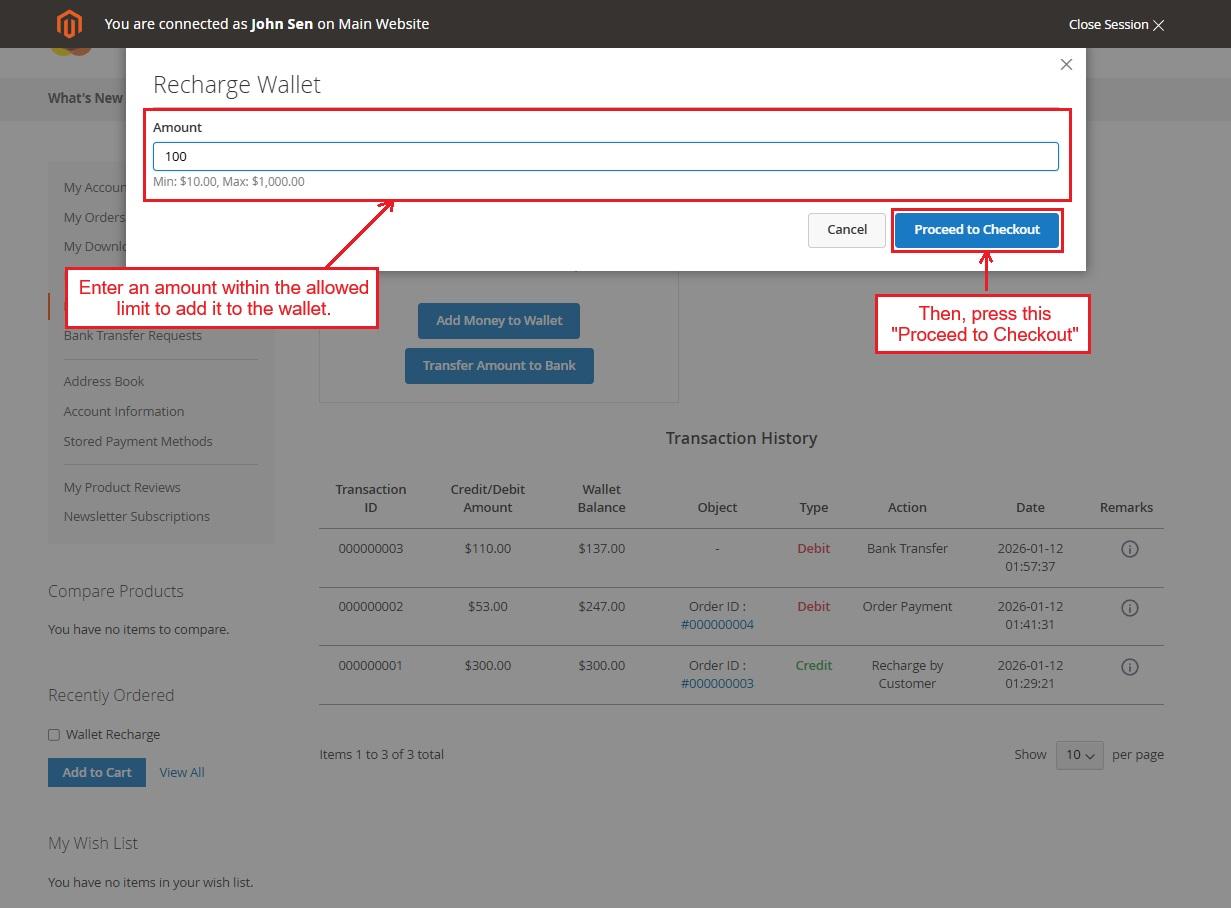
- Press Add Money to Wallet and enter an amount within the allowed limit to add it to the wallet.
- Then, click Proceed to checkout.
- This page confirms the wallet recharge before payment. It shows the payment method selected in wallet configuration settings, the wallet recharge item in the order summary, and the total amount to be paid. Customers review details and edit them if needed.
- Press the “Place Order” to add balance to the wallet.

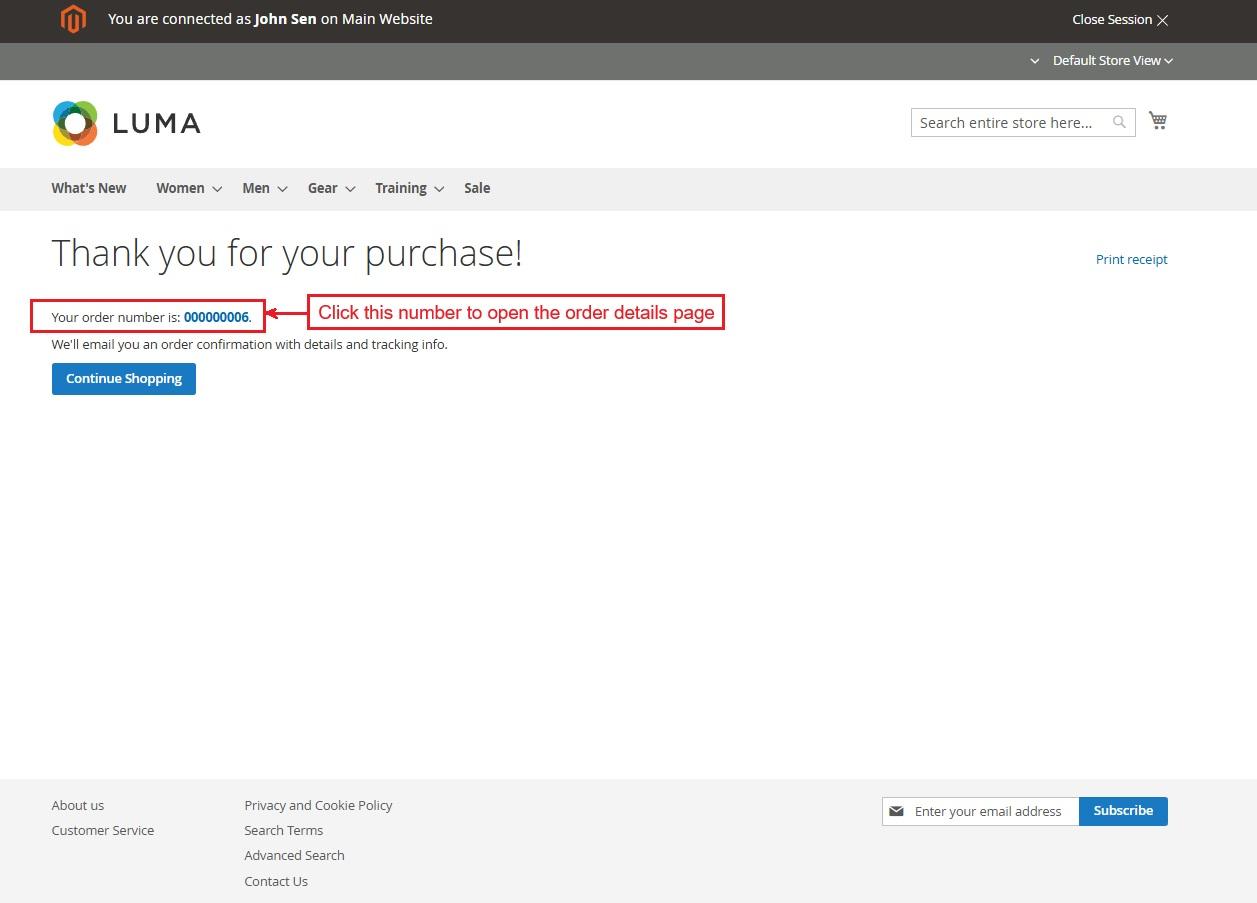
The amount is added to the wallet successfully. Click the order number to view the order details page.
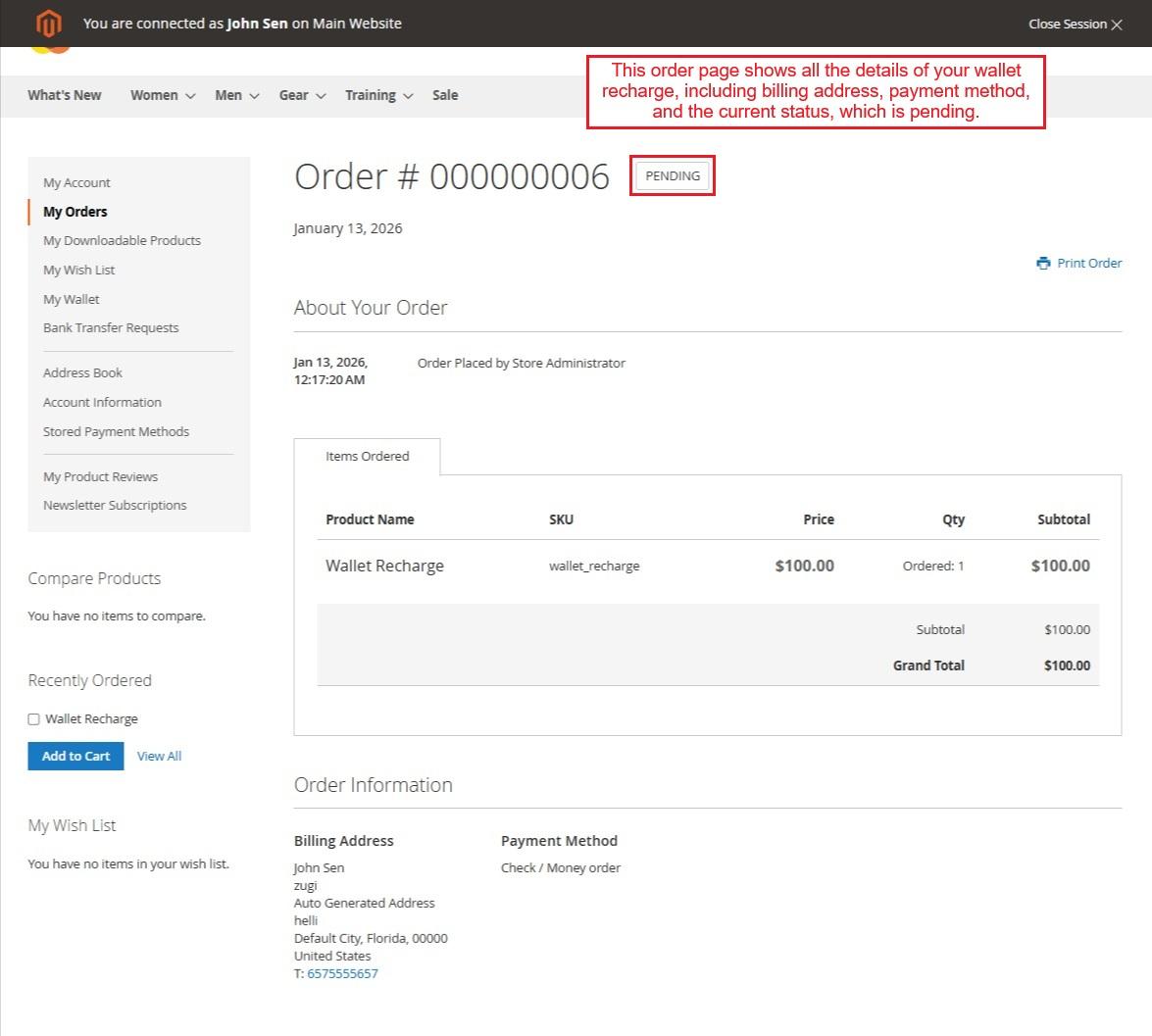
- This order page shows all the details of your wallet recharge, including billing address, payment method, and the current status, which is pending.
- Updating Order Status
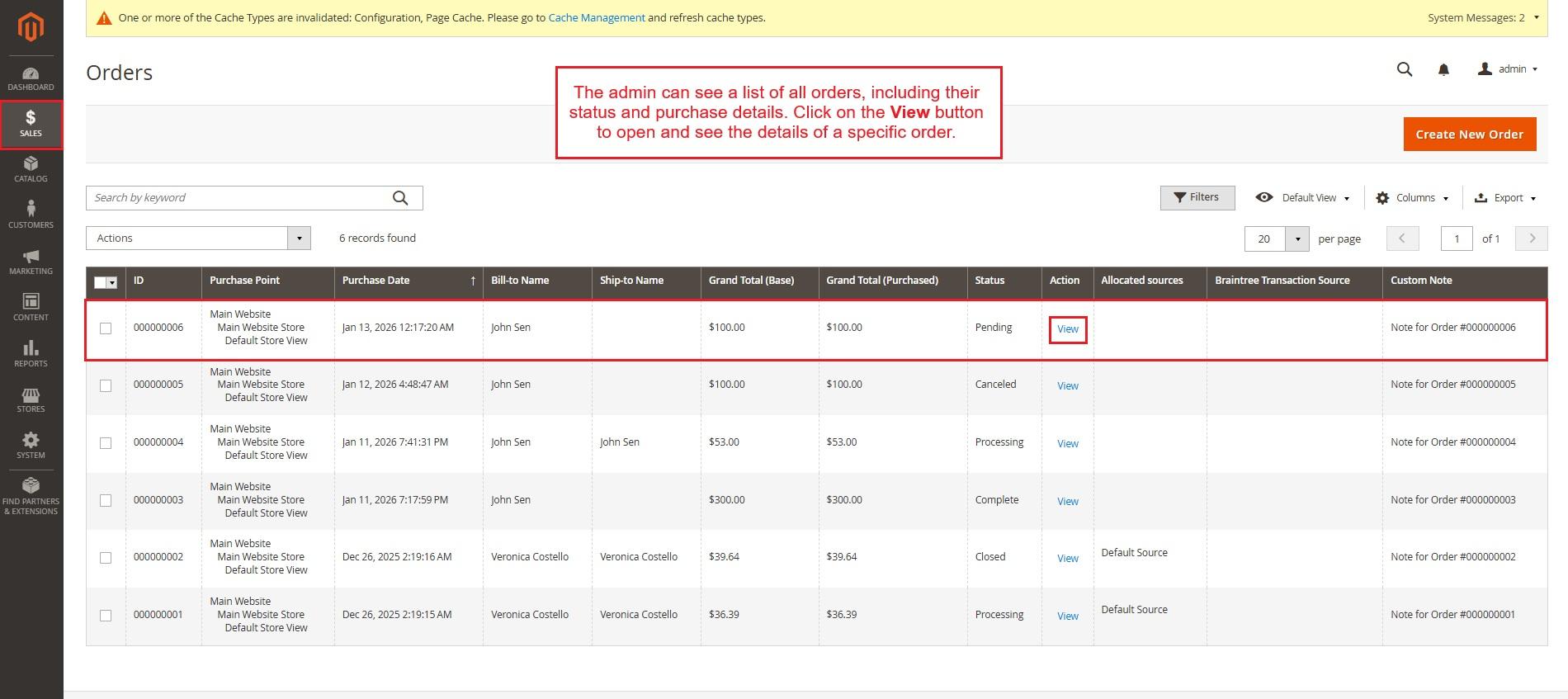
In the admin panel, go to the Sales menu and open the Orders list. This page shows all orders with their status and purchase details. Click on the View button to open and see the details of a specific order.
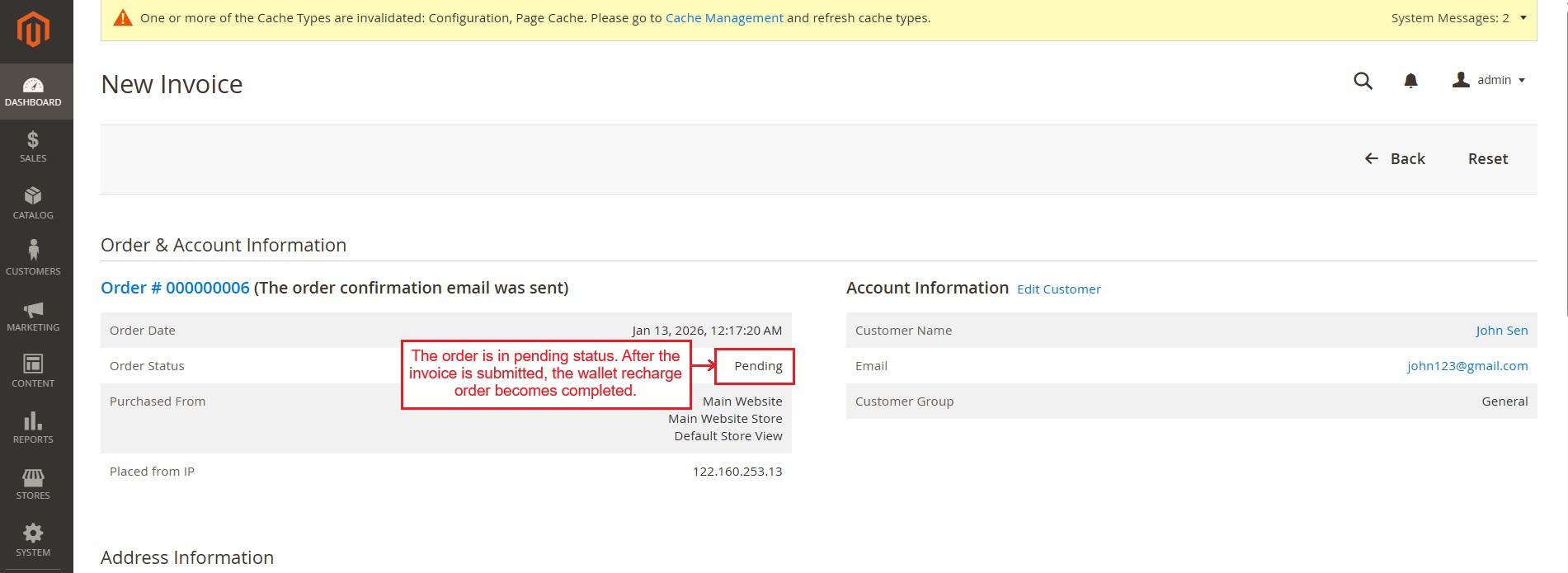
- Now, click the Invoice button to update the order status.

- The order is in pending status. After the invoice is submitted, the wallet recharge order becomes completed.
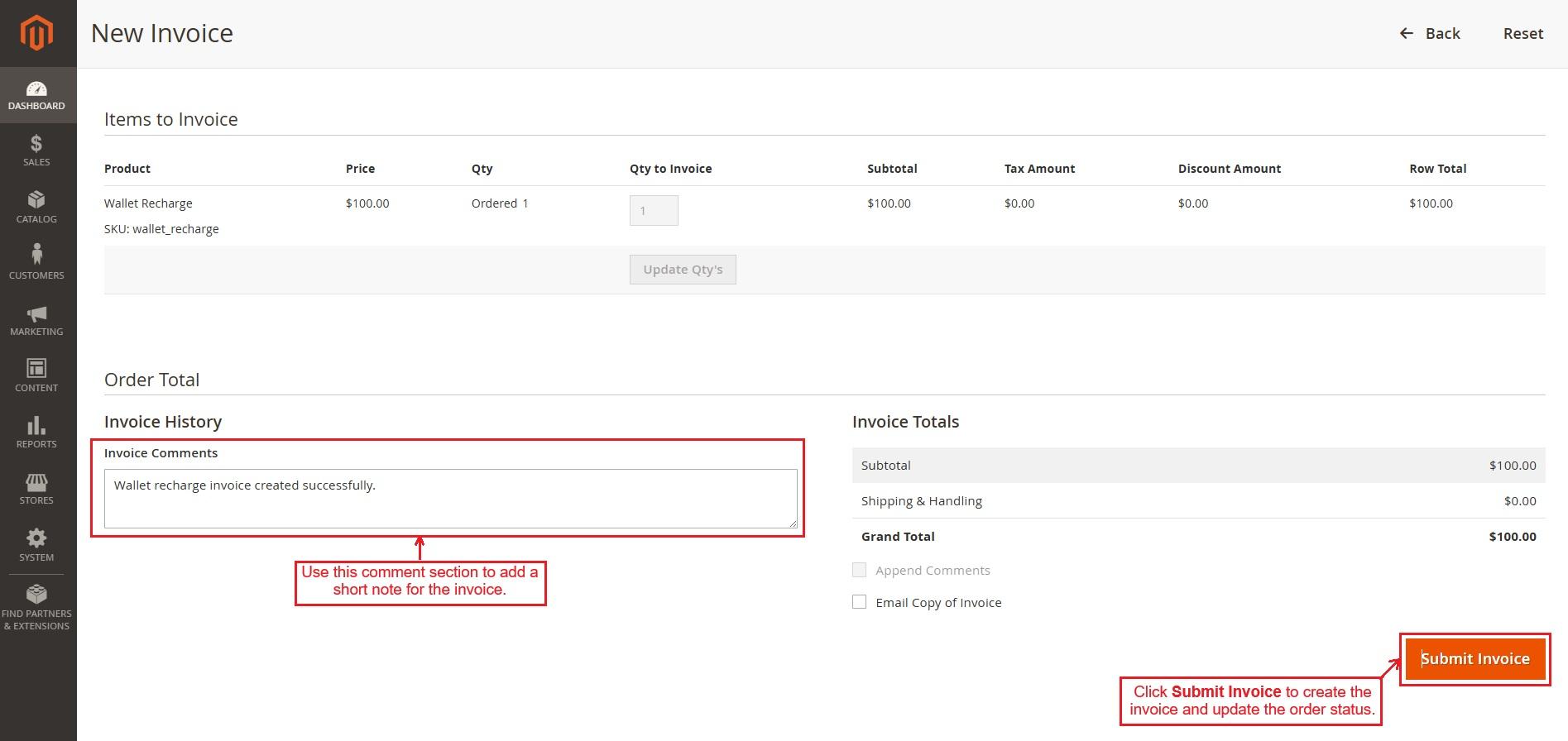
- Click “Submit” to create the invoice and update the order status.
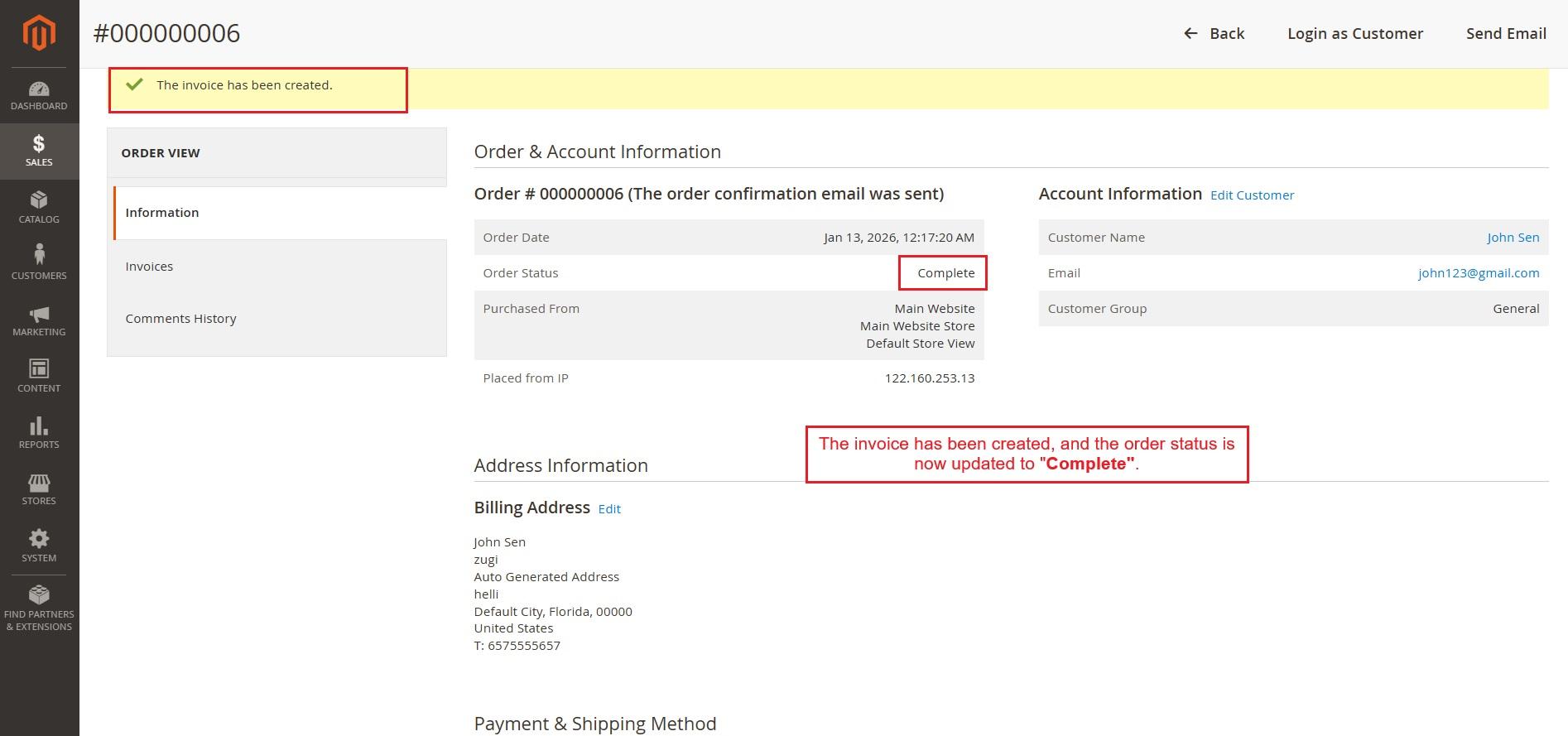
- The invoice has been created, and the order status is now updated to “Complete”.
- This is the latest wallet recharge for the recent order. It shows the credited amount, wallet balance, order ID, type, and date. Click the "info (i)" icon to see the transaction reason.
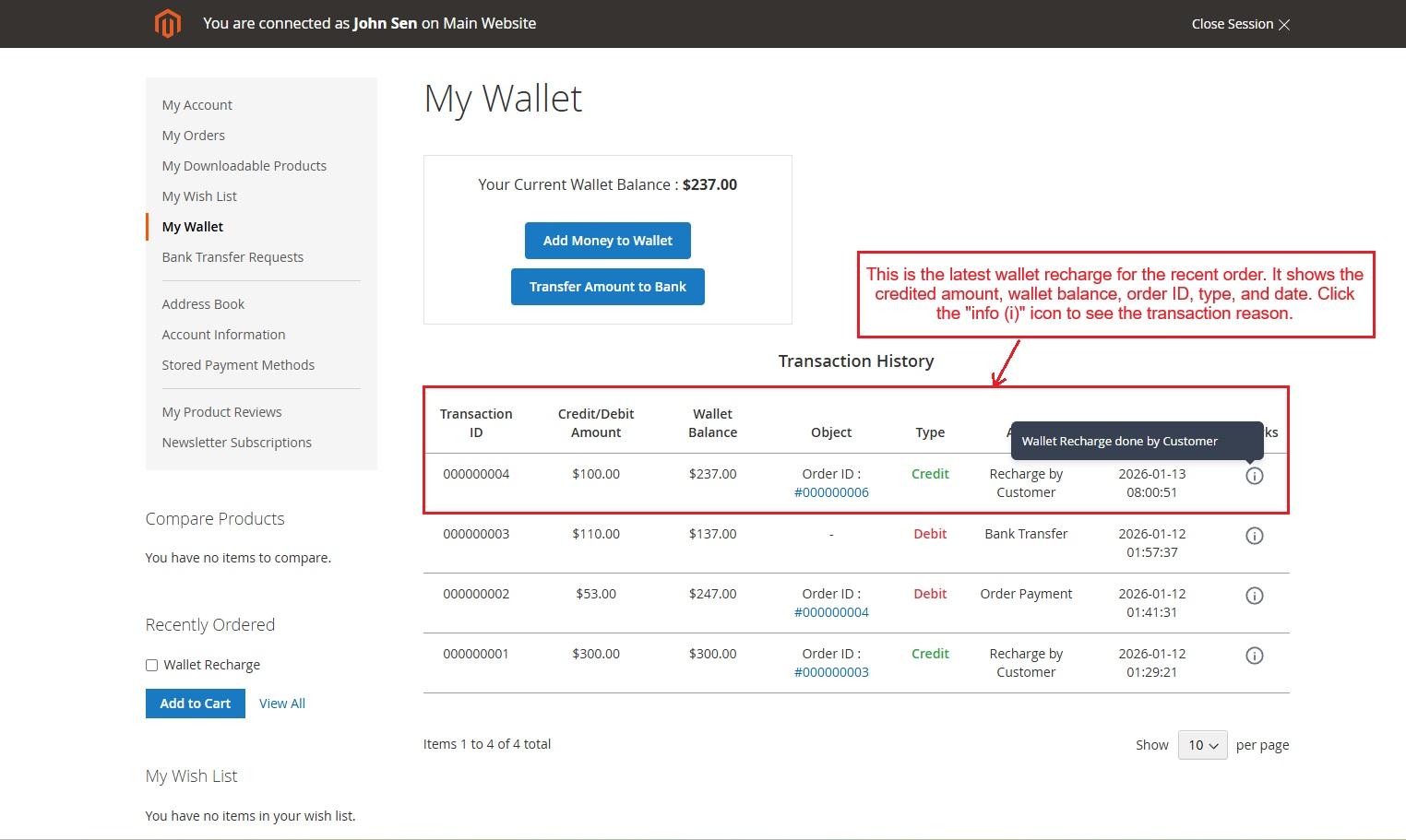
- Now, the customer can use the wallet balance to pay for orders or withdraw the balance to a bank, based on settings.
Buy a Product with Wallet Balance
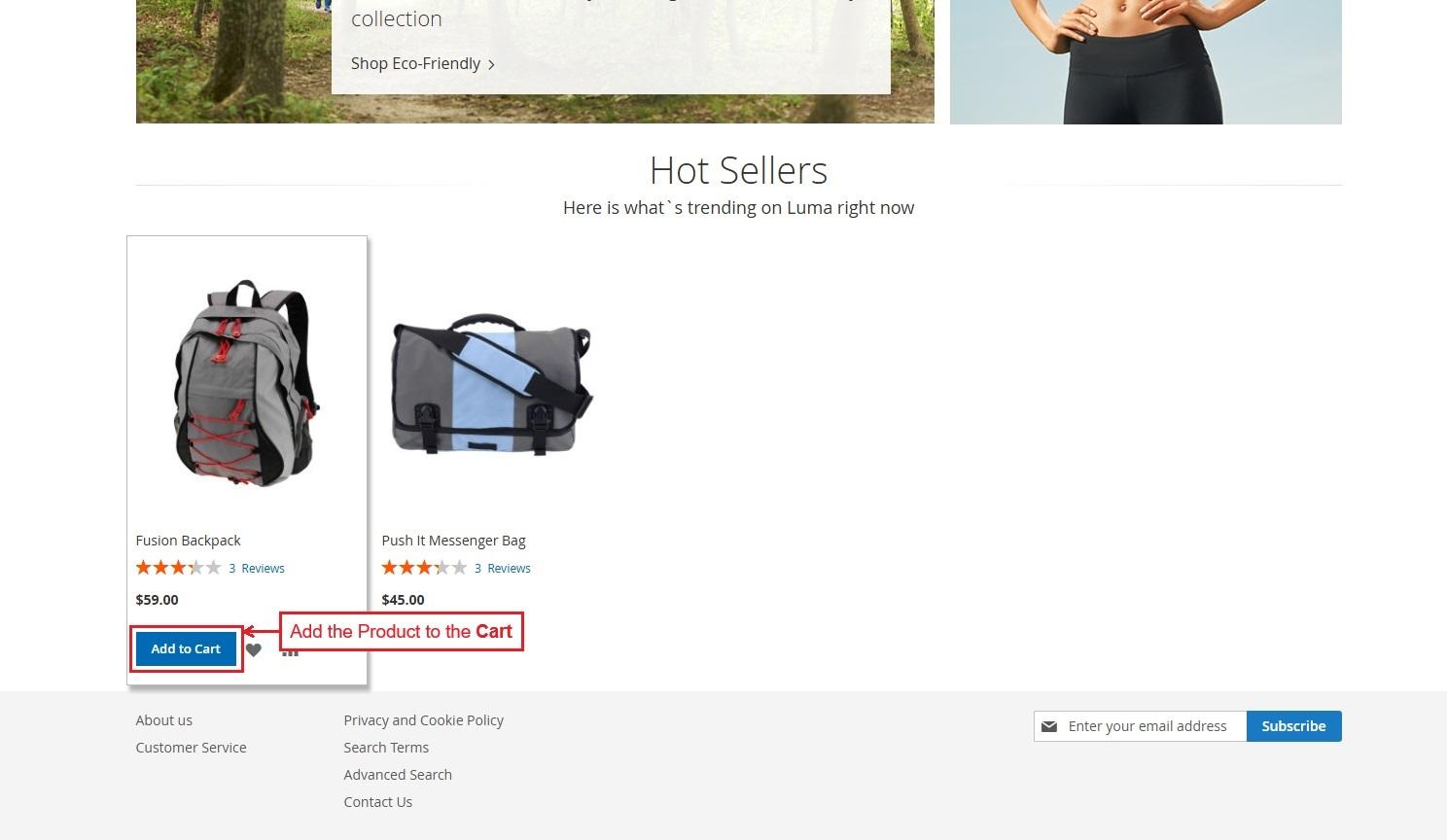
- Add a product to the Cart.
- In the shipping address page, add a new address if required, and select the desired shipping method.
Then, press the “Next” button.

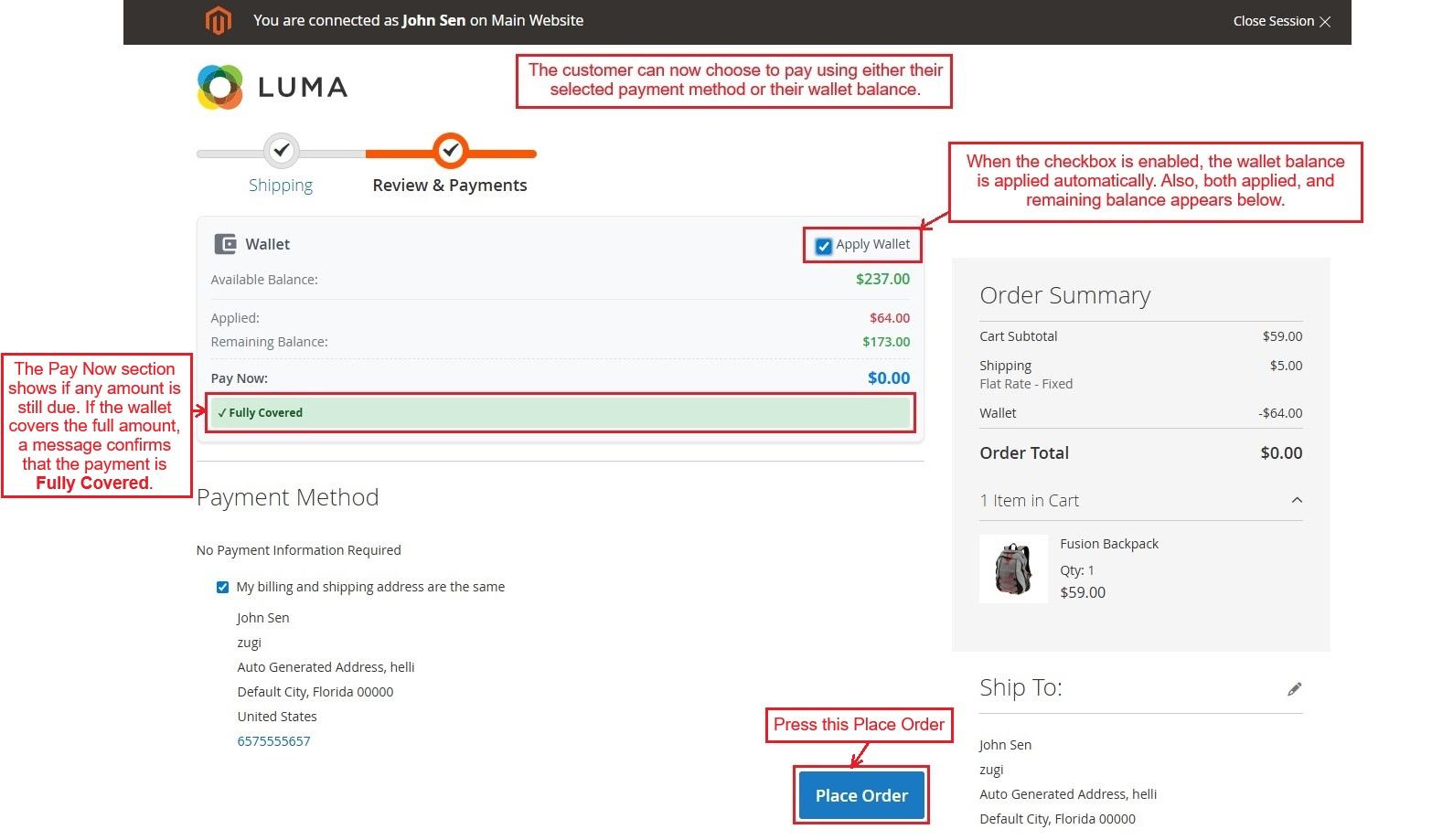
- The customer can now choose to pay using either their selected payment method or their wallet balance.
- Here, enable the Apply Wallet Checkbox and the wallet balance is applied automatically. Also, both applied, and remaining wallet balance appears below.
- The Pay Now section shows if any amount is still due. If the wallet covers the full amount, a message confirms that the payment is fully Covered.
- Then, Press the “Place Order”.
- Once the order is placed, the admin changes the product status directly from the Orders using the Invoice option and press “Submit” button.

- The invoice is created, and the order status is updated from pending to processing.
- The same page allows the admin to change the order status to any available option. Also, you can see that the payment was made with a wallet.


Manage Wallet System in Admin Panel
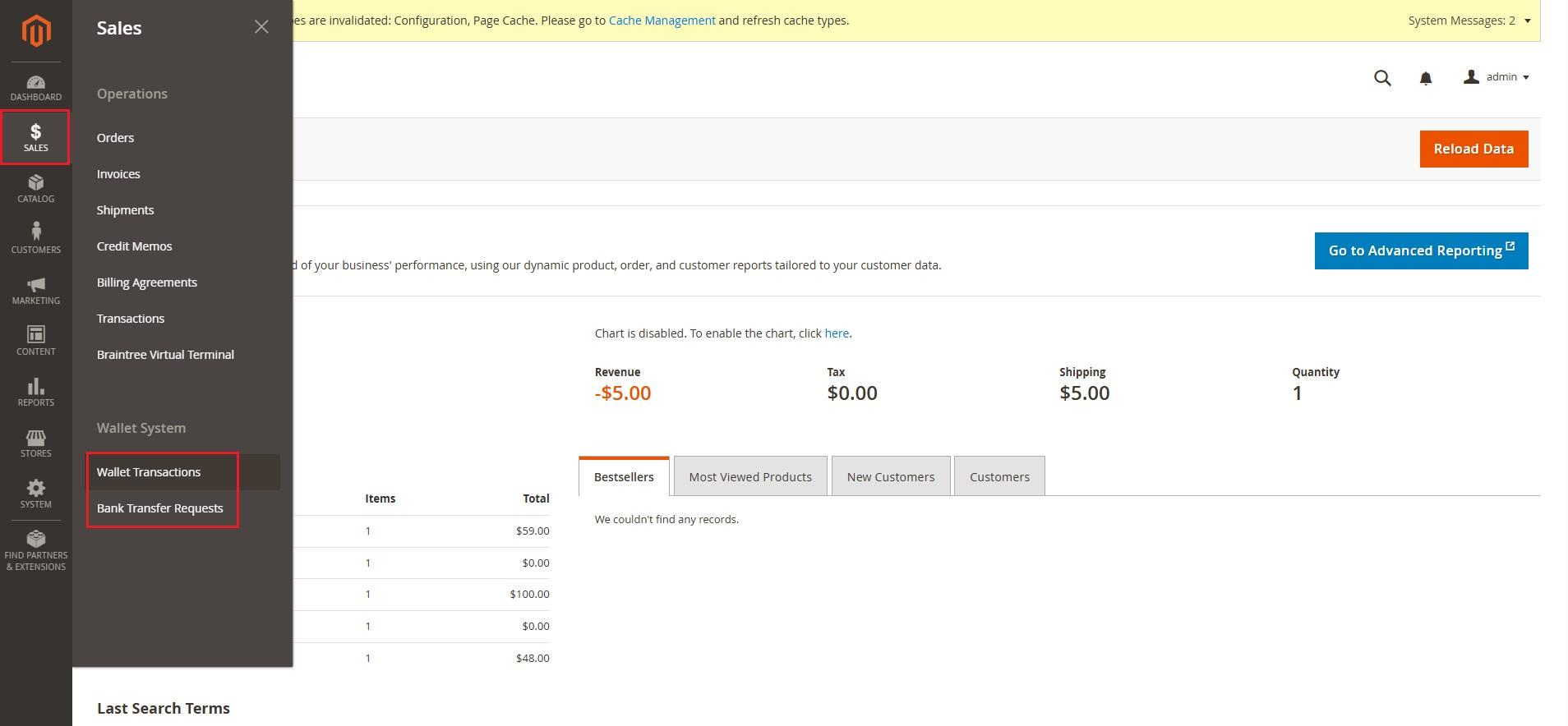
- The Sales menu provides the Wallet System option.
- Here, the admin views all wallet transactions and bank transfer requests from one place.
Wallet transactions
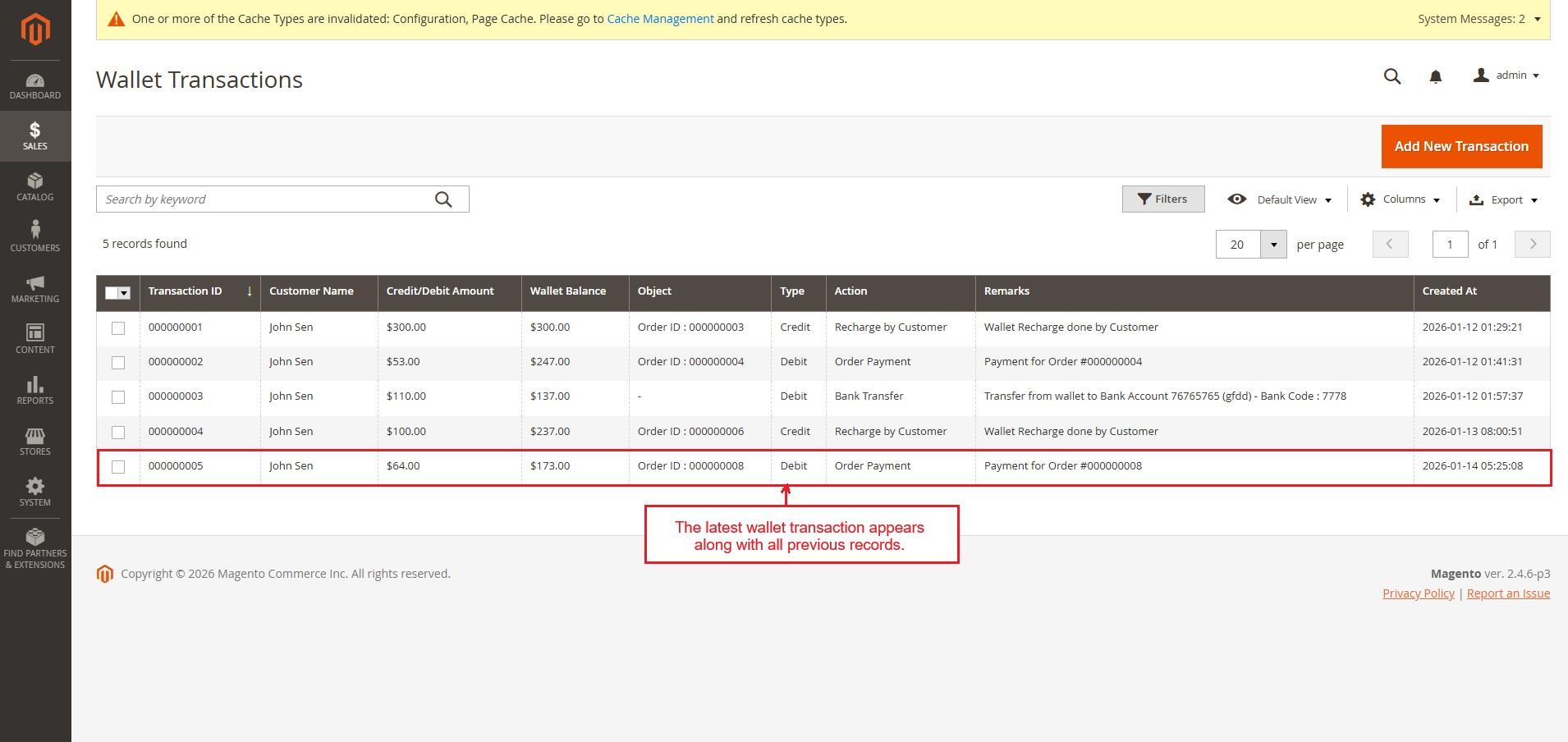
- The latest wallet transaction appears on this page along with all previous records of all customers.
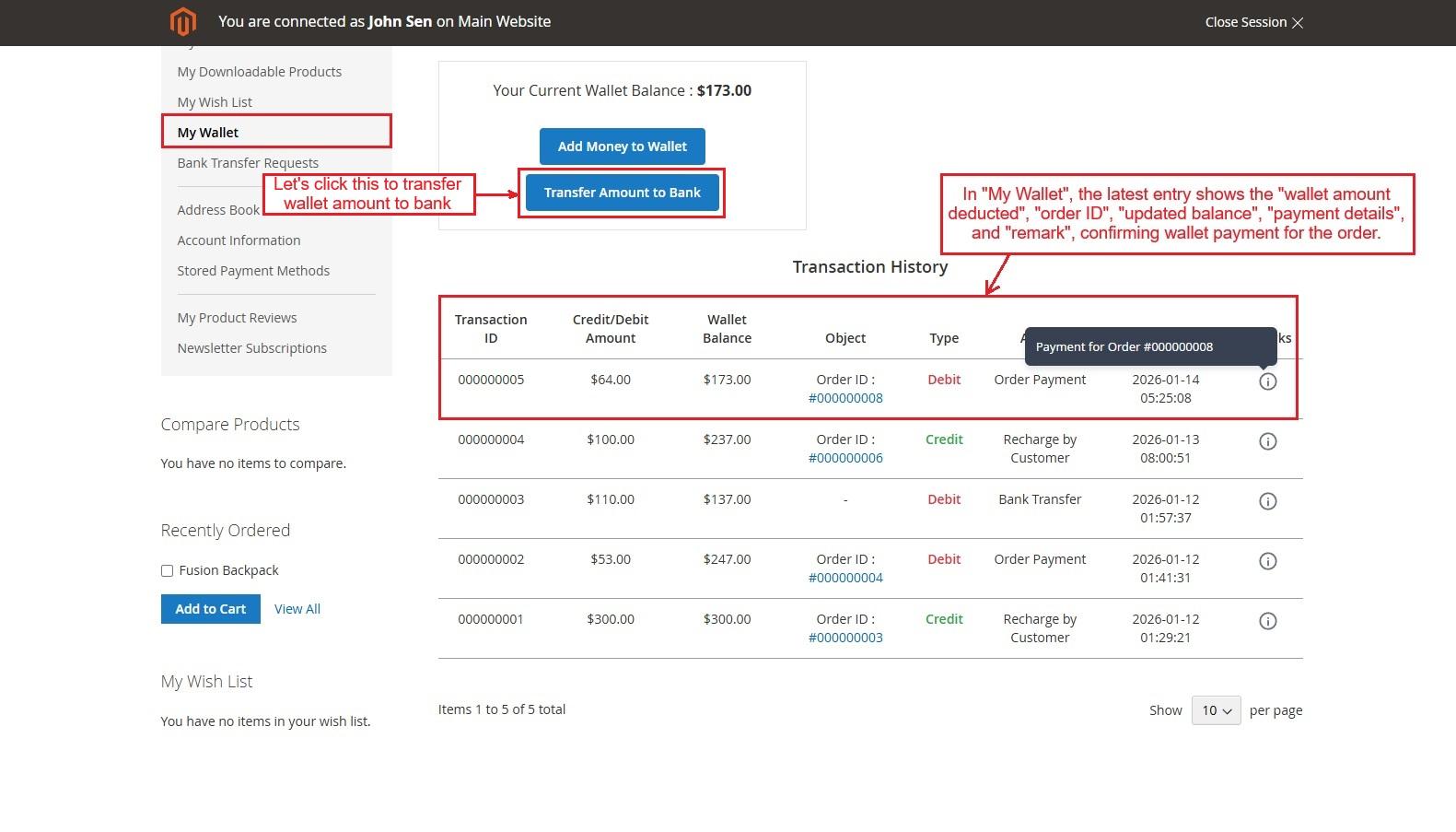
- The customer can see the latest transaction in “My Wallet”. It shows details like the "wallet amount deducted", "order ID", "updated balance", "payment details", and "remark", confirming wallet payment for the order.
Transfer Wallet Balance to Bank
- Click on Transfer Amount to Bank to understand the wallet-to-bank transfer process.
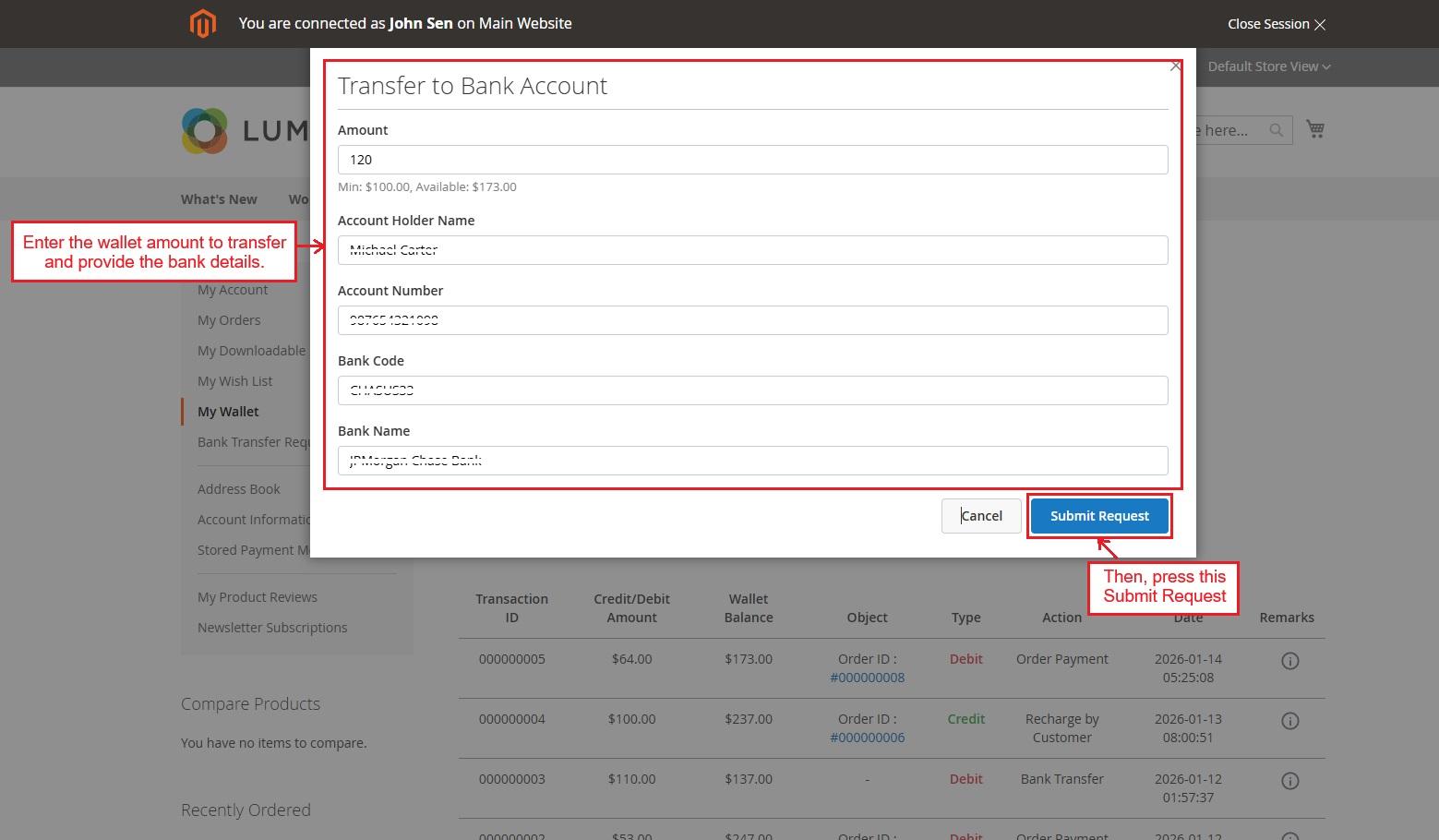
- The pop-up allows the customer to transfer their wallet balance to a bank account by providing fields to enter the transfer amount and bank details.
- Then, click on “Submit Request” button.
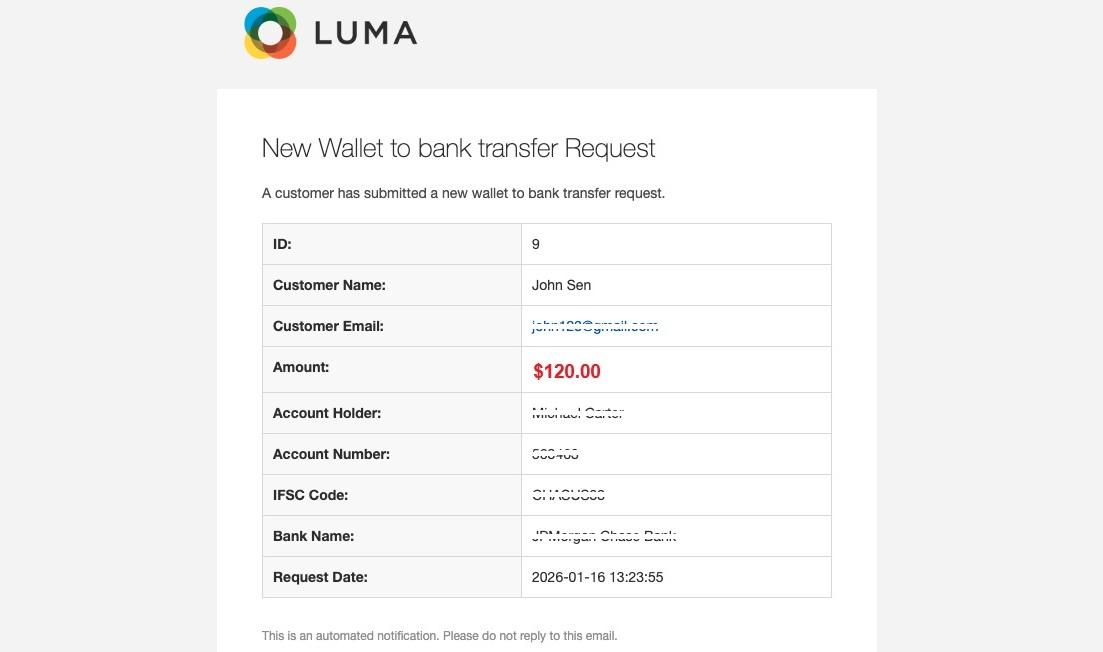
- This email notifies the admin about a new wallet-to-bank transfer request and is sent to the configured email ID set for admin review.
- Next, open the Bank Transfer Requests to review the latest transfer details, including status, date, amount, and comments. The request is currently pending and needs admin approval.
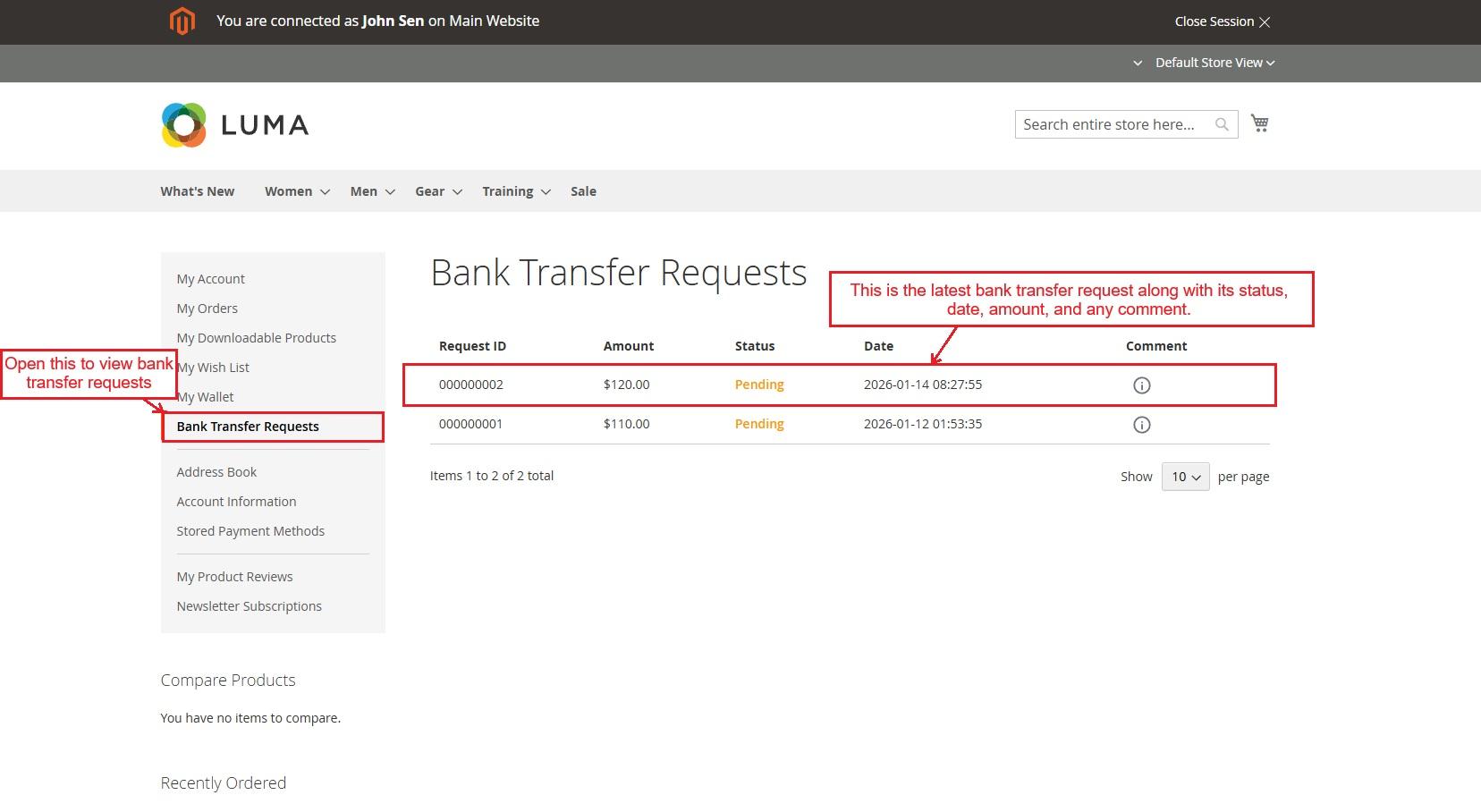
Bank Transfer Requests
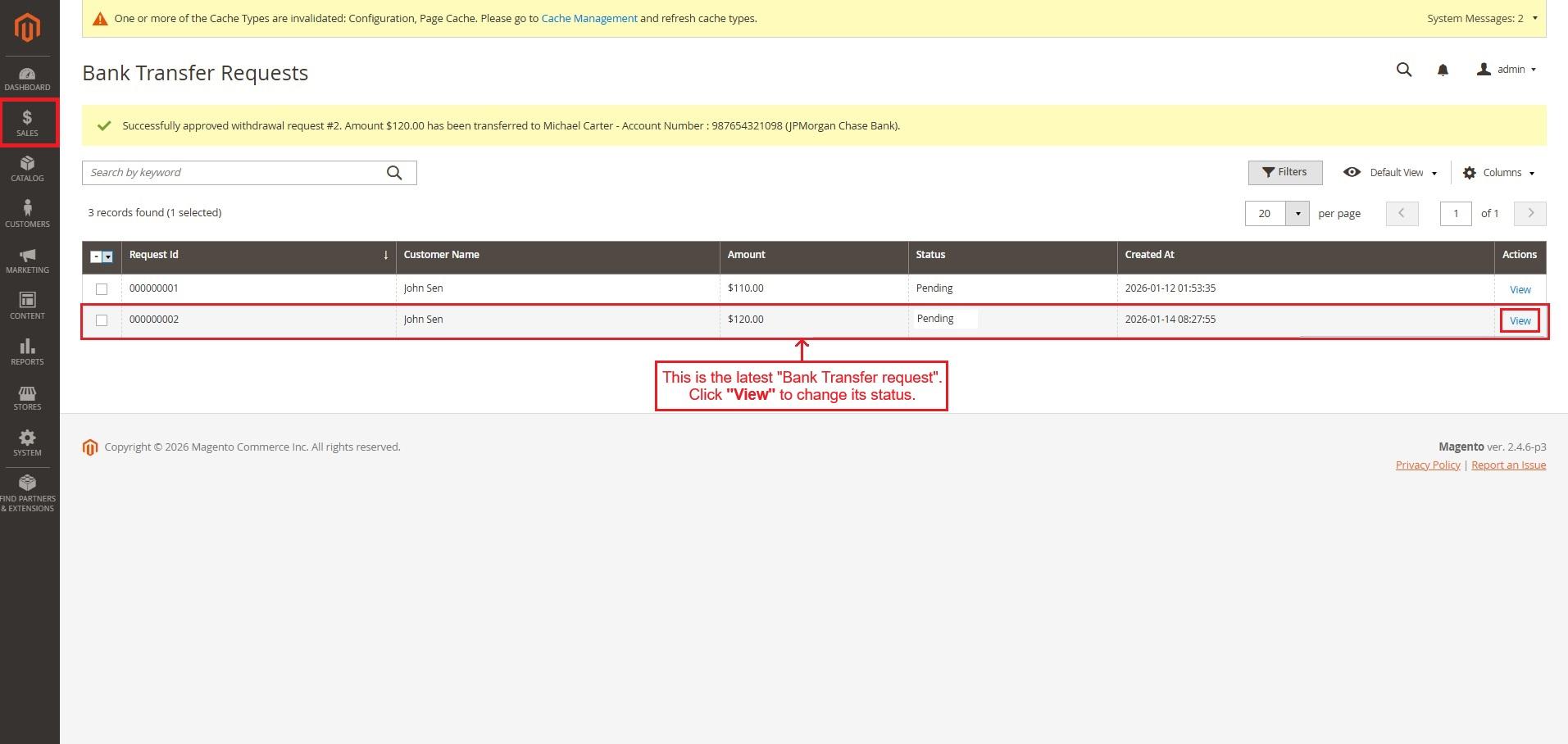
- In the sales menu, the admin navigates to “Bank Transfer requests” to see the complete record of bank transfer requests. They then click on the “View” button for the specific transfer request they wish to approve, reject, or set the status as pending.
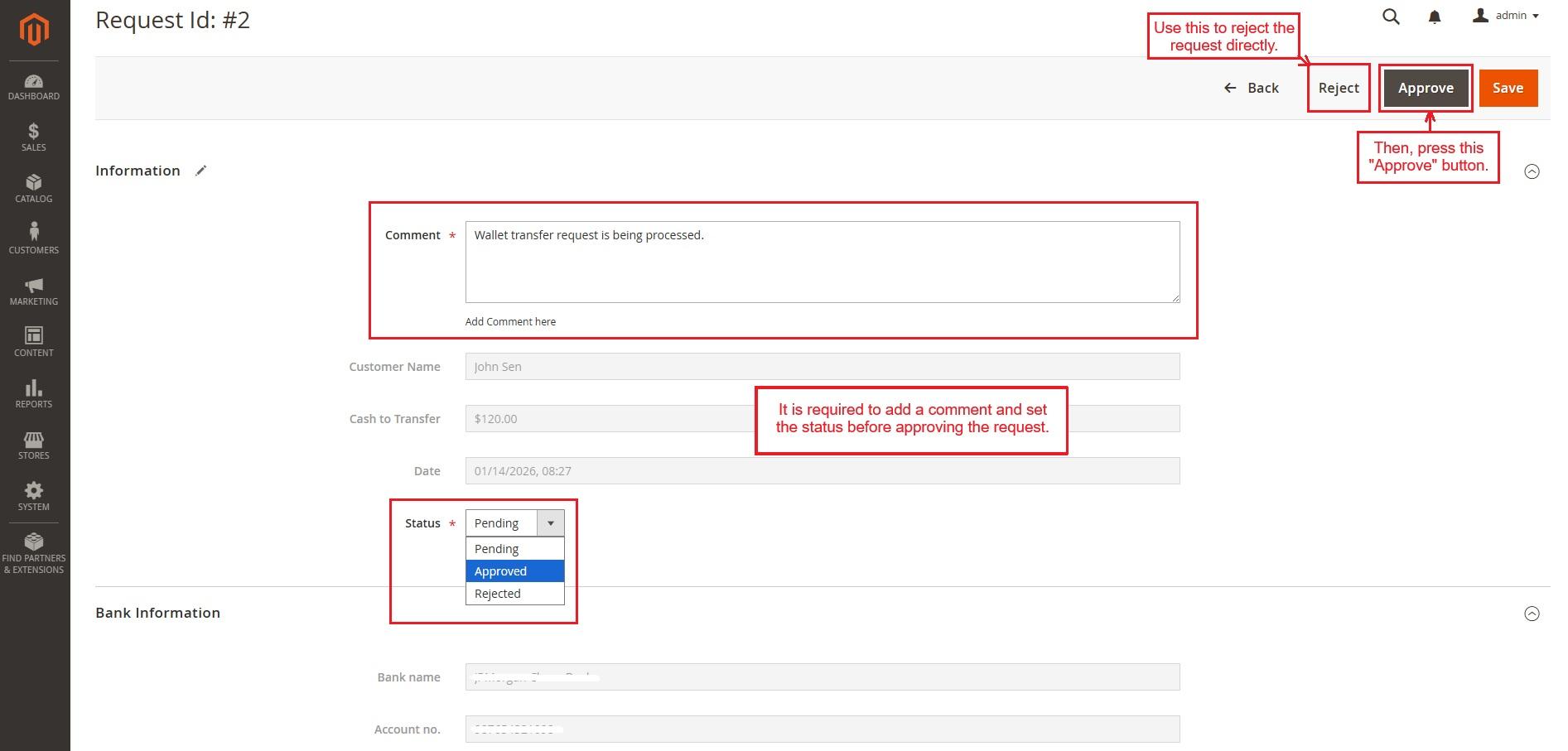
- Before approving, the admin needs to add a comment and choose the correct status. After that, they can click the “Approve” button to complete the process.
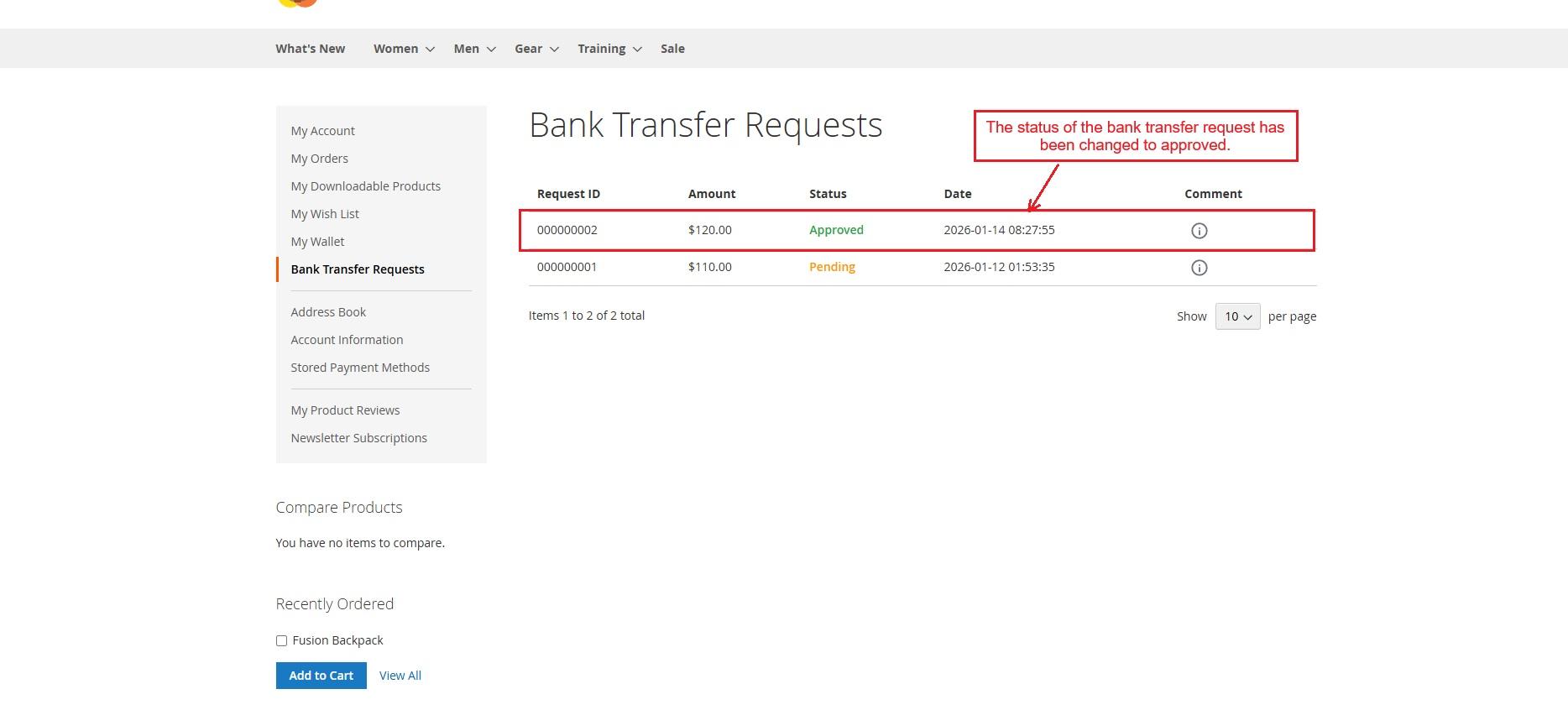
- The bank transfer request is now marked as “approved” in both the customer and admin panels, and the money has been transferred to the bank. The admin can change the status again if required.
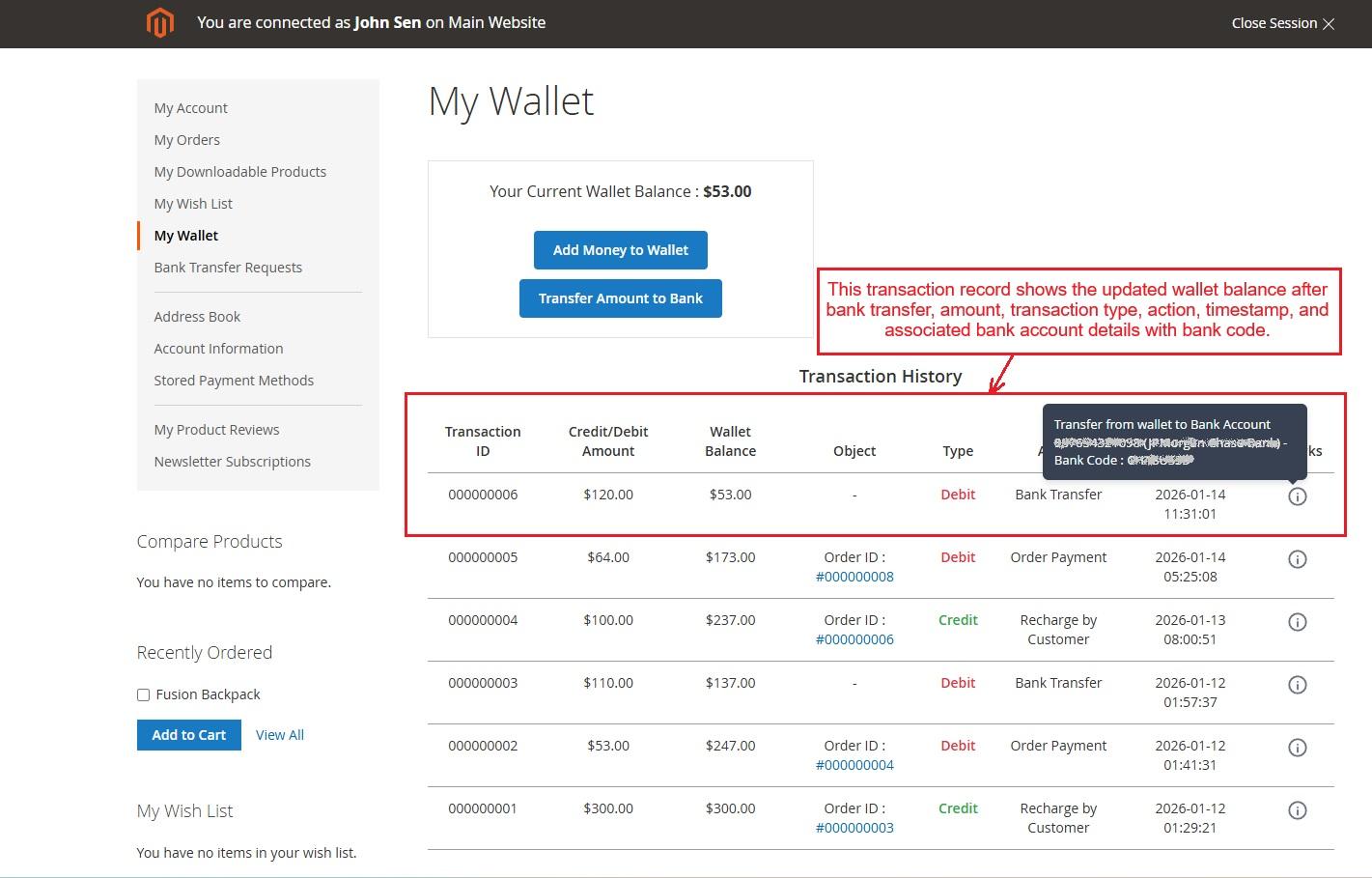
- Now, the customer can see the recent bank transfer transaction entry showing the updated wallet balance after debit, the amount transferred, transaction type, transfer action, timestamp of the transaction, and associated bank account details with the bank code.
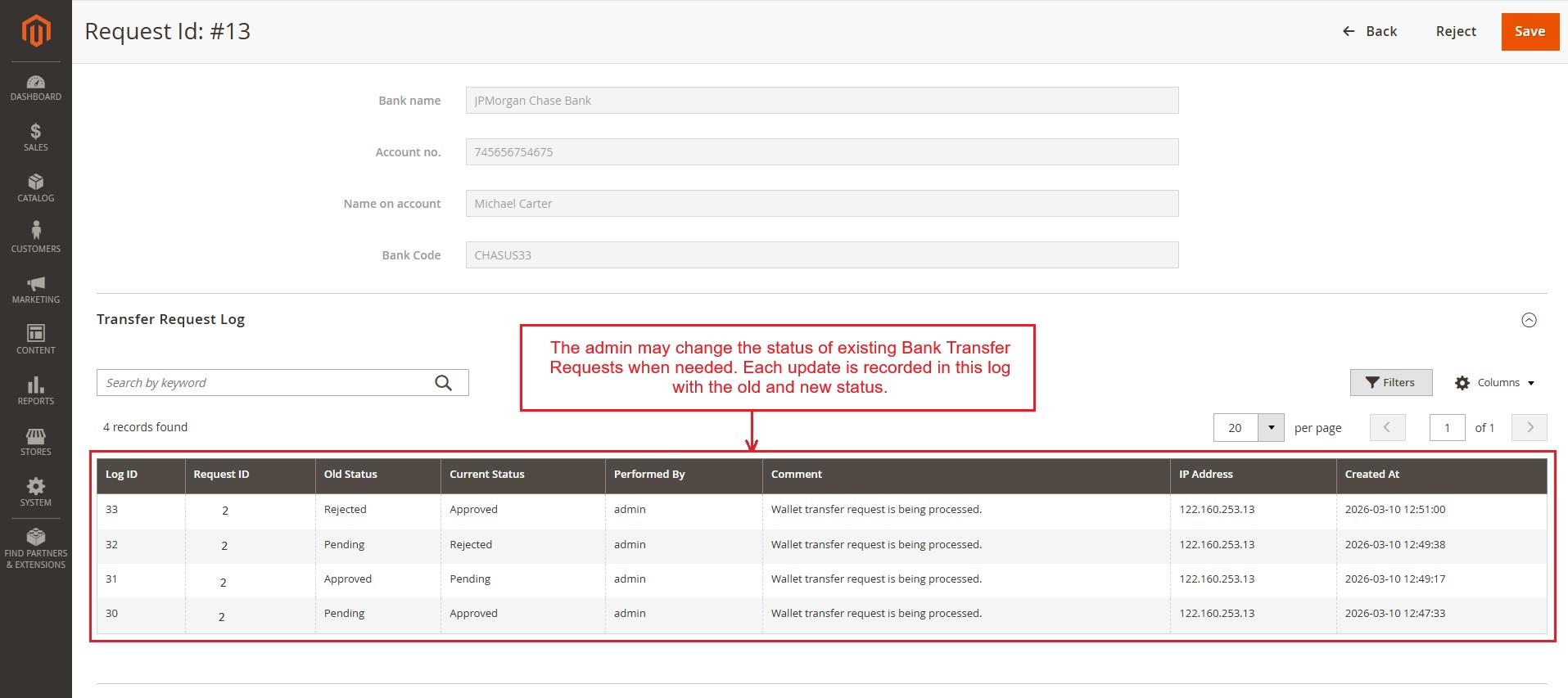
- The admin may change the status of existing Bank Transfer Requests when needed. The latest request status is updated above, and each change appears in the log on this same page with the old and new status.
Admin Controls Customer Wallet: Add, Refund, Deduct
The admin can send and receive money securely from customers’ wallets.
Go to Store menu ➡️ Click on Wallet system ➡️Select Wallet Transactions ➡️ Press the Add New Transaction button
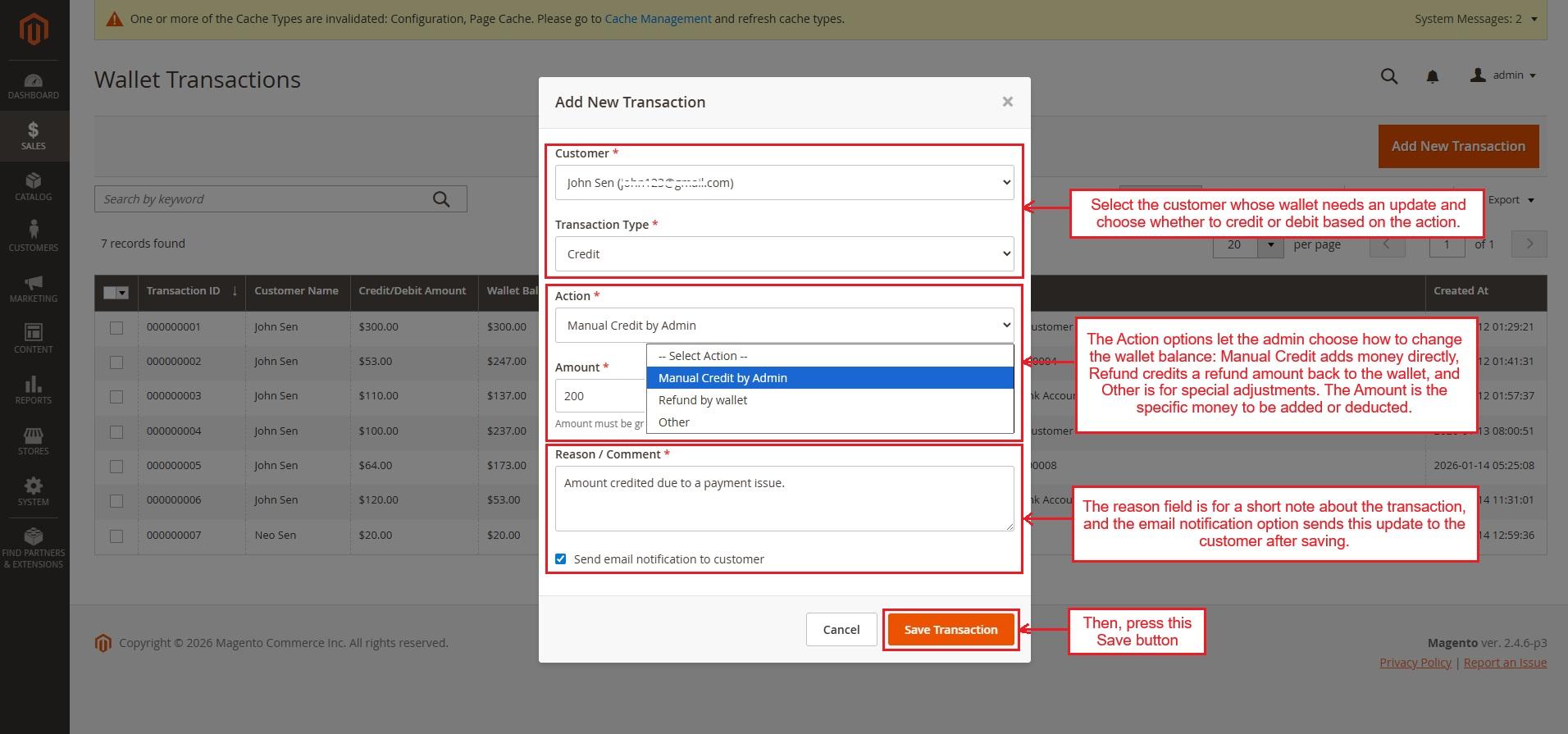
Clicking on “Add New Transaction” opens a pop-up window for entering the details of a new transaction.

Here’s a clear overview of the key settings an admin can use to update a customer's wallet:
- Customer : Select the customer whose wallet requires an update.
- Transaction Type : Choose either Credit or Debit, depending on the action.
- Action : Select how to handle the wallet amount.
- Manual Credit by Admin: Directly adds funds to the wallet by the admin.
- Refund by Wallet: Credits a refund amount back to the customer’s wallet.
- Other: Used for custom or special wallet adjustments.
- Amount : Enter the amount to add or deduct from the wallet.
- Reason / Comment : Provide a brief note for record-keeping and customer reference.
- Email Notification checkbox: Decide whether to send an update email to the customer.
After saving, the transaction will appear in the wallet history and automatically update the customer’s wallet balance.
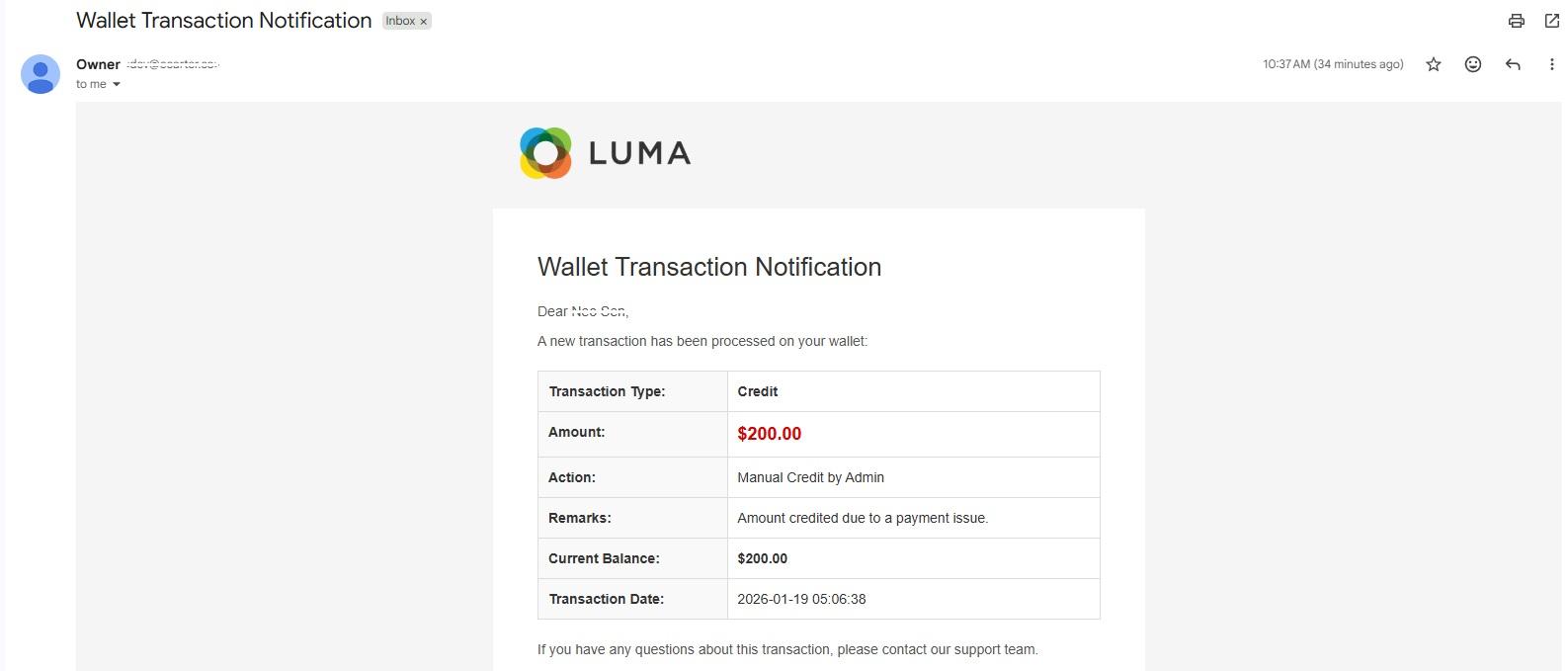
- The customer got this email because the notification setting is on and the admin has manually added the credit.
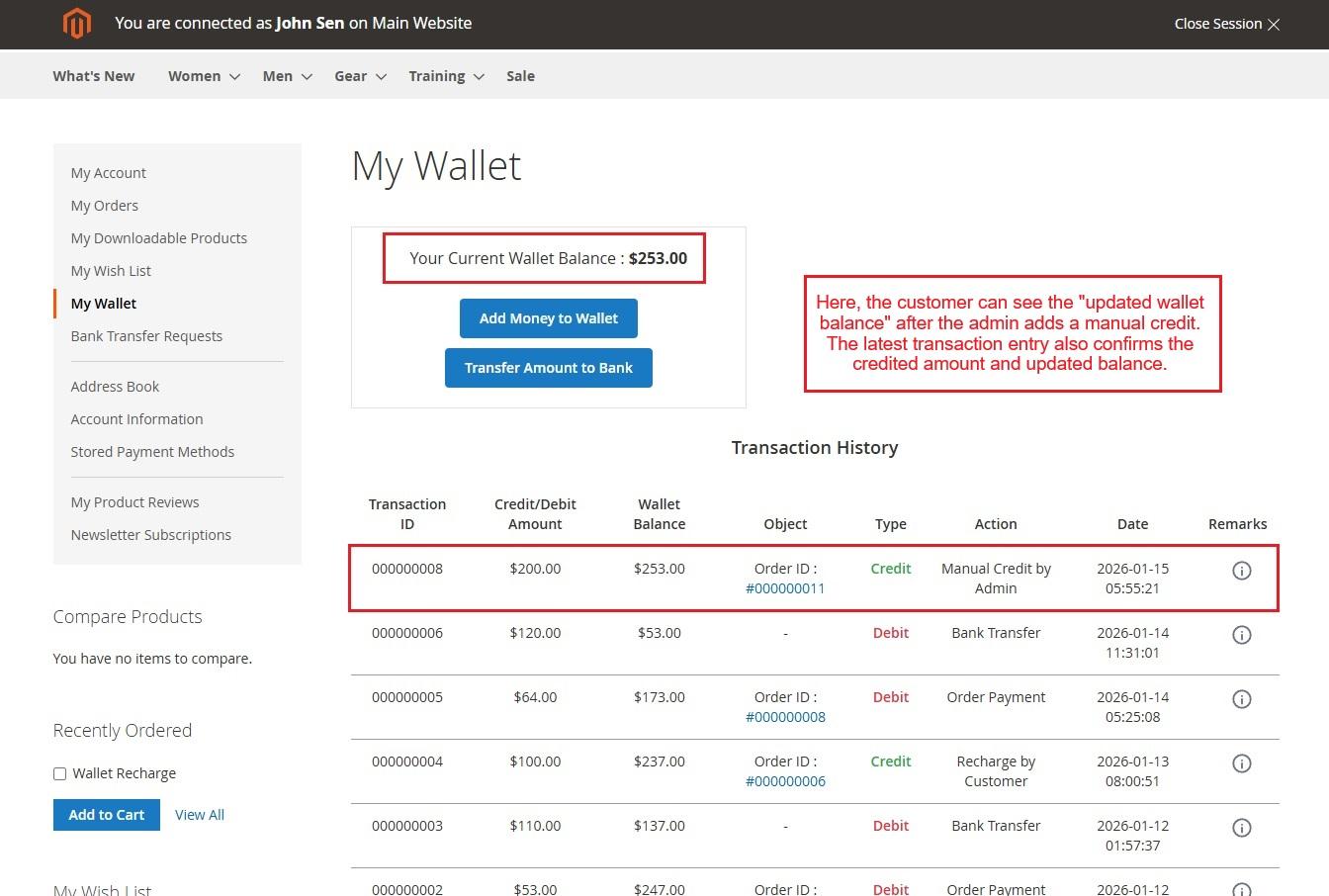
Now, the customer can see the updated wallet balance as the admin selected a manual credit by admin in action. The latest transaction entry also confirms the credited amount and updated balance.
Product Amount Refund to the Wallet
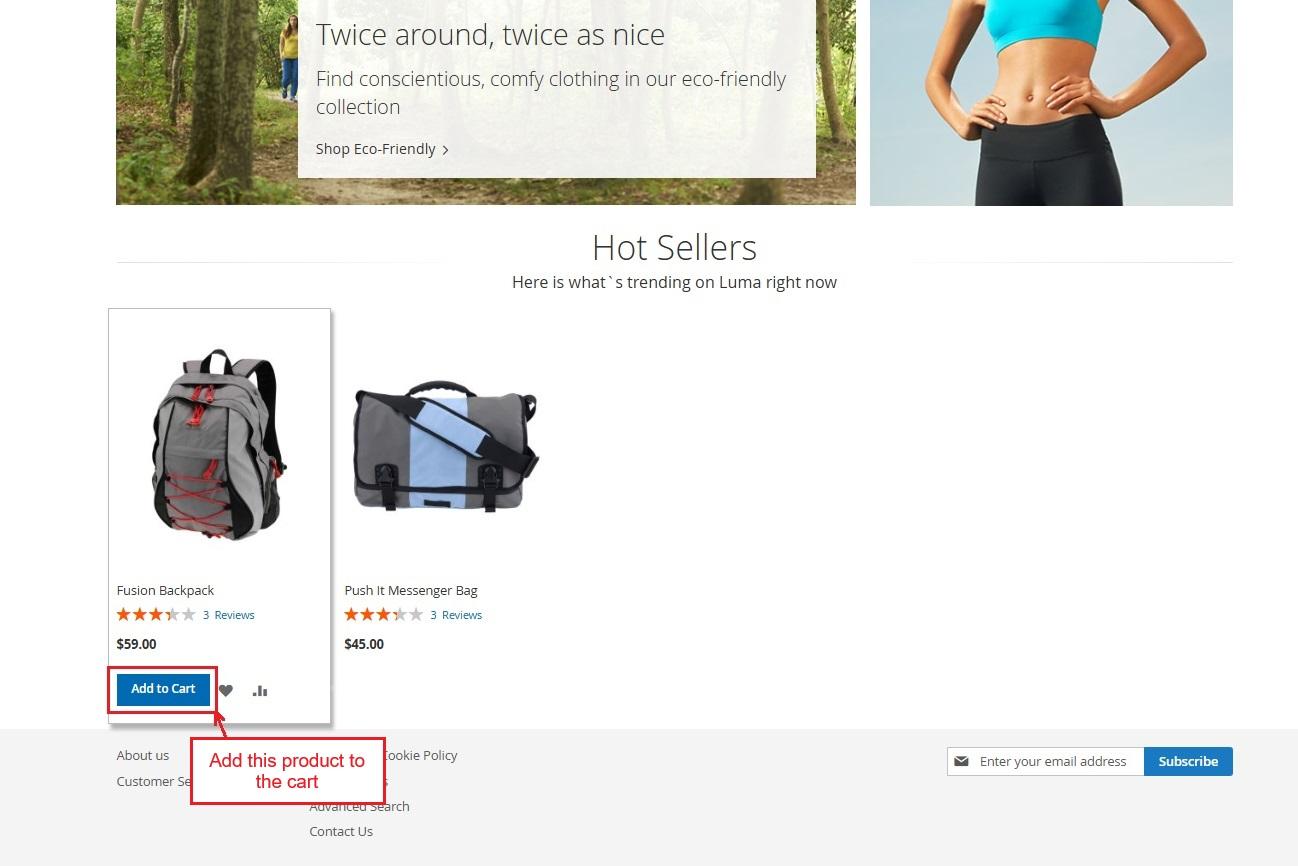
- The customer adds products to the cart and places the order using a regular payment method. Wallet balance is not used at this stage.

- The order appears in the admin panel with Pending status. All orders and customer details are visible for review.
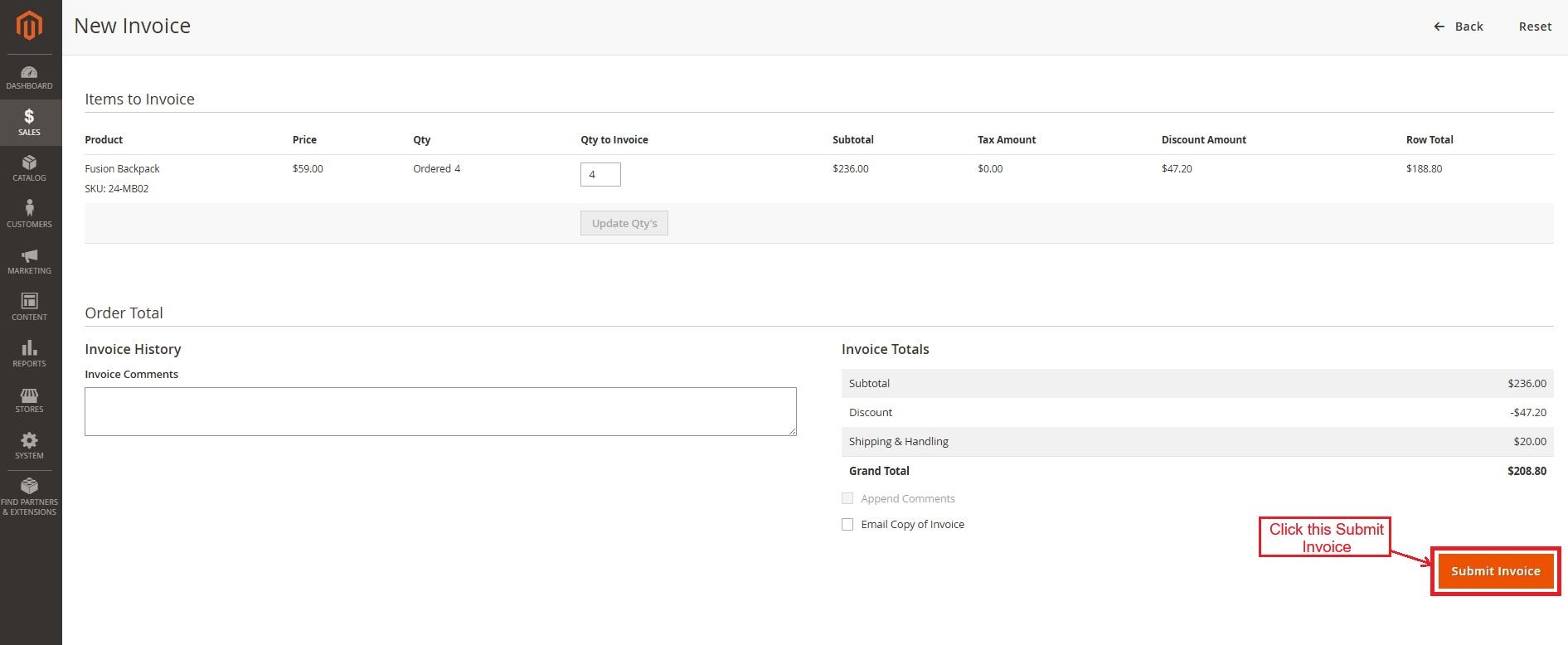
- The admin generates the invoice for the order, and the status changes from pending to process.

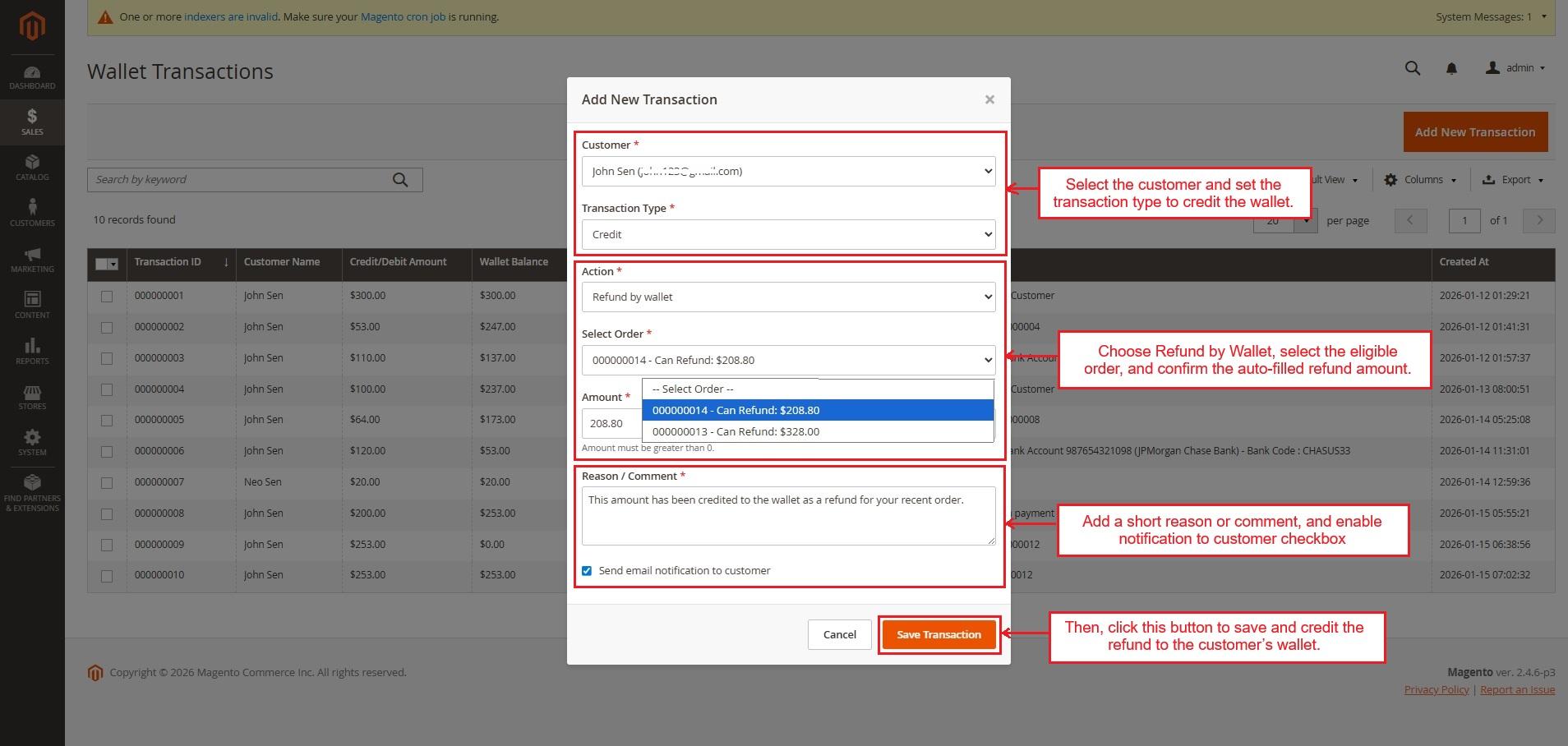
- To initiate the refund process for above order, the admin clicks Add New Transaction in Wallet Transactions. Here, select the customer, set the credit transaction type, and choose Refund by Wallet.
Note: Once Refund by Wallet is selected, the system checks eligible orders. Only orders placed without wallet payment and used the same payment method selected in the refund payment settings are eligible for wallet refund.
- Next, related orders appear. Select order, and the refundable amount is auto-filled in the amount field.
- Add the reason/comment in the provided field.
- Then, press Save transaction.
After saving the transaction, the refund amount is credited to the customer’s wallet. The wallet balance updates instantly.
- The customer can see the updated wallet balance and a new credit entry in transaction history with a refund action.

- Choose “Other” in the Action setting when the admin wants to add money to a customer’s wallet for reasons like special offers or rewards.

When the Debit Transaction Type Is Selected
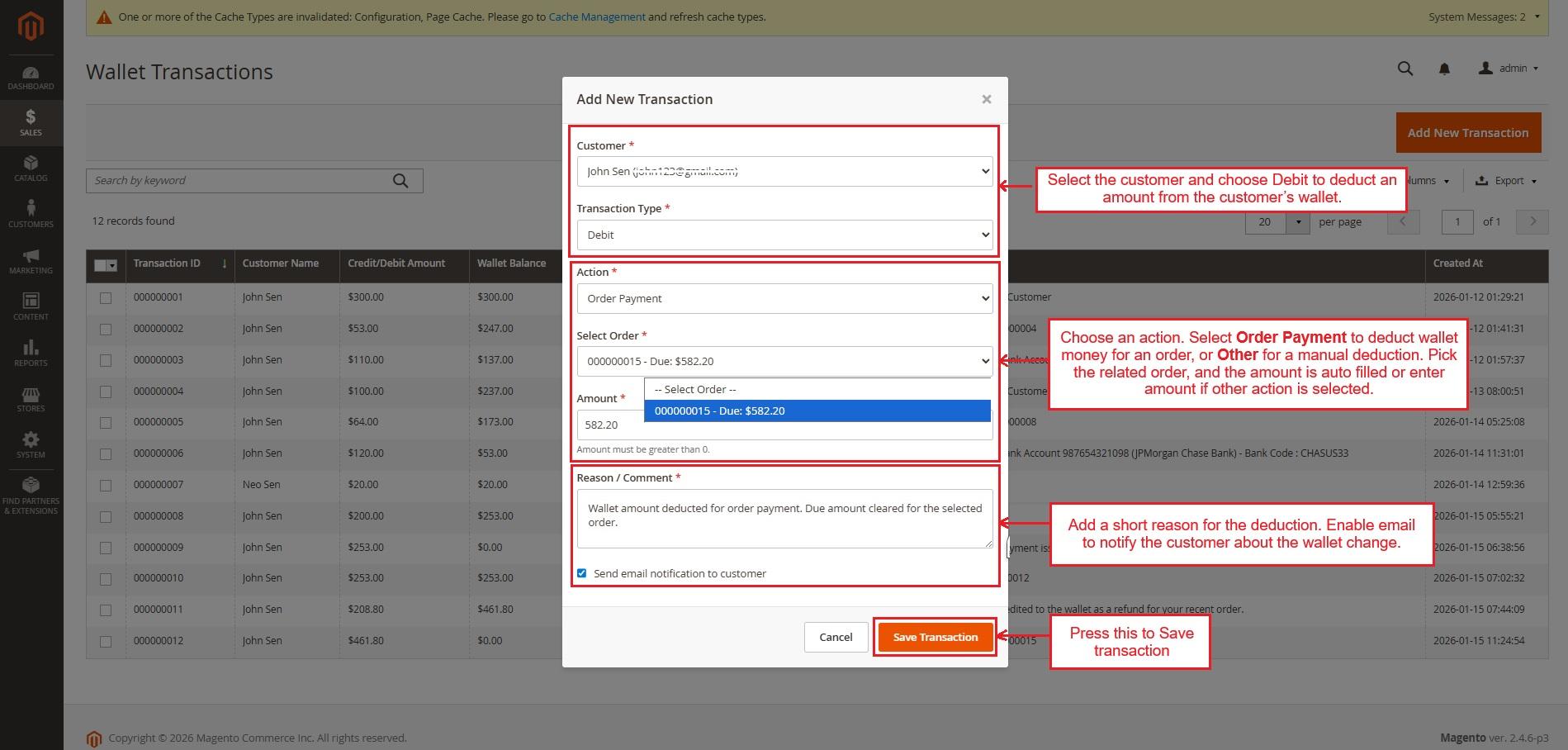
Admin can use the debit transaction type to deduct the wallet amount for any due payment of an order or manually add an amount for deduction using the “Other” option for reasons such as applying a penalty or covering an additional service fee.
- Customer & Debit Type: Select the customer and choose Debit to reduce the wallet balance.
- Action, Order & Amount: Choose an action. Select “Order Payment” to deduct wallet money for an order, or “Other” for a manual deduction. Pick the related order, and the amount is auto-filled, or enter the amount if “other” action is selected.
- Reason & Email: Add a short reason for the deduction. Enable email to notify the customer about the wallet change.
- Press “Save transaction”.
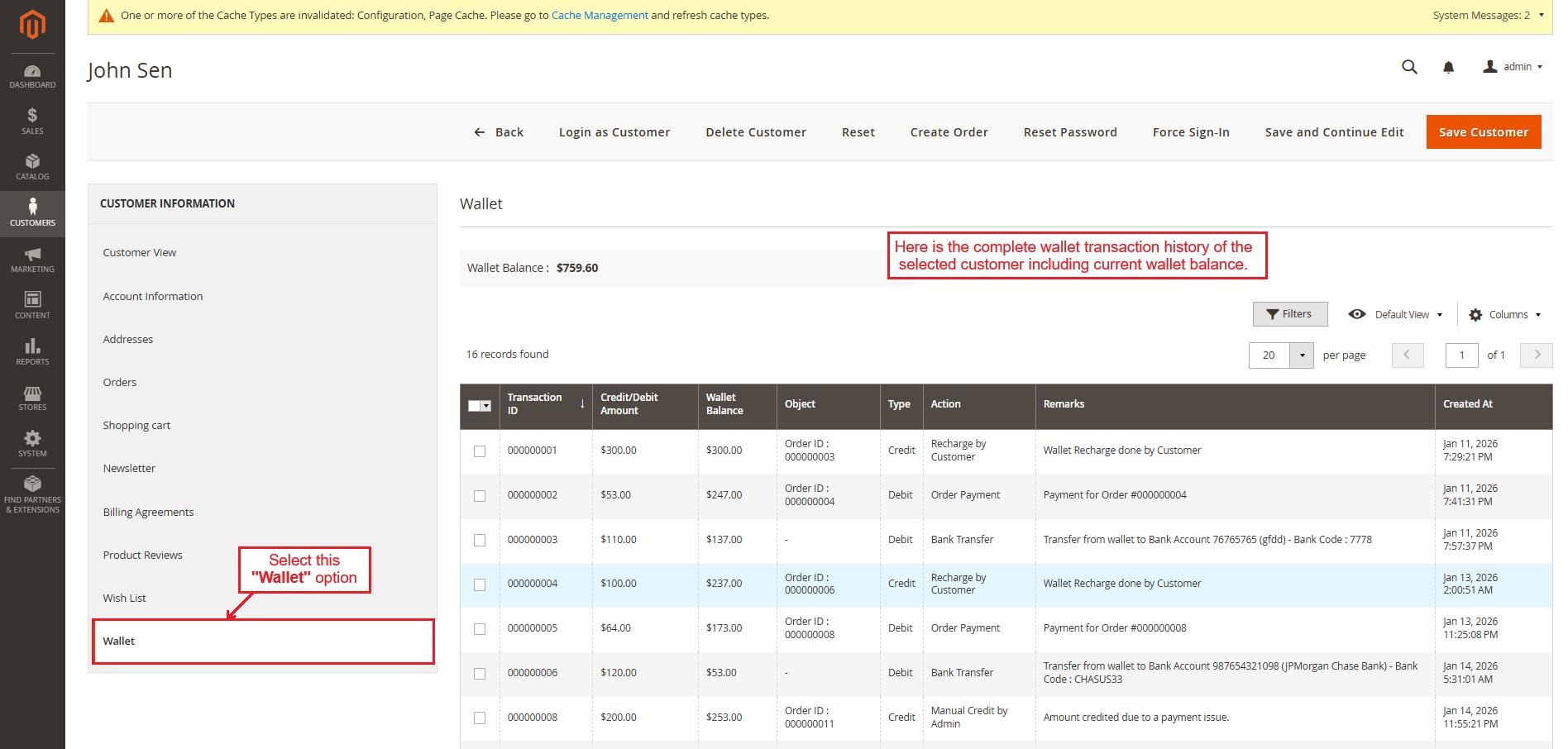
- The customer can view that the wallet amount has been deducted for the due order payment.

- Now, select “Wallet” and see the complete wallet transaction history of the selected customer, including their current wallet balance.
✅ Final Thought
Wallet system extension for Magento provides a simple and secure way for customers to handle wallet funds, pay for orders, and request bank transfers. Admins can monitor and manage all wallet transactions easily, ensuring accuracy and transparency. The extension enhances convenience, trust, and repeat shopping.
Supported Framework Version - 2.0.x, 2.1.x, 2.2.x,2.3.x, 2.4.x
Support:
This module is developed and published by Ecarter Technologies Pvt.Ltd., a Magento developer. You are guaranteed a quality module supported by future versions. If you need help, please contact us via email at support@ecarter.co.
Frequently asked questions
What can customers do with the Magento wallet?
Customers can add money to their wallet, pay for orders using the wallet balance, and transfer funds to their bank account if needed. They can also track their wallet balance and full transaction history from their account.
How does the admin manage wallets and refunds?
The admin has full control over wallet operations, including recharges, refunds, and manual balance adjustments. All customer wallet details, transactions, refunds, and bank transfer requests are shown in one place for easy management.
Can I limit who uses the wallet and how much they recharge?
Yes. You can set minimum and maximum recharge limits and restrict wallet usage to selected customer groups. The extension also supports multiple payment methods for adding funds.
Which Magento versions does the Wallet System support?
The extension is built for Magento and is compatible with recent versions. Share the exact version you are running and we will confirm compatibility before you buy.
Kajal is a Technical Content Writer at Ecarter Technologies. She writes technical documentation and in-depth guides on eCommerce platforms, mobile commerce and AI in online retail.