
Transfer Wallet Cash to Account
CS-Cart Transfer Wallet Cash to Account: This addon allows your store users and make them capable to transfer their wallet cash into any bank account.
The Transfer Wallet Cash to Account add-on for CS-Cart lets your store users move the balance in their wallet to a bank account. A customer opens their wallet on the storefront and submits a transfer request; the store admin then approves or rejects it from the admin panel. On approval the requested amount is credited to the user's bank account, and on rejection the deducted amount is refunded back into the wallet. It is built for CS-Cart stores that already run the Ecarter Wallet add-on and want to give users a controlled, admin-approved way to withdraw their wallet funds.
This addon for CS-Cart provides functionality to transfer wallet cash into a bank account. This addon is compatible with Ecarter Wallet Addon. The addon allows your store users and make them capable to transfer their wallet cash into any bank account by just a transfer request. For this, they need to open their wallet and just create a transfer request from the frontend.
After that, the store admin approves/rejects their transfer request from the admin panel. If he approves the transfer request the requested amount will be credited to that particular bank account and if he rejects the transfer request the deducted amount will be refunded and credited back into that user’s wallet.
Note: This add-on is dependent on Ecarter: Wallet Addon for CS-Cart.
Features:
- Wallet to Bank Transfer: Users can transfer their wallet cash to any bank account.
- Easy Transfer Request: Users just need to open their wallet, and create a transfer request.
- Admin Approval System: The store admin can approve or reject transfer requests from the admin panel.
- Automatic fund processing: If approved, the amount is credited to the user's bank account.
- Refund on rejection: If rejected, the deducted amount is refunded back to the user's wallet.
- CS-Cart Support info: The addon is well integrated with CS-Cart Multi-Vendor and can be used with its standard, Plus, and Ultimate Versions.
Addon Dependencies:
Ecarter: CS-Cart Wallet Addon
Installation:
How to Install Addon
https://store.ecarter.co/blogs/how-to-install-addon/
How Install Addon
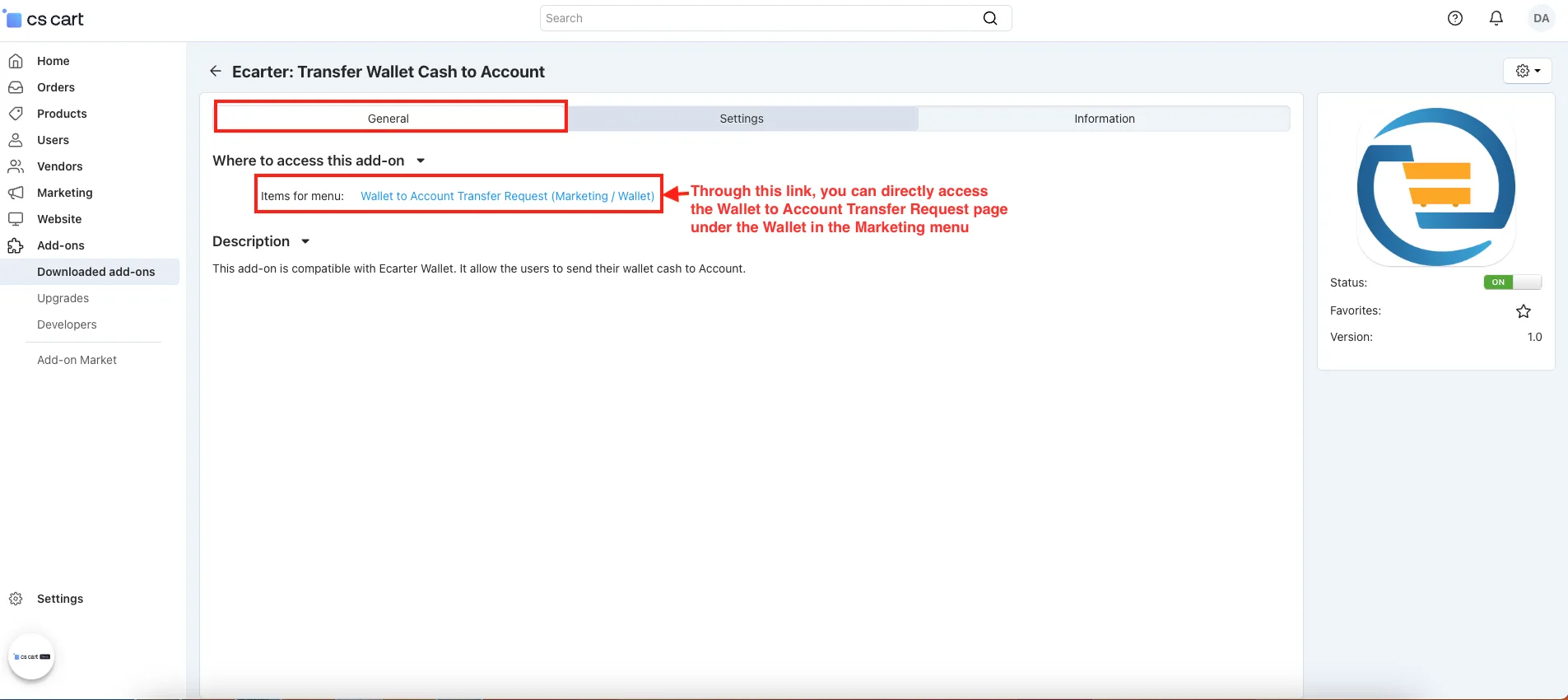
- Open the addon.
- In the General tab.
- Items for menu: Through this link, you can directly access the Wallet to Account Transfer Request page under the Wallet in the Marketing menu.
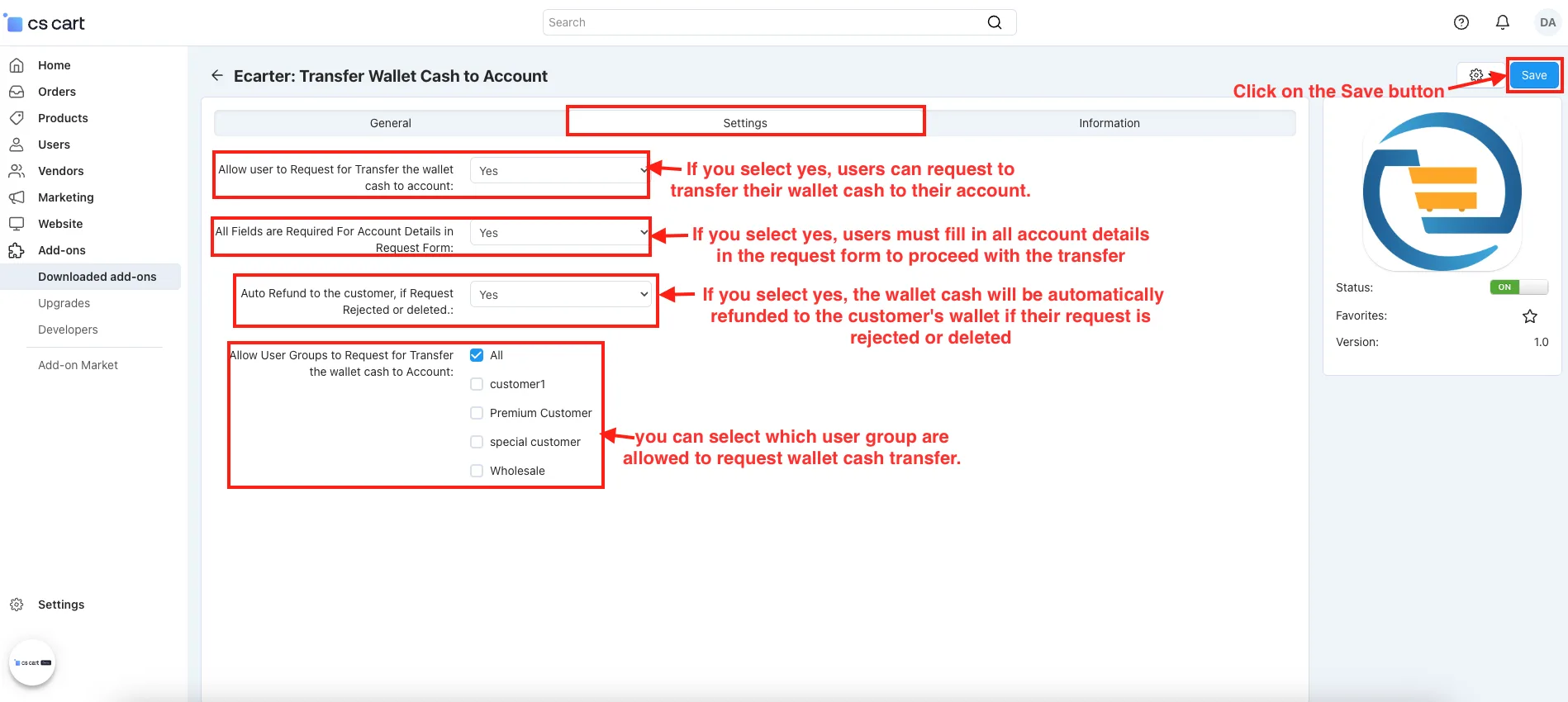
- Switch on the Settings tab.
- Allow user to Request for Transfer the Wallet cash to account: If you select yes, users can request to transfer their wallet cash to their account.
- All Fields are Required For Account Details in Request Form: If you select yes, users must fill in all account details in the request form to proceed with the transfer.
- Auto Refund to the customer, if Request Reject or Deleted: If you select yes, the wallet cash will be automatically refunded to the customer's wallet if their request is rejected or deleted.
- Allow user groups to Request for Transfer the wallet cash to Account: you can select which user group are allowed to request wallet cash transfer.
- Click on the Save button
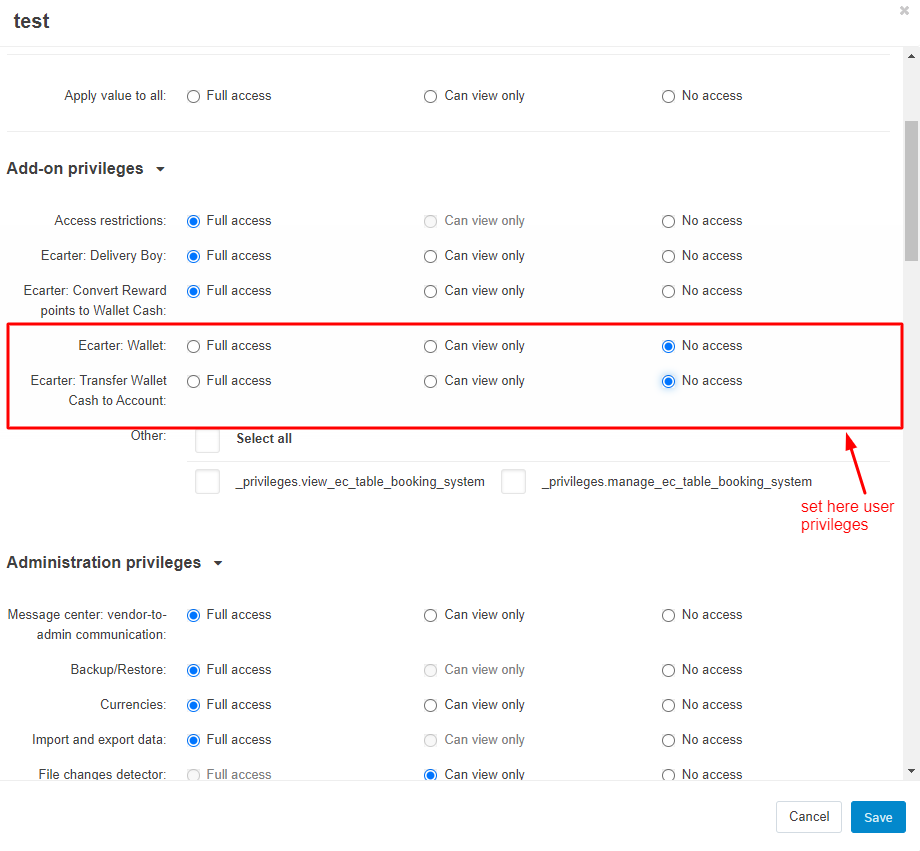
Set User-Privileges Here:
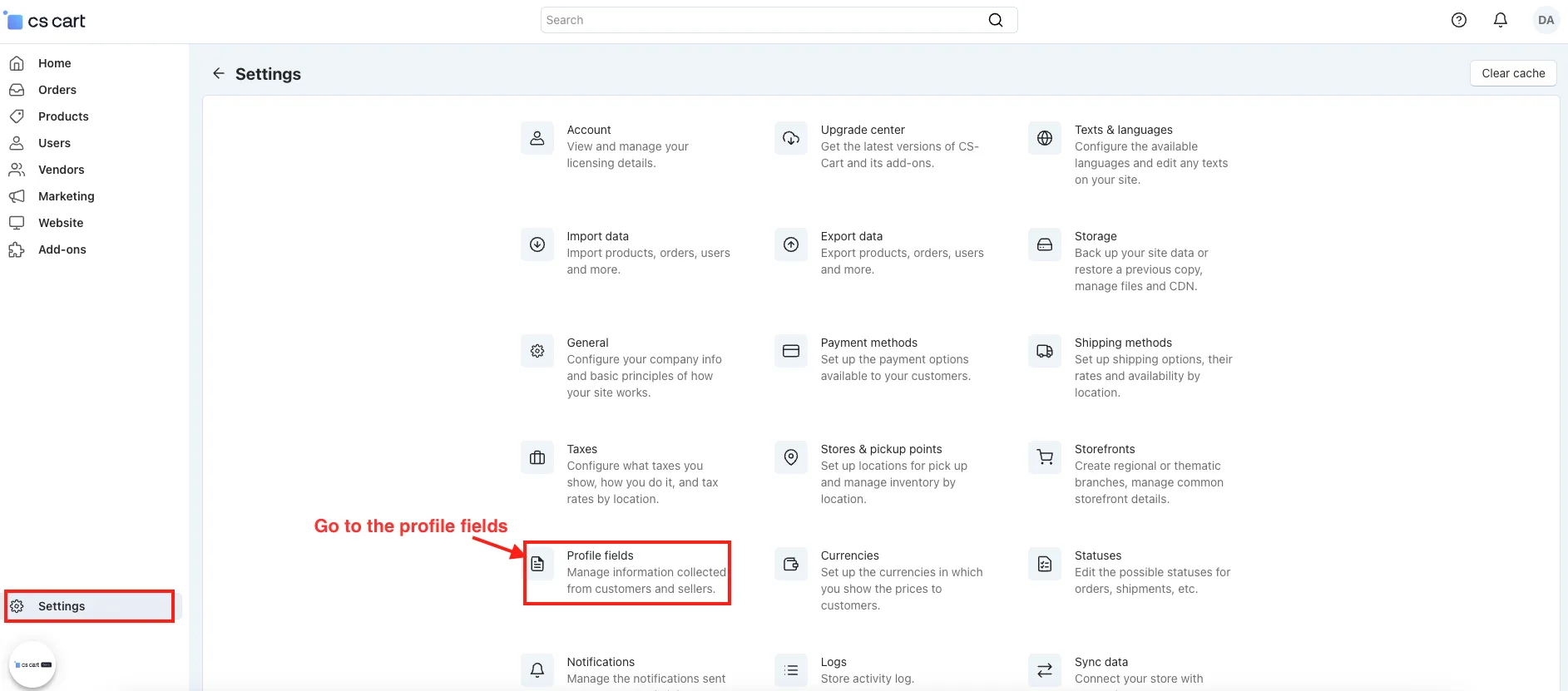
Add Profile Field For Bank Information:
- Go to the Settings.
- Go to the profile fields.
Add New Profile Fields:
- Select the customers and admins option.
- Click on the (+ Add field) icon to add profile fields.
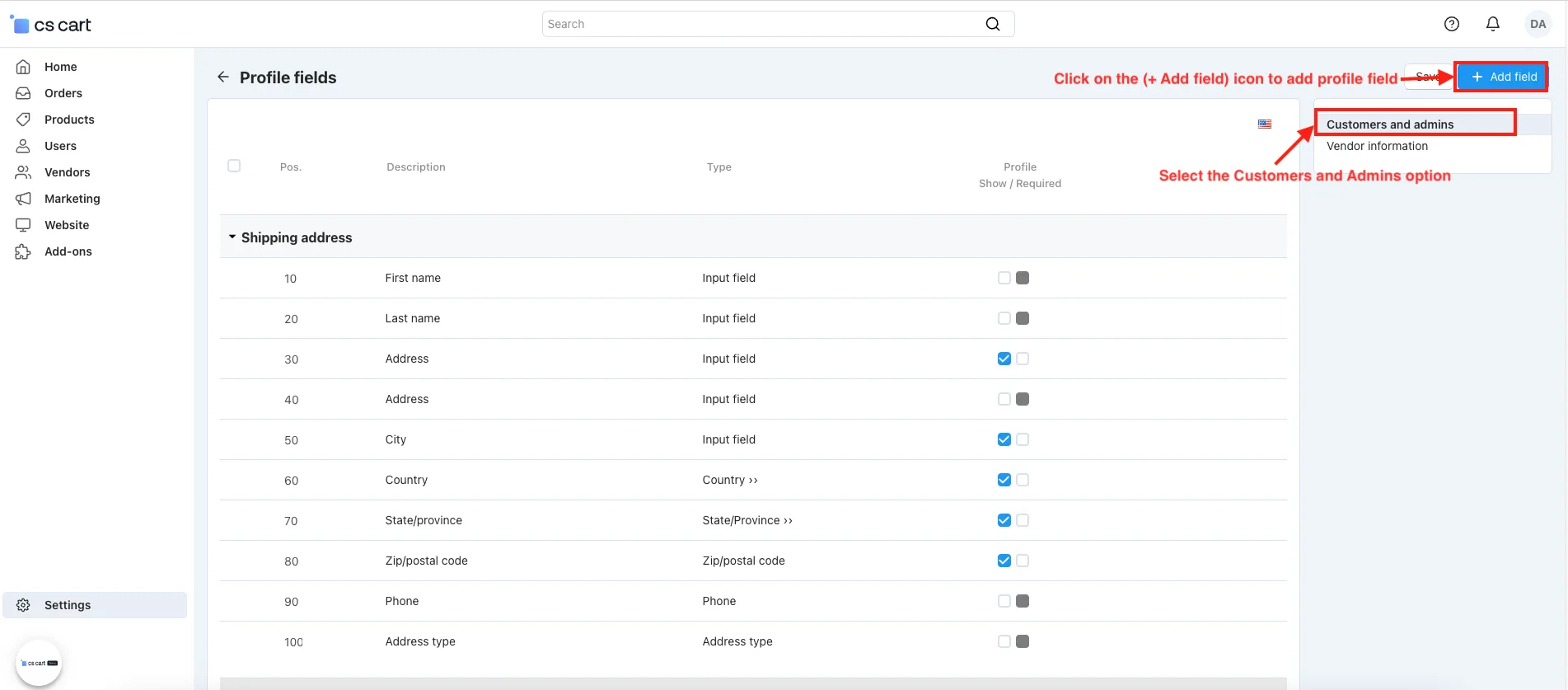
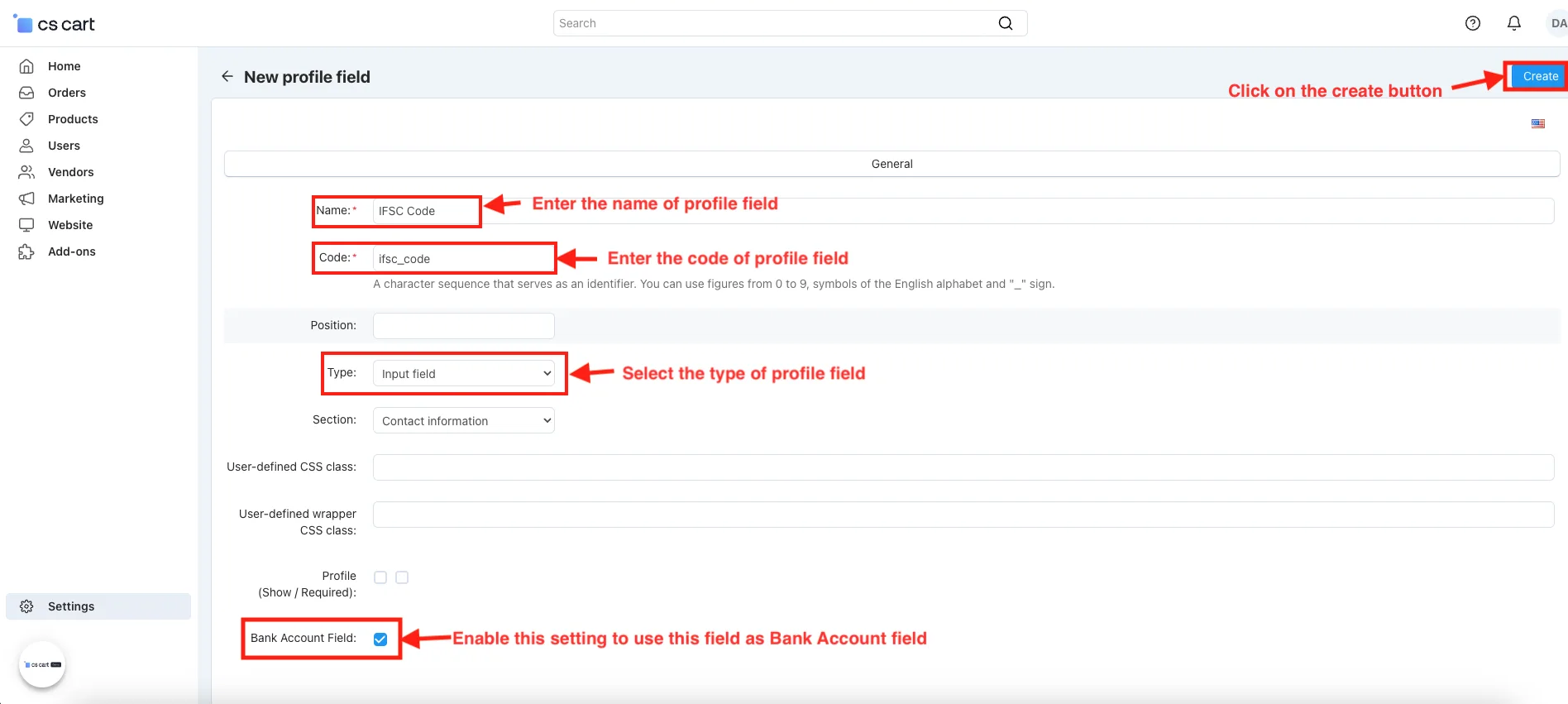
- Open the New Profile field page.
- fill in all information like name, code, type, and more.
- click on the Save button.
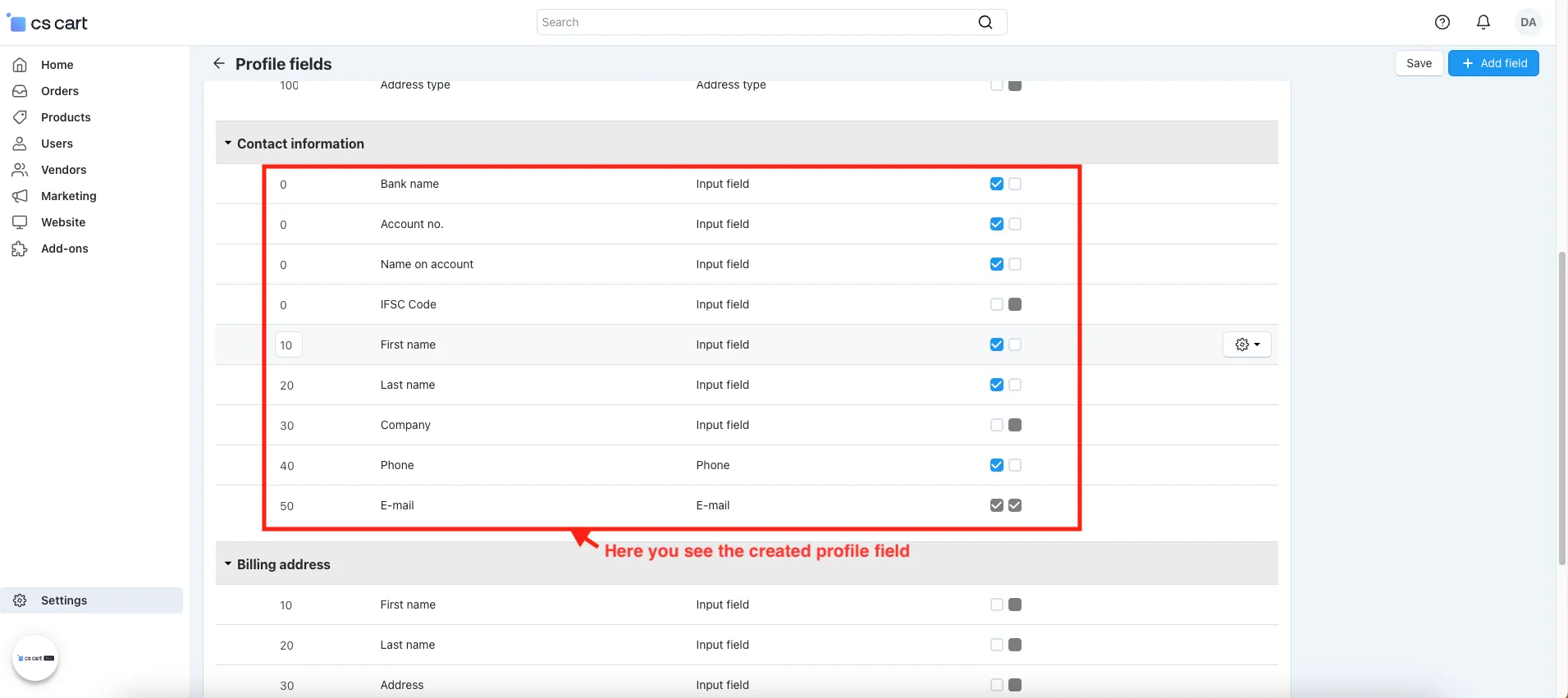
Profile Fields For Bank InformationItI:
- Here you see the added profile field for bank information.
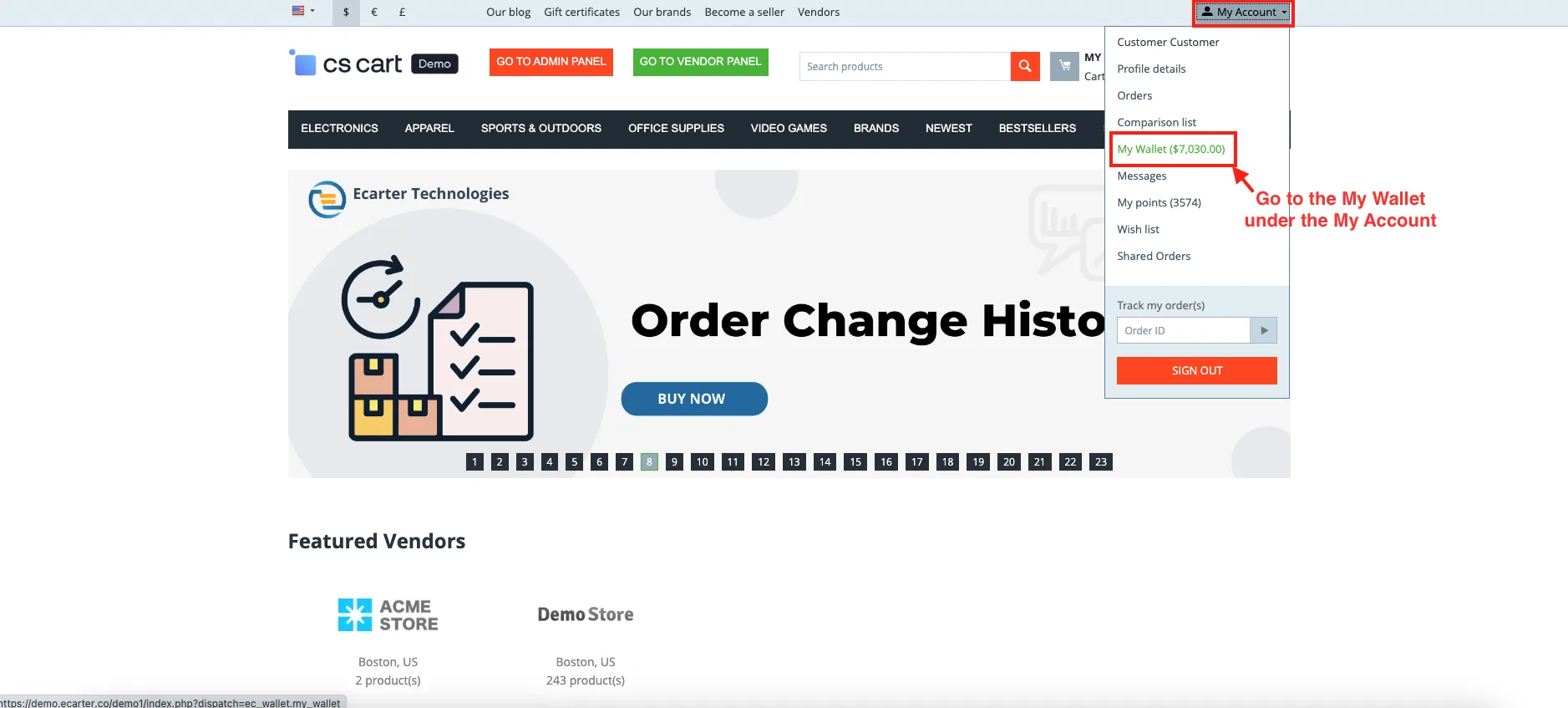
How to Create Transfer Request From Front-End:
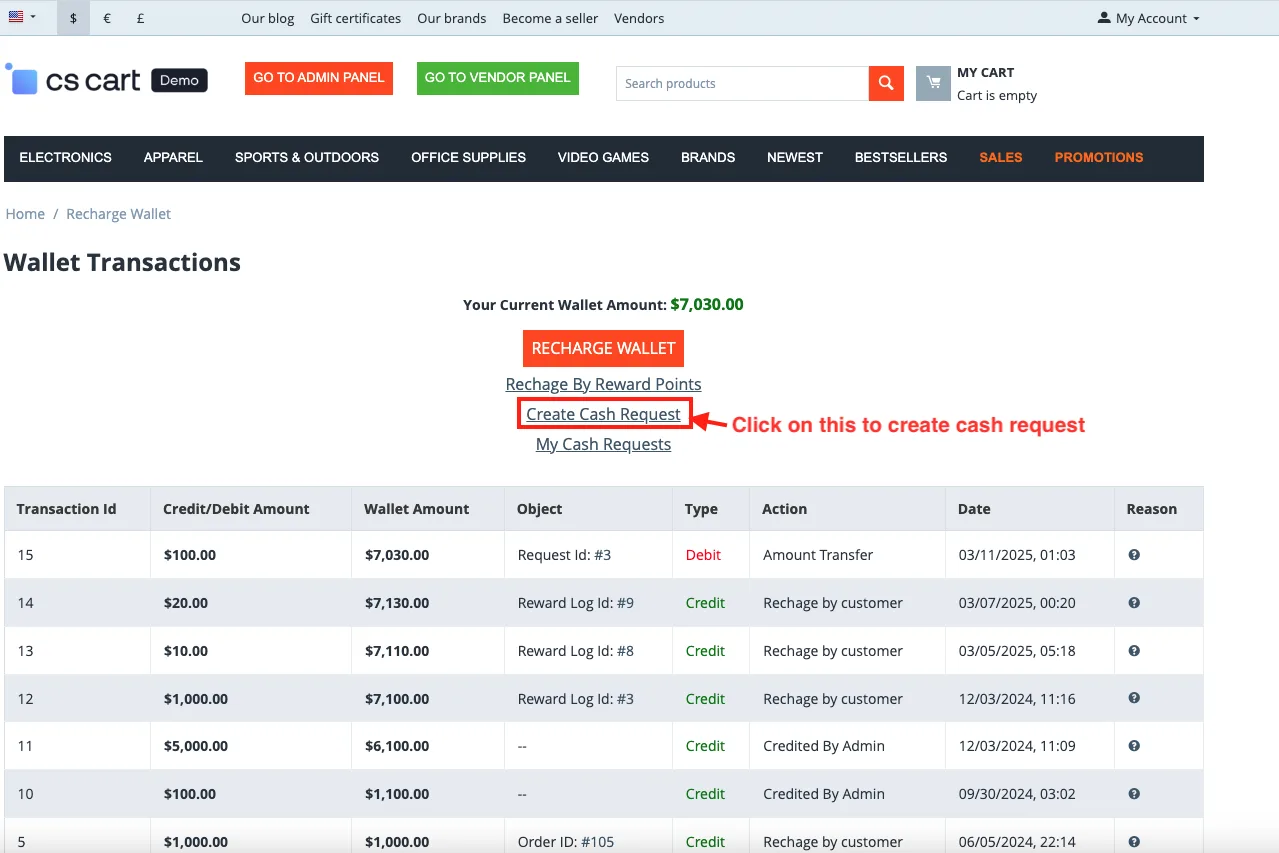
- Go to the My Wallet under the My Account.
Click On Create Cash Request:
- Click on the CREATE CASH REQUEST button to create a cash request.
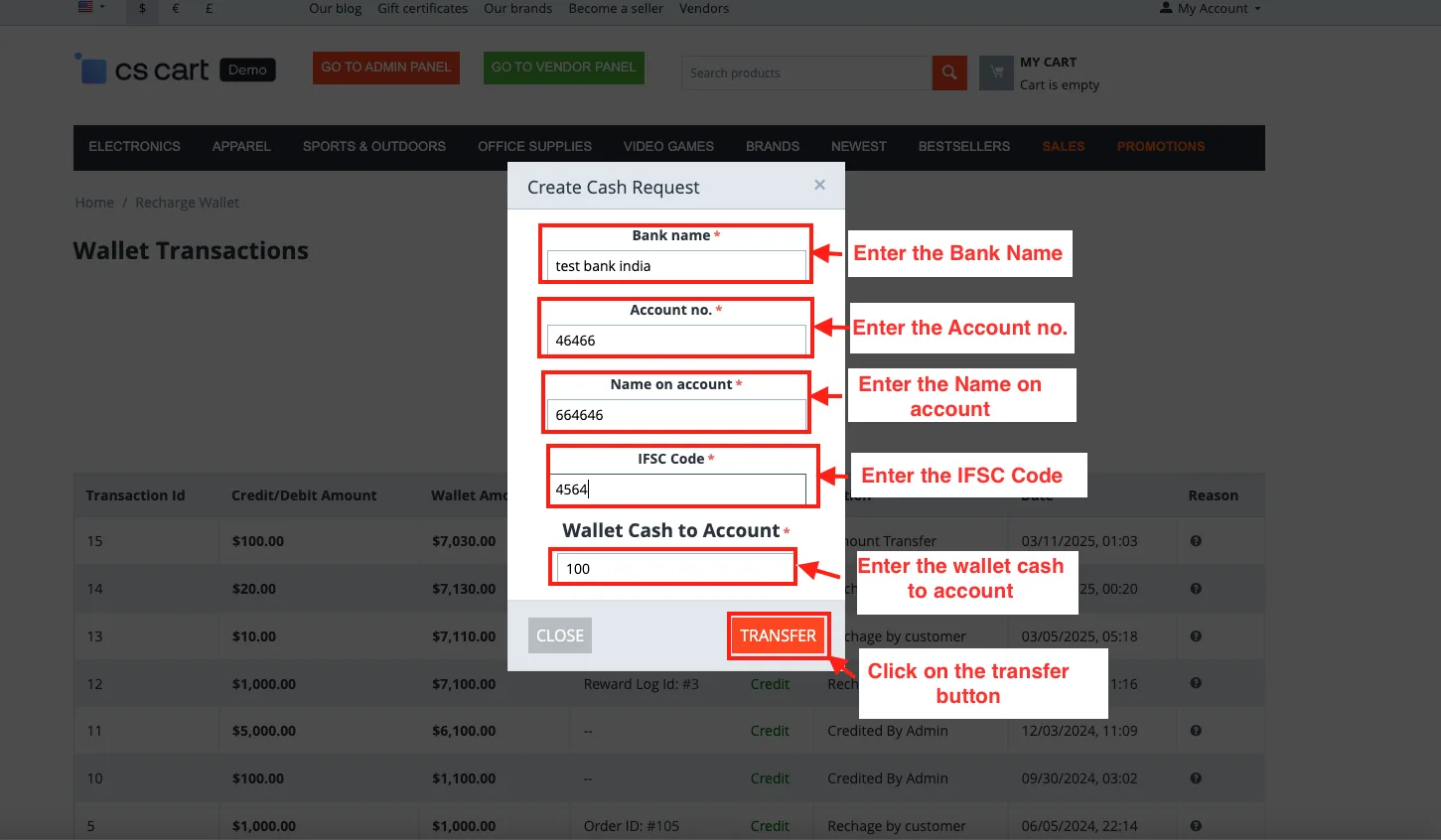
- Open the Create Cash Request pop-up window.
- fill in all information to create cash requests like account number, name on account, ifsc code, and more.
- Click on the Transfer button.
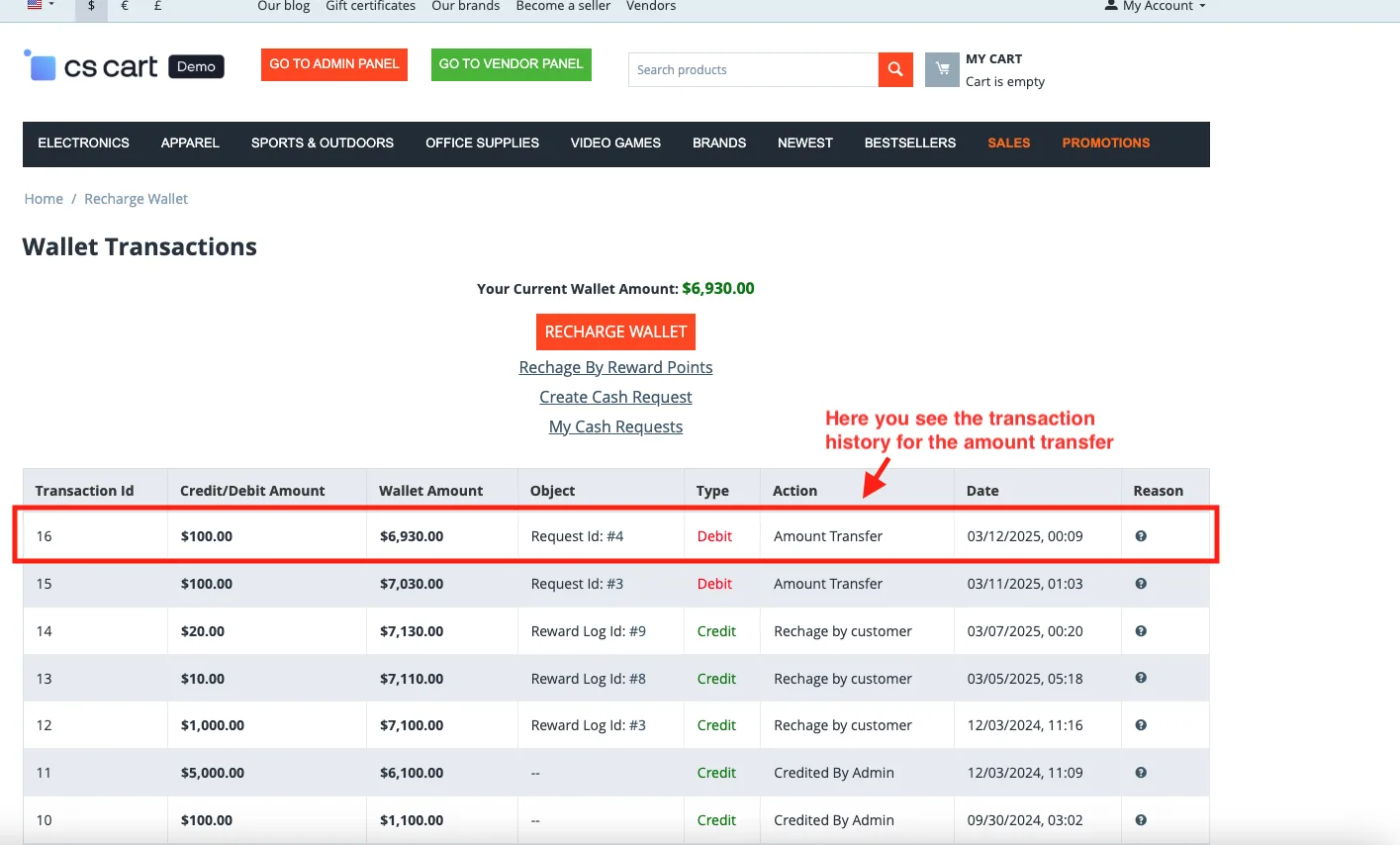
- Here you see the transaction history for the amount transfer.
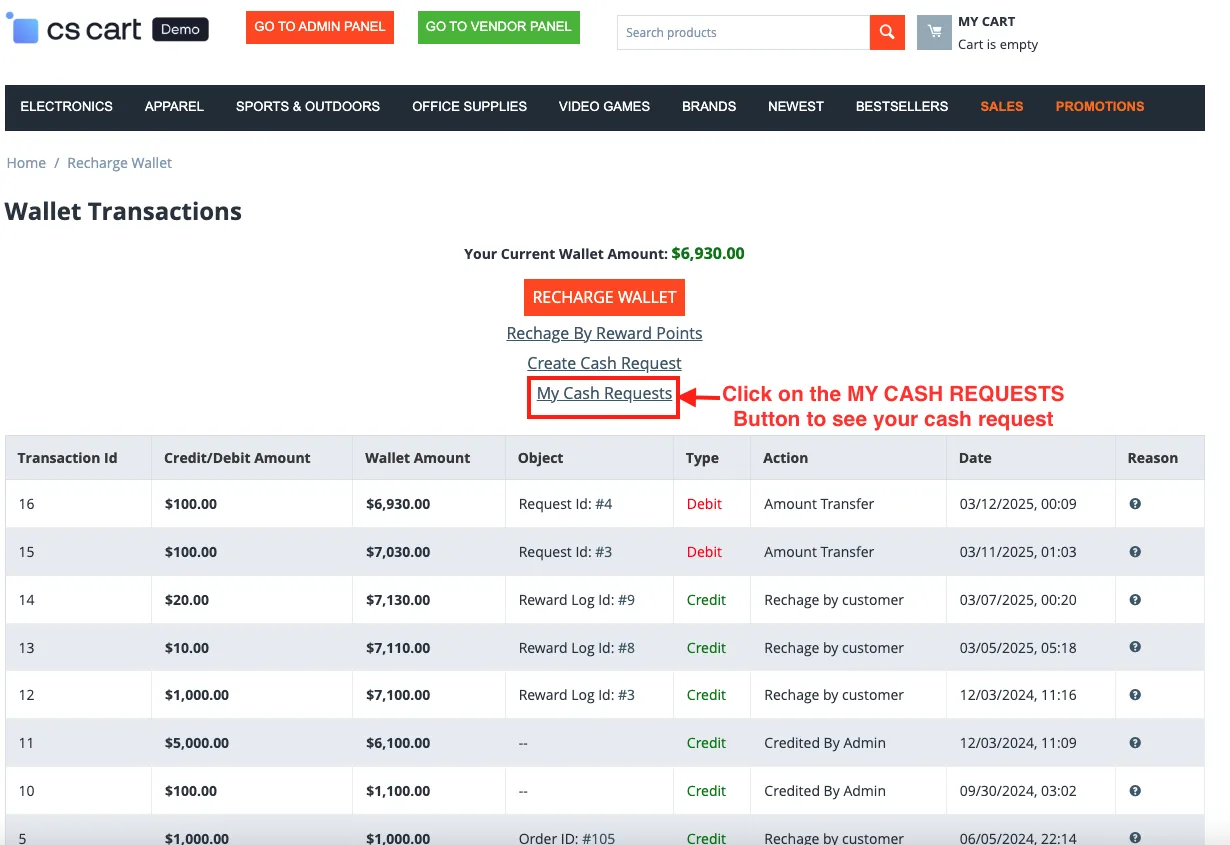
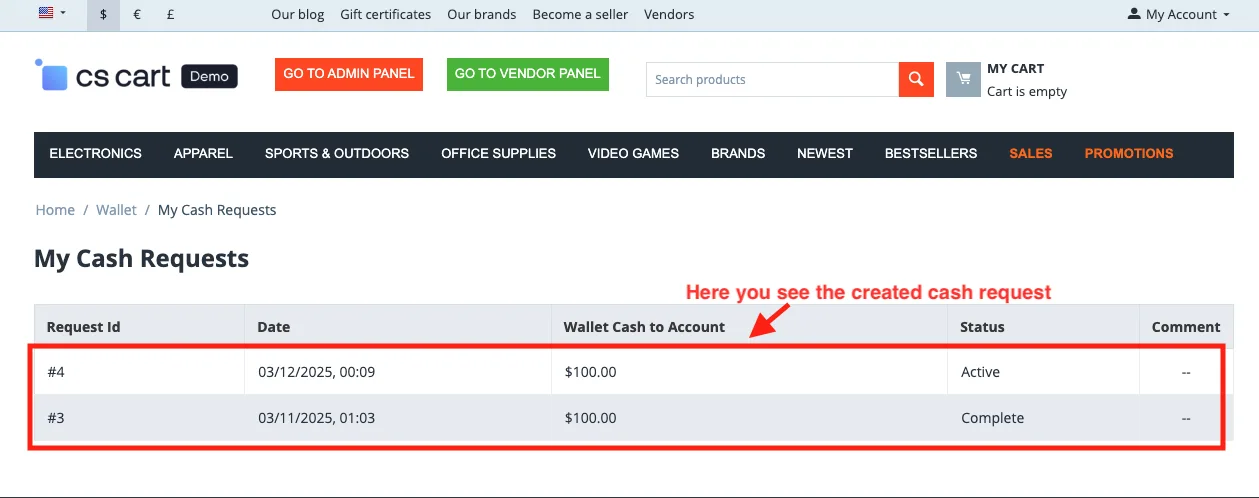
See Cash Request:
- Click on the MY CASH REQUESTS Button to see your cash request.
- Here you see the created cash request.
Manage Transfer Request From Admin Panel:
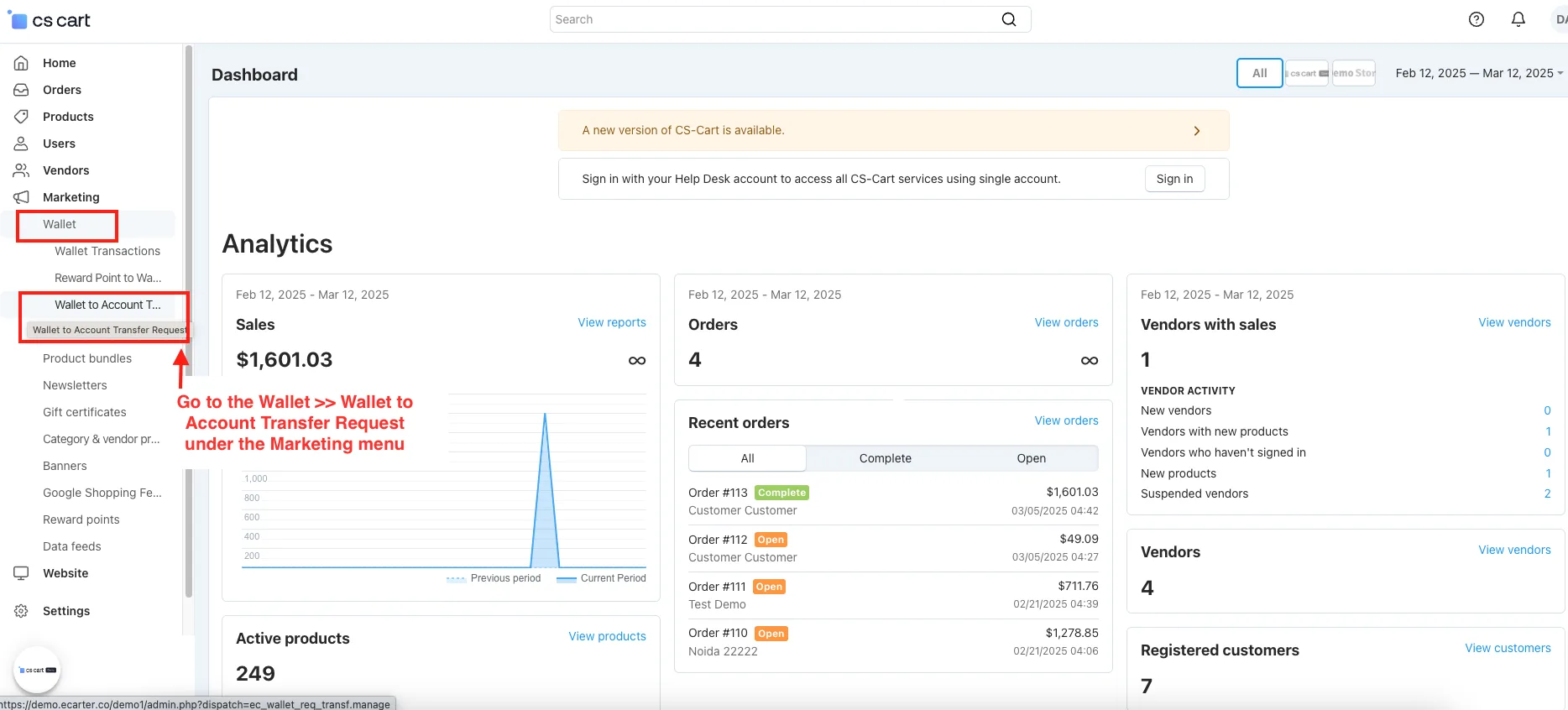
- Go to the Wallet >> Wallet to Account Transfer Request under the Marketing menu.
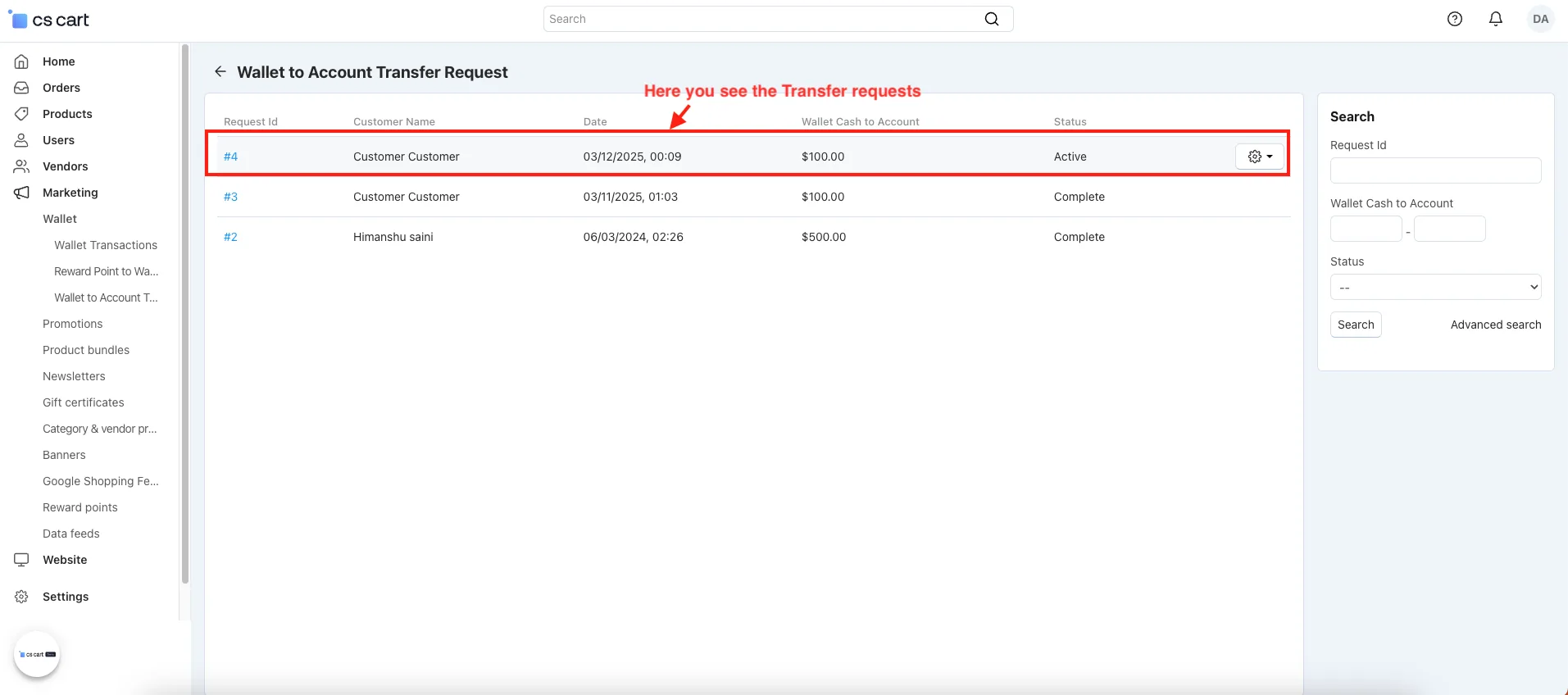
- Wallet to Account Transfer Request Page will be open.
- Here you see the Transfer requests.
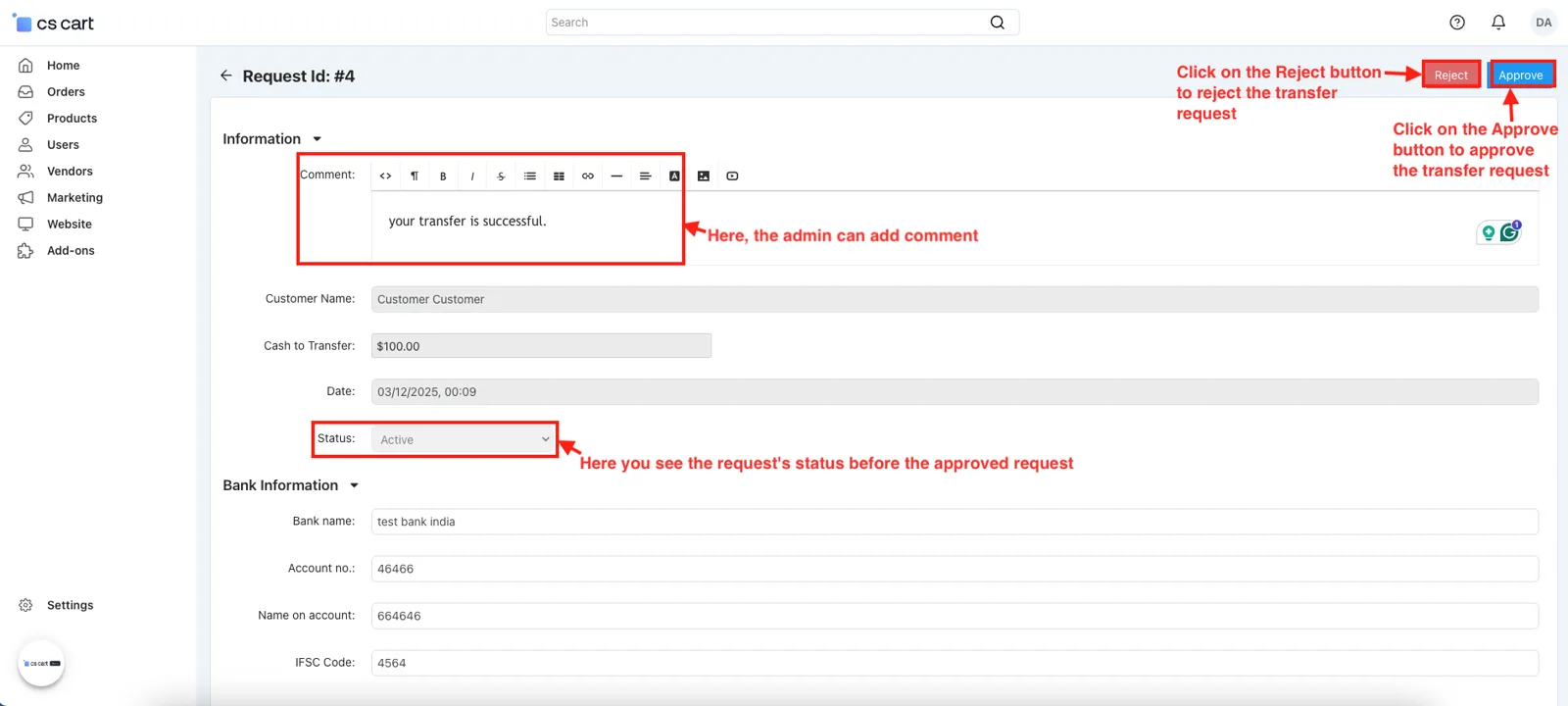
- open this request to add comment, approve, and reject transfer request.
- Comment: here, the admin can add comment.
- Status: here you see the request status before the approved request.
- Click on the Approve button to approve the transfer request.
- Click on the Reject button to reject the transfer request.
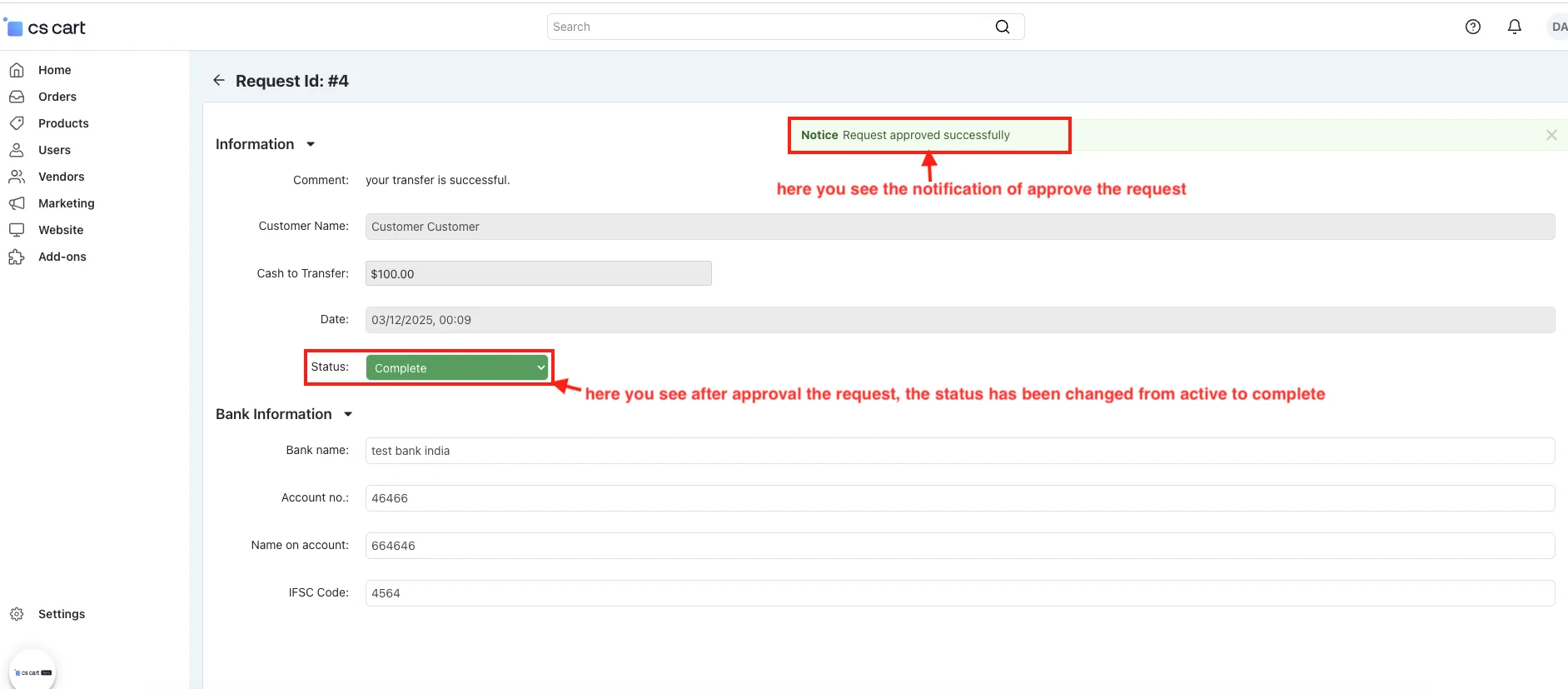
- here you see the notification of approve the request.
- Status: here you see after approval the request, the status has been changed from active to complete.
After Transfer Request Complete User-End:
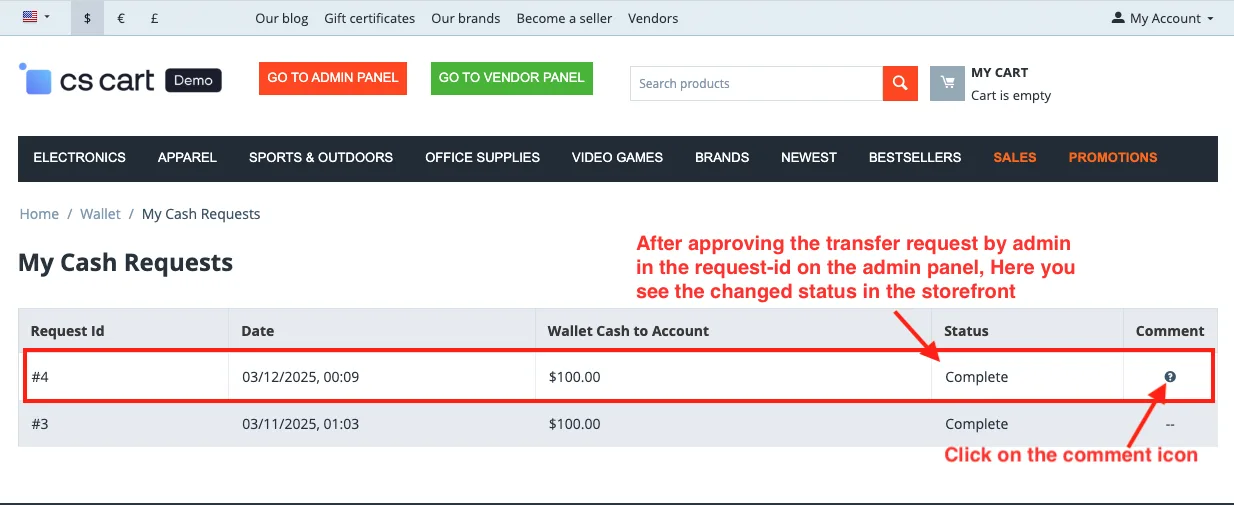
- After approving the transfer request by admin in the request-id on the admin panel, Here you see the changed status in the storefront.
- Click on the comment icon.
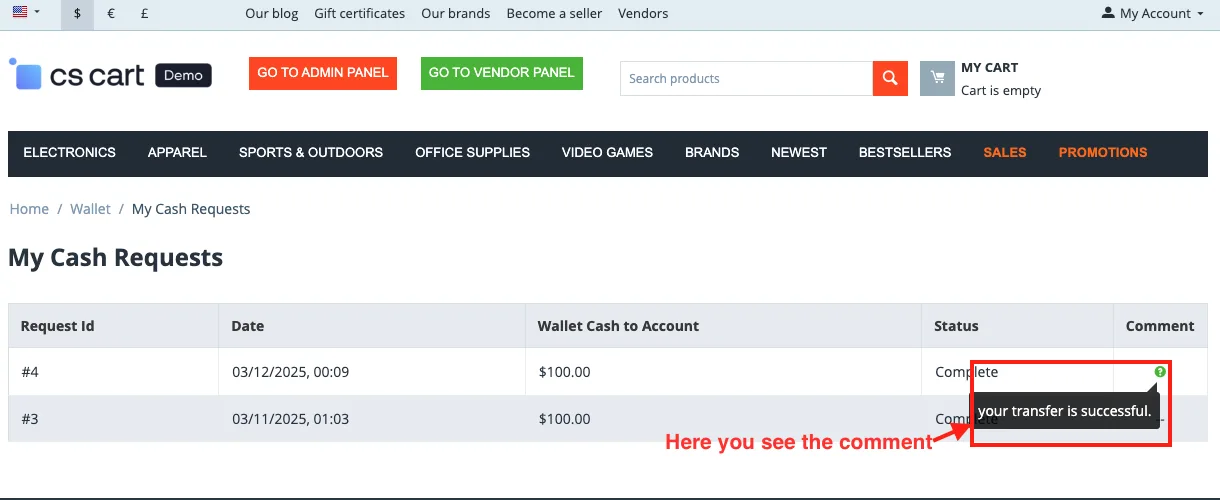
- Here you see the comment.
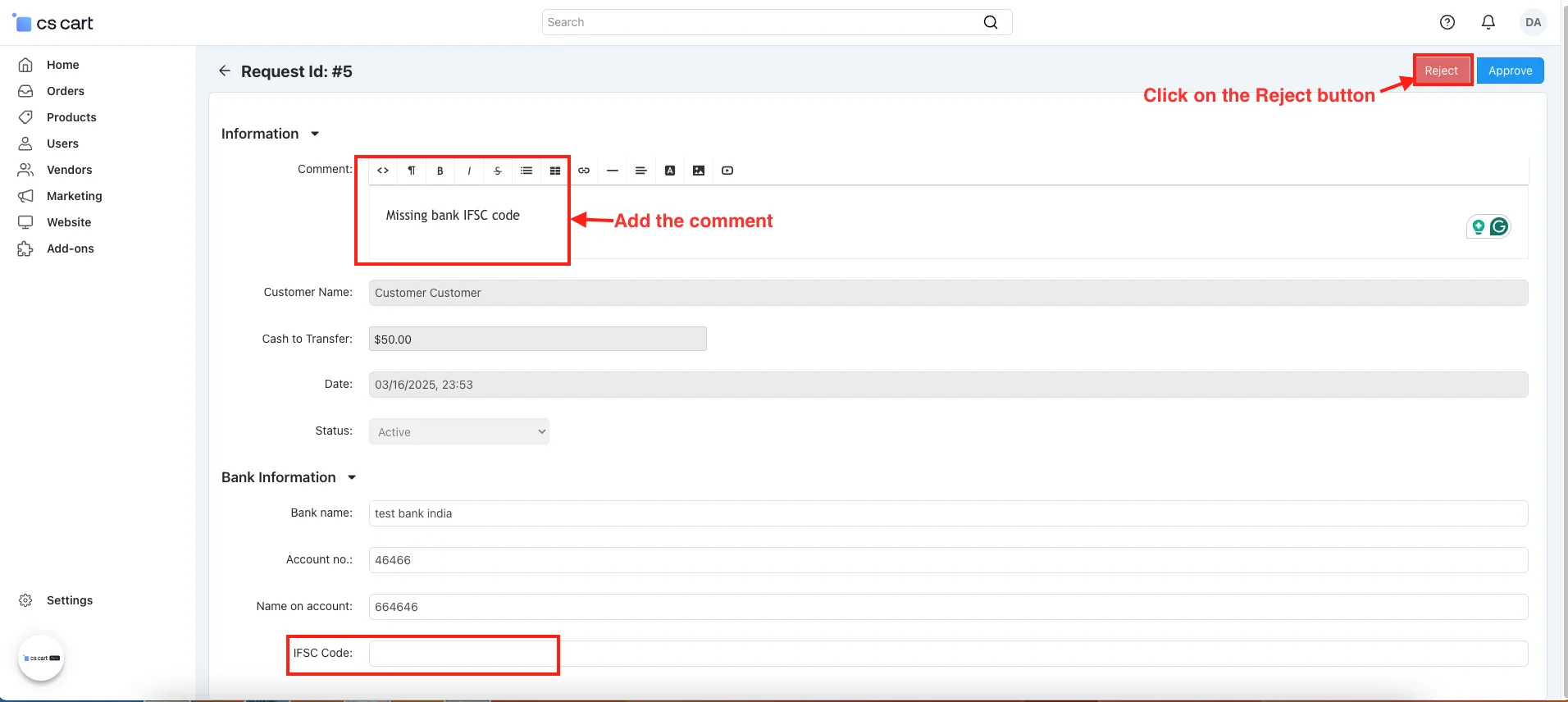
New Transfer Request:
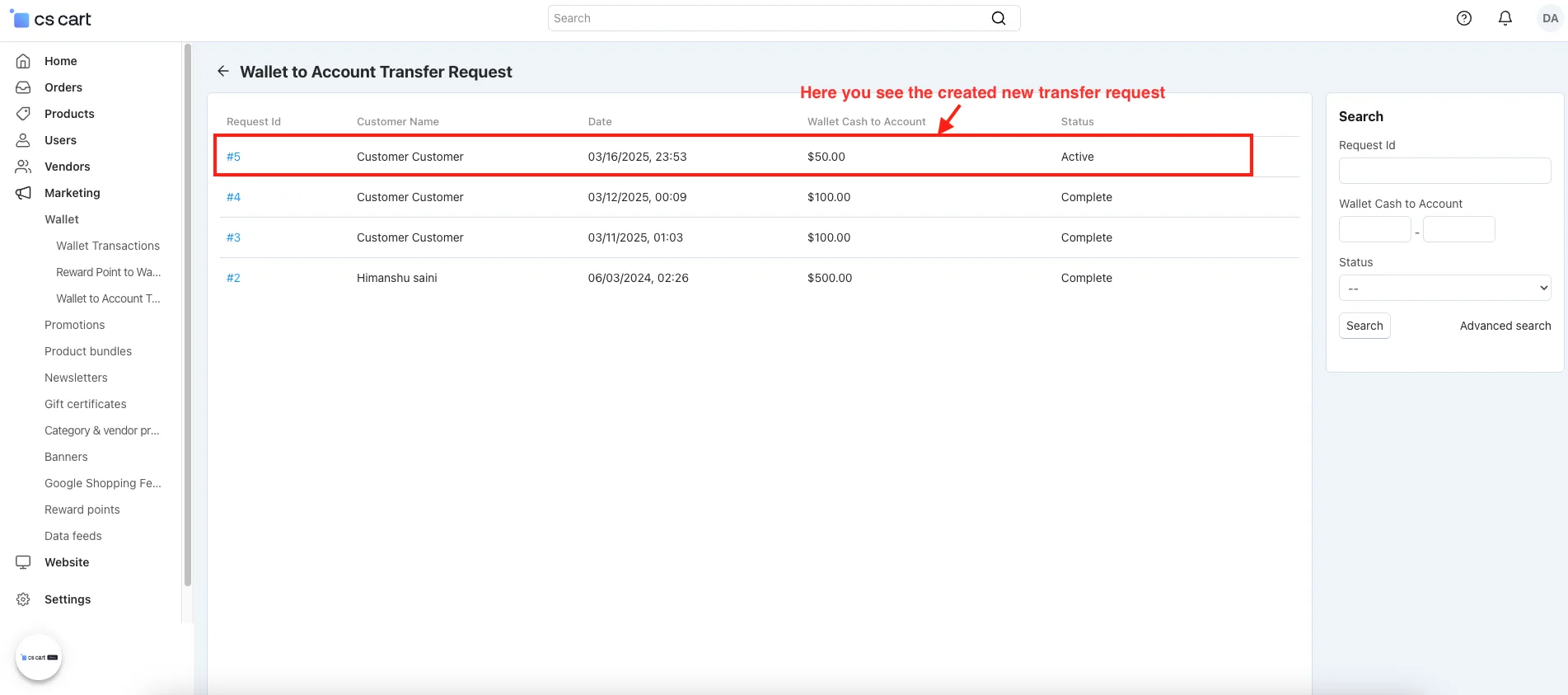
- Here you see the created new transfer request.
- open the request.
- Comment: Add the comment.
- Click on the Reject button.
After Rejected Transfer Request Transfer Request Amount Refunded Back into Wallet:
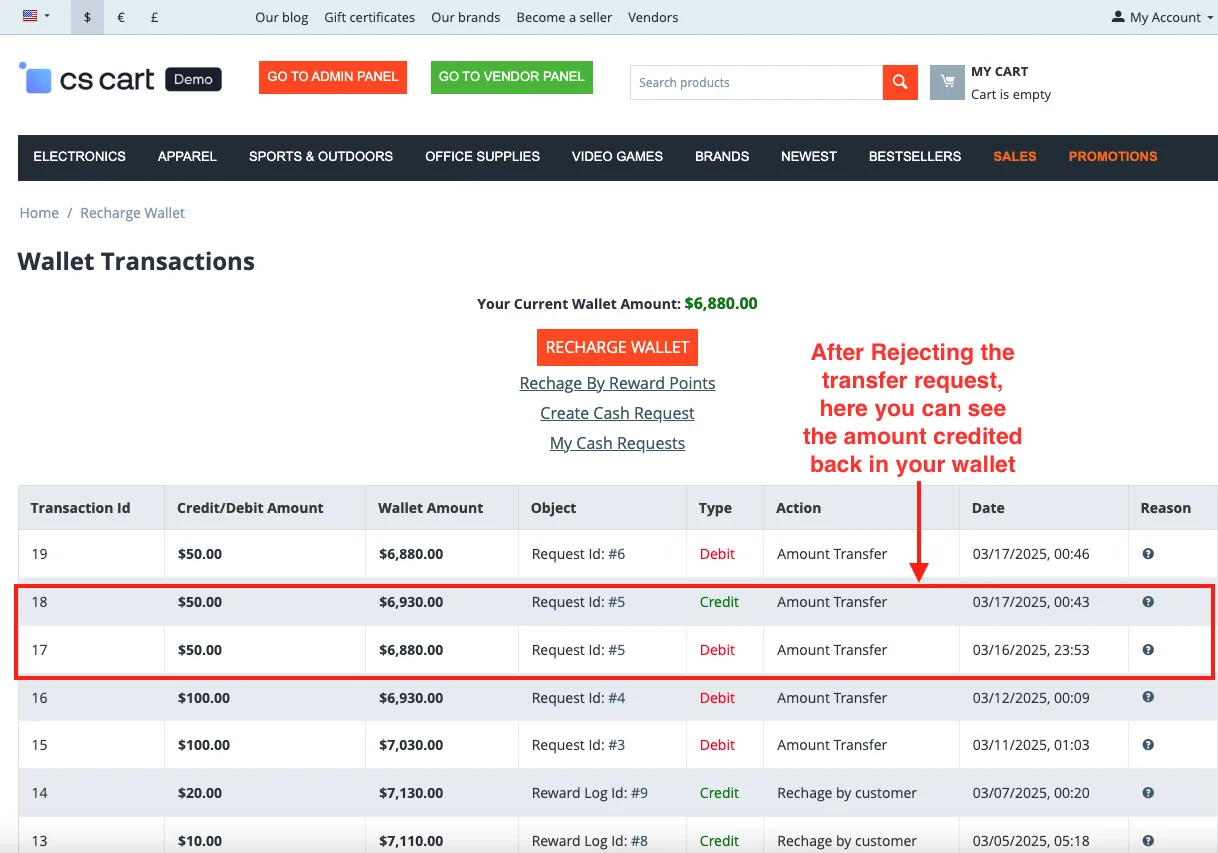
- Here you see the notification of rejecting the request and the amount refunded in wallet cash.
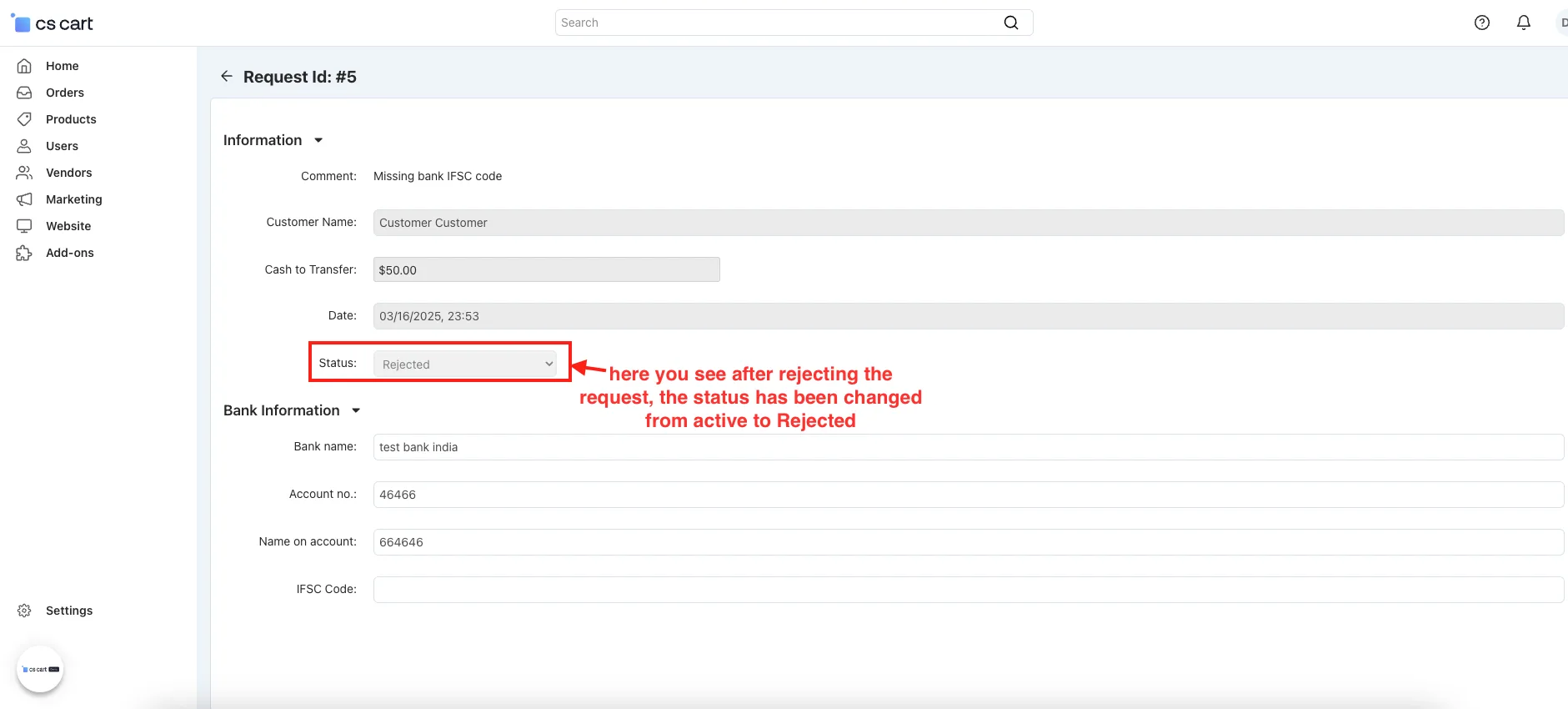
- Status: here you see after rejecting the request, the status has been changed from active to Rejected.
After a Rejected Transfer Request User can check the Status of Transfer Request:
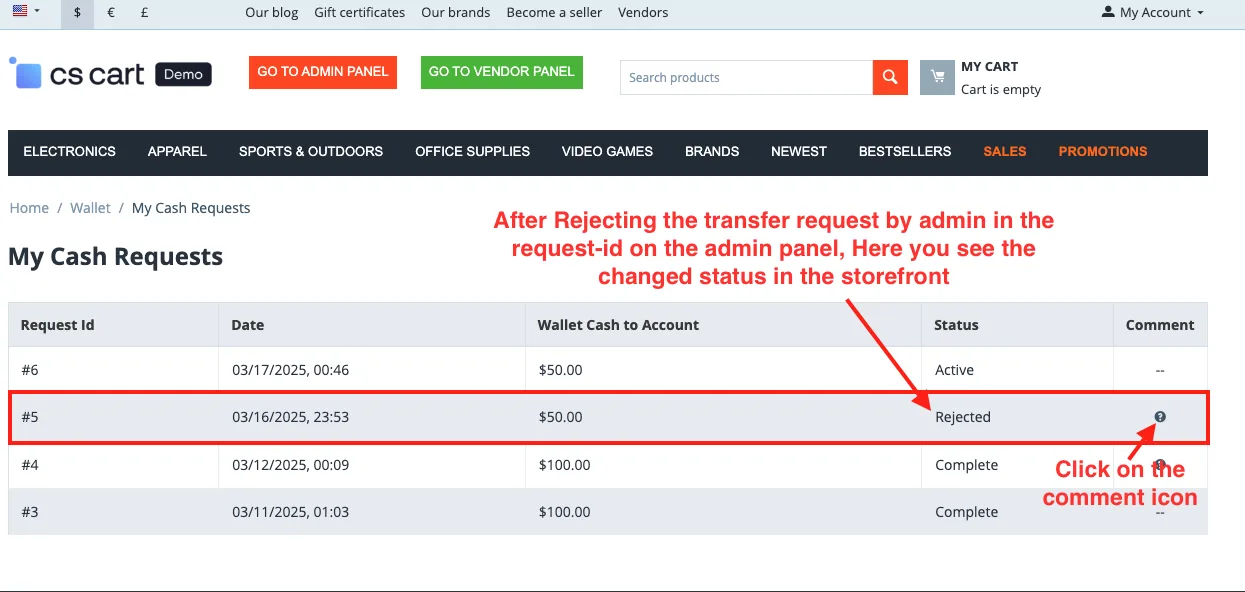
- After Rejecting the transfer request by admin in the request-id on the admin panel, Here you see the changed status in the storefront.
- Click on the comment icon.
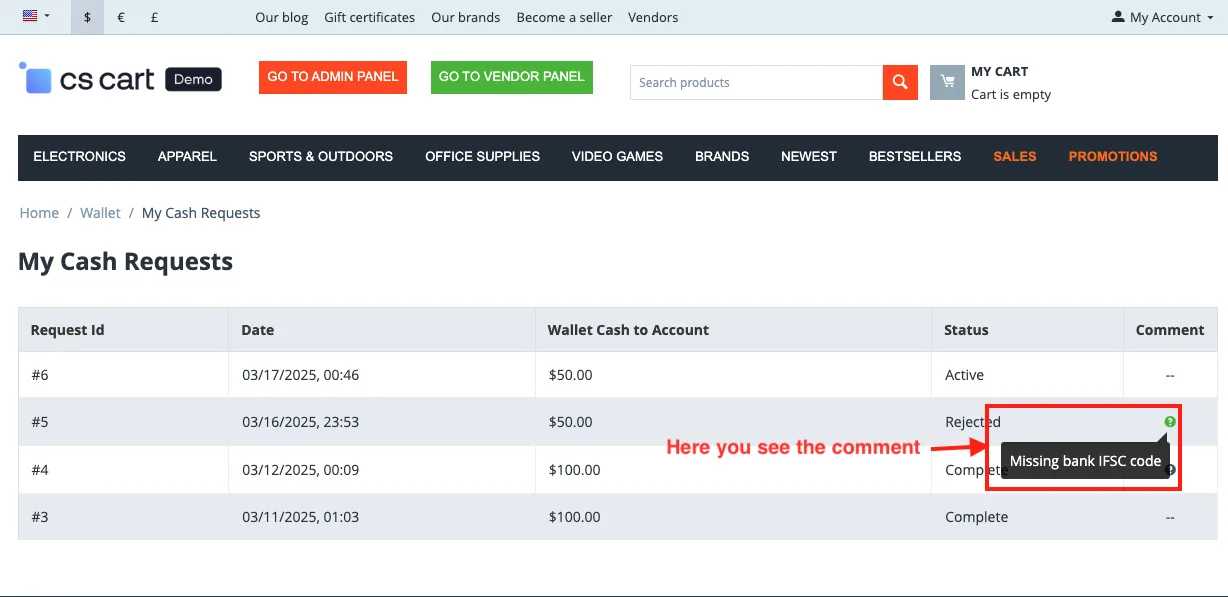
- Here you see the comment.
User Can See Wallet Transaction For Checking Refunded Amount Credit Back Or Not:
- After Rejecting the transfer request, here you can see the amount credited back in your wallet.
Tutorial Video:
Addon-Version:
Version-1.0
Supported Versions:
CS-Cart, CS-Cart Multivendor 4.8.x, 4.9.x,4.10x,4.11x,4.12,4.13x, 4.14x, 4.15x, 4.16x, 4.17x, 4.18x
Support:
This add-on is developed and published by Ecarter Technologies Pvt.Ltd., a CS-Cart developer. You are guaranteed a quality add-on supported by future versions.
If you need help, please contact us via email support@ecarter.co.
Frequently asked questions
How does a wallet-to-bank transfer work for the customer?
The customer opens their wallet on the storefront and creates a transfer request for the amount they want to withdraw. The request then goes to the store admin, who approves or rejects it before any funds are moved.
What happens if the admin rejects a transfer request?
If the request is rejected, the amount that was deducted for the transfer is refunded and credited back into the user's wallet. Funds are only sent to the bank account when the admin approves the request.
Does this add-on require the Ecarter Wallet add-on?
Yes. This add-on depends on the Ecarter Wallet add-on for CS-Cart and is designed to work alongside it, since it extends the wallet with bank-transfer functionality.
Is it compatible with CS-Cart Multi-Vendor and which versions?
The add-on is integrated with CS-Cart Multi-Vendor and can be used with the Standard, Plus, and Ultimate versions. If you are on a specific or newer release, share your version and we will confirm compatibility.
Kajal is a Technical Content Writer at Ecarter Technologies. She writes technical documentation and in-depth guides on eCommerce platforms, mobile commerce and AI in online retail.