
Auto Assign Manager
Auto Assign Manager: This addon Allow admin to assign as a manager in order when they act on behalf of any customer and place an order.
Auto Assign Manager is a CS-Cart add-on that lets a store admin place an order on behalf of a customer and be assigned as the order manager for that order automatically. It is built for situations where a customer runs into difficulty during checkout and asks the store to complete the purchase for them. The admin logs in as the customer from the Customers page, adds products, and completes checkout, with the option to place the order without taking payment at that moment. This is useful for CS-Cart store owners who handle assisted or phone orders and want each such order clearly tied to the admin who processed it.
This addon allows the admin to act as a manager when placing an order on behalf of a customer.
If a customer faces any difficulty while placing an order, they can request the store admin to do it for them. In such cases, this addon helps CS-Cart store admins manage orders easily.
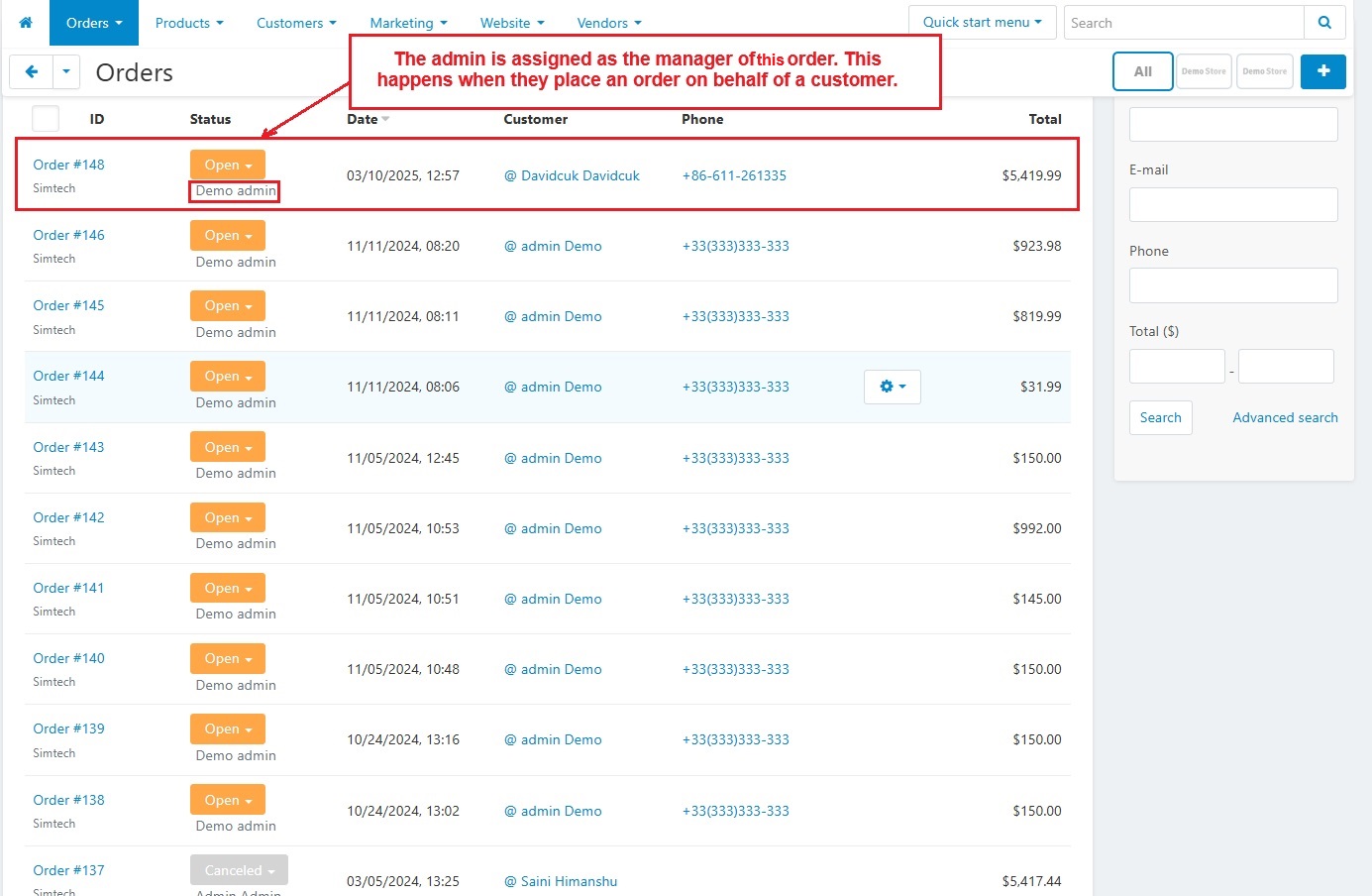
When the admin places an order for a customer, they are automatically assigned as the manager for that order.
Features:
- Admin as Order Manager: When the admin places an order for a customer, they are automatically assigned as the order manager.
- Easy Order Placement for Customers: Customers can ask the admin to place an order for them if they have any issues.
- Simple Checkout: The admin can log in as a customer, add products, and place an order.
- Skip Payment: The admin can place orders without making a payment at that time.
- CS-Cart Support info: The addon is well integrated with CS-Cart Multi-Vendor and can be used with its standard, Plus, and Ultimate Versions.
How to install Addon
https://store.ecarter.co/blogs/how-to-install-addon/
How Addon Works
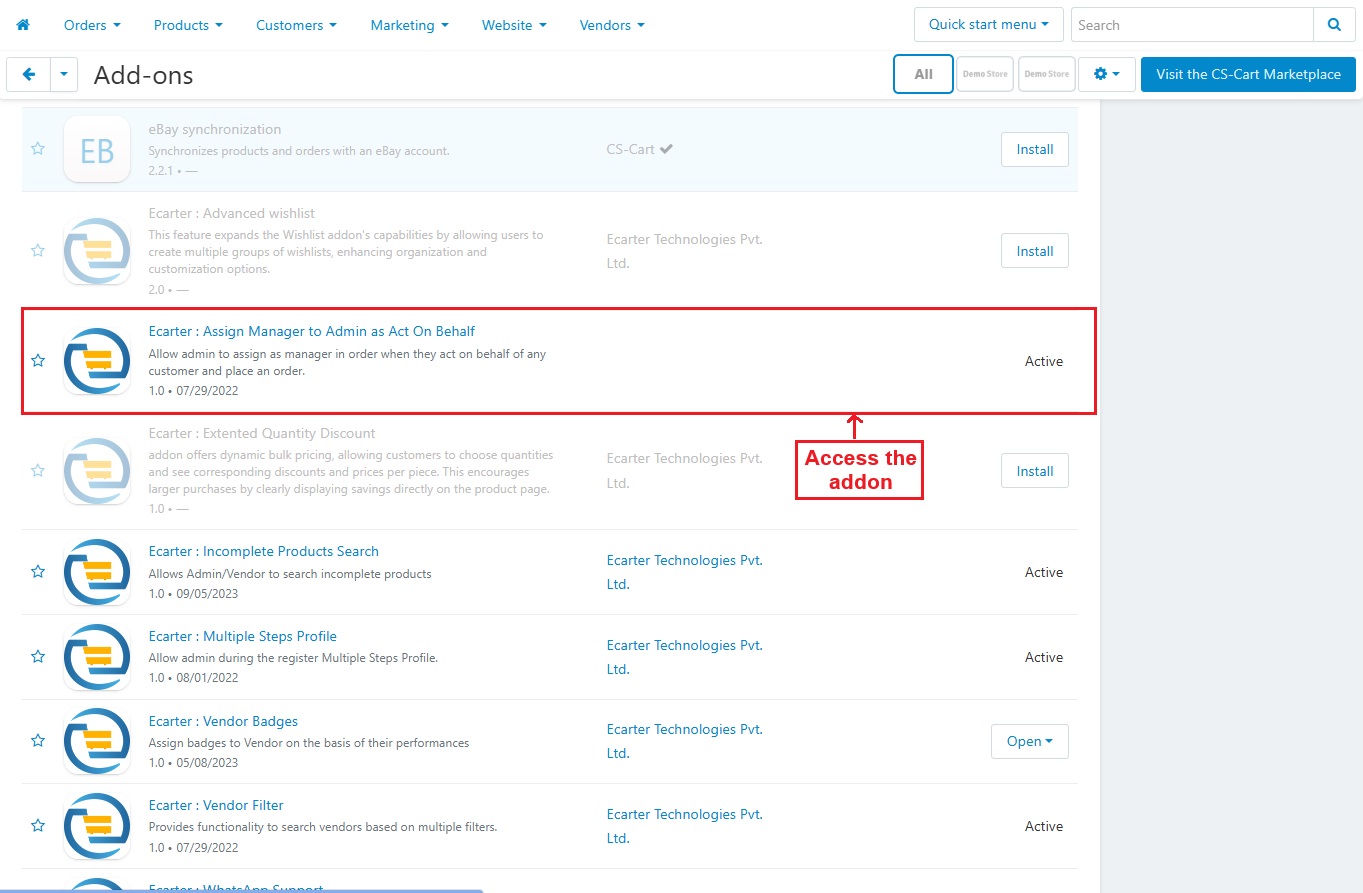
- Access the Addon.
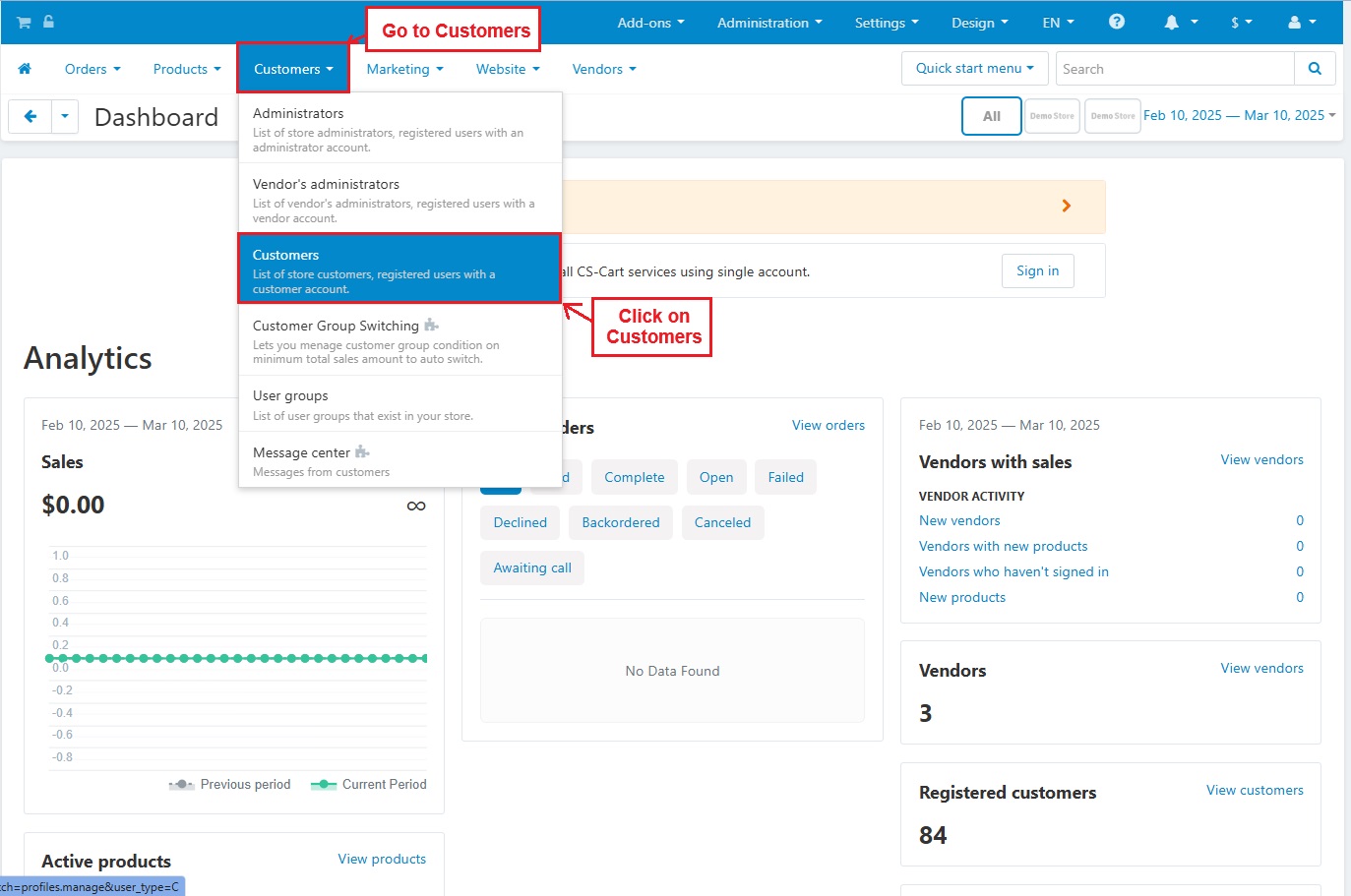
- Go to >> Customers and Click on >> Customers.
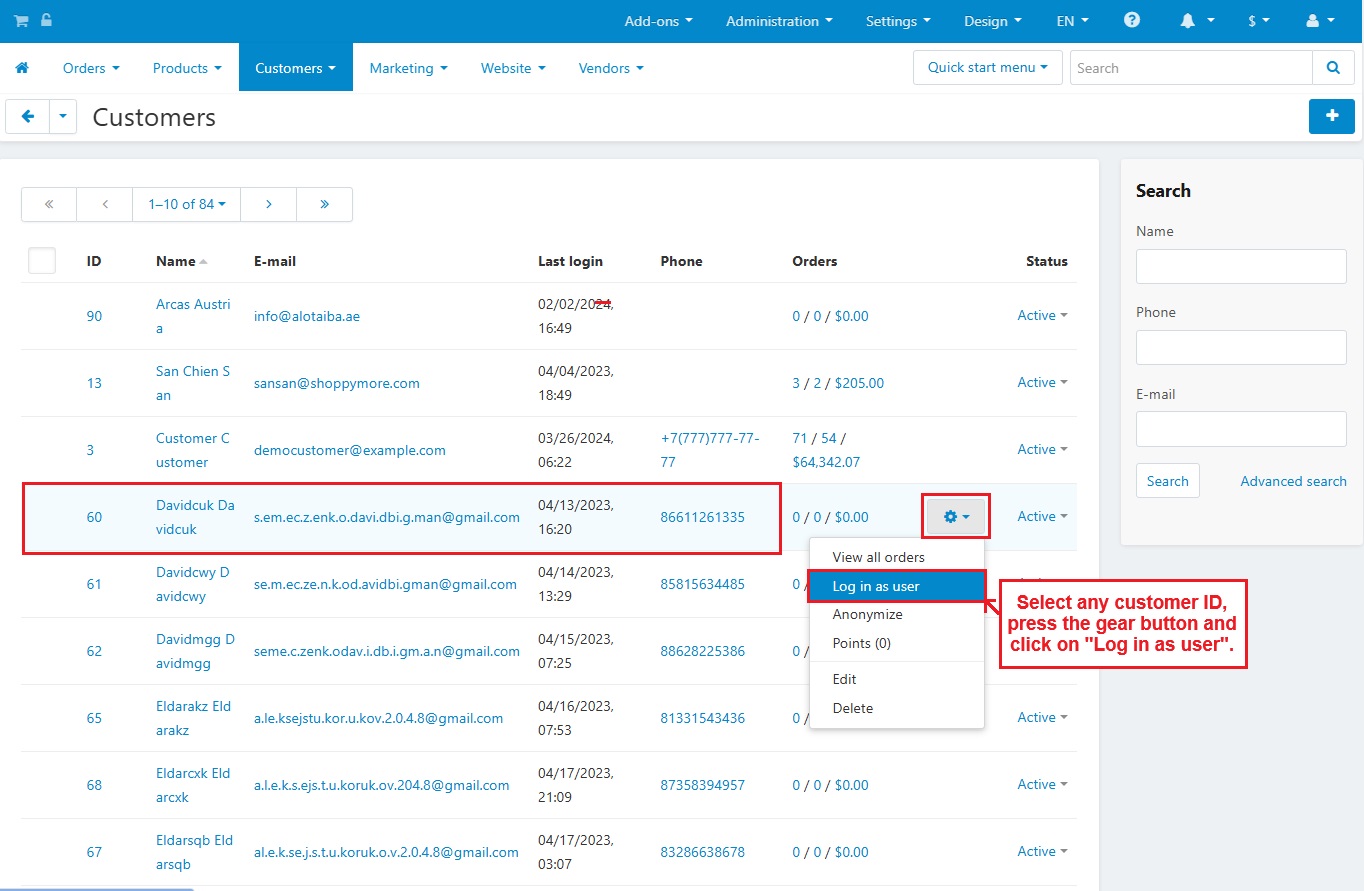
- Select any customer ID, press the Gear button and click on "Log in as user".
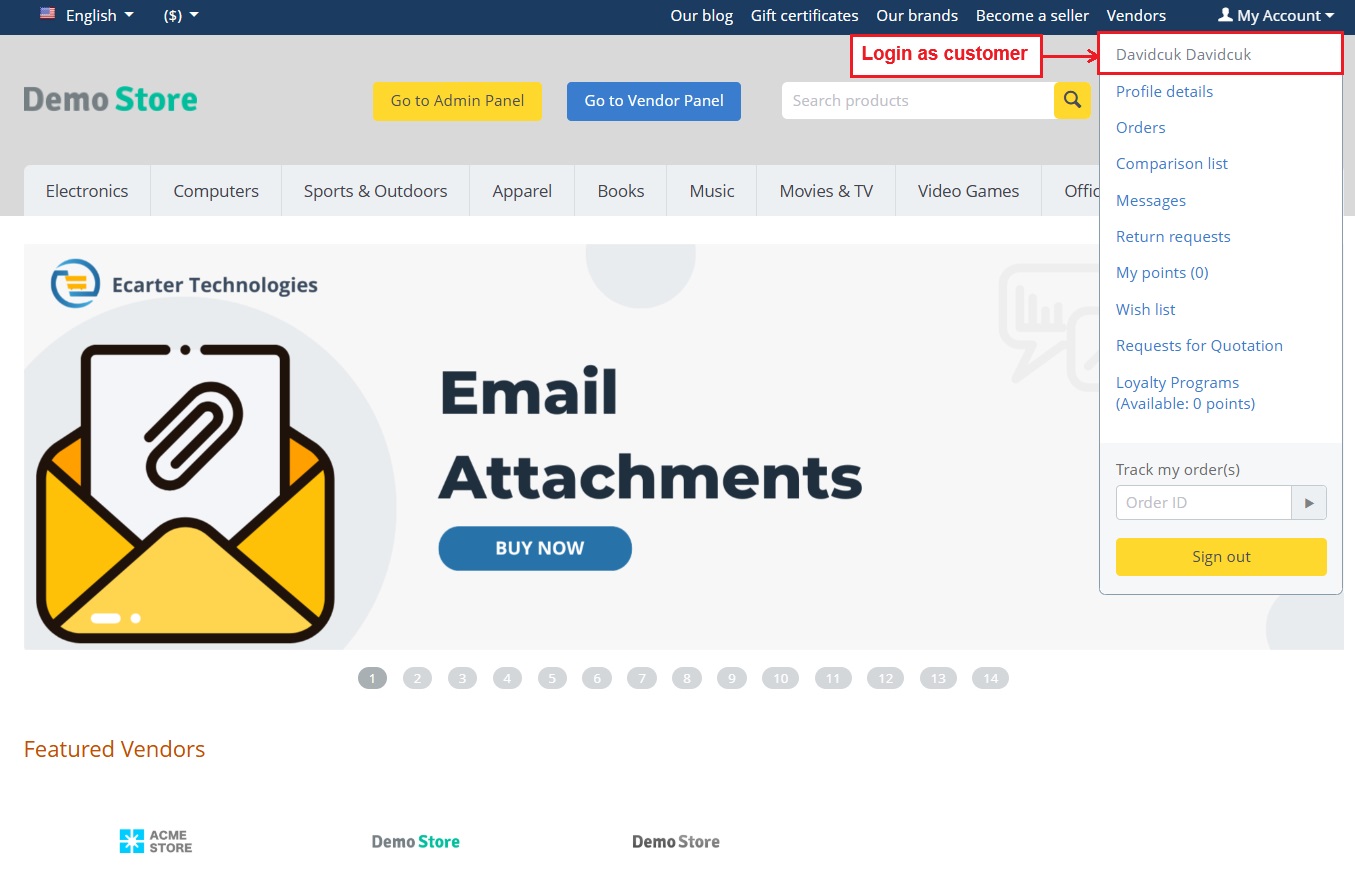
- Now the storefront is open with the selected customer ID when the admin logs in as a user.
Checkout Process:
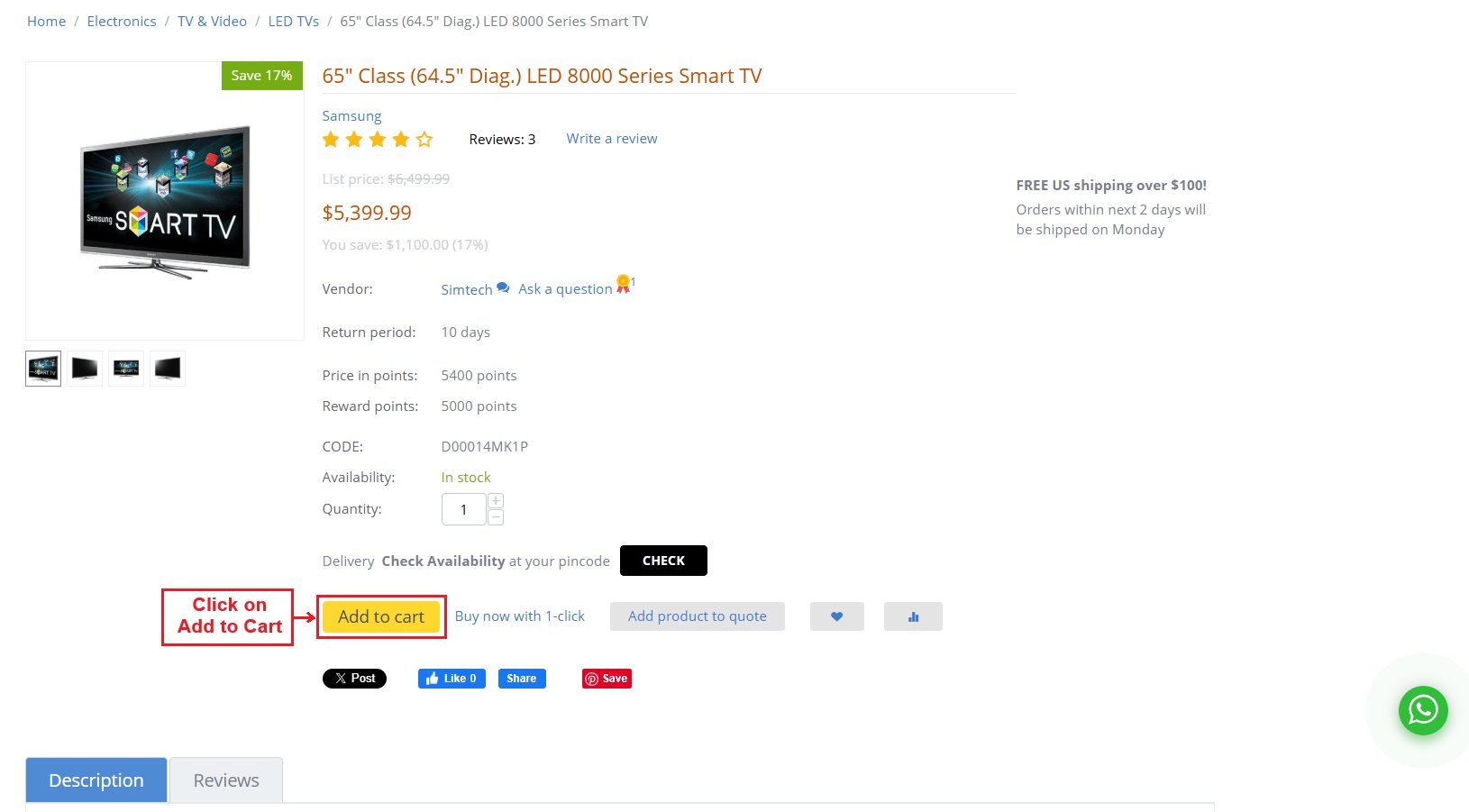
- Select any >> Product
- Click on >> Add to Cart
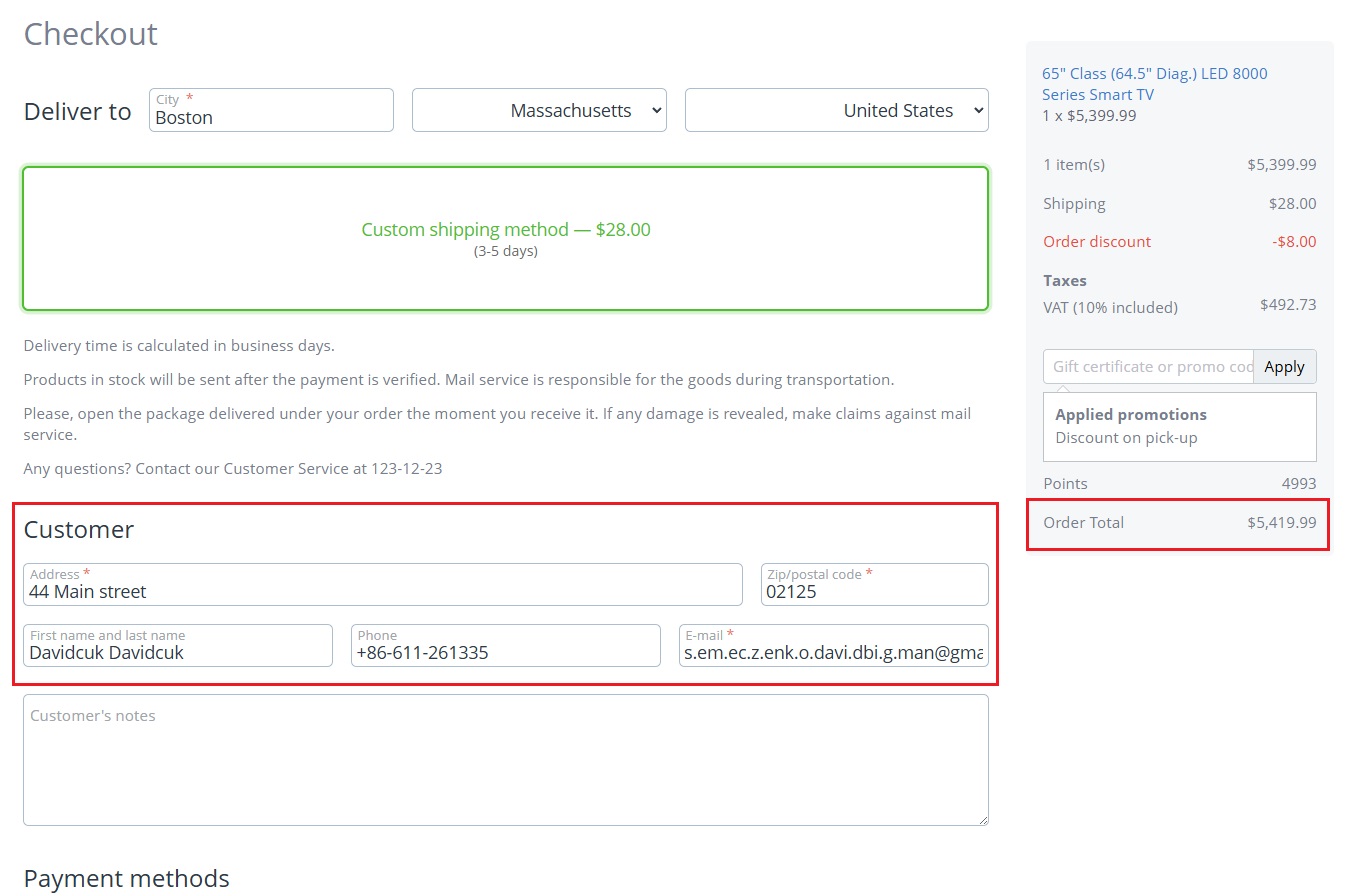
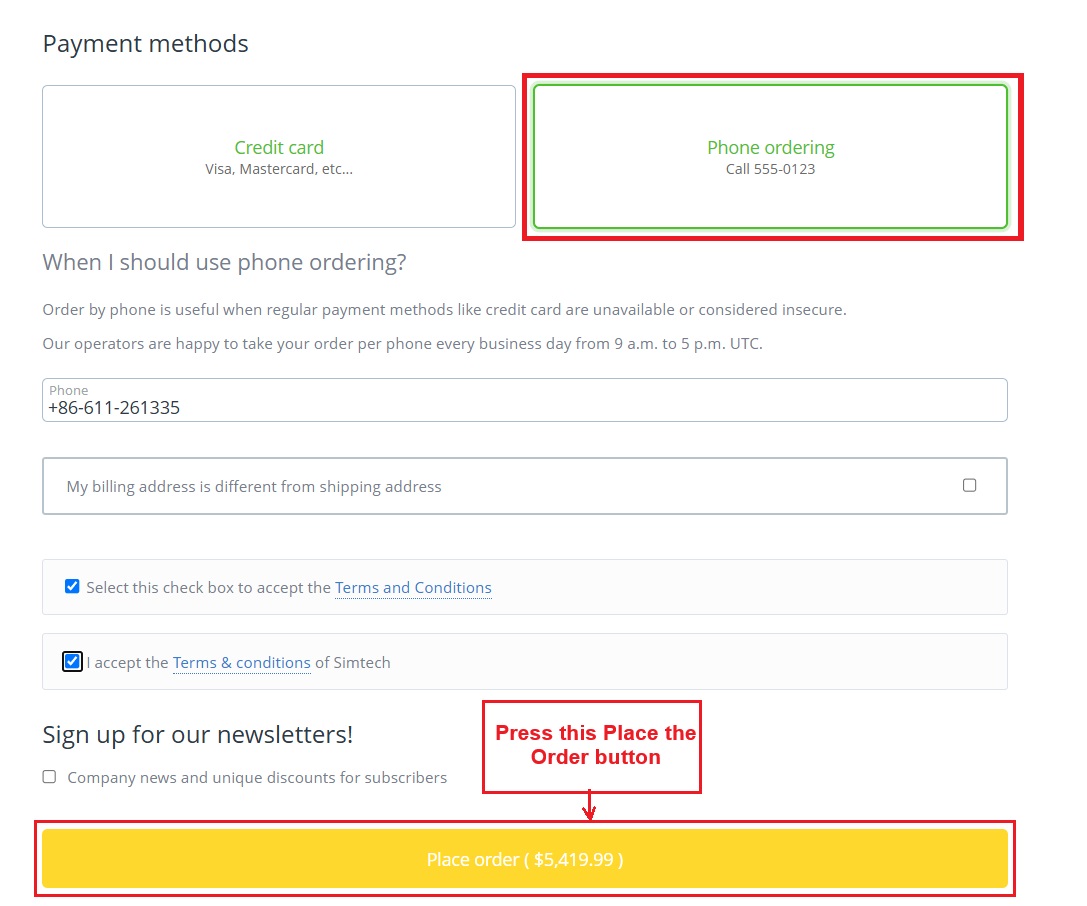
- Complete the checkout process, and place the order.
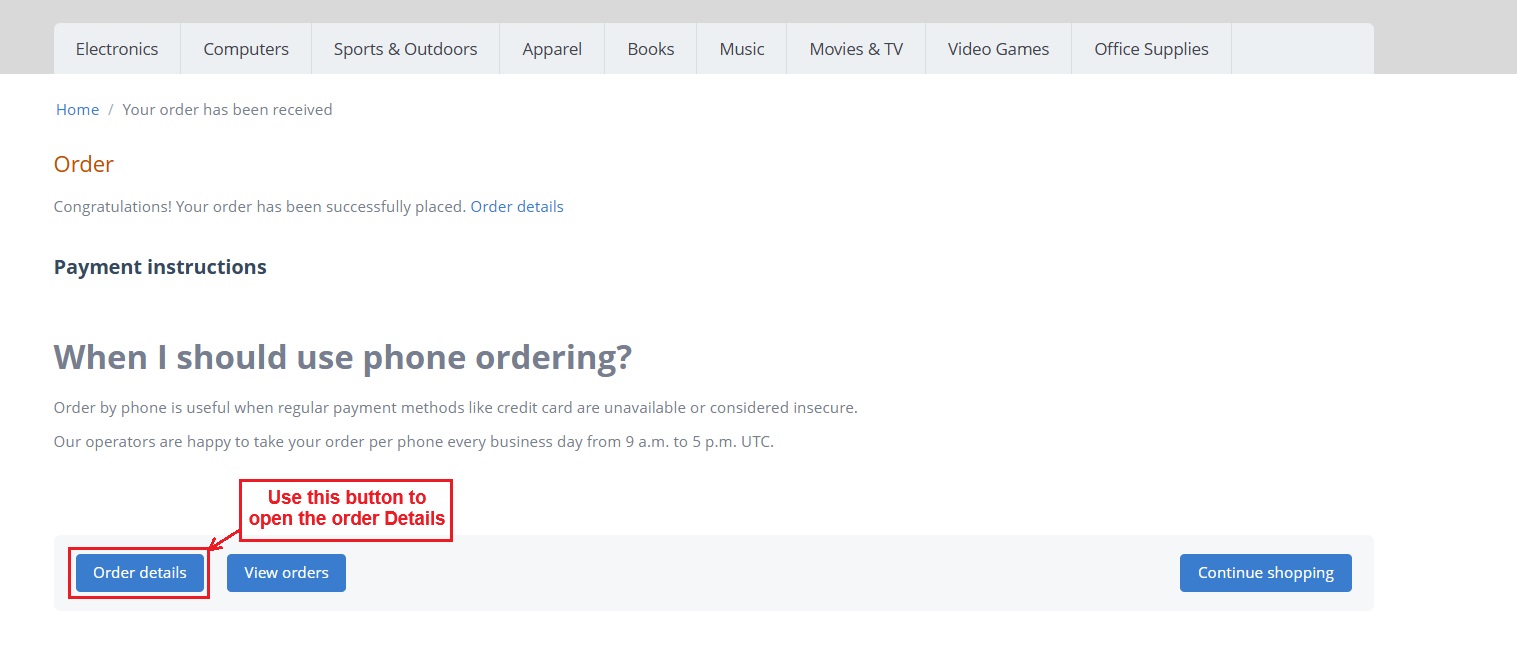
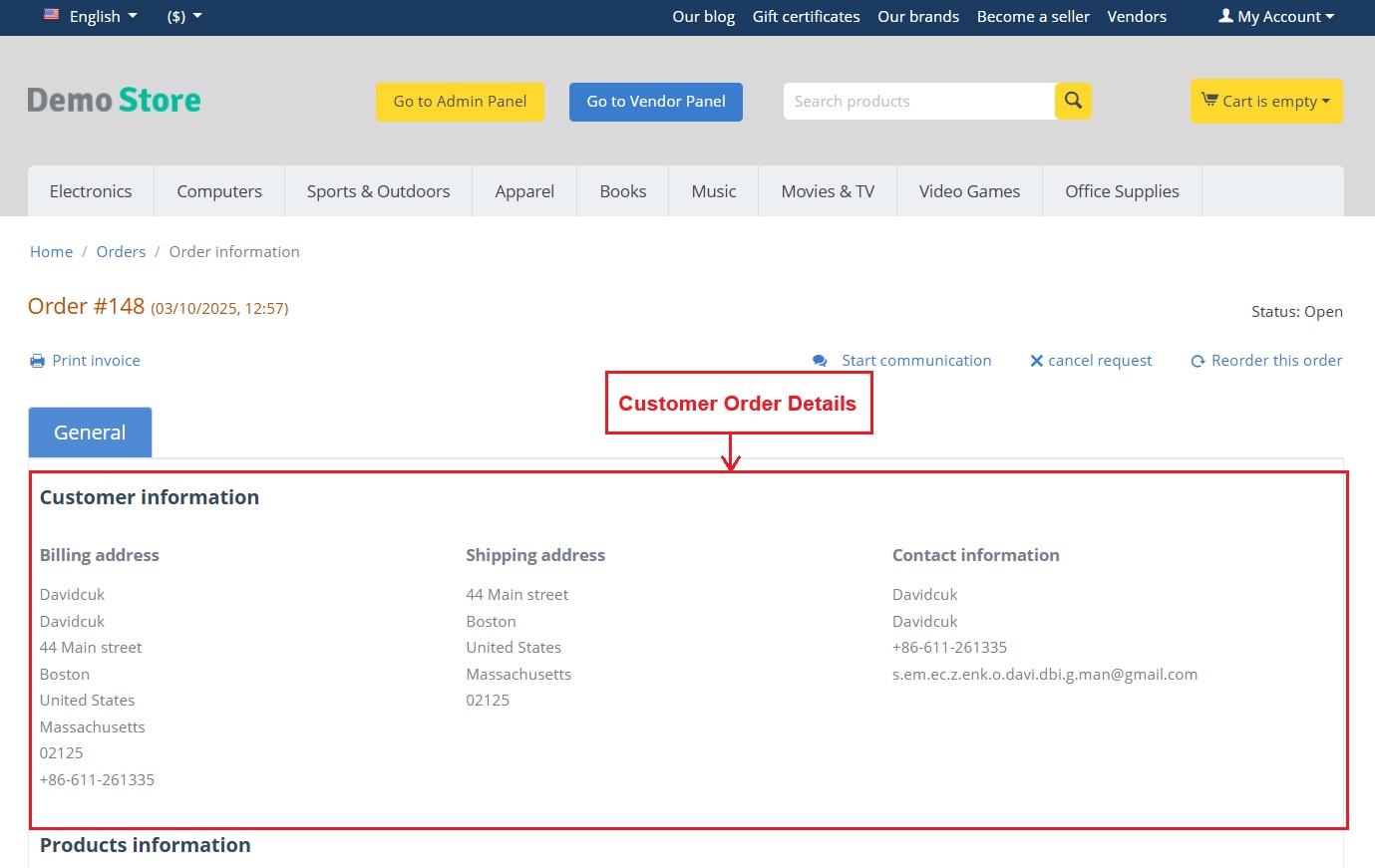
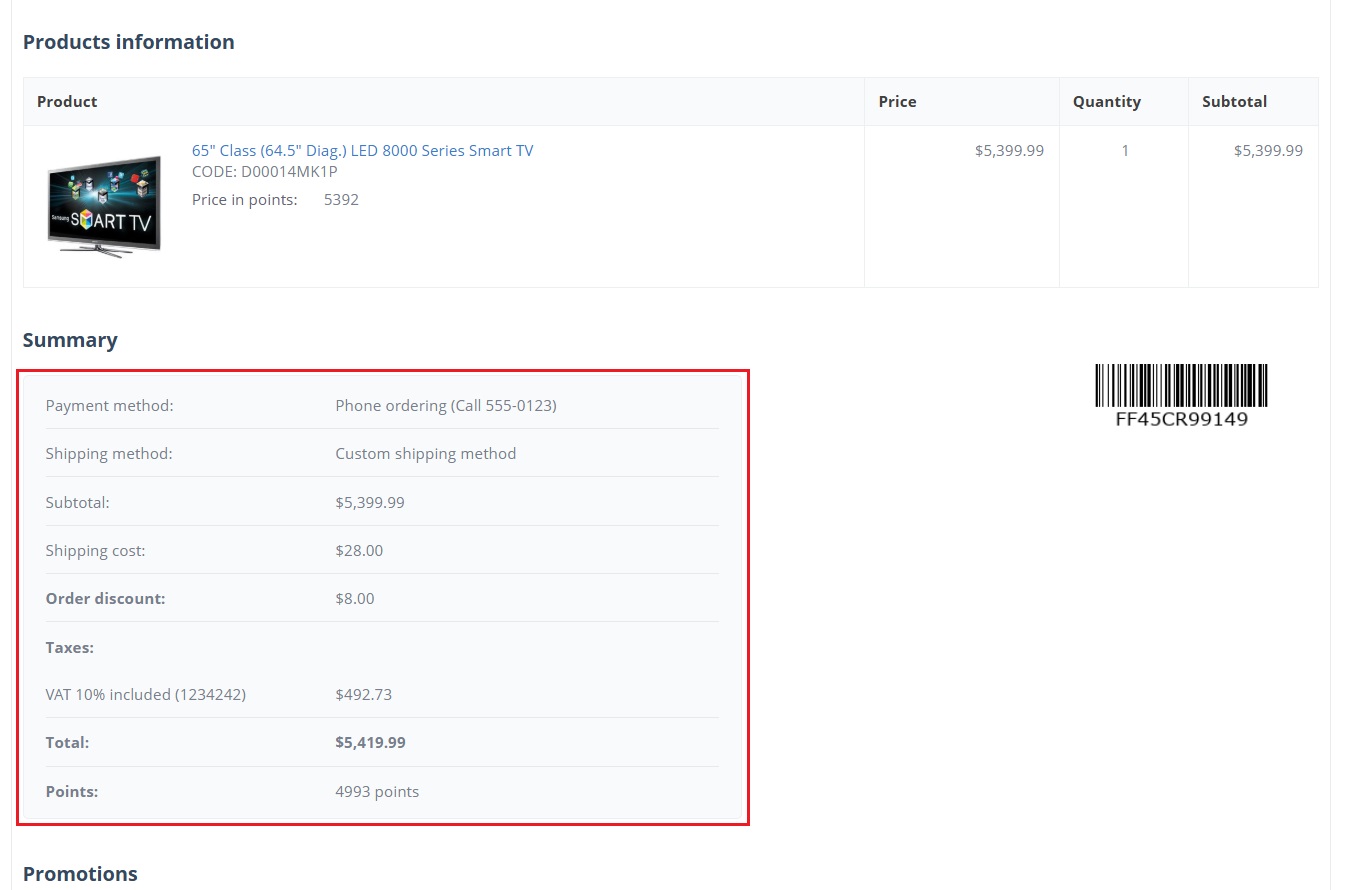
- Click the "Order details" button to see more about this order.
- The next two pages show complete Customer Order Details.
Automatically assign as manager:
- Go to >> Orders
- Click on >> View Orders
- Here you can see the admin is assigned as the manager of this order. This happens when they place an order on behalf of a customer.
- Open any >> Order ID.
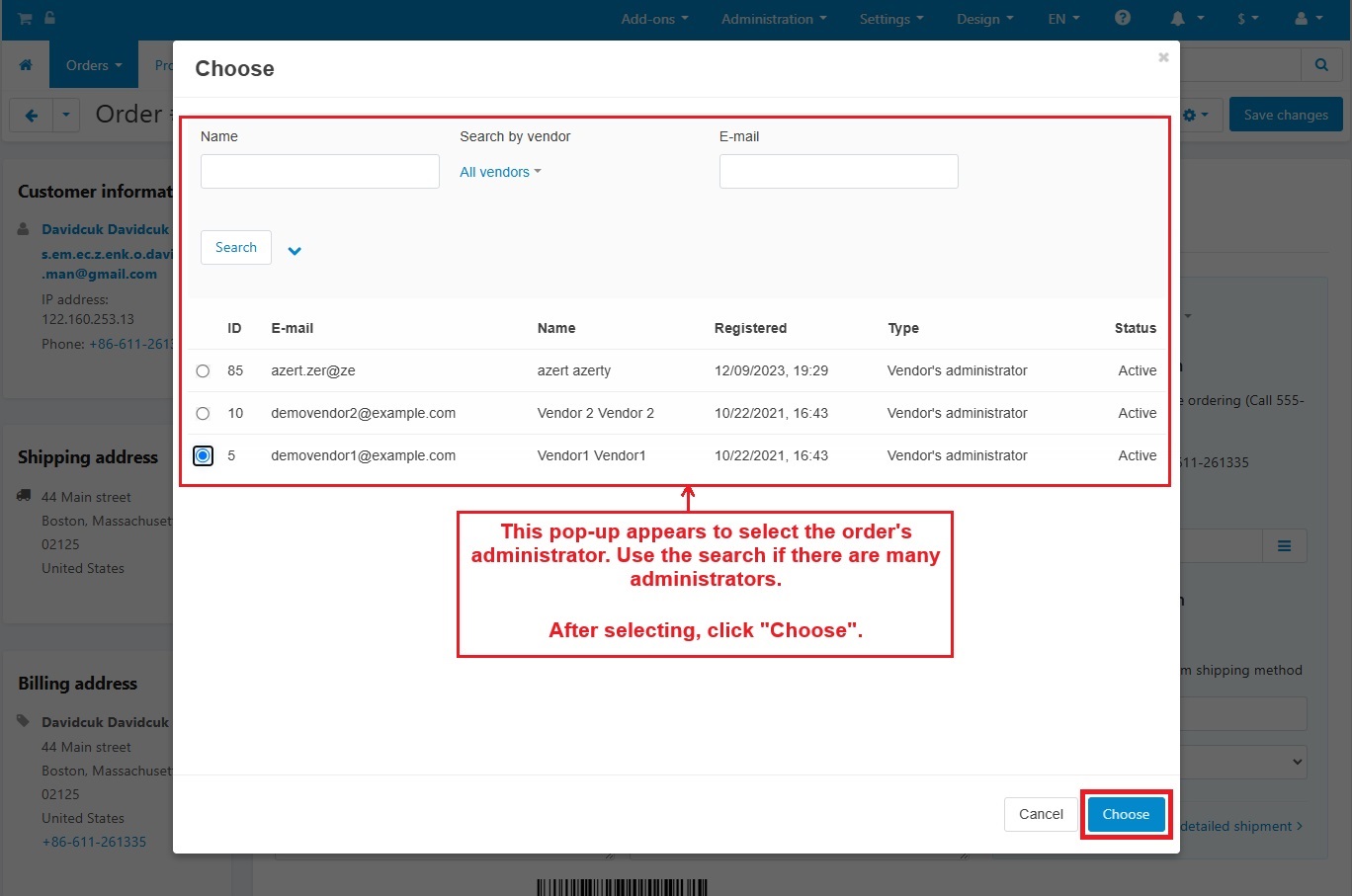
- Next page shows the Manager option that allows the admin to change the order manager.
- Click the >> Hamburger menu
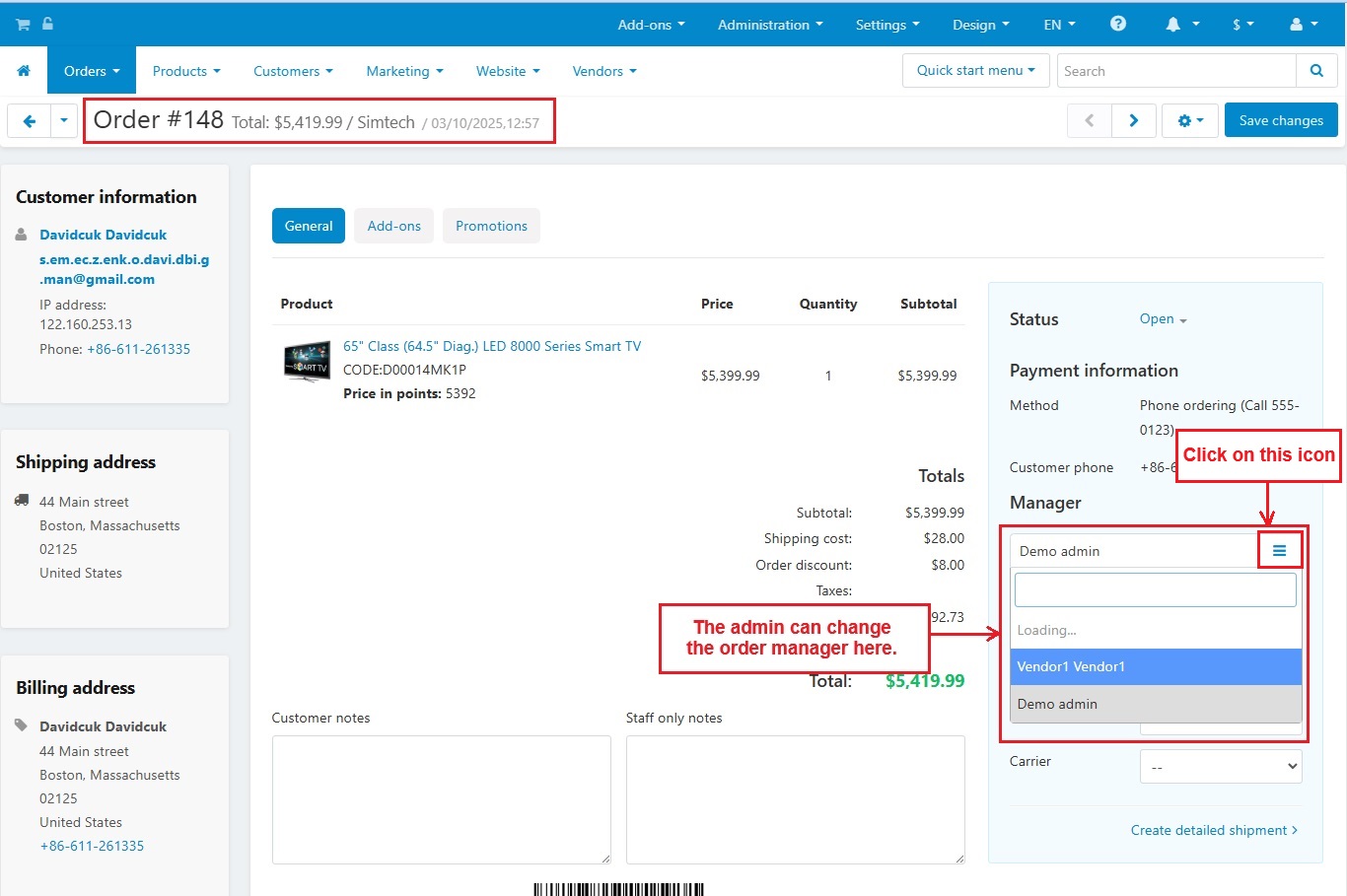
- A pop-up appears to select the order's administrator.
- Use the search bar if there are many administrators.
- Select one administrator and click "Choose."
- The order will be assigned to the selected administrator.
Tutorial Link:
https://www.loom.com/share/7e1097c44ed94e54a180995a3237799a
Addon-Version:
Version-1.0
Supported Versions:
CS-Cart, CS-Cart Multivendor 4.8.x, 4.9.x,4.10x,4.11x,4.12,4.13x, 4.14x, 4.15x, 4.16x, 4.17x, 4.18x
Support:
This add-on is developed and published by Ecarter Technologies Pvt.Ltd., a CS-Cart developer. You are guaranteed a quality add-on supported by future versions.
If you need help, please contact us via email support@ecarter.co.
Frequently asked questions
How does the admin become the order manager for an assisted order?
When the admin places an order for a customer, the add-on automatically assigns the admin as the manager for that order. No manual assignment step is needed.
How does an admin place an order on behalf of a customer?
From the admin panel, go to Customers, select the customer, press the Gear button, and choose "Log in as user." This opens the storefront as that customer, where the admin adds products to the cart and completes the checkout process.
Can an order be placed without collecting payment right away?
Yes. The add-on lets the admin place the order without making a payment at that time, which suits assisted orders where payment is handled separately.
Is Auto Assign Manager compatible with CS-Cart Multi-Vendor?
Yes. It is integrated with CS-Cart Multi-Vendor and works with the Standard, Plus, and Ultimate versions. Share your specific version and we will confirm compatibility.
Nisha Gaur is a Technical Content Writer at Ecarter Technologies. She writes technical documentation, tutorials and buying guides covering CS-Cart, Magento, Shopify and eCommerce development.