
CS-Cart Wallet Add-on: Store Credit & Refunds
Wallet System for CS-Cart is a special add-on for your online store. It allows customers to add money to their wallets and use it when they buy things.
The CS-Cart Wallet Add-on adds a store-credit wallet to your storefront. Customers can top up their wallet and use the balance for faster checkout, while store admins can also credit a customer's wallet directly and track every transaction from one place. It handles automatic refunds for failed order transactions and lets shoppers combine wallet money with another payment method in a single order. It suits CS-Cart store owners who want to offer store credit, streamline repeat purchases, and give both staff and customers a clear record of all money movements. It also ships with two free companion add-ons: Transfer Wallet Cash to Account and Convert Reward Points to Wallet Cash.
Wallet System Add-on for CS-Cart is a special feature that allows customers to add money to their wallet and use it for quick payments. If necessary, the store owner(admin) can also add money to a customer's wallet. This tool makes it easy for both the store admin and customers to track all the money movements in the wallet.
This add-on supports automatic refunds for failed orders, ensuring smooth transactions with the wallet on your website. With this user-friendly add-on, you can easily manage credit or debit money from your wallet and keep track of all wallet activities.
Additionally, you can use your wallet money and select a payment method at the same time when you're checking out, giving you flexibility and convenience.
With this addon, we provide two additional free add-ons Transfer Wallet Cash to Account and Convert Reward points to Wallet Cash.
Features:
- Wallet Management: Set minimum and maximum recharge amounts, and Select specific payment methods for wallet recharge.
- Payment Method Restrictions: Only selected payment methods can be used for wallet recharge.
- Quick Recharge: Easily add money to your wallet for seamless shopping.
- Smooth Checkout: Speed up your purchases with the money in your wallet.
- Auto Refund Configuration: Admin can enable auto-refund to the wallet for failed order transactions.
- Balance Visibility: Easily see how much money you have in your wallet for better control.
- Use Wallet and Pay Together: Easily use your wallet amount and select a payment method together during checkout.
- No Repeated Details: Skip entering payment every time - use your wallet.
- Payment Flexibility: use your for various purchases and services.
- Transaction Management: keep track of all your purchases and payments effortlessly.
- Status-Based Wallet Recharge: Grant wallet recharge capability upon completing orders with a designated status.
- Multi-vendor support: Well integrated with CS-Cart multi-vendor.
Convert Reward Points to Wallet Cash & Transfer Wallet Cash to Account addons depend on Ecarter: CS-Cart Wallet Addon
- firstly installed both addons.
Convert Reward Points to Wallet Cash addon
- Convert Reward Points to Wallet Cash: Convert your reward points into wallet cash for seamless spending.
Features:
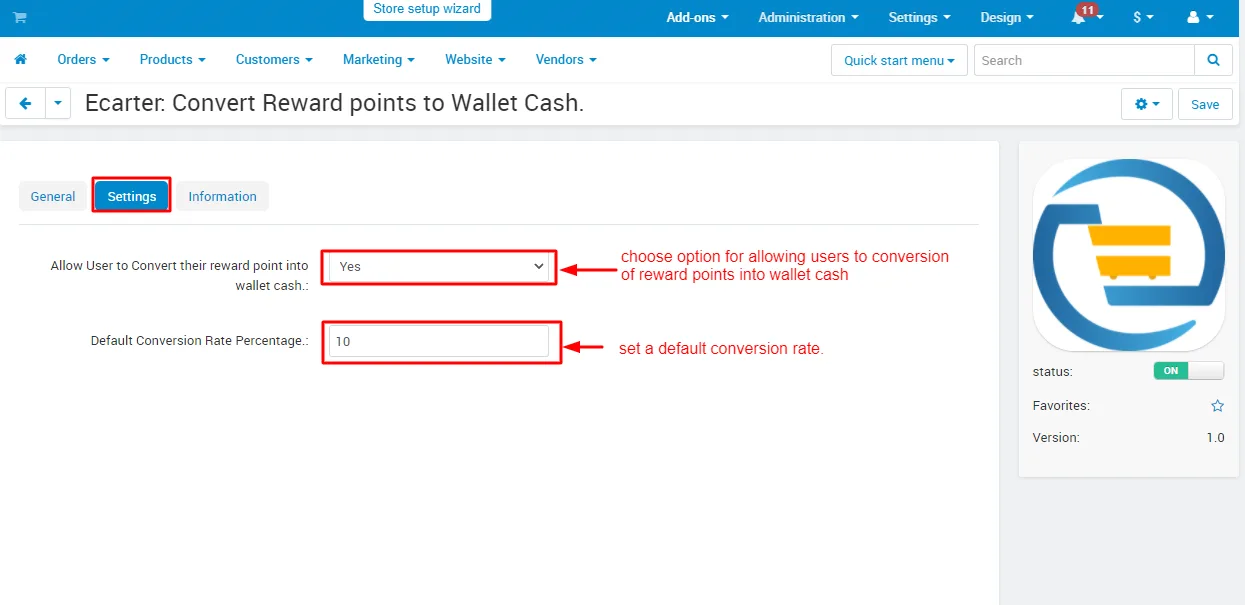
- Convert Reward Points to Wallet Cash Setting: This features allow users to enable and disable the conversion of reward points into wallet cash and set the default conversion rate.
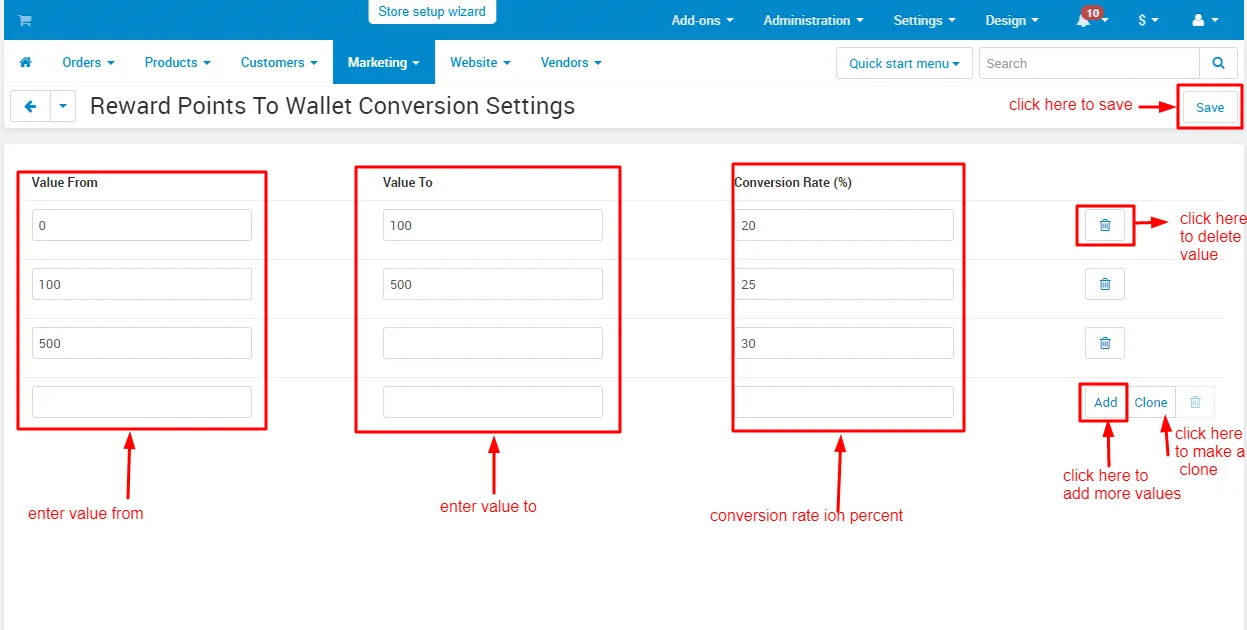
- Conversion rate: Admin can easily set the conversion rate under the marketing menu.
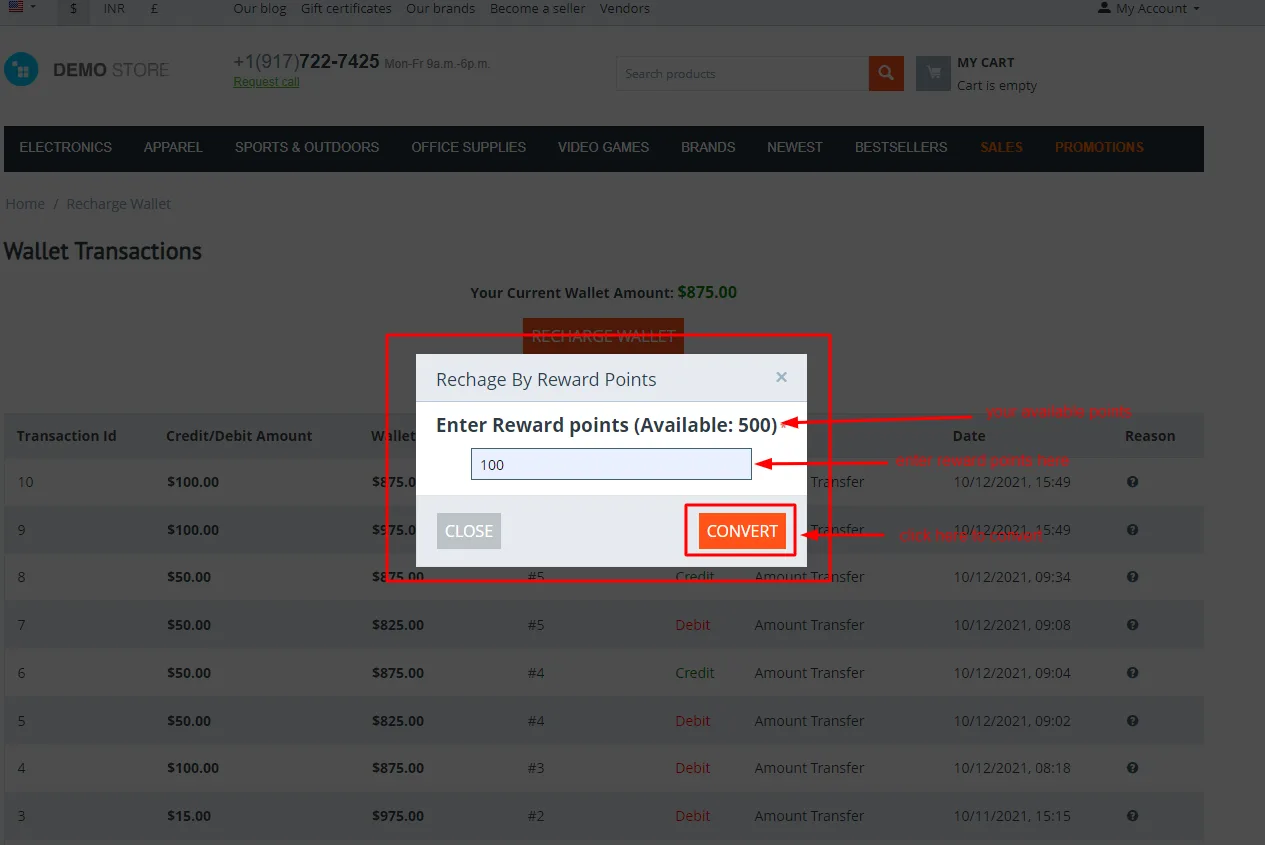
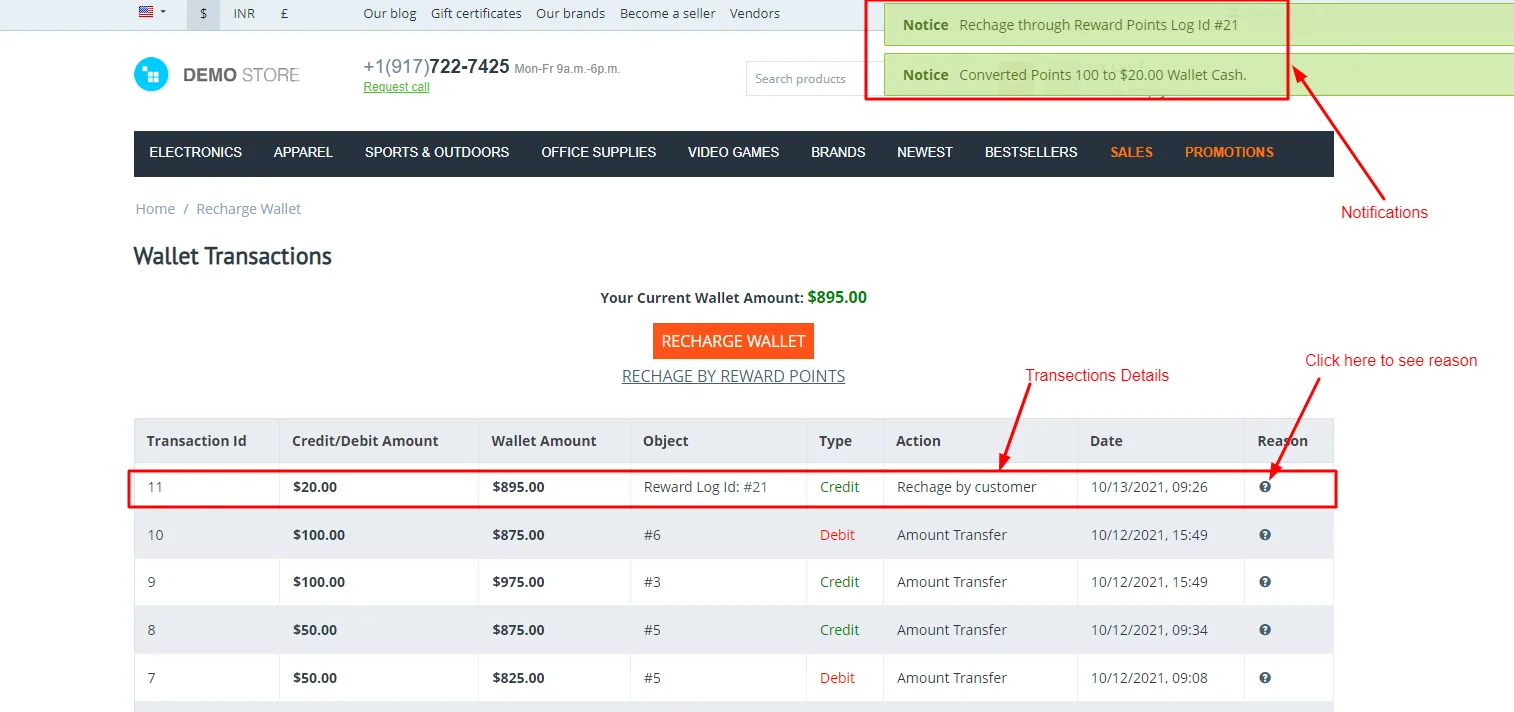
- Recharge by Reward Points: Enter reward points for conversion.
Transaction Detail: recharge transaction detail in transaction history.
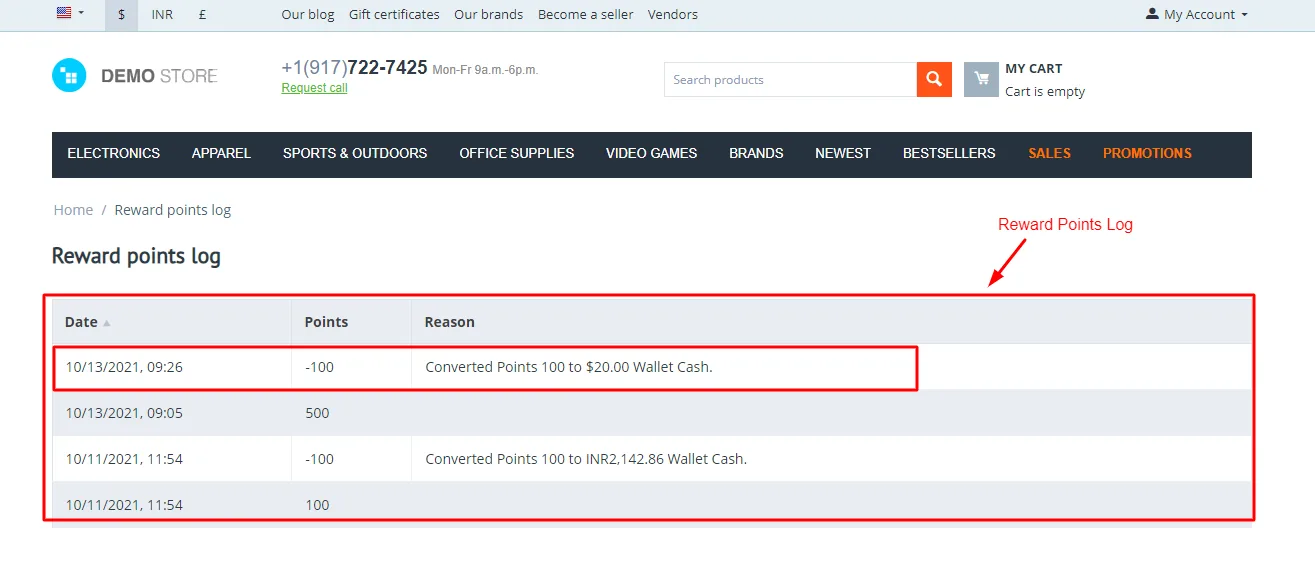
- Reward Point Log: here show converted reward points to wallet cash.
Transfer Wallet Cash to Account addon
- Transfer Wallet Cash to Account: Easily transfer wallet cash to your bank account for added convenience.
Features:
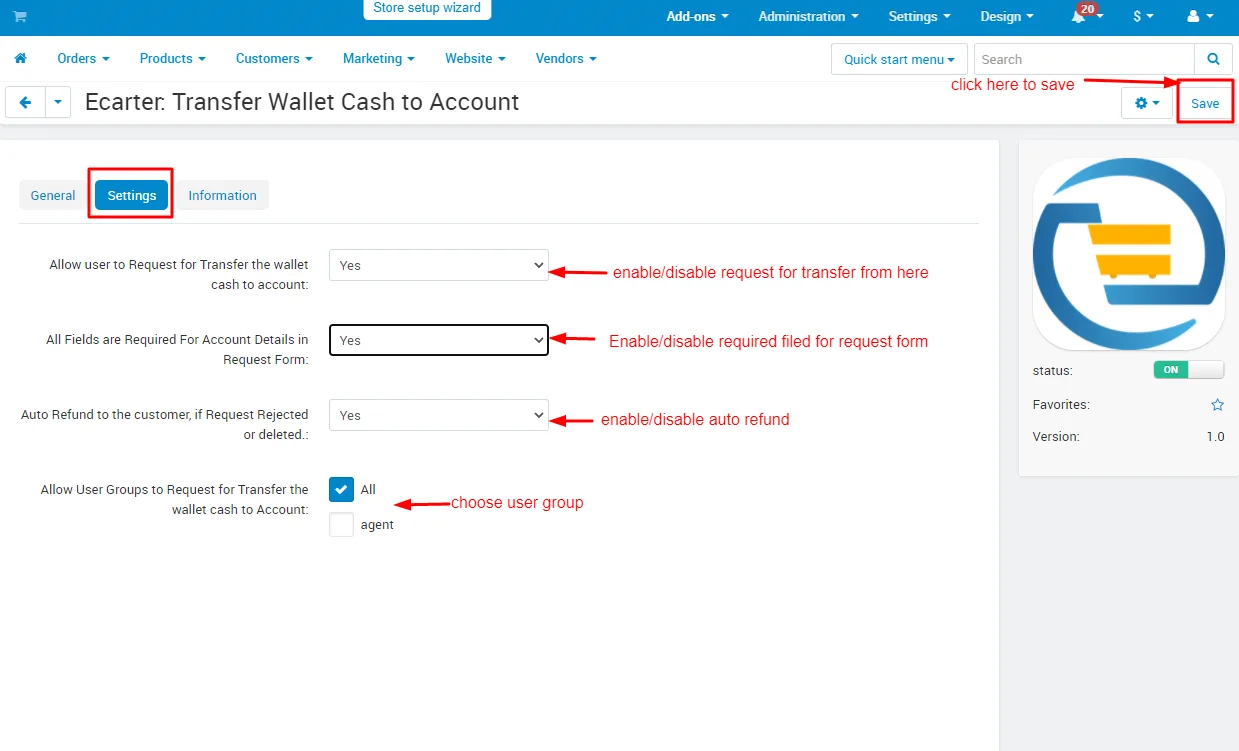
- Transfer Wallet Cash to Account settings: This feature allows users to easily transfer money from their wallet to their bank account. The admin can enable or disable this option, set required fields for account details in the request form, and configure auto refunds if the request is rejected. Additionally, admins can choose which user groups are allowed to request transfers.
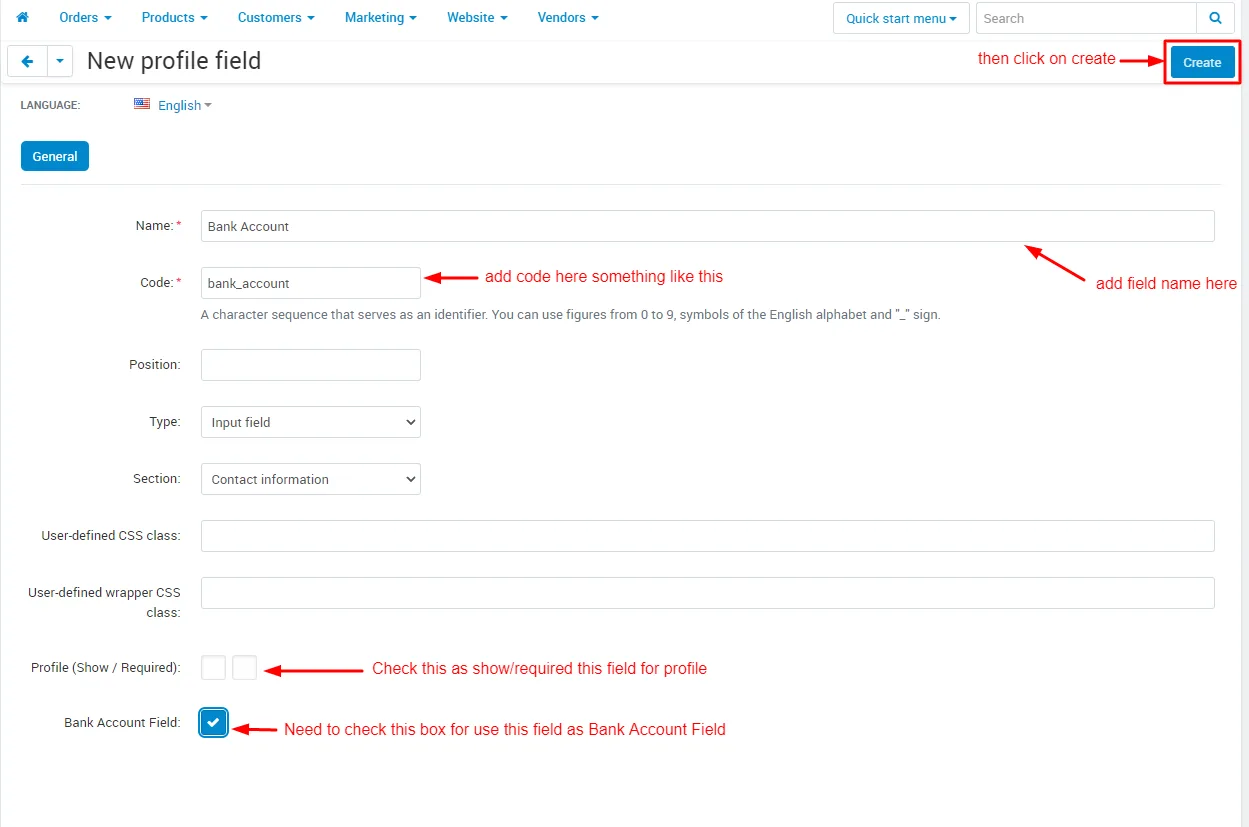
- Bank Account Field Setup: Admins can easily create and require a bank account field for user profiles, ensuring users provide the necessary bank details for transferring wallet cash.
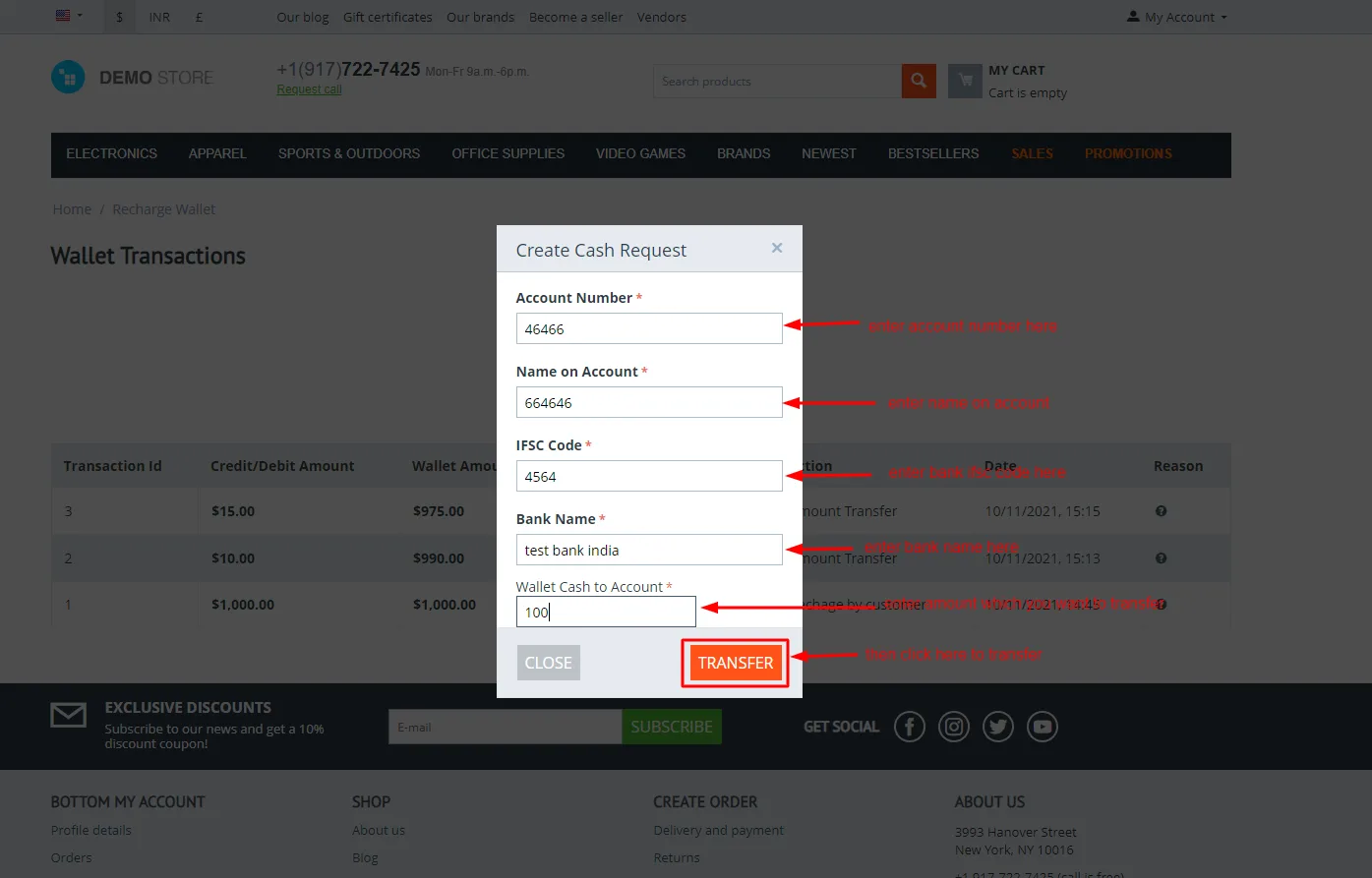
- Create Cash Request on Storefront:
Users can easily set all information to create cash requests such as Account Number, Name on Account, IFSC code, Bank Name, and Wallet Cash to Account.
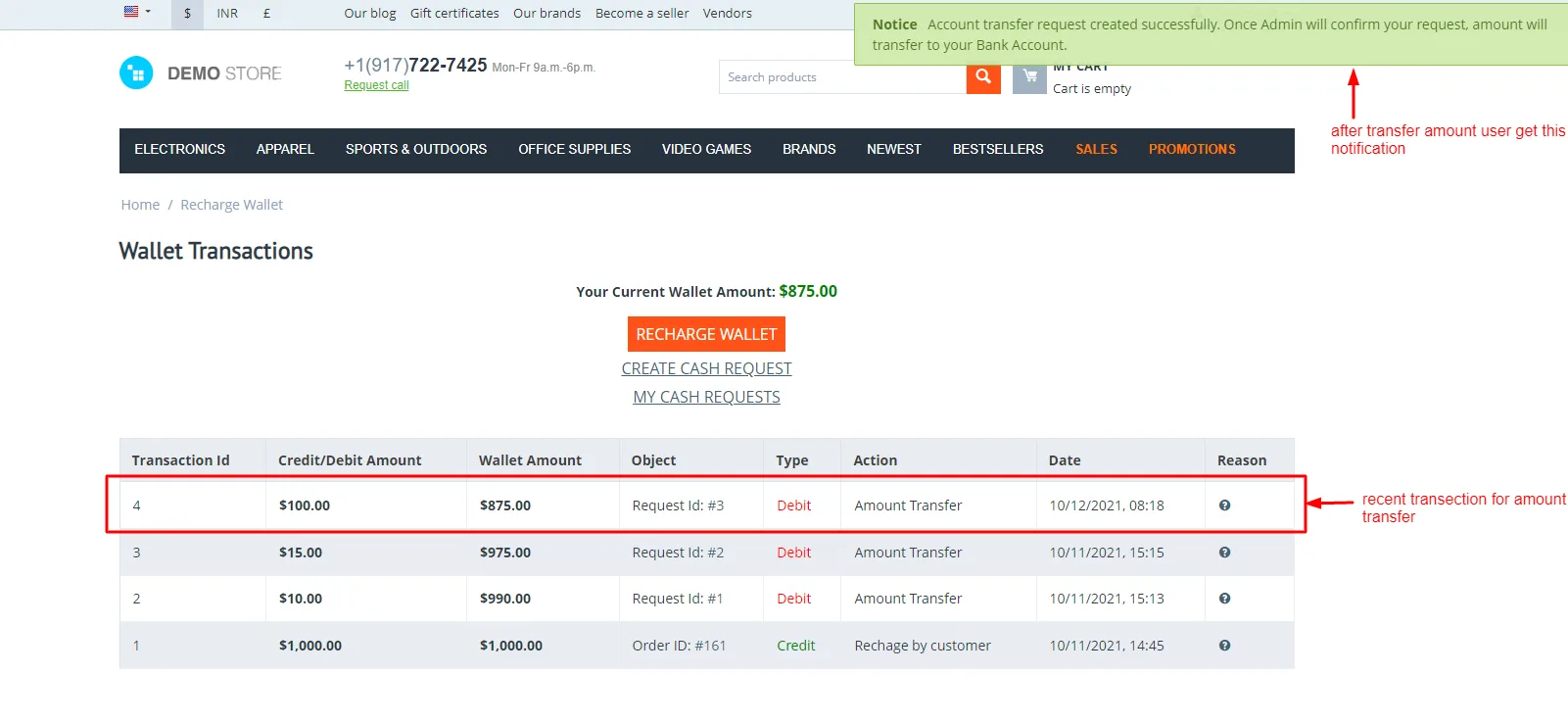
- Wallet Transaction: Recent transactions for wallet cash transfers to keep track of your account activity.
Installation
How To Install Addon
https://store.ecarter.co/blogs/how-to-install-addon/
Configuration
Let's check how the add-on Settings works
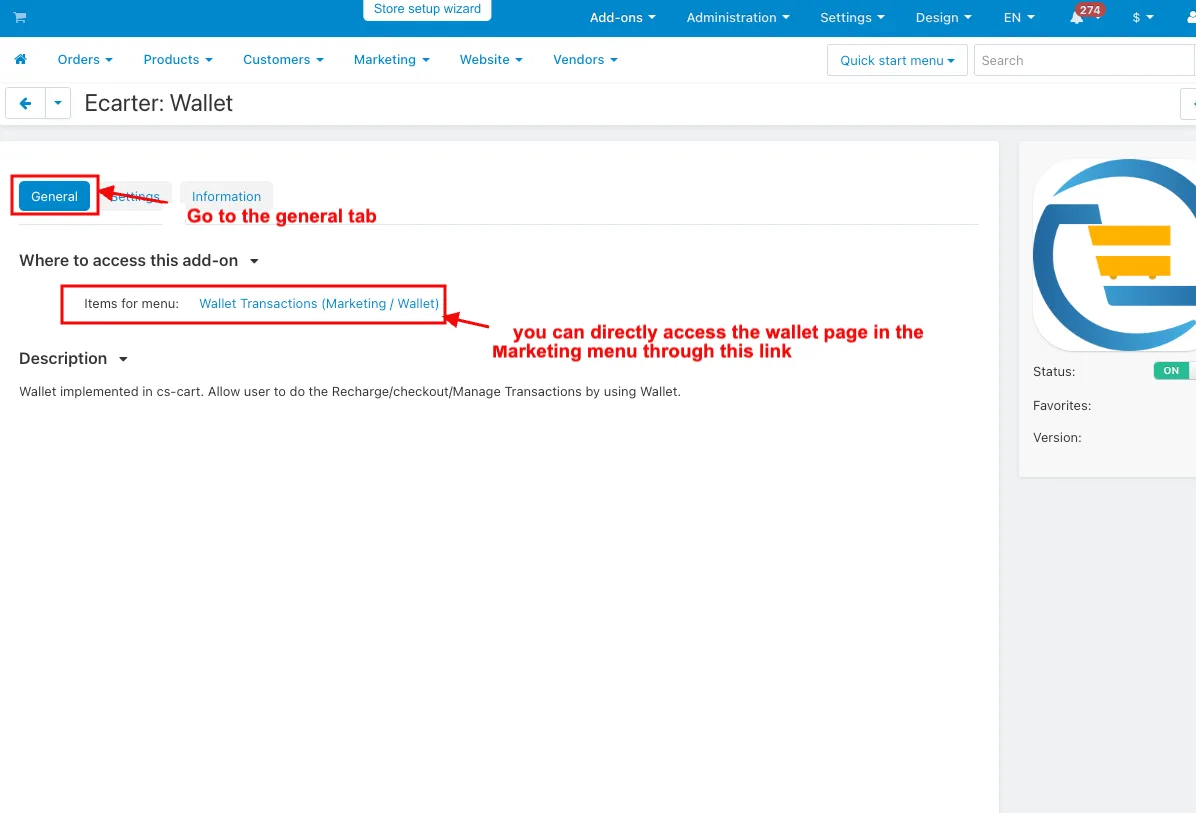
- Go to the general tab
- Item for Menu: Users click this link to go to the wallet page under the Marketing menu.
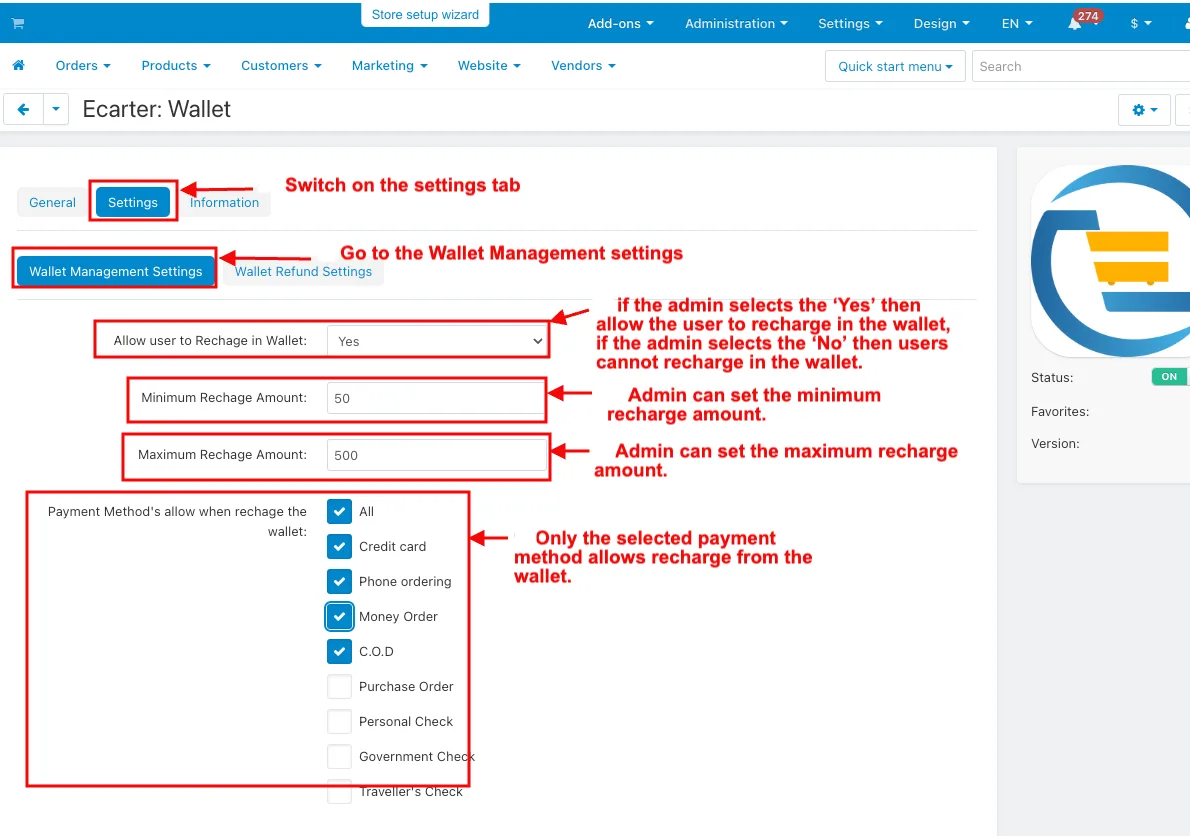
- Switch on the settings tab.
- Go to the Wallet Management Settings under the settings tab.
- Allow user to Recharge in Wallet: If the admin chooses ' Yes,' allow the user to add money to their wallet.
- Minimum Recharge Amount: Admin can set the minimum amount for wallet recharge.
- Maximum Recharge Amount: Admin can set the Maximum amount for wallet recharge.
- Payment methods allow when recharging the wallet: Only the selected payment method allows recharge from the wallet.
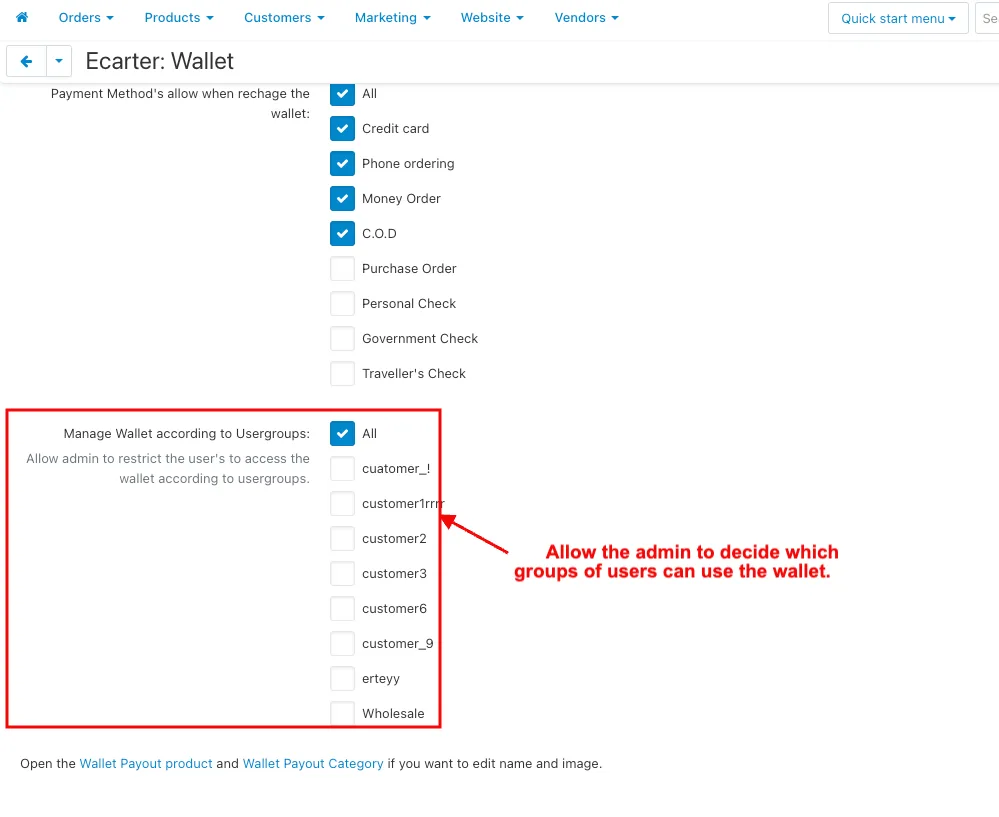
- Manage wallet according to user groups: Allow the admin to choose which user group can use the wallet.
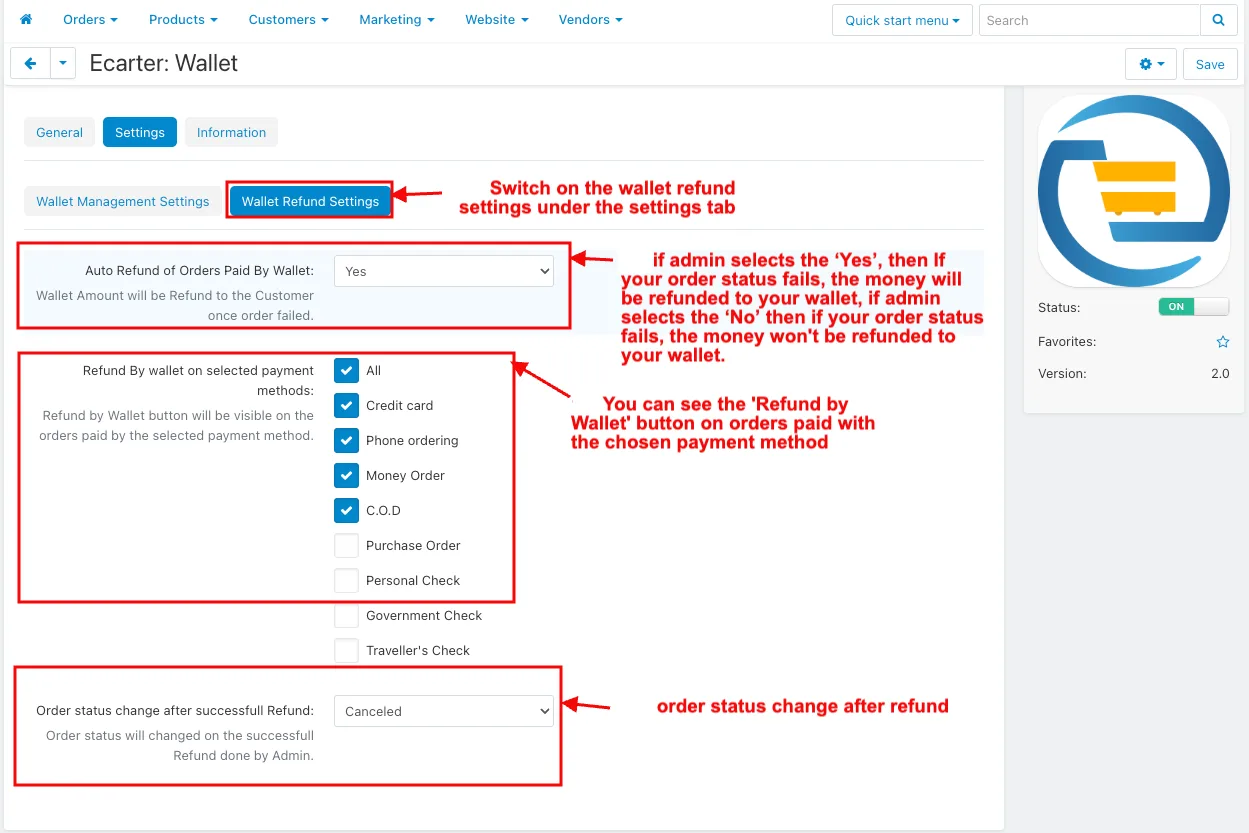
- Switch on the Wallet Refund Settings under the settings tab.
- Auto Refund of orders paid by wallet: If the admin selects ‘Yes’, the money will be refunded to your wallet if your order fails. If the admin selects ‘No’, the money won't be refunded to your wallet if your order fails.
- Refund By Wallet on selected payment method: You can see the 'Refund by Wallet' button on orders paid with the chosen payment method.
- Order status change after successful refund: order status change after refund.
How to add this addon to the layout
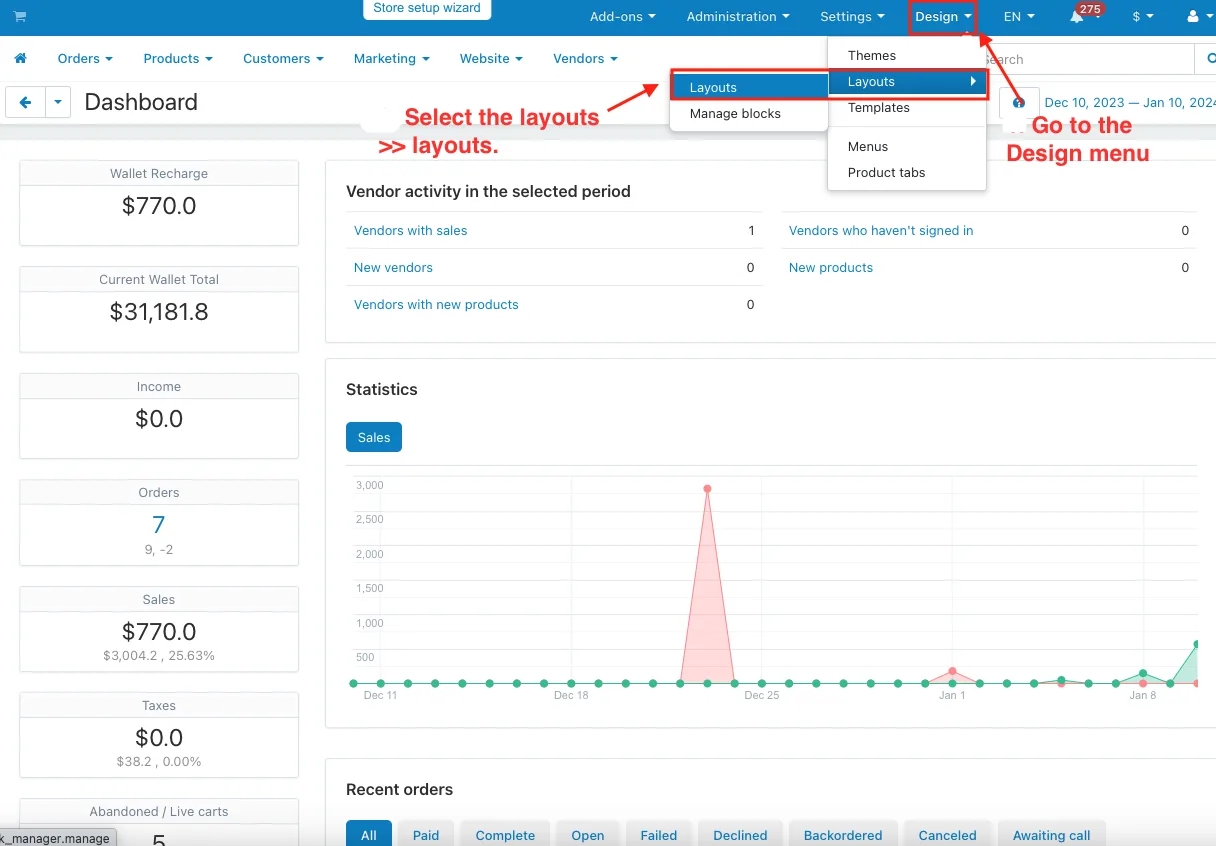
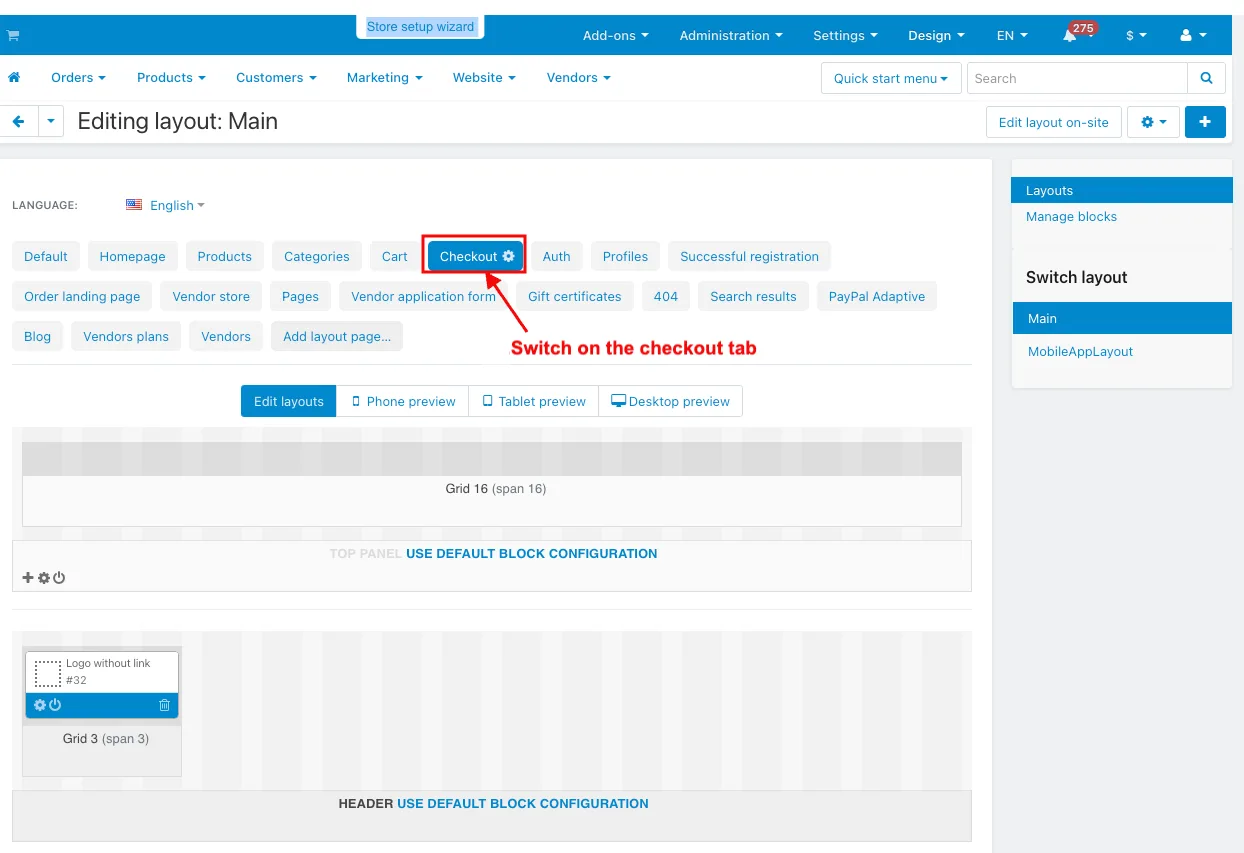
- Go to the Design menu.
- Select the layouts >> layouts.
- Switch on the checkout tab.
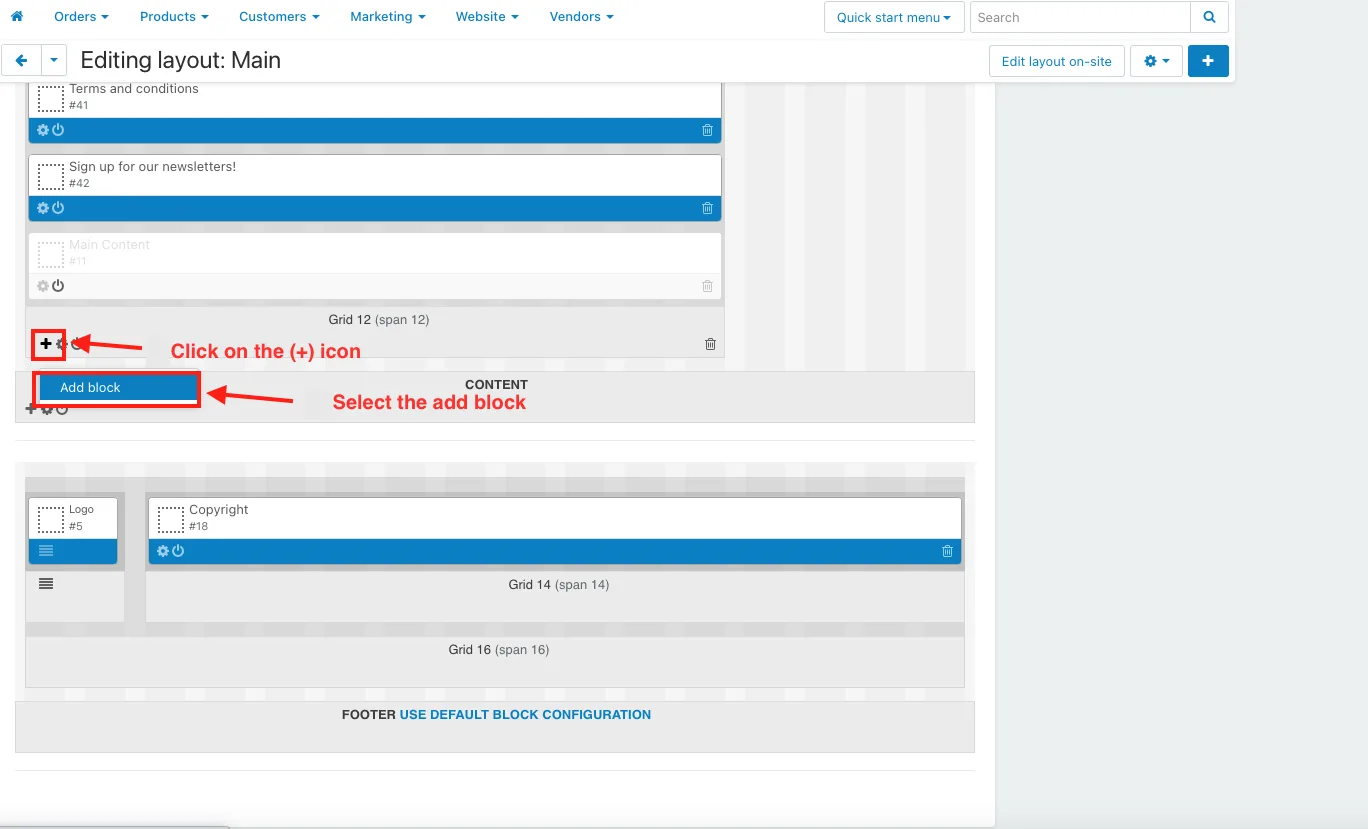
- Click on the (+) icon.
- Select the add block.
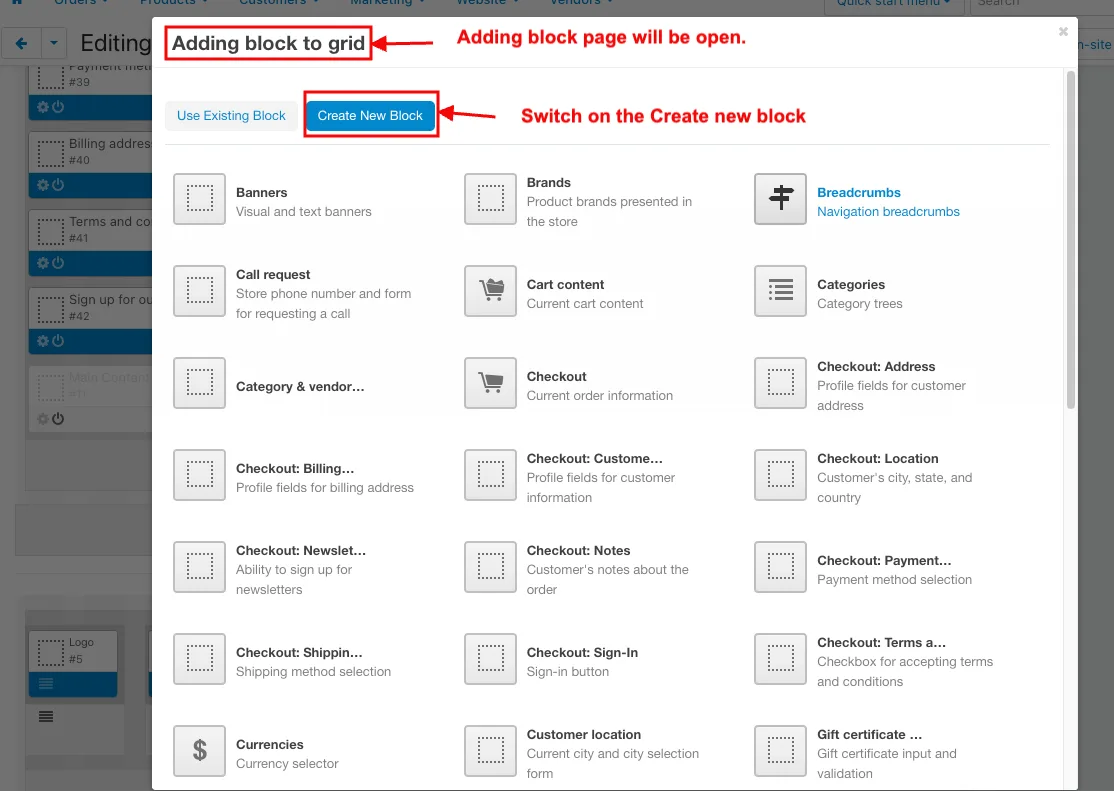
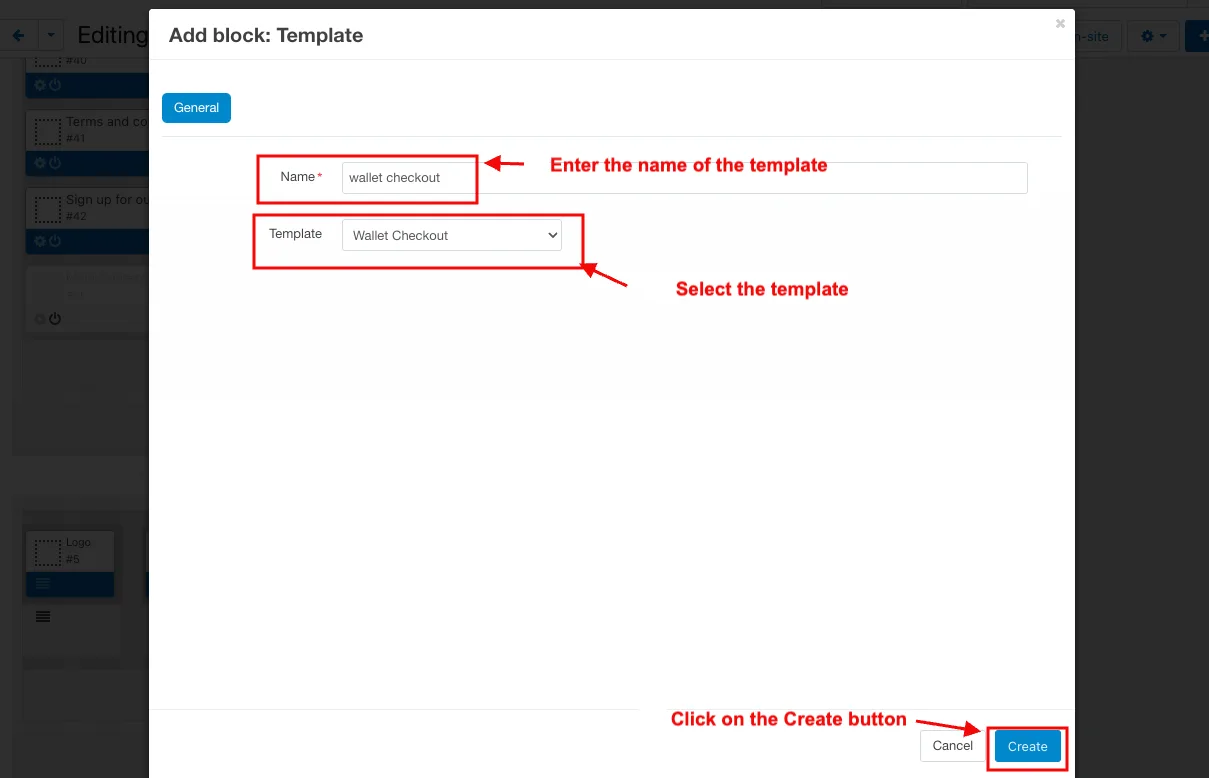
- Adding block page will be open.
- Switch on the Create new block.
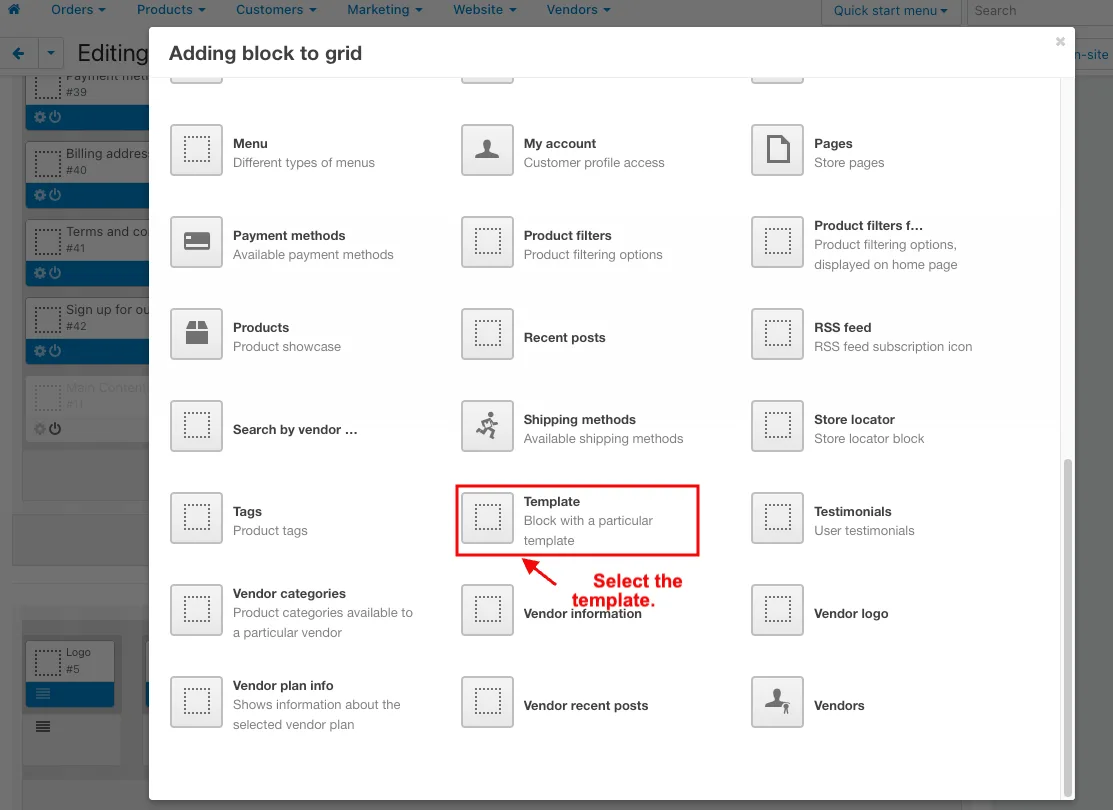
- Select the template.
- Enter the name of the template.
- Select the template.
- Click on the Create button.
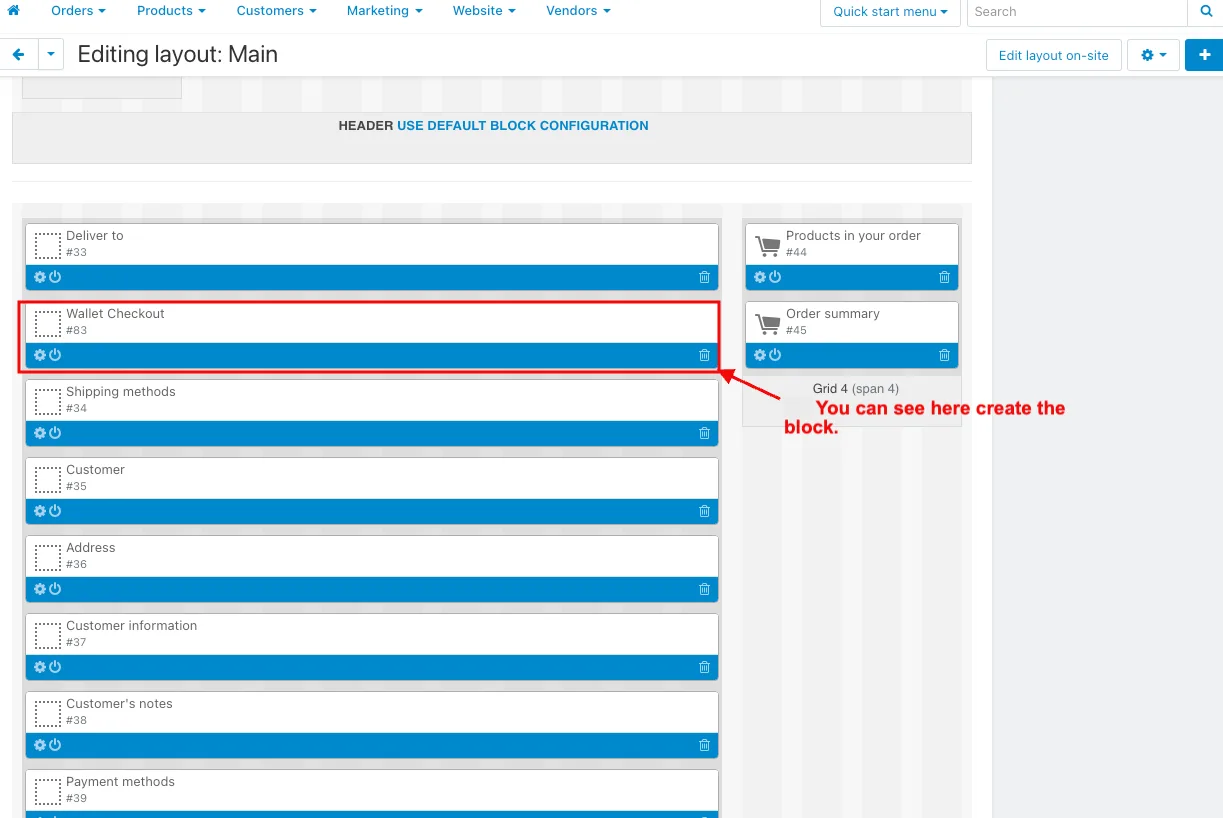
- You can see here create the block.
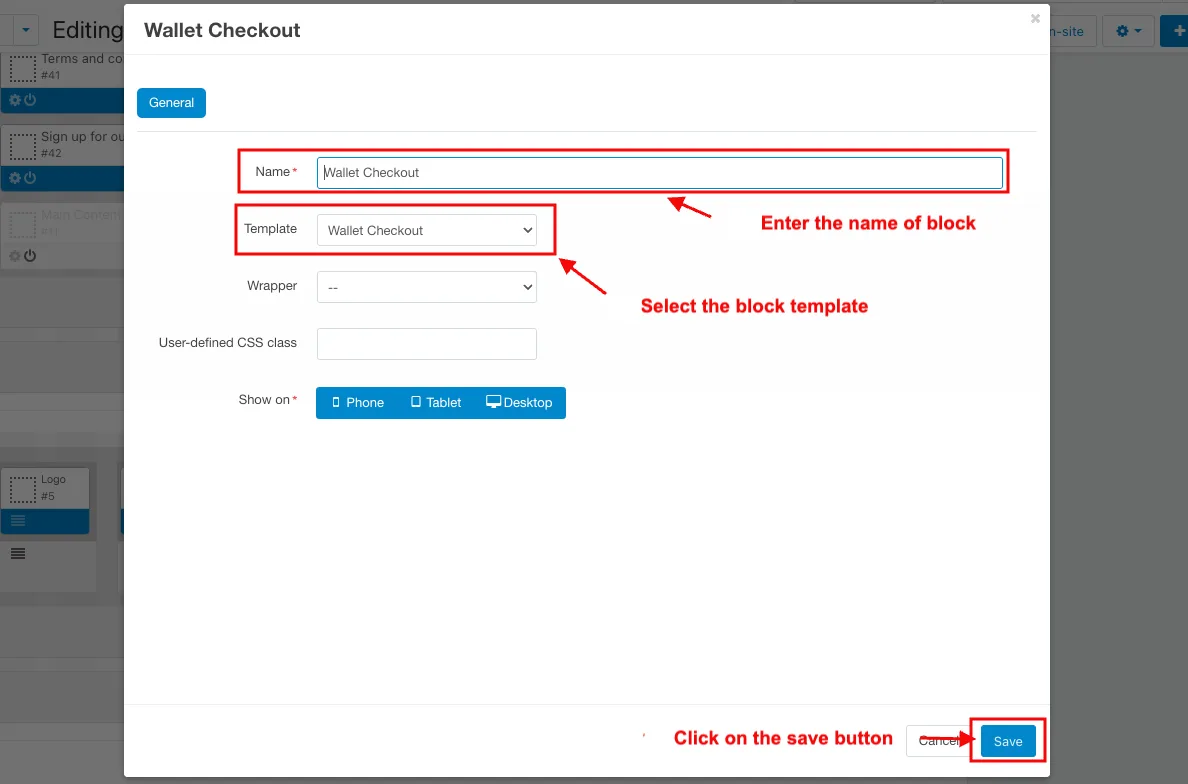
- Open the block.
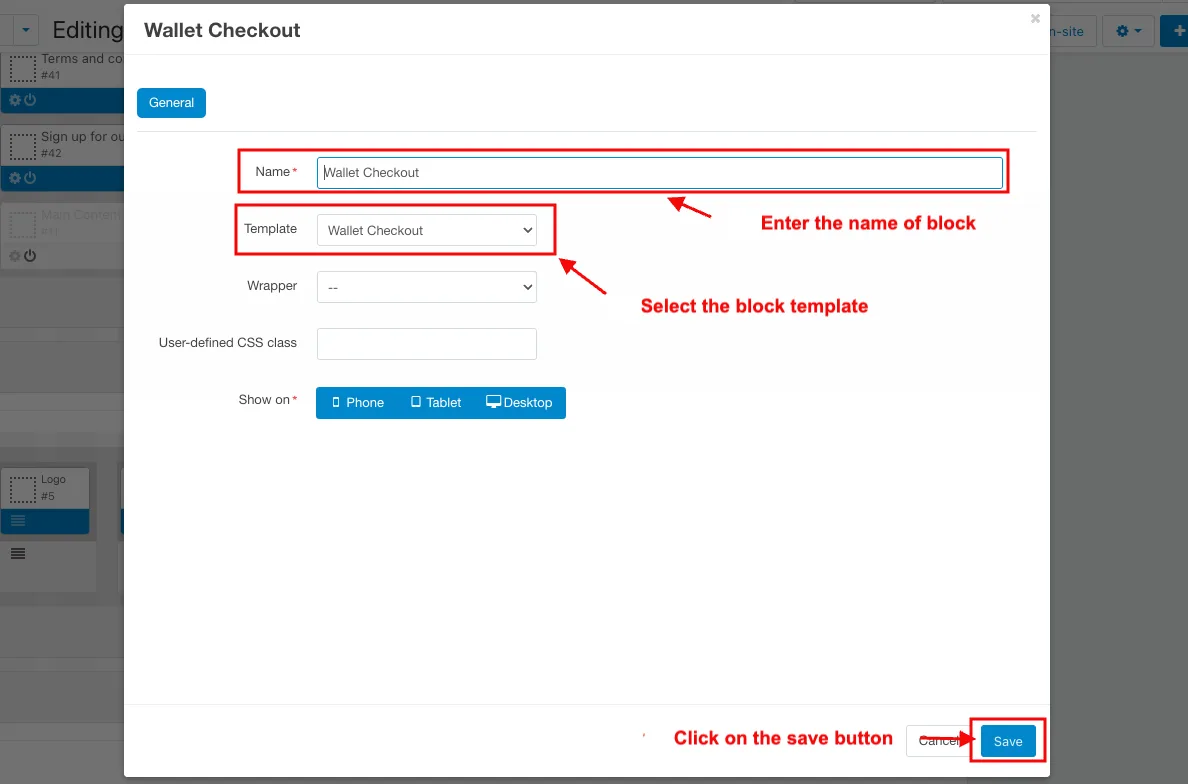
- Enter the name of the block.
- Select the block template.
- Click on the save button.
How to work this addon
- Go to the administration.
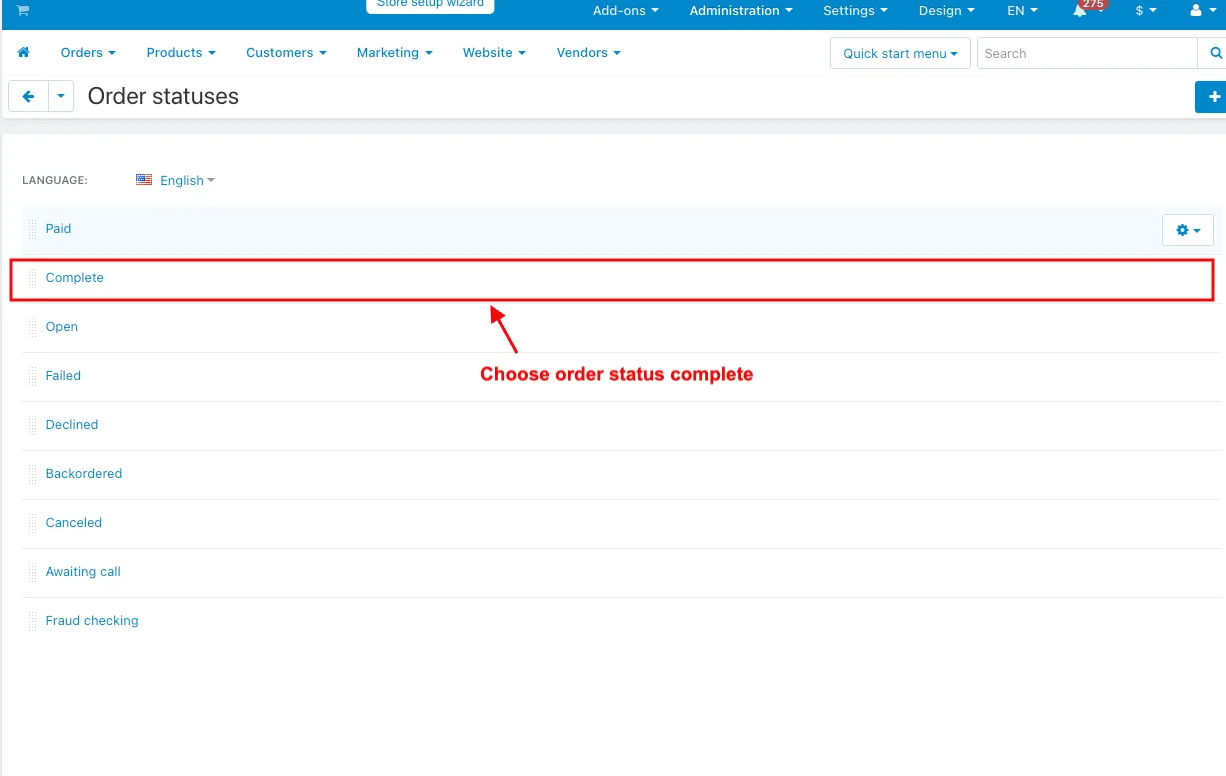
- Select the statuses.
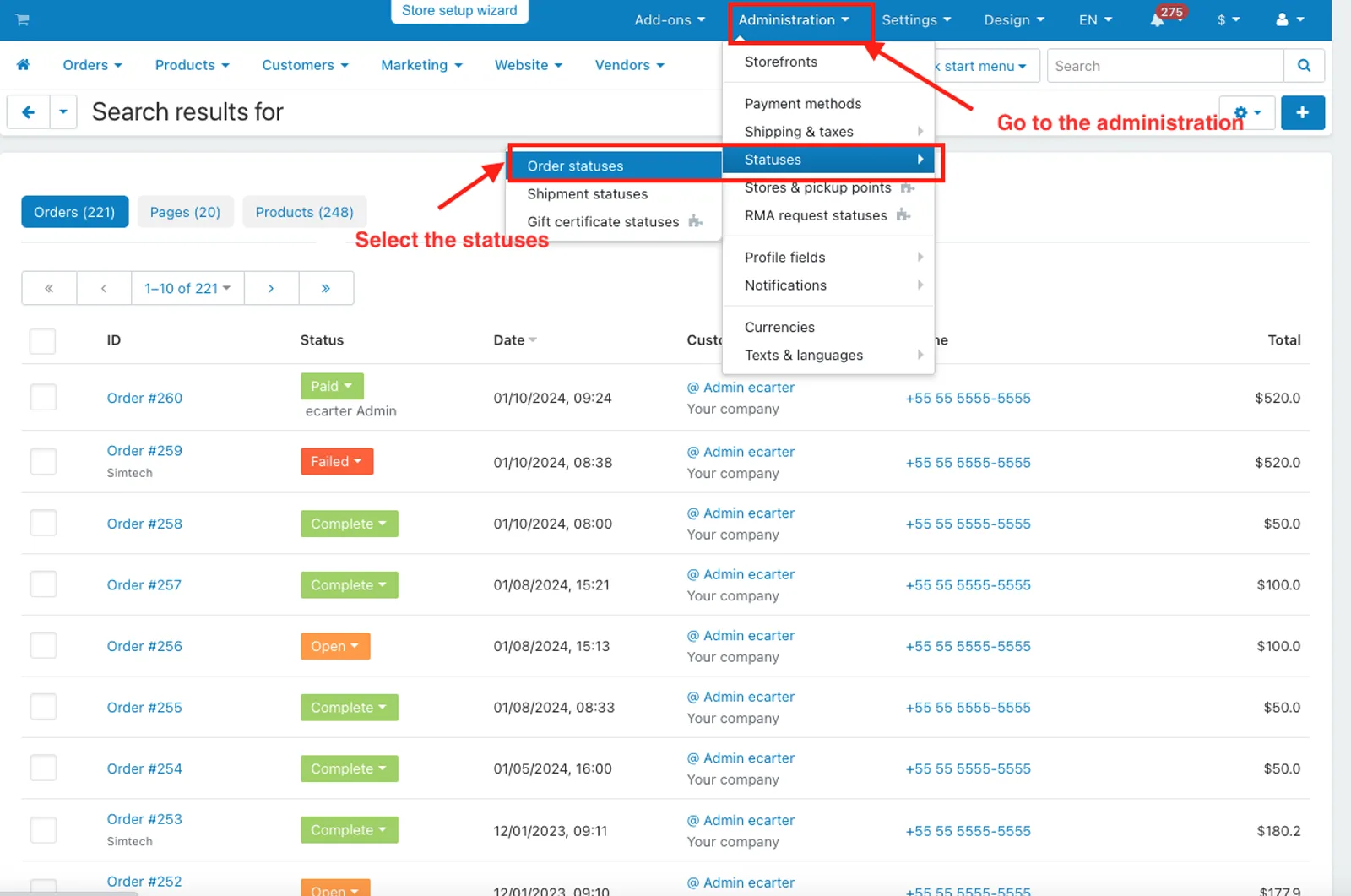
- Choose order status complete.
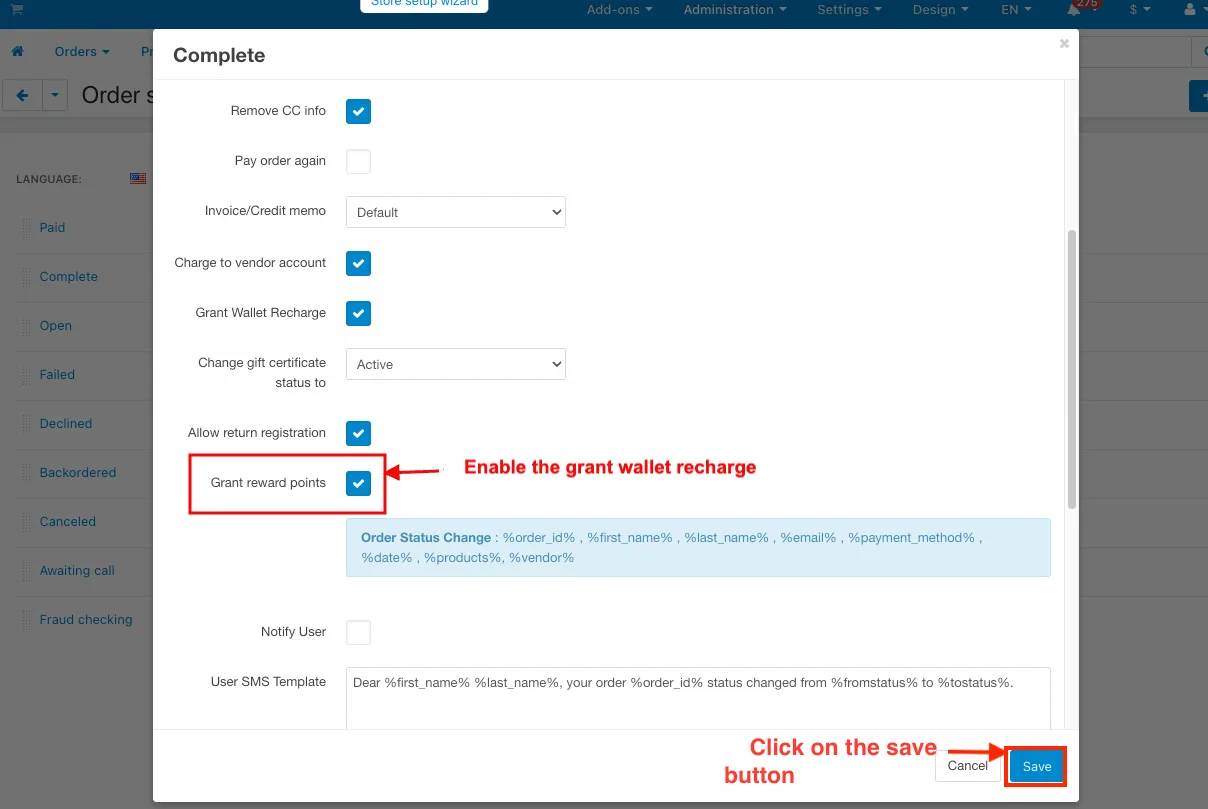
- Enable the grant wallet recharge.
- Click on the save button.
- Go to the storefront.
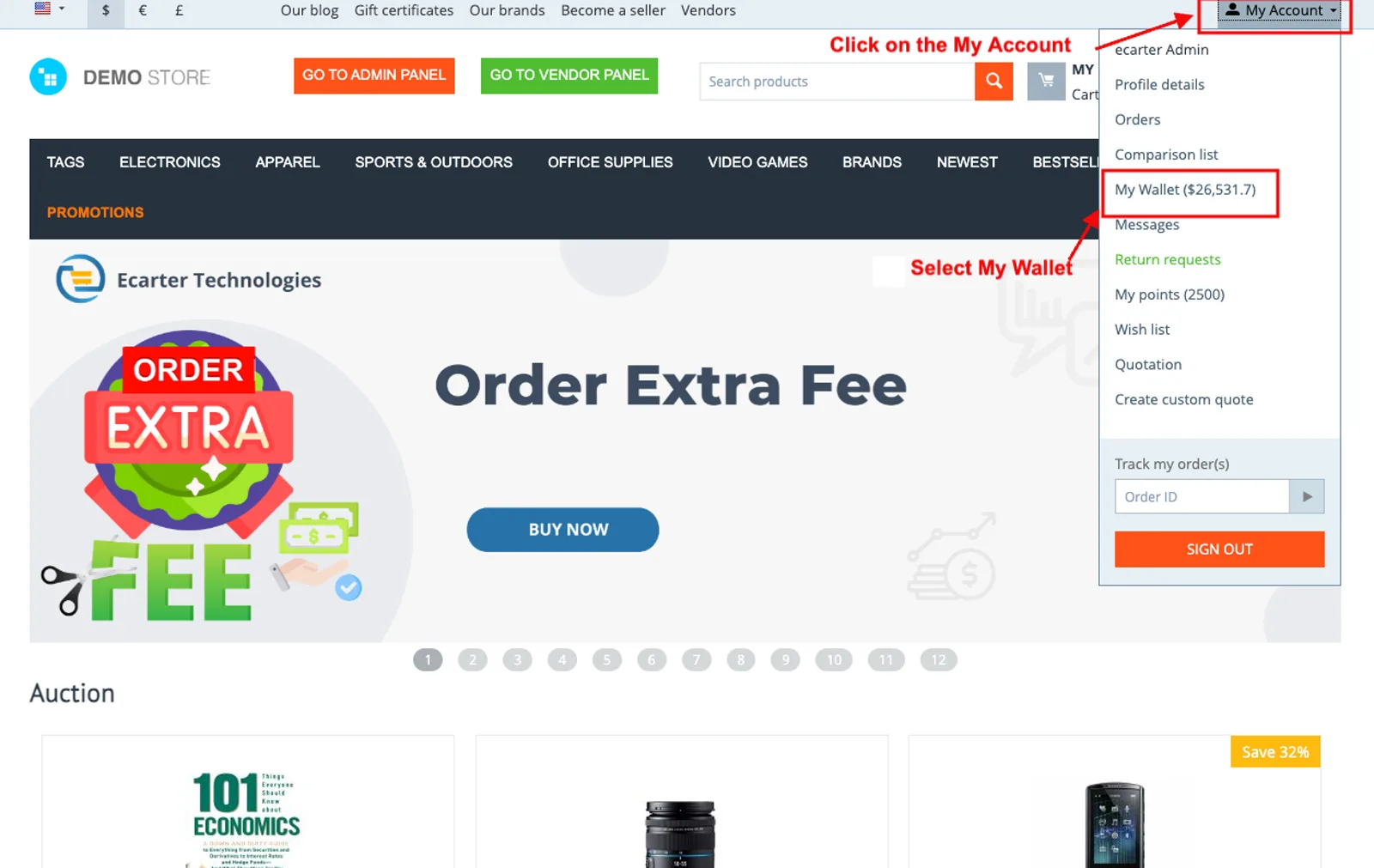
- Click on the My Account.
- Select My Wallet.
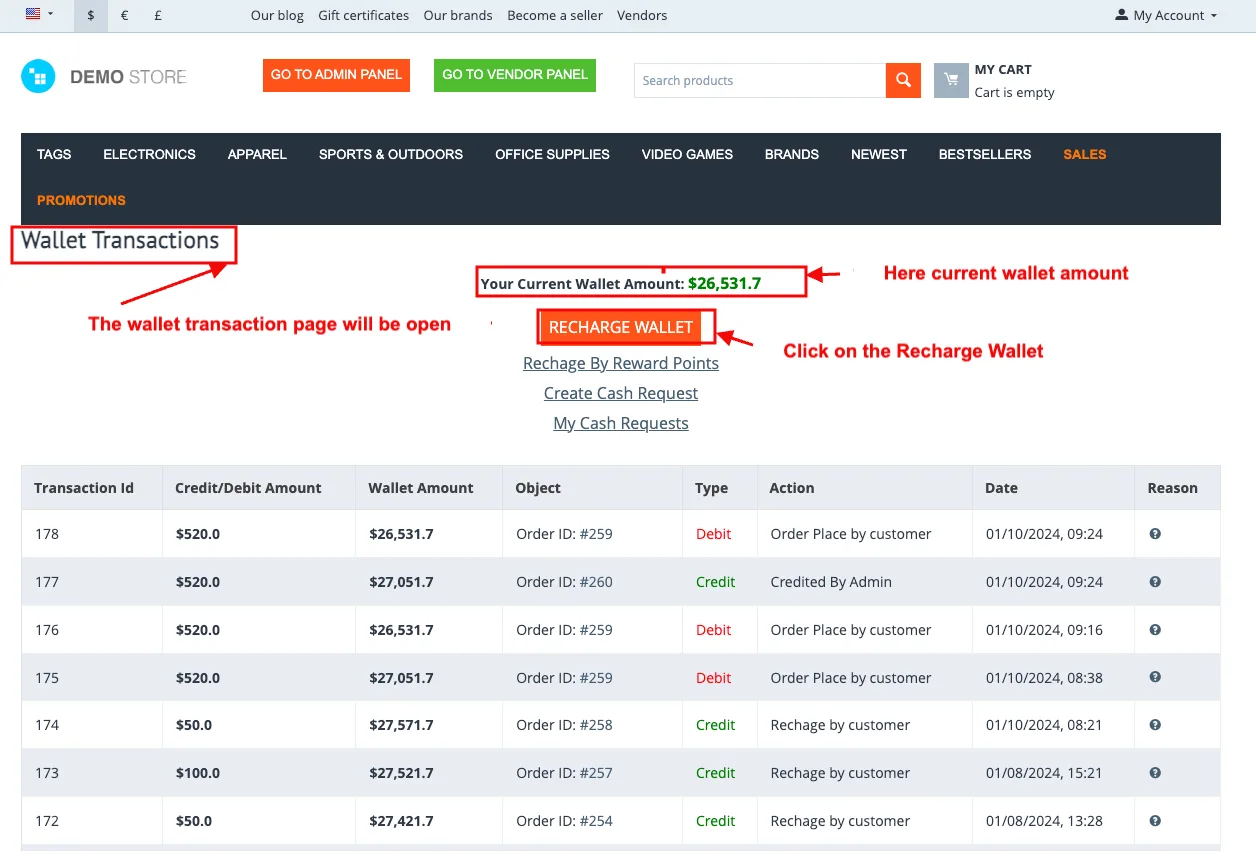
- The wallet transaction page will be open.
- Here is the current wallet amount.
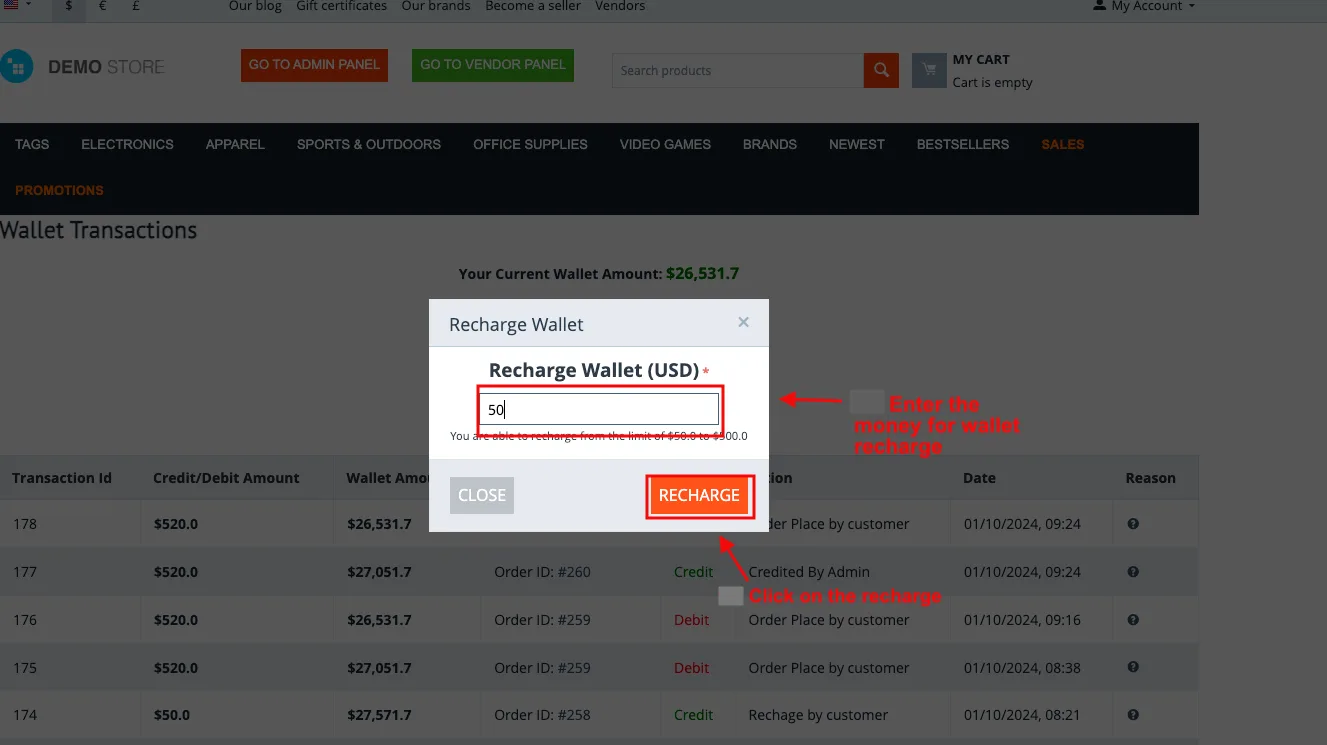
- Click on the Recharge Wallet.
- Enter the money for wallet recharge.
- Click on the recharge.
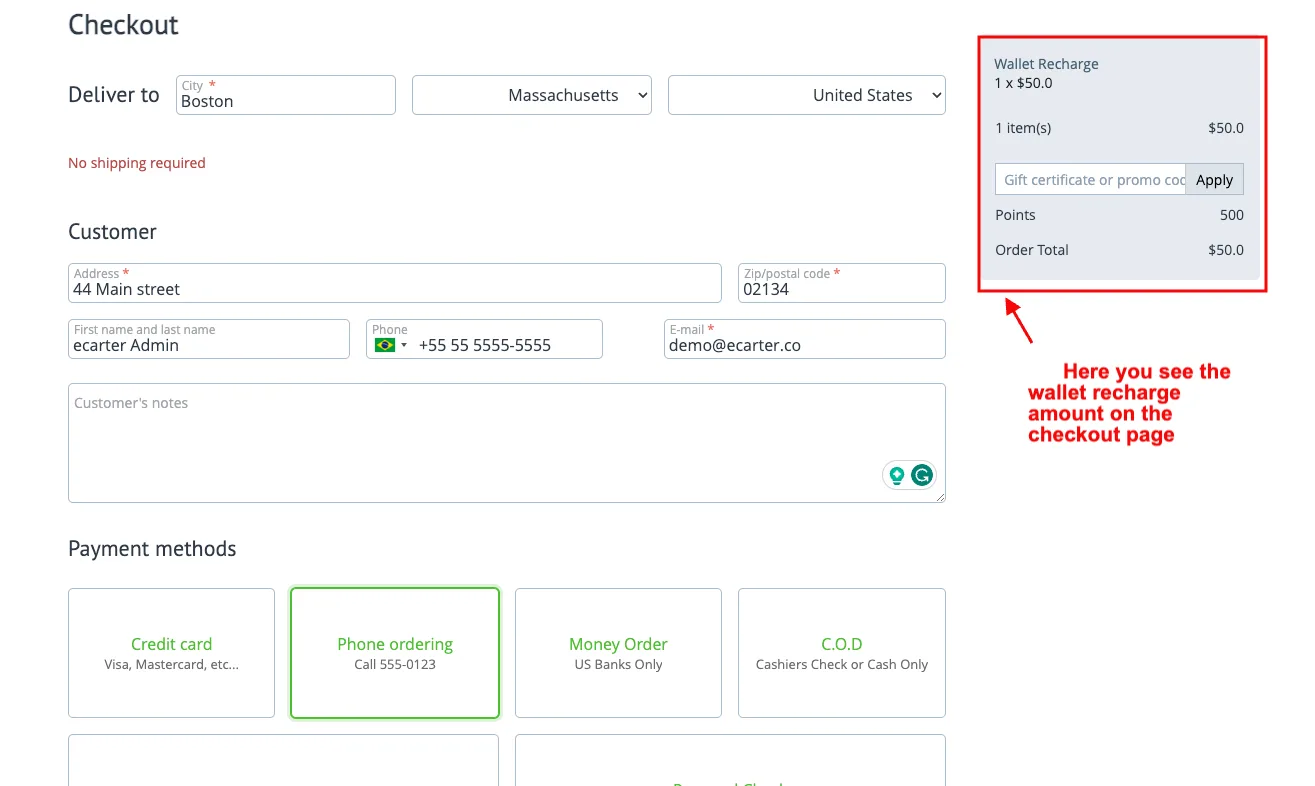
- Here you see the wallet recharge amount on the checkout page.
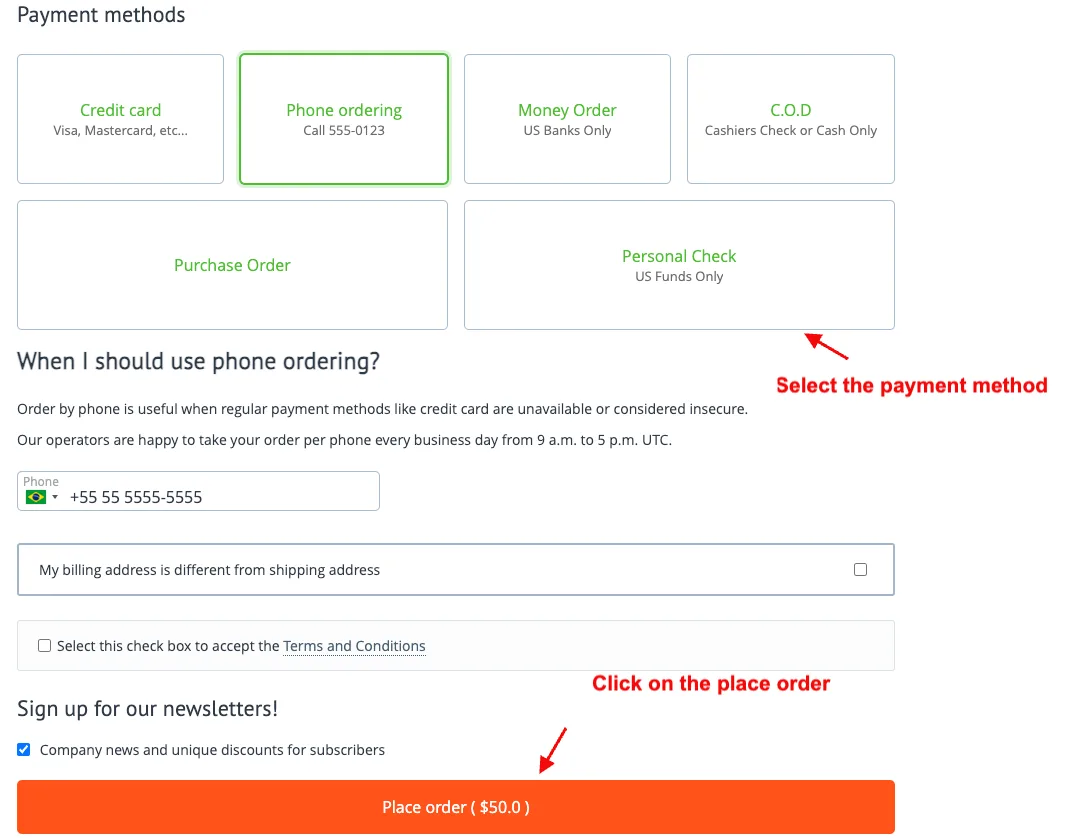
- Select the payment method.
- Click on the place order.
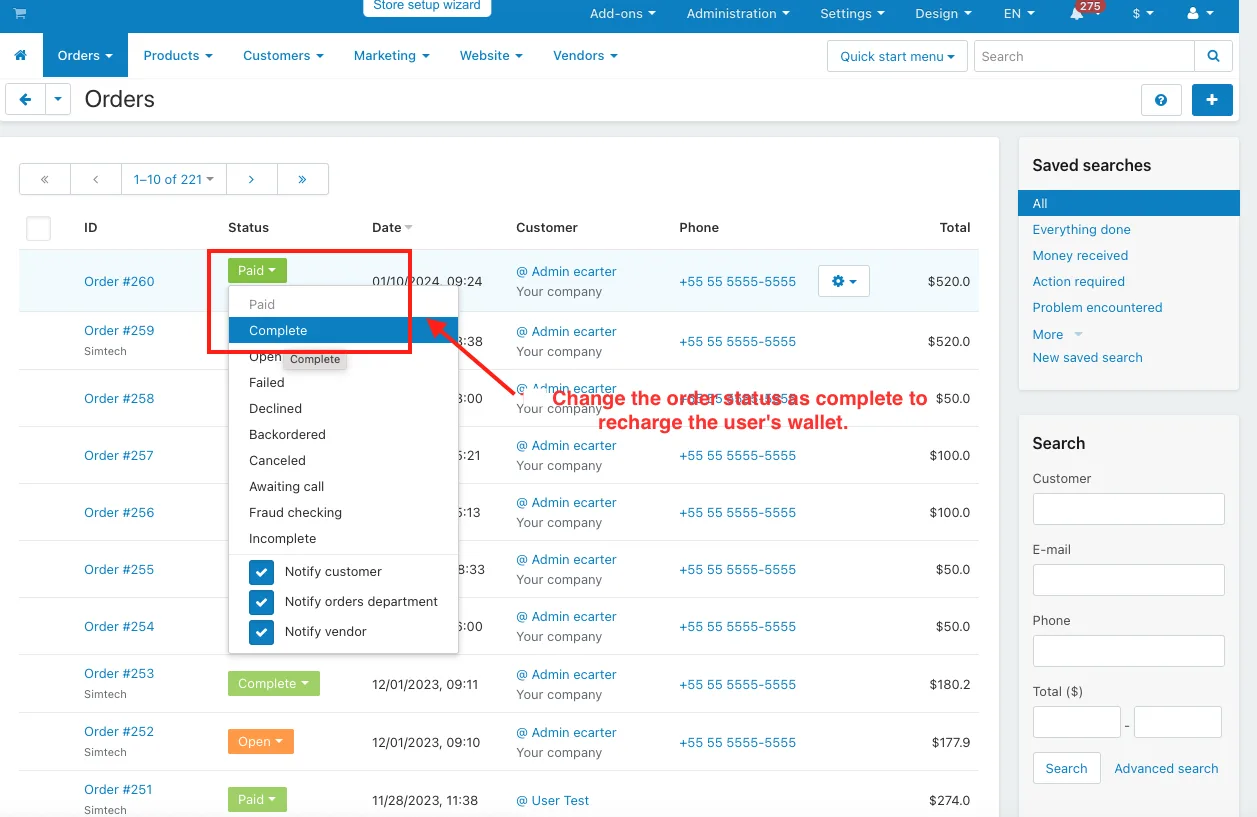
- Go to the order menu in the admin panel.
- Select the view orders.
- Change the order status to complete to recharge the user's wallet.
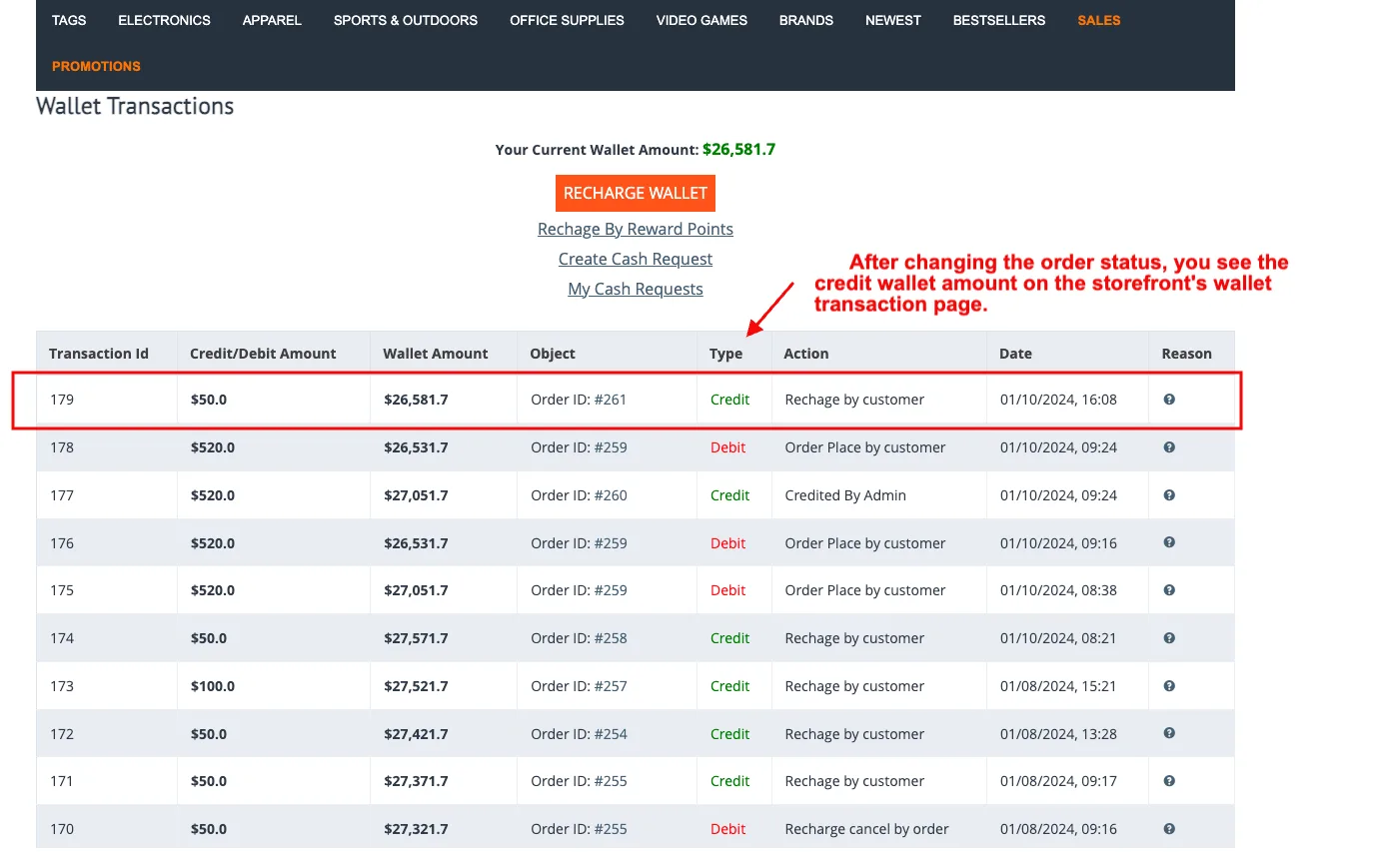
- After changing the order status, you see the credit wallet amount on the storefront's wallet transaction page
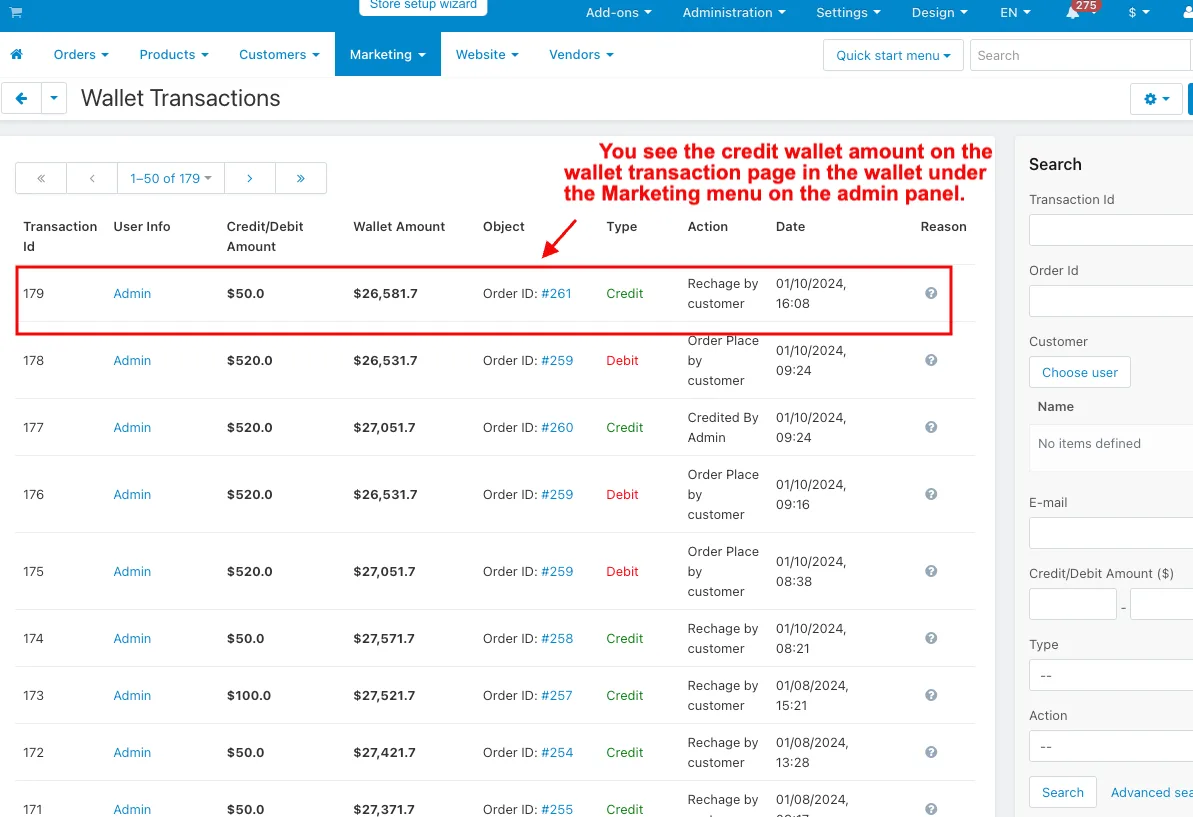
- You see the credit wallet amount on the wallet transaction page in the wallet under the Marketing menu on the admin panel.
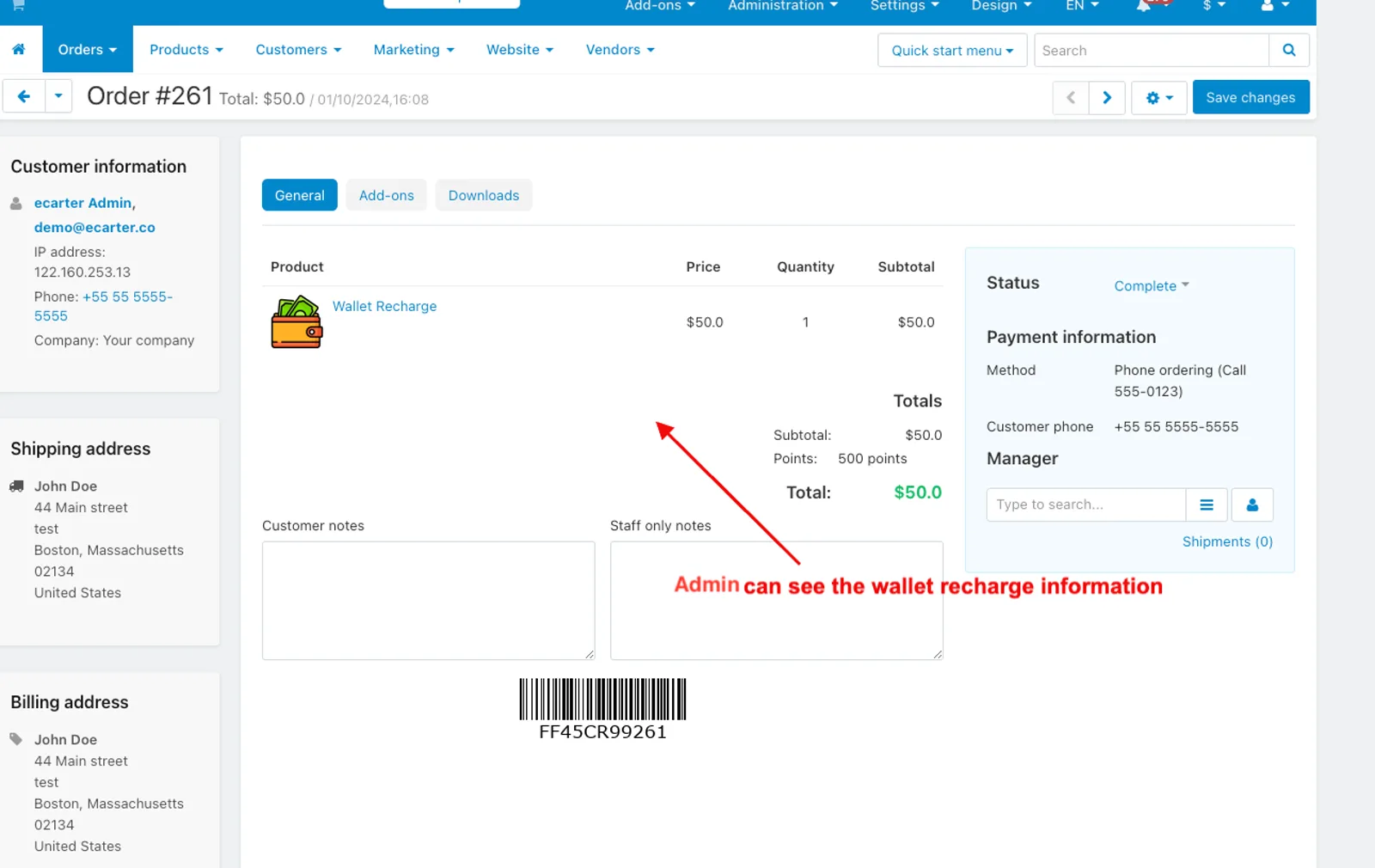
- Open the order.
- Admin can see the wallet recharge information.
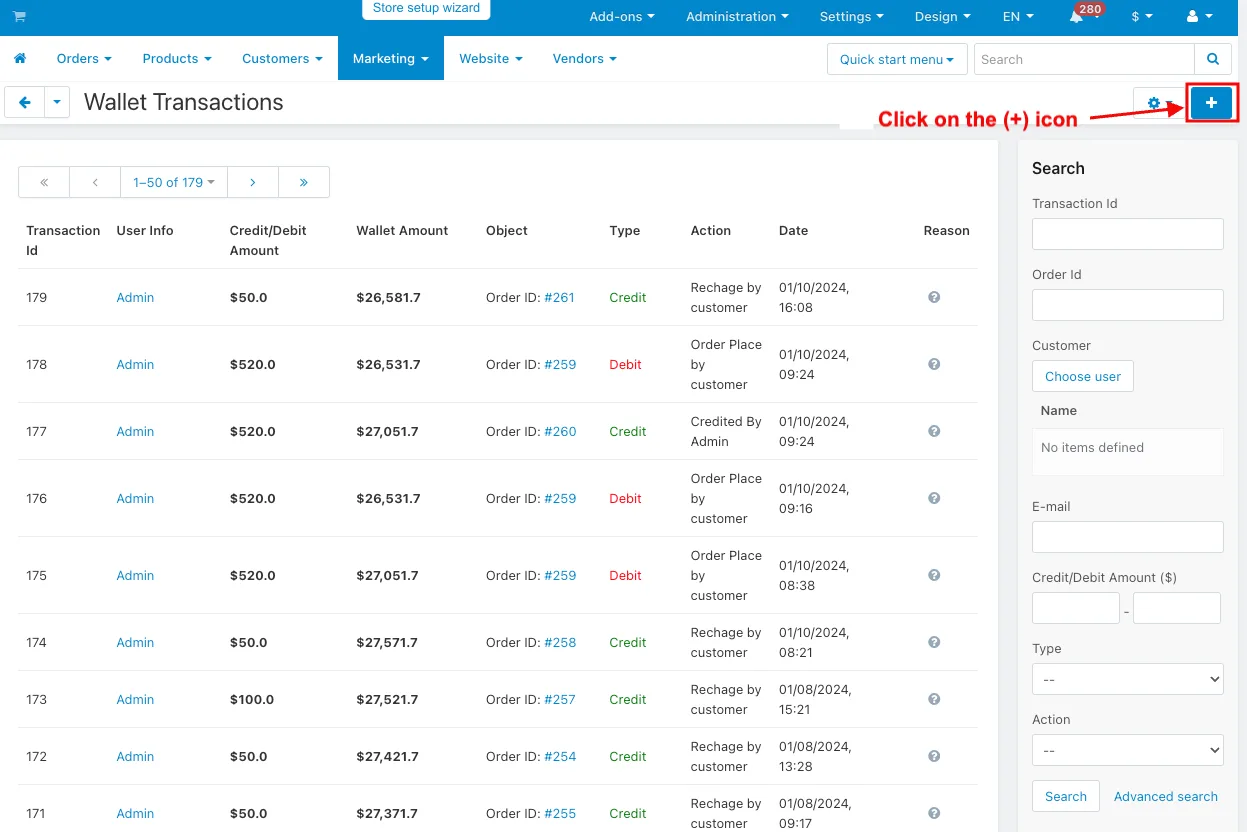
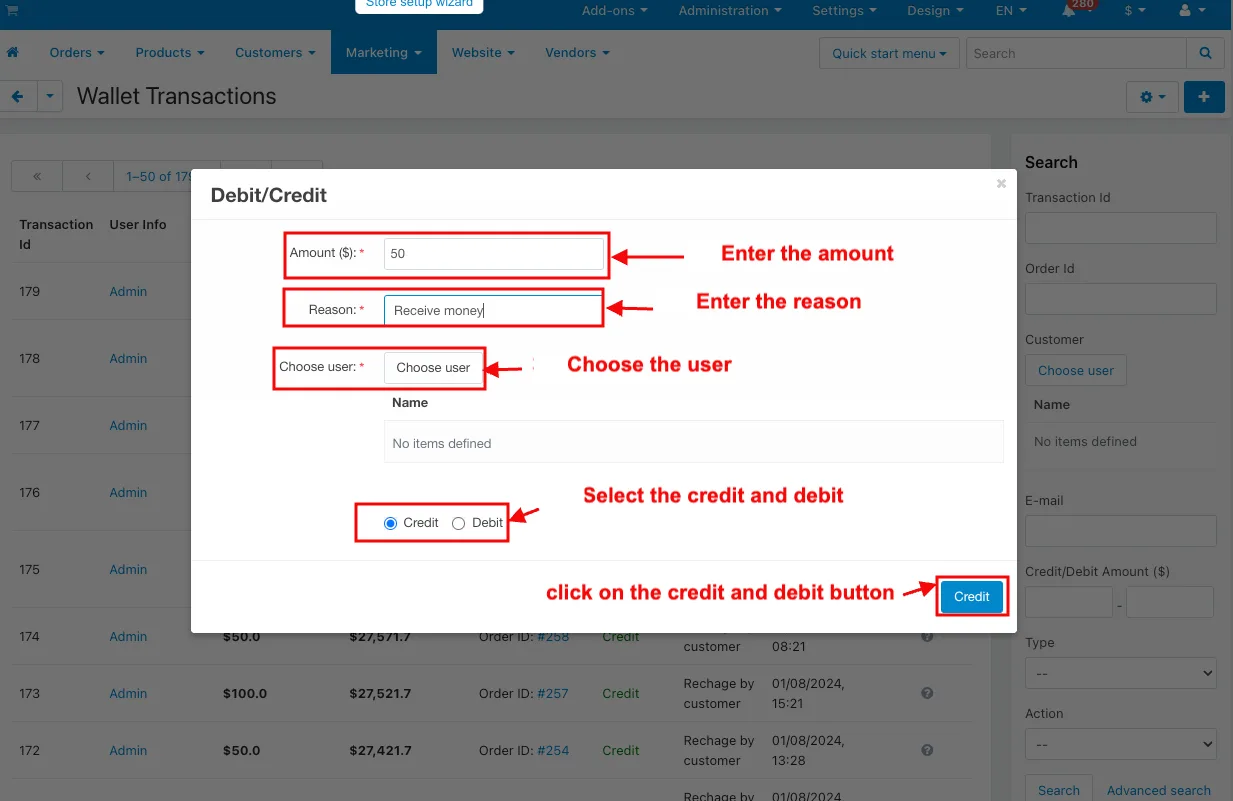
- Admin can add the credit and debit on the wallet transaction page in the wallet under the marketing menu.
- Click on the (+) icon.
- Enter the amount.
- Enter the reason.
- Choose the user.
- Select the credit and debit.
- And then click on the credit and debit button.
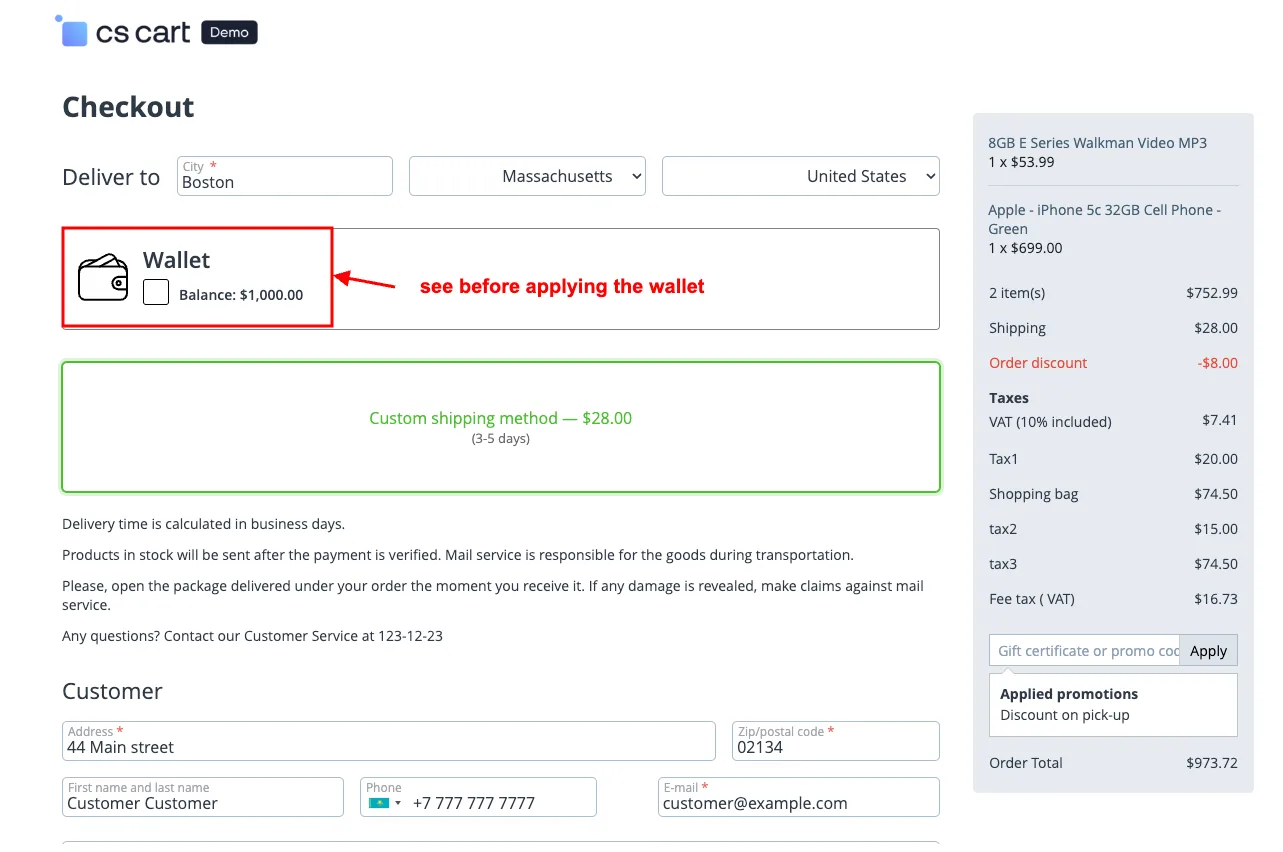
- See before applying the wallet on the checkout page.
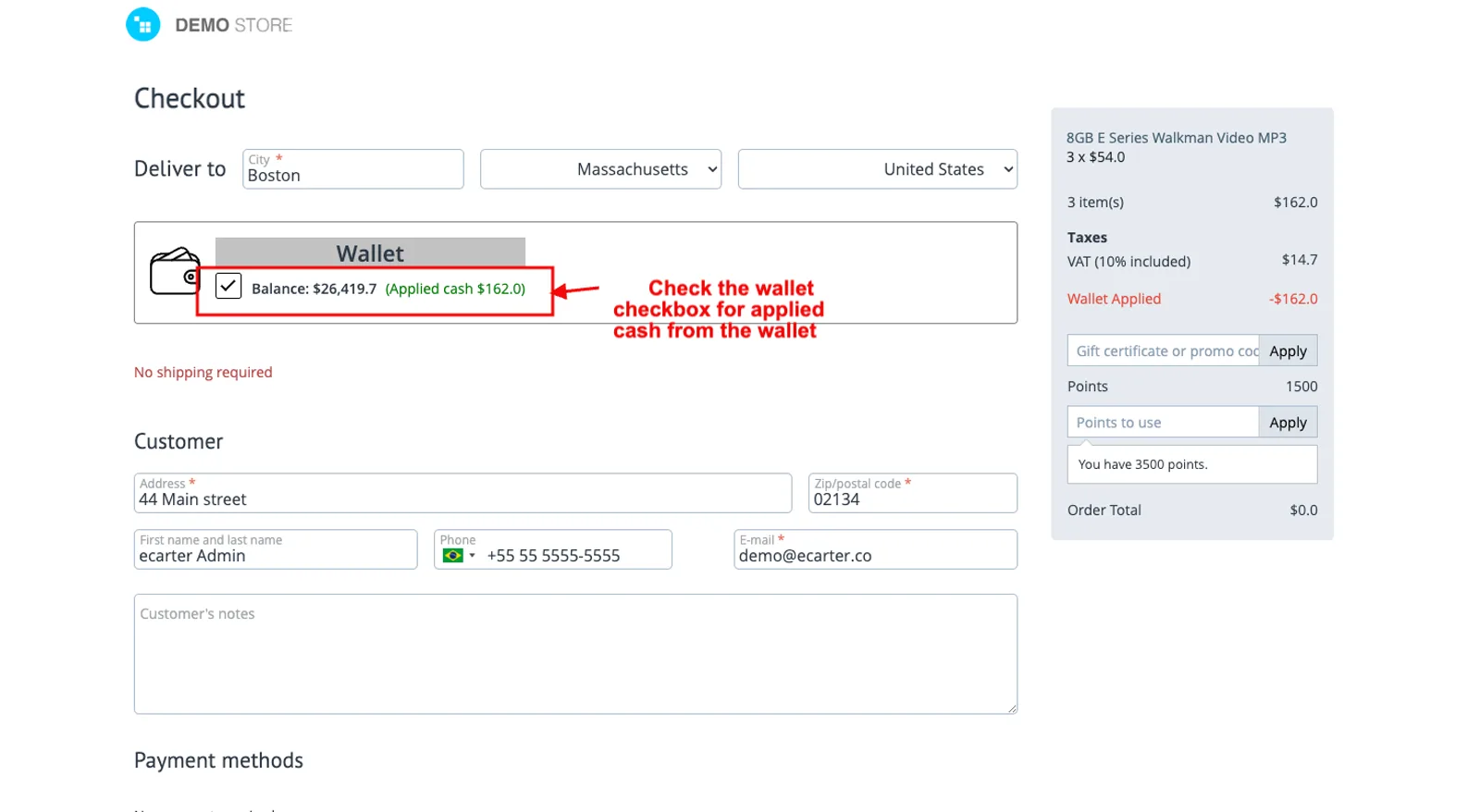
- Check the wallet checkbox for applied cash from the wallet.
- Click on the place order.
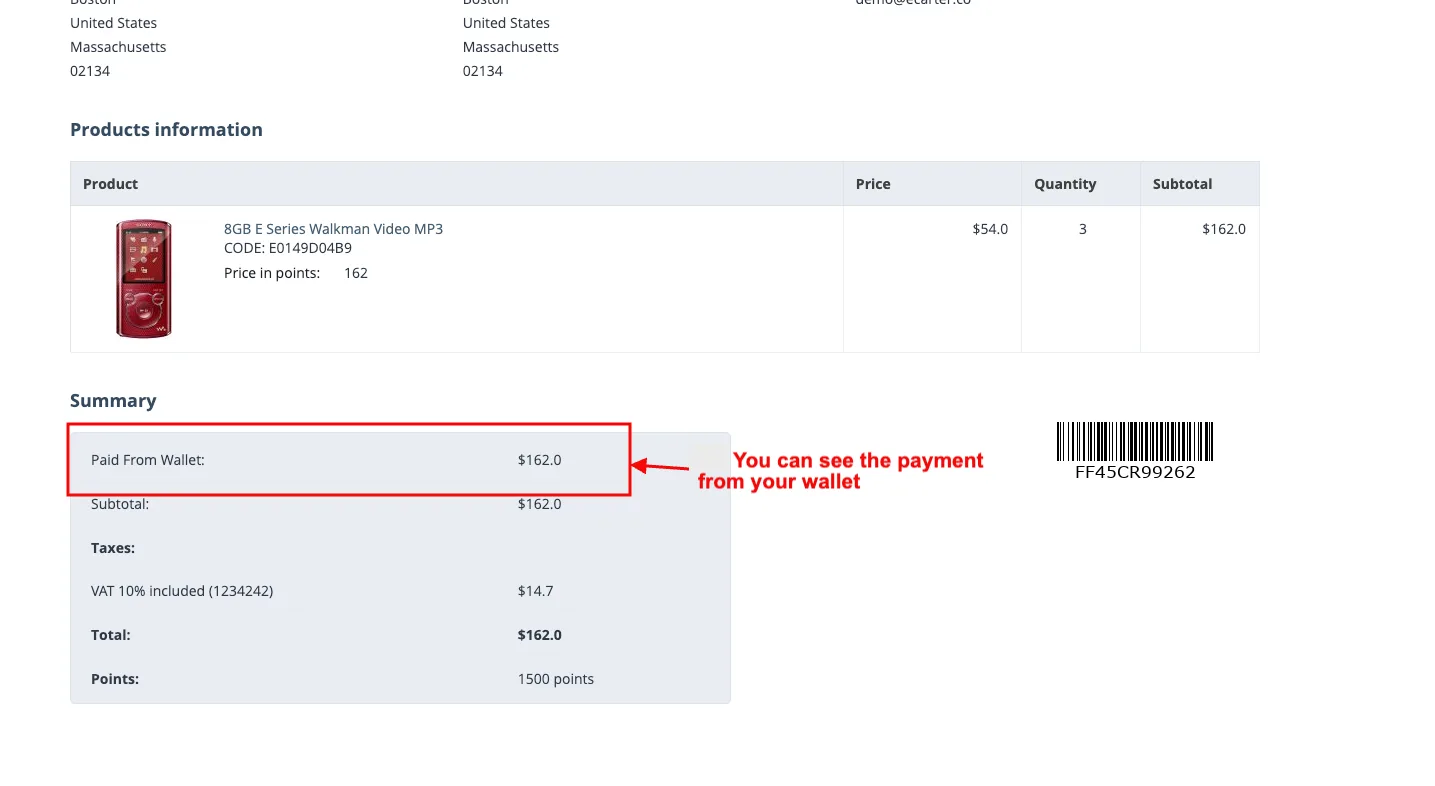
- Click on the order detail.
- You can see the payment from your wallet.
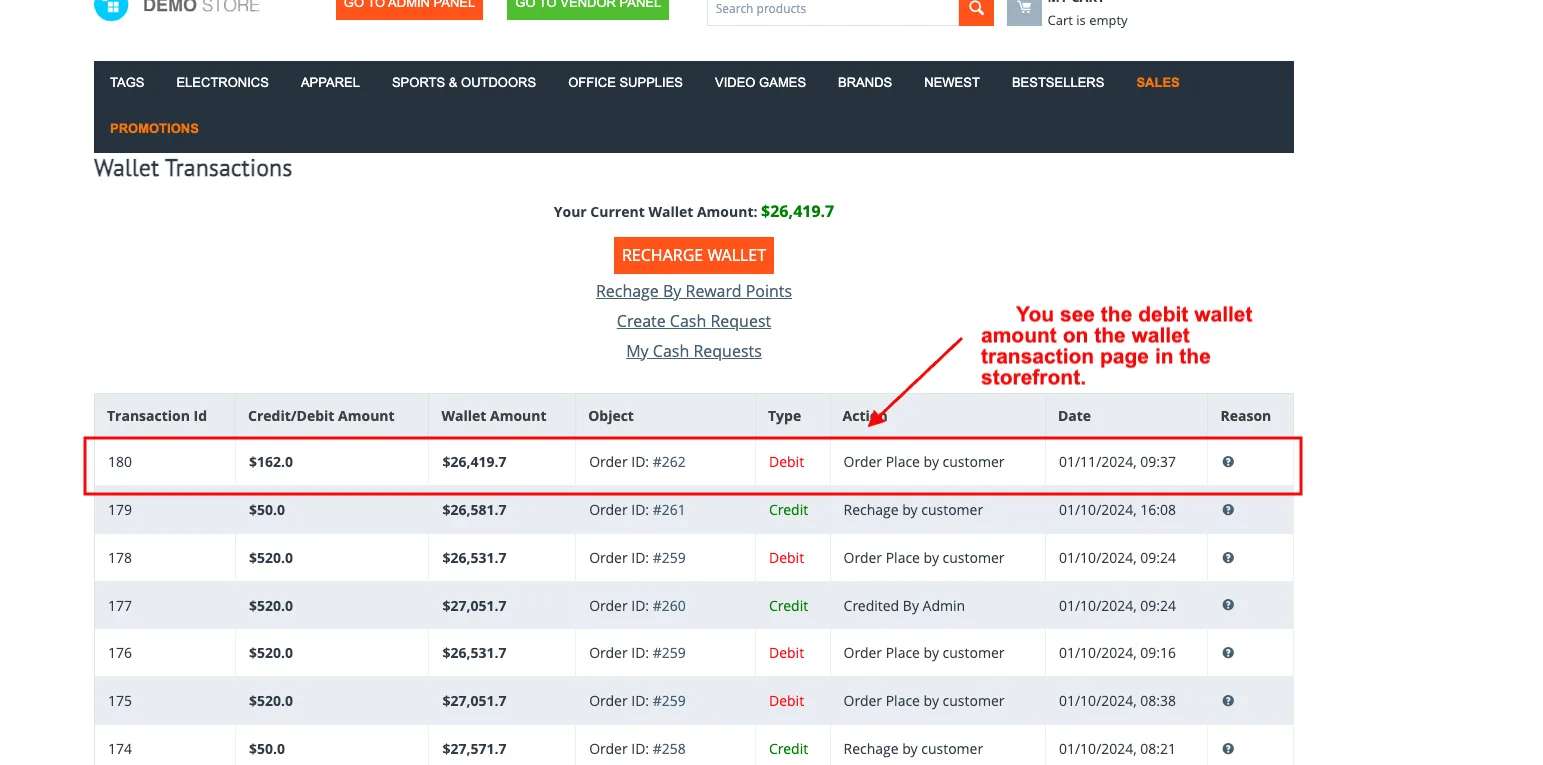
- You see the debit wallet amount on the wallet transaction page in the storefront.
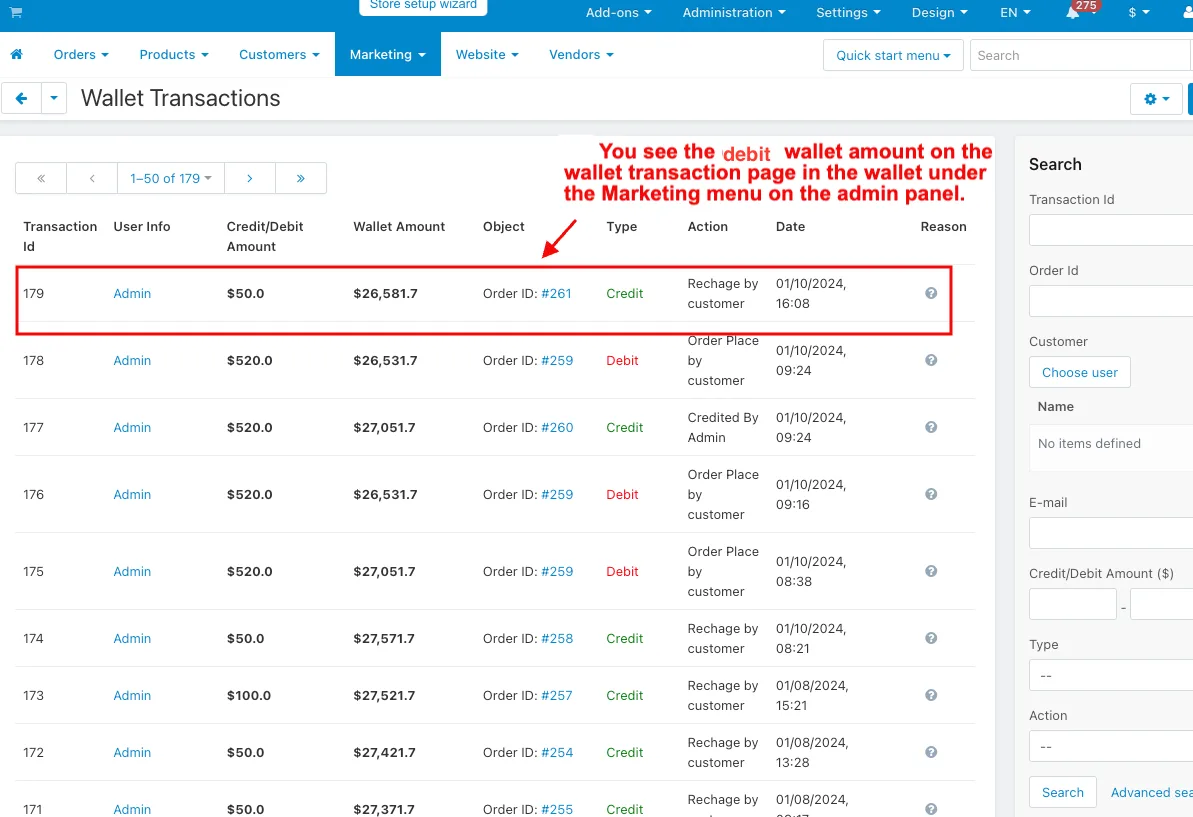
- You see the debit wallet amount on the wallet transaction page in the wallet under the marketing menu.
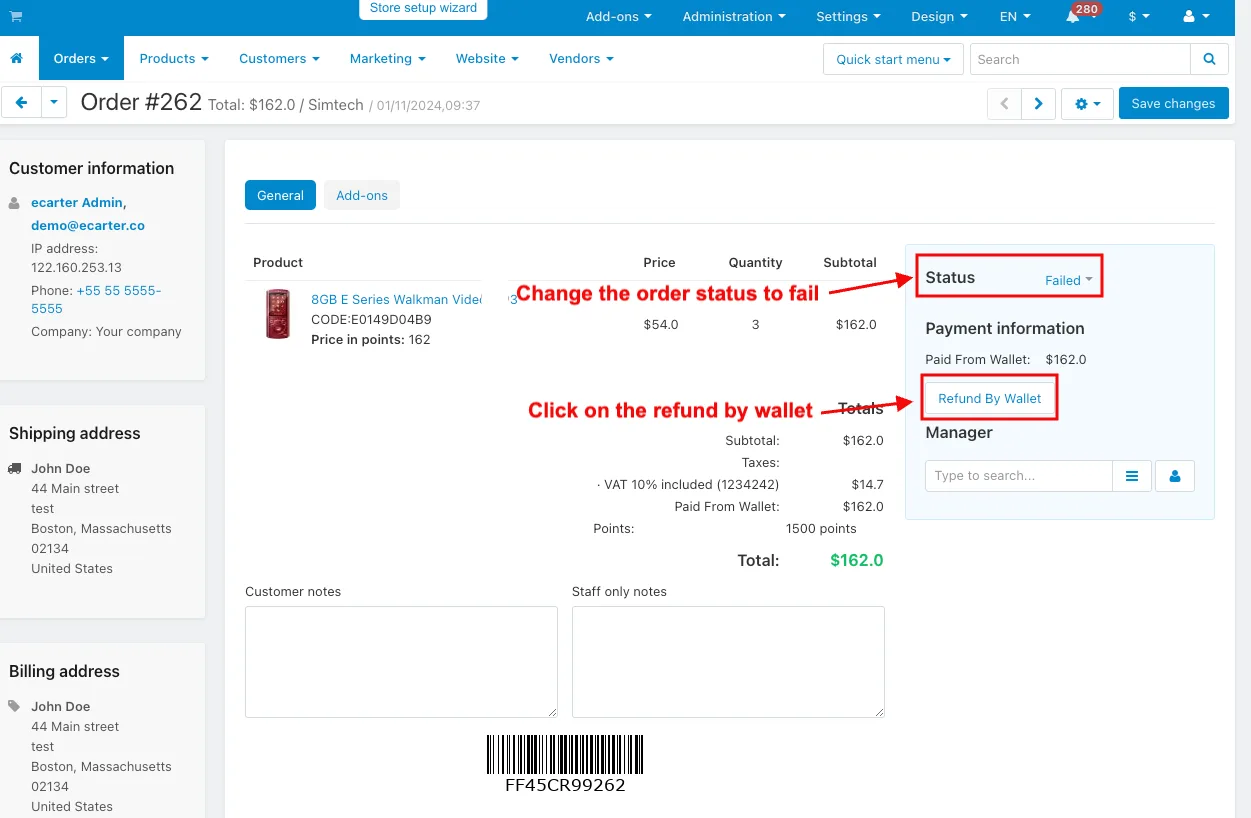
- Open the order in the order menu.
- Change the order status to fail.
- Click on the refund by wallet.
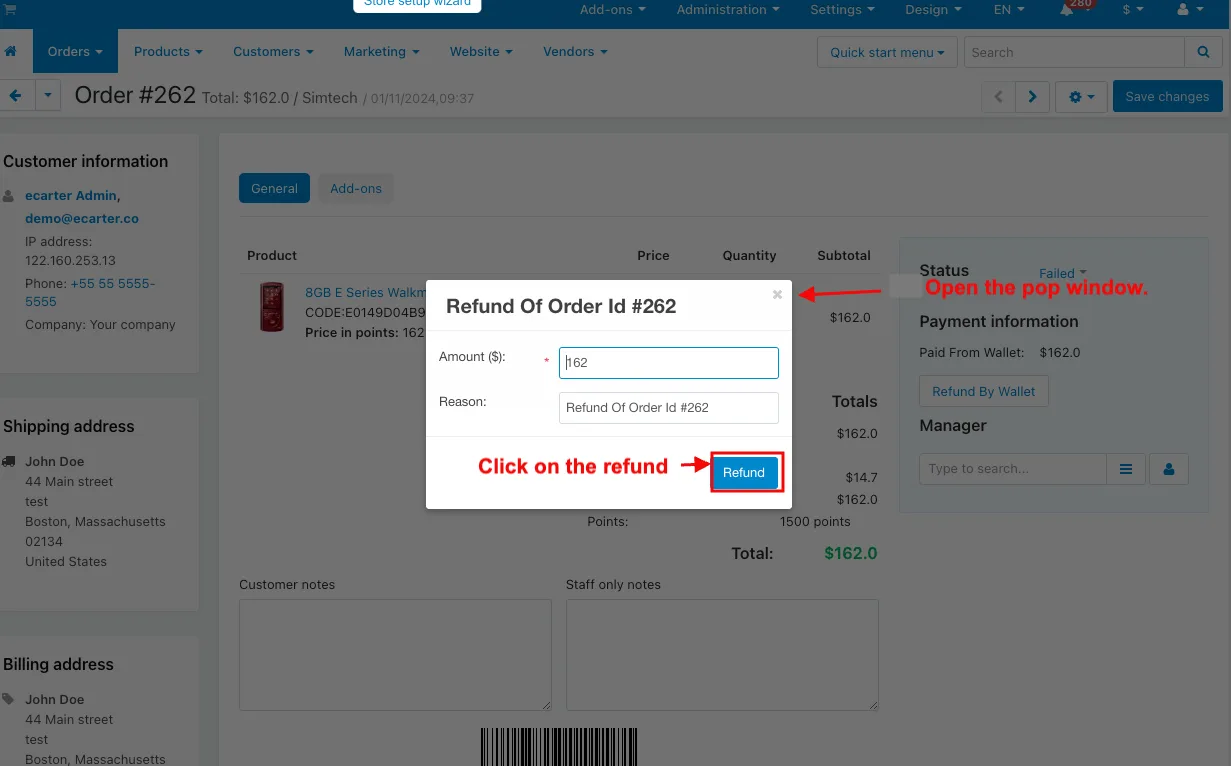
- Open the pop window.
- Click on the refund.
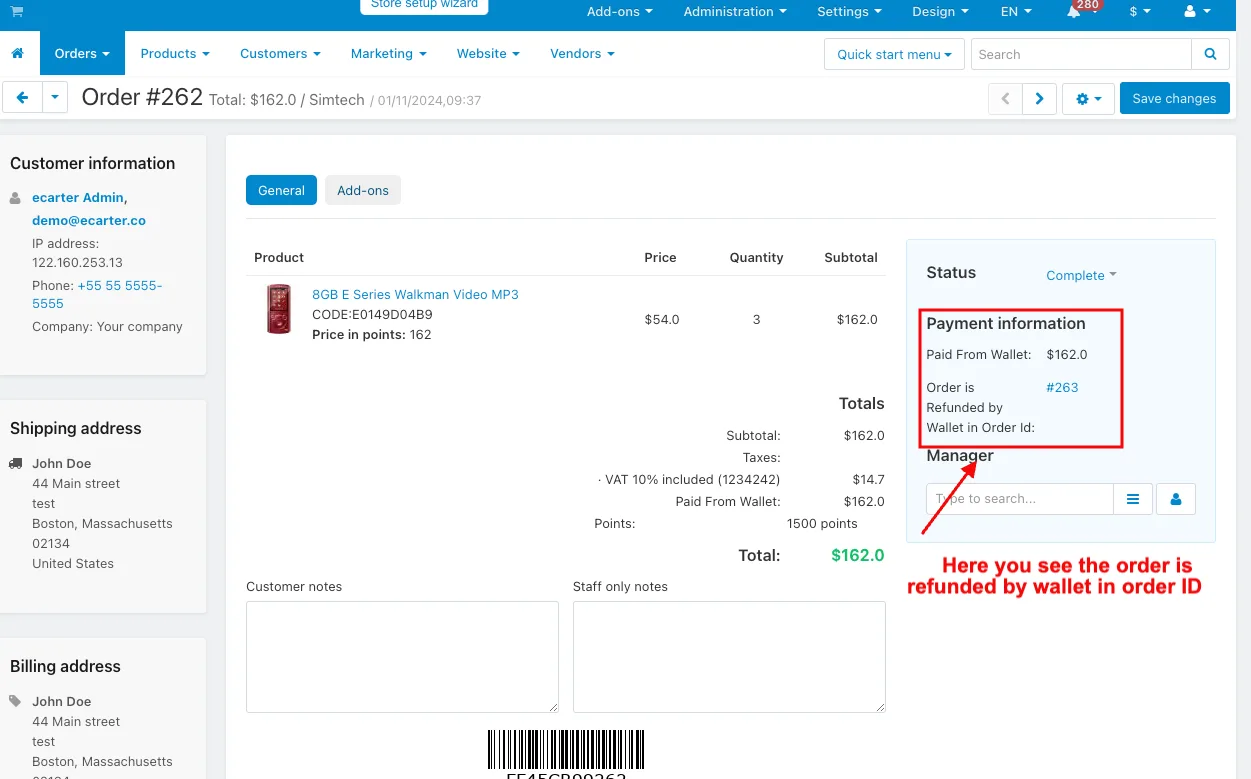
- Here you see the order is refunded by wallet in order ID.
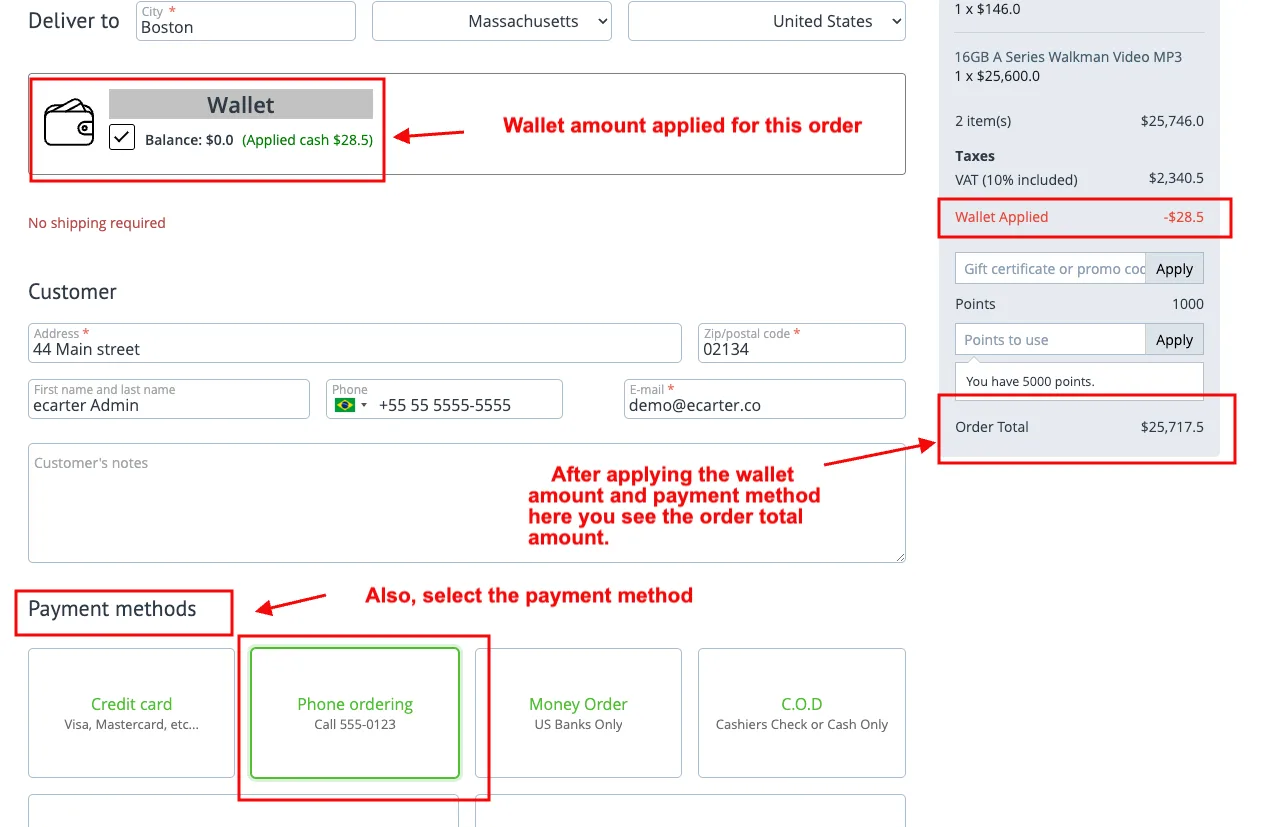
How partial wallet payment will apply
- Wallet amount applied for this order.
- Also, select the payment method.
- You see the total order amount after applying the wallet amount and payment method.
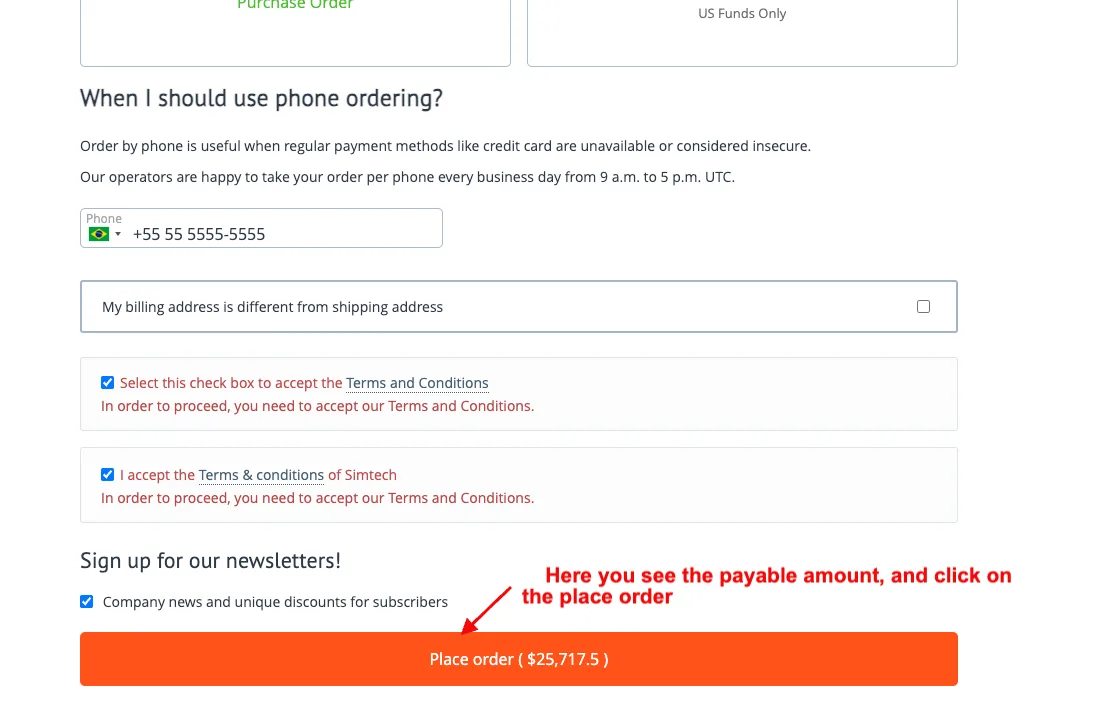
- Here you see the payable amount and click on the place order.
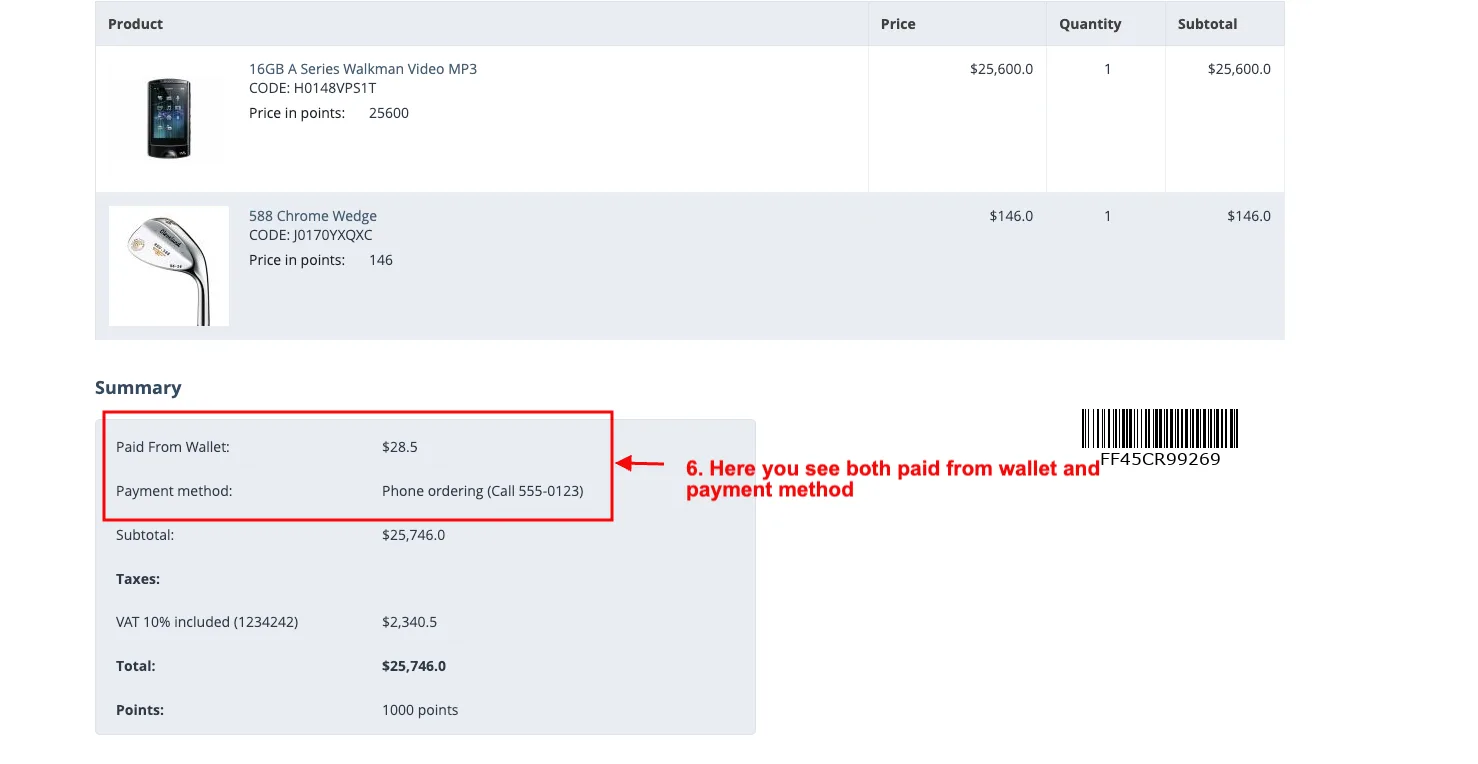
- Click on the order detail.
- Here you see both paid from wallet and payment method.
We also provide two free addons for wallet addon
Convert Reward Points to Wallet Cash & Transfer Wallet Cash to Account
Addon-Version:
Version-1.0
Supported Versions:
CS-Cart, CS-Cart Multivendor 4.8.x, 4.9.x,4.10x,4.11x,4.12,4.13x, 4.14x, 4.15x, 4.16x, 4.17x, 4.18x
Support:
This app is developed and published by Ecarter Technologies Pvt. Ltd., a CS-Cart developer. You are guaranteed quality add-ons.
Frequently asked questions
Can customers pay with wallet balance and another payment method in the same order?
Yes. During checkout customers can apply their wallet balance and select a separate payment method at the same time, so a partial wallet balance still covers part of the order without a separate transaction.
How does the add-on handle refunds for failed orders?
It supports automatic refunds for failed order transactions through its Auto Refund configuration. When an order transaction fails, the amount can be returned to the customer's wallet without manual admin work.
What comes included with the Wallet add-on?
Along with the core wallet, admin top-ups, and transaction management, it bundles two free companion add-ons: Transfer Wallet Cash to Account and Convert Reward Points to Wallet Cash. You also get controls for minimum and maximum recharge amounts and which payment methods can be used for recharge.
Which CS-Cart versions and editions does it support?
It is built for CS-Cart storefronts and is compatible with recent CS-Cart versions. Share your exact version and edition (including Multi-Vendor) and we'll confirm compatibility and help with installation and any customisation you need.
Nisha Gaur is a Technical Content Writer at Ecarter Technologies. She writes technical documentation, tutorials and buying guides covering CS-Cart, Magento, Shopify and eCommerce development.