
Telegram Support
Enable instant customer support with the Telegram Support Add-on for CS-Cart. Chat directly with your support team, customize the chat window, and provide 24/7 assistance for better customer engagement.
The Telegram Chat Support Add-on for CS-Cart lets customers message a store's support team directly through Telegram from the storefront. It gives shoppers an instant, familiar way to ask questions and get help, while support agents handle and resolve those queries through a channel they already use. The add-on is fully customisable, so stores can match the chat window to their branding and set it to show when agents are available. It suits CS-Cart store owners who want to offer quick, around-the-clock support without building a separate live-chat system.

Telegram Chat Support Add-on for CS-Cart allows customers to chat directly with the website support team through Telegram. It provides an instant messaging solution that is easy to use and fully customizable, helping businesses deliver quick and effective support. The add-on ensures smooth communication, enabling support agents to understand and resolve customer queries efficiently.
With this add-on, stores offer 24/7 support and deliver context-aware assistance to customers, ensuring clear communication and faster query resolution. It improves customer engagement and enhances overall support efficiency.
Features
- CS-Cart Integration: Compatible with CS-Cart, CS-Cart Multivendor, Multivendor Plus, Multivendor Ultimate, and multiple storefronts.
- Layout Configuration: Admin can adjust layout settings of the chat support window.
- Availability Status: Show customers when support agents are unavailable.
- Custom Title & Description: Admin can edit the title and description of the chat window.
- Support Team Icon: Option to display an image of the support team member in the chat window.
- Welcome Message: Display a customizable welcome message to customers.
- Color Customization: Customize chat colors including icon, background, and text.
- Logo Upload: Admin can upload the store logo to the chat window for branding.
How to install Addon
https://store.ecarter.co/blogs/how-to-install-addon/
How Addon Works
Addon properties
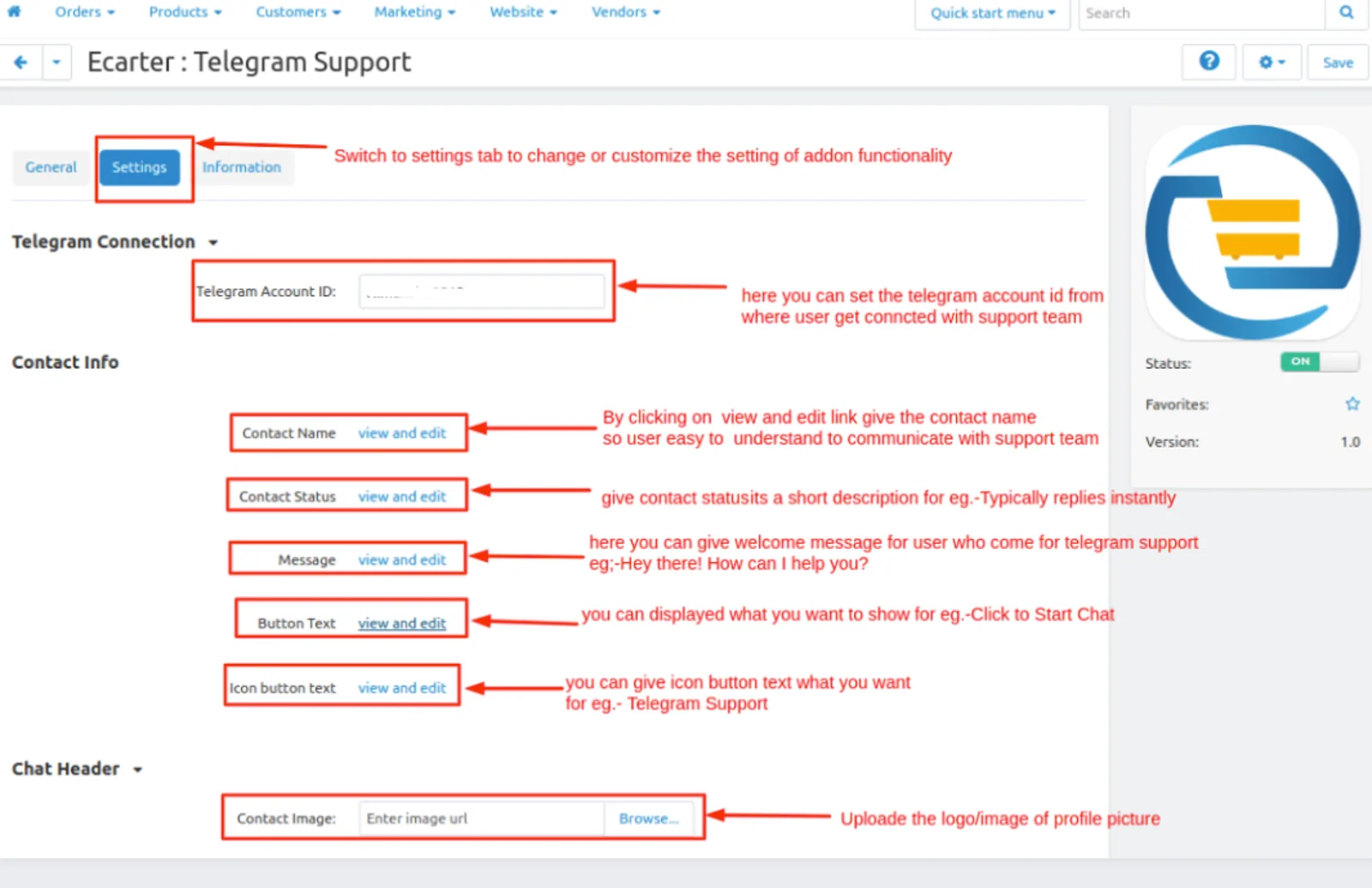
Telegram Connection.
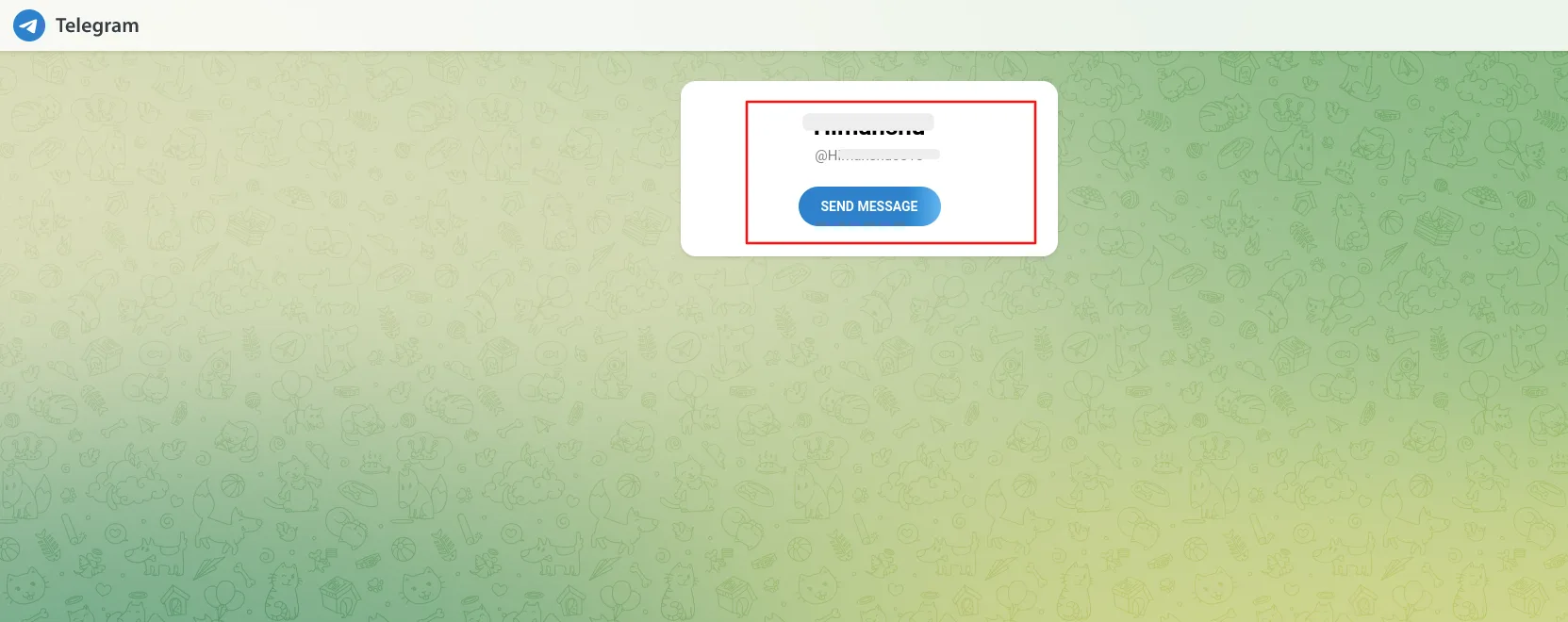
- Telegram account id:-Give the account id from where the user can communicate with the support team and ask about any services and products.
Contact
- Contact Name:- Give the contact name that displays to the user while communicating with the support team.
- Contact Status:- On contact status admin can display the status or short description like eg. typically replies team
- Message:-On the message text field you can give the welcome message to the user when he uses telegram support.
- Button Text:-give button text that displayed or easy to understand what this button functionality is like Click here to chat.
- Icon Button Text:-set the icon button text like Telegram Support.
Chat Header
- Contact Image:- upload the logo/image that will be visible on the telegram support icon so that user can see it.
- Show profile picture:-if you tick the checkbox then the user can see the image if uncheck not able to see
Buttons
- Show the current time:-if you tick the checkbox then the user can see the current time if uncheck not able to see
- Open by default:-if you tick the checkbox then the telegram is open by default when some visit the store.
- Position:- admin can change the position of the telegram icon on the screen left or right.
- Button background color:- admin can change the icon color of the telegram
- Side label text color:-admin can change the label color of text like Telegram support or give any name.
Chat Header Color
- Background color:- admin can change the header color multiple times
- Text Color:-admin can change the text header color multiple times.
Chat Footer color
- Background color:-admin can change the footer color multiple times
- Button background color:-admin can change the send button color on the footer multiple times.
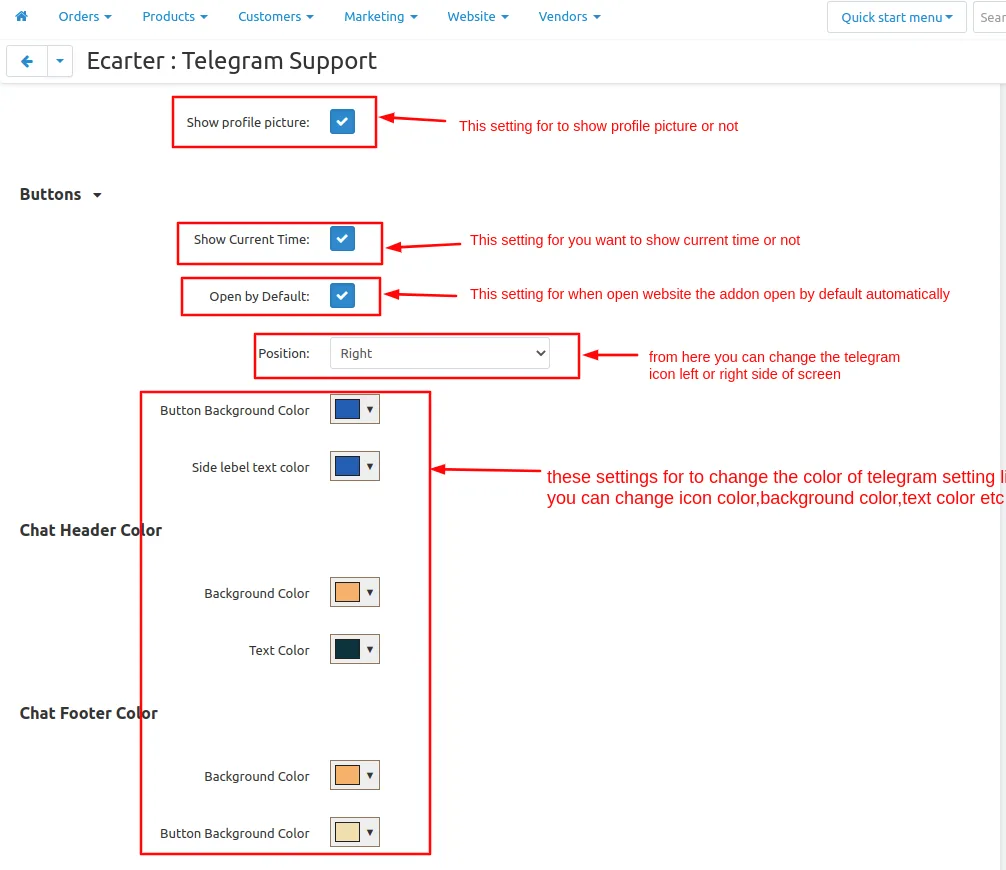
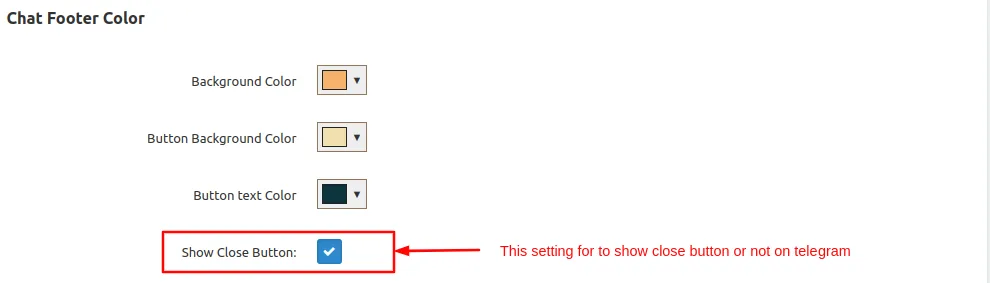
- Button text color:-admin can change the send button text color on the footer multiple times.
- Show close button:-If you tick the checkbox then the close button will be visible if untick the checkbox it will be disappear
- After giving the settings click on >> save button
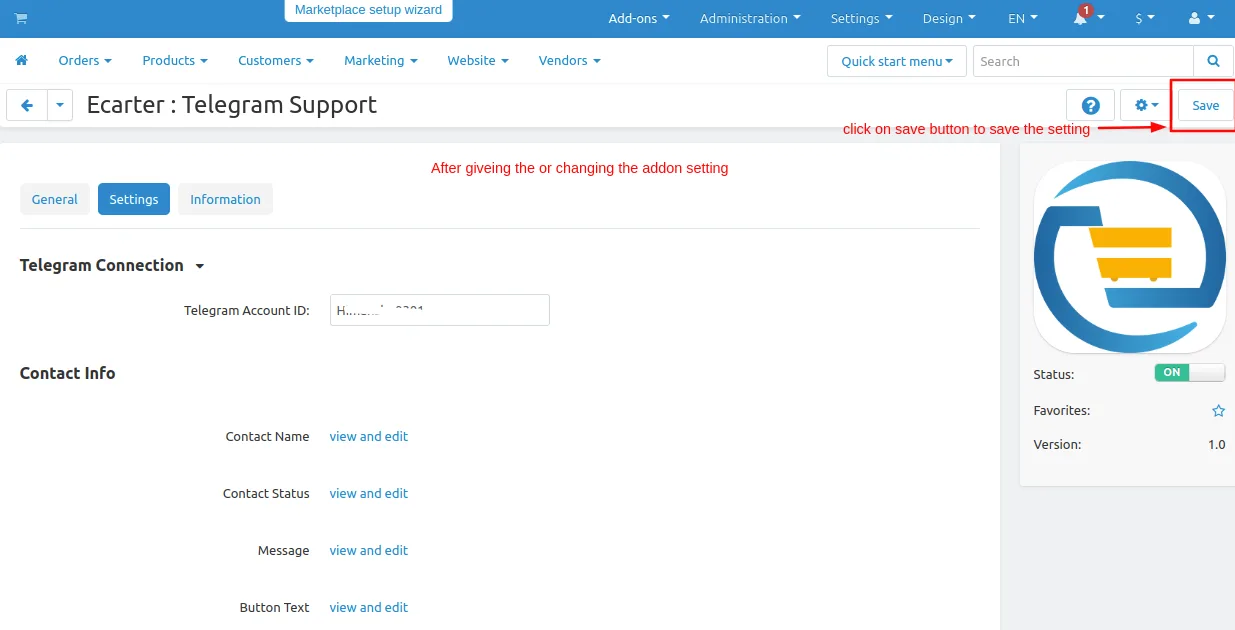
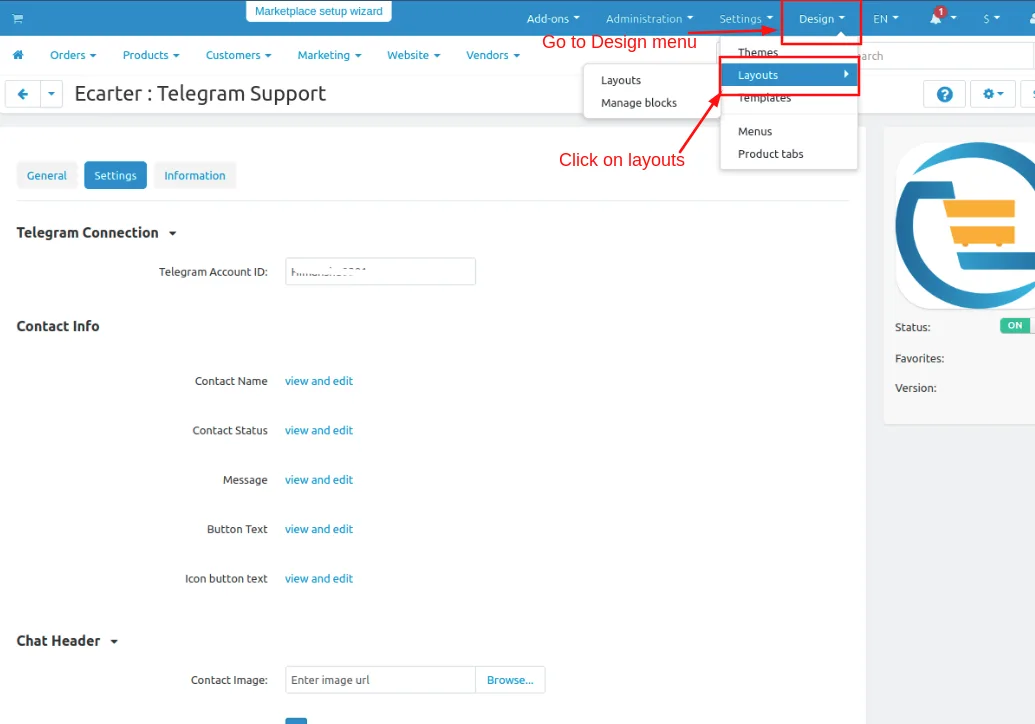
Now set up the Layout for the telegram icon
Go to >> Design Penal and click on >> Layouts.
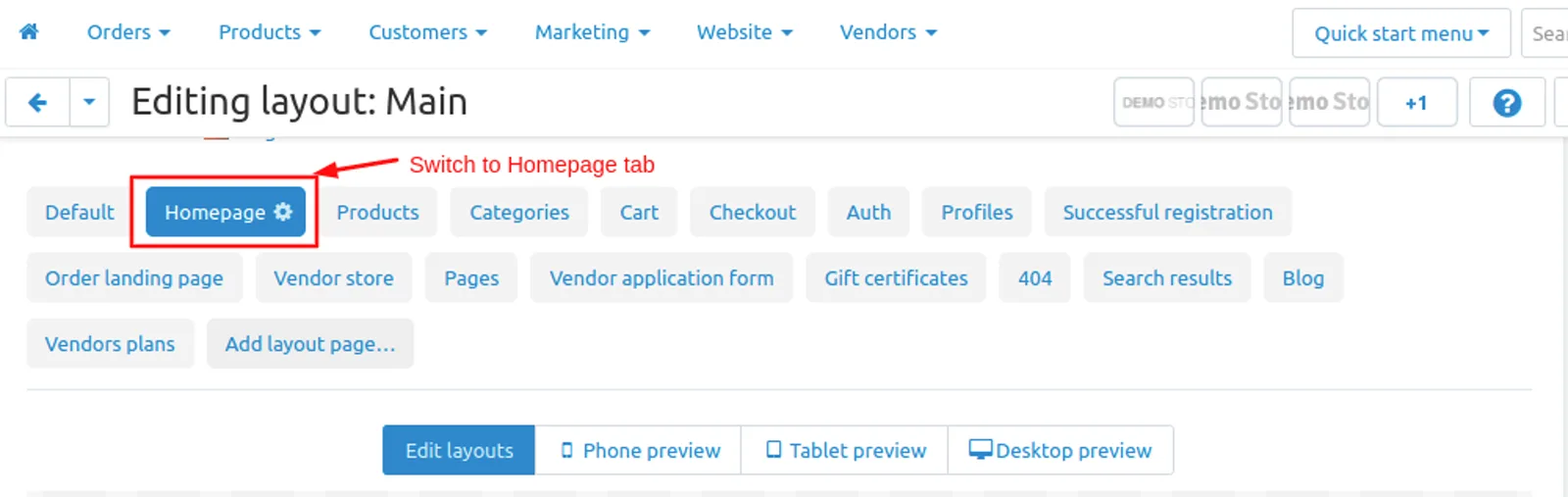
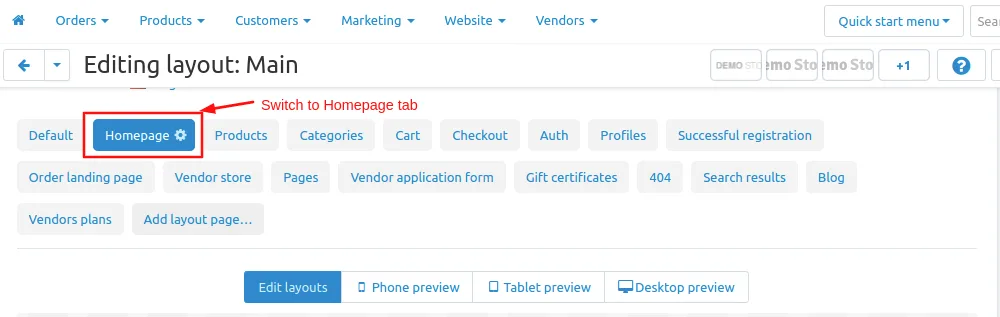
- Switch to Homepage tab
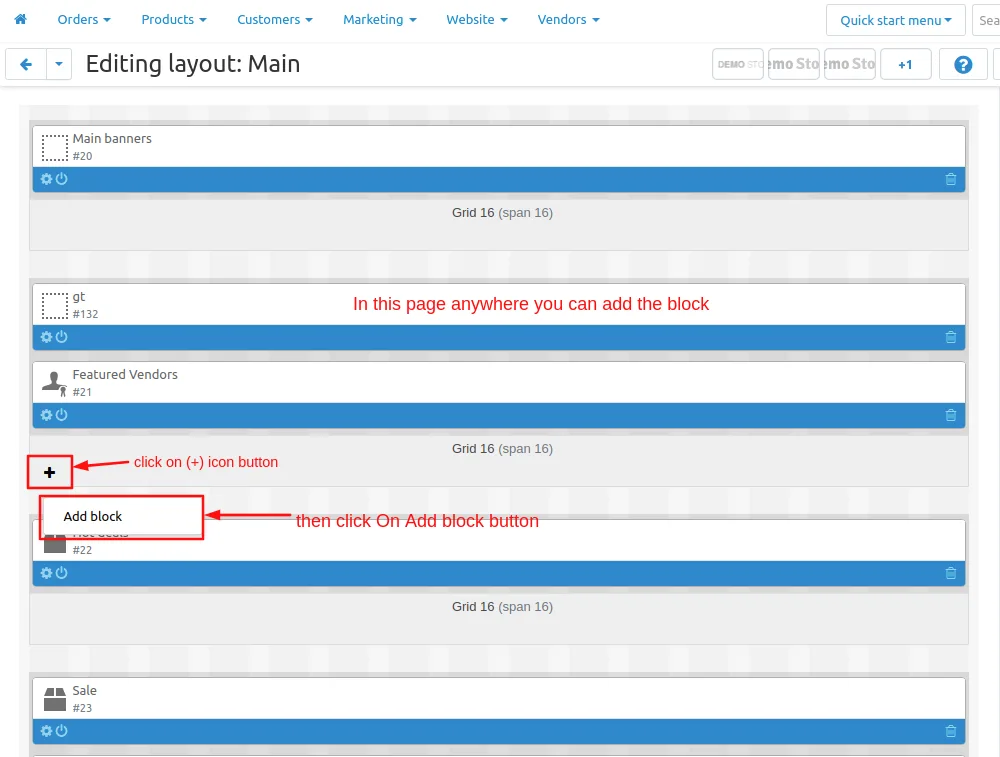
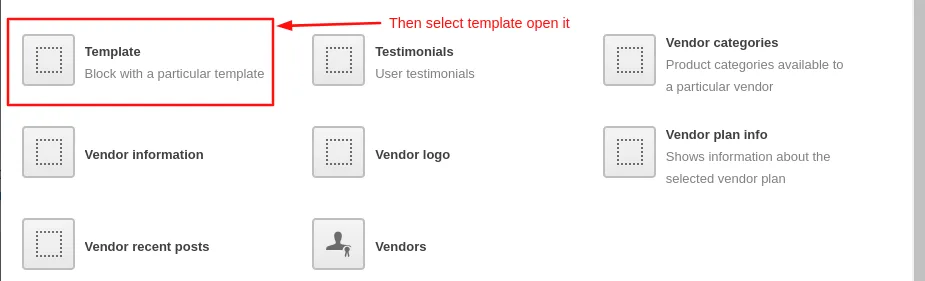
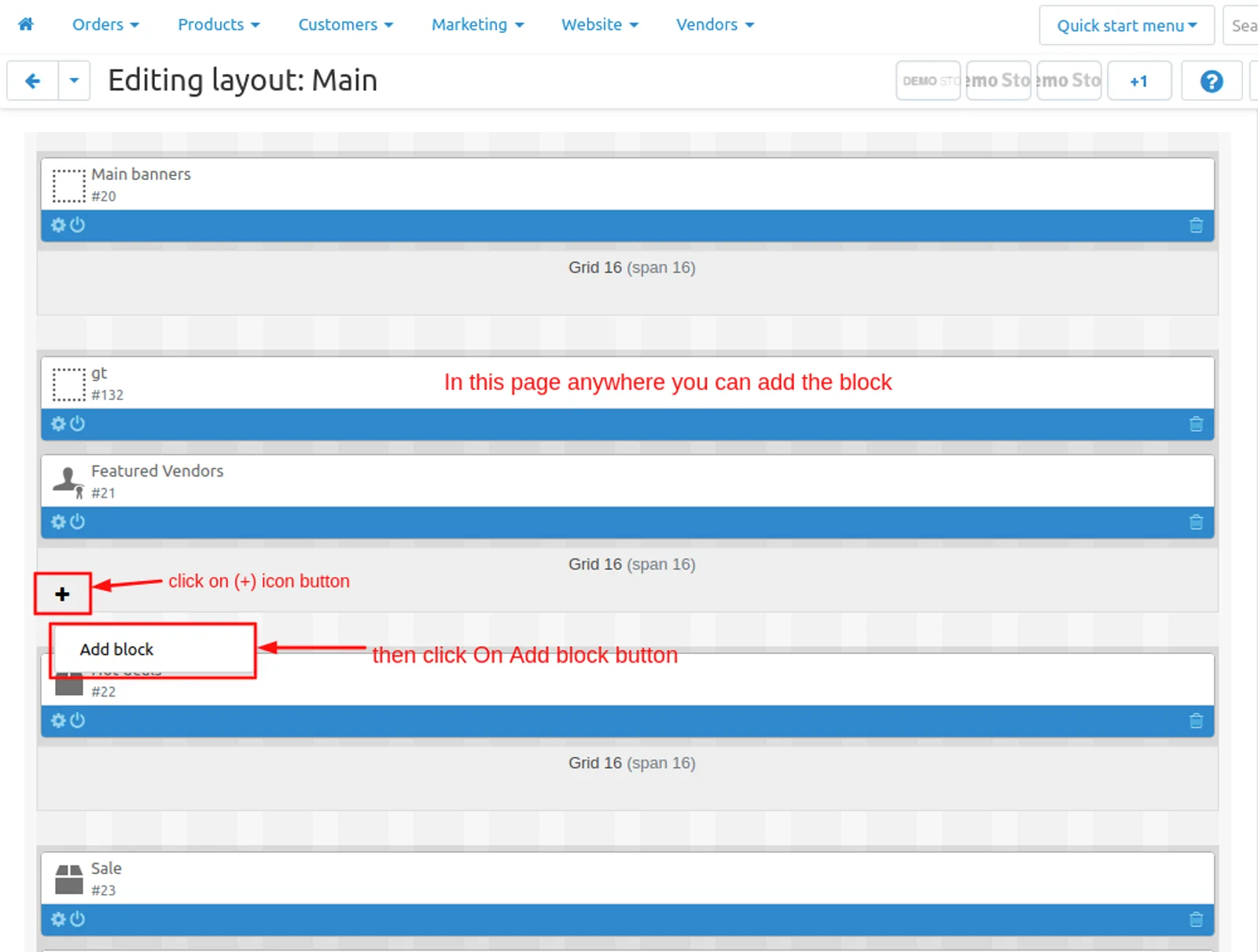
- Now add the block
- click on>> plus(+) button
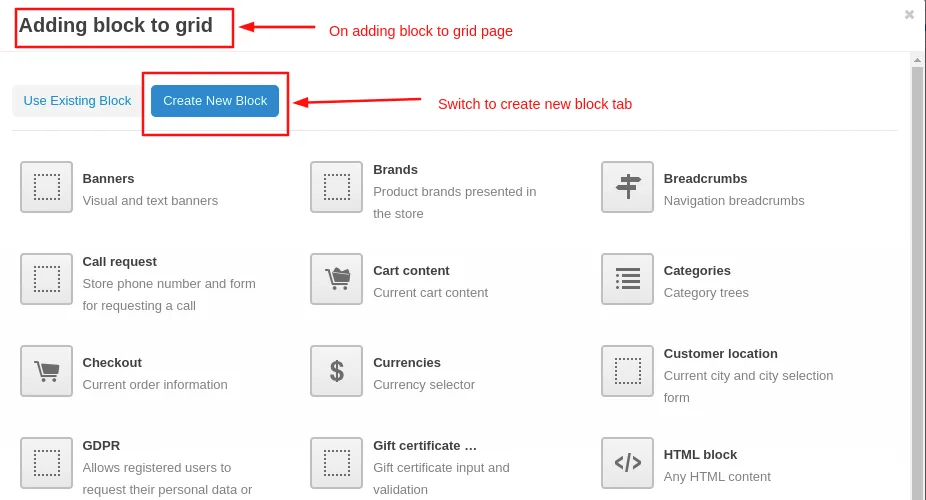
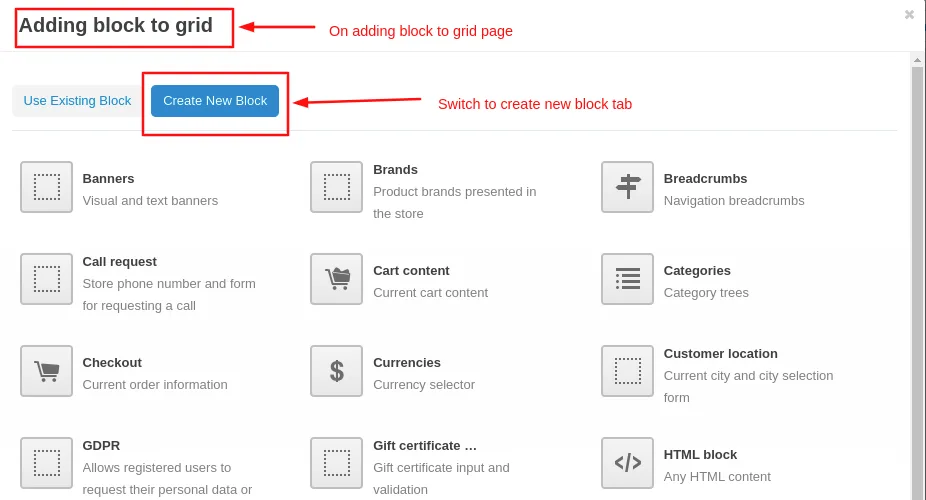
- Add block>> Switch to create new block
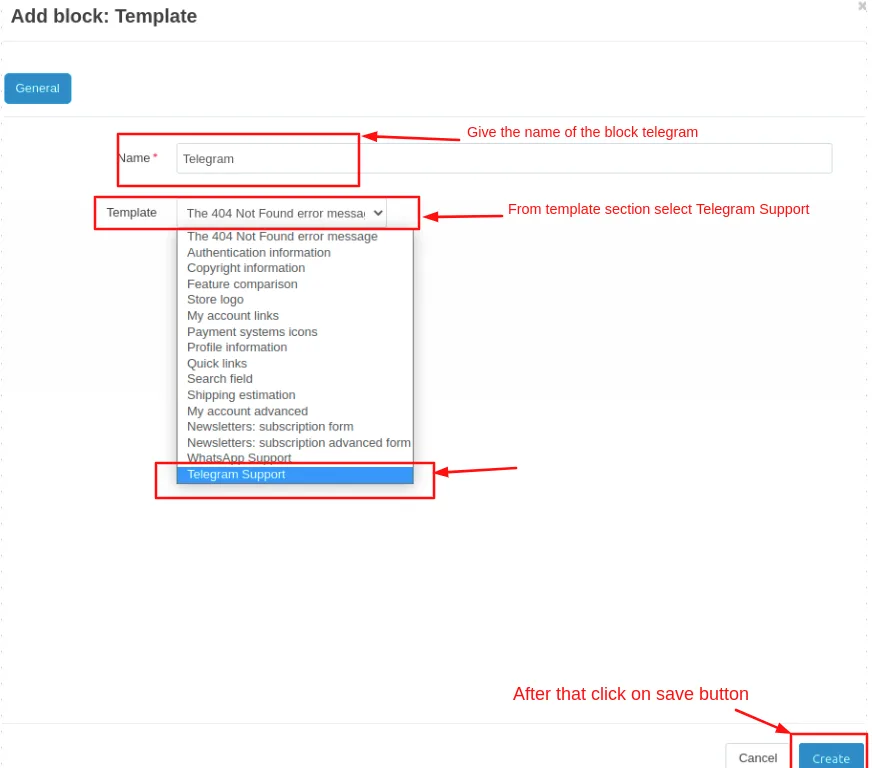
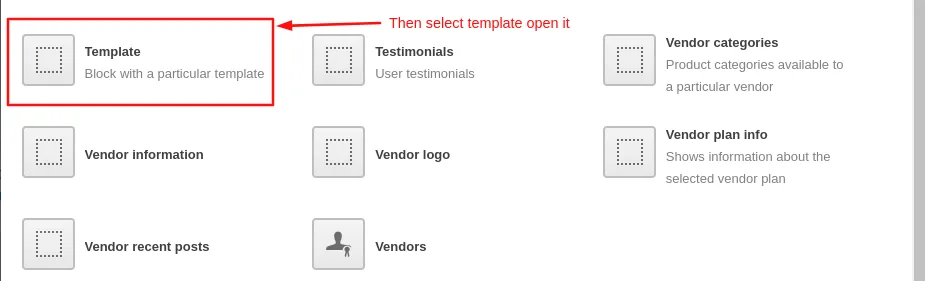
- Choose >> Template
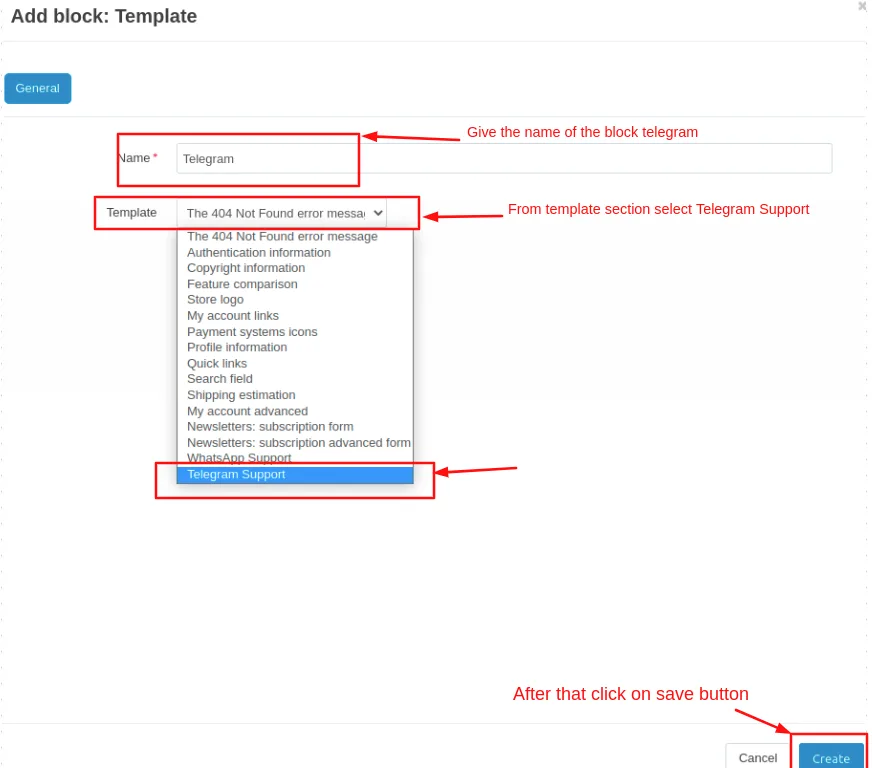
- Give Name >> Telegram
- Select >> Telegram Support
- Click on >> Create button
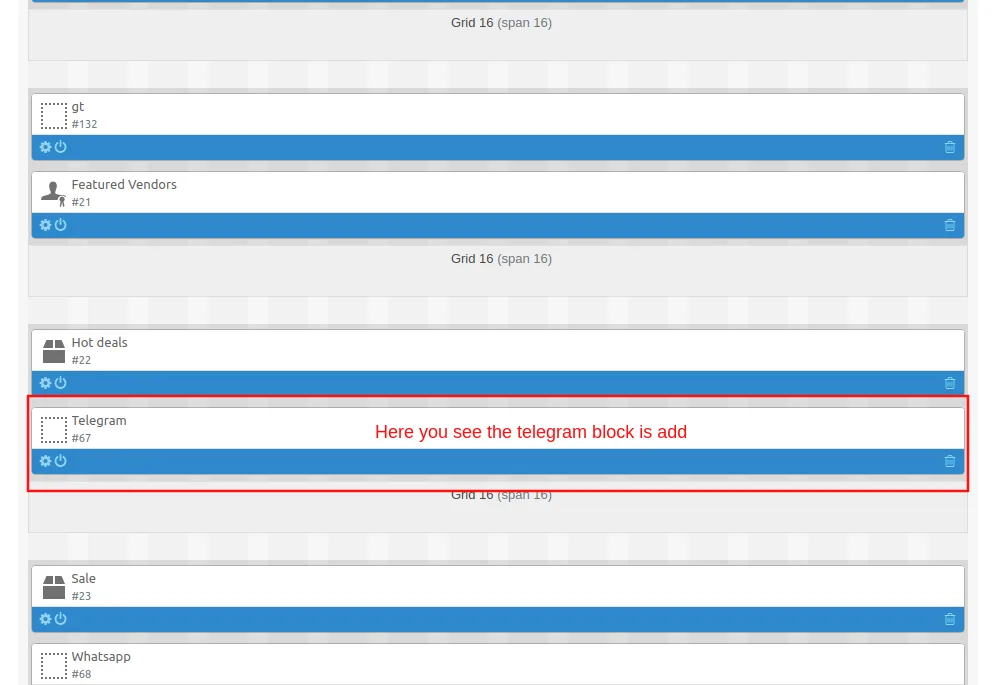
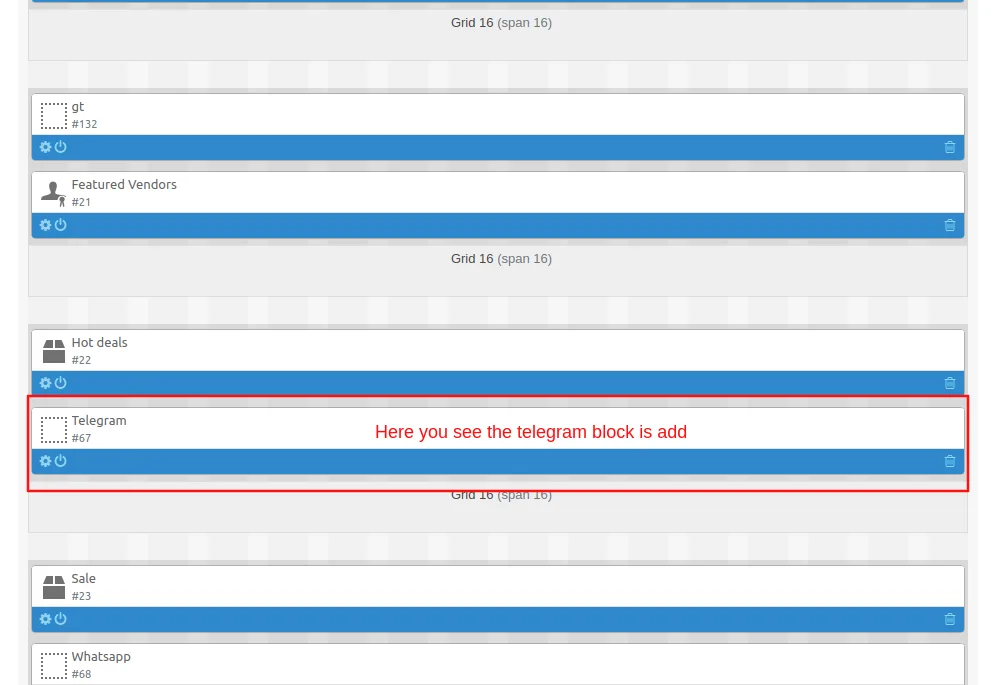
Here you see telegram block is added
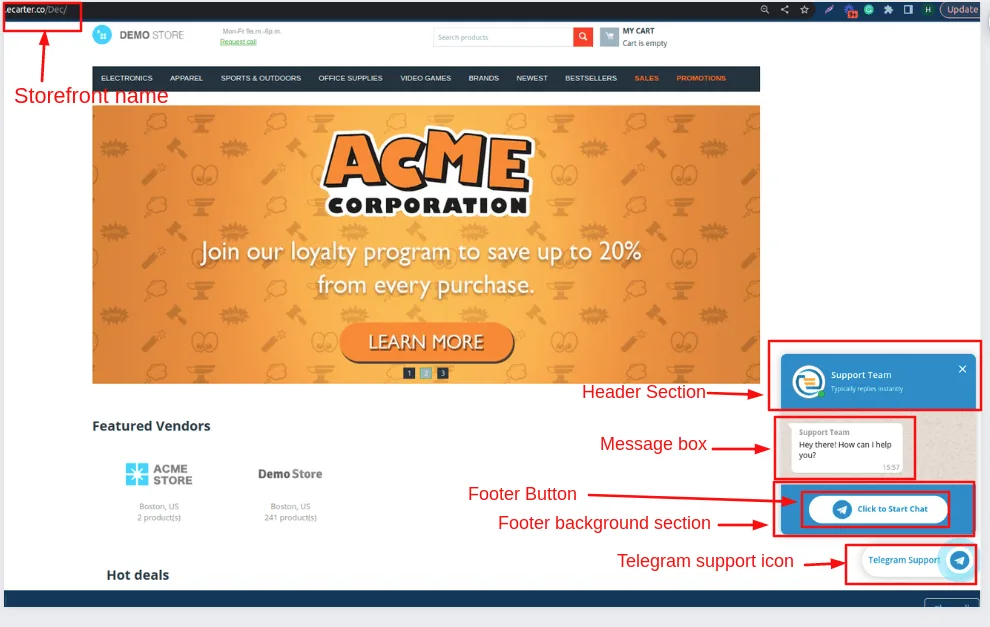
At Storefront
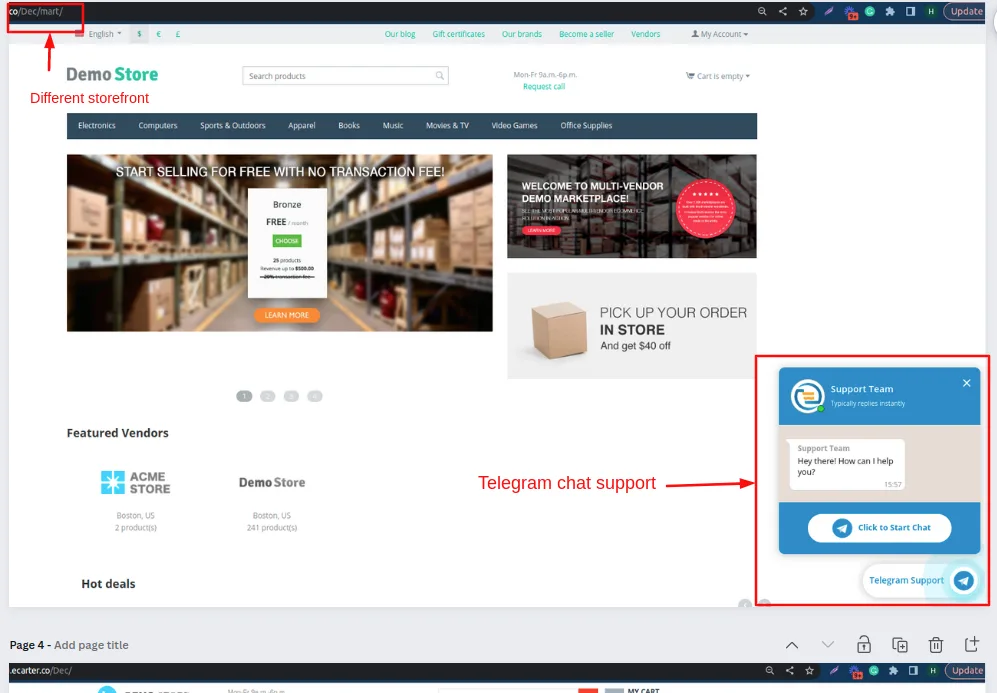
Here you see the Telegram support chat button
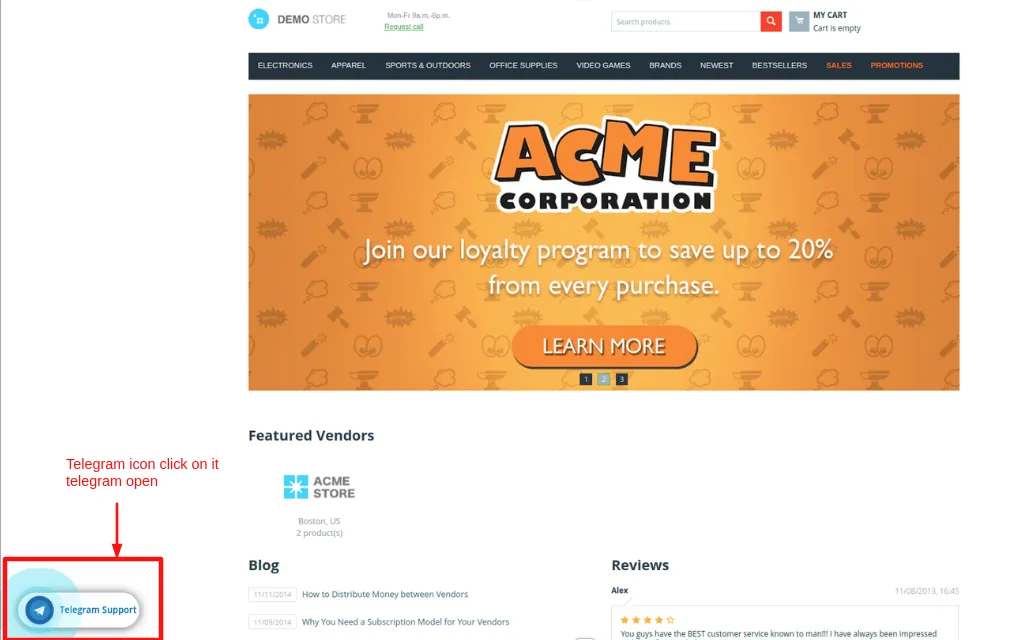
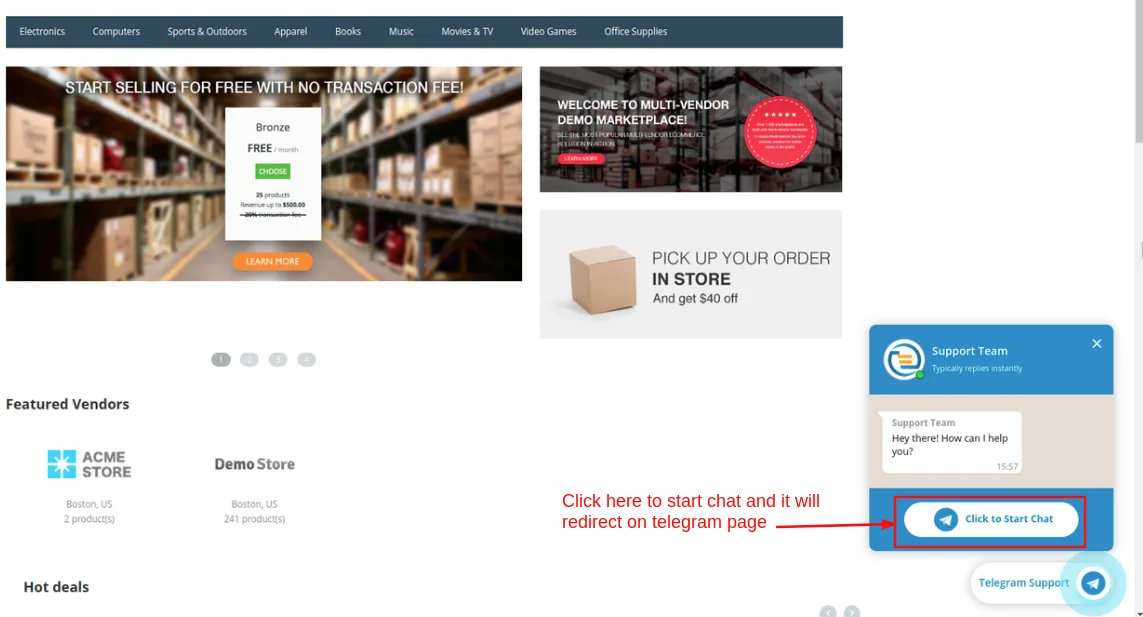
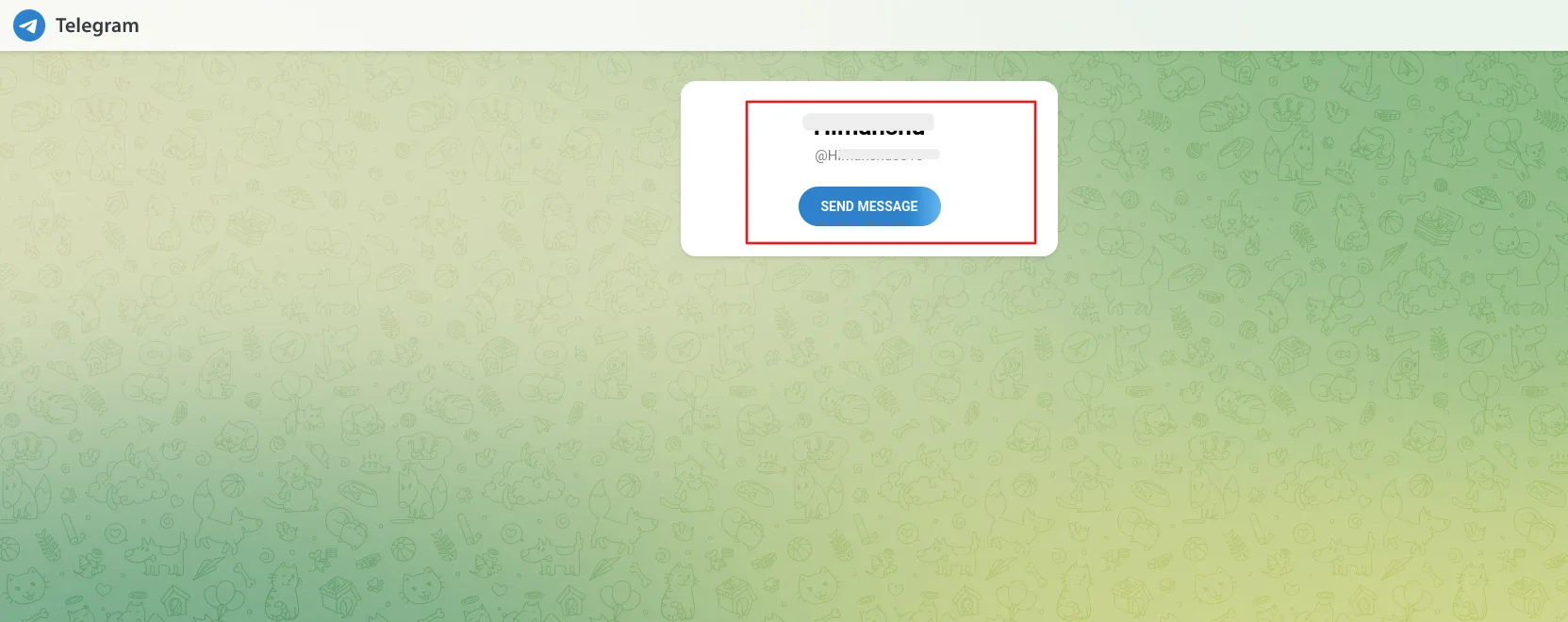
Now set up for the Multiple storefronts
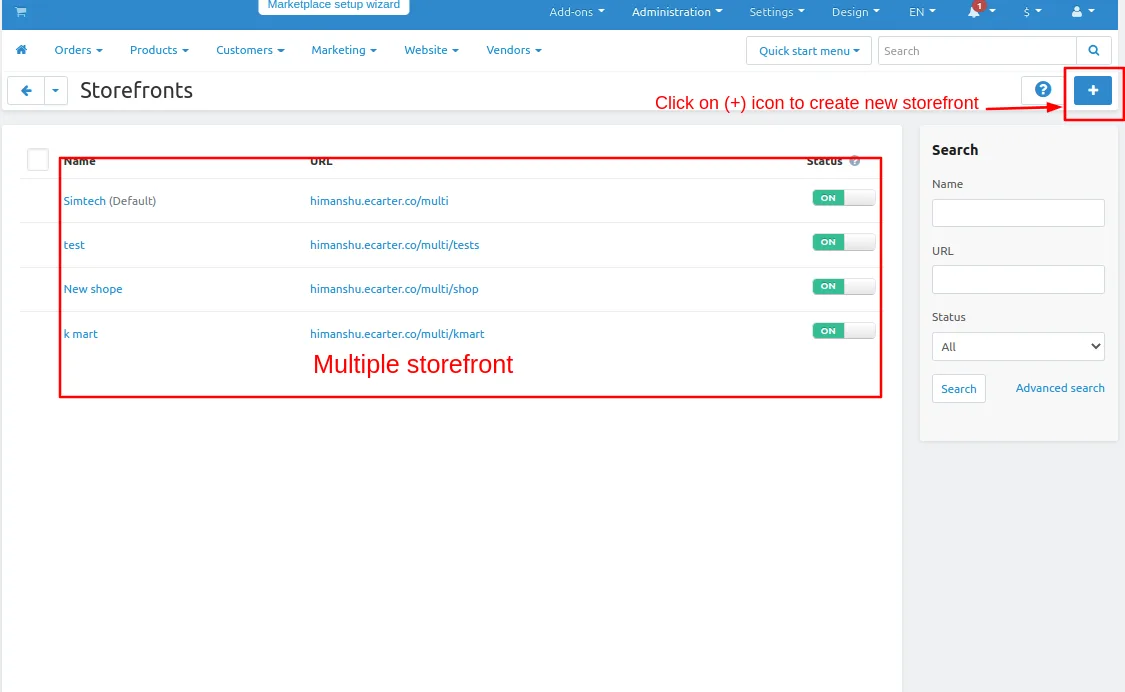
- Go to Administration penal >> click on > Storefront
- storefronts page will be open.
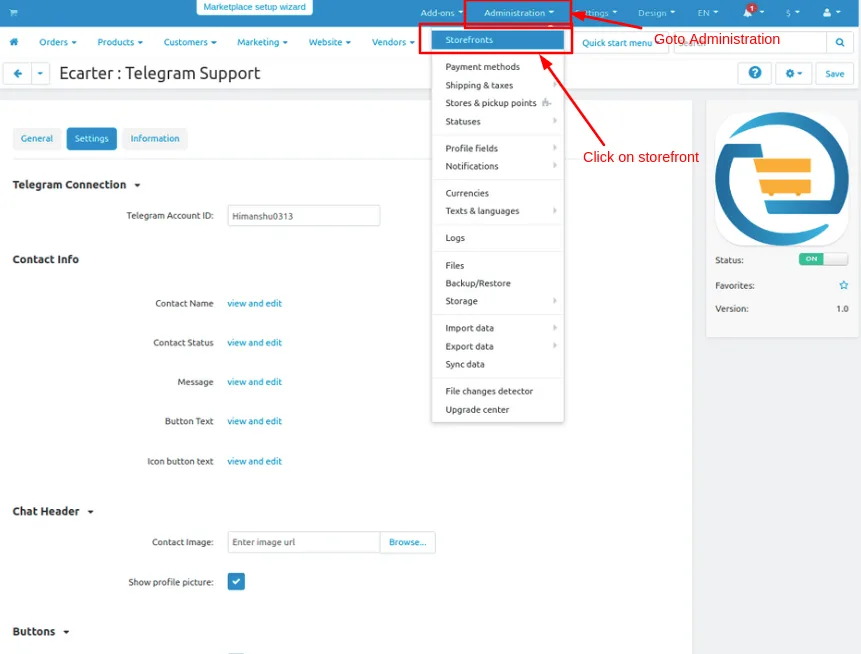
- Click on >> (+) icon to create storefront
- you see some multiple storefronts will be created already
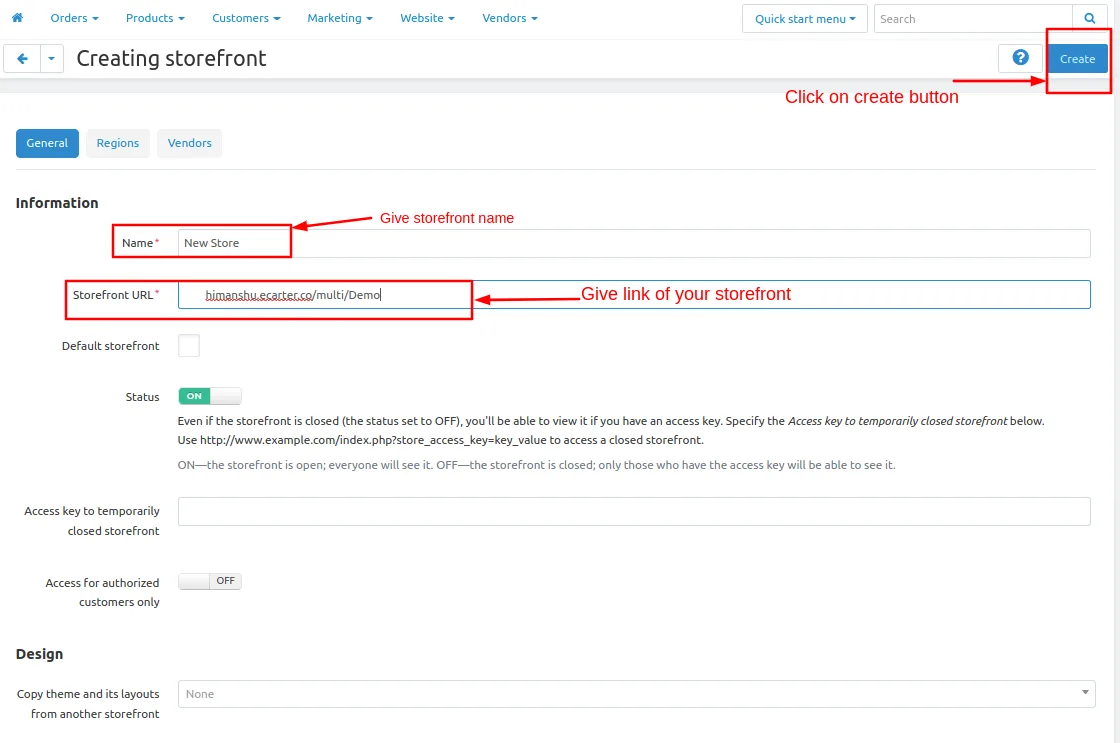
- Creating a storefront page will be open.
- Give the store name Give the storefront URL. then click on >> create button
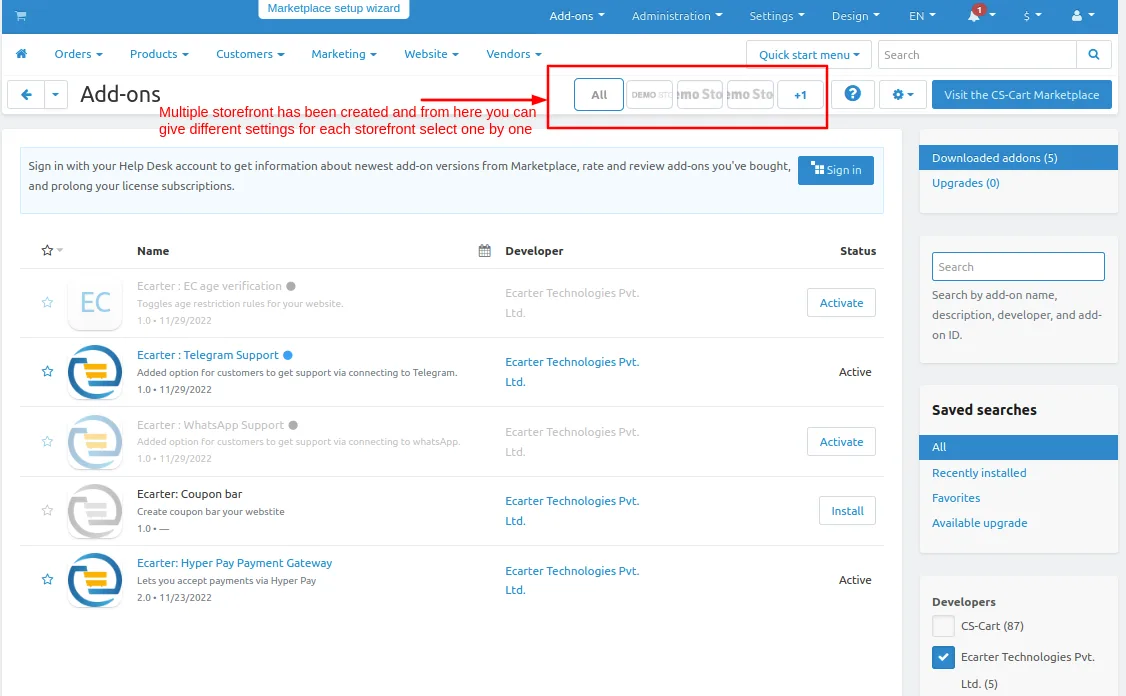
- Now on addon pages, you see multiple storefronts will be visible
- select one of them one by one and give different settings for each storefront
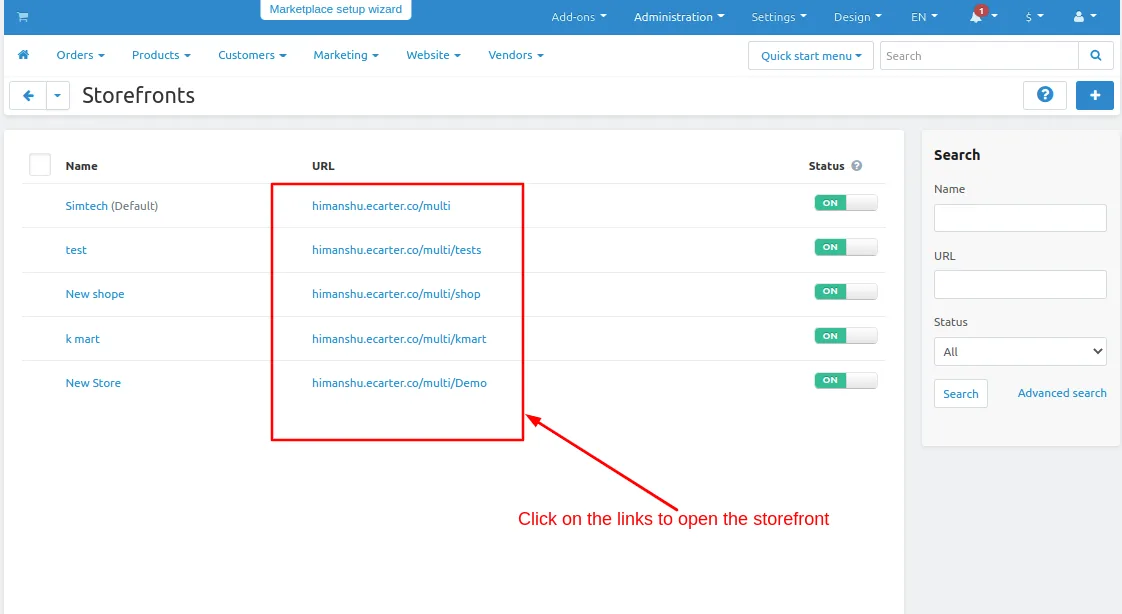
Click on the >> store links available here
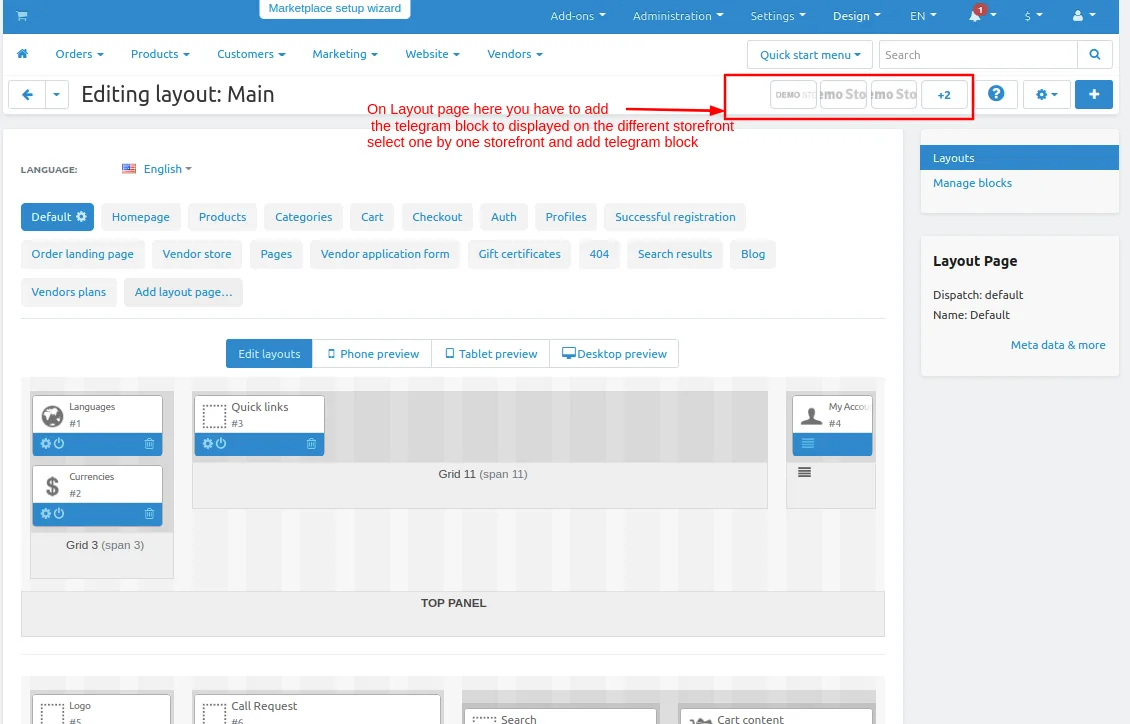
Now Setup the layout for different multiple storefront
- Select one by one storefront and repeat the same process to set up layout for all storefronts.
- Switch to Homepage tab
- Now add the block
- click on>> plus(+) button
- Add block>> Switch to create new block
- Choose >> Template
- Give Name >> Telegram
- Select >> Telegram Support
- Click on >> Create button
Here you see telegram block is added
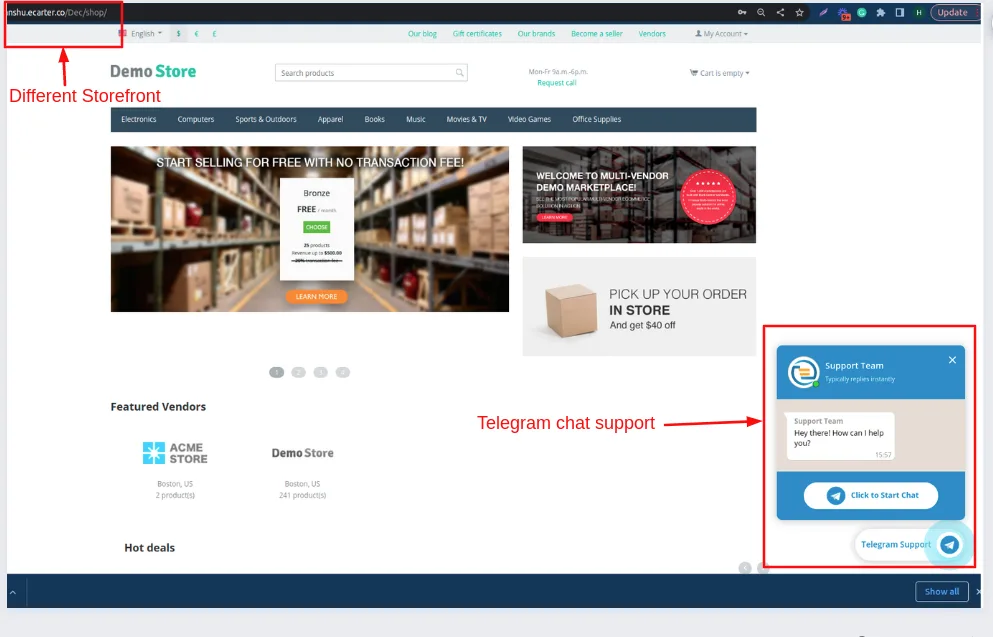
Here you see the storefront name is Demo
Tutorial Video:
Addon-Version
Version-1.0.1
Supported Versions:
CS-Cart, CS-Cart Multivendor 4.8.x, 4.9.x,4.10x,4.11x,4.12,4.13x, 4.14x, 4.15x, 4.16x, 4.17x, 4.18x
Support:
This add-on is developed and published by Ecarter Technologies Pvt.Ltd., a CS-Cart developer. You are guaranteed a quality add-on supported by future versions. If you need help, please contact us via email at support@ecarter.co.
Frequently asked questions
Which CS-Cart editions does the Telegram Chat Support Add-on work with?
It is compatible with CS-Cart, CS-Cart Multivendor, Multivendor Plus, and Multivendor Ultimate, and it supports multiple storefronts.
What can an admin customise in the chat window?
Admins can edit the title and description, upload the store logo and a support team member's image, set a welcome message, and adjust the layout. Chat colours for the icon, background, and text can also be customised.
Can customers tell when support agents are not available?
Yes. The add-on includes an availability status that shows customers when support agents are unavailable, so they know when to expect a reply.
How do I install the add-on?
Follow the standard add-on installation steps for CS-Cart, documented in the store's 'How to install Addon' guide. If you need help, share your CS-Cart version and the store's support team can confirm the process.
Nisha Gaur is a Technical Content Writer at Ecarter Technologies. She writes technical documentation, tutorials and buying guides covering CS-Cart, Magento, Shopify and eCommerce development.