
Tabby Payment Gateway
The Tabby Payment Gateway Addon for CS-Cart adds a convenient payment option that helps customers make purchases easily.
The Tabby Payment Gateway add-on connects the Tabby payment service to a CS-Cart store, letting the store accept payments through Tabby Checkout. It gives shoppers a "buy now, pay later" option, splitting an order into four interest-free installments while the merchant is paid without building a custom integration. Admins add Tabby as a payment method from the backend, and it works across devices for both in-store and on-the-go purchases. It suits merchants, including small businesses, who want a simple installment payment option alongside their existing checkout.
The Tabby Payment Gateway Addon for CS-Cart permits users of the site to use this payment gateway as this is a convenient tool that empowers users to make purchases. By using this Tabby Payment Gateway, users are allowed to order the products. This payment gateway ensures a higher success rate for transactions, creating trust and reliability among users.
Also, this offers a unique feature of splitting payments into 4 interest-free installments. Tabby payment is the simplest way for commercials to accept payments without the hassle of integrating into their website. It works with Tabby Checkout, giving individuals choices that suit your preferences.
Feature:
- Easy Payment Integration: Admin can simply add Tabby pay as a payment choice from the backend.
- Device-Friendly Payments: Tabby payment accepts online payments easily on any device.
- Simple Admin Set-up: Easily connect Tabby Pay in the Payment methods menu for admins.
- Convenient Payments: Seamless and Convenient payments for both in-store and on-the-go.
- Interest-Free Installments: Enable customers to pay 4 interest-free payments for easy purchase.
- Customized Payment Options: Appropriate digital payment options customized for online stores.
- Ideal for Small Businesses: Easy payment options for small businesses with Tabby.
- CS-Cart Support Info: The addon is well integrated with CS-Cart Multi-Vendor and can be used with its Standard, Plus, and Ultimate versions.
Installation:
How to Install Addon
https://store.ecarter.co/blogs/how-to-install-addon/
How Addon Works
Step 1.
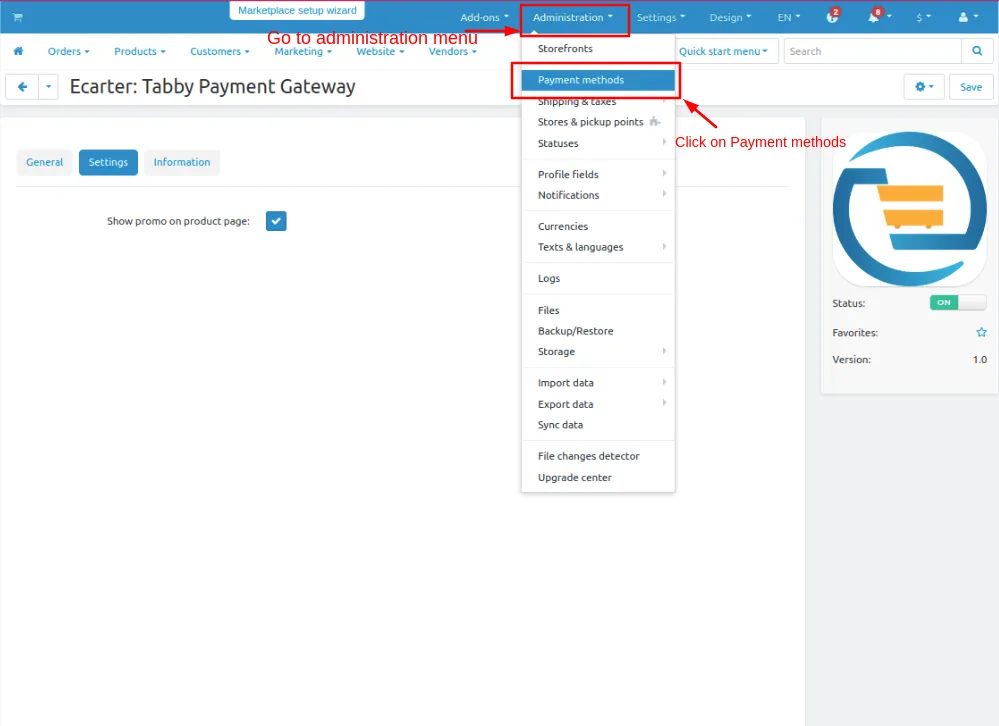
- Go to the Administration panel.
- Click on >> Payment methods.
Step 2:
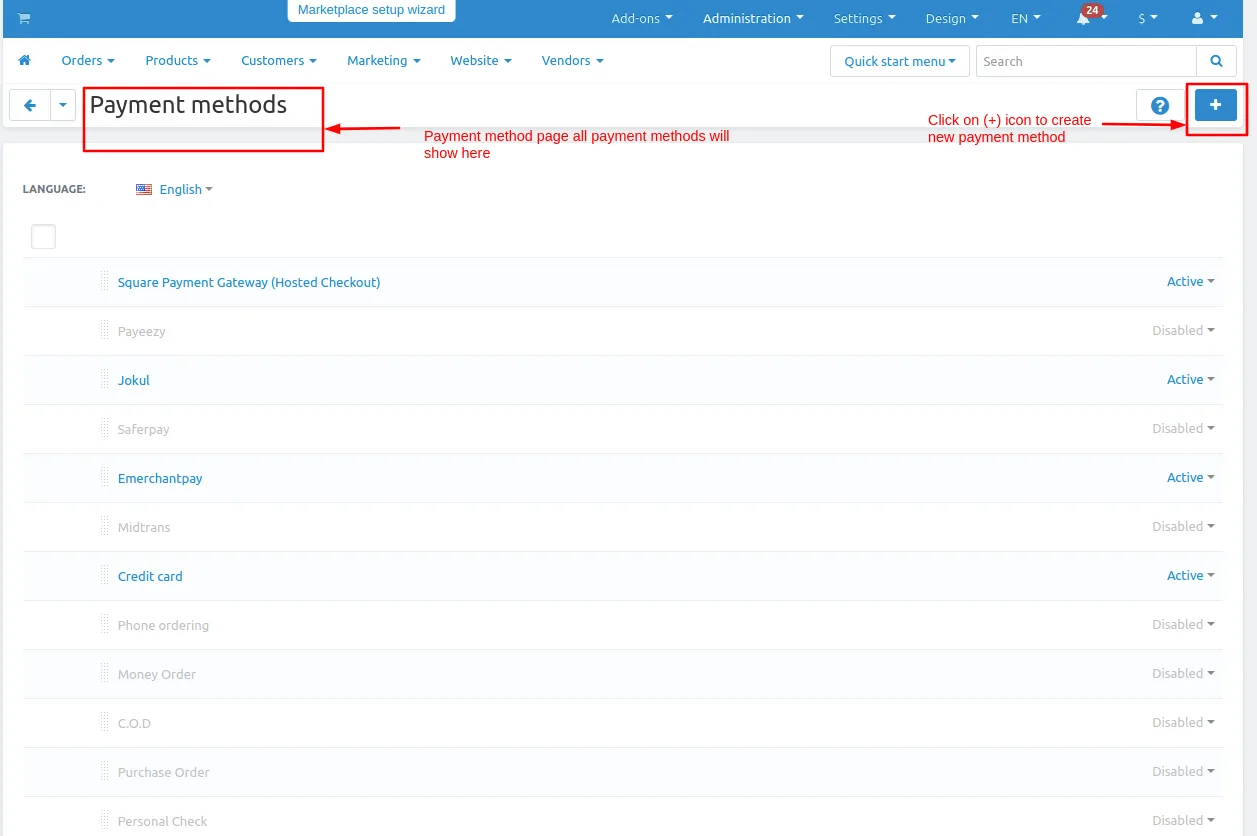
- In the Payment Methods page, it will show some by default payment methods.
- Click on the (+) icon for adding a new payment method.
Step 3:
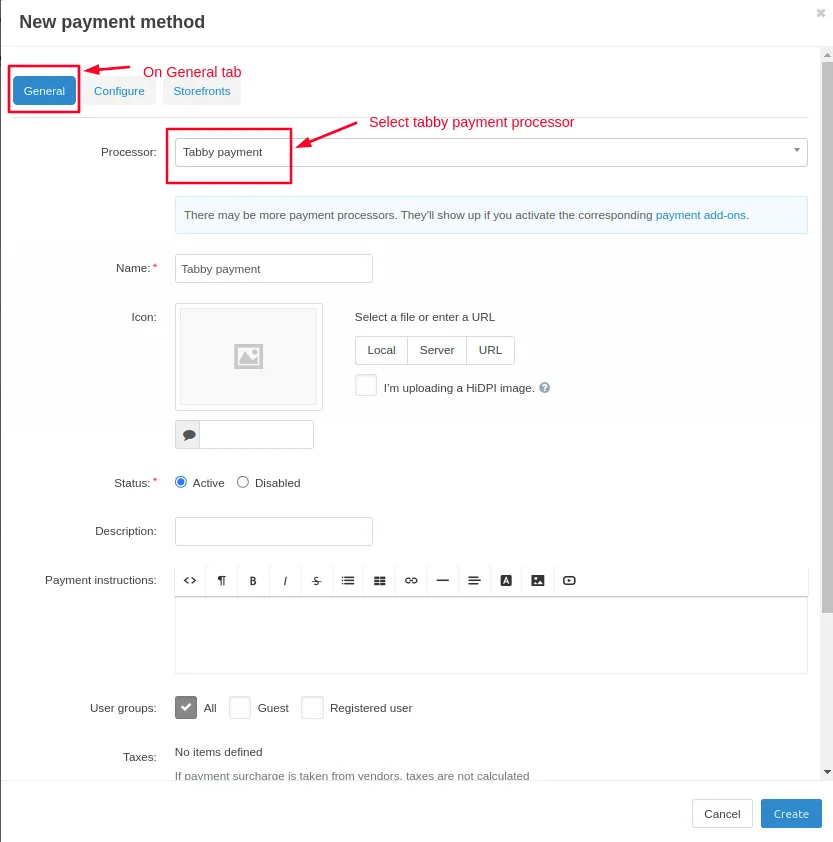
- As you can see the new payment method page is opened, just enter all the details on the general tab.
- Select processor and choose Tabby Payment
- Also Give name to the payment method.
Step 4:
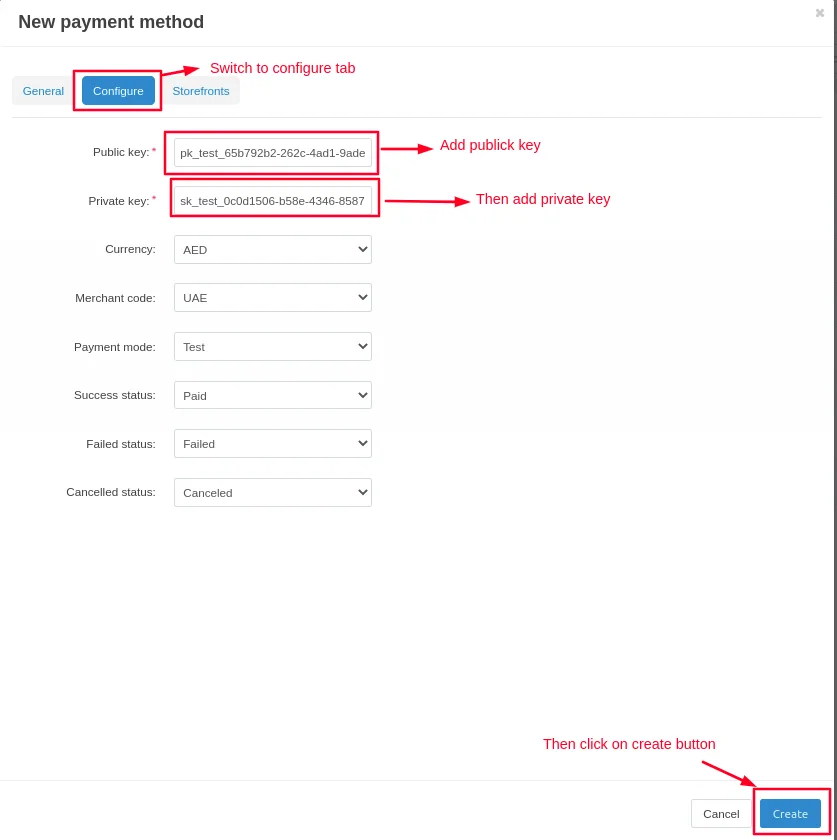
- Switch to configure tab and add public key then add private key.
- Click on >> Create Button
Step 5:
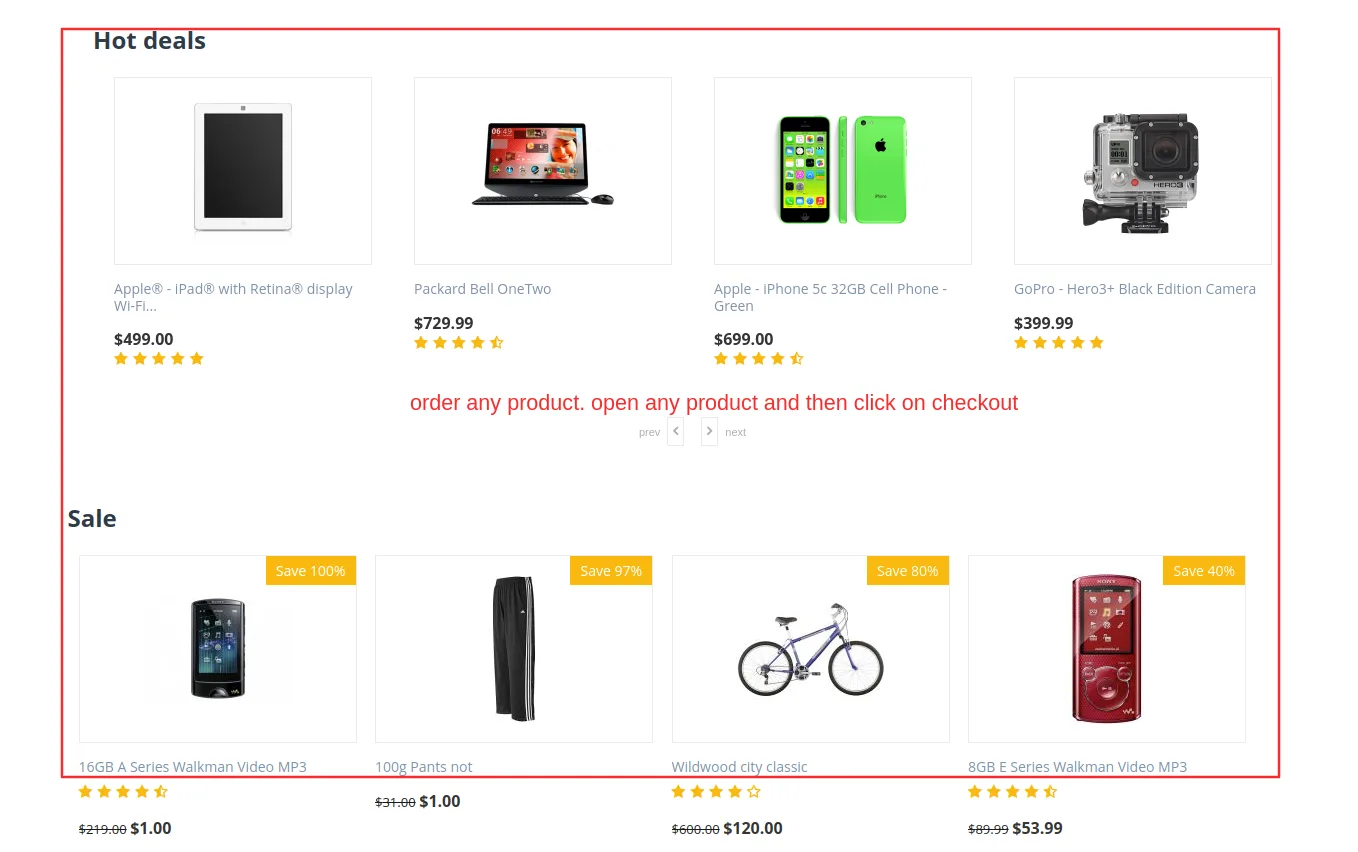
- Navigate to the storefront page and order any product.
Step 6:
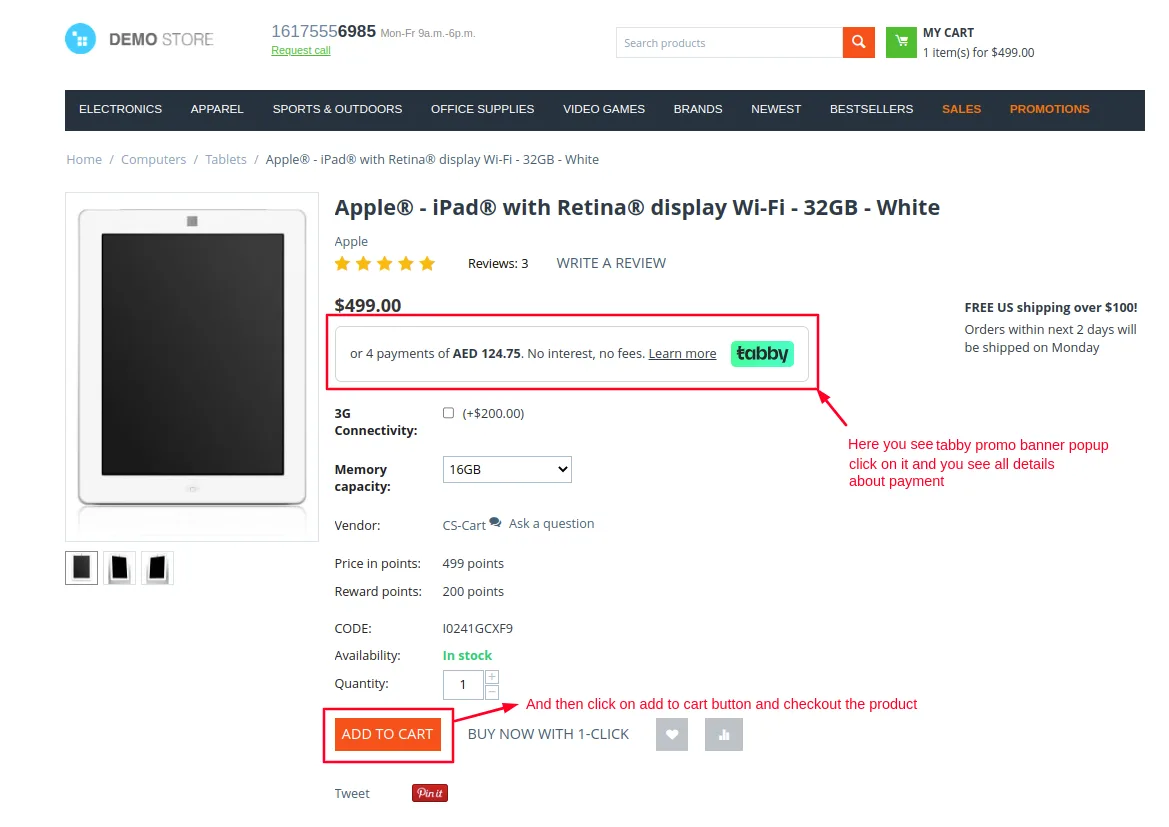
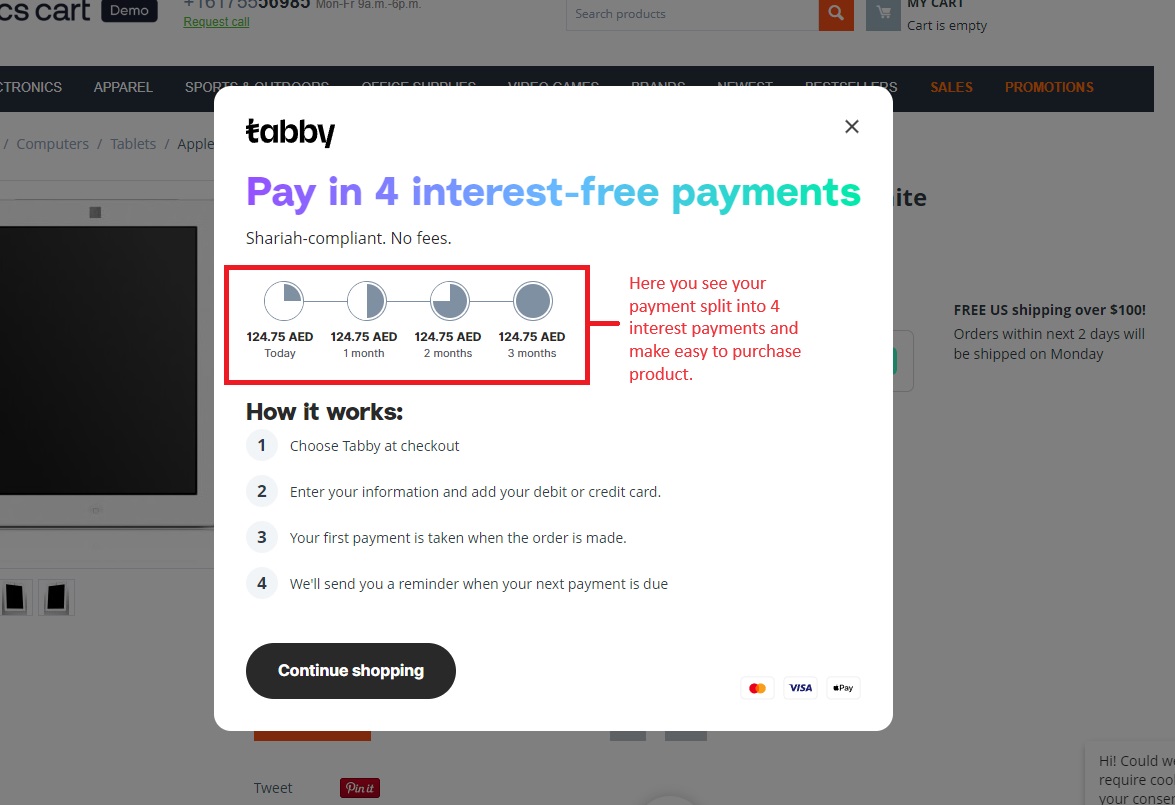
- On the product page, you will see a Tabby promo banner popup. Click on it to access complete details regarding the payment.
- This details page shows your payment and split it into 4 interest payments. This makes it easy to purchase the product.
- Click on add to cart button.
Step 7:
Select the payment method
- In the product checkout page, select >> Tabby Payment Method. It will redirect on the tabby payment gateway.
- Then Click on >> Place Order.
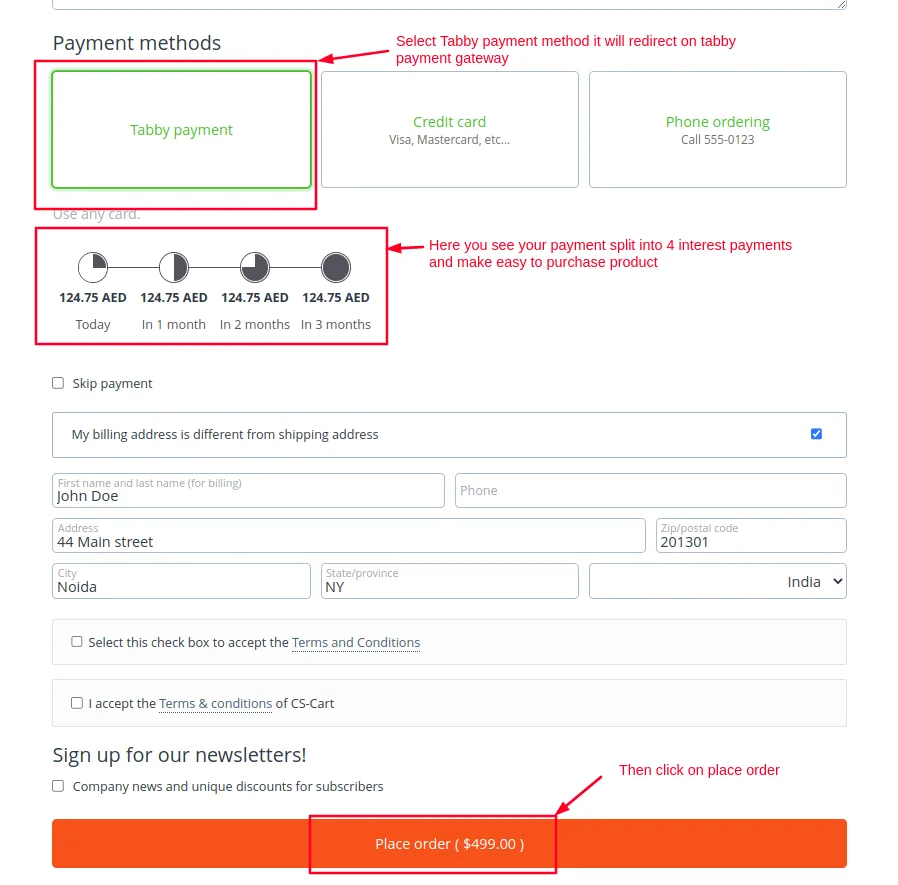
Step 8:
- After placing an order, the Tabby payment gateway page will open where you have to enter an email id and phone number.
- Then Click on the continue button.
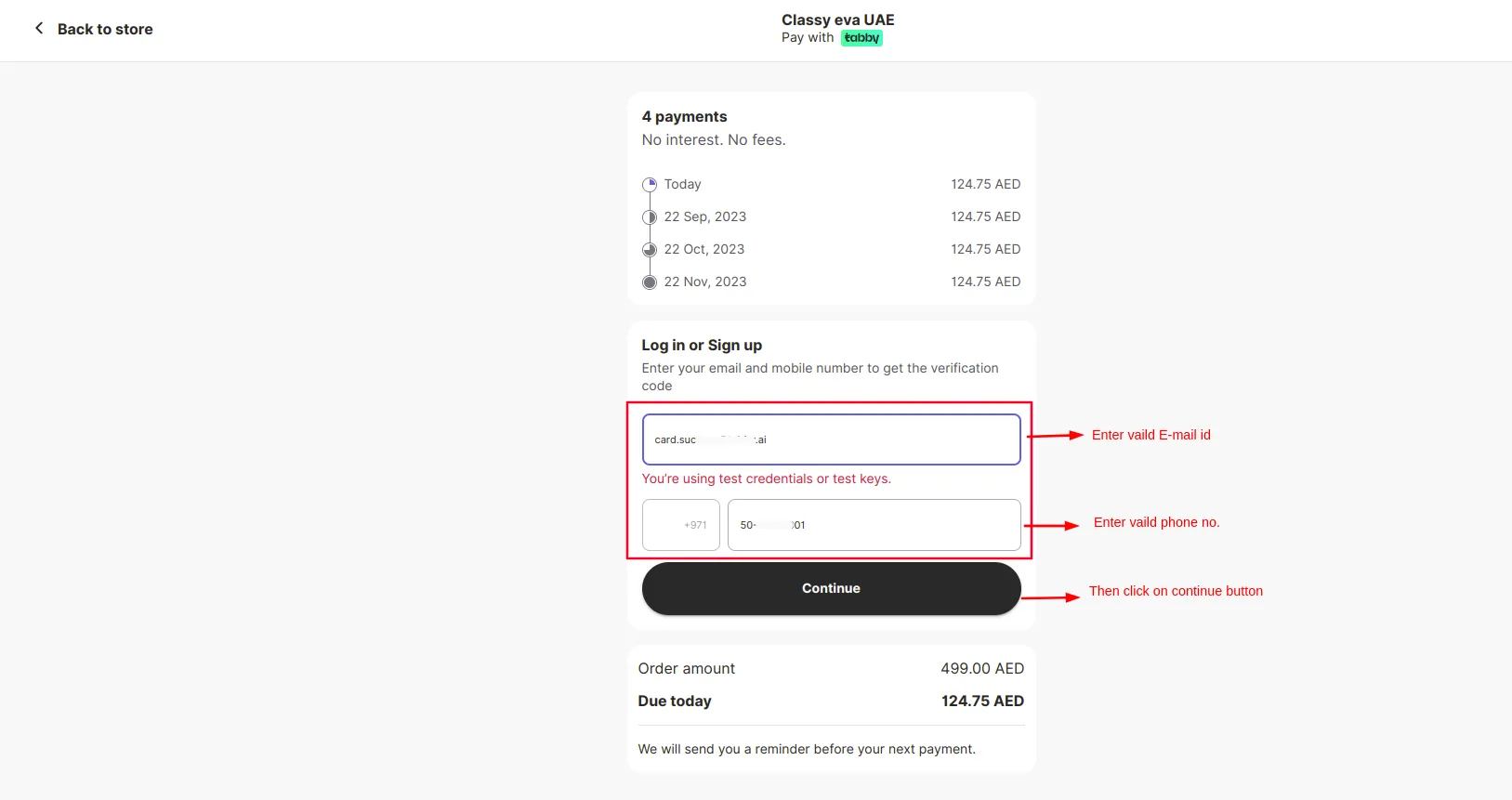
Step 9:
- You will get an OTP in your registered phone number.
- Enter the >> OTP
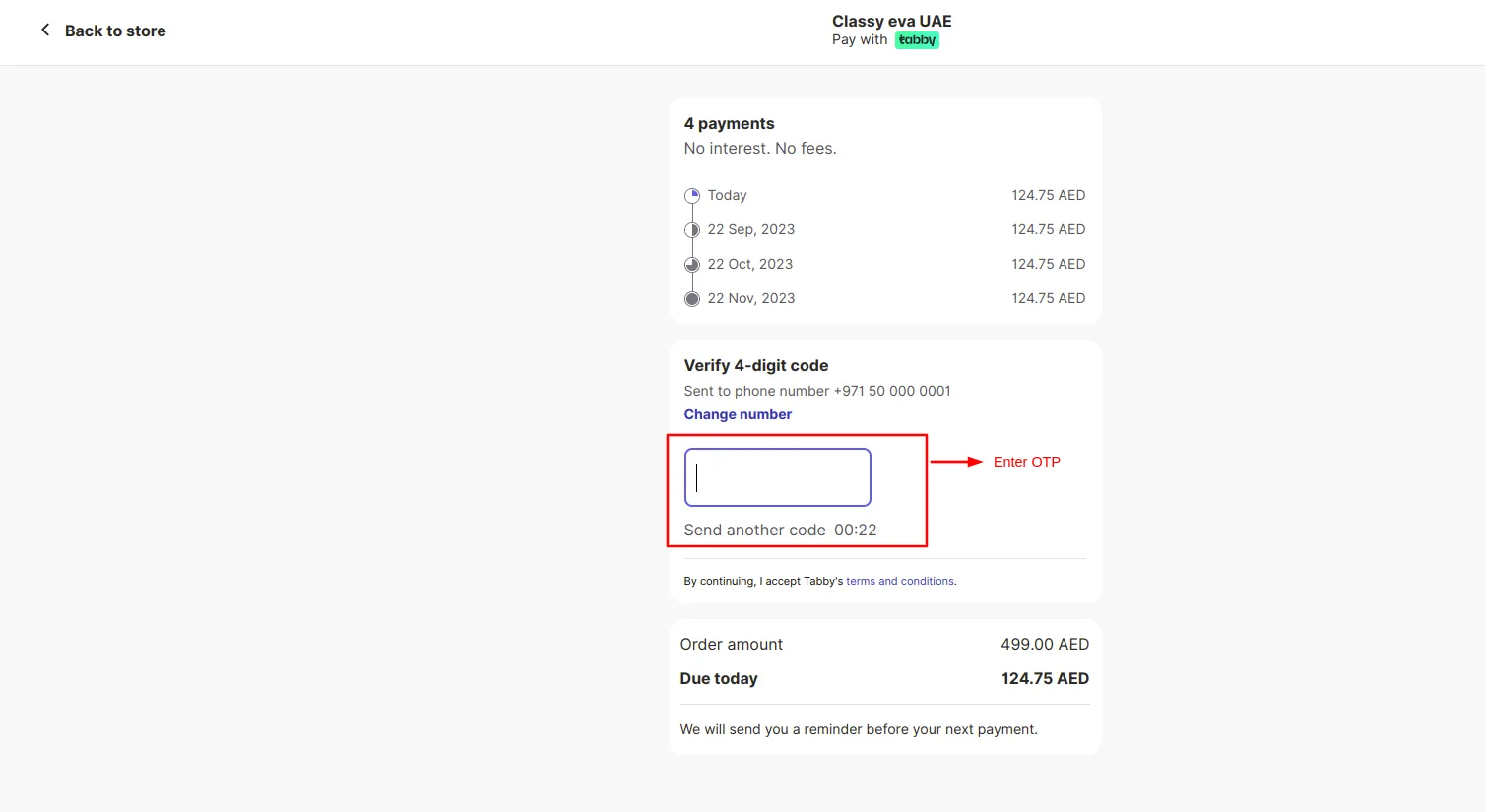
Step 10:
- Then add card details.
- First card number then expiration date and CVV.
- Click on >> Pay Button
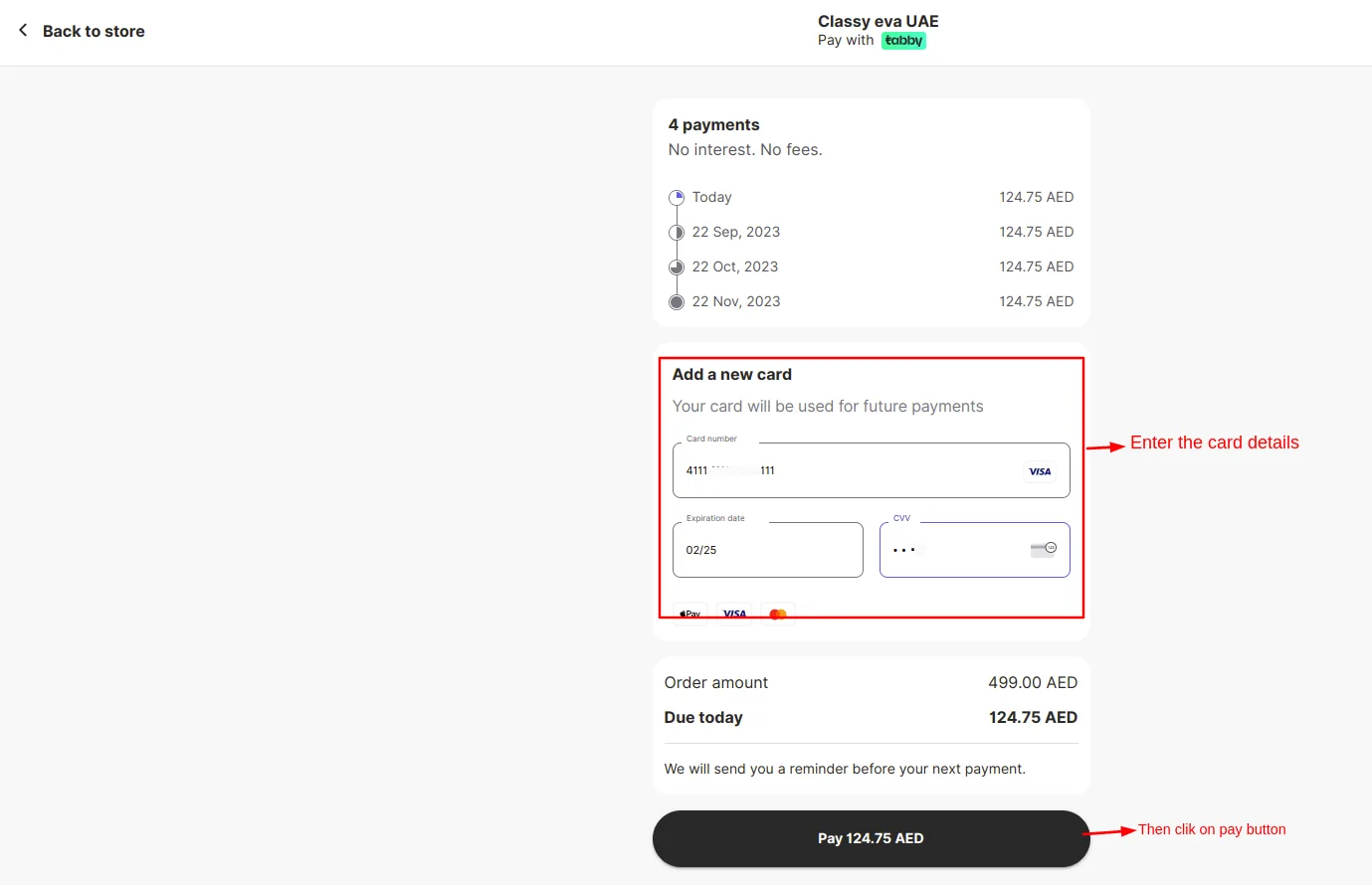
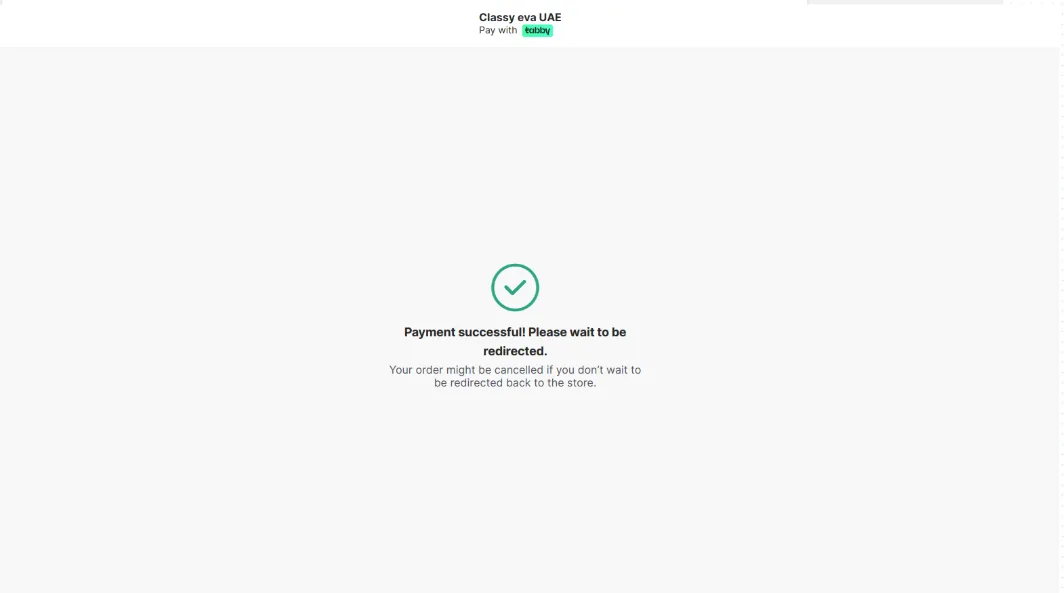
You can see that the payment is successful and an order has been placed.
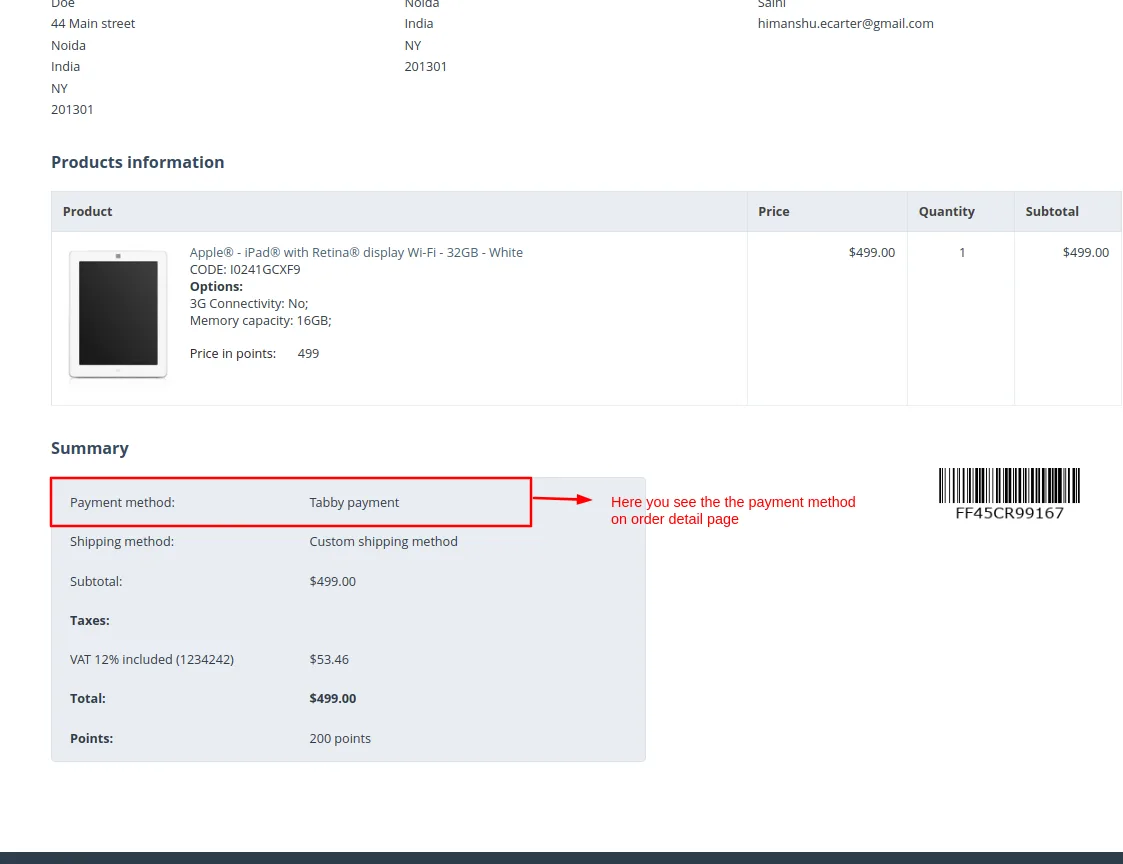
Check the payment method on the order detail page.
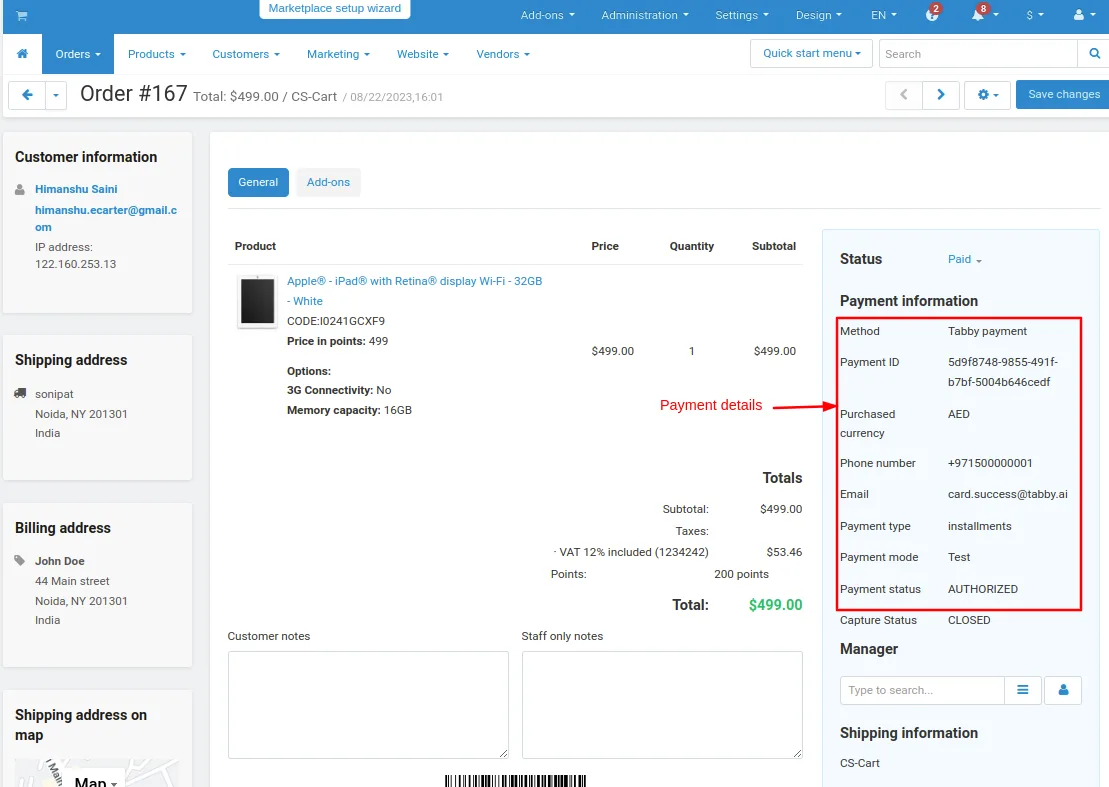
In the orders page, payment details are visible, including payment methods, such as Tabby payment.
Addon-Version:
Version-1.0
Supported Versions:
CS-Cart, CS-Cart Multivendor 4.8.x, 4.9.x,4.10x,4.11x,4.12,4.13x, 4.14x, 4.15x, 4.16x, 4.17x, 4.18x
Support:
This app is developed and published by Ecarter Technologies Pvt. Ltd., a CS-Cart developer. You are guaranteed quality add-ons.
Frequently asked questions
How does Tabby's interest-free installment option work for shoppers?
Tabby lets customers split a purchase into four interest-free payments, spreading the cost across installments instead of paying the full amount at once.
Does the Tabby Payment Gateway add-on work with CS-Cart Multi-Vendor?
Yes. The add-on is integrated with CS-Cart Multi-Vendor and can also be used with the standard CS-Cart edition.
How does an admin set up Tabby as a payment method?
An admin adds Tabby Pay as a payment choice from the store backend, connecting it through the Payment methods menu without any custom website integration.
Can customers pay with Tabby on mobile devices?
Yes. Tabby accepts online payments on any device, so customers can complete checkout whether they are in-store or on the go.
Nisha Gaur is a Technical Content Writer at Ecarter Technologies. She writes technical documentation, tutorials and buying guides covering CS-Cart, Magento, Shopify and eCommerce development.