
Storefront-wise Time Zone
The Storefront-wise Time Zone addon for CS-Cart allows the admin set different time zones for each storefront.
The Storefront-wise Time Zone add-on for CS-Cart lets the admin set a different time zone for each storefront instead of running every storefront on one global time. Once a zone is assigned, all time-based sections of that storefront, such as reviews and messages, display time according to the selected zone. The time zone is set from the Admin panel under Settings then Storefronts, by opening a storefront and choosing its zone from a dropdown; a "Global (Time Zone)" option keeps a storefront on the admin panel's default time. It is aimed at CS-Cart Multi-Vendor store owners running multiple storefronts across regions who need each one to show locally accurate times.

The Storefront-wise Time Zone Addon for CS-Cart allows the admin set different time zones for each storefront. This ensures every storefront shows the correct time based on its selected zone, instead of following a single global time.
The Admin can easily adjust the time zone for each storefront through the Admin panel. Once set, every section of the storefront, such as reviews, messages, and others shows time according to its chosen zone.
Features
- Set Individual Time Zones: The Admin can assign a unique time zone for each storefront instead of using a single global time.
- Show Accurate Time: All sections in the storefront, including reviews, messages, and others, show time based on the selected zone.
- Global Time Option: Choose “Global (Time Zone)” for a storefront to follow the admin panel’s default time.
- CS-Cart Support info: The addon is well integrated with CS-Cart Multi-Vendor and can be used with its standard, Plus, and Ultimate Versions.
Installation:
How to install Addon
https://store.ecarter.co/blogs/how-to-install-addon/
How Addon Works
With just a few steps, the admin can control the time zone for each storefront using this addon.
- Go to >> Settings
- Click on >> Storefronts
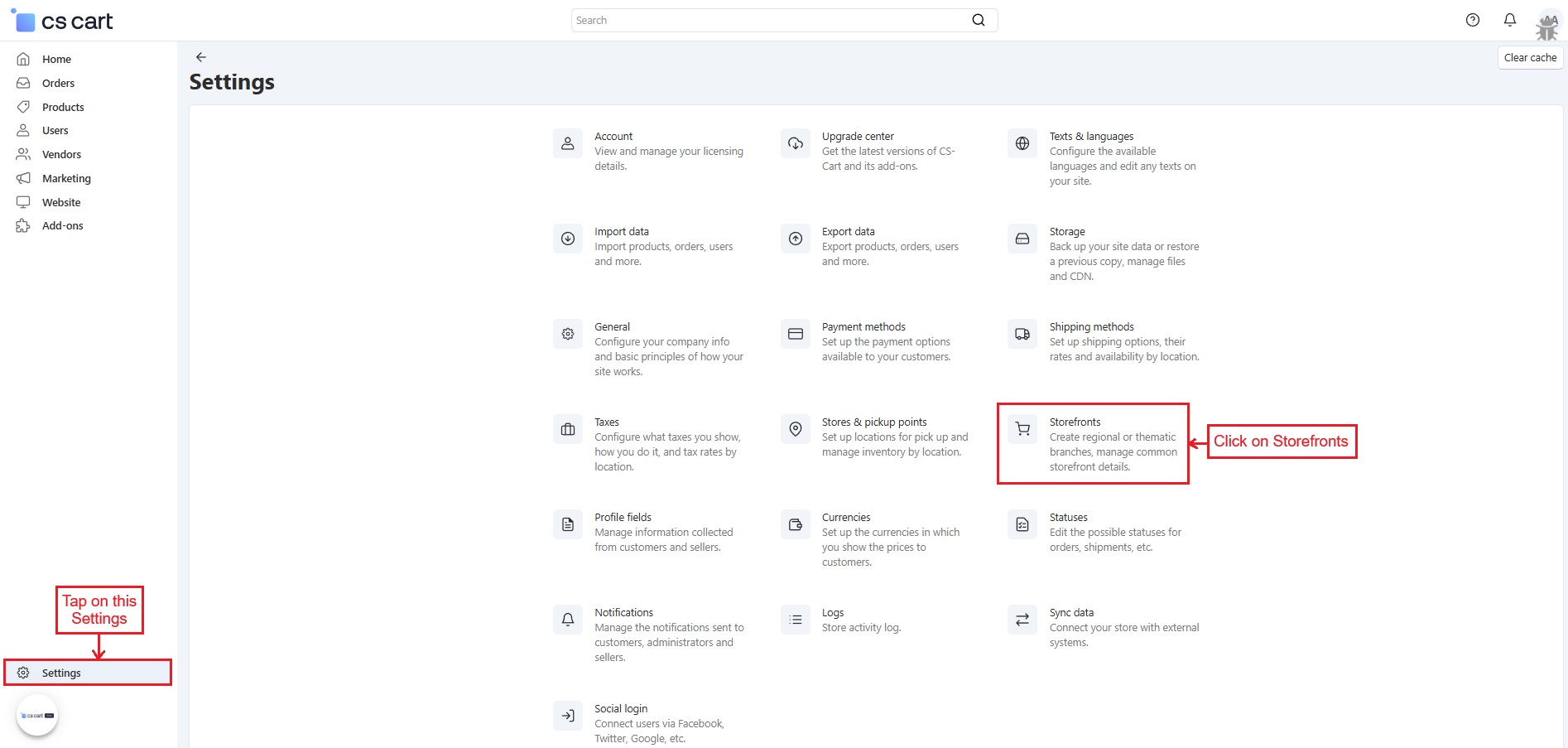
- Now, this page shows a list of all storefronts. Click on any storefront to view its details.

- Here, the admin can set a specific time zone for this storefront using the dropdown. If Global (Time Zone) is selected, the storefront will follow the time zone set in the admin panel.

- Open the storefront for which the time zone is set.
- As the time zone is set to Global, the storefront is following the admin panel’s time zone.
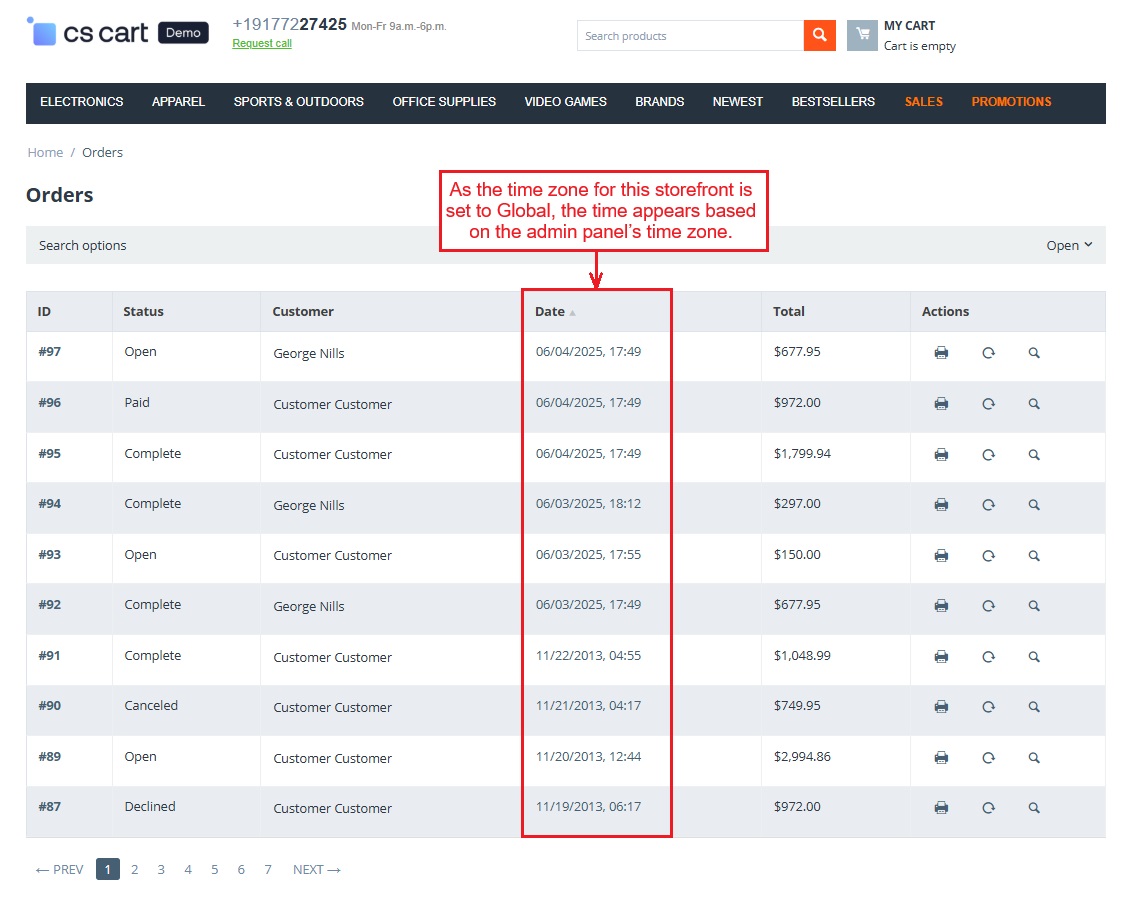
- To change the time zone again, go to the Admin panel’s storefront settings and select a new time zone for the same storefront. It is now set to Eastern Time (US & Canada), and it shows time based on this zone.

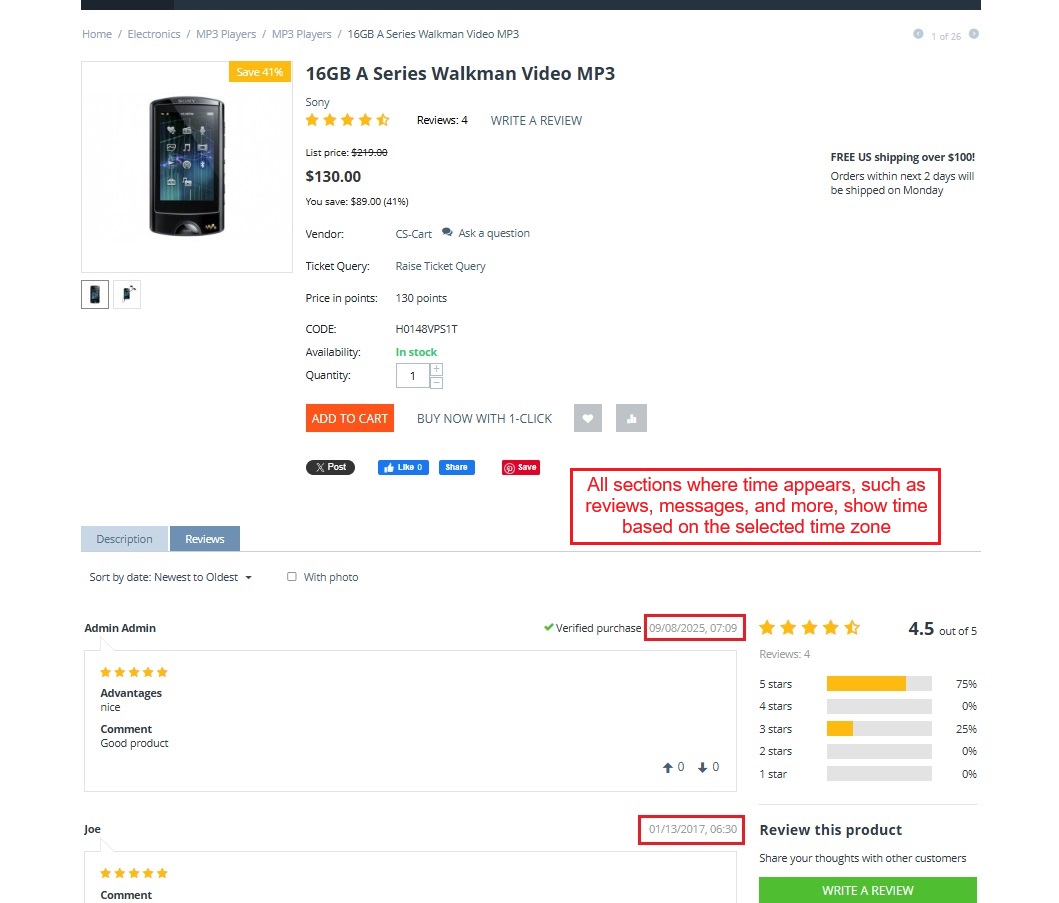
- The storefront shows time according to the chosen time zone in all sections, such as reviews, messages, and others.
✅ Final Thought
This addon allows the admin to set different time zones for each storefront quickly. Different storefronts show the local time as selected, while the global time can be used if needed.
Supported Versions:
CS-Cart, CS-Cart Multivendor 4.8.x, 4.9.x,4.10x,4.11x,4.12,4.13x, 4.14x, 4.15x, 4.16x, 4.17x 4.18x
Support:
This app is developed and published by Ecarter Technologies Pvt. Ltd., a CS-Cart developer. You are guaranteed quality add-ons.
Frequently asked questions
Can I set a different time zone for each storefront?
Yes. The admin can assign a unique time zone to each storefront from the Admin panel, so every storefront can follow its own local time rather than a single shared setting.
Which parts of the storefront show the adjusted time?
All time-based sections of the storefront display time according to the selected zone, including reviews and messages, so times stay consistent with the storefront's chosen region.
Is it compatible with CS-Cart Multi-Vendor and which editions?
Yes. The add-on is integrated with CS-Cart Multi-Vendor and can be used with its Standard, Plus, and Ultimate versions.
How do I set the time zone for a storefront?
Go to Settings, then Storefronts, click the storefront you want, and select a time zone from the dropdown. Choosing "Global (Time Zone)" keeps that storefront on the admin panel's default time. Installation follows the standard add-on steps at store.ecarter.co/blogs/how-to-install-addon/.
Nisha Gaur is a Technical Content Writer at Ecarter Technologies. She writes technical documentation, tutorials and buying guides covering CS-Cart, Magento, Shopify and eCommerce development.