
Sales Report and Manage Export
Sales Report & Manage Export add-on for CS-Cart allows users to track and export sales data easily. Users can generate sales reports.
The Sales Report & Manage Export add-on for CS-Cart lets store administrators generate sales reports and export the data for analysis. It can produce reports by product, category, or user, showing the number of products sold along with details such as quantity and revenue, and it exports the data as CSV files with a chosen separator. This helps merchants track sales performance and manage inventory without manually pulling figures from the store. It is aimed at CS-Cart store owners and administrators, including those running a CS-Cart Multi-Vendor marketplace.

Sales Report & Manage Export Add-on for CS-Cart allows users to track and export sales data easily. Users can generate sales report based on products, categories, or user and download them as CSV file for better analysis. Show the number of products you have sold on product, category, and user sales reports.
Features:
- Generate Sales Report: Create report based on product, category, and user.
- View Sold Products: Show the number of products sold in different reports.
- Download CSV Files: Export sales data in CSV format for easy analysis.
- Track Sales Data: Monitor your sales performance with detailed reports.
- Efficient Report Management: Quickly create, export, and organize sales report.
- CS-Cart Support info: The add-on is well integrated with CS-Cart Multi-Vendor and can be used with its standard, Plus, and Ultimate Versions.
How to install Addon
https://store.ecarter.co/blogs/how-to-install-addon/
Workflow of Addon
Access the Manage Report Page
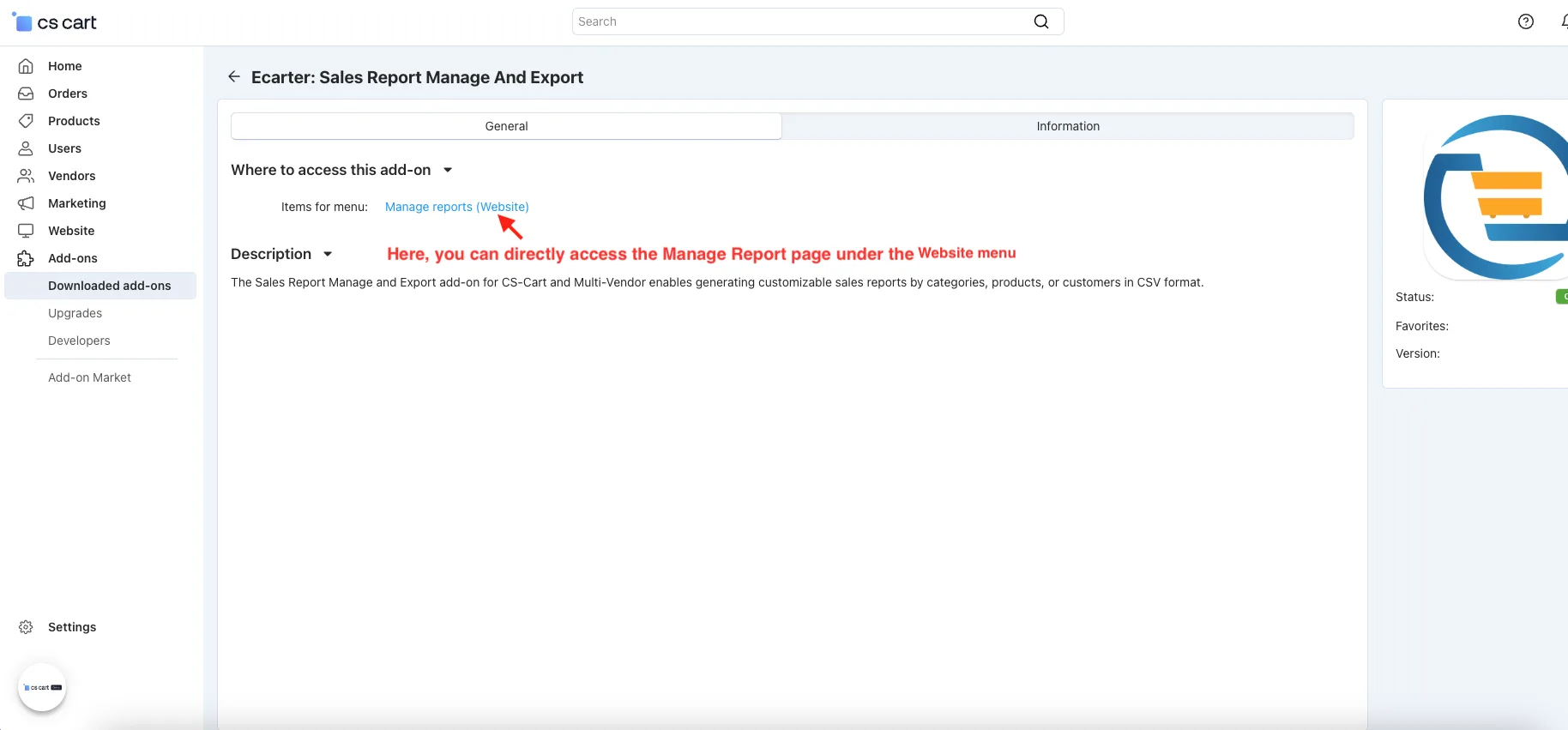
- Open the add-on.
- Items for menu: Here, you can directly access the Manage Report page under the Website menu.
Add Product Sales Report
Admin can easily create a custom sales report. The report can be previewed and downloaded as CSV files with a chosen separator. Also, the admin can easily view detailed sales data for each product, including quantity sold and revenue. Easily export a report for analysis and better inventory management.
- Go to the Website >> Manage Report.
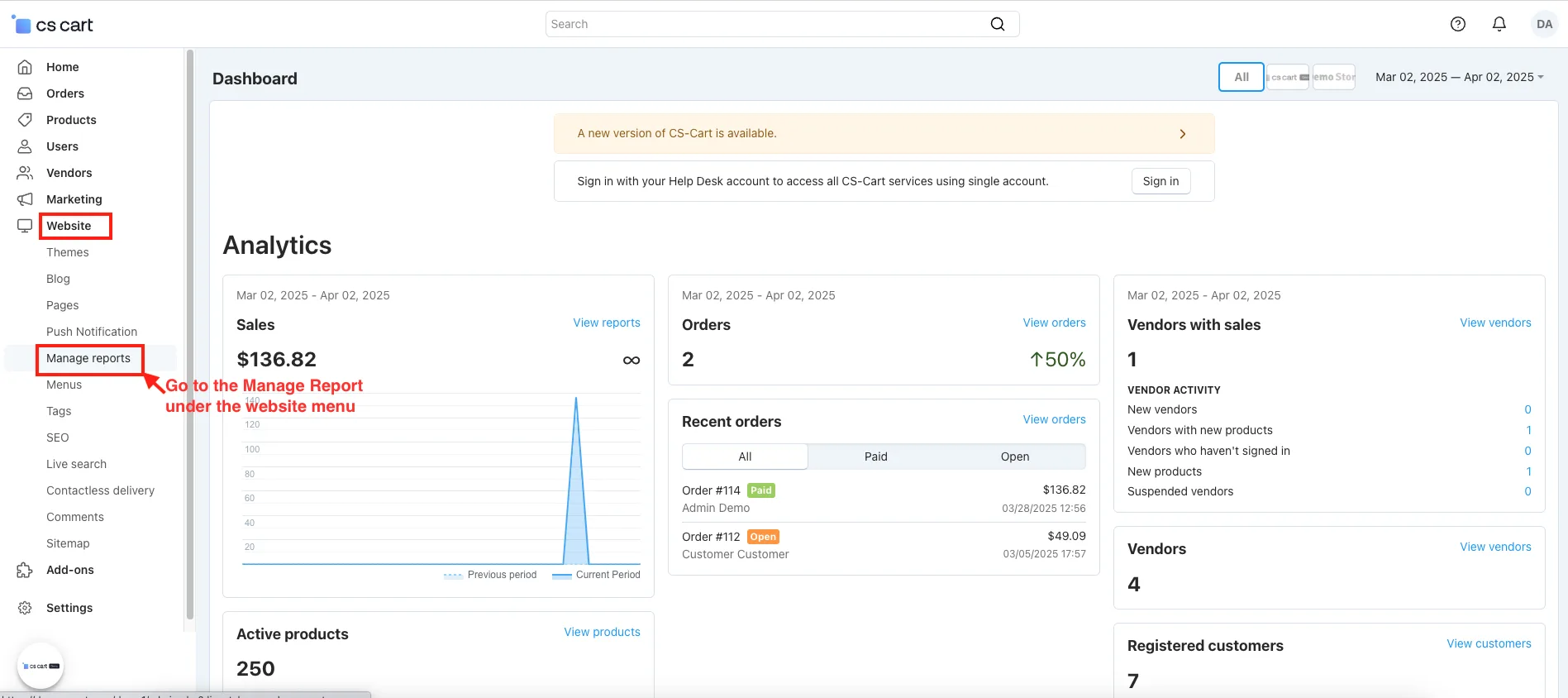
- Click on the (+) icon to add a sales report.
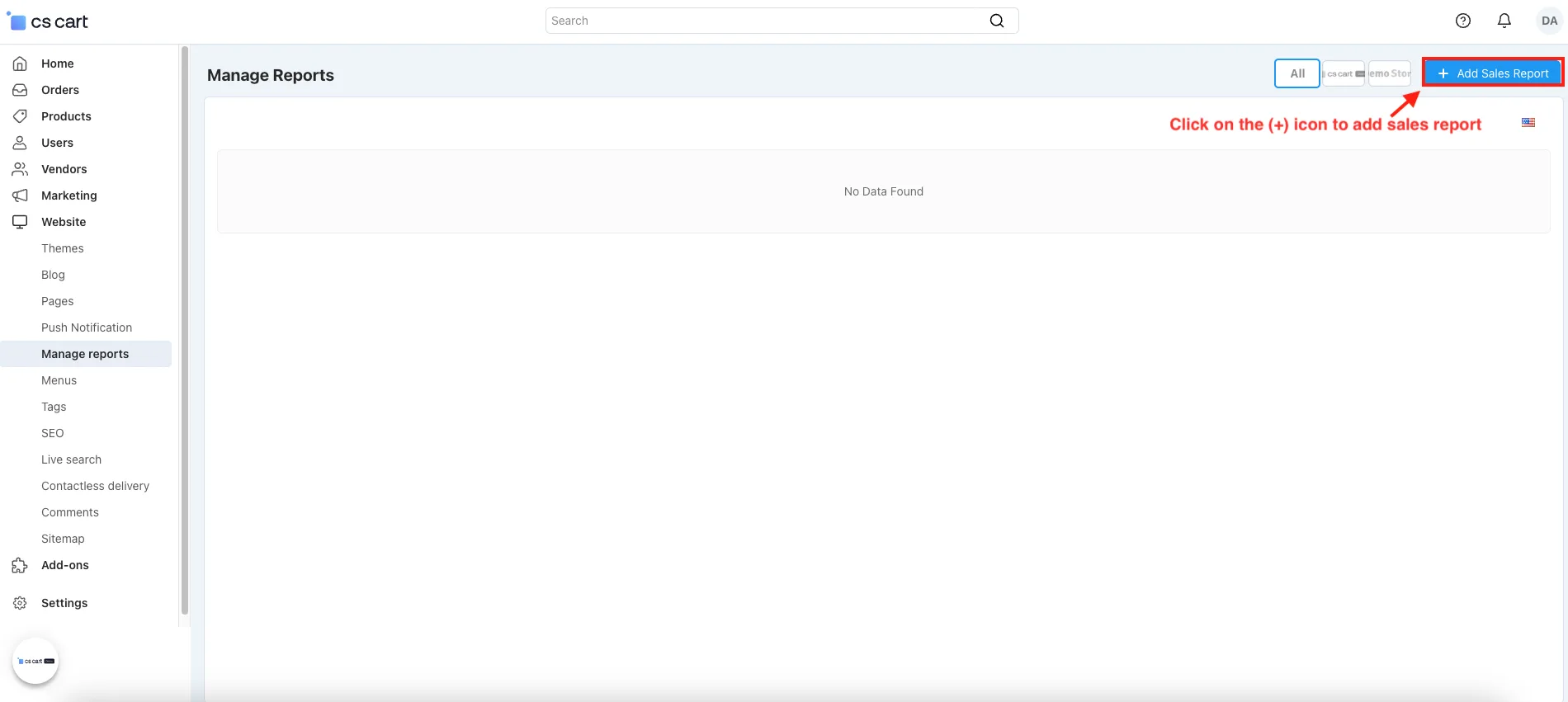
- Add Report Page will be open.
- Report Name: Here, the user enter the name of the report.
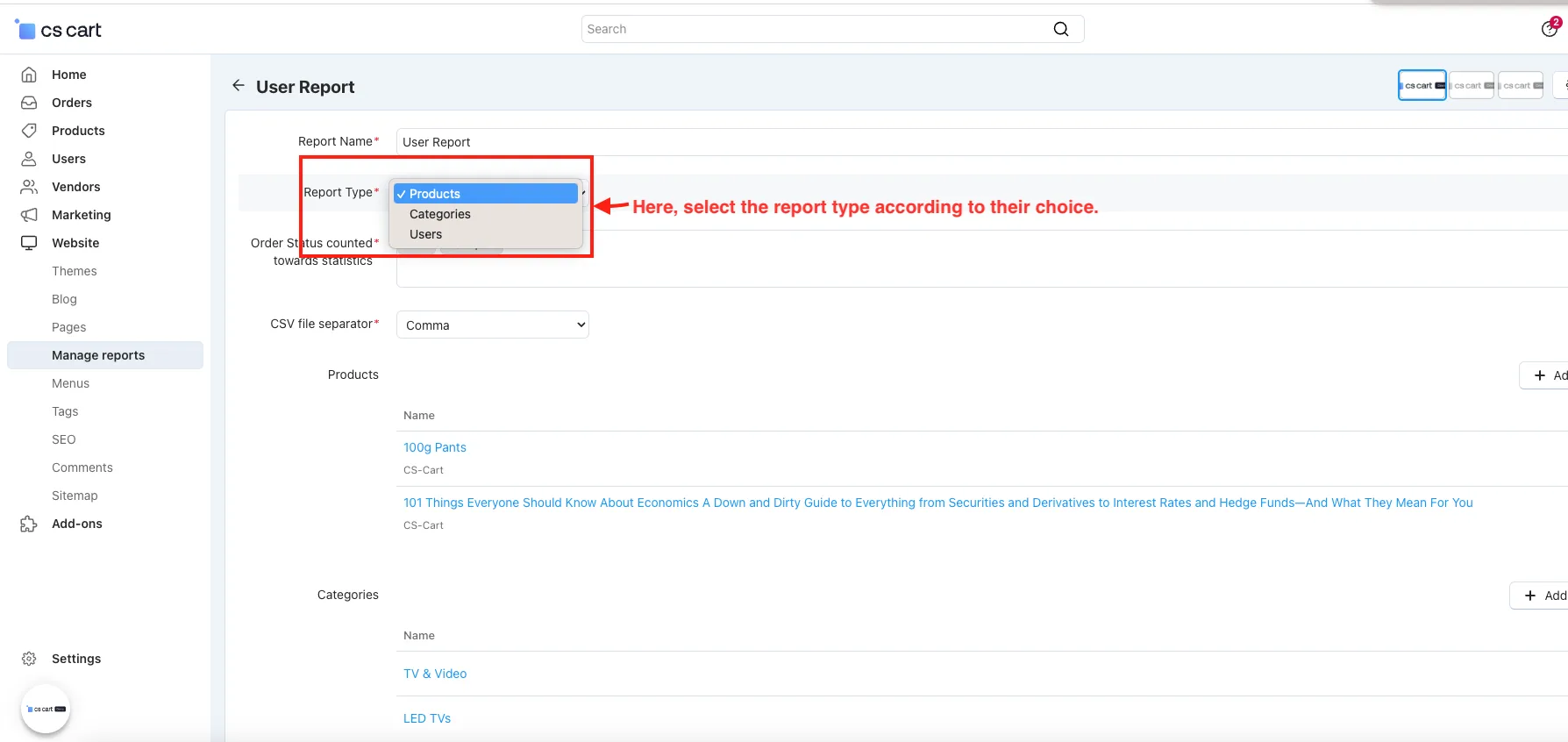
- Report type: user selects the type of report like product, categories, and users.
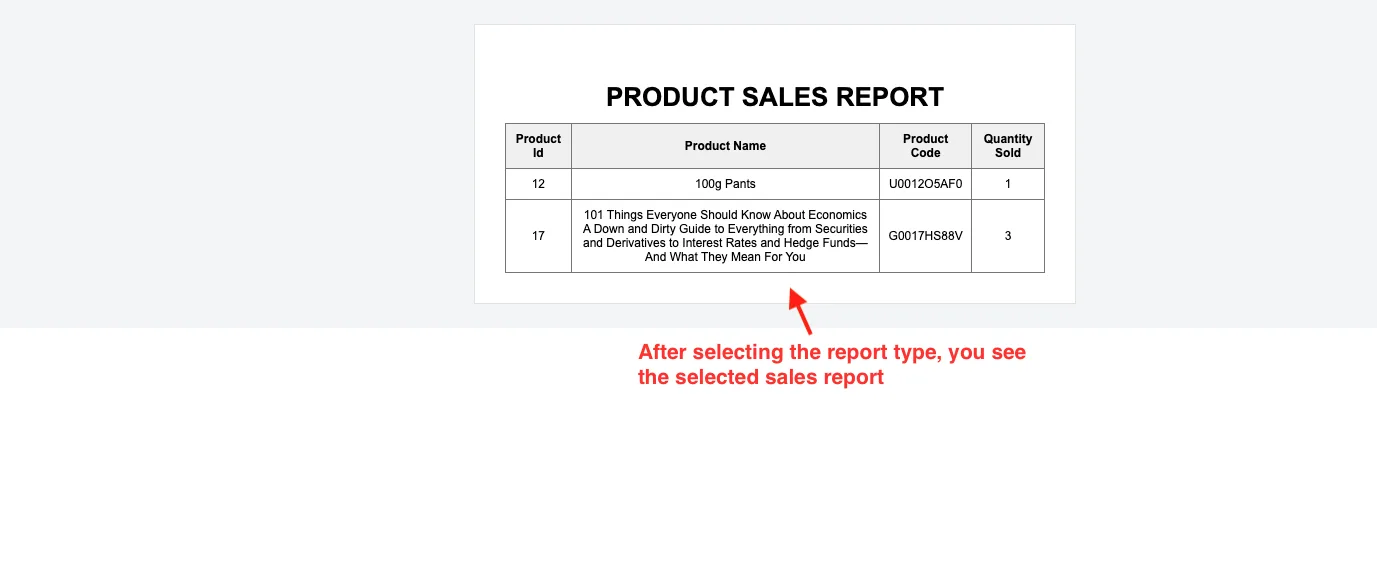
- Product: If the user selects the product type, then you will see the created product sales report with the number of products you have sold.
- Order status counted: here user selects one or more order statuses to view the number of sold products on the report.
- CSV file separator: here user selects the CSV file separator like Comma, Full-stop, or tab.
- Products: If you have selected a product in the report type above, then here, the user adds the products for which they want to view the report.
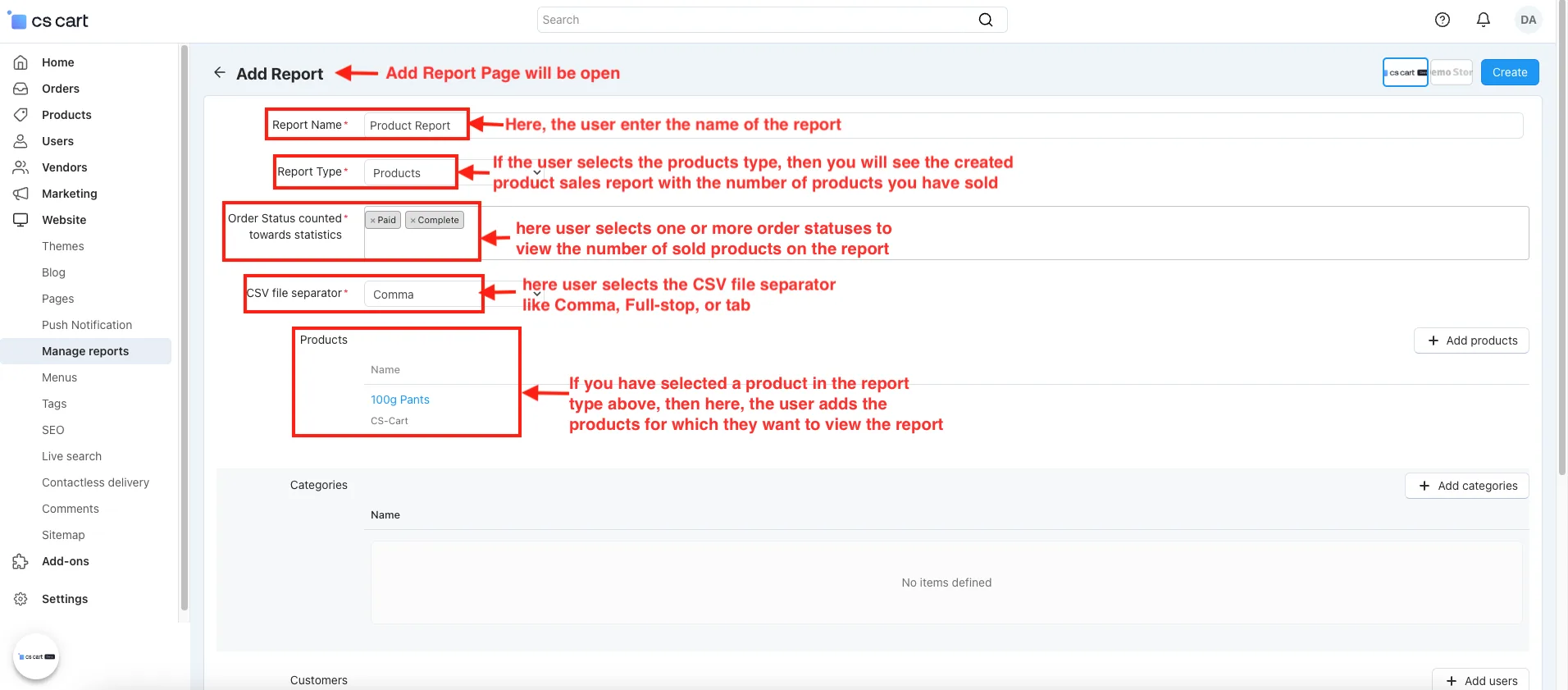
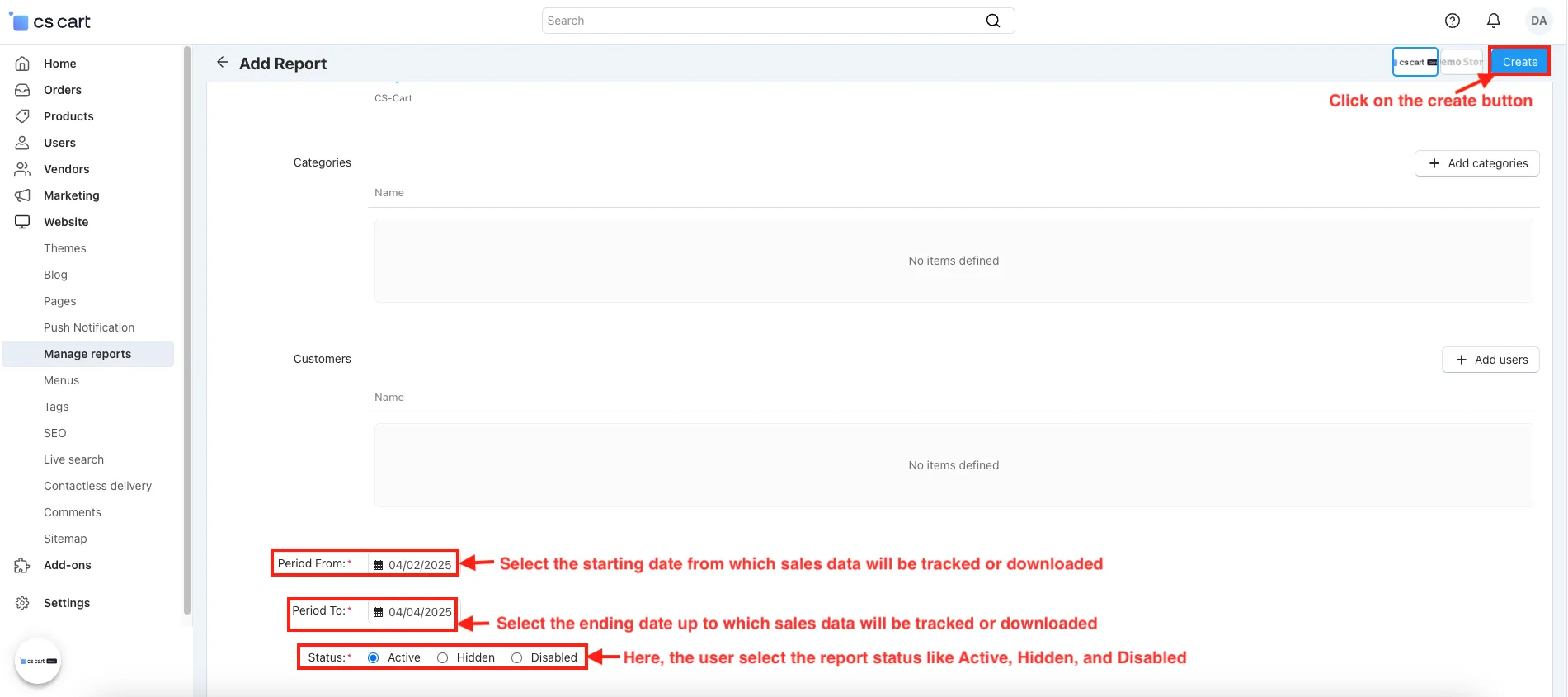
- Period from: Select the starting date from which sales data will be tracked or downloaded.
- Period To: Select the ending date to which sales data will be tracked or downloaded.
- Status: Here, the user select the report status like Active, Hidden, and Disabled.
- Click on the Create button.
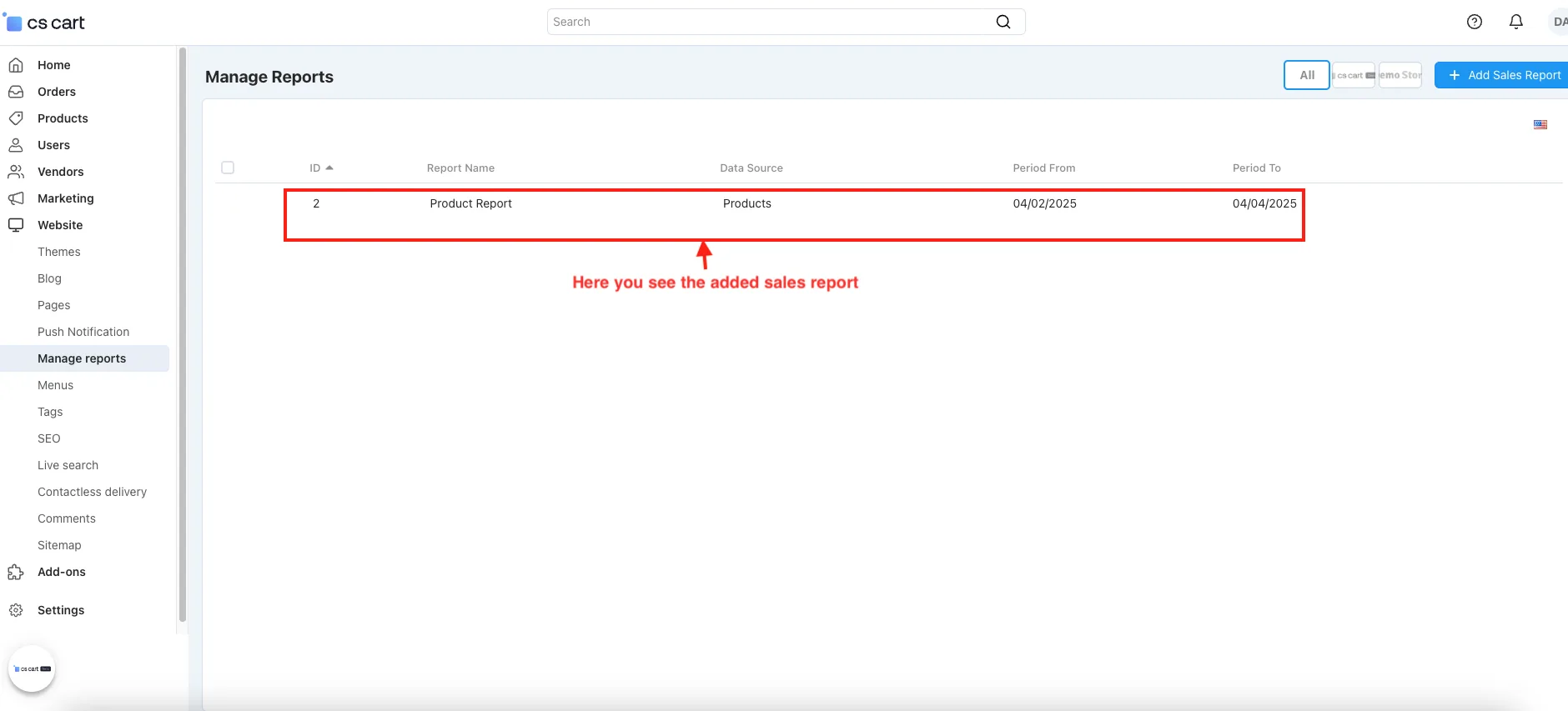
- Here, you see the added sales report.
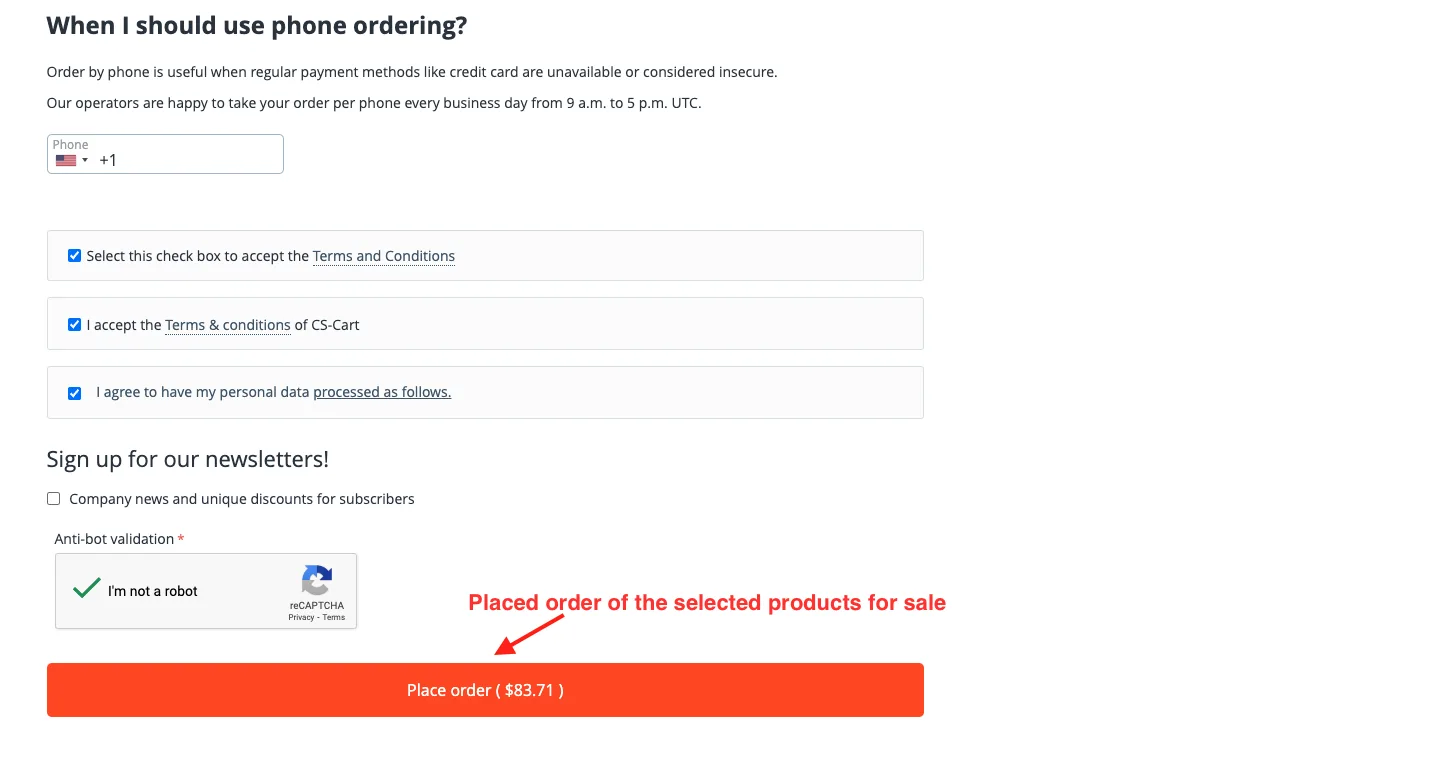
- Placed an order for the selected products for sale.
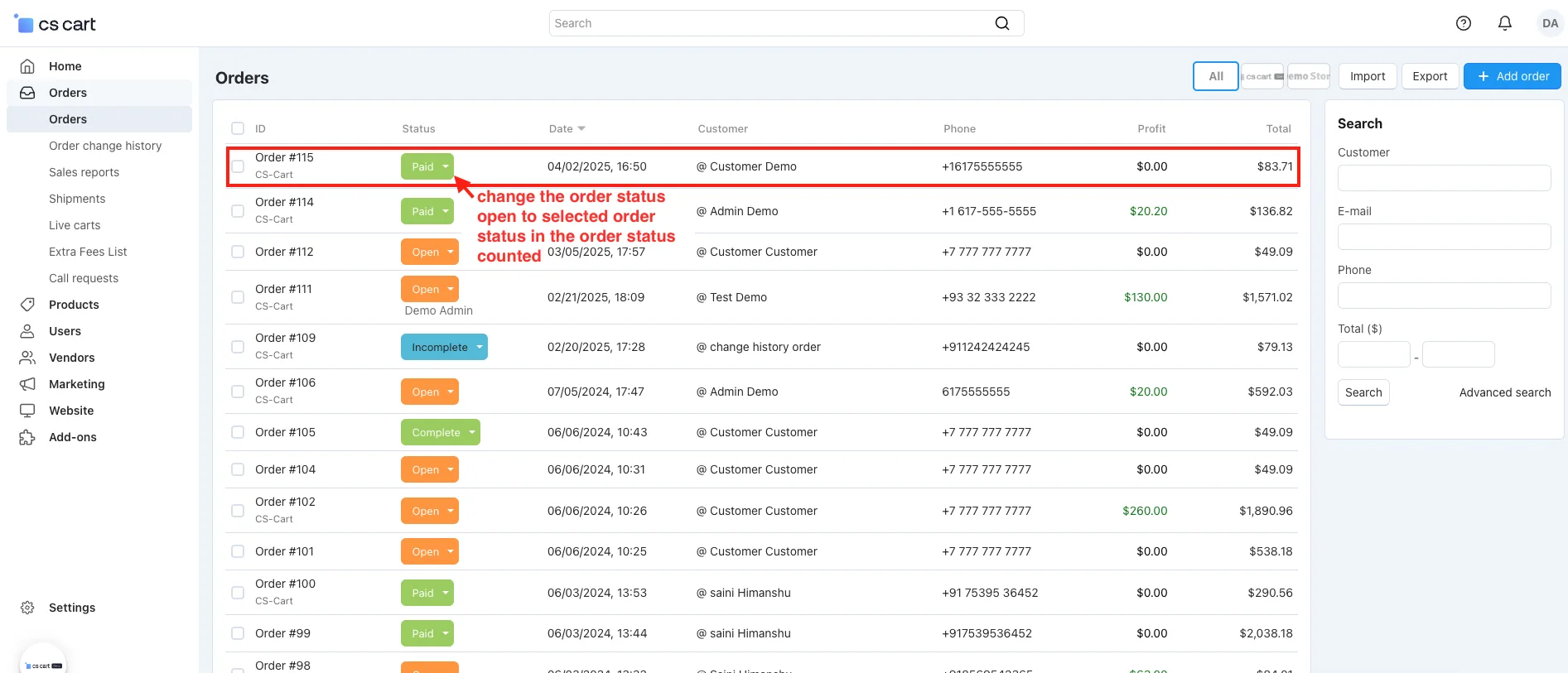
- Here, change the order status, open to the selected order status in the order status count setting.
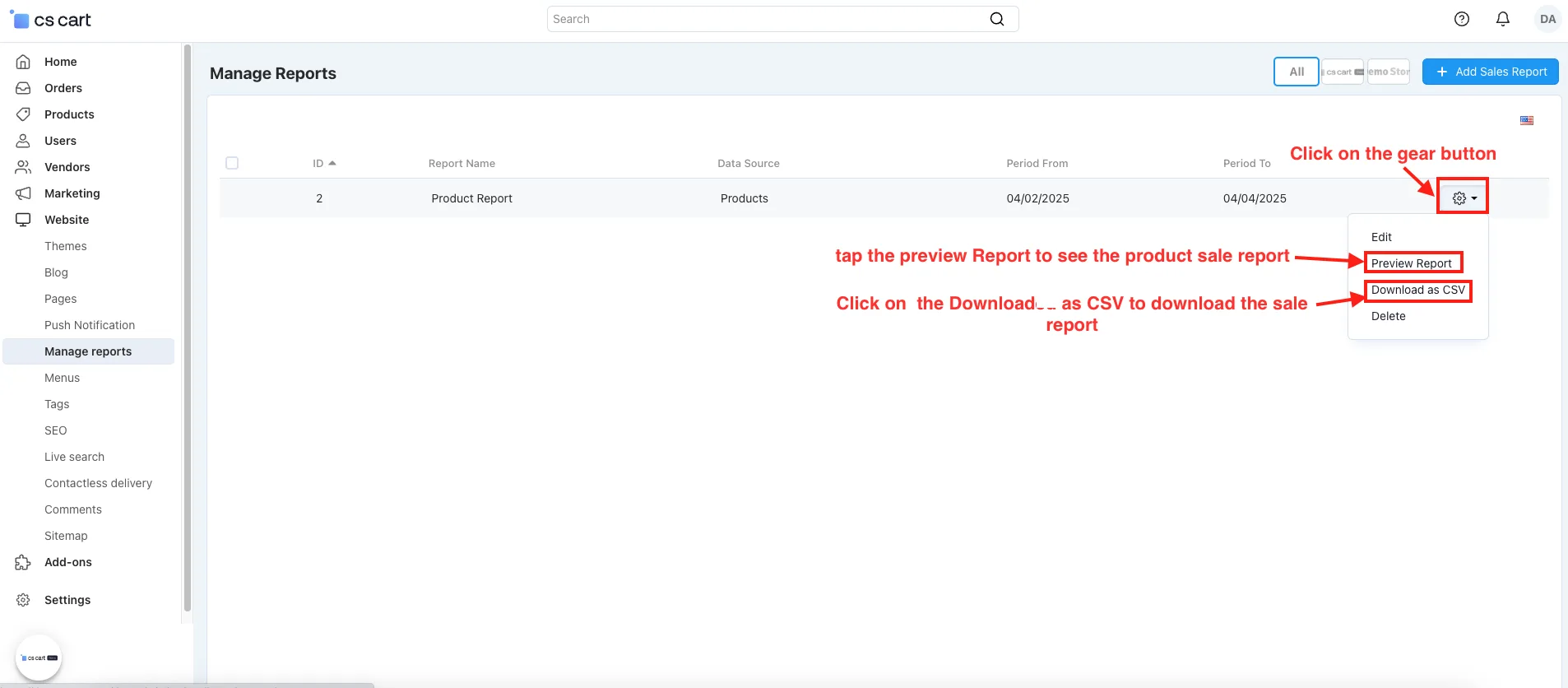
- Click on the gear button and tap the preview Report to see the product sale report on the Manage report page.
- Click on the Download as CSV to download the sale report.
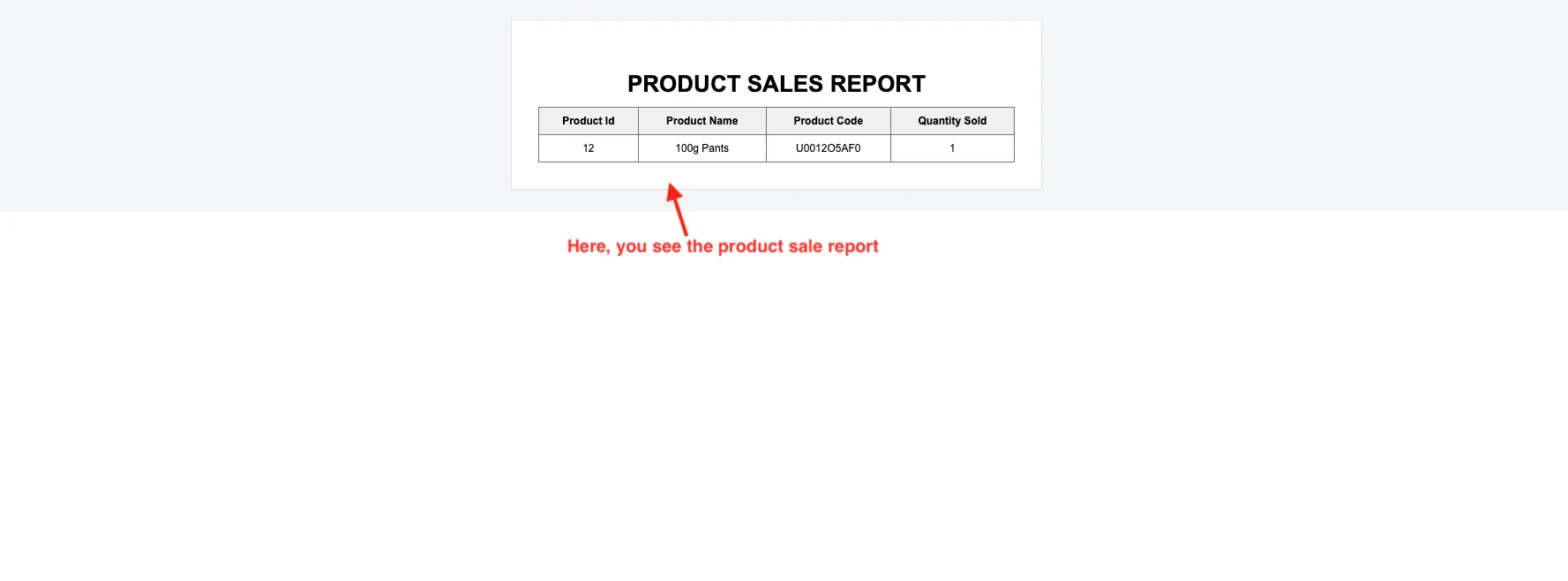
- Here, you see the product sale report.
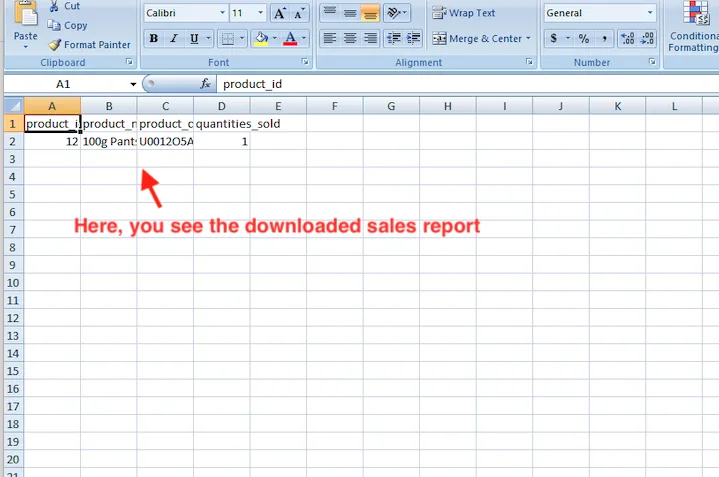
- Here, you see the downloaded sales report.
Add Categories Sales Report
Admin creates sales reports based on selected product categories. it helps track how many products were sold in each category and allows exporting the report as a CSV file for easy review.
- In the Manage Report Page.
- Click on the (+) icon to add the categories sales report.
- Add Report Page will be open.
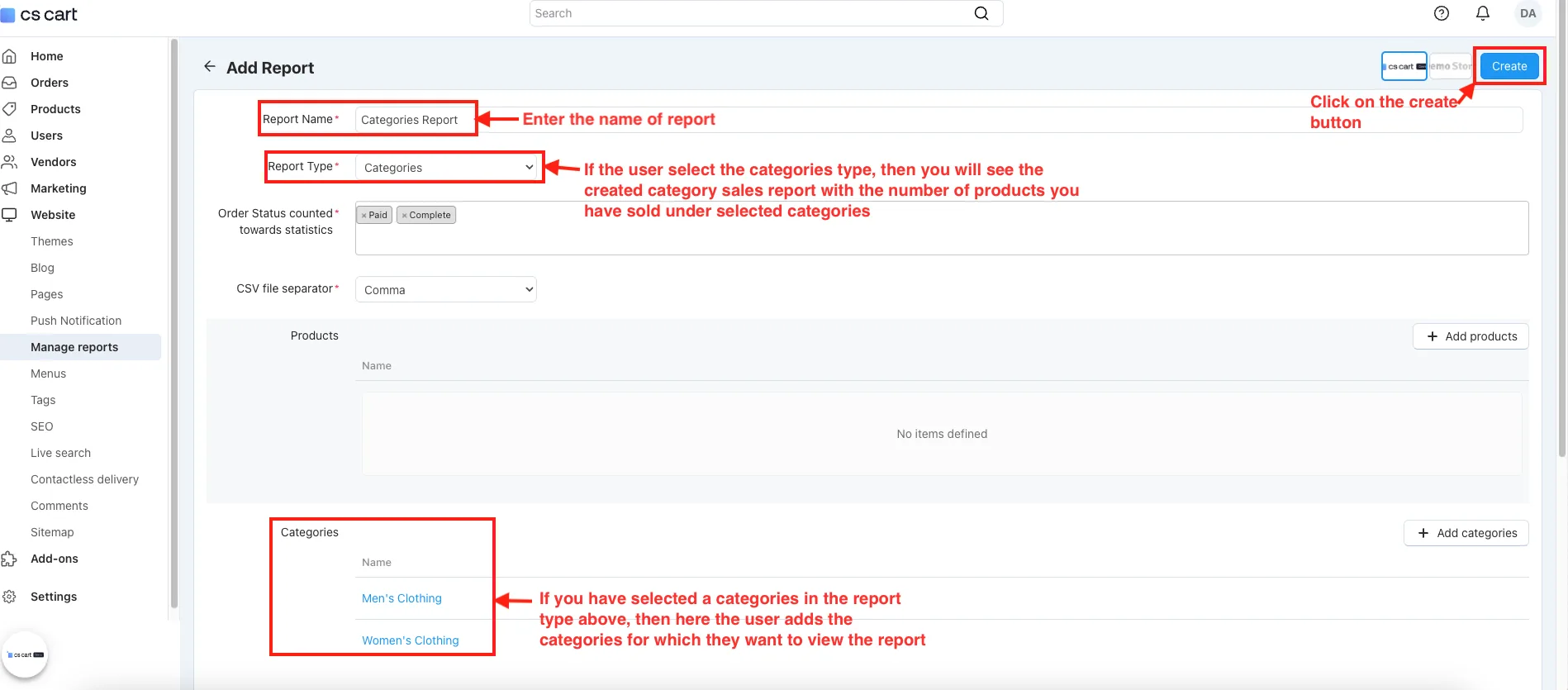
- Report Name: Enter the name of the report.
- Report Type:
- Categories: If the user selects the category type, then you will see the created category sales report with the number of products you have sold under the selected categories.
- Categories: If you have selected a category in the report type above, then here the user adds the categories for which they want to view the report.
- Click on the Create button.
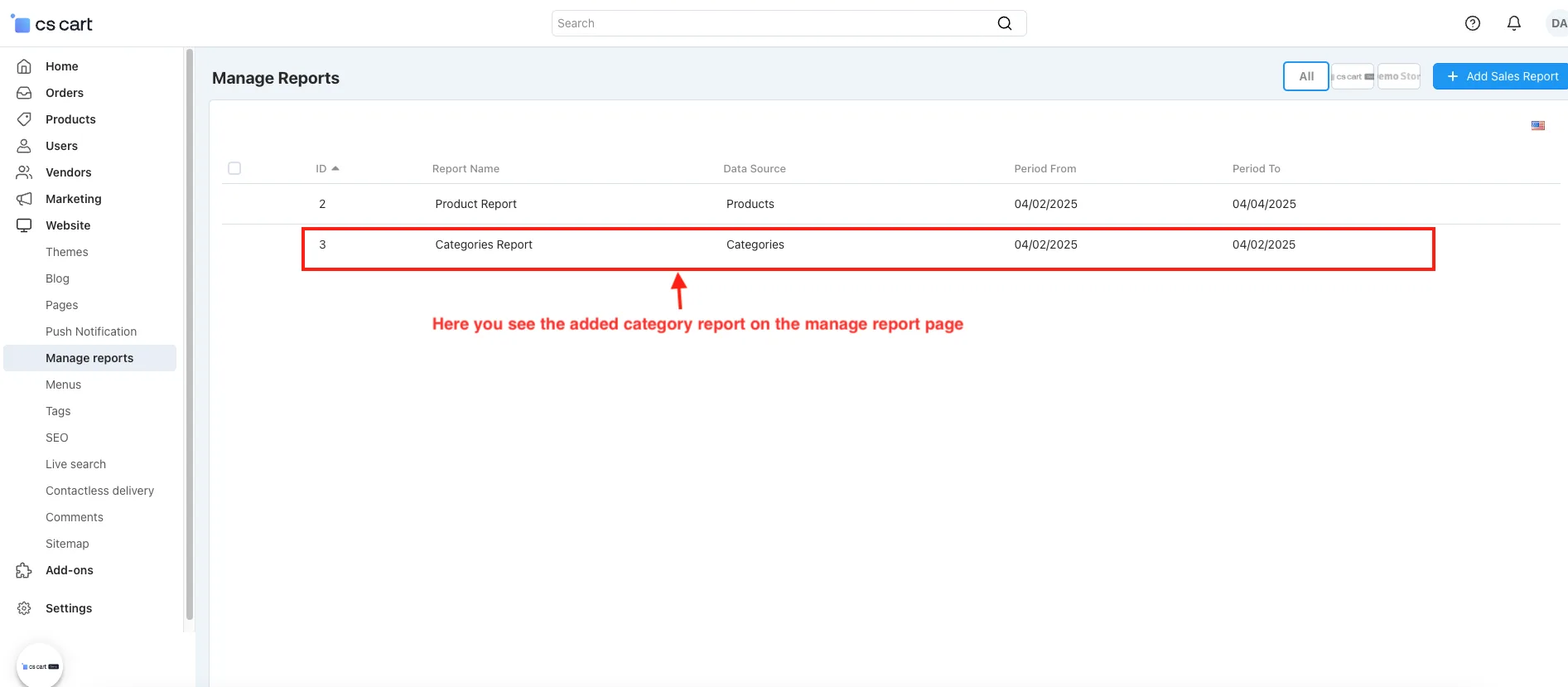
- Here, you see the added category report on the manage report page.
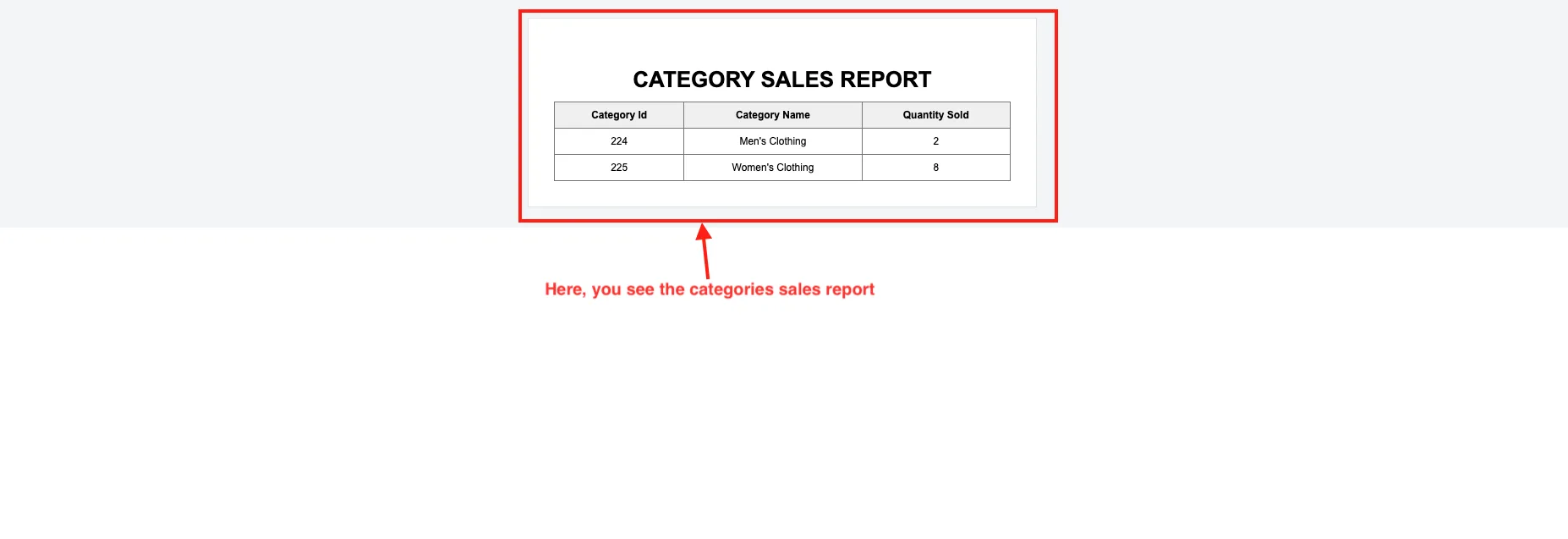
- Here, you see the sales report categories.
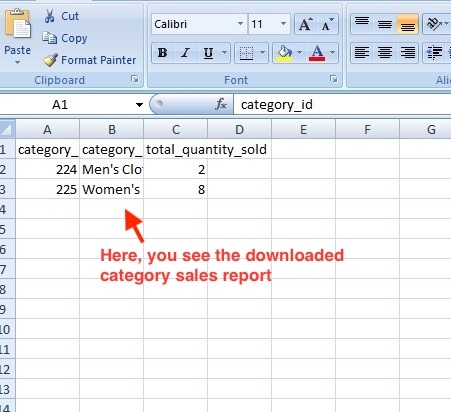
- Here, you see the downloaded category sales report.
Add User Sales Report
This feature helps the admin create reports based on user-wise sales data. it shows how much each user has purchased products and allows a preview and download report for better tracking and analysis.
- In Add Report Page.
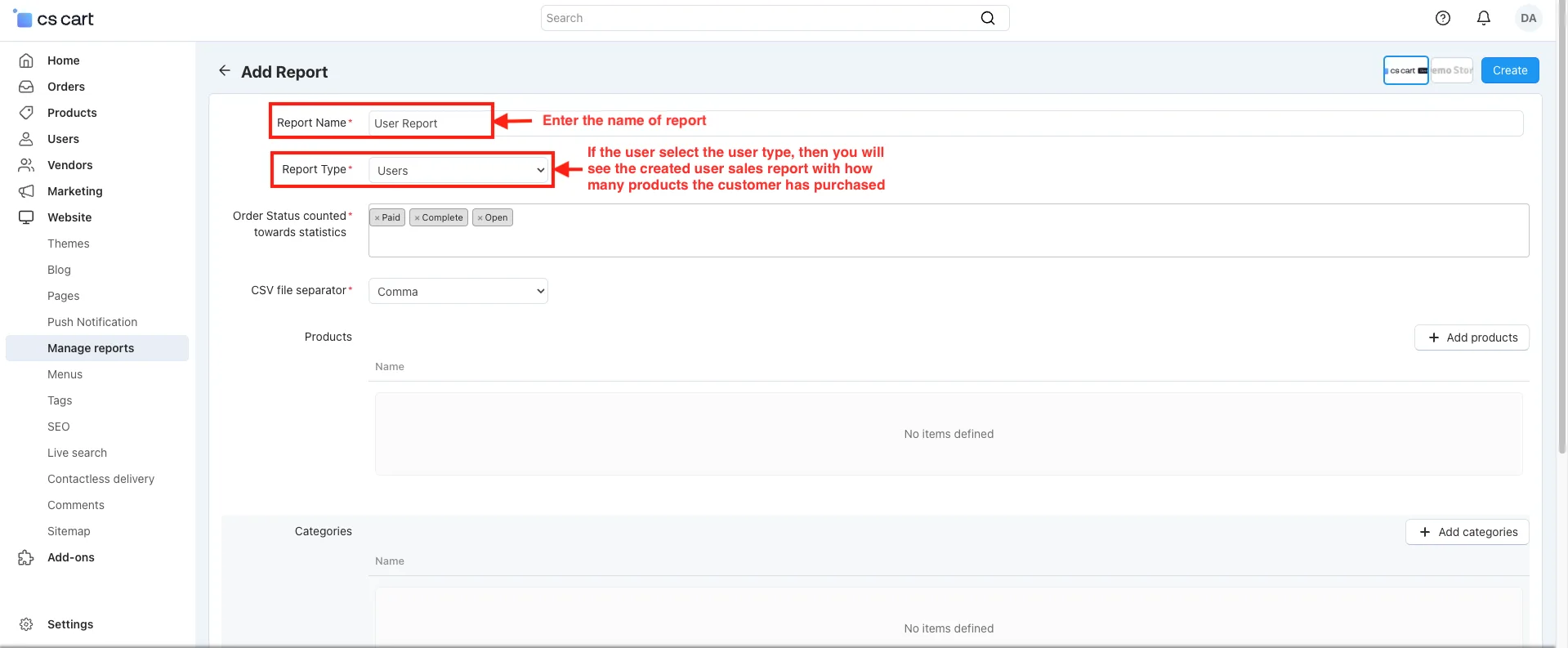
- Report Name: Enter the name of the report.
- Report Type:
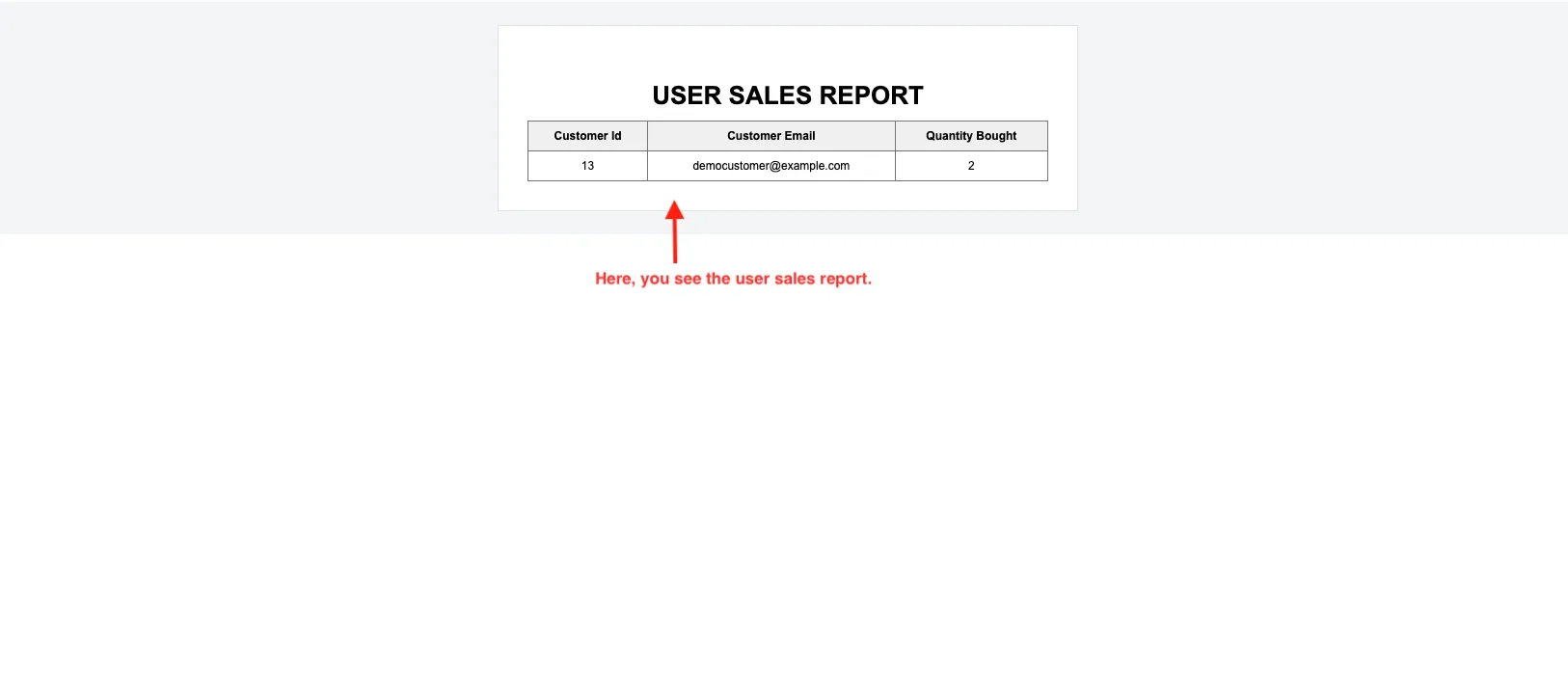
- User: If the user selects the user type, then you will see the created user sales report with how many products the customer has purchased.
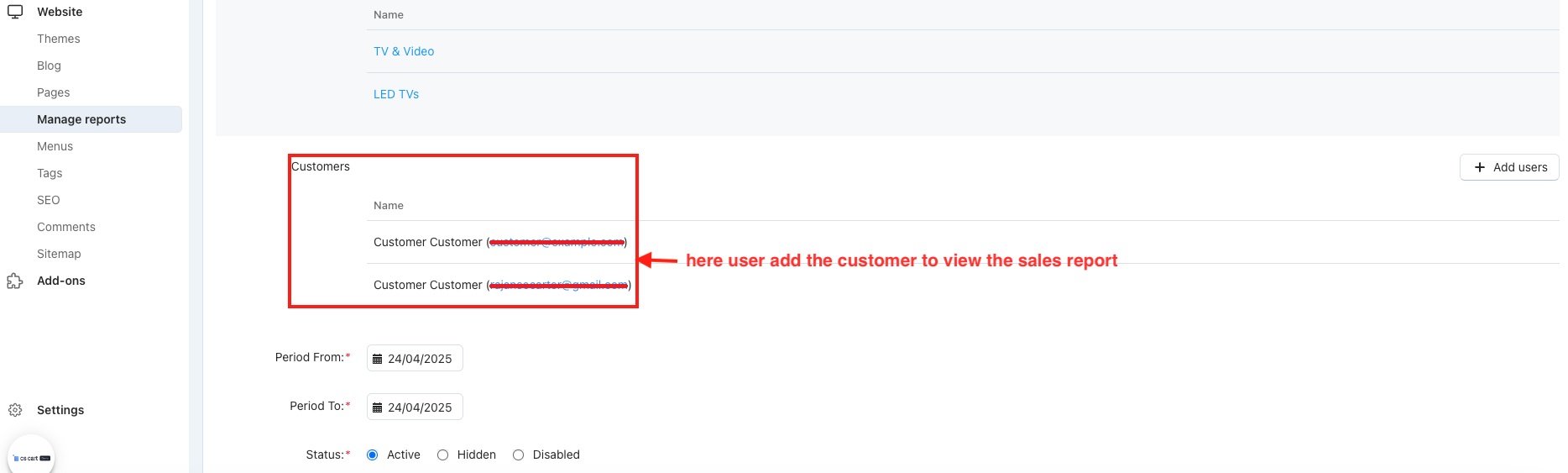
- Customers: If you have selected users in the report type above, then here, the user adds the customers for which they want to view the report.
- Click on the Create button.
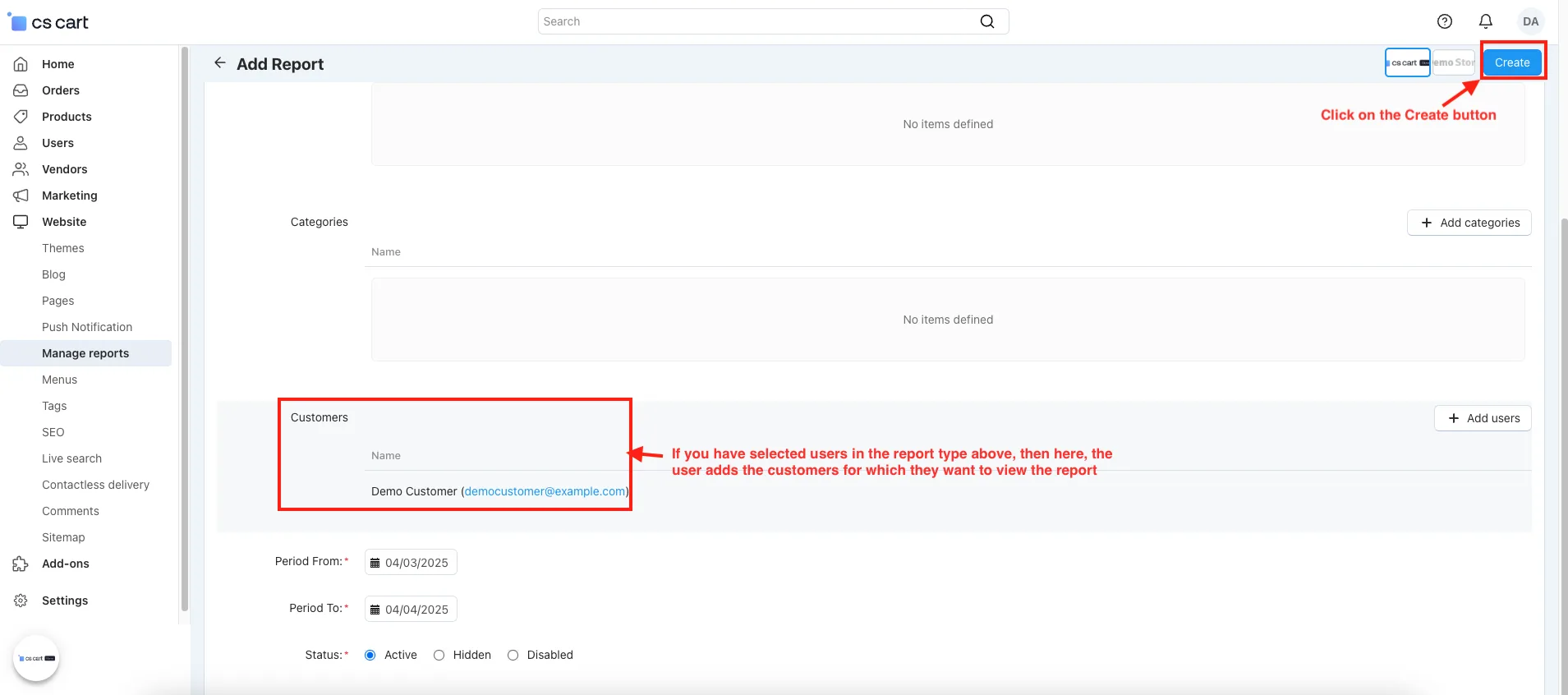
- Here, you see the added report on the manage report page.
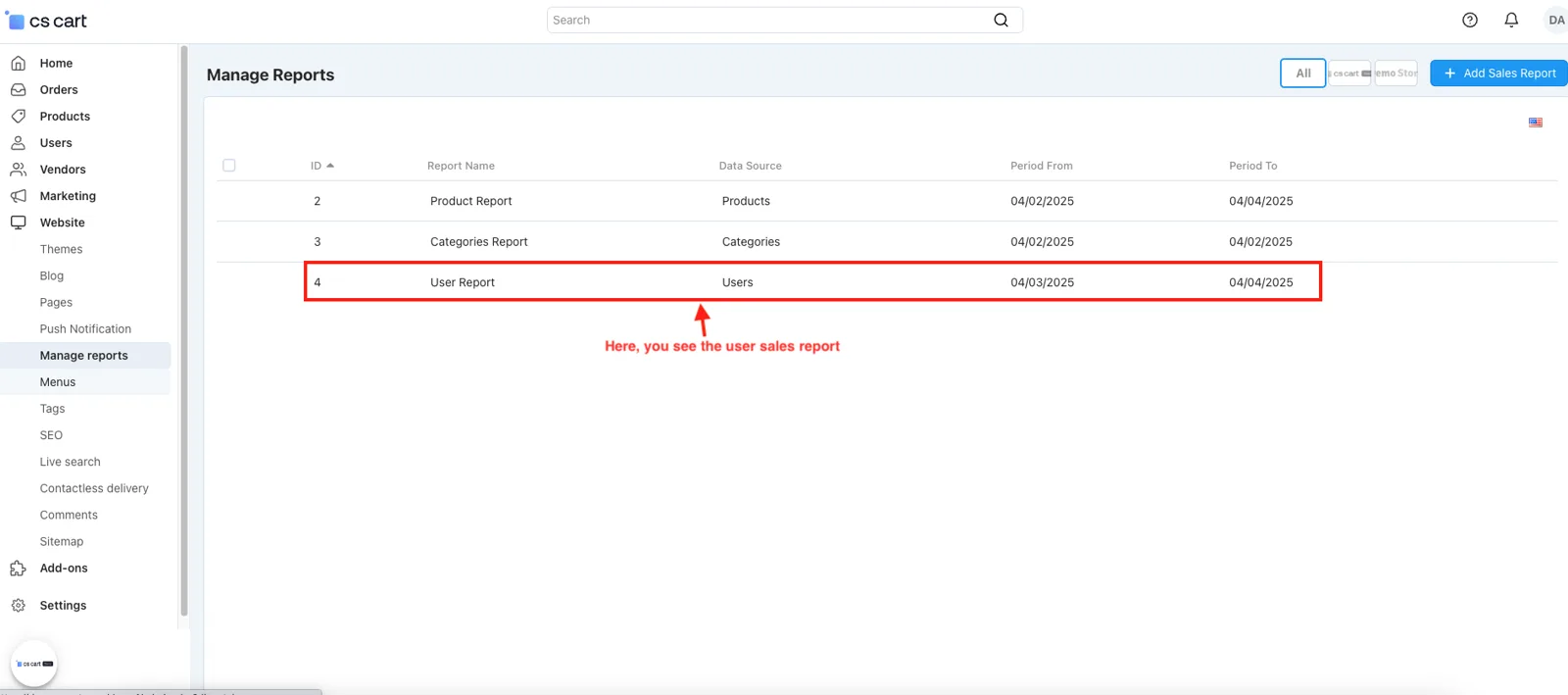
- Here, you see the user sales report.
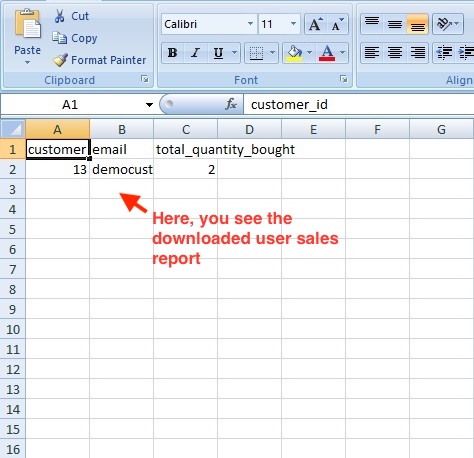
- Here, you see the downloaded user sales report.
Add Users Category and Product Sales together in one place
This addon allows the admin to create a combined sales report for users, categories, and products in one place. It helps track sales report data according to their choice by selecting the report type, like user, category, and product.
- Open the Add Report page.
- Add the products, categories, and customers on the same sales report page.
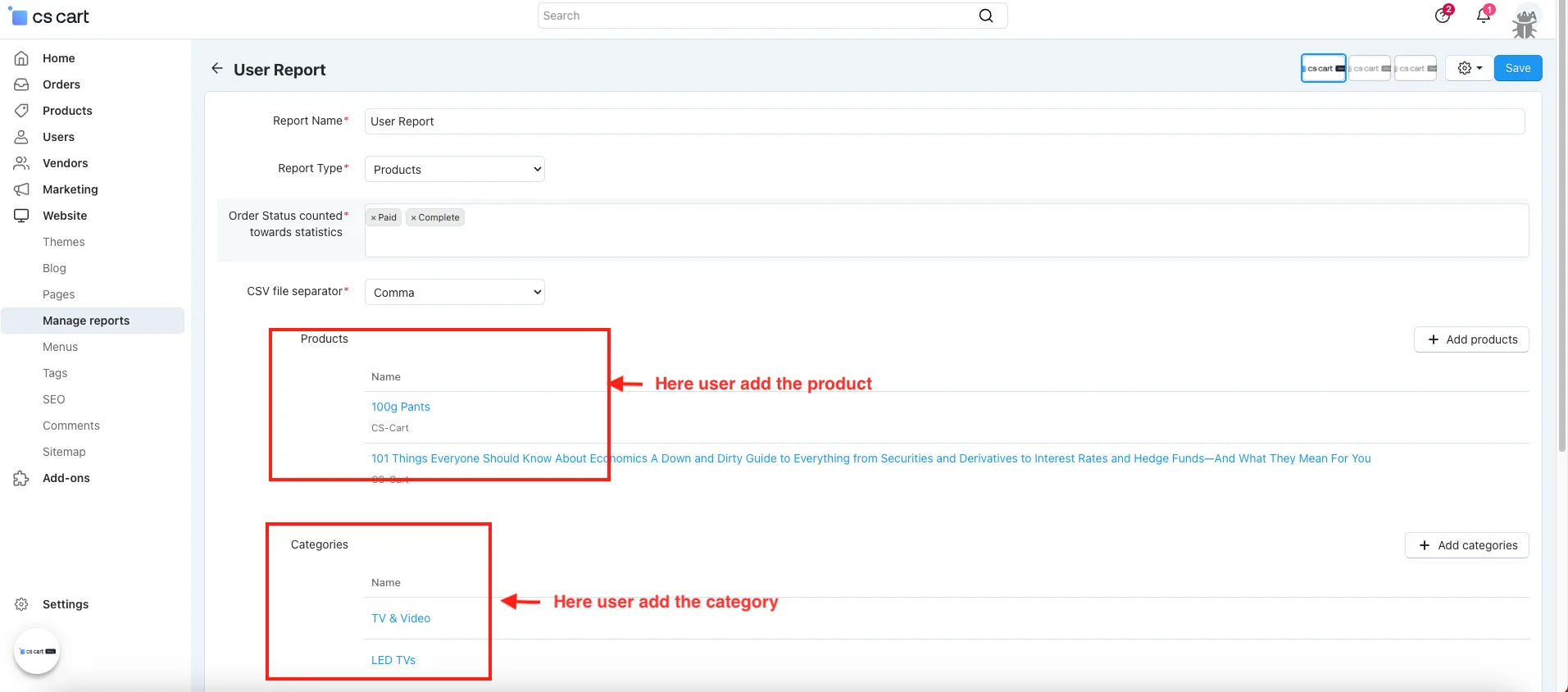
- Report Type: Here, select the report type according to their choice.
- After selecting the report type, you see the selected sales report.
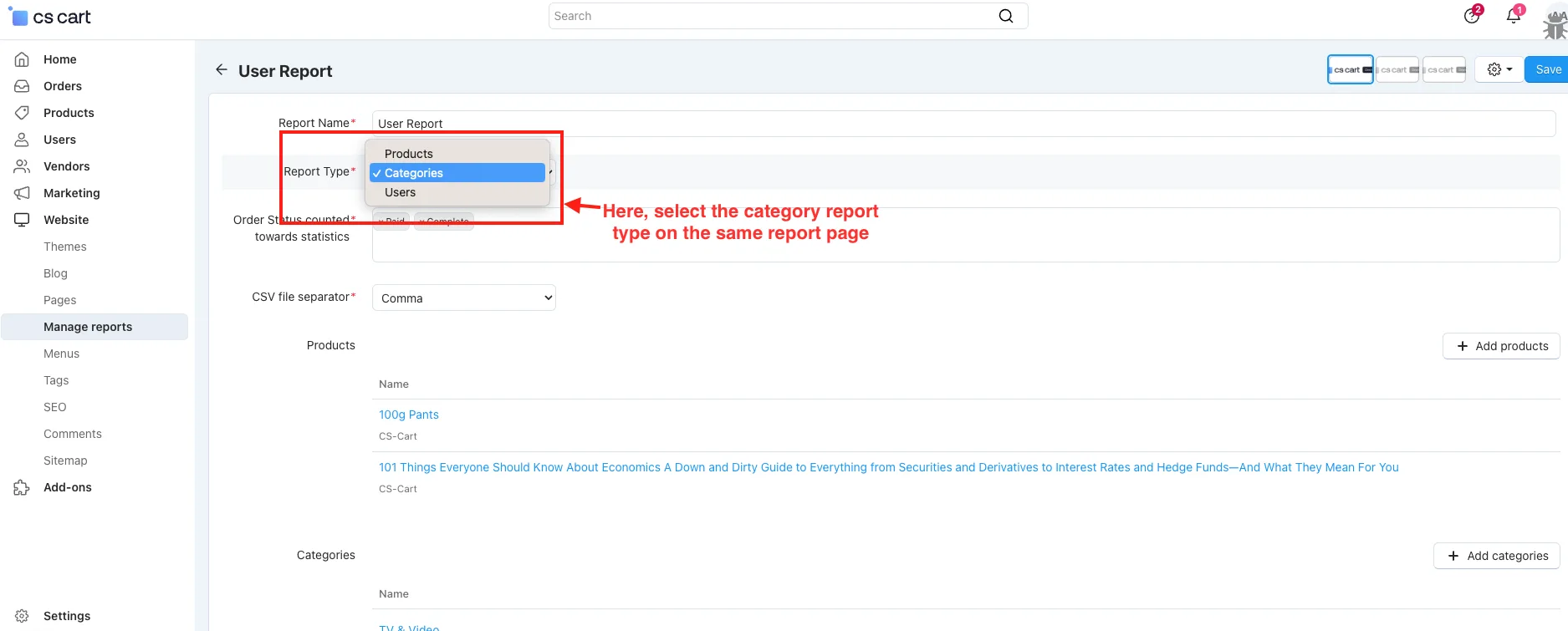
- Here, select the category report type on the same report page.
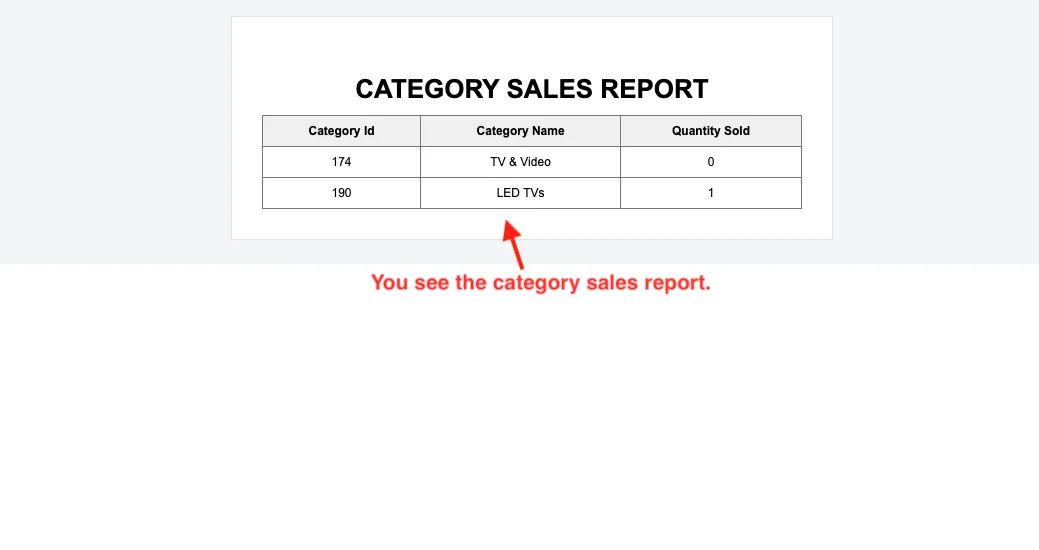
- You see the category sales report.
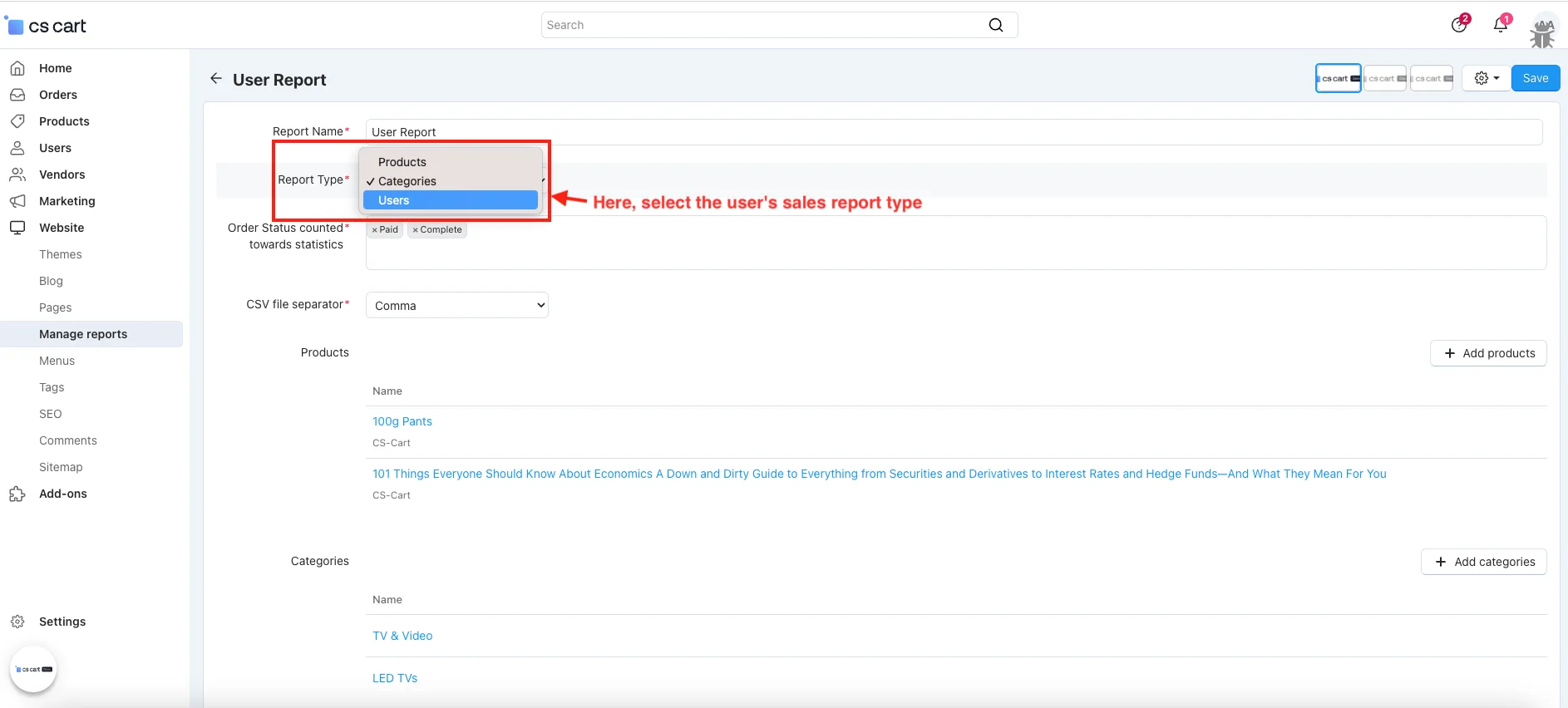
- Here, select the user's sales report type.
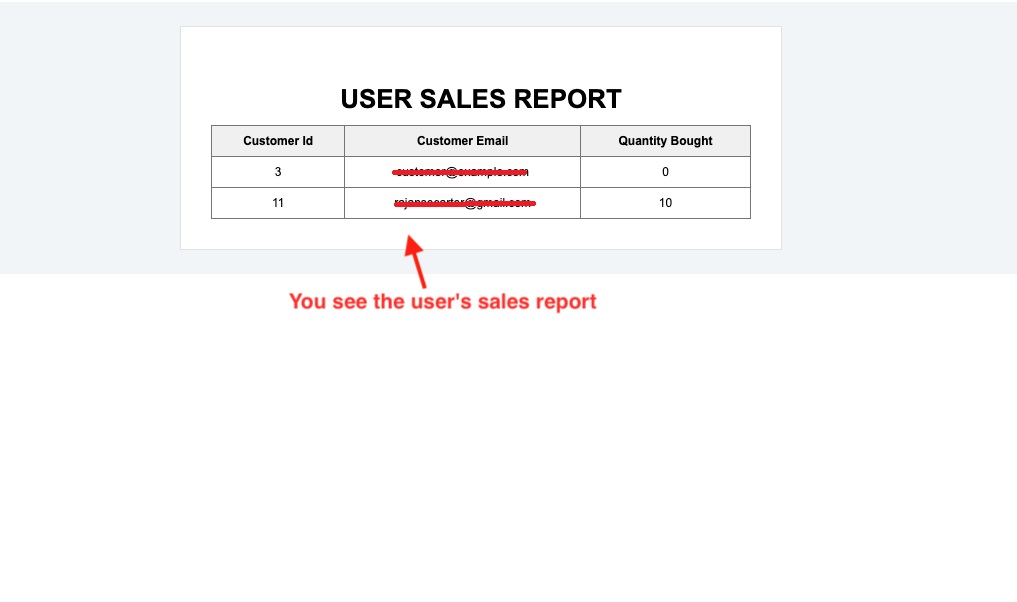
- You see the user's sales report.
Conclusion:
The Sales Report and Manage Export Addon make it easier to track your sales and export reports in just a few clicks, helping you stay organized and focused on growing your business
Addon-Version:
Version-1.0
Supported Versions:
CS-Cart, CS-Cart Multivendor 4.8.x, 4.9.x,4.10x,4.11x,4.12,4.13x, 4.14x, 4.15x, 4.16x, 4.17x, 4.18x
Support:
This app is developed and published by Ecarter Technologies Pvt. Ltd., a CS-Cart developer. You are guaranteed quality add-ons.
Frequently asked questions
What types of sales reports can this add-on generate?
It generates reports based on products, categories, or users. Each report shows the number of products sold, and product reports include detailed data such as quantity sold and revenue.
Can I export the sales data, and in what format?
Yes. Reports can be previewed and downloaded as CSV files, and you can choose the separator used in the export. This makes the data easy to open and analyse in a spreadsheet.
Does it work with CS-Cart Multi-Vendor and which versions are supported?
The add-on is integrated with CS-Cart Multi-Vendor and works with the Standard, Plus, and Ultimate versions.
Where do I manage reports after installing the add-on?
Once installed, you can open the Manage Report page directly under the Website menu, where the admin can create, preview, export, and organise sales reports. Installation steps are covered in the how-to-install guide at store.ecarter.co/blogs/how-to-install-addon/.
Nisha Gaur is a Technical Content Writer at Ecarter Technologies. She writes technical documentation, tutorials and buying guides covering CS-Cart, Magento, Shopify and eCommerce development.