
Promotion Banners on Website
Enhance your store promotions with the Banner Pop-up Promotions Add-on for CS-Cart. Create eye-catching banner blocks to promote products, offers, and vendor deals on any page of your store.
The Banner Pop-up Promotions add-on for CS-Cart lets a store admin create pop-up banner blocks that display promotional messages to shoppers. From the admin panel, you build a banner block and place it on the homepage or on every page of the store, then add the banners and images you want to show. It gives stores and vendors a dedicated block to highlight products, offers, and promotions in a way that is easy to set up and easy to change. It is aimed at CS-Cart store owners who want a simple, built-in way to draw attention to promotions without editing the storefront by hand.
Banner Pop-up Promotions Add-on for CS-Cart provides the functionality to create banner pop-up promotion blocks for the store. Admin creates banner pop-up promotions and adds a new block on the homepage or on every page of the store. Banners are lightweight and portable displays that are easy to place and manage.
Features:
- Easy Promotion Setup: Admin can easily promote store products and vendor offers.
- Enhanced Visibility: Shows attractive promotional banners to quickly engage users.
- Dedicated Block: Provides a special banner block exclusively for store and vendor promotions.
- CS-Cart Integration: Fully compatible with CS-Cart Ultimate and Multi-Vendor editions.
Installation
How To Install the Addon
https://store.ecarter.co/blogs...
How the Addon Works
- Go to the Design menu.
- click on >>layouts.
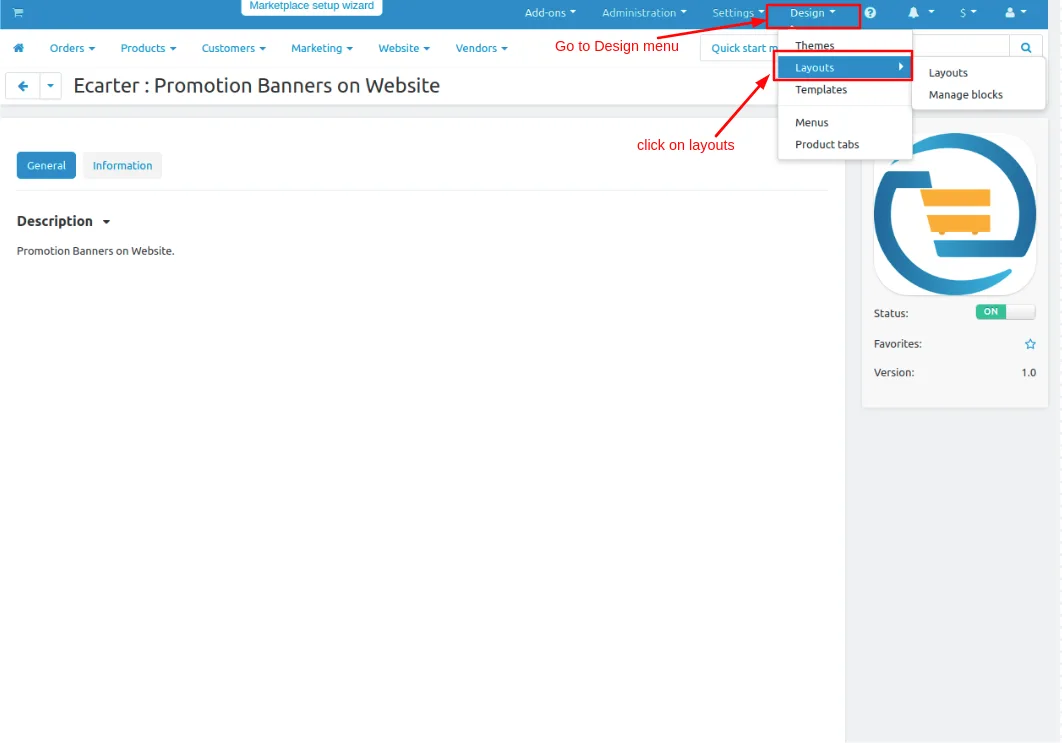
- Admin can set pop-up banners on the homepage or on every page on the website.
- With the same process here we set it on the homepage.
- Switch to the homepage tab.
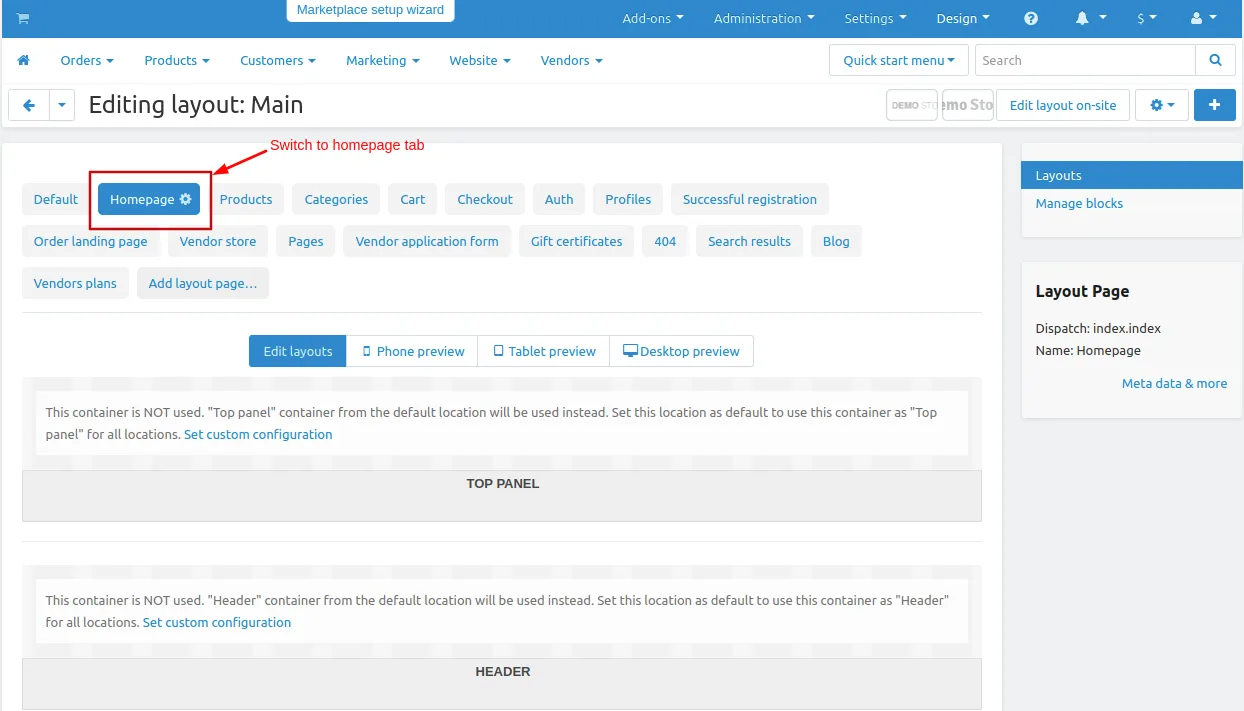
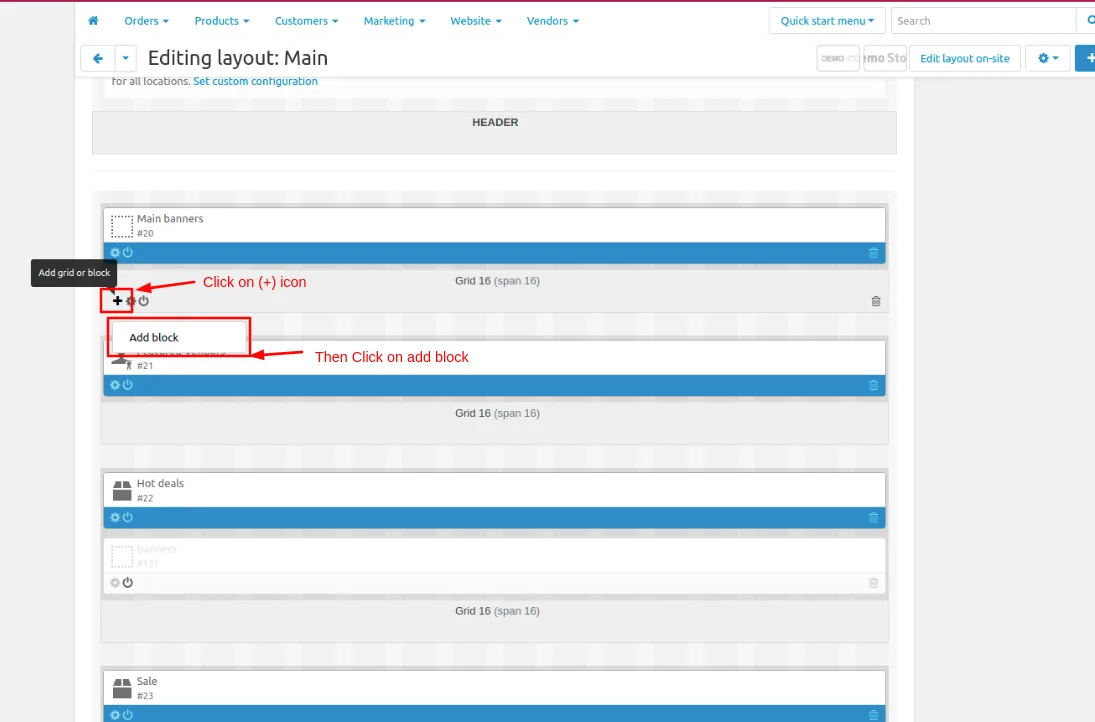
- first add the block click on >> (+) icon then click on >> Add block.
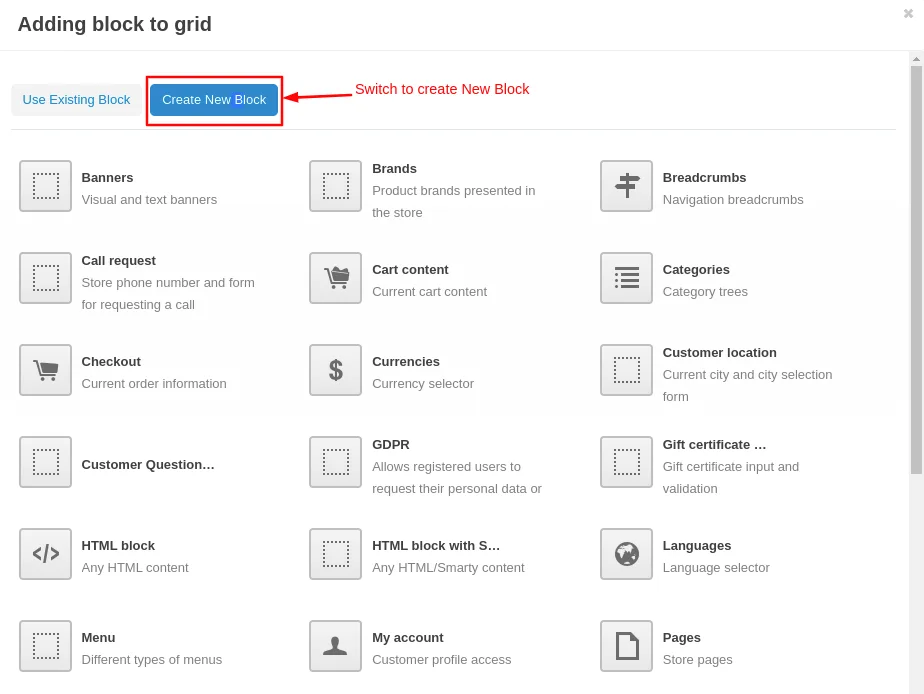
- Now switch to create New Block tab
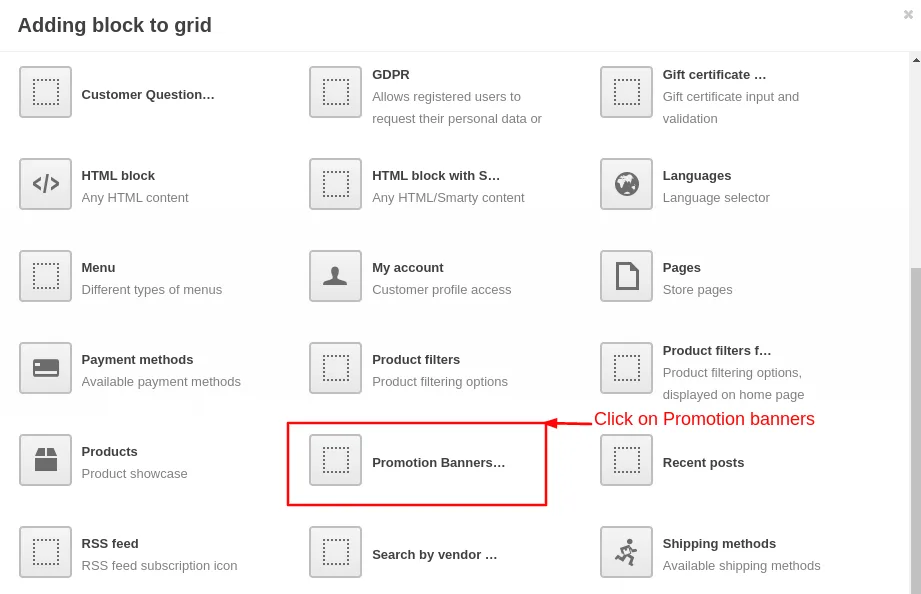
- Click on >> Promotion banner and open it.
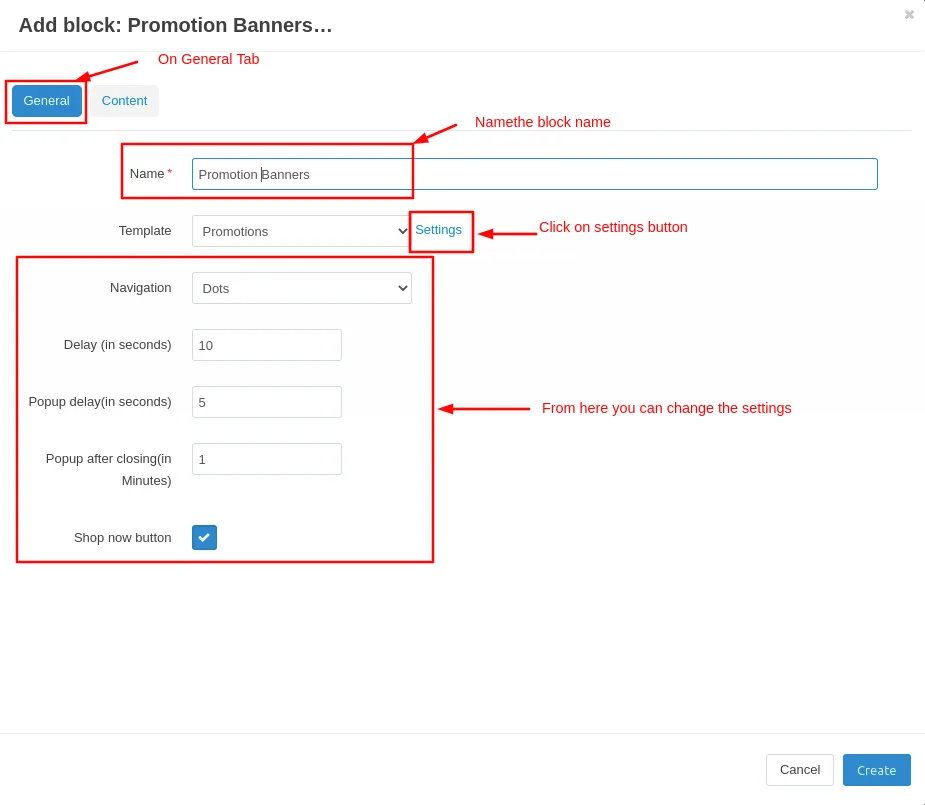
- On general tab give the name of the block.
- then click on >> settings tab.
- From here admin can set or change the pop-up banner settings.
- Now Switch to Contant tab.
- Click on >> Add banners.
- Then click on >> create button.
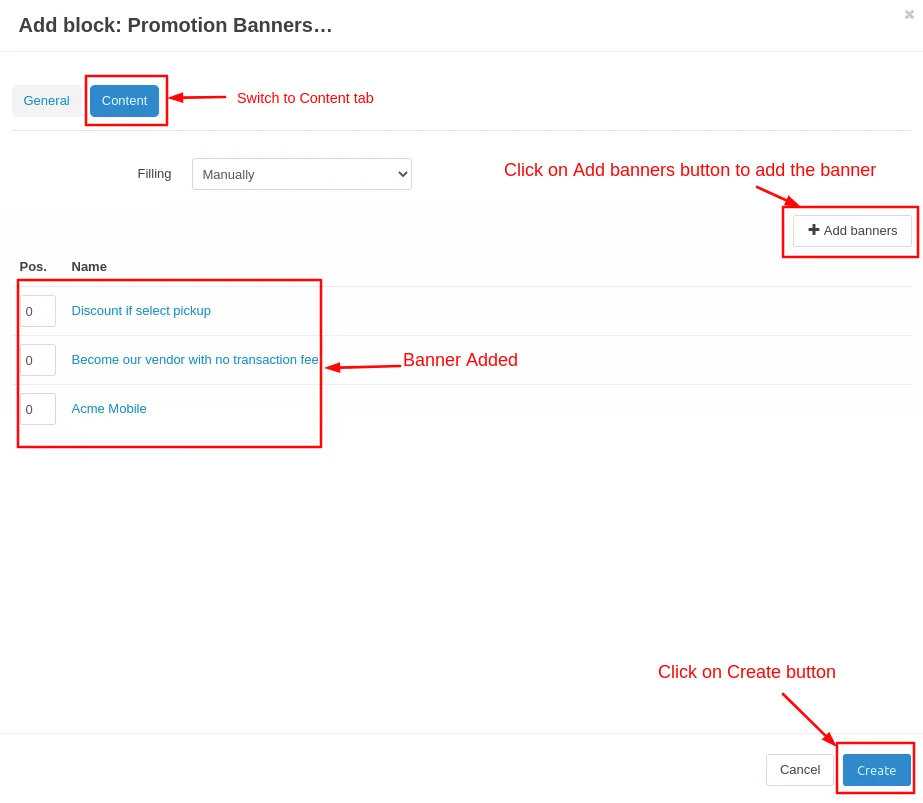
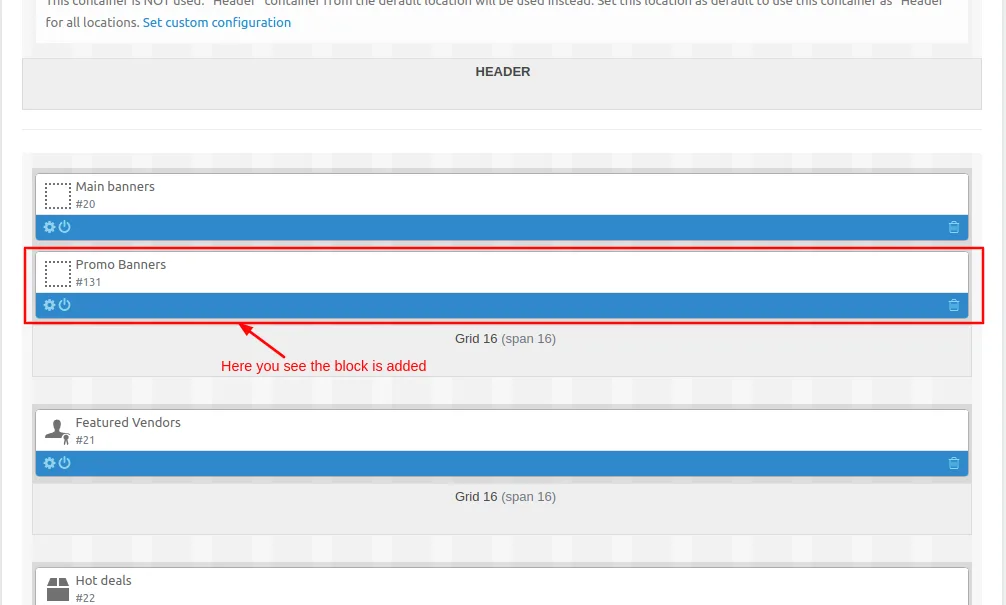
- Here you can see that the block is added.
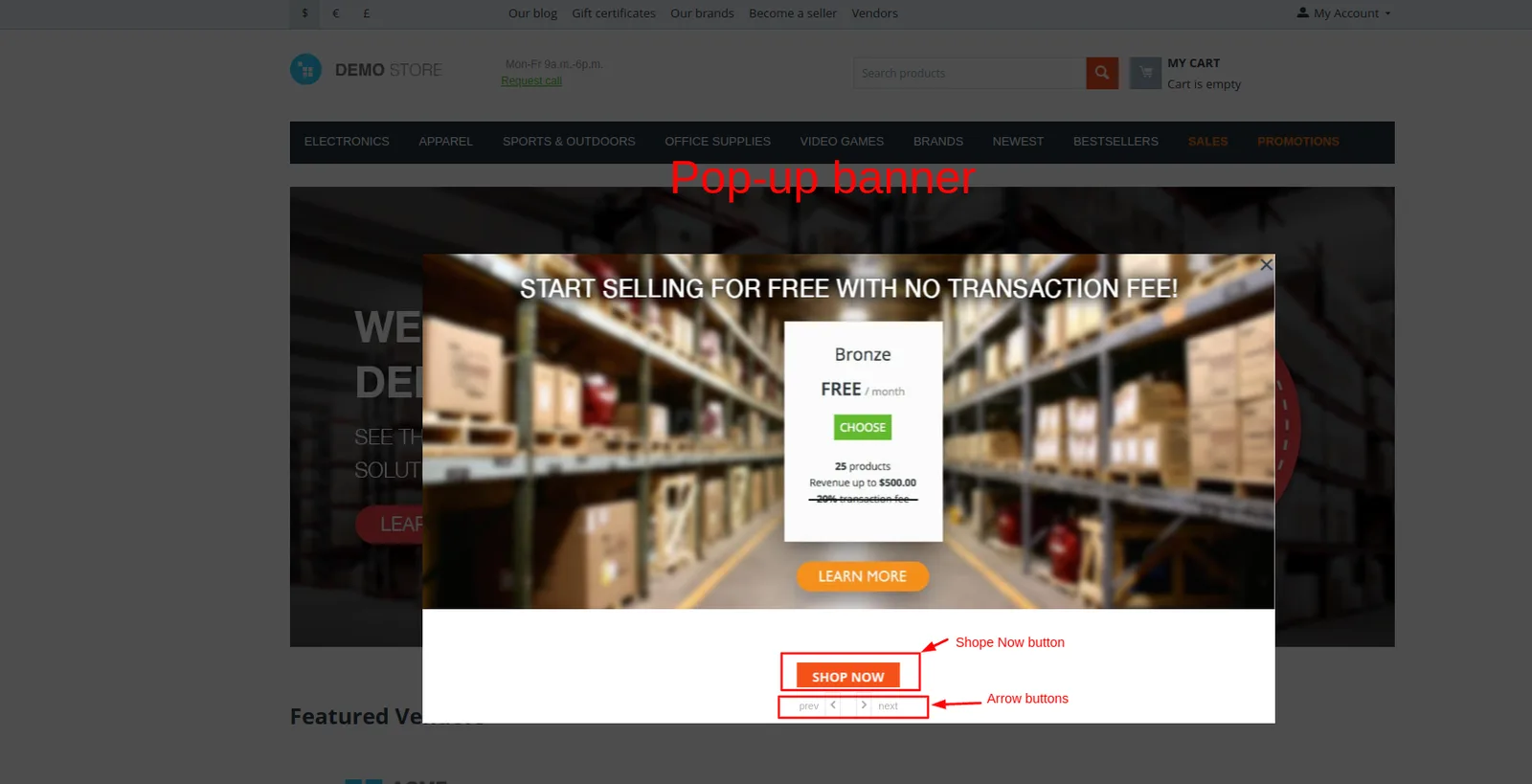
Now let's see on Storefront how the pop-up banner appears.
Addon-Version
Version-1.0
Supported Versions:
CS-Cart, CS-Cart Multivendor 4.8.x, 4.9.x,4.10x,4.11x,4.12,4.13x, 4.14x, 4.15x, 4.16x, 4.17x, 4.18x
Support:
This add-on is developed and published by Ecarter Technologies Pvt.Ltd., a CS-Cart developer. You are guaranteed a quality add-on supported by future versions. If you need help, please contact us via email at support@ecarter.co.
Frequently asked questions
What does the Banner Pop-up Promotions add-on do?
It adds a dedicated banner block that displays pop-up promotions on your storefront. The admin creates the banners and chooses whether they appear on the homepage only or on every page of the store.
Which CS-Cart editions does it work with?
It is compatible with CS-Cart Ultimate and Multi-Vendor editions, so both single-store and marketplace setups can use it to promote store products and vendor offers.
How do I set up a pop-up banner?
In the admin panel, go to Design, then Layouts, and open the tab for the page where you want the banner (for example, the homepage). Add a new block, choose the Promotion banner block, name it, adjust the pop-up settings, then go to the Content tab to add your banners and create the block.
Can I control where the pop-up banner appears and how it looks?
Yes. You choose whether the banner shows on the homepage or on every page, and the block's settings tab lets you set or change the pop-up banner options before publishing it to the storefront.
Nisha Gaur is a Technical Content Writer at Ecarter Technologies. She writes technical documentation, tutorials and buying guides covering CS-Cart, Magento, Shopify and eCommerce development.