
Product QR Code Generator
The Product QR Code Generator Addon is a versatile and user-friendly tool that enables users to easily generate QR codes for their products.
The Product QR Code Generator is an add-on for CS-Cart that lets store owners create QR codes for their products. Each code can be scanned with a smartphone or QR reader to give shoppers instant access to product information such as name, description, price, and availability, which the add-on pulls automatically from your product data. It works with both standard CS-Cart and CS-Cart Multi-Vendor, and lets the admin adjust the QR code's design, size, and padding. It is aimed at merchants who want to link physical items, packaging, or print materials back to their online store listings.

The Product QR Code Generator Addon for CS-Cart is a versatile and user-friendly tool that enables users to easily generate QR codes for their products. With this addon, businesses and individuals can create unique QR codes that can be scanned by smartphones or other QR code readers, providing instant access to product information, promotional offers, or any other relevant content.
Feature:
- CS-Cart Integration: Well integrated with both CS-Cart and CS-Cart Multi-Vendor.
- Automatic Product Info: Seamlessly connects with product databases or inventory systems to automatically populate QR codes with product name, description, price, and availability, saving time and reducing errors.
- Customizable QR Design: Allows the admin to customize QR code design, including product attributes, image size (%), and image padding.
Installation:-
How to install Addon
https://store.ecarter.co/blogs/how-to-install-addon/
Let's check how the addon works
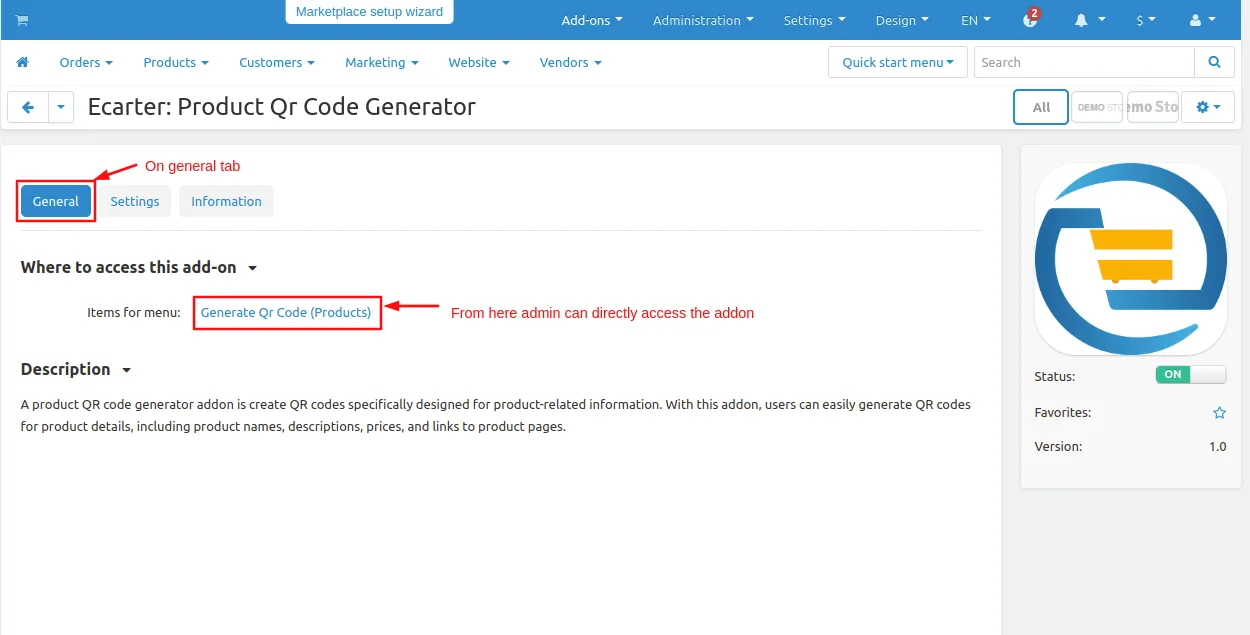
From here you can access the addon by clicking on the given links on items for the menu.
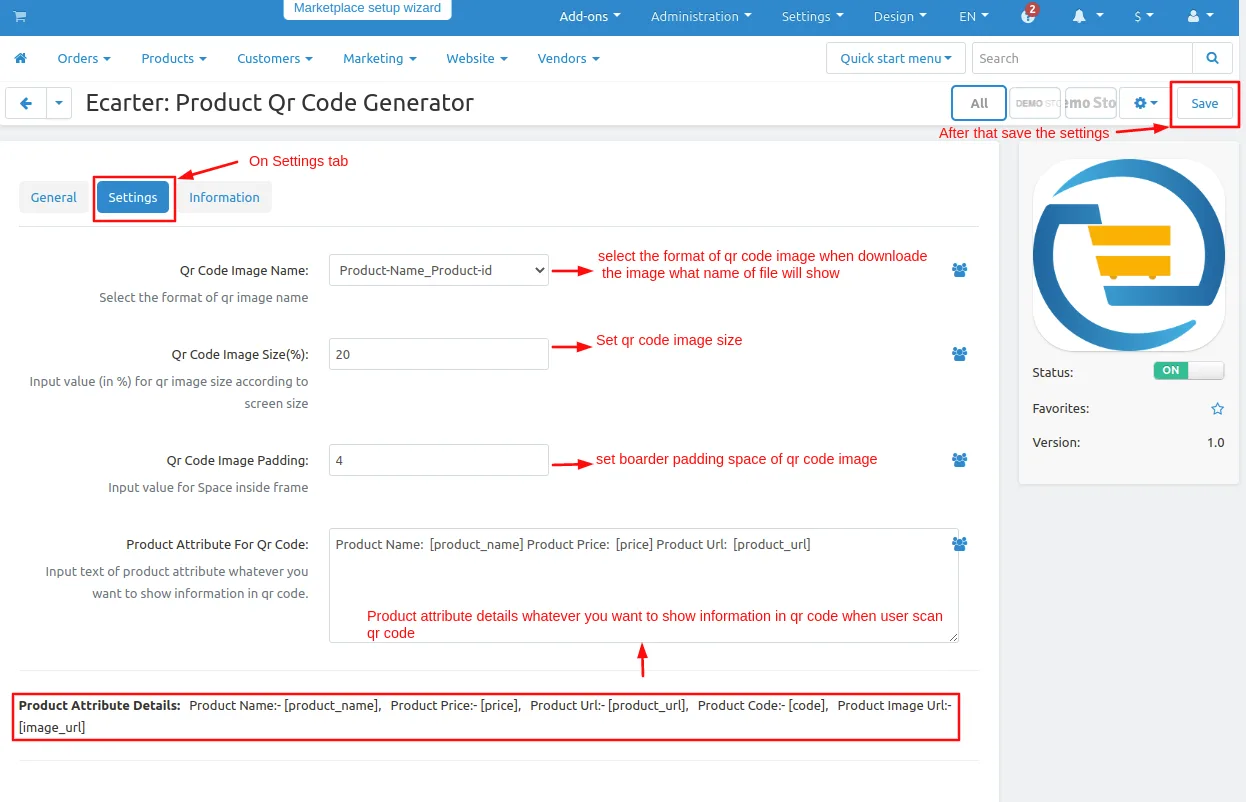
Here admin can set the addon setting. Switch to the settings tab.
- QR code image Name format:- Select the format of QR code image when downloading the QR code image zip file what name on the file?
- QR code image size(%):- Admin can set the QR code image size.
- Qr code image padding:- Set border padding space of the QR code image.
- Product attribute for QR code:- Product attribute is what information the admin wants to show to the user when the user scans the QR code image.
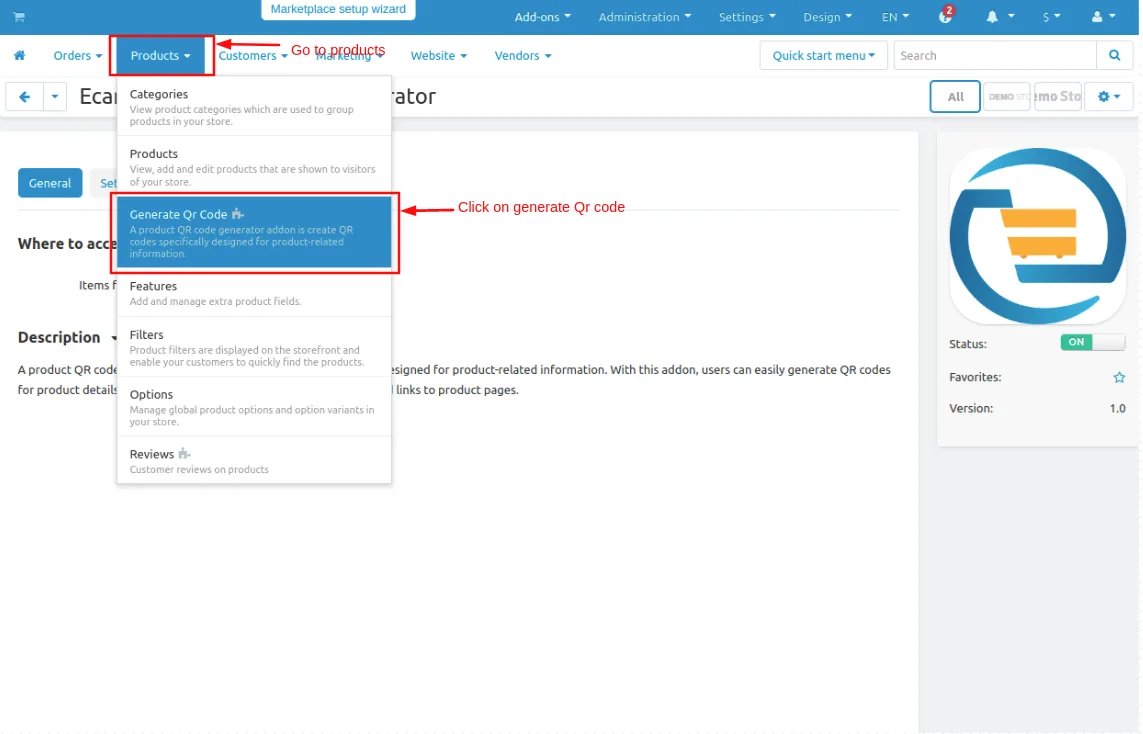
- Go to Products and click on >> Generate QR code. The product QR code list will be open.
- Click on the >> (+) icon to generate a QR code for products.
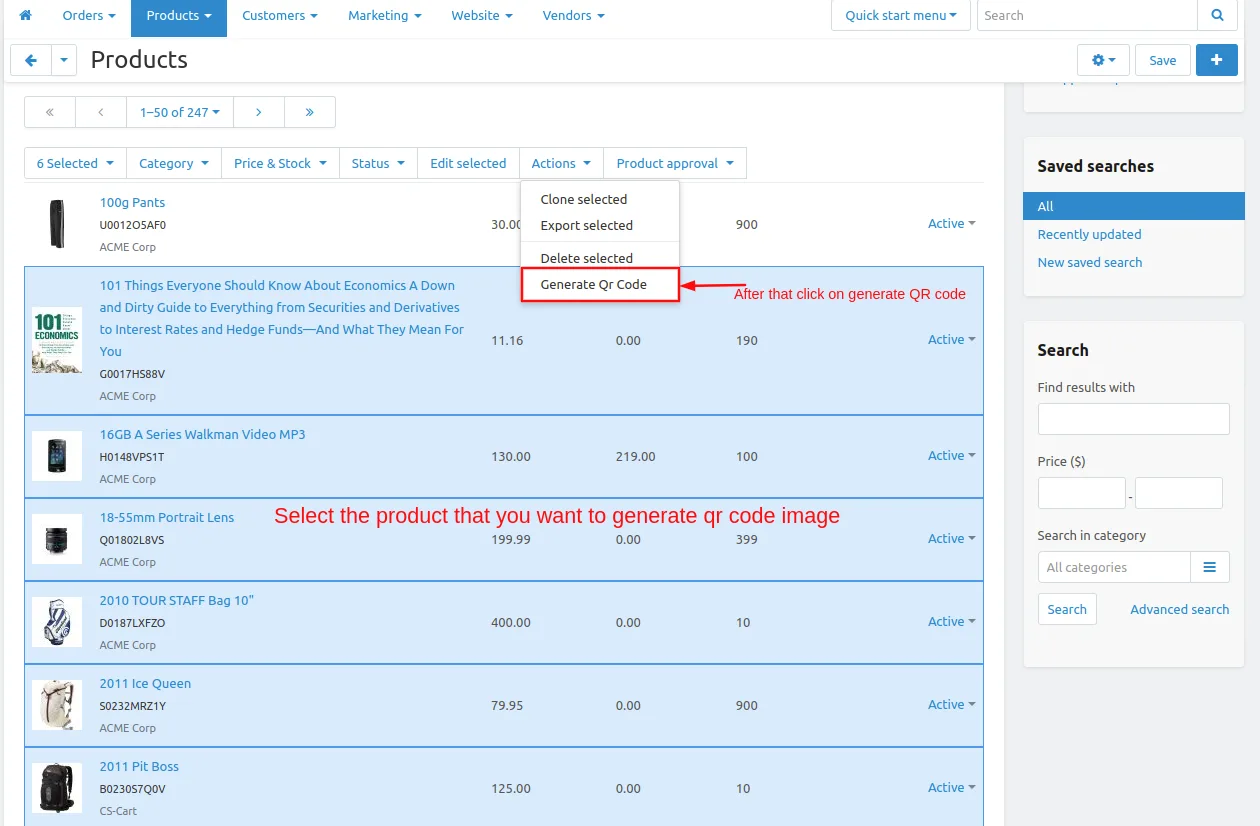
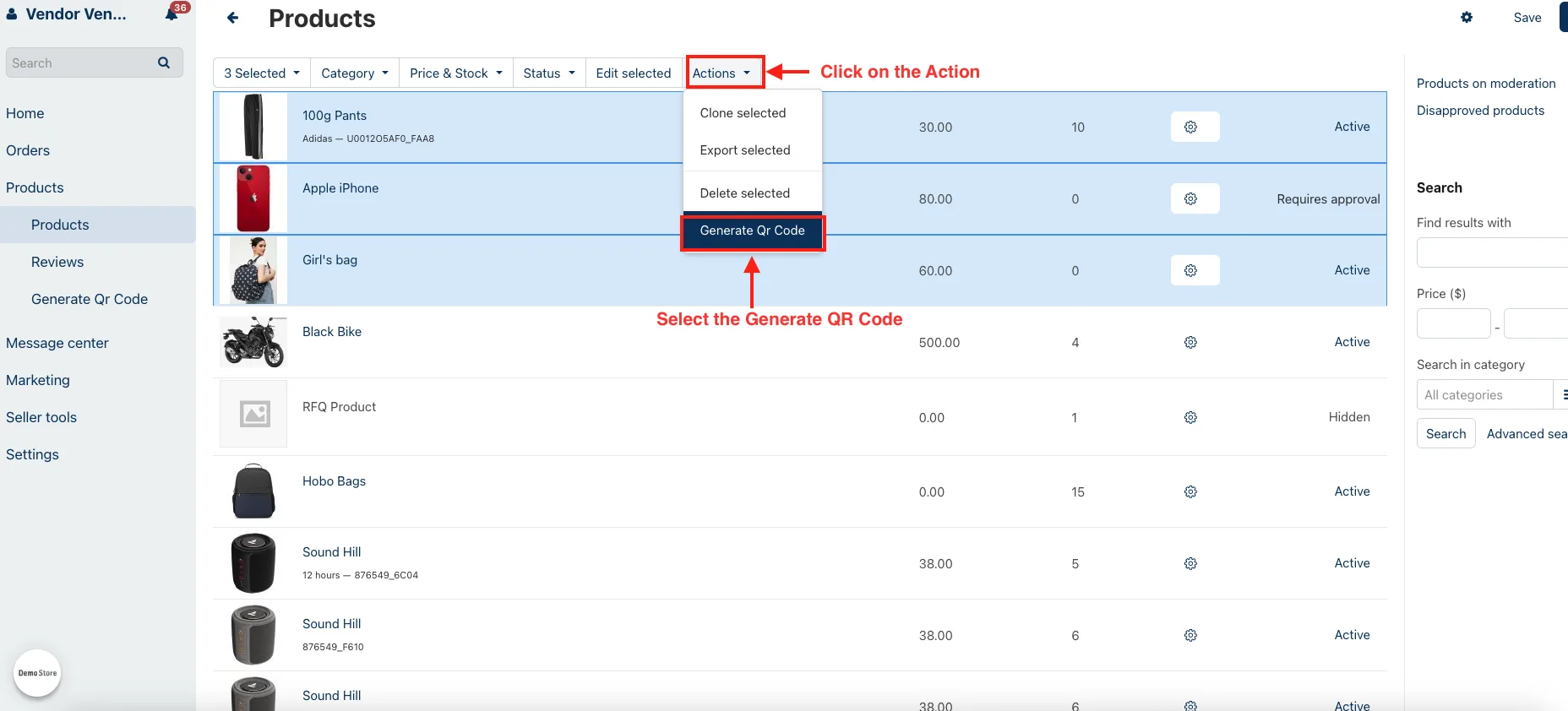
- when clicking on the (+) icon it will redirect to the product page then select the product you want to create the QR code after selecting the product on the filter bar click on >> Action button and then click on >> Generate QR code.
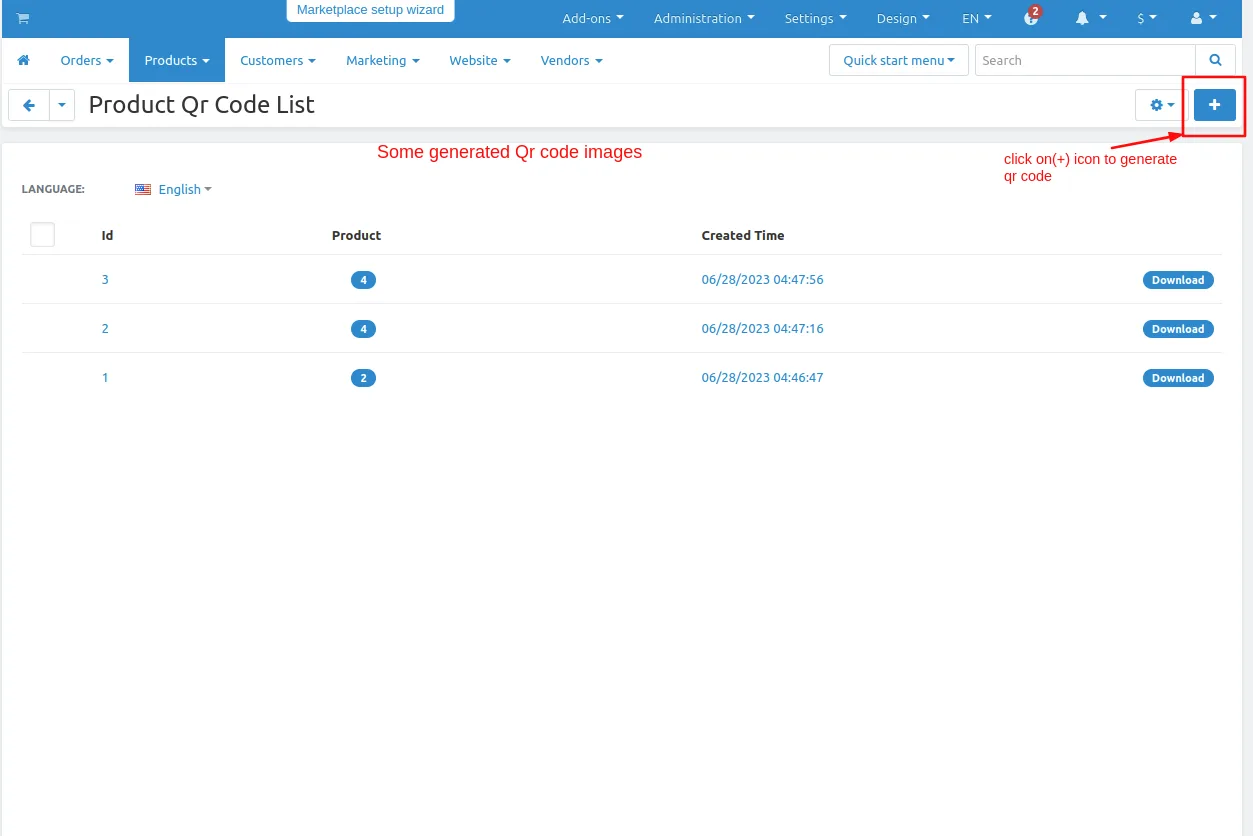
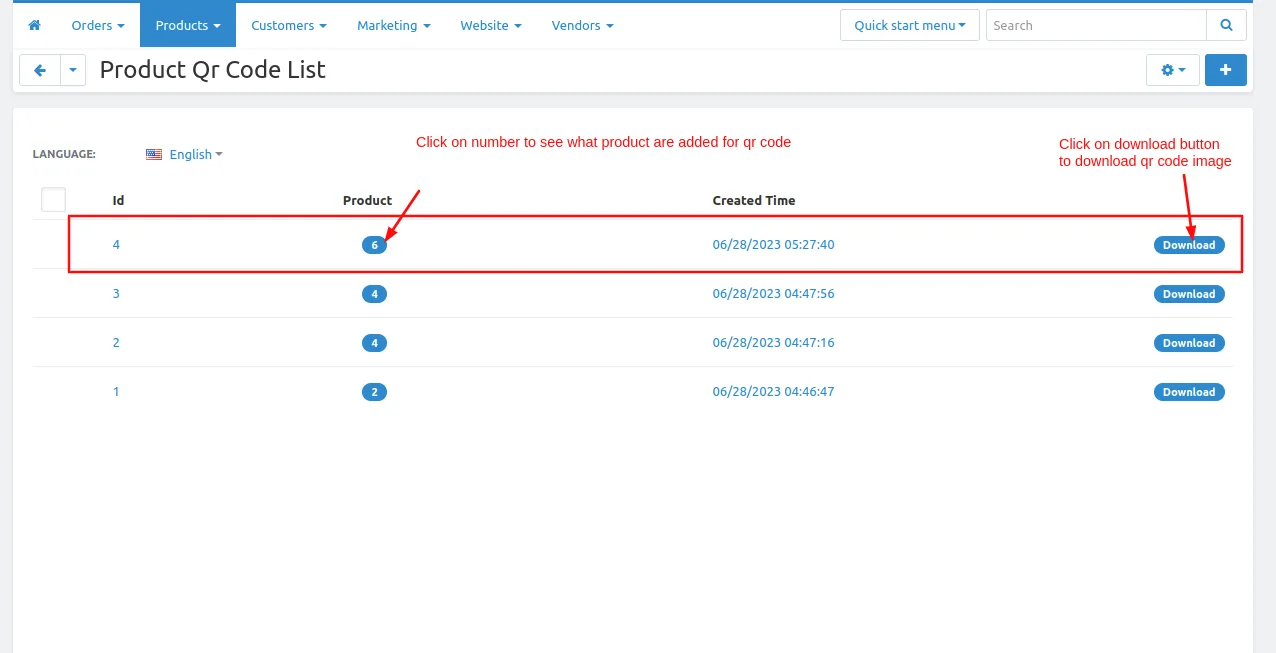
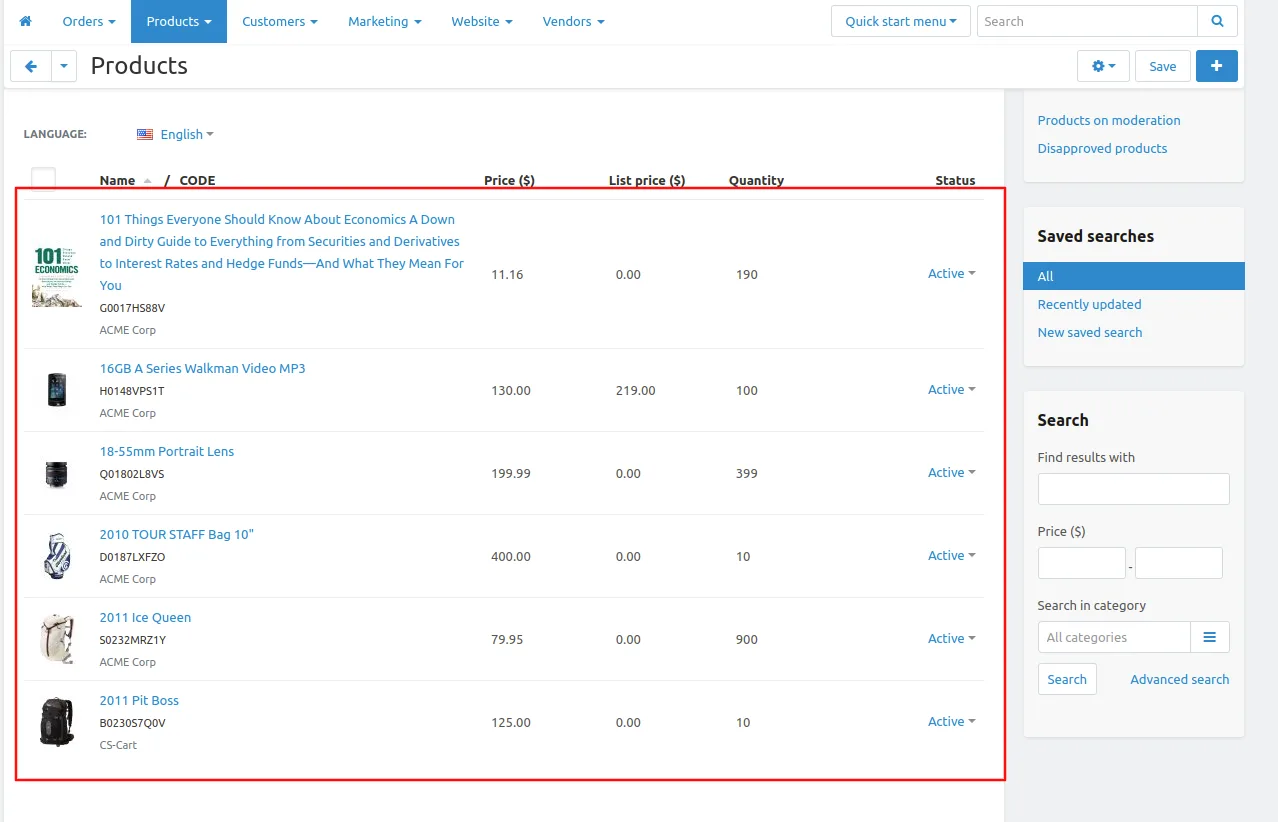
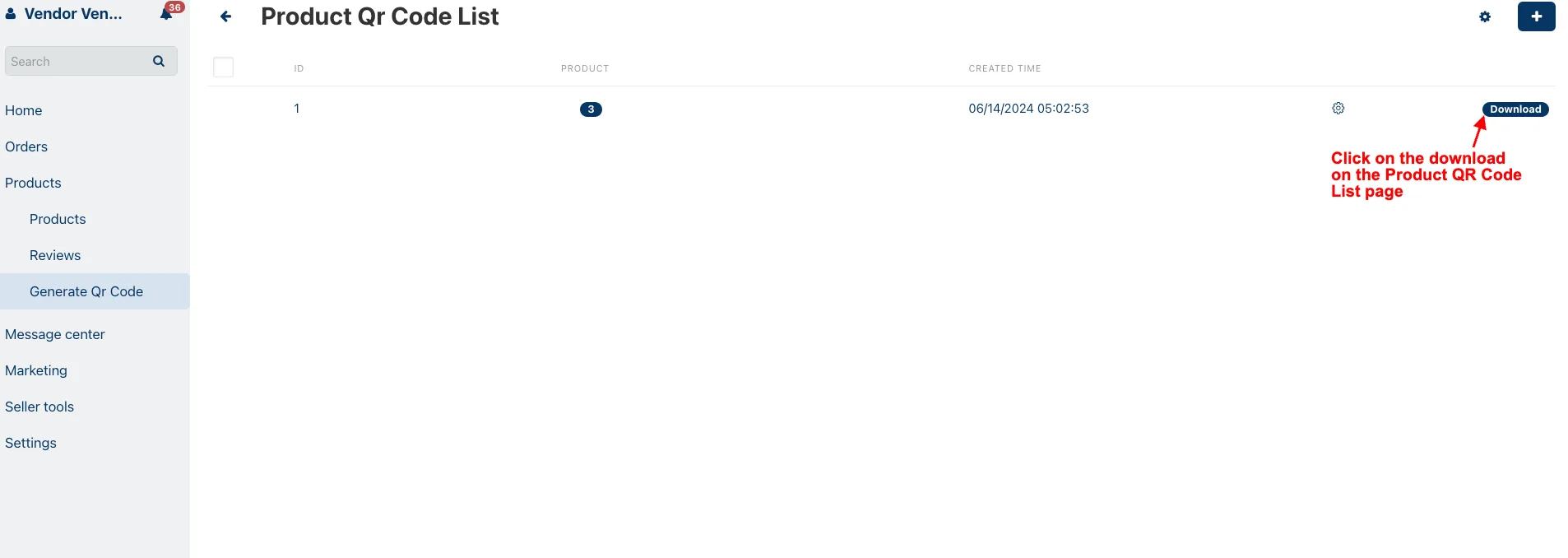
- Here you see the QR code is generated for 6 products to download click on >> Download button. To view the product click on >> Numbers in the product column.
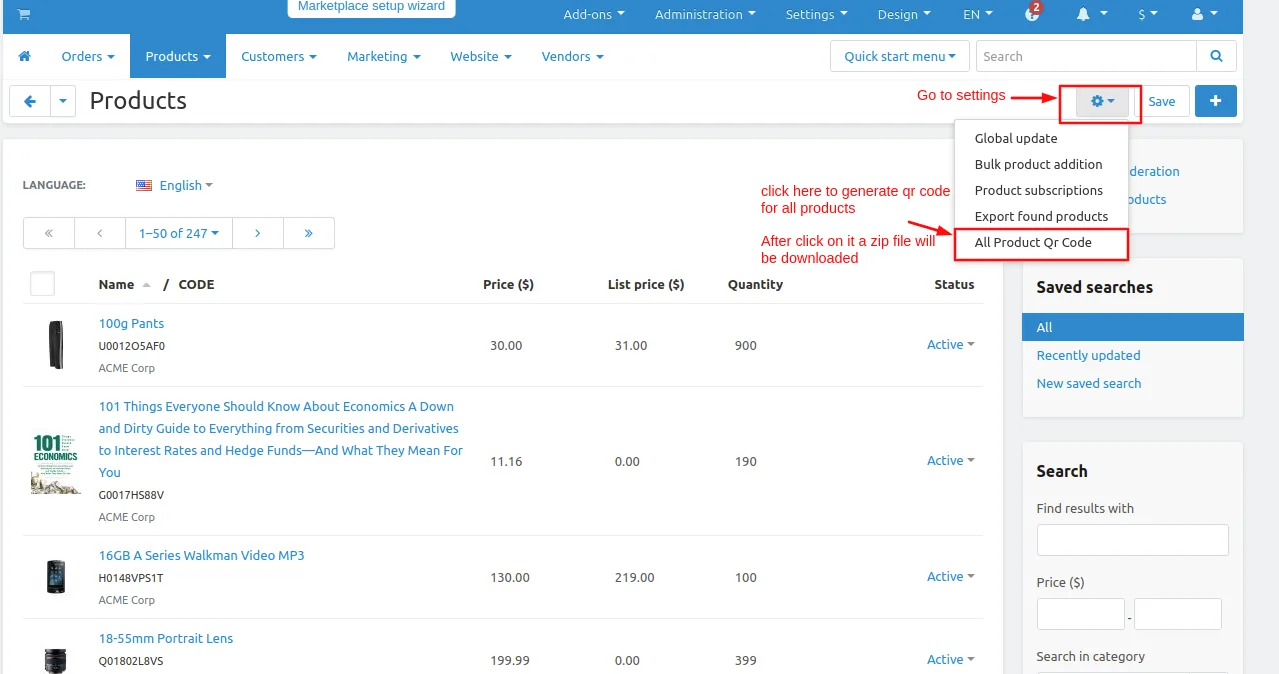
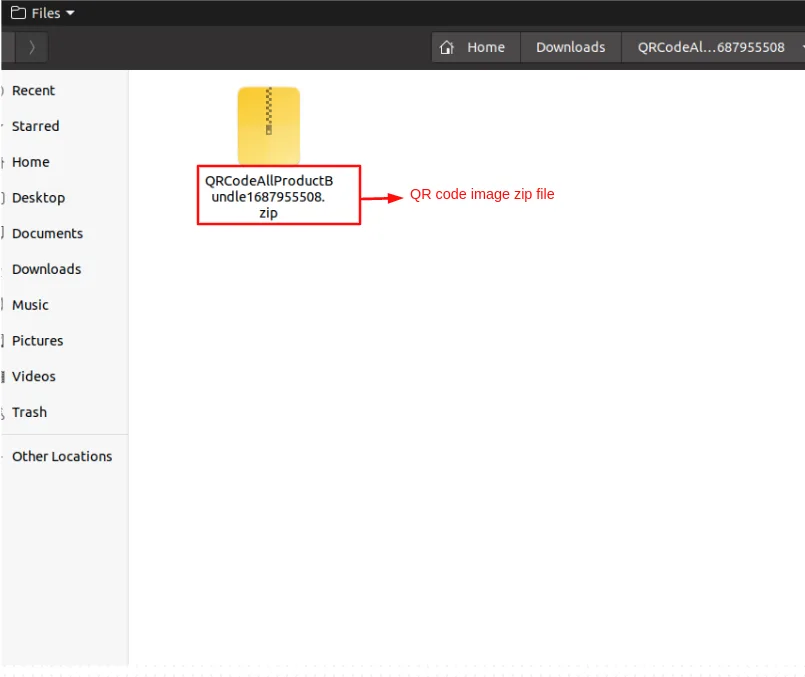
- If the admin wants to generate a QR code for all products then go to the products page Click on >> Gear(setting) button and then click on >> All product QR code after that for all products QR code image zip file will be generated.
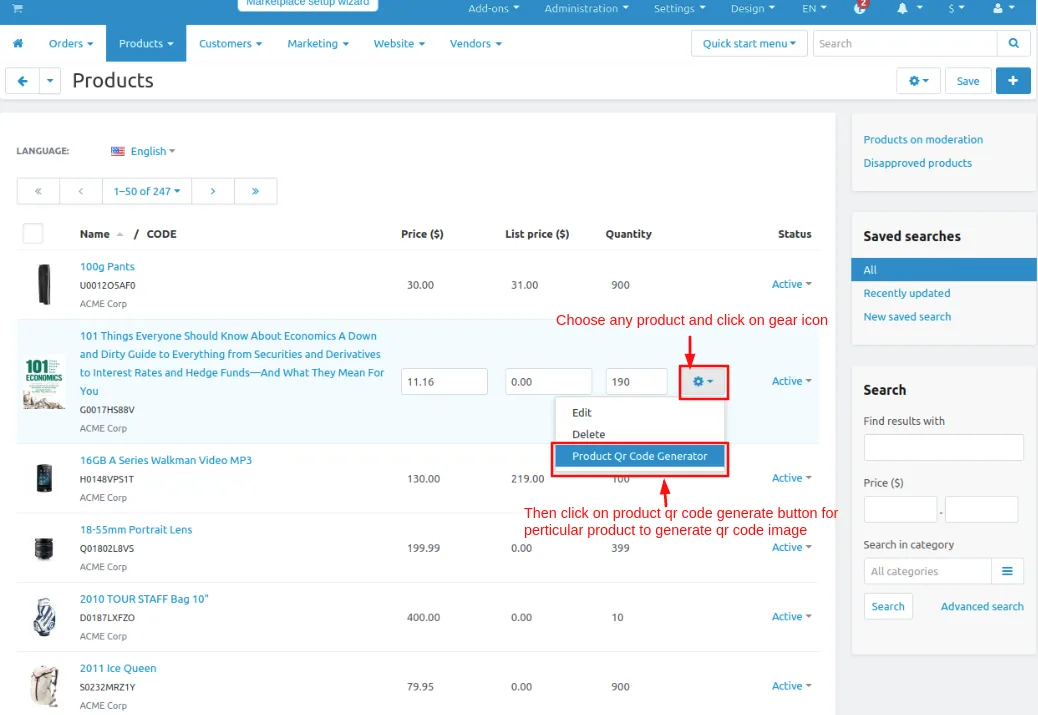
- Admin can generate QR code image of the single product also just select the or hover on the product click on >> Gear(setting) button and then click on >> Product QR code generator so the Qr code image is generated for that particular product.
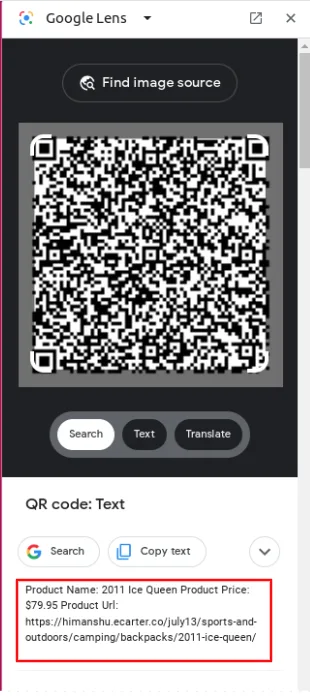
QR code image view scans the QR code to get the product details below the image you see product details.
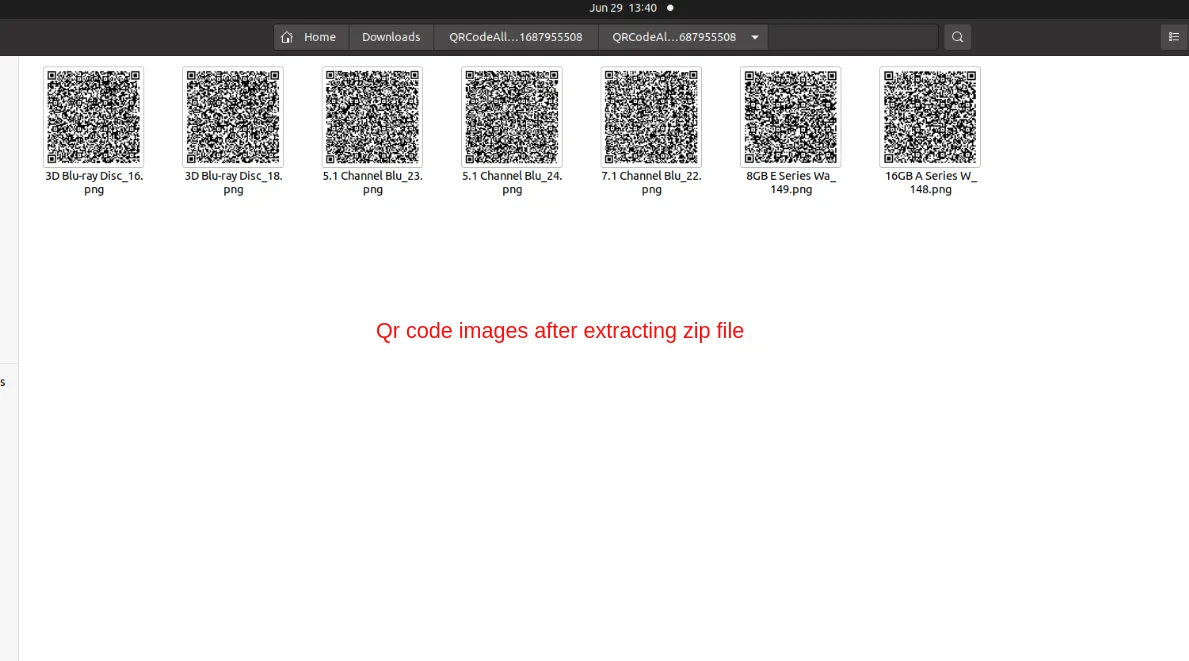
Product QR code Zip file extracts the Zip file to view the QR code images.
How to work Product QR Code Generator Addon on Vendor Panel
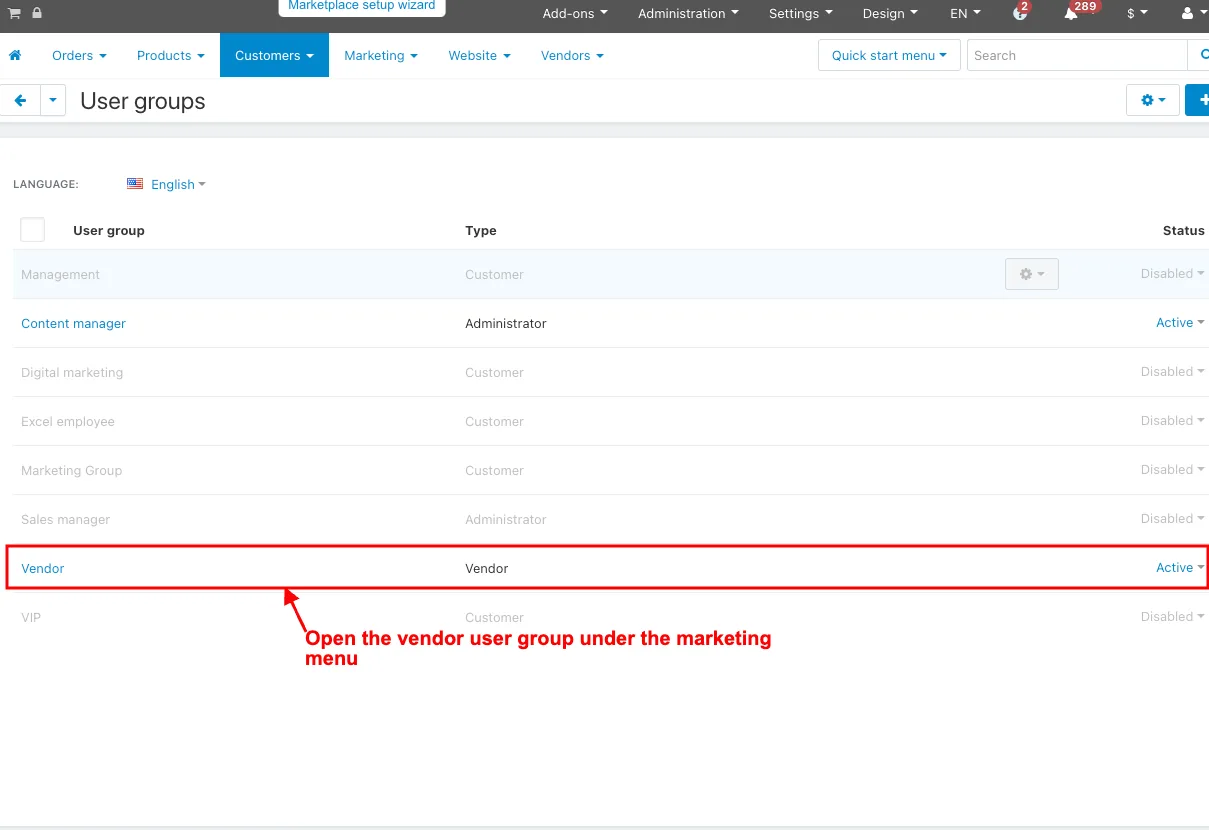
- Open the vendor user group under the marketing menu on the Admin panel.
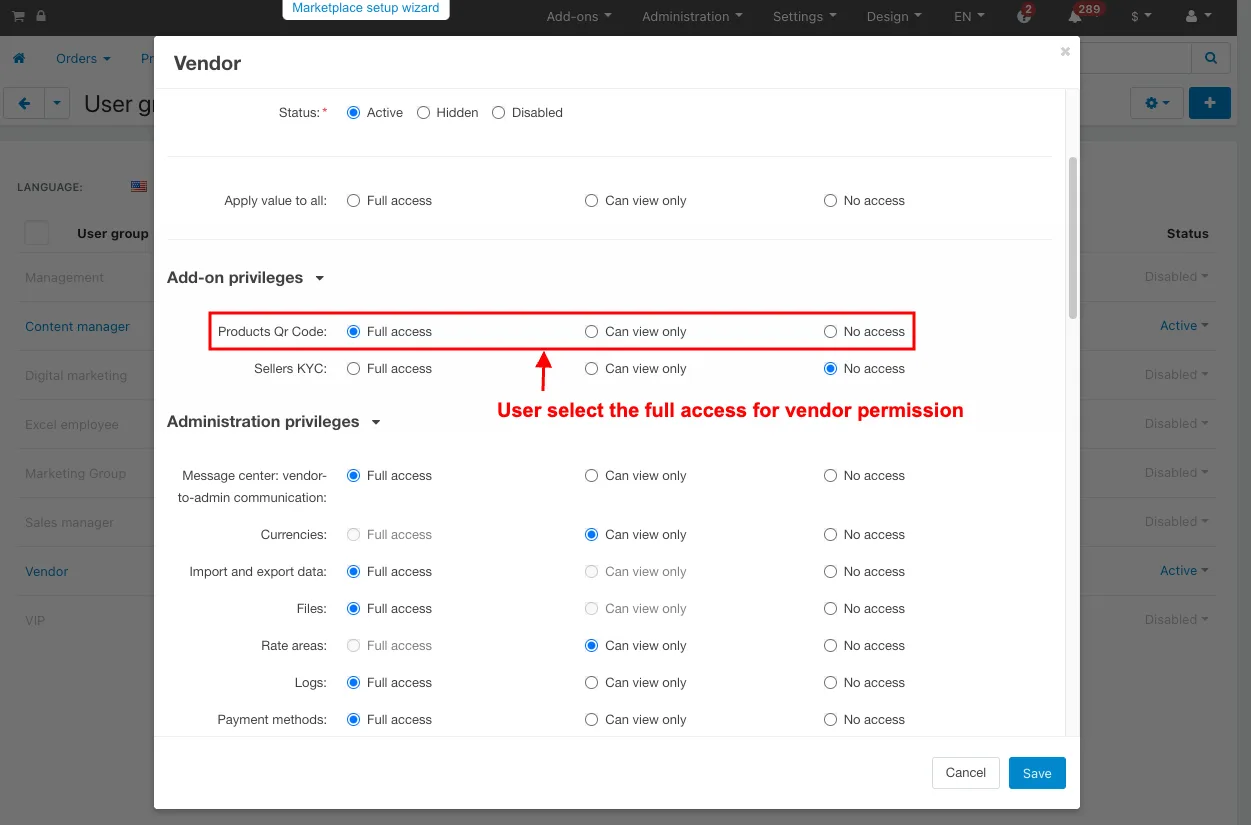
- Product QR code: User select the full access for vendor permission.
- Click on the Save button
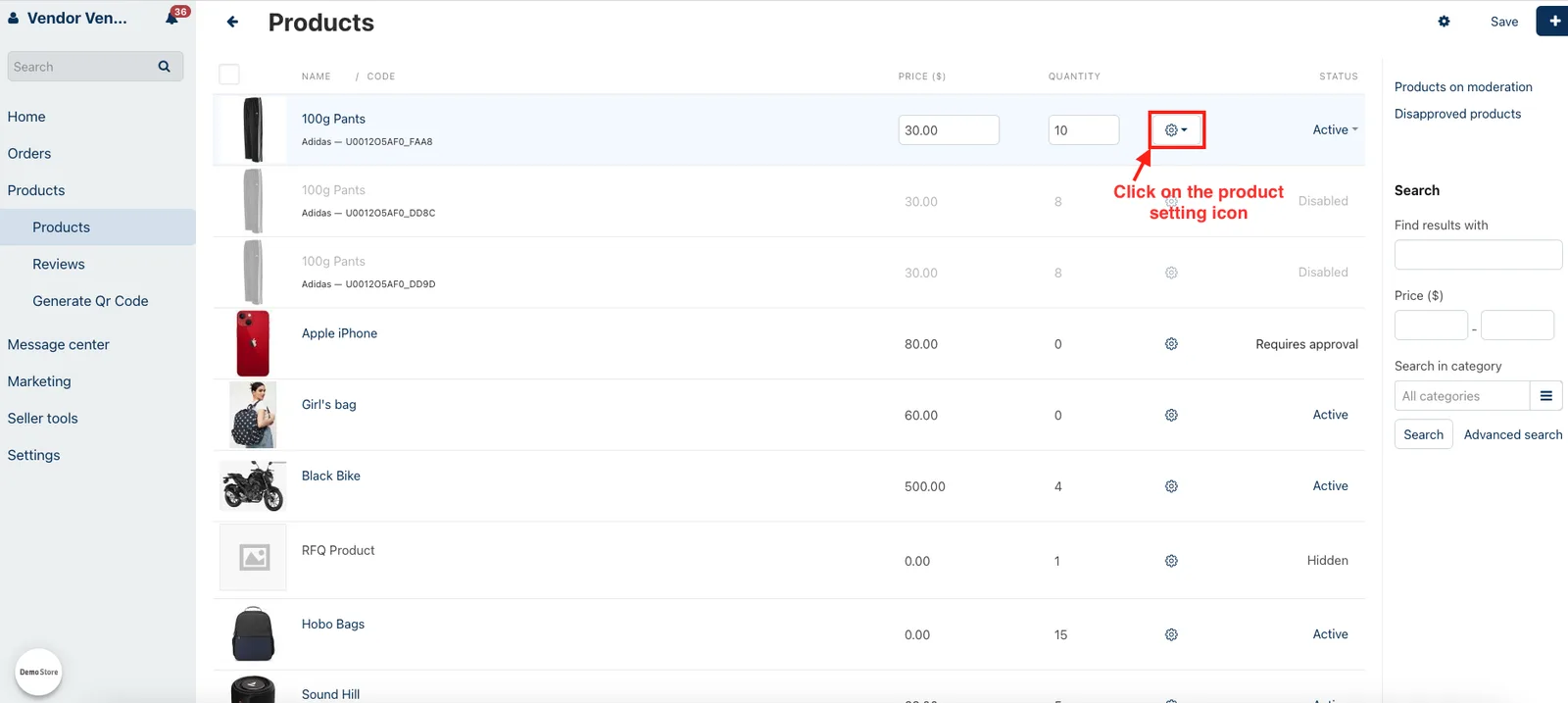
- Go to the vendor panel.
- Click on the product setting icon on the product page under the products menu.
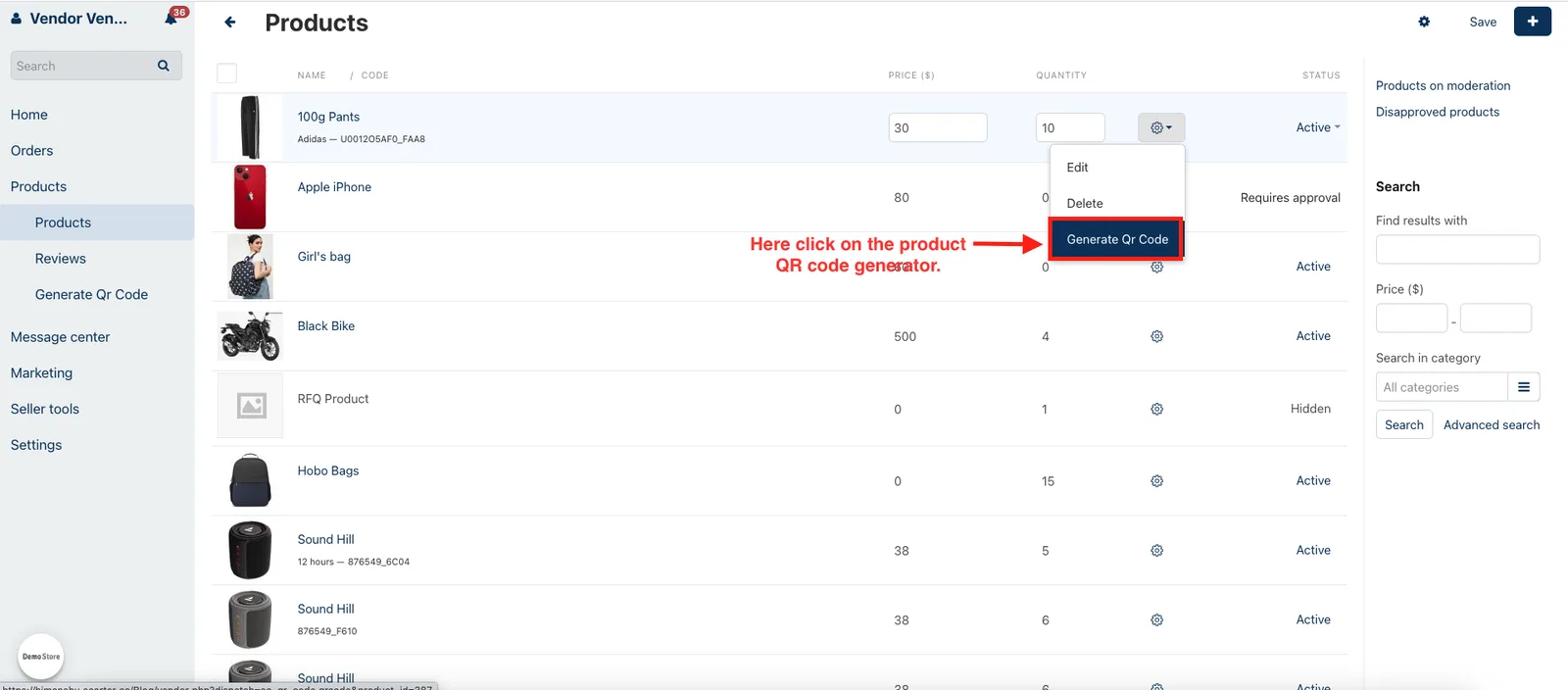
- Here click on the Generate QR Code.
- After clicking the product QR code generator see the generated product QR code image.

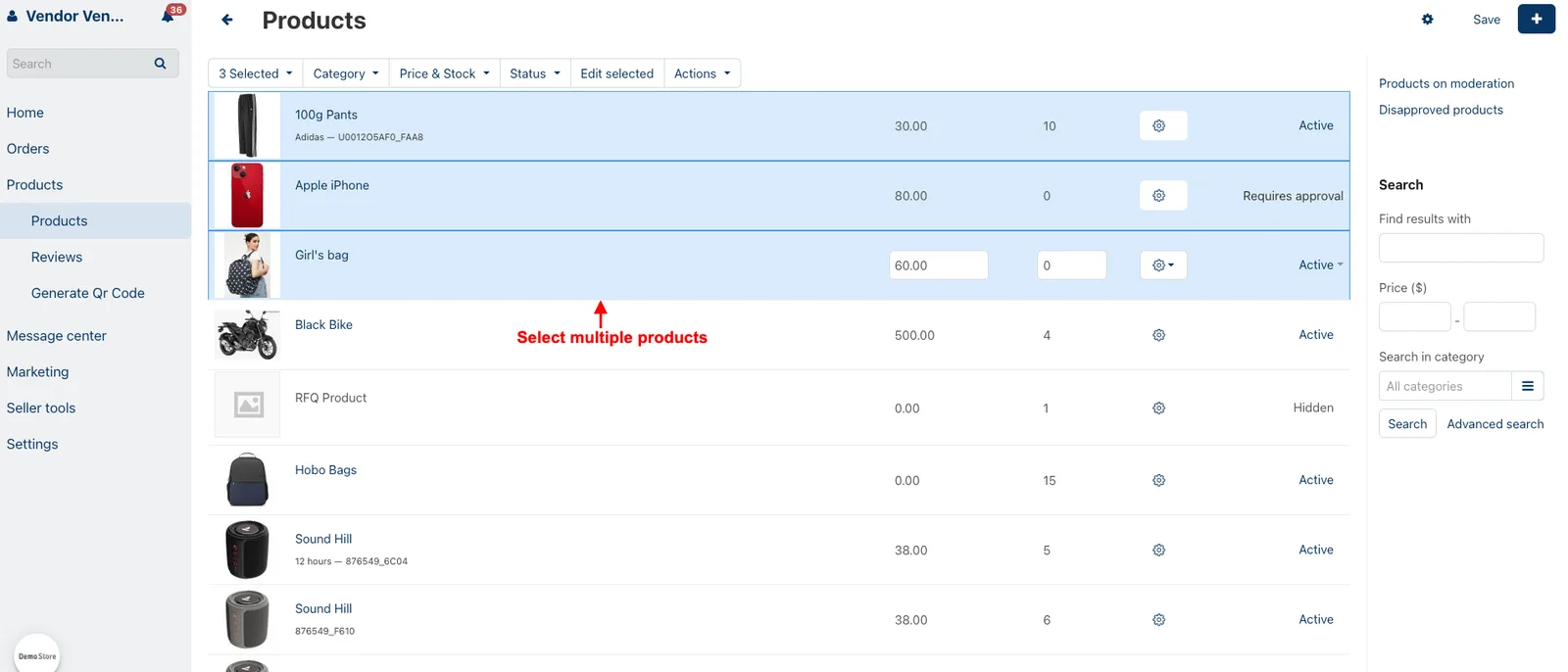
- Select multiple products.
- Click on the Action and select the Generate QR Code.
- Click on the download on the product QR code List page.
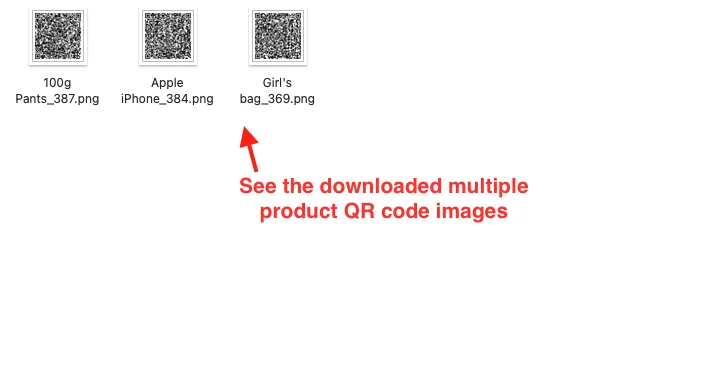
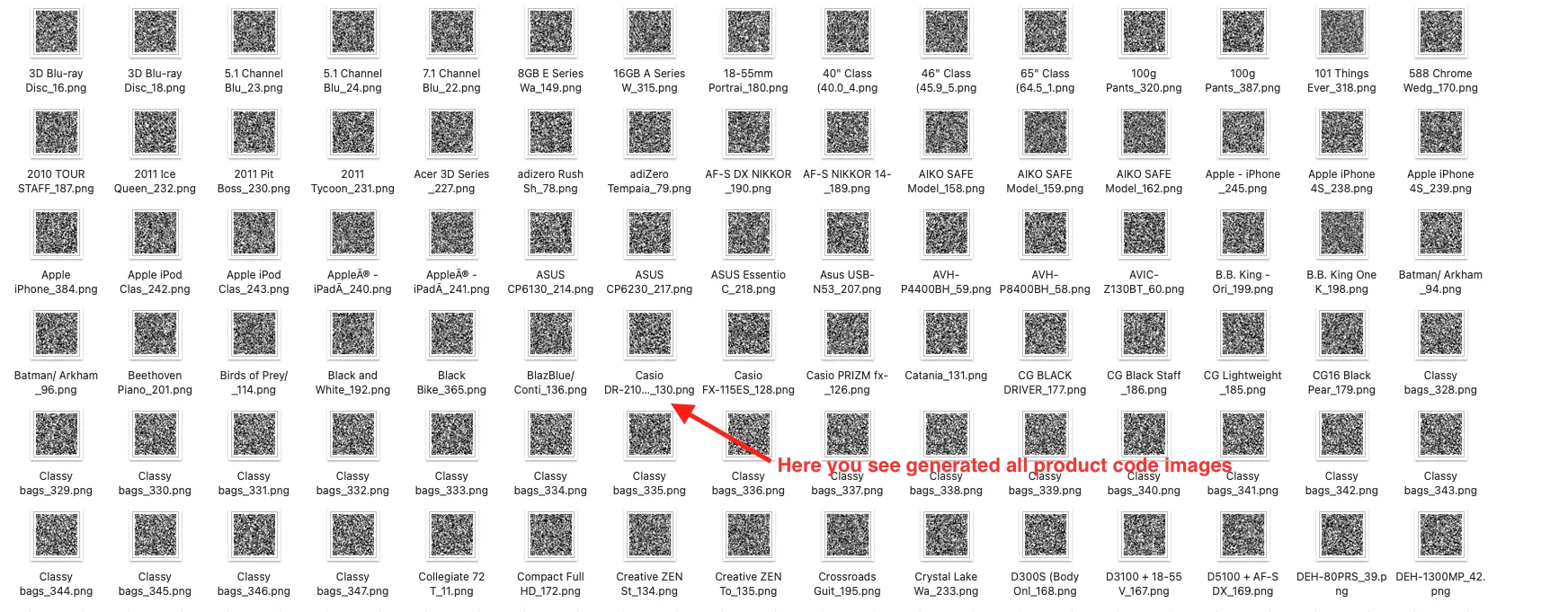
- See the downloaded multiple product QR code images.
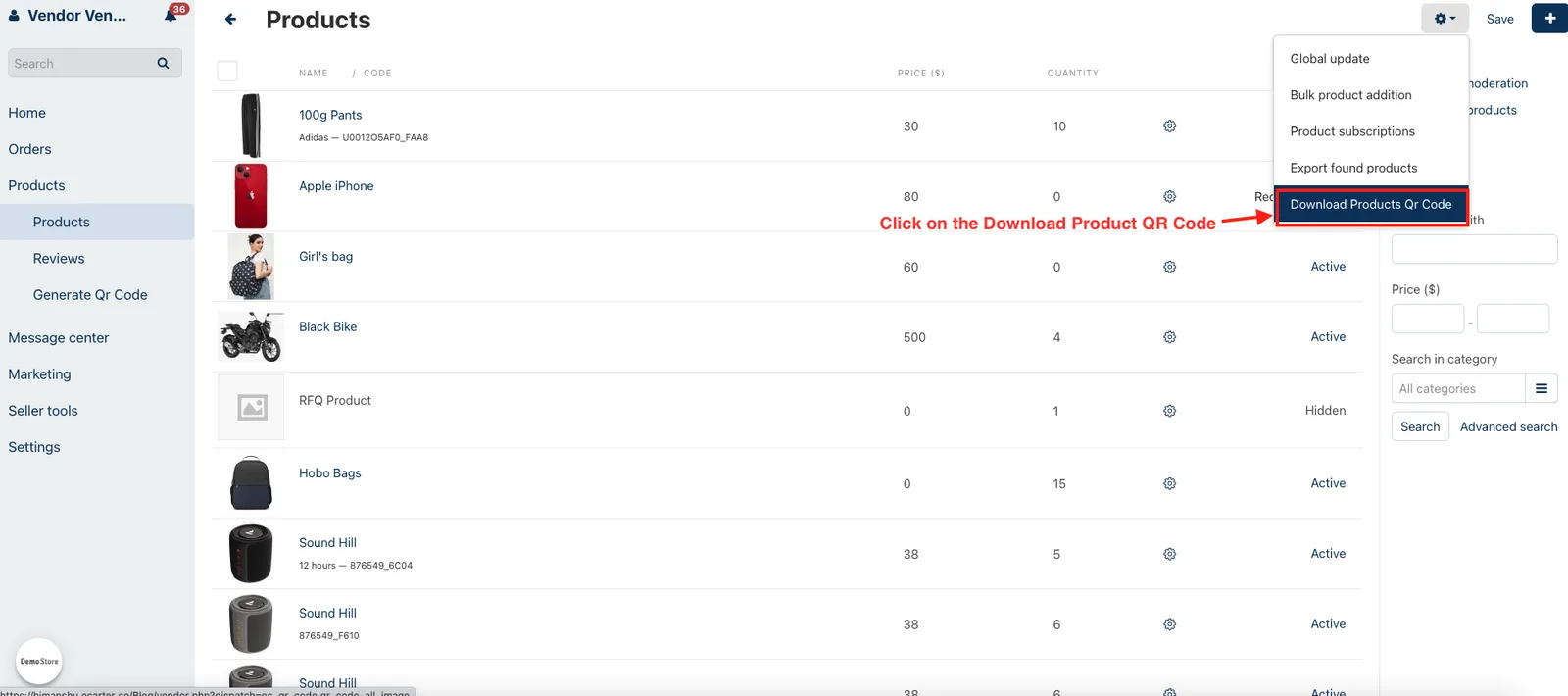
- Click on the setting icon in the top right corner.
- Click on the Download Product QR Code.
- Here you see all generated product code images.
Addon-Version:
Version-1.0
Supported Versions:
CS-Cart, CS-Cart Multivendor 4.8.x, 4.9.x,4.10x,4.11x,4.12x,4.13x, 4.14x, 4.15x, 4.16x, 4.17x, 4.18x
Support:
This app is developed and published by Ecarter Technologies Pvt. Ltd., a CS-Cart developer. You are guaranteed quality add-ons.
Frequently asked questions
What information does the QR code contain?
The add-on connects to your product data and automatically fills each QR code with details such as product name, description, price, and availability. This saves time on manual entry and reduces errors.
Does it work with CS-Cart Multi-Vendor?
Yes. The add-on is integrated with both standard CS-Cart and CS-Cart Multi-Vendor.
Can I customize how the QR code looks?
Yes. From the settings tab the admin can choose which product attribute the QR code uses, set the image size as a percentage, and adjust the border padding around the code.
How do I download the generated QR codes?
QR codes can be downloaded as a ZIP file, and you can choose the naming format used for the image files in the settings. Installation follows the standard add-on process documented at store.ecarter.co/blogs/how-to-install-addon/.
Nisha Gaur is a Technical Content Writer at Ecarter Technologies. She writes technical documentation, tutorials and buying guides covering CS-Cart, Magento, Shopify and eCommerce development.