
Multi-Step Company Registration
Multi-Step Company Registration: This addon allows making a multi-Step Company Registration For vendors this addon to show this multi-step registration.
The Multi-Step Company Registration add-on for CS-Cart lets store owners break the vendor sign-up form into several ordered steps instead of one long page. The admin creates and manages the steps under Administration > Profile Fields > Vendor Information, and each step can be given a name and set to Active or Disabled to control whether it appears on the storefront. This makes the vendor registration process easier to follow and can also be shown at the checkout page. It is aimed at CS-Cart Multi-Vendor stores that want a clearer, more organized way for new vendors to register.

Multi Step Company Registration Add-on for CS-Cart allows creating a multi step company registration for vendors. With the help of this add-on, the admin creates multiple steps in Administration Profile Fields Vendor Information and selects manage steps for the vendor area where vendors add multiple options on the vendor registration page. It is easy to use for vendors during the registration process.
Features
- Feature to allow admin to create a multi-step field for vendors.
- Feature to show this multi-step registration field at the checkout page.
Installation:
How to install Addon
https://store.ecarter.co/blogs/how-to-install-addon/
How Addon Works
Steps To Create/Add Multi-step Company Registration For Vendor
1. Go to Administration>Profile-Fileds>Vendor Information.
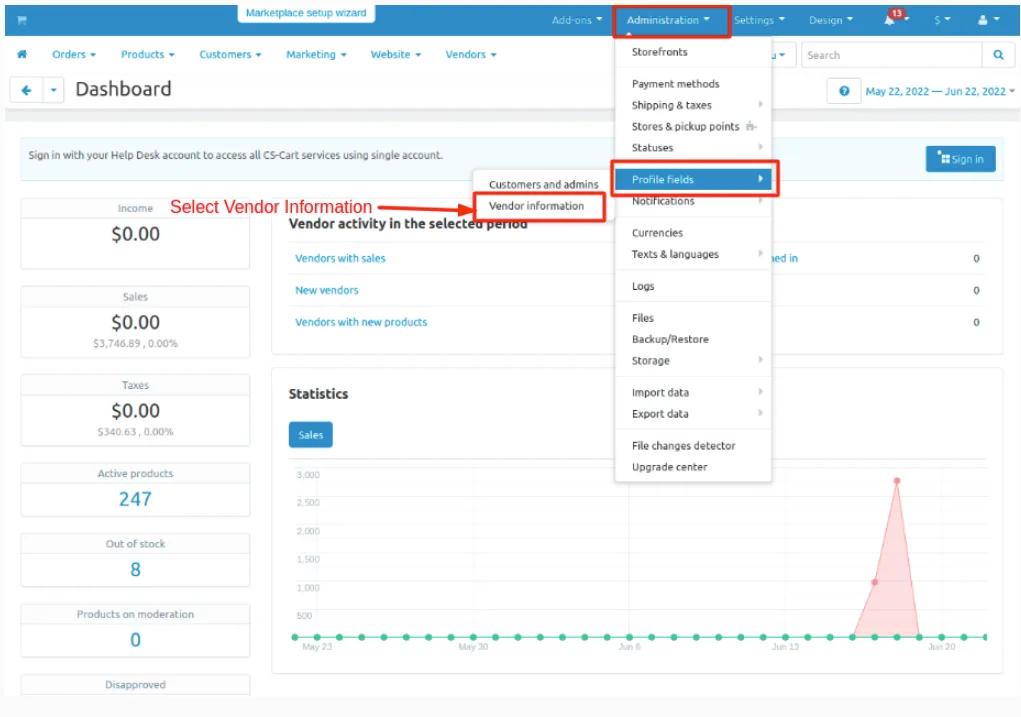
2. How To Add a new Step
Go to>> Manage Step in upper right corner
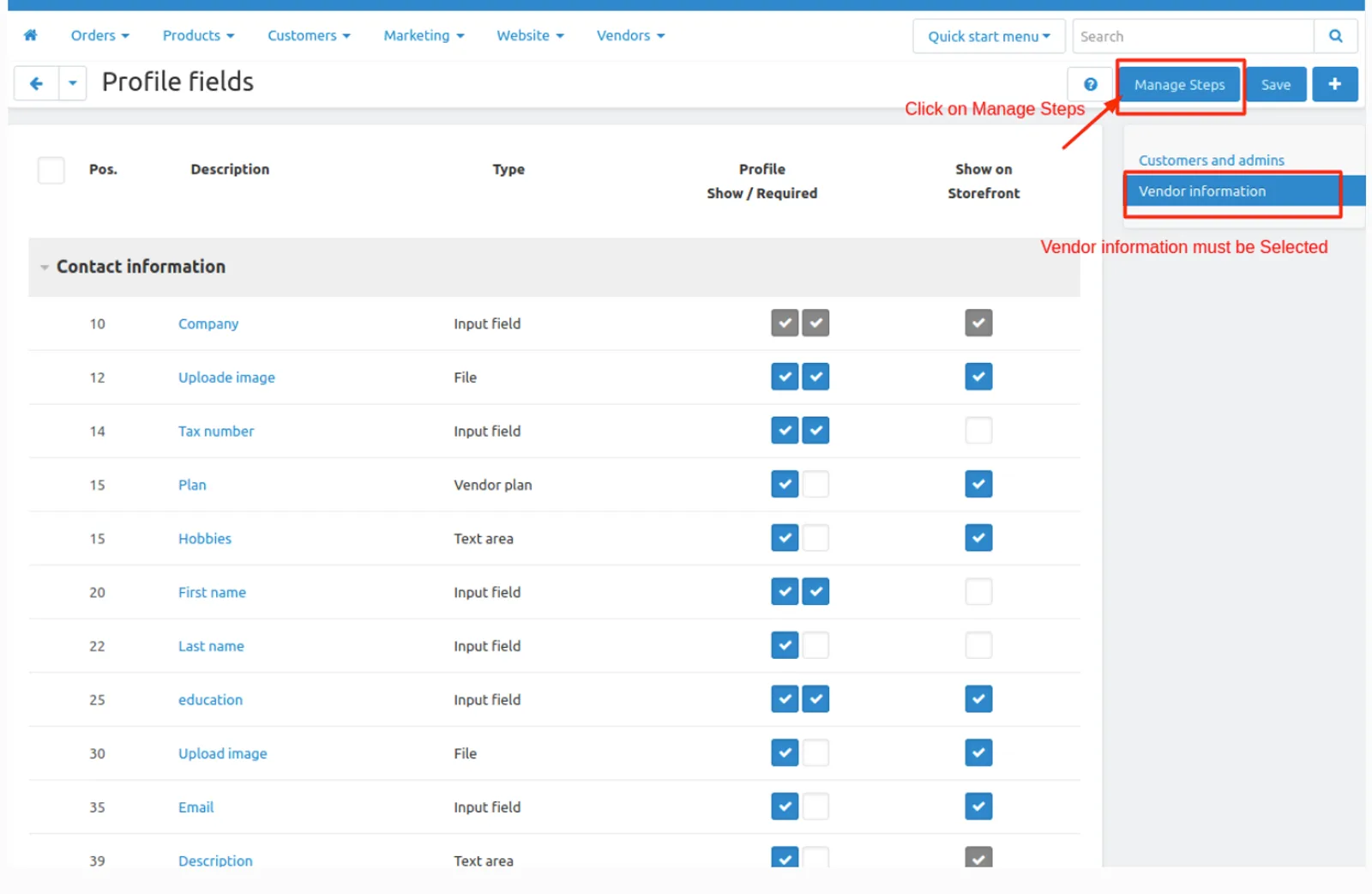
3. Click on (+) button on the upper right corner to add new steps.
Admin can add numbers of steps for the Vendor you can edit any time which is already created steps after changing the name you must be save the information on click on save button on upper right corner.
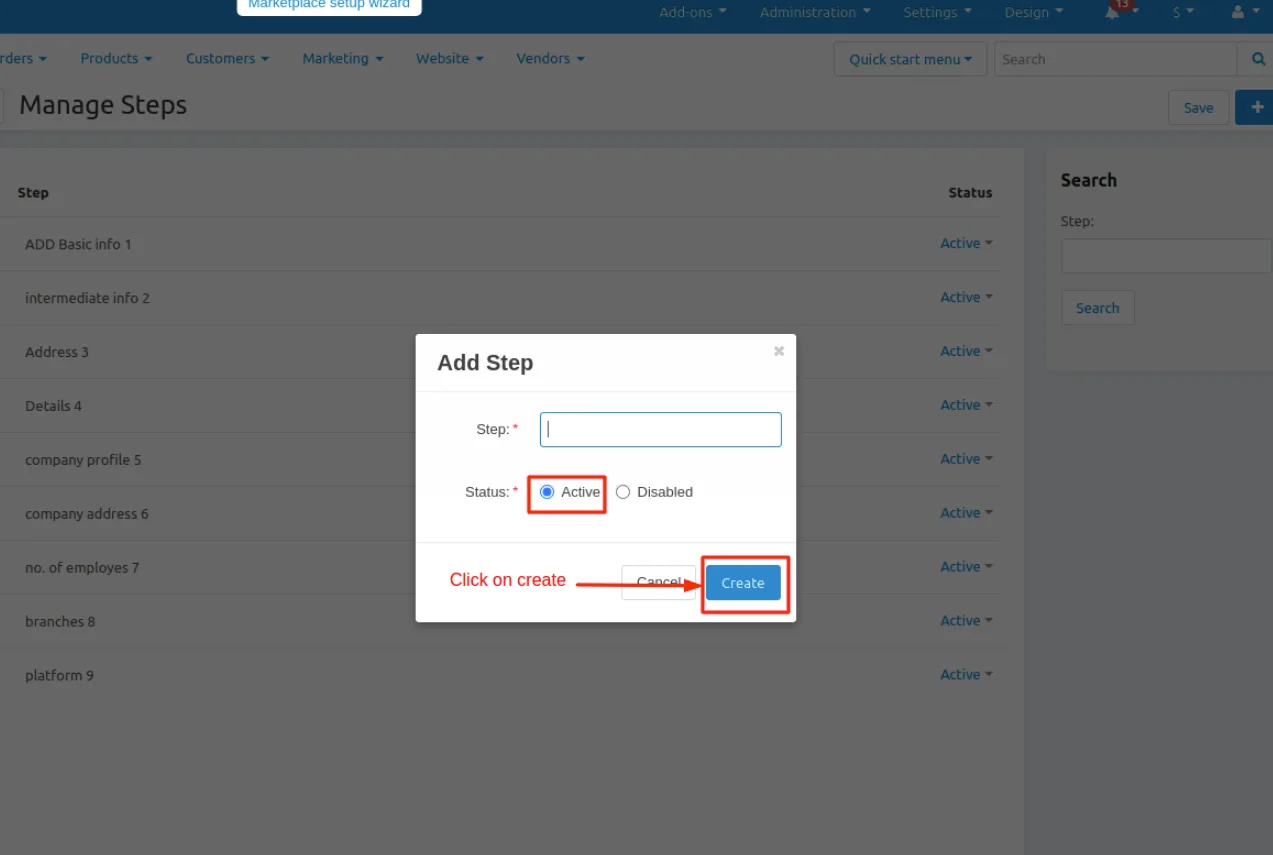
4.Click on (+) button a pop window will be displayed.
There is two Fileds:-
(1). Steps* give the name of the step which is display on the storefront.
(2). Status* remember status must be Active if status is Disable the step is not show in the vendor registration page.
5 Click Create Button.
6. Click on SAVE button on upper right corner.
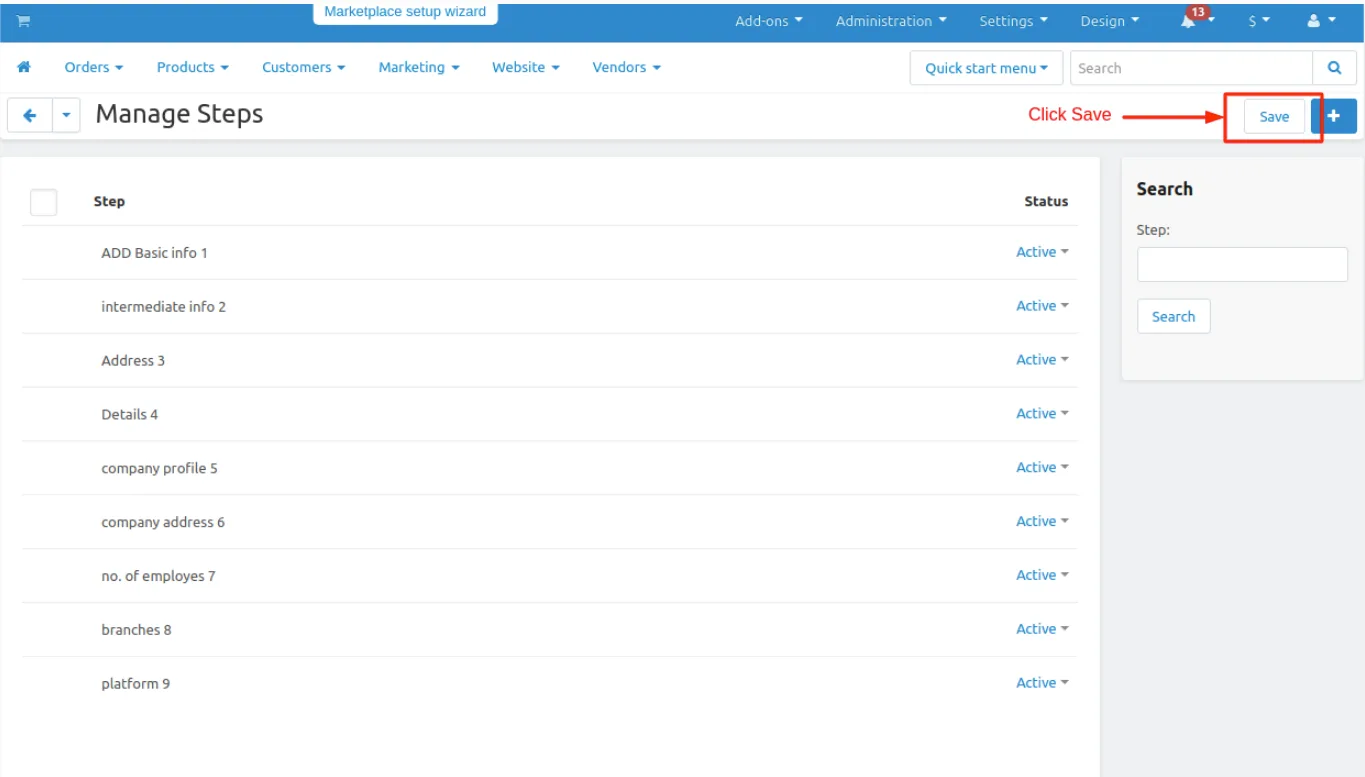
7. Steps is created.
Note; you can add number of steps as same process from above step 1 to 7
How to Create Profile Fields for Vendor Registration
Steps to create multiple profile fields for vendor registration.
How to add new profile field
1. Click on Administration on Administration panel>Profile Field>Vendor information.
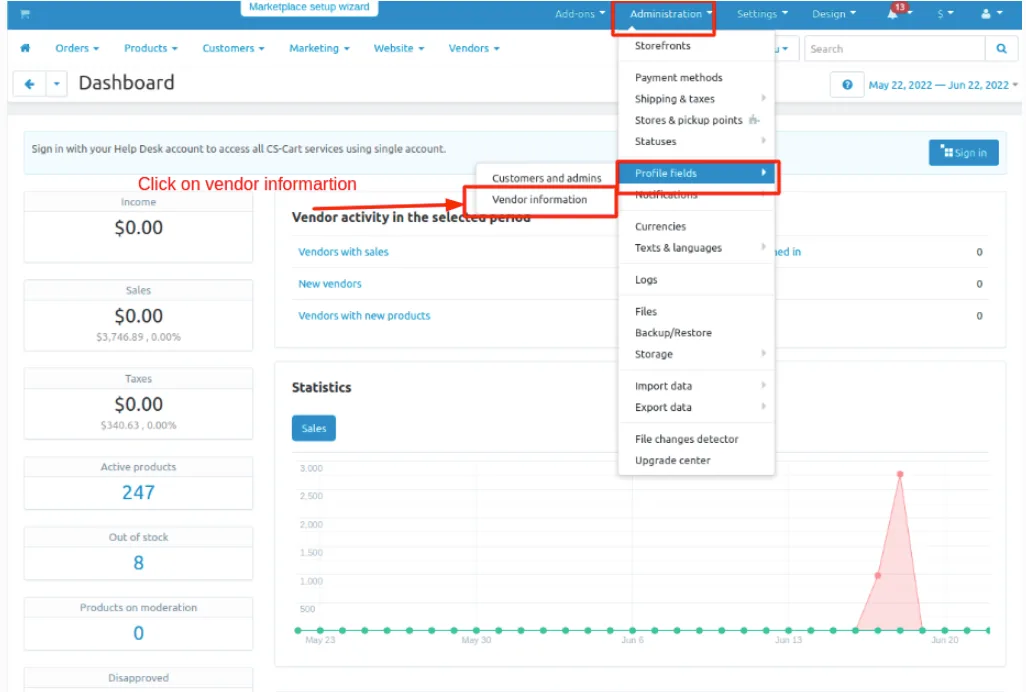
2 Click on (+) button at upper right corner in the page.
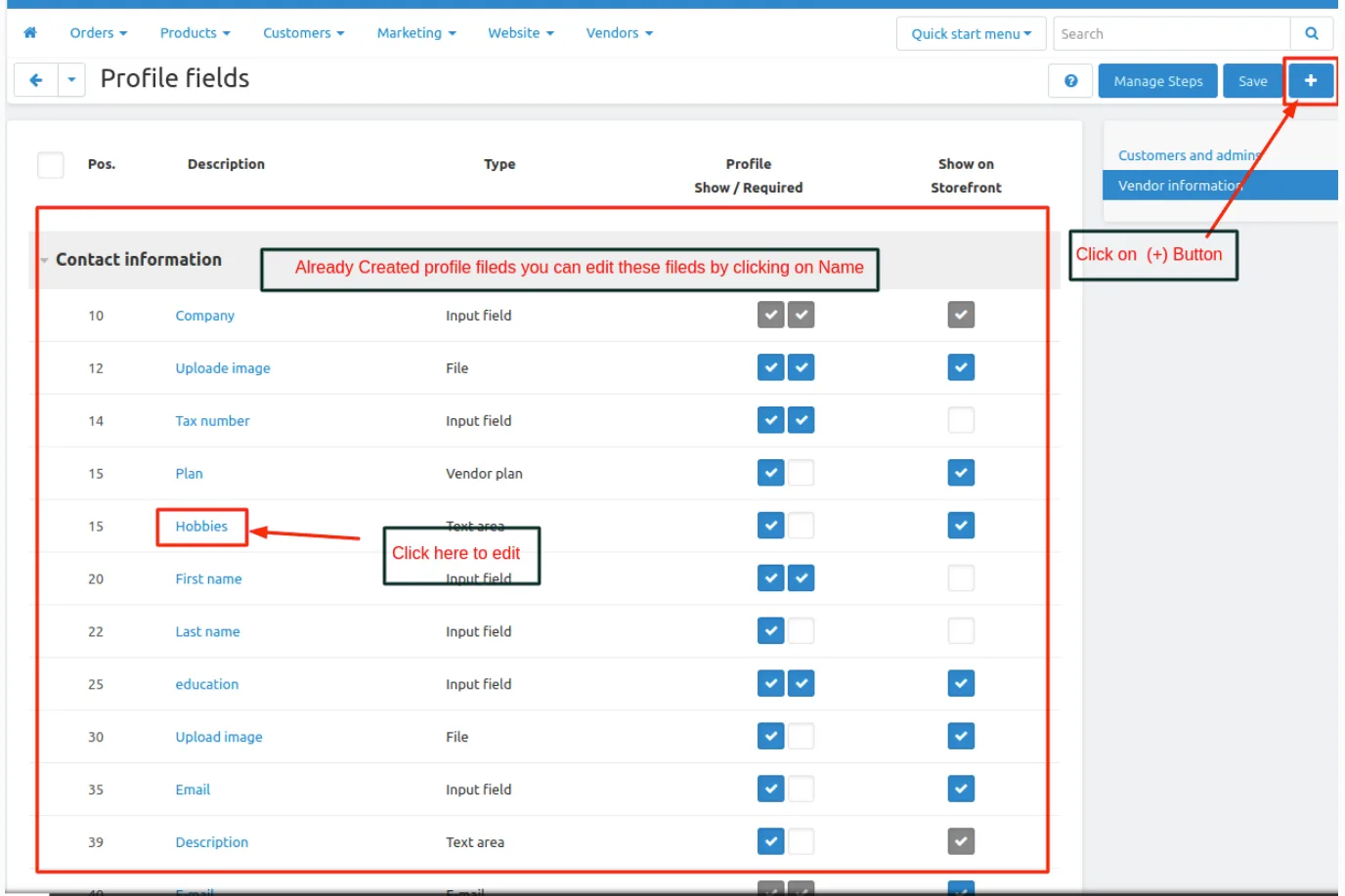
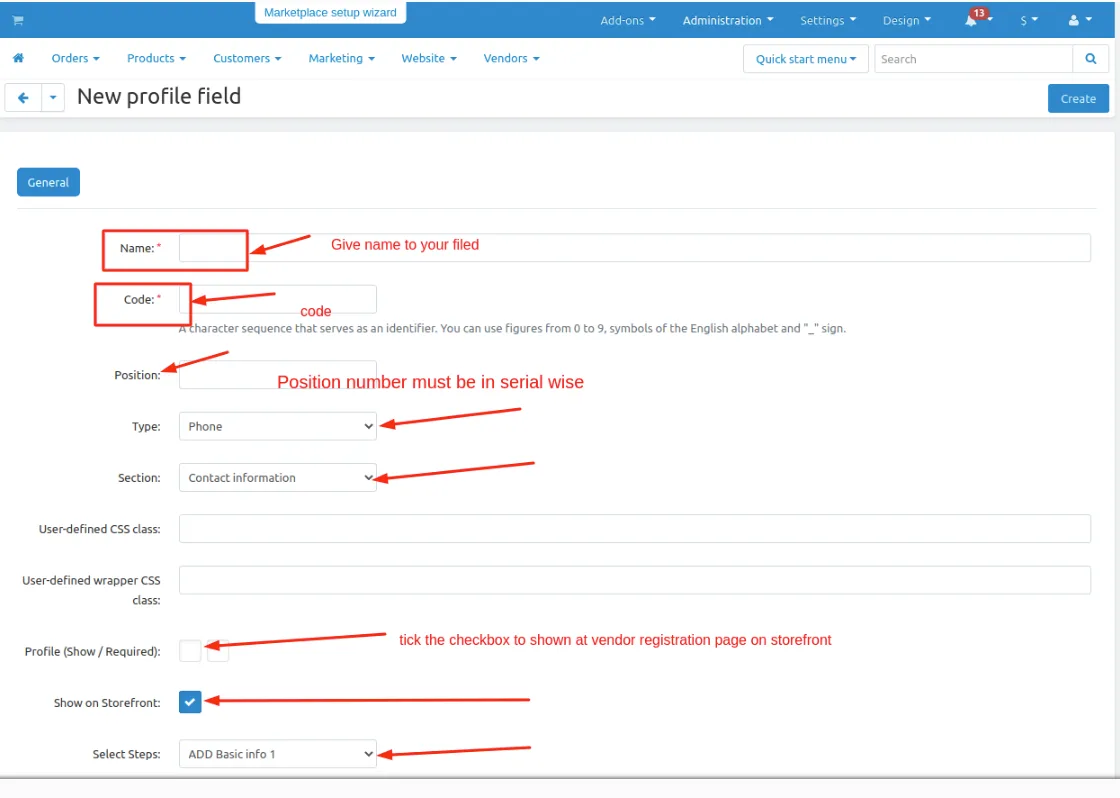
3. A General Tab is display under general tab fill all the information or all fields
The profile fields list contains the essential information about each :
- Name—the name of the profile field
- CODE—the identifier of the profile field that you use in your store .This identifier doesn’t have to be unique; it can even be missing.
- POSITION-- give the position number to the field which will help in to maintain the field in sequence manner.
- Type--Select the desire type from the dropdown list which you want to assign the profile field for the vendor.
- Section--where you want to display the profile field on registration page. Select>Contact information.
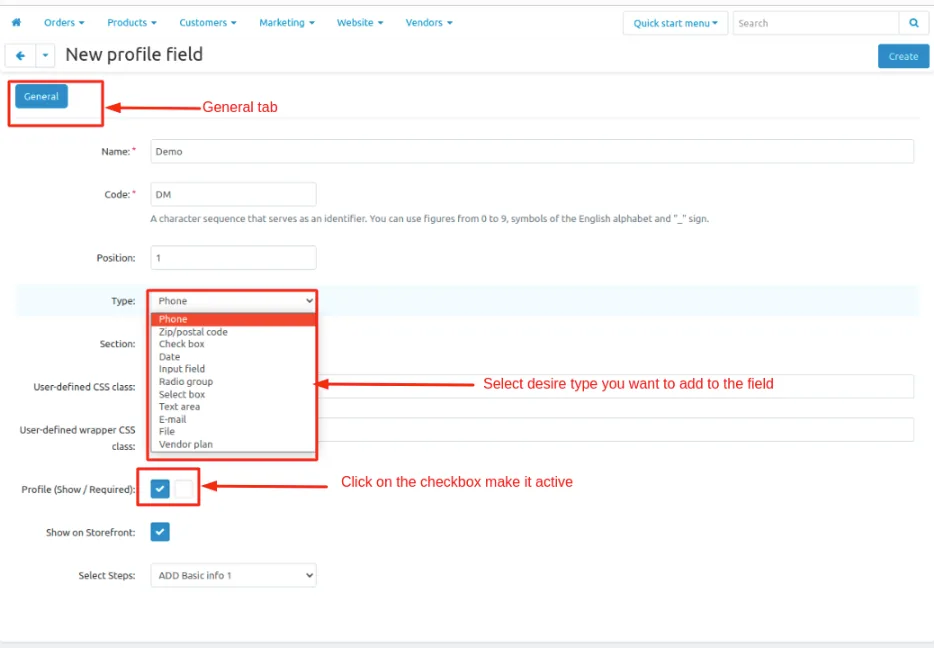
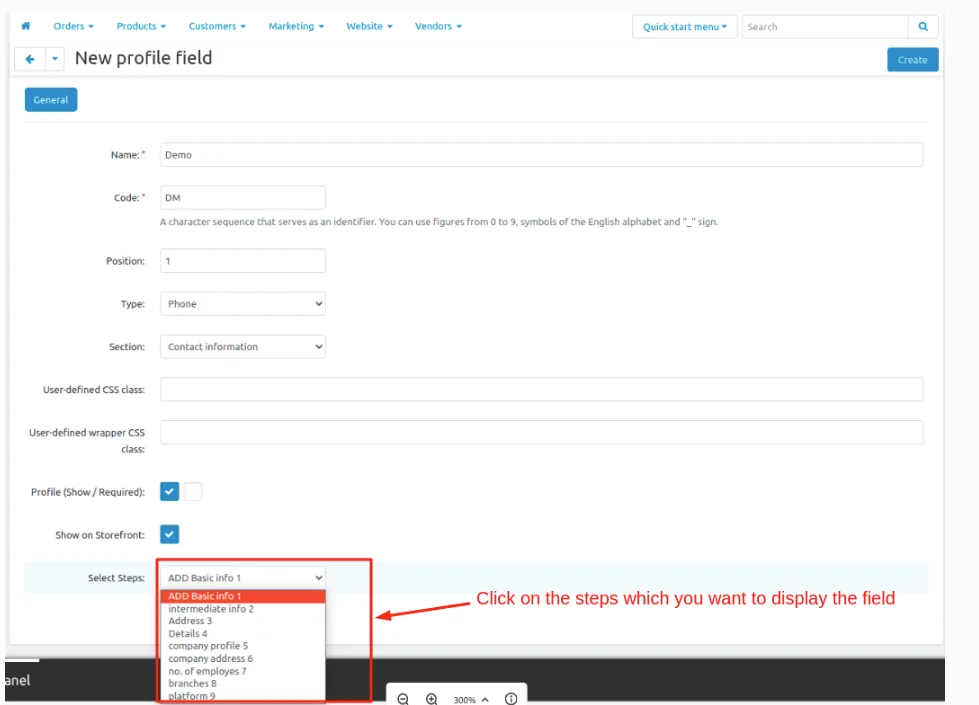
4. Add all credentials click on <Create> button at upper right corner on the profile field.
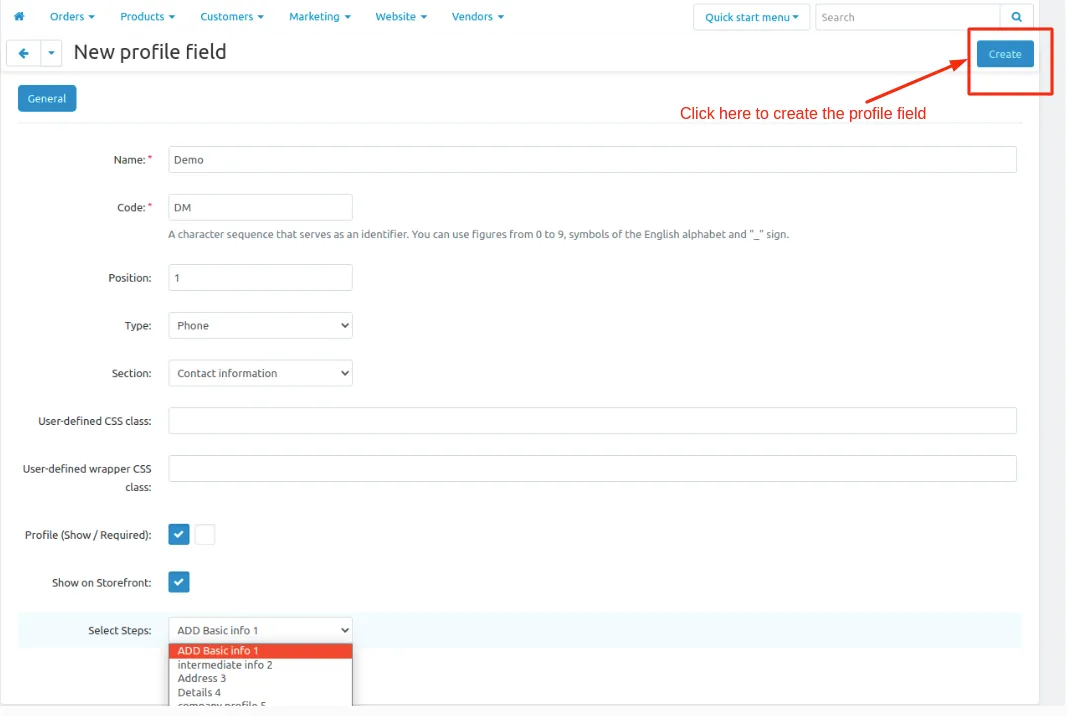
5. Profile field is created
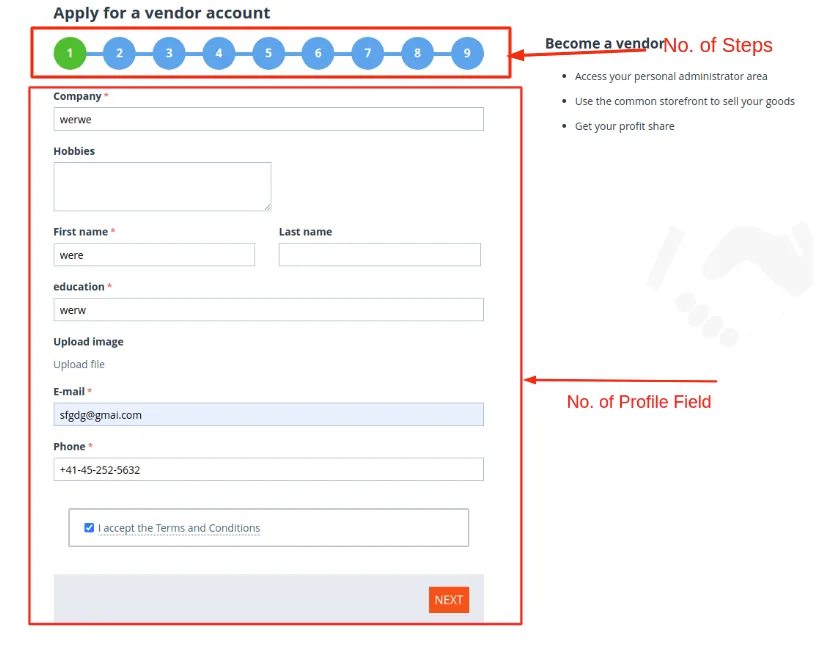
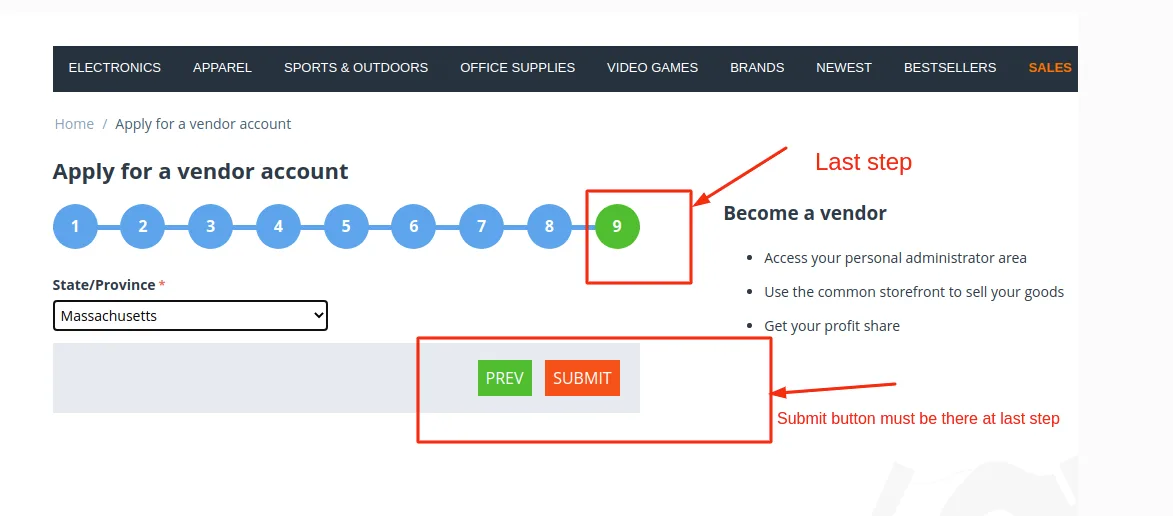
How multi-steps vendor registration profile field look-like at Frontend(Vendor-Registration from front-end):
Addon-Version:
Version-1.0
Supported Versions:
CS-Cart, CS-Cart Multivendor 4.8.x, 4.9.x,4.10x,4.11x,4.12,4.13x, 4.14x, 4.15x, 4.16x, 4.17x, 4.18x
Support:
This add-on is developed and published by Ecarter Technologies Pvt.Ltd., a CS-Cart developer. You are guaranteed a quality add-on supported by future versions. If you need help, please contact us via email at support@ecarter.co.
Frequently asked questions
What does the Multi-Step Company Registration add-on do?
It lets the admin split the vendor registration form into multiple steps rather than a single page. The admin defines the steps under Administration > Profile Fields > Vendor Information, and vendors then complete them in sequence when they register.
How does the admin create or edit registration steps?
Go to Administration > Profile Fields > Vendor Information and open Manage Steps in the upper-right corner, then use the (+) button to add a step. In the pop-up you give the step a name (shown on the storefront) and set its Status; steps can be edited later, and you must click Save after any change.
Why is one of my steps not showing on the vendor registration page?
A step only appears on the storefront when its Status is set to Active. If the Status is Disabled, the step is hidden from the vendor registration page.
Is this add-on compatible with my version of CS-Cart Multi-Vendor?
It is built for CS-Cart Multi-Vendor stores and works with recent versions. Share the exact version you are running and we will confirm compatibility, and installation is covered in our how-to-install guide at https://store.ecarter.co/blogs/how-to-install-addon/.
Kajal is a Technical Content Writer at Ecarter Technologies. She writes technical documentation and in-depth guides on eCommerce platforms, mobile commerce and AI in online retail.