
Category & Vendor promotions Addon
CS-Cart Category & Vendor promotions: The addon provides functionality to create category and vendor promotions blocks in CS-Cart.
The Category & Vendor Promotions add-on lets CS-Cart store owners create dedicated promotion blocks for product categories and vendors and display them on the storefront. From the Marketing section, an admin sets up category and vendor promotions, adds a new block to the homepage layout under Design > Layouts, then uploads promotional images for each category (in the category promotion tab under Product Categories) and each vendor (in the vendor promotion tab under Vendors). It solves the problem of surfacing category and vendor deals in a visual, customisable homepage section that encourages shoppers to explore offers. It is aimed at CS-Cart merchants, including Multi-Vendor stores, who want to highlight specific categories and vendor deals to boost visibility and sales.
TL;DR: CS-Cart Category & Vendor promotions: The addon provides functionality to create category and vendor promotions blocks in CS-Cart.
This guide covers: Installation: · How to install addon · How to addon work
This addon for CS-Cart provides a way to create category and vendor promotion blocks. Admin can create category and vendor promotions under marketing>category and vendor promotions. They need to add a new block at the homepage layout under Design>Layouts. After that need to add images for corresponding categories in categories promotion tab under Product> Categories and images for corresponding vendors in vendor promotion tab under Vendors.
Features:
- Promotions for categories and vendors: Create Special Promotions for categories and vendors.
- Customizable blocks: Easily add promotion section to your homepage.
- Vendor Promotions: Promote vendor deals with attractive visuals.
- Easy Image Management: Upload and manage images for each promotion effortlessly.
- Boost Sales & Visibility: Encourage customers to explore offers and shop more.
- Well integrated with CS-Cart Multivendor
Installation:
How to install addon
https://store.ecarter.co/blogs/how-to-install-addon/
How to addon work
- Open the addon.
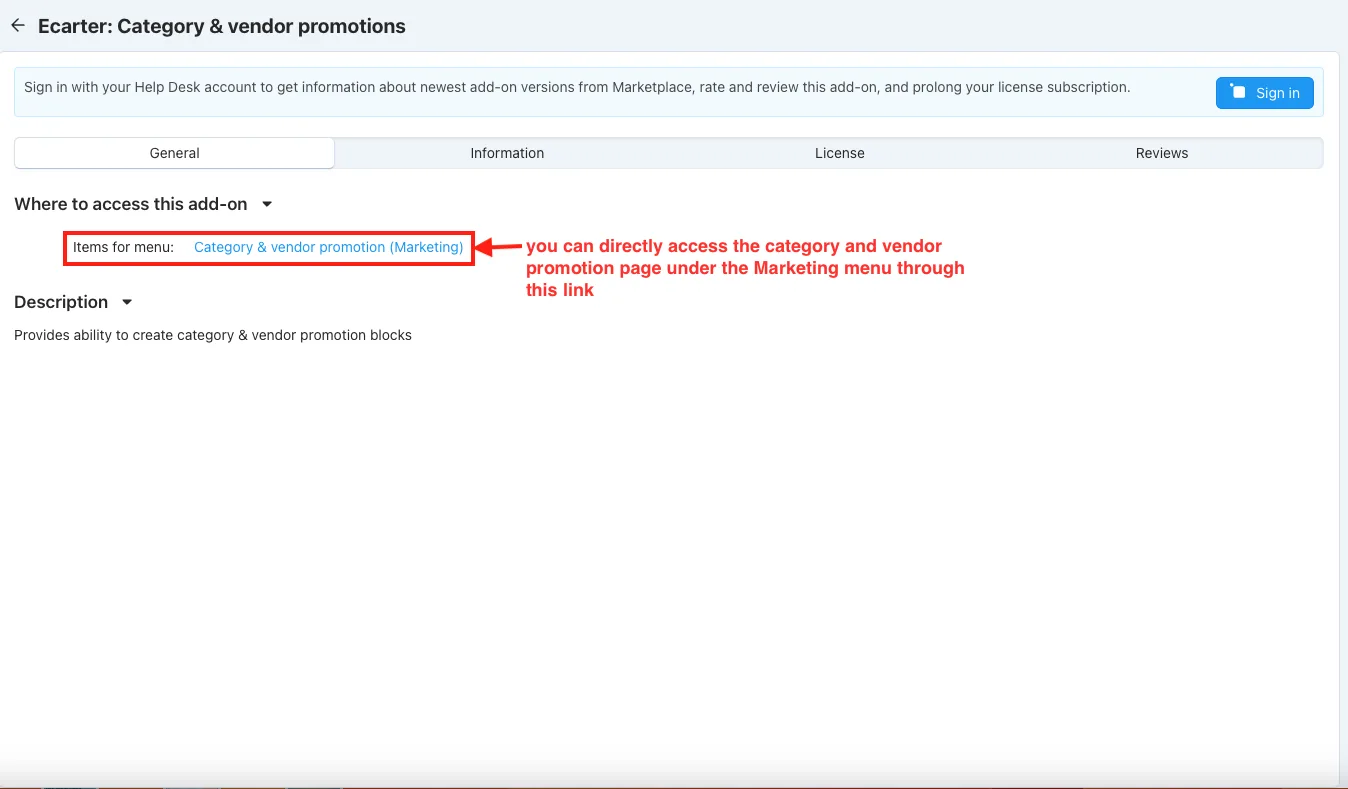
- item for menu: you can directly access the category and vendor promotion page under the Marketing menu through this link.
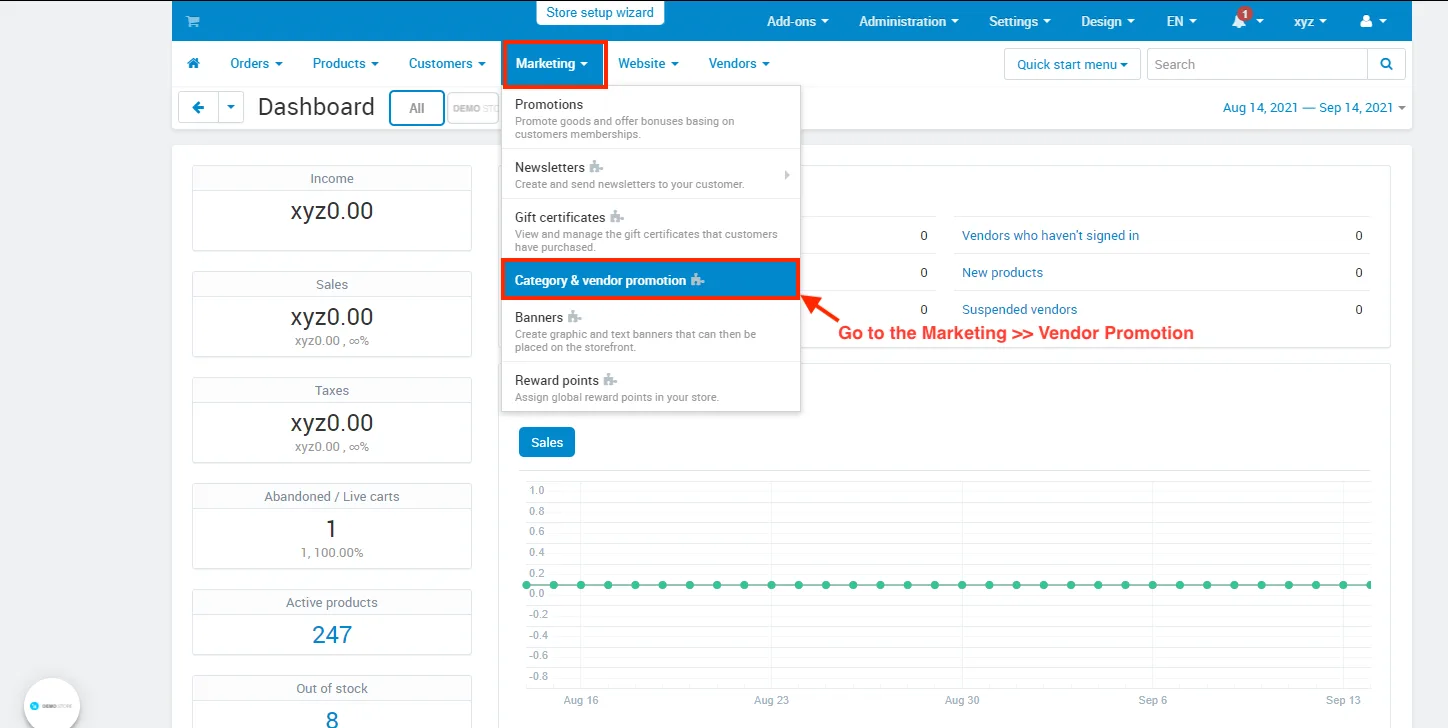
- Go to the Marketing >> Vendor Promotion.
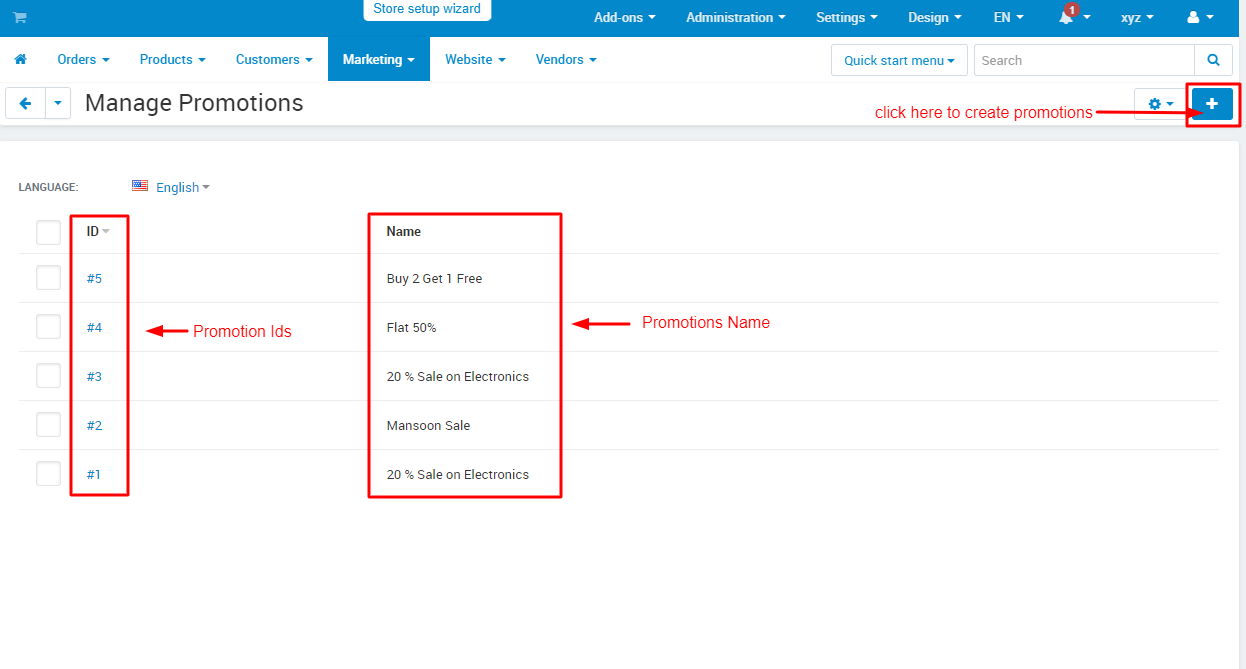
- Here you see the promotion ids and names.
- Also, Click on the (+) icon to create the promotion.
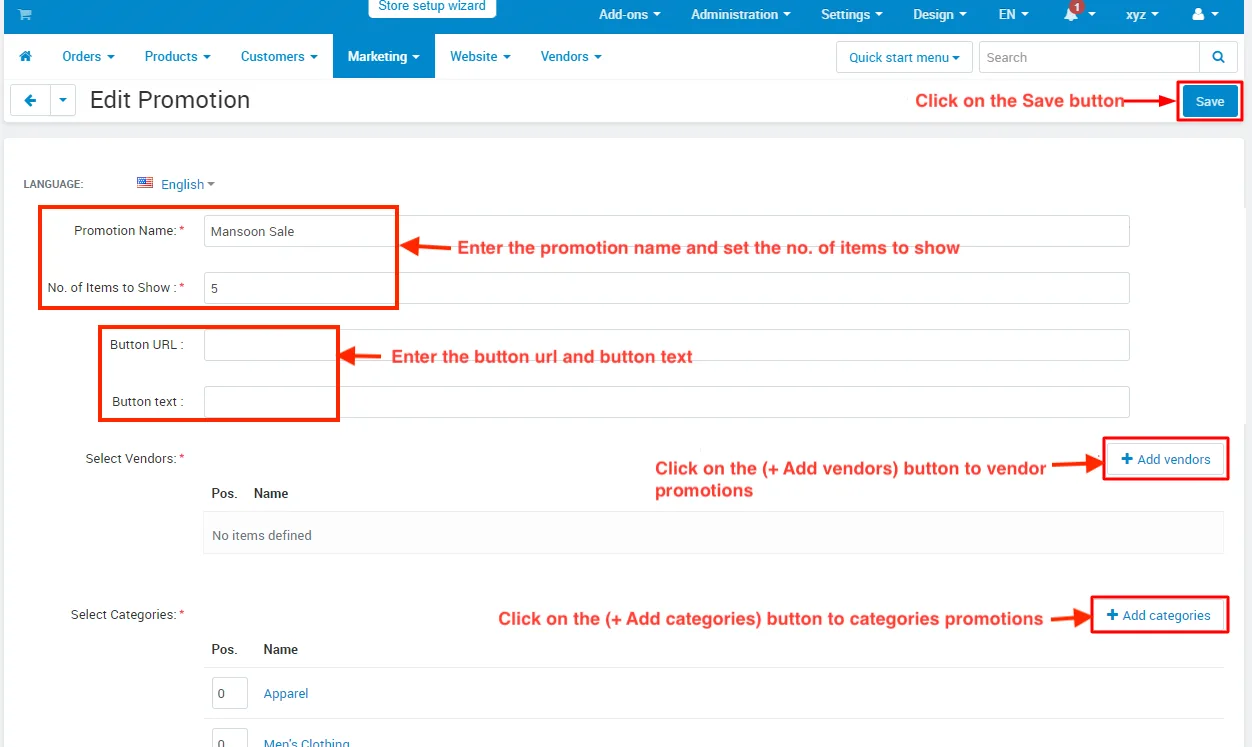
- Fill in all information, and click on the Save button.
- Go to the Design >> Layout.
- Switch on the Homepage tab to add a new block(category and vendor promotion).
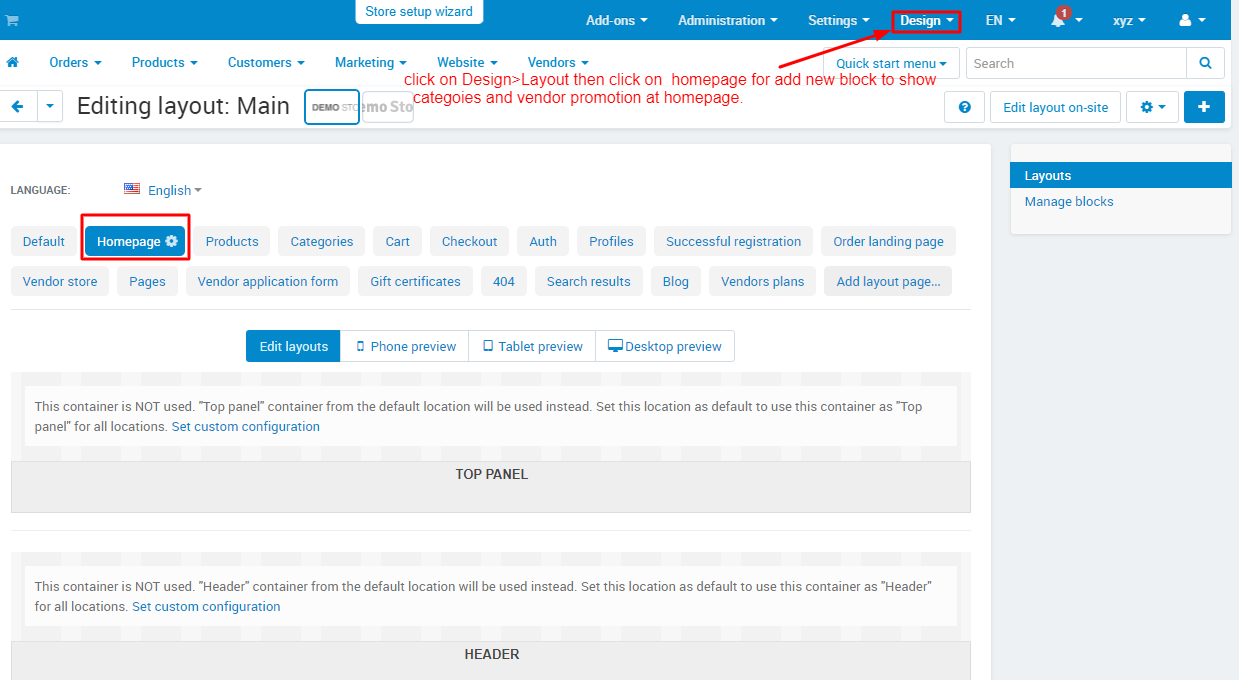
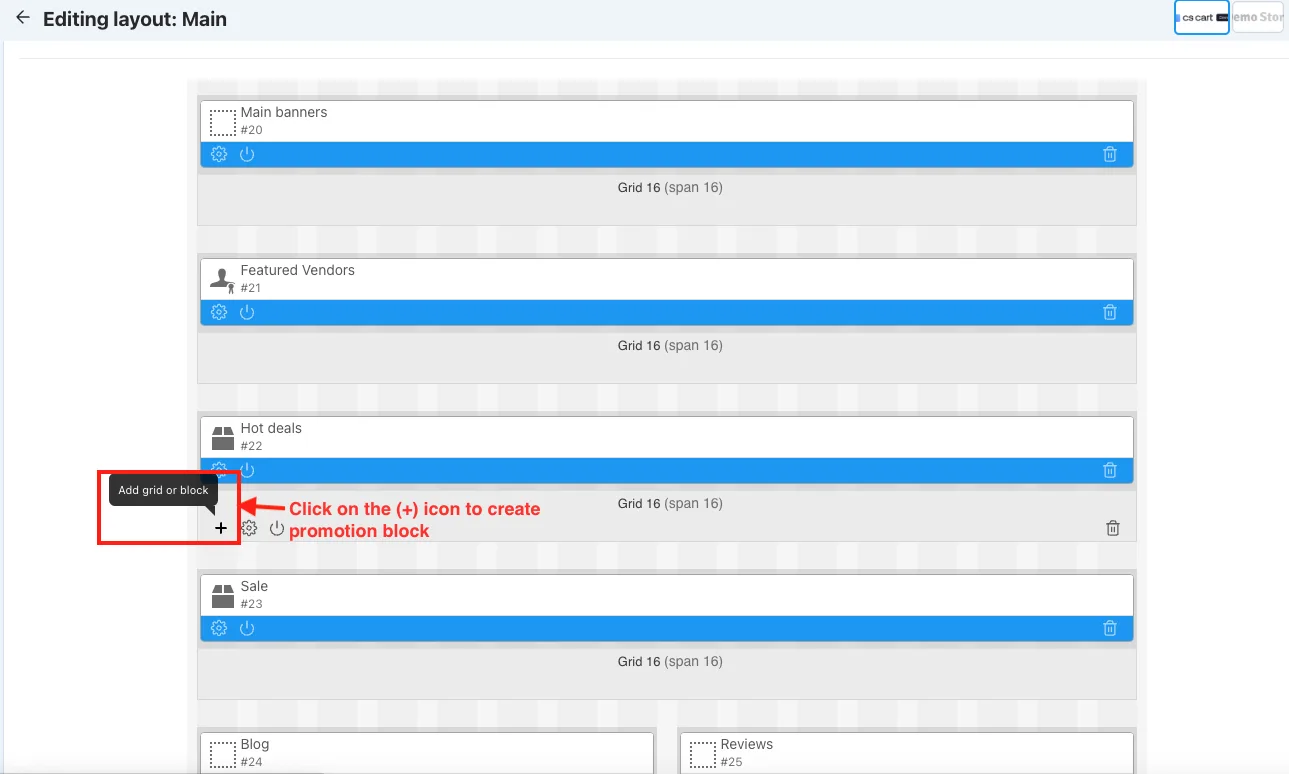
- Click on the (+) icon to create the block.
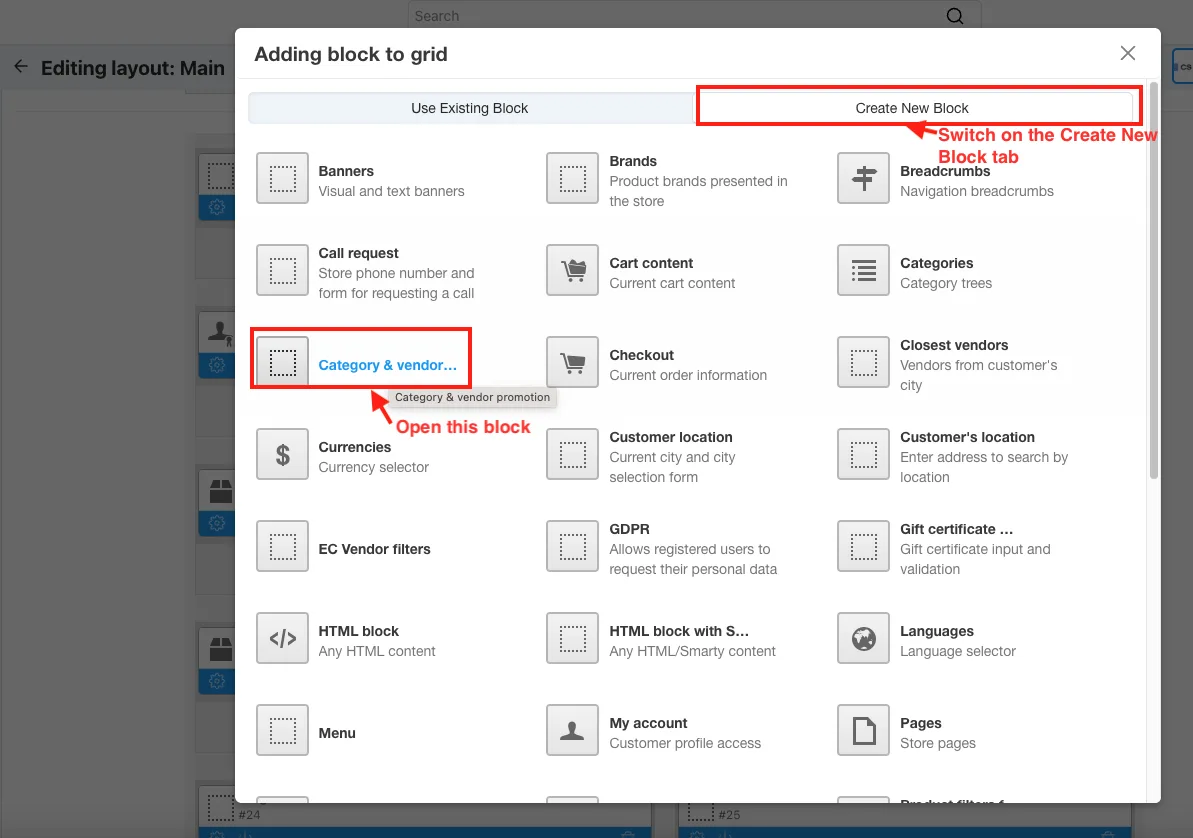
- Switch on the Create New Block tab.
- Open the Category and Vendor promotion block.
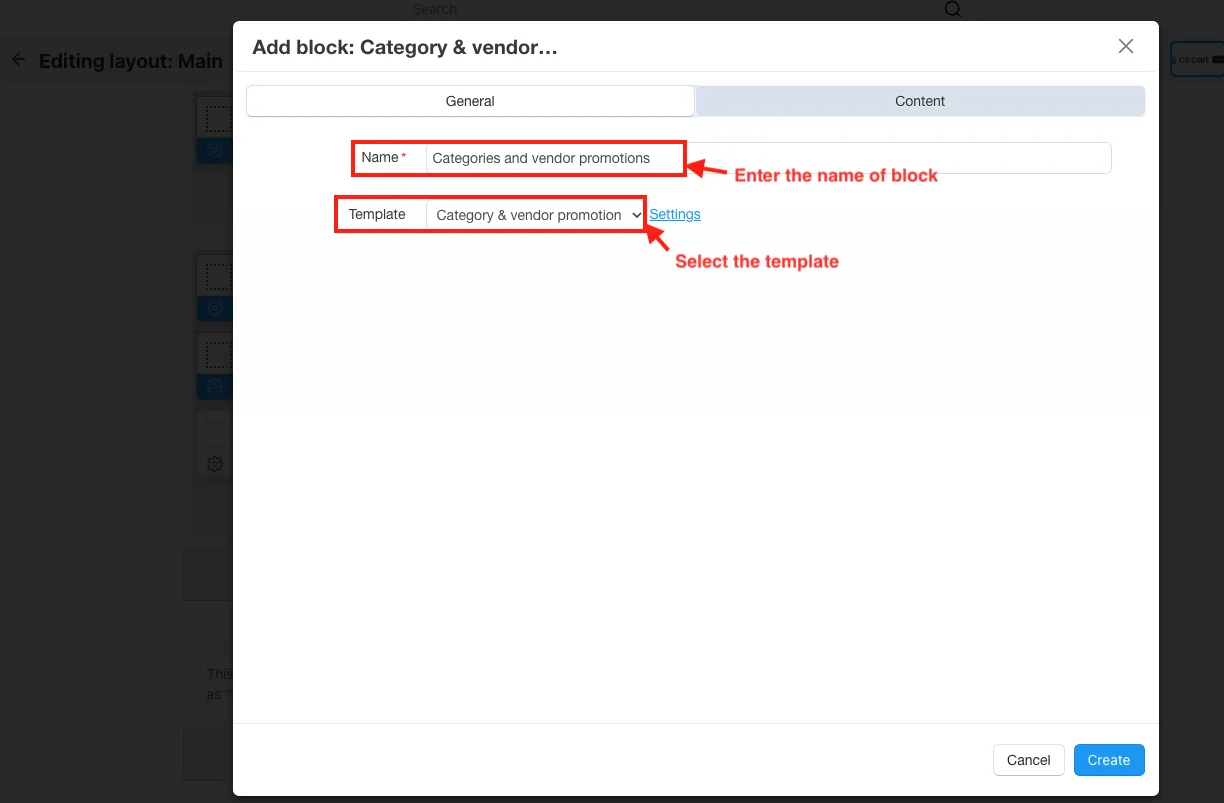
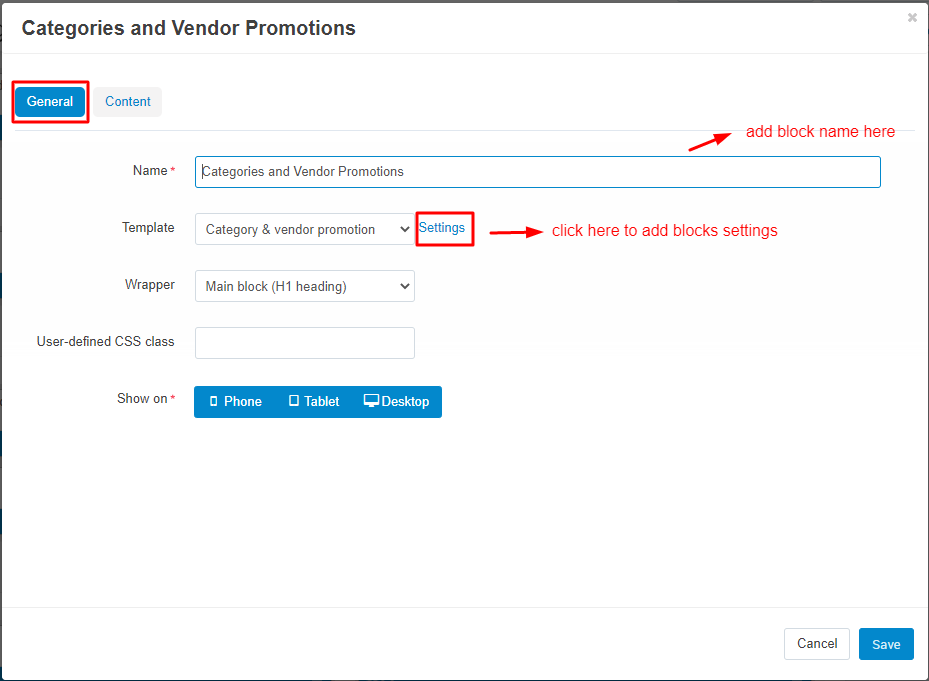
- Name: Enter the name of block.
- Template: Select the template.
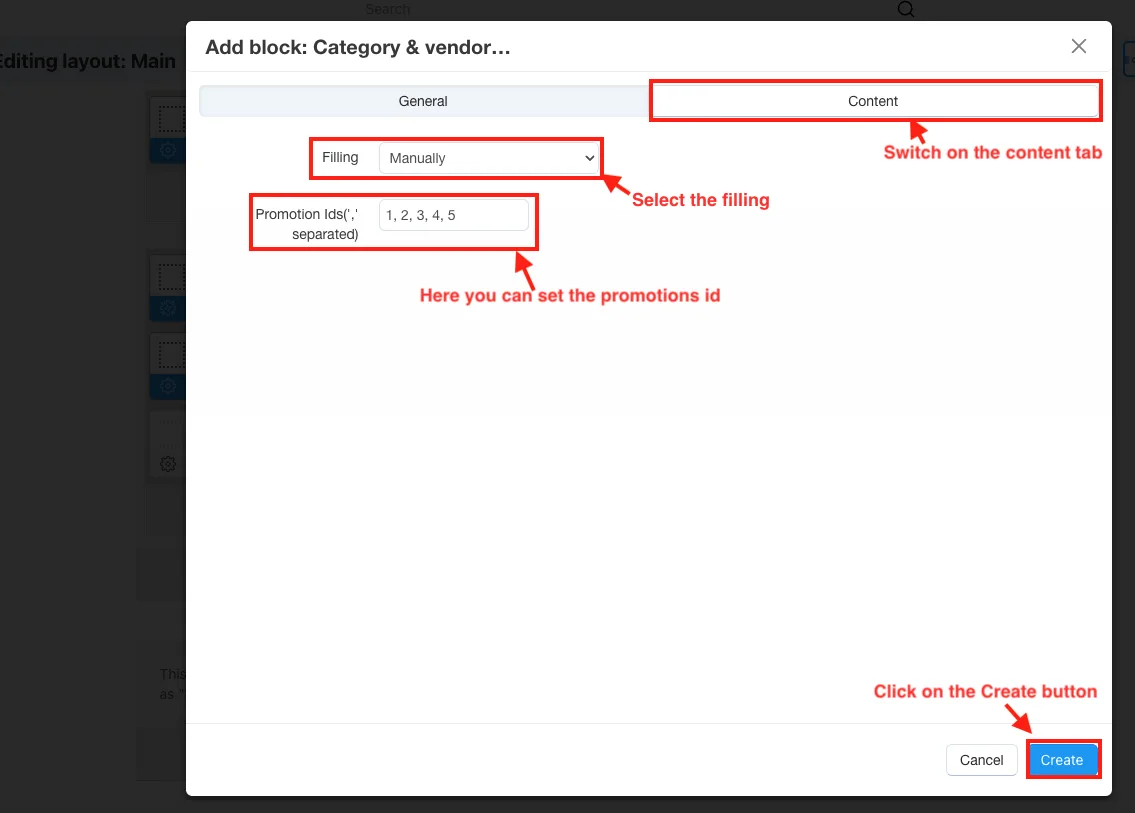
- Switch on the Content tab.
- Filling: Select the filling
- Promotion ids: here you can set the promotion id.
- Click on the Create button.
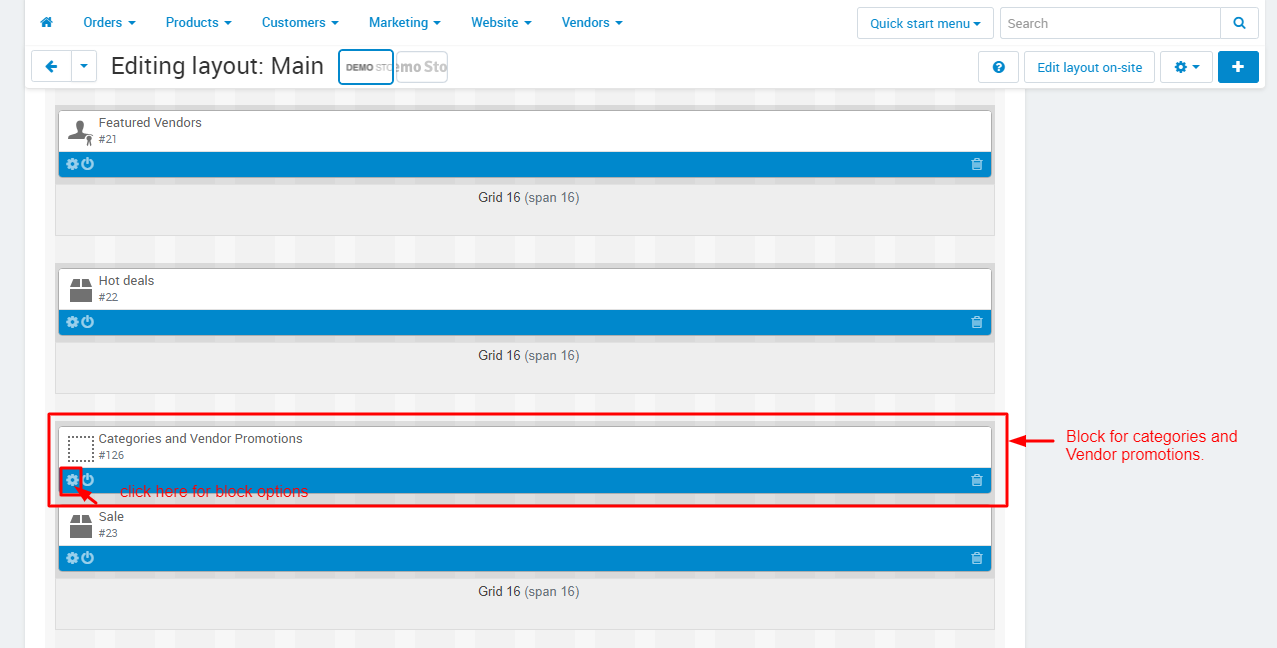
- here you see the created categories and vendor promotions block.
- click on the setting icon to open this block.
- After opening this block, Click on the settings button to add in block.
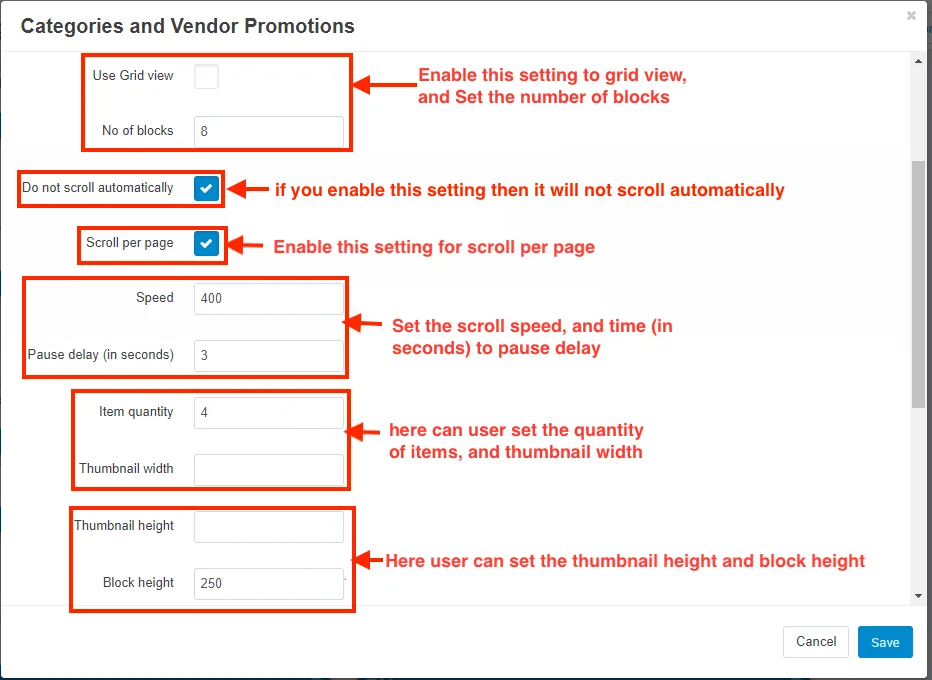
- Use grid view: Enable this setting to grid view.
- No of blocks: Set the no of blocks.
- Do not scroll automatically: If you enable this setting, then you do not scroll automatically.
- Scroll per page: enable this setting for scroll per page.
- Speed: set the scroll speed.
- Pause delay (in seconds): Set the time (in seconds) to pause delay.
- item quantity: here user can set the quantity of item.
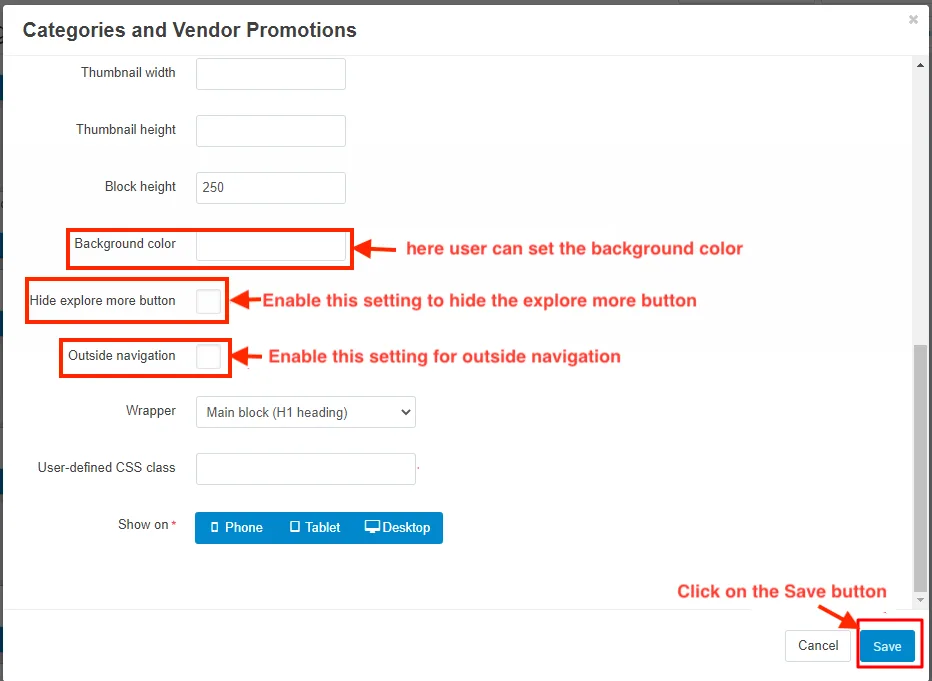
- Thumbnail width: here user can set the thumbnail width.
- Thumbnail height: here user can set the height of the thumbnail.
- Background color: here user can set the background color.
- Hide explore more button: enable this setting to hide the explore more button.
- Outside navigation: enable this setting for outside navigation.
- Click on the Save button.
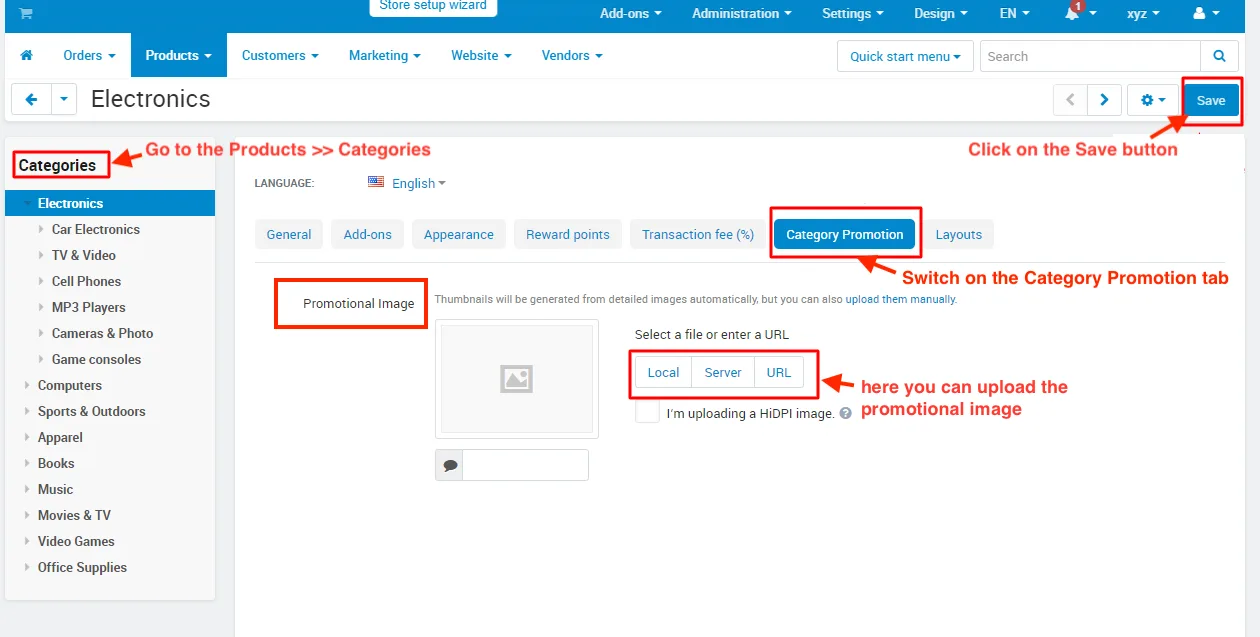
- Go to the Products >> Categories.
- Open any category
- Switch on the category promotion tab.
- Promotion image: here you can upload promotion image.
- Click on the Save button.
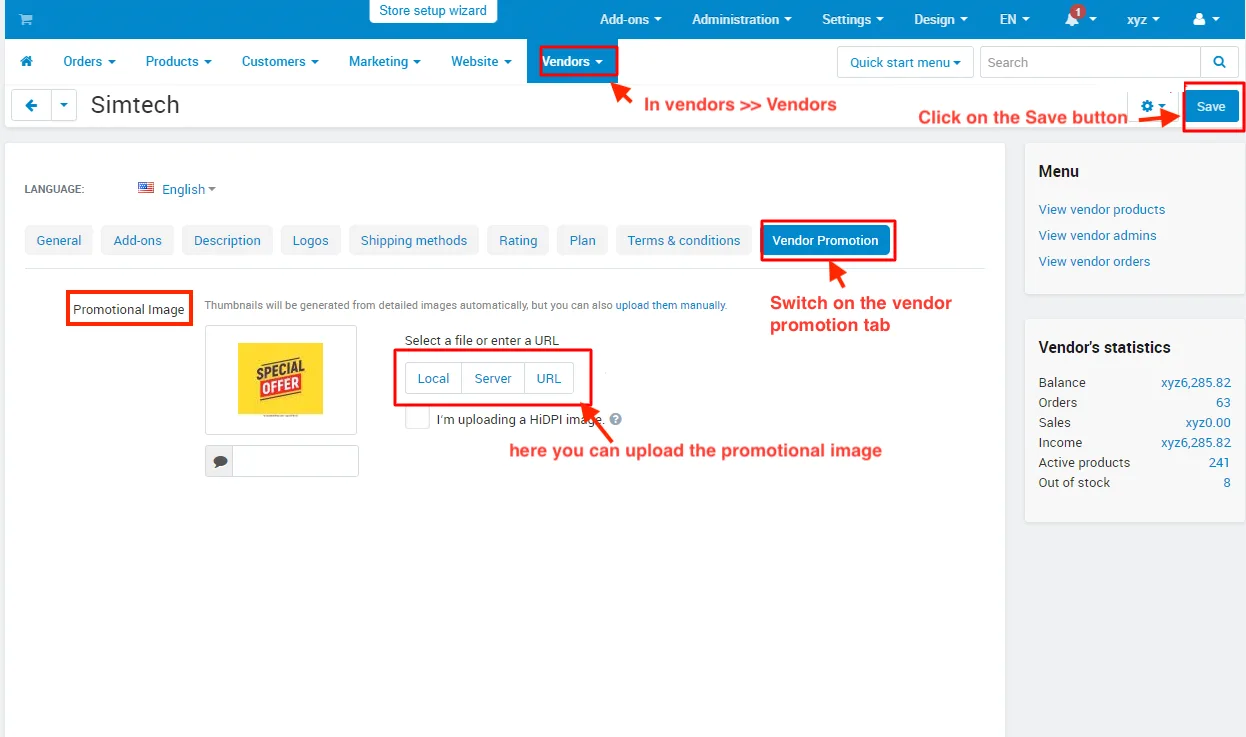
- Go to the vendors >> Vendors.
- Switch on the Vendor Promotion.
- Promotional Image: here you can upload the promotional image.
- Click on the Save button.
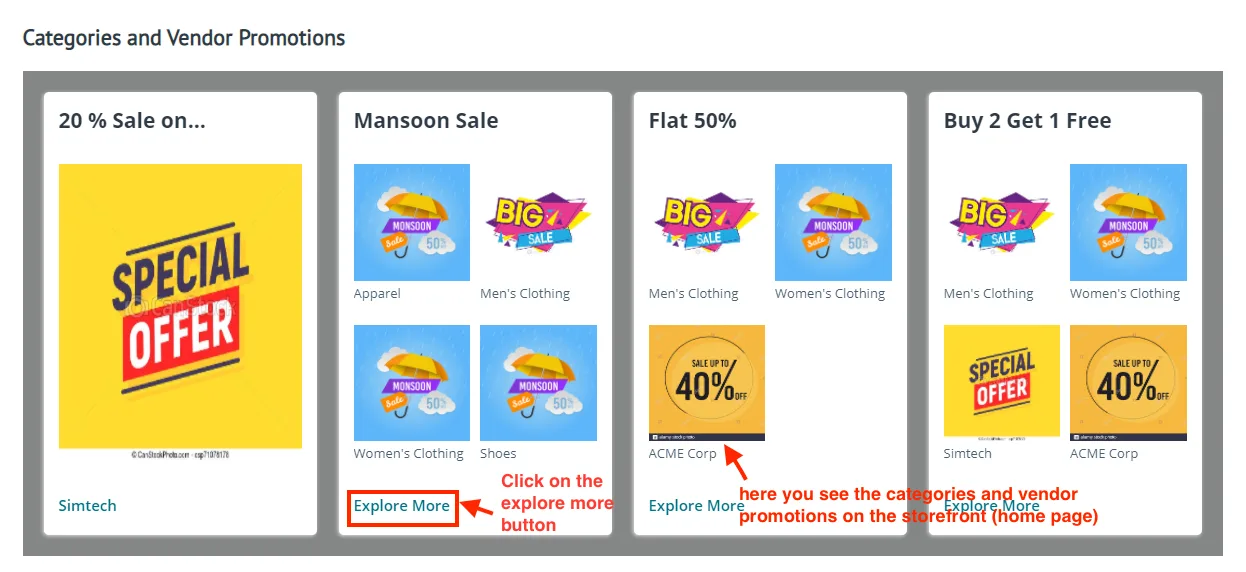
- here you see the categories and vendor promotions on the storefront.
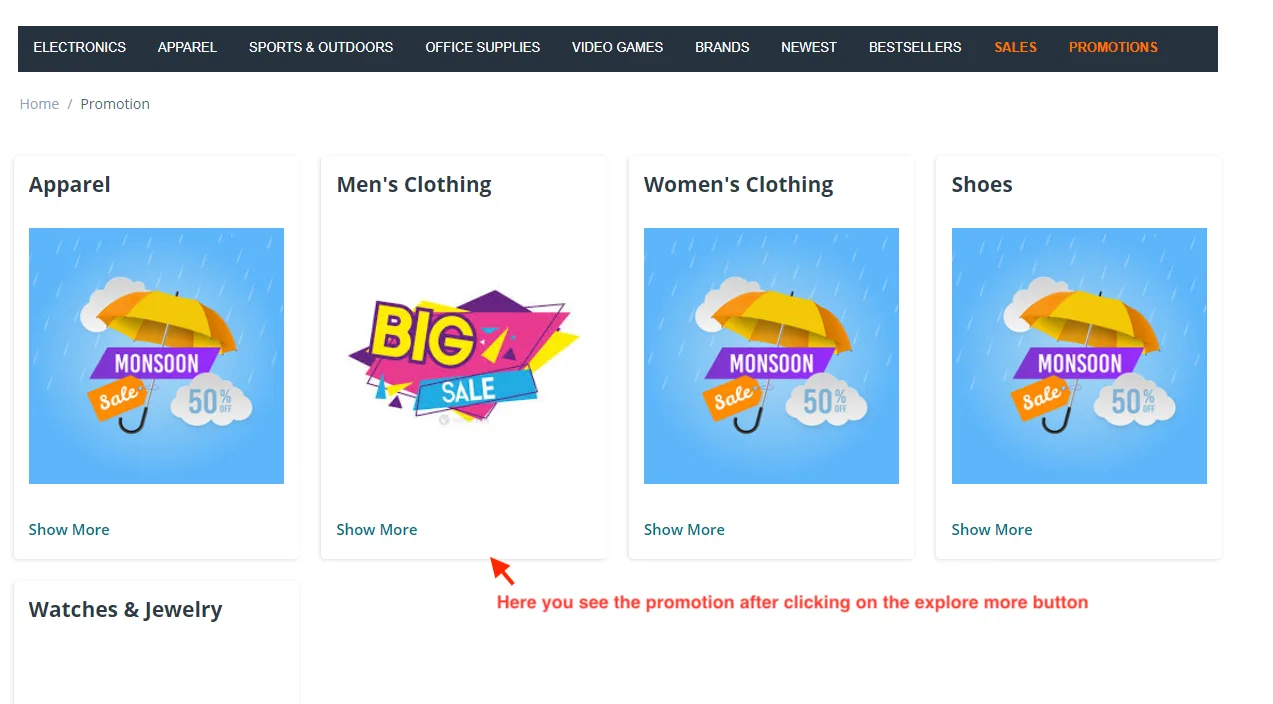
- Click on the explore more button.
- Here you see the promotional after clicking on the explore more button.
Tutorial Video:
Supported Versions:
CS-Cart, CS-Cart Multivendor 4.8.x, 4.9.x,4.10x,4.11x,4.12,4.13x, 4.14x, 4.15x, 4.16x, 4.17x, 4.18x
Support:
This add-on is developed and published by EcarterTechnologies Pvt. Ltd., a CS-Cart developer. You are guaranteed a quality add-on supported by future versions. If you need help, please contact us via email at support@ecarter.co.
Frequently asked questions
What does the Category & Vendor Promotions add-on do?
It provides functionality to create category and vendor promotion blocks in CS-Cart. Admins create the promotions under the Marketing menu, add a block to the homepage layout, and upload images for each category and vendor to display promotional visuals on the storefront.
Does this add-on work with CS-Cart Multi-Vendor?
Yes. The add-on is well integrated with CS-Cart Multi-Vendor and includes vendor promotions, so you can promote individual vendor deals alongside category promotions.
How do I set up the promotion blocks on my homepage?
After installing the add-on, create your category and vendor promotions under the Marketing menu, then add a new block to the homepage layout under Design > Layouts. Finally, upload images for each category in the category promotion tab under Product Categories and for each vendor in the vendor promotion tab under Vendors.
How do I manage the promotion images?
Images are managed per promotion. You upload and update the image for each category in the category promotion tab and for each vendor in the vendor promotion tab, so every promotion can have its own visual.
Nisha Gaur is a Technical Content Writer at Ecarter Technologies. She writes technical documentation, tutorials and buying guides covering CS-Cart, Magento, Shopify and eCommerce development.