
Advance Gift Certificate
This addon for CS-Cart provides extra features for both the admin and customers to manage gift certificates. Admin can set the default month validity for gift certificates in settings. Help this add-on admin add multiple banners
The Advance Gift Certificate add-on extends the standard CS-Cart gift certificate feature with extra controls for store owners and more choice for shoppers. Admins can set a default validity period (in months) for gift certificates, upload and manage multiple gift certificate banner designs, and refund the certificate amount when an order is cancelled. Customers, in turn, can pick their preferred banner design when buying a gift certificate. It is aimed at CS-Cart store owners who want to promote, manage, and track gift certificates more easily, and it depends on the built-in CS-Cart Gift Certificate add-on, which must be activated first.

Advance Gift Certificate Addon for CS-Cart provides extra features for both the admin and customers to manage gift certificates. Admin can set the default month validity for gift certificates in settings. Help with this addon, admin, add multiple banners on the gift certificate banners page to attract customers.
Customers can choose their preferred banner when adding a gift card to their store. Additionally, this addon provides a convenient feature for refunding the gift certificate amount if an order is canceled. This addon simplifies promoting, managing, and using gift certificates, ensuring a seamless experience for store owners and customers.
Note: Before installing the Advanced Gift Certificate addon, make sure to activate the CS-Cart Gift Certificate Addon, as this depends on it.
Features:
- Set Validity Period: Admin can set how many months a gift certificate will be valid from the settings.
- Add Multiple Banners: Admin can add and manage multiple banners on the gift certificate page to attract customers.
- Choose Banner While Buying: Customers can select their favorite banner design when purchasing a gift certificate.
- Easy Refund on Cancellation: If an order is canceled, the gift certificate amount can be refunded easily.
- Better Gift Certificate Management: Makes it easier for admins to promote, manage, and track gift certificates.
- Improved Customer Experience: Offers a smooth and user-friendly way for customers to buy and use gift certificates.
- CS-Cart Support info: The add-on is well integrated with CS-Cart Multi-Vendor and can be used with its standard, Plus, and Ultimate Versions.
Installation:
How to install Addon
https://store.ecarter.co/blogs/how-to-install-addon/
Workflow of Addon
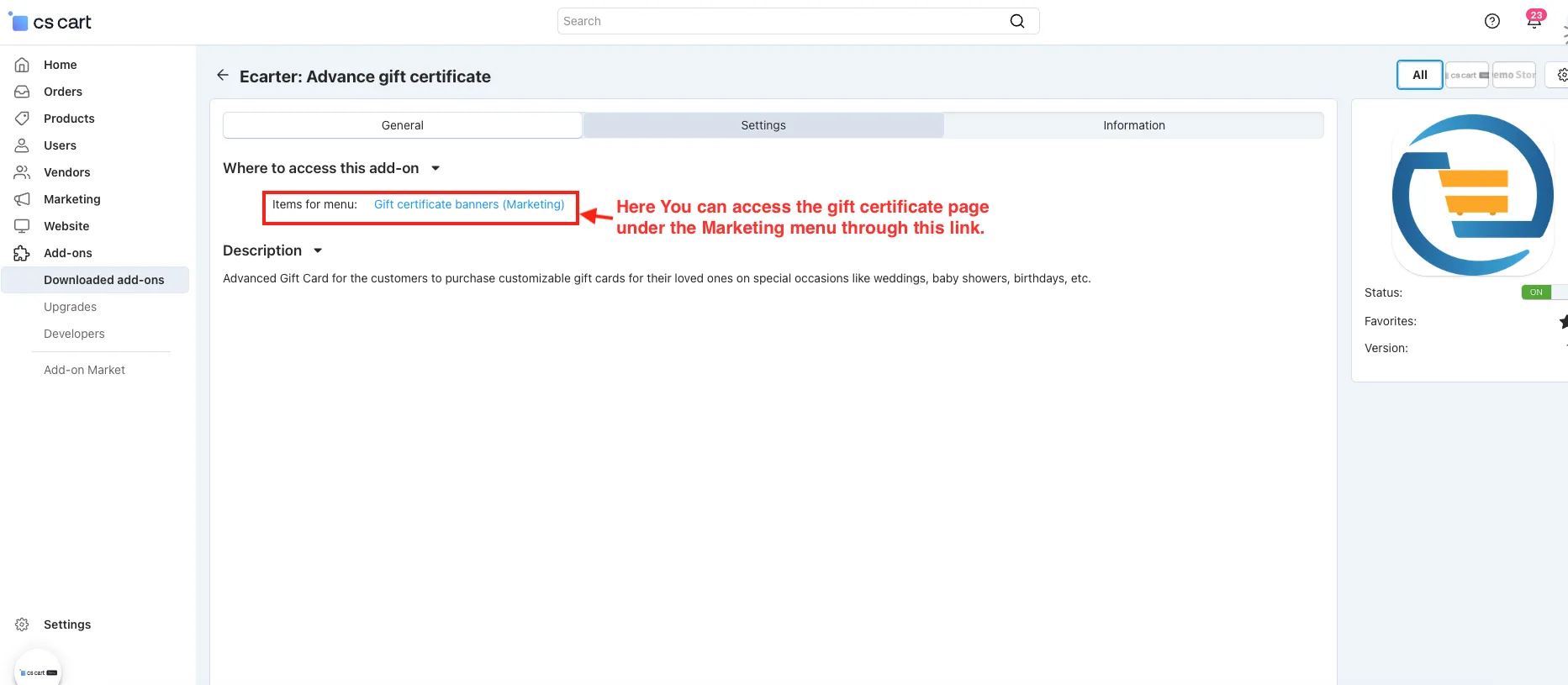
Step 1: Access Gift Certificate Page
- In the General tab.
- Items for menu: You can access the gift certificate page under the Marketing menu.
Step 2: Admin Settings Configure
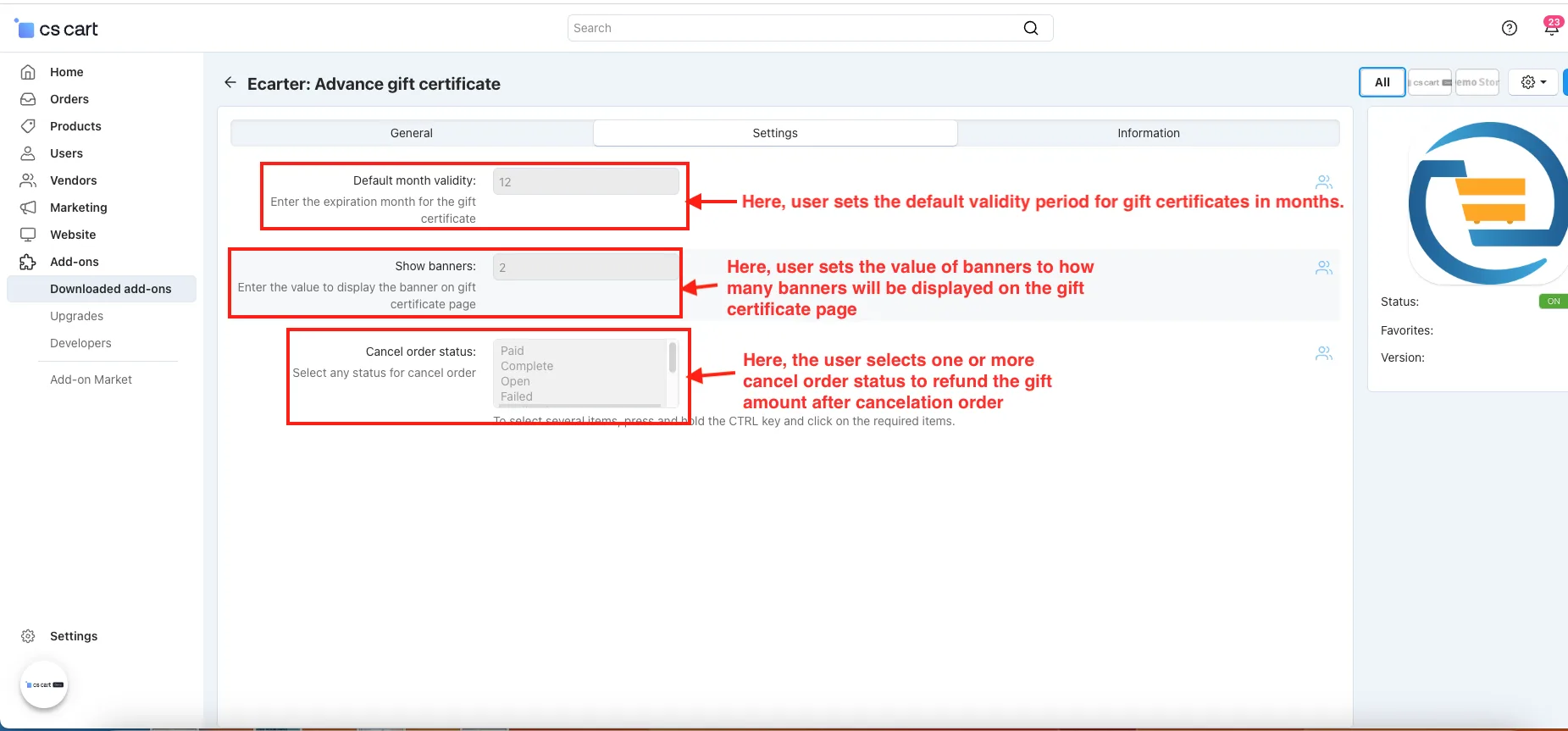
As an admin, you can configure the add-on to control how gift certificates work in your store. Follow the steps below to access and adjust the settings:
- Switch on the settings tab.
- Default month validity: The user set the default month validity to how long a gift certificate will be valid.
- Show banners: user sets the value of banners to how many banners will be displayed on the gift certificate page.
- Cancel Order Status: Here, the user selects one or more cancel order statuses to refund the gift amount after the canceled order.
Step 3: Create the Banners in Admin Panel
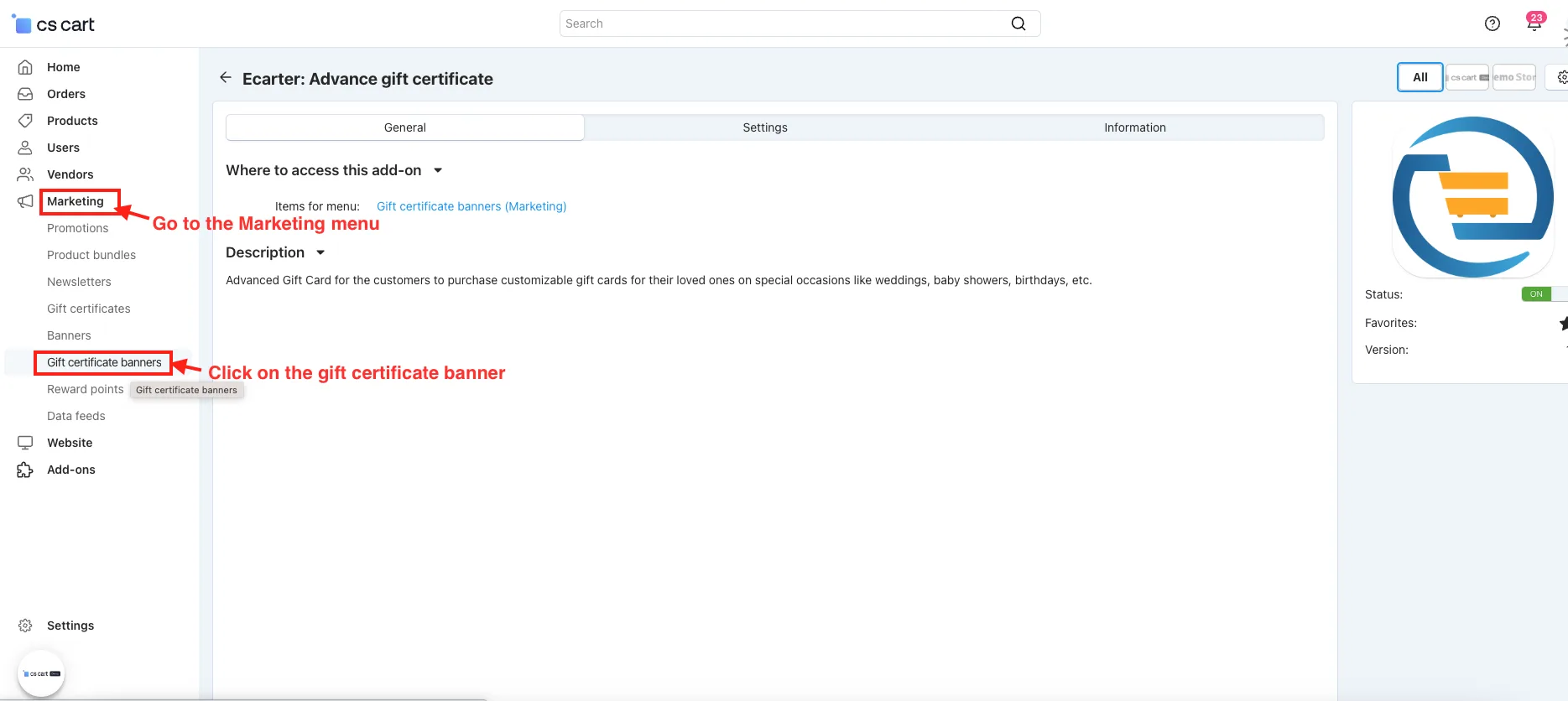
The admin can easily add attractive banners to promote gift certificates and enhance the shopping experience using this add-on. Follow these steps to create new banners:
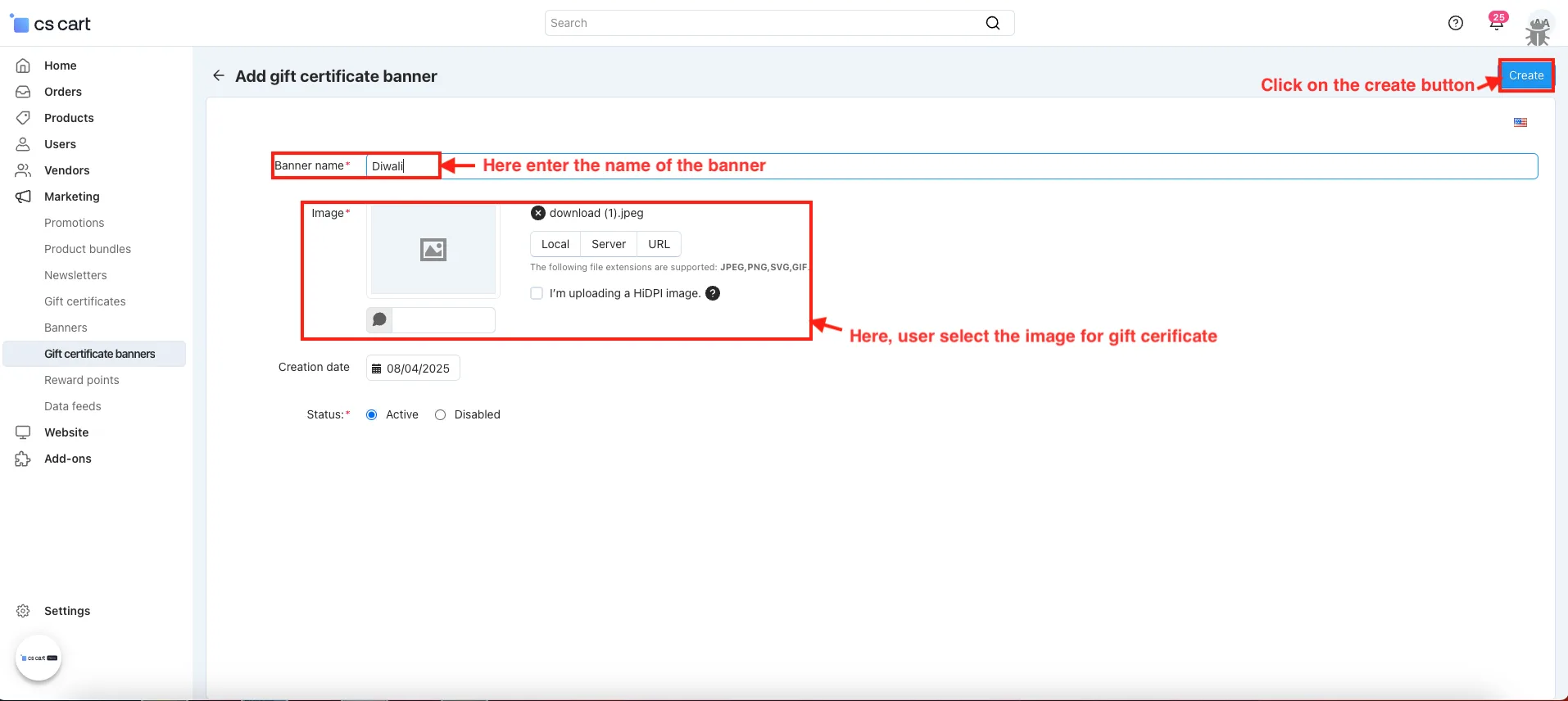
- Go to Marketing >> Gift certificate banners.
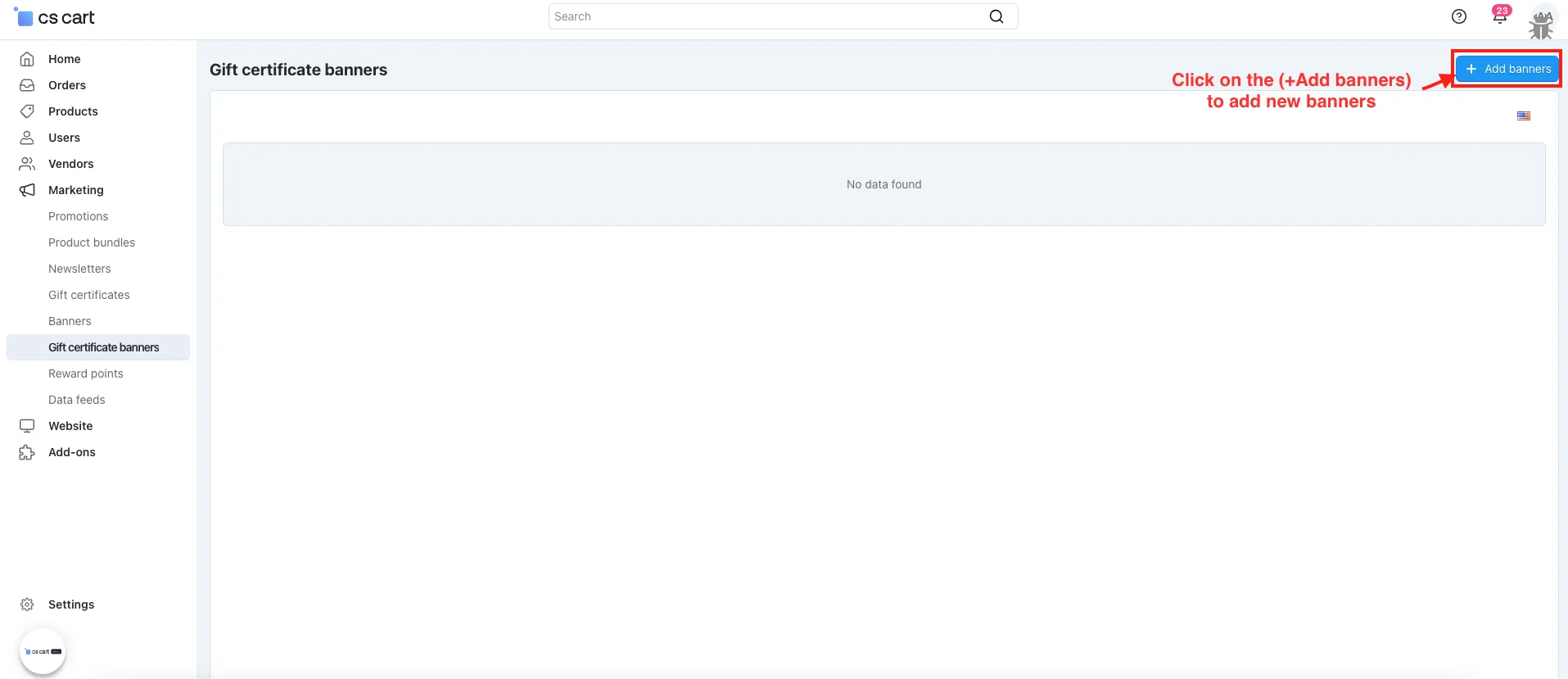
- In the gift certificate banners page.
- Press the (+ Add Banners) button.
- Open the Add gift certificate page will be open.
- Banner name: Enter the name of the banner.
- Image: Select the image for the gift certificate.
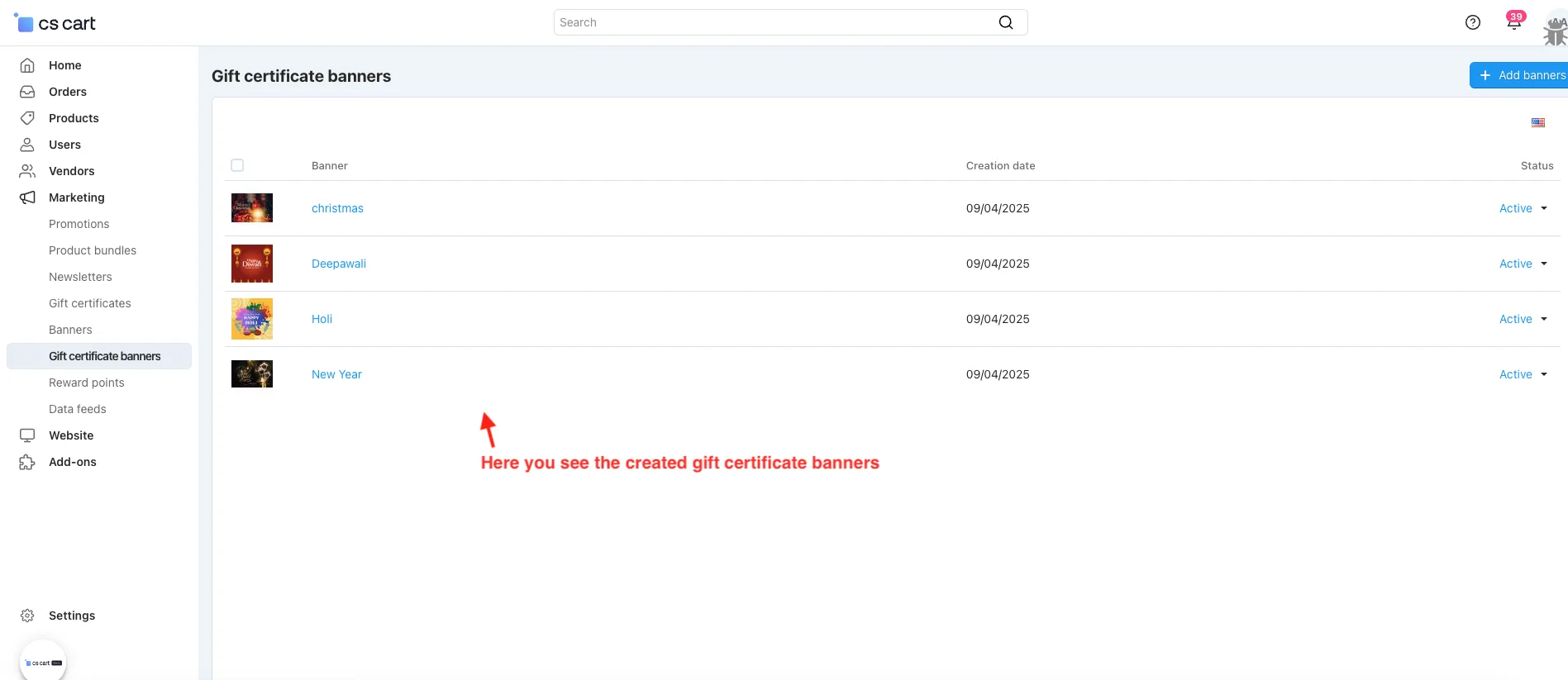
- See the created banners of gift certificates
In Storefront
Step 4: Purchase Gift Card in store by customer
This add-on provides customers with the extra features to add banners for their gift certificate, and they can also view the validity of the gift certificate as set by the admin. Here's how it works:
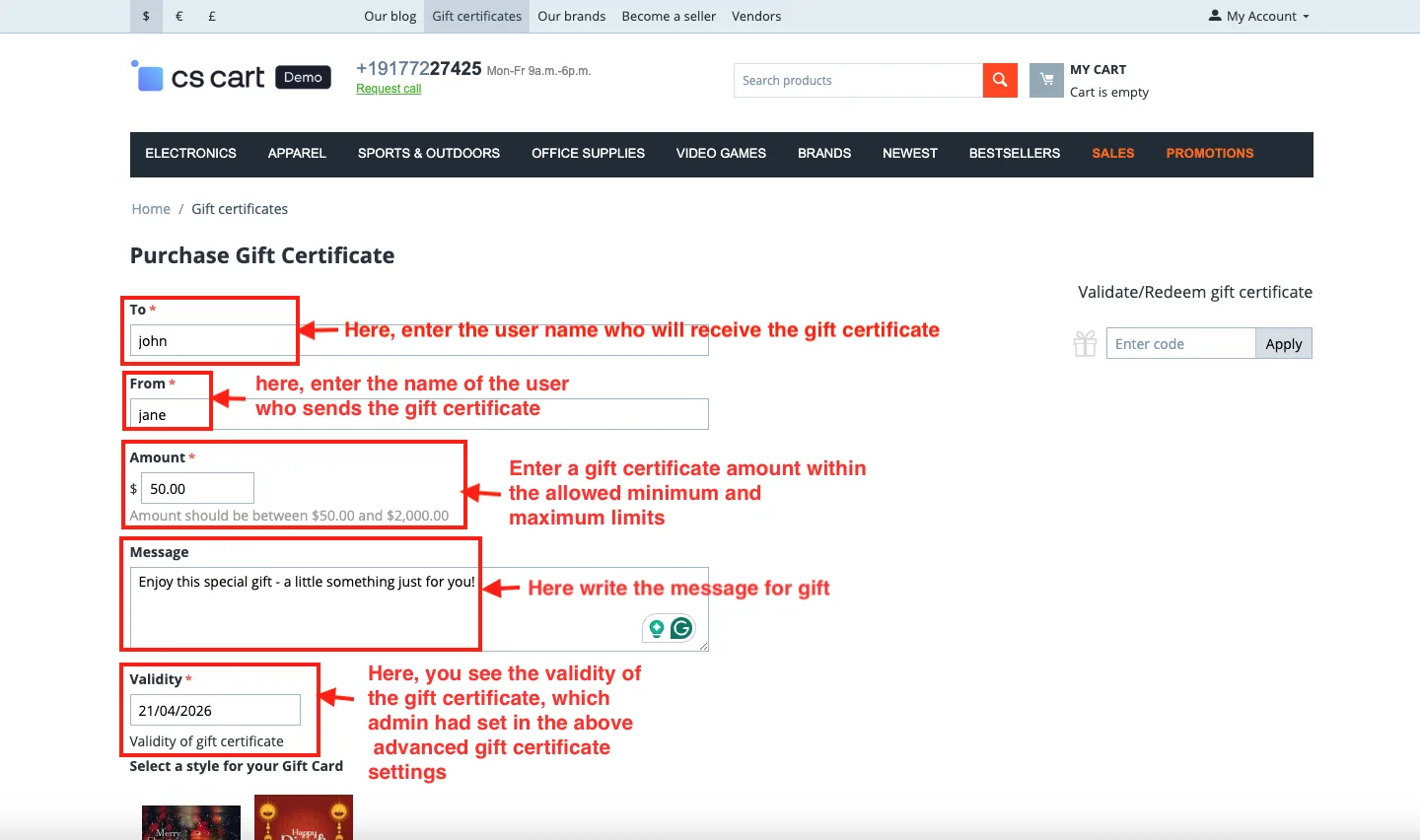
- Open the gift certificate page.
- To: Enter the user's name who will get the gift certificate.
- From: Enter the name of the user who sends the gift certificate.
- Amount: Enter the gift certificate amount between the minimum and maximum amounts.
- Message: Enter the message.
- Validity: Here, you see the validity of the gift certificate, which admin had set in the above advanced gift certificate settings.
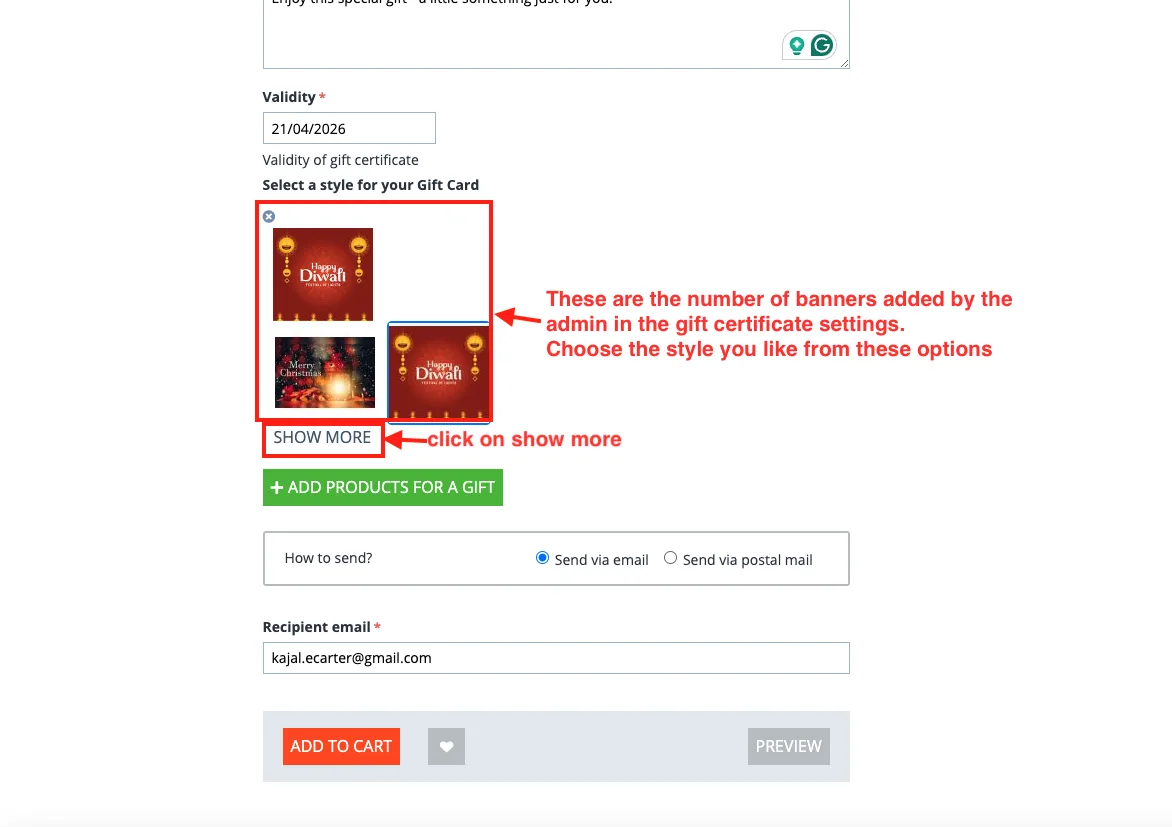
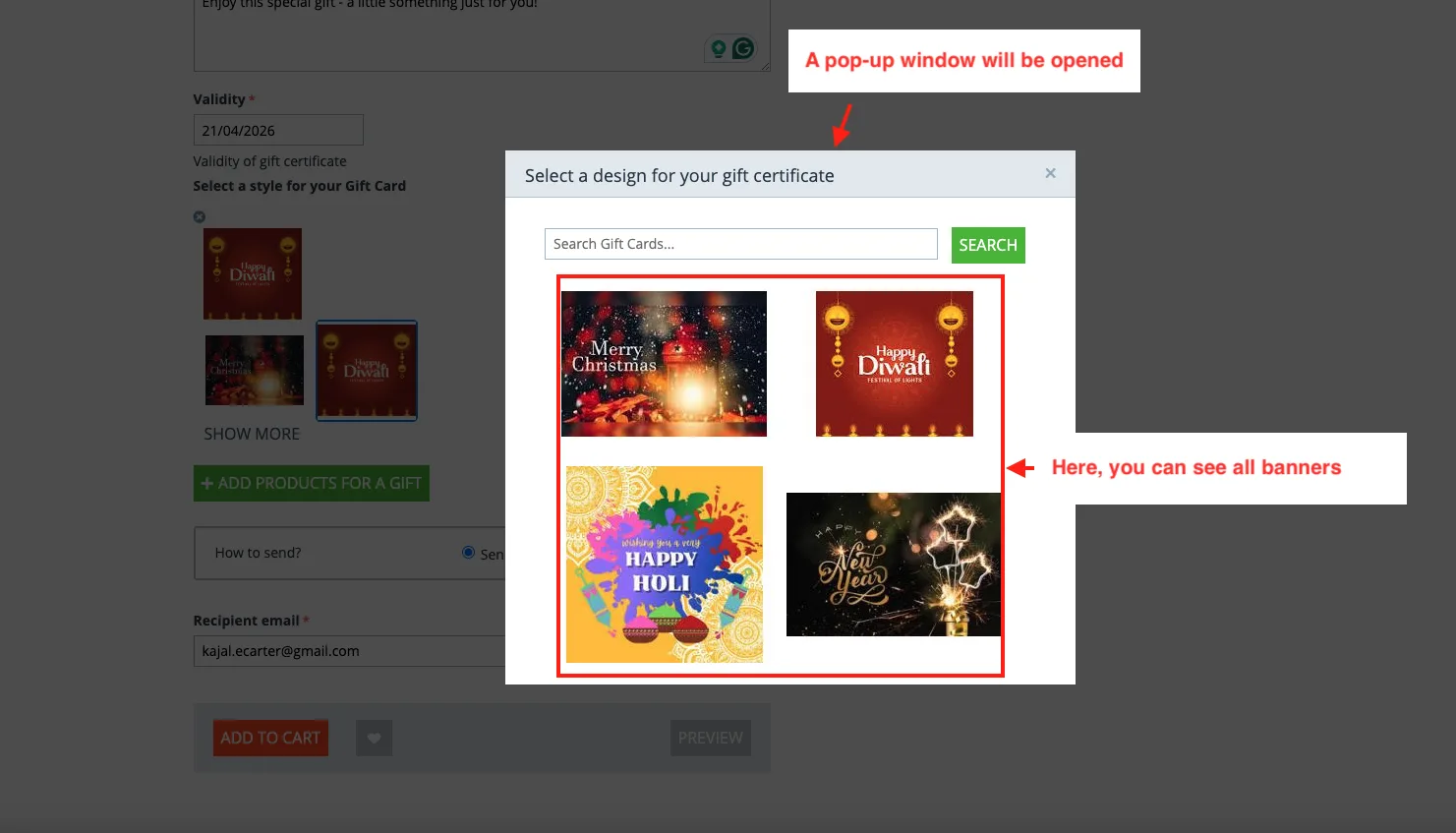
- Style for your gift card: These are the number of banners that the admin has added in advance gift certificate settings. Here, select these styles according to your choice.
- Click on the Show More button.
- A pop-up window will be opened.
- Here, you can see all the banners.
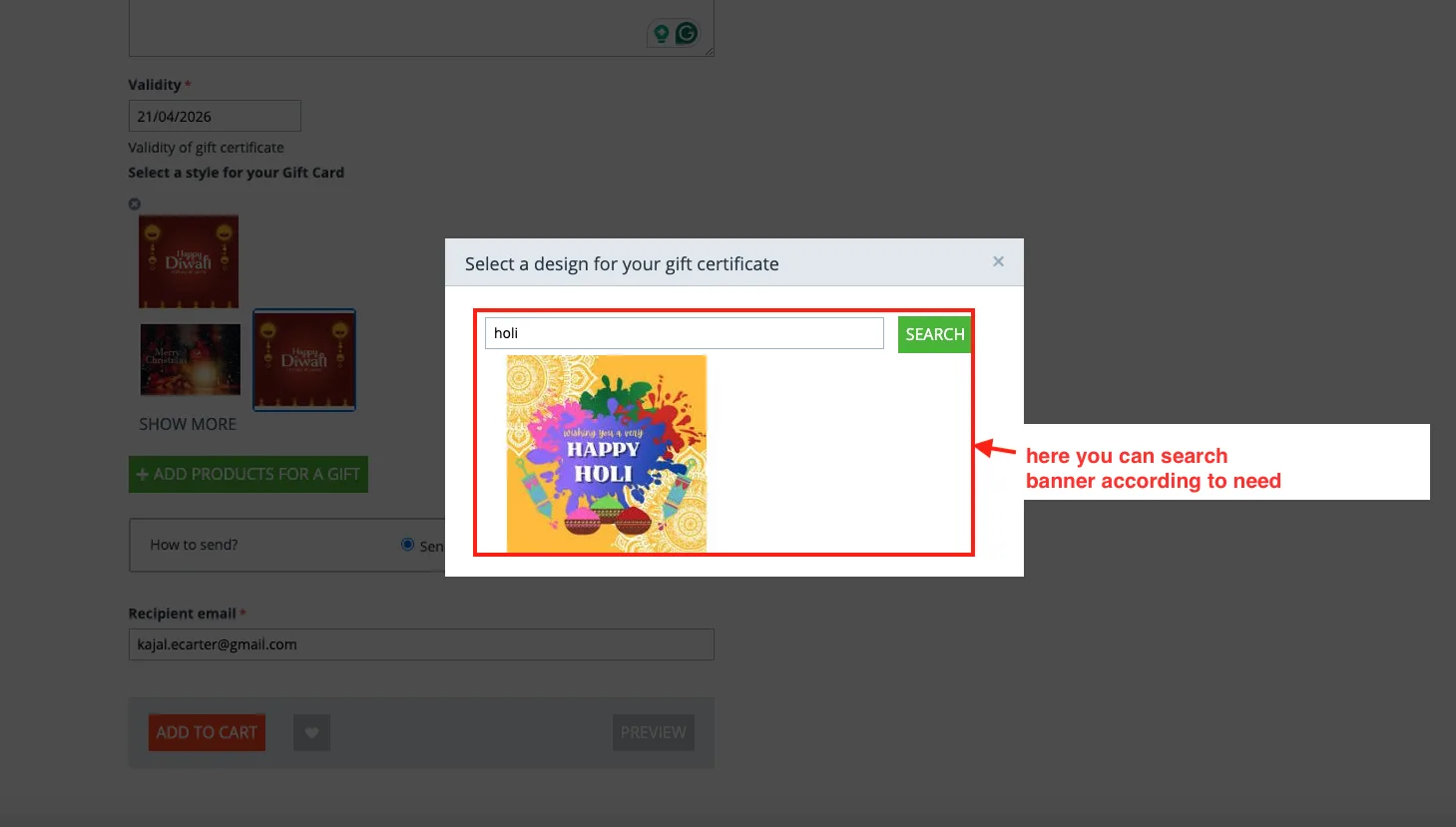
- Also, search banner according to need.
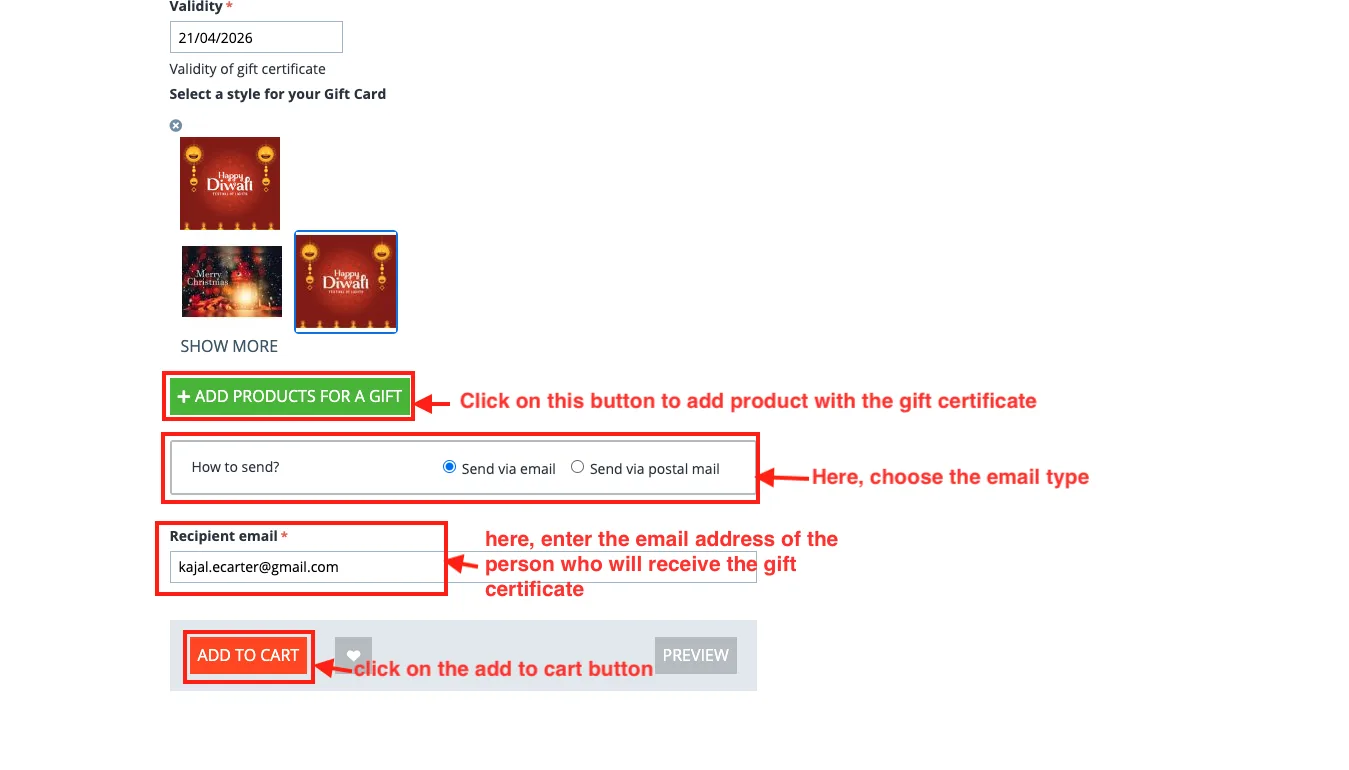
- Click on the ADD PRODUCT FOR A GIFT to add free products with the gift.
- How to send: Choose the mail type.
- Recipient email: Enter the email address of the person who will receive the gift certificate.
- Press the Add to Cart button.
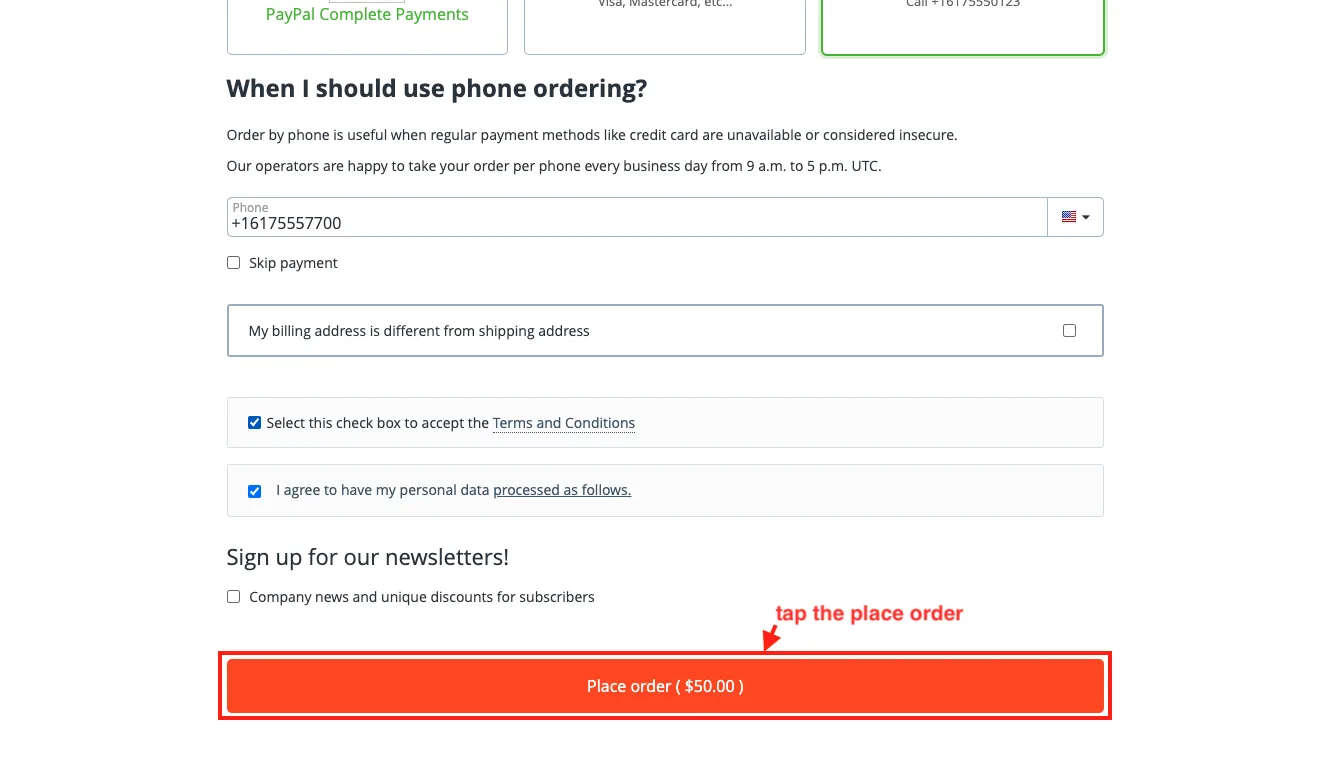
- Tap the place order.
Change the Gift Card status in the Admin Panel
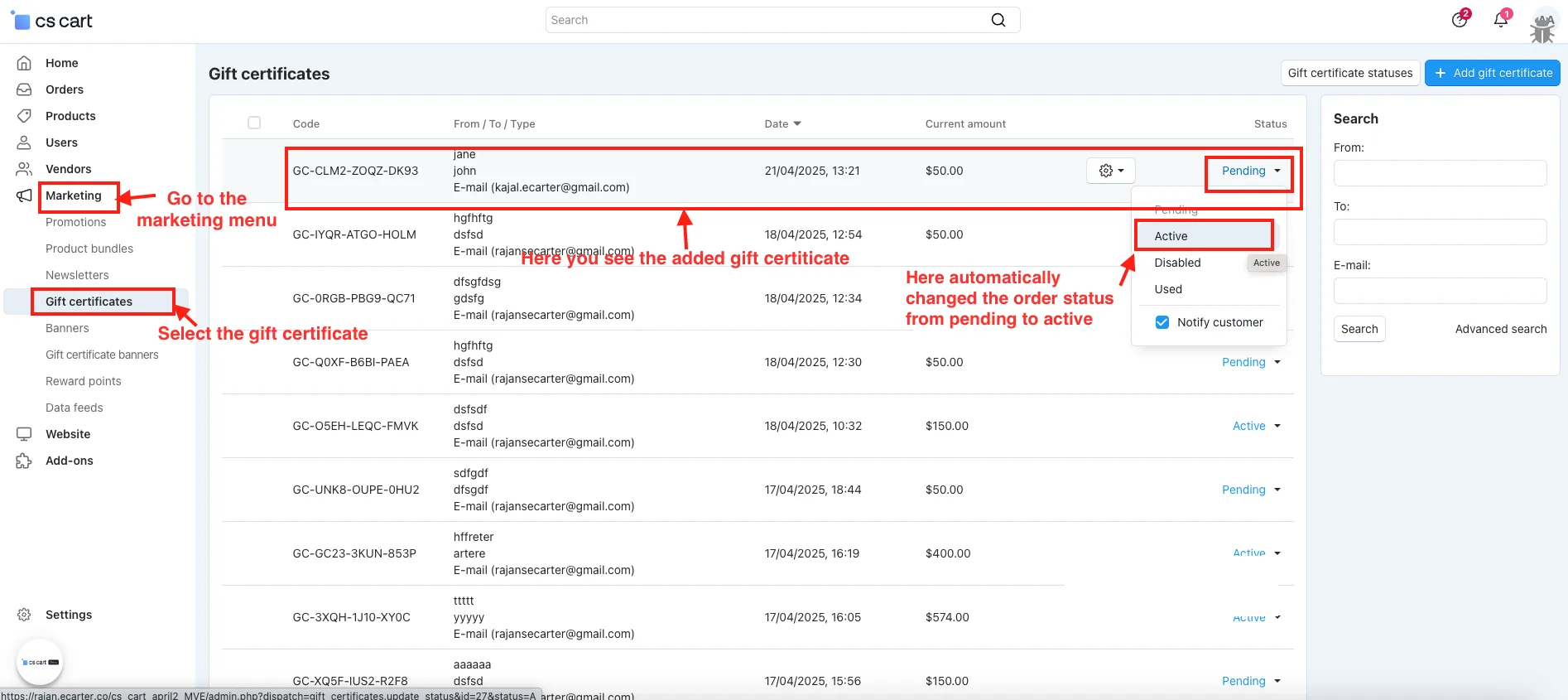
- Go to Marketing >> Gift Certificate.
- Then the added gift certificate was added through the customer in the admin panel, where the admin changed the status from pending to active.
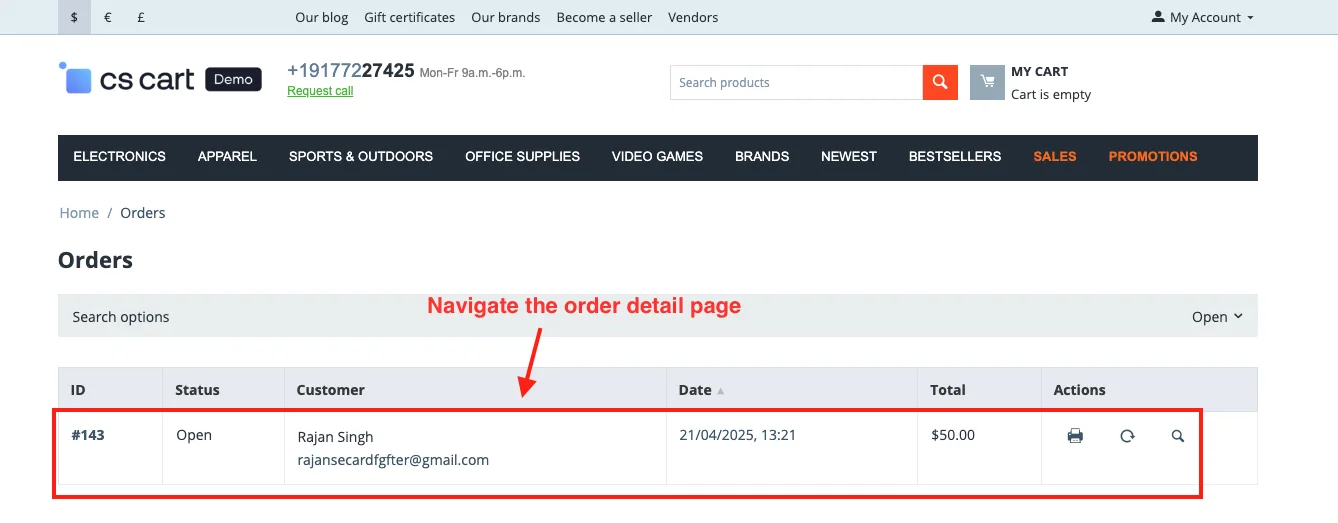
Visit the Order Detail page after placing the order
- Navigate to the order detail page.
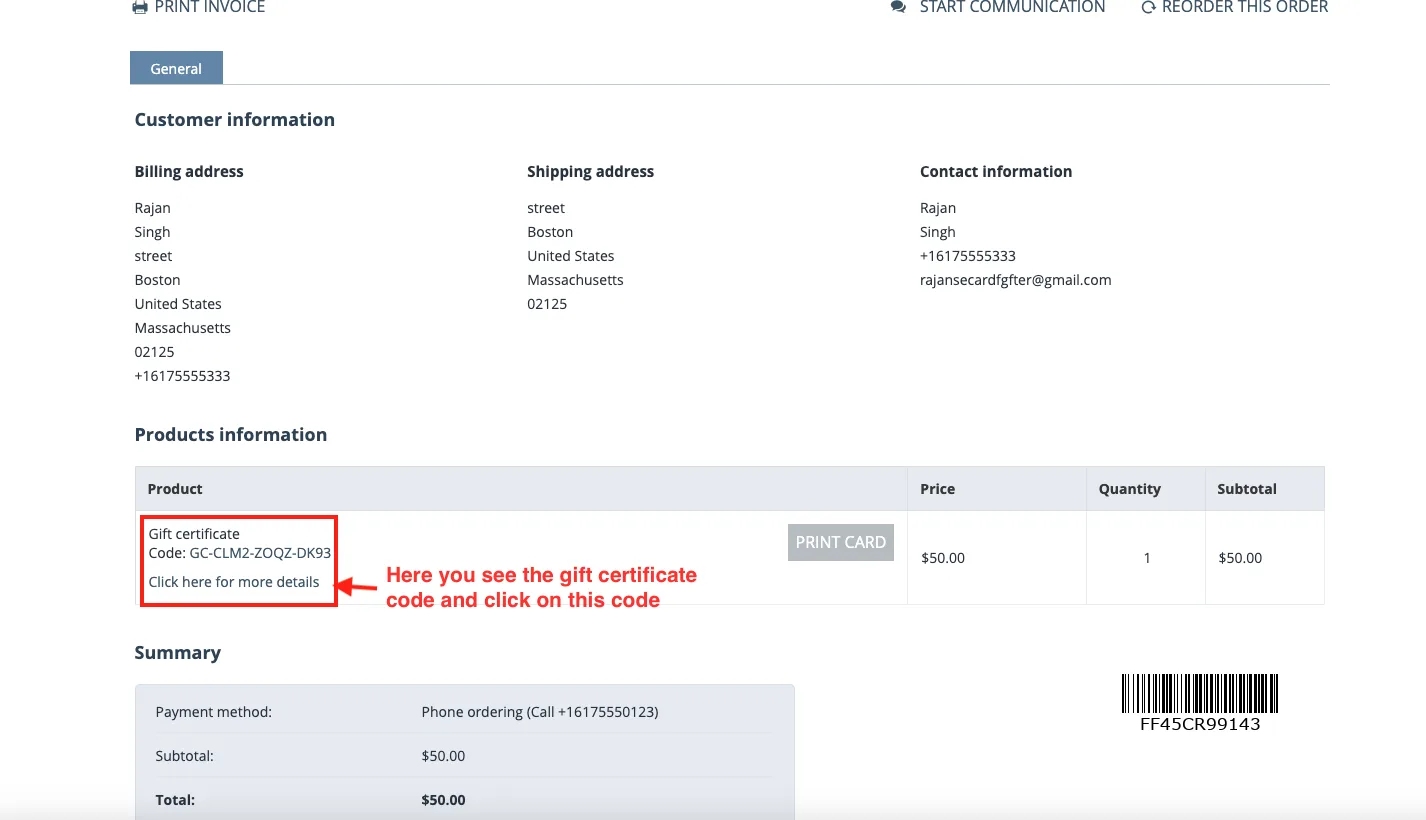
- You see the gift certificate code in the product information; tap this code.
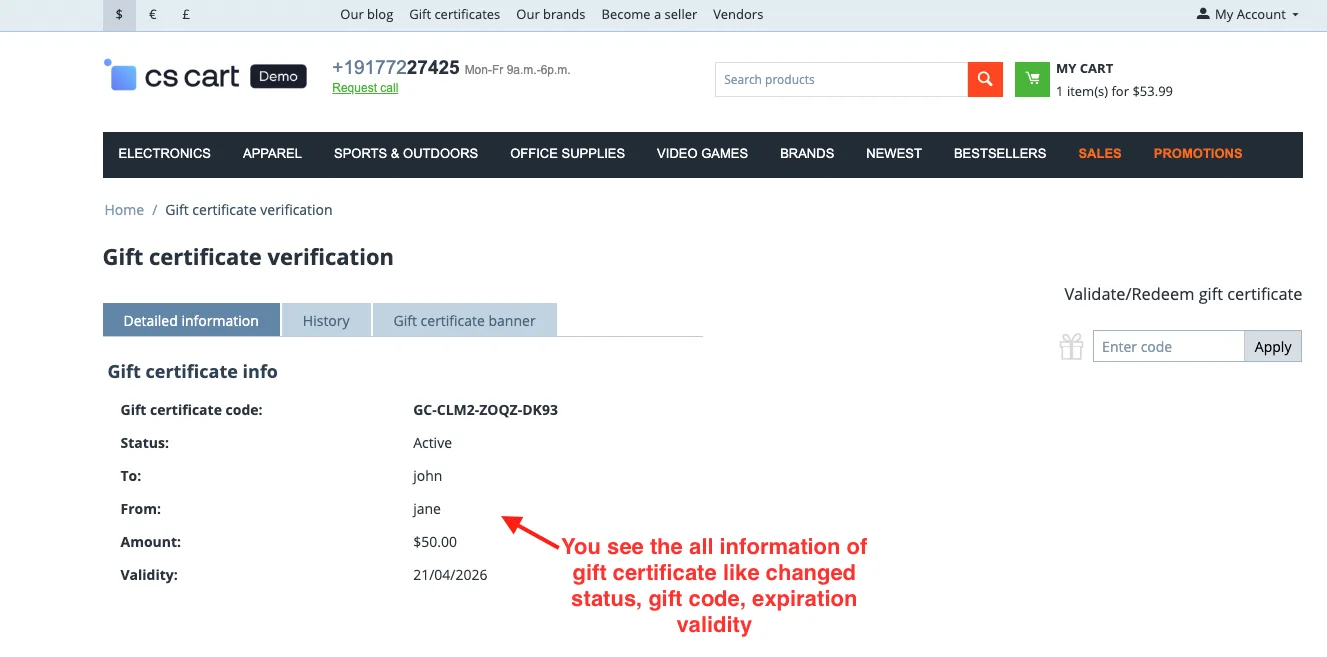
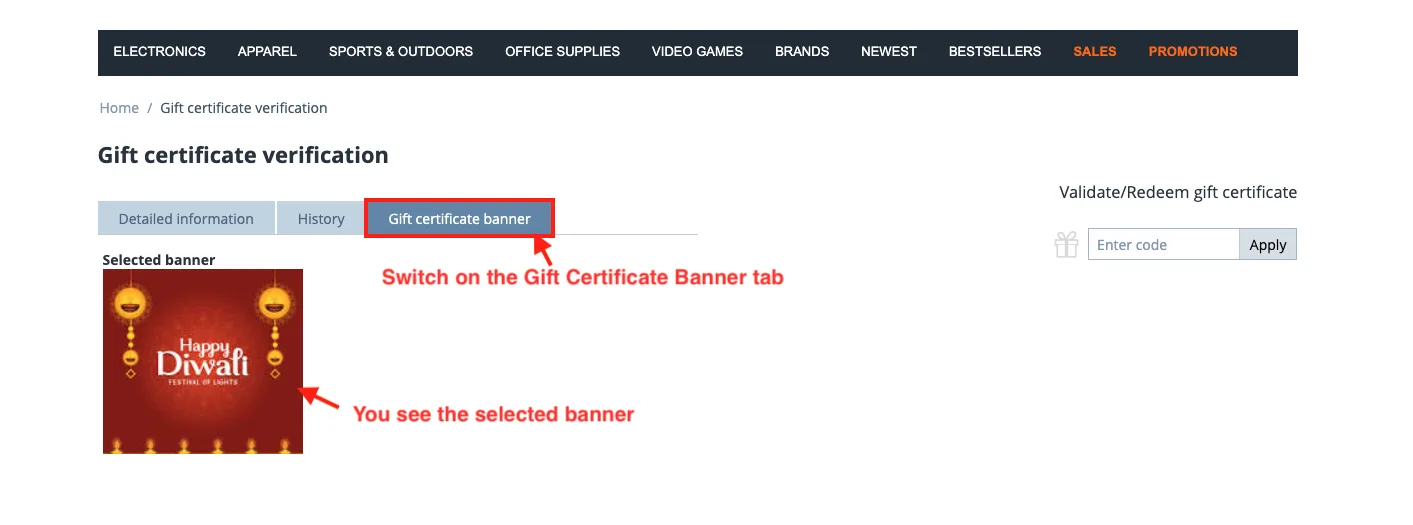
- Open the gift certificate verification page.
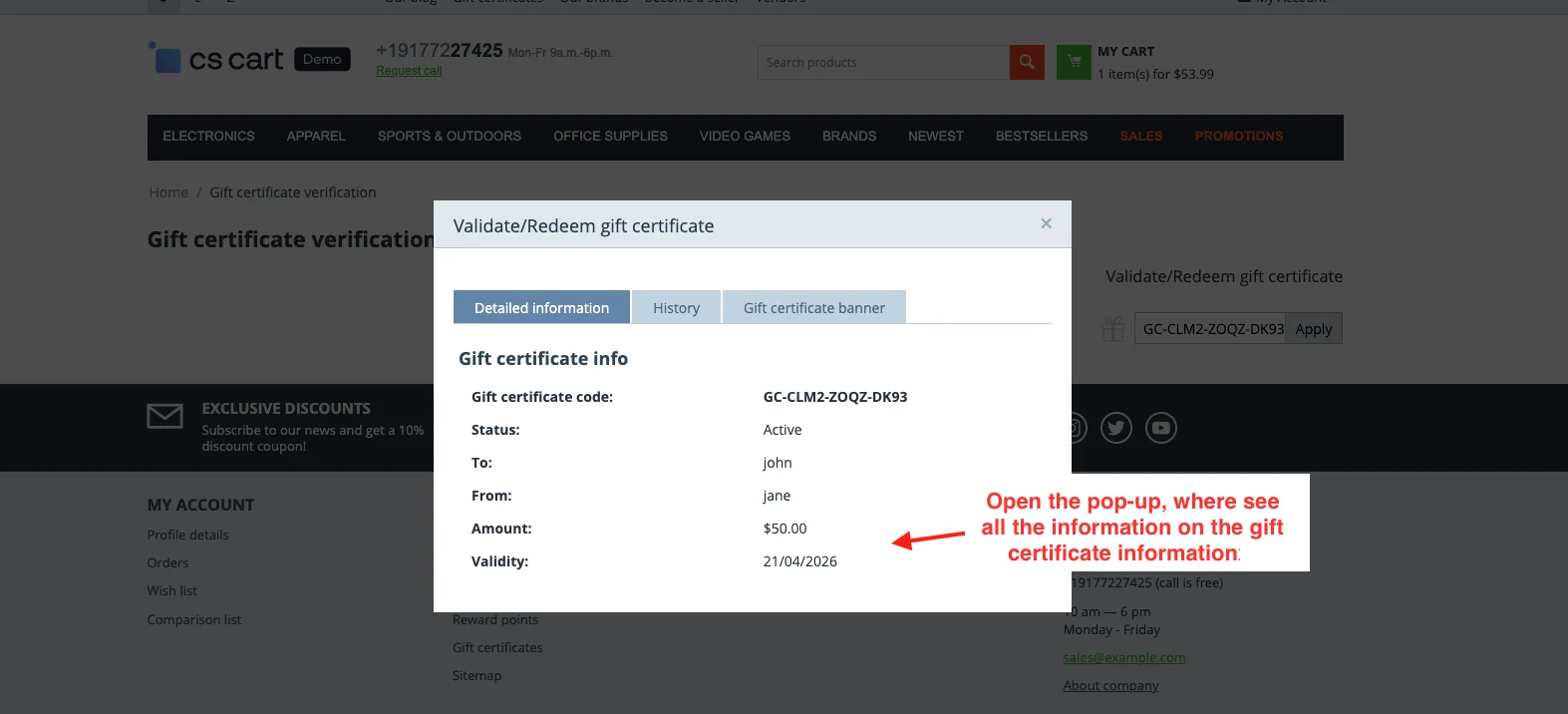
- You will see all gift certificate information, such as changed status and expiration validity.
- Switch on the Gift Certificate Banner tab.
- You see the selected banner on the gift card.
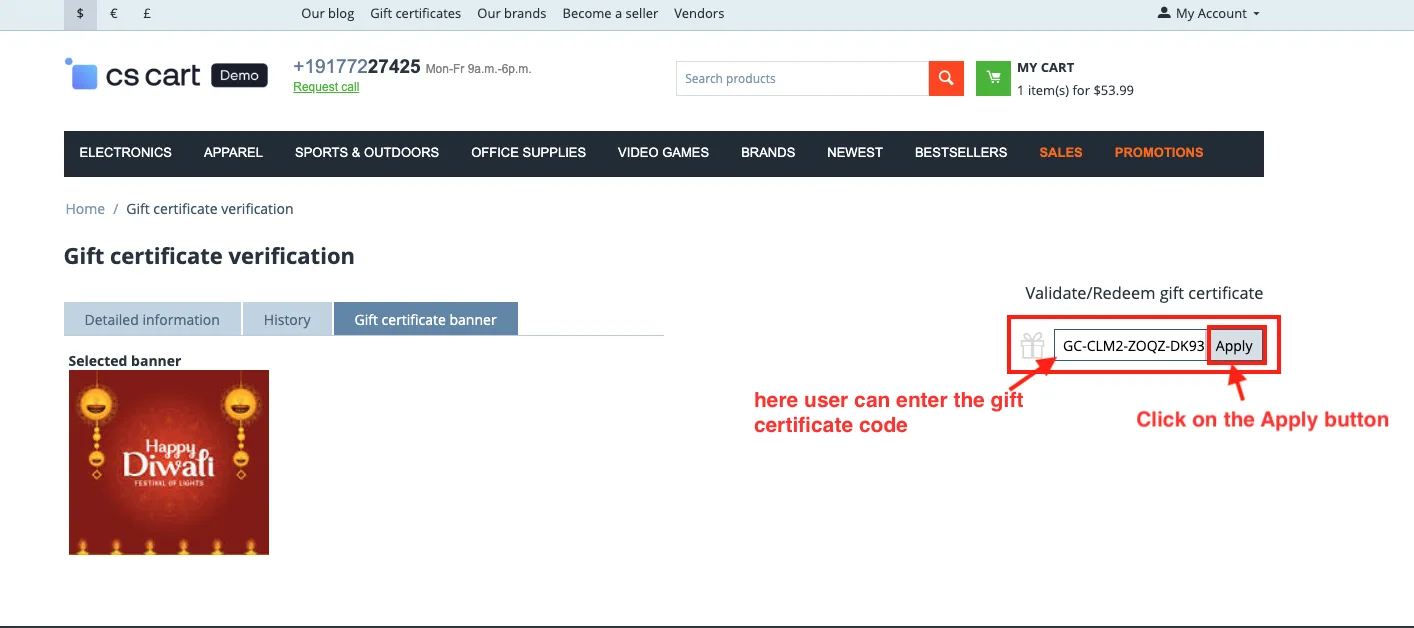
- Enter the gift certificate code in Validate Gift Certificate, and click on the Apply button.
- Open the pop-up, where see all the information on the gift certificate information.
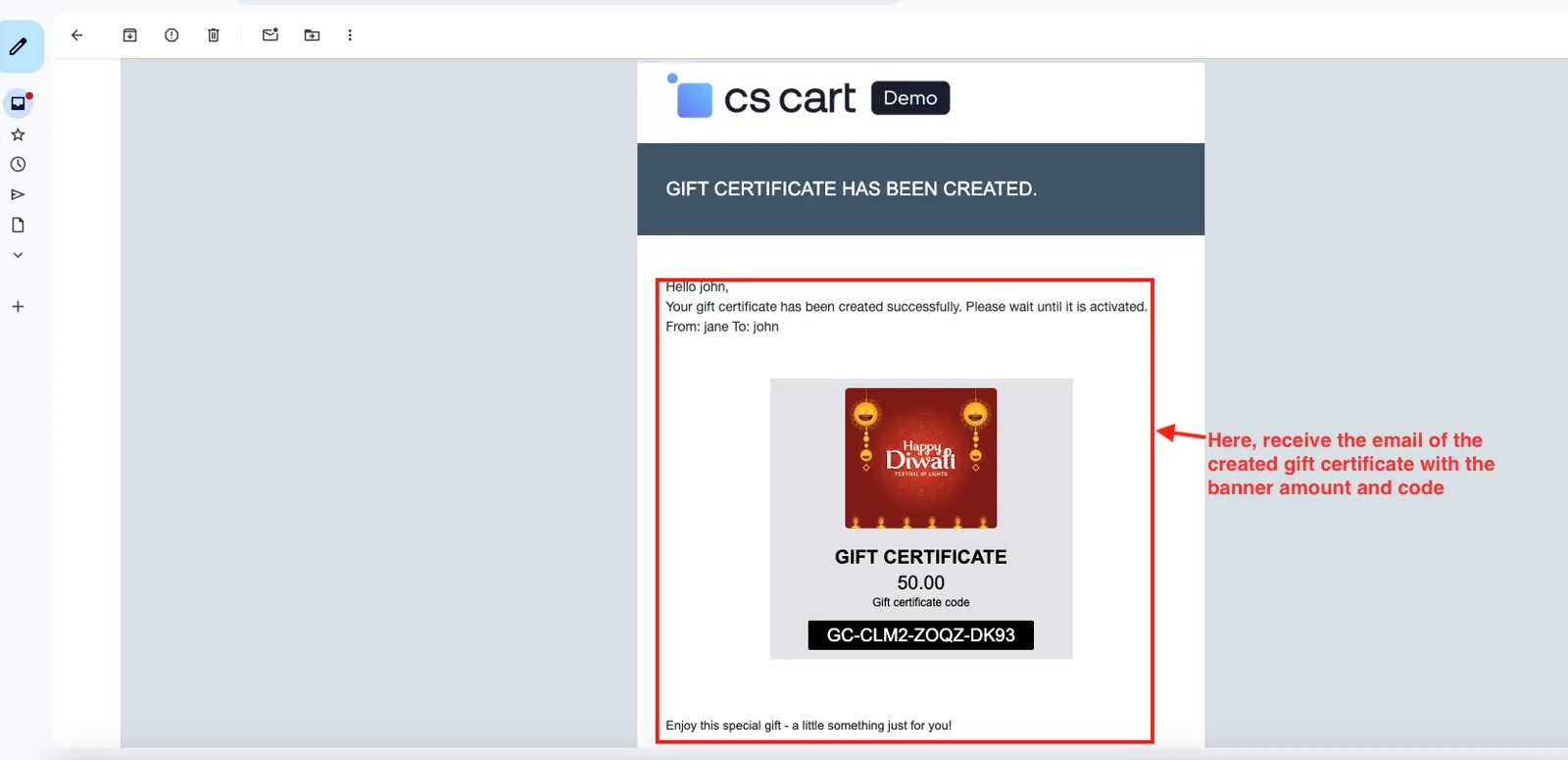
- Here, receive the email of the created gift certificate with the banner amount and code.
Step 5: Use of Gift Certificate
Customers can use the gift certificate code at checkout on their order. Just enter the code in the “Gift Certificate” field.
- Add Product to Cart:
First, add the products you want to buy to your cart.
- Go to Cart or Checkout Page:
Once you are ready to place an order, go to the checkout page.
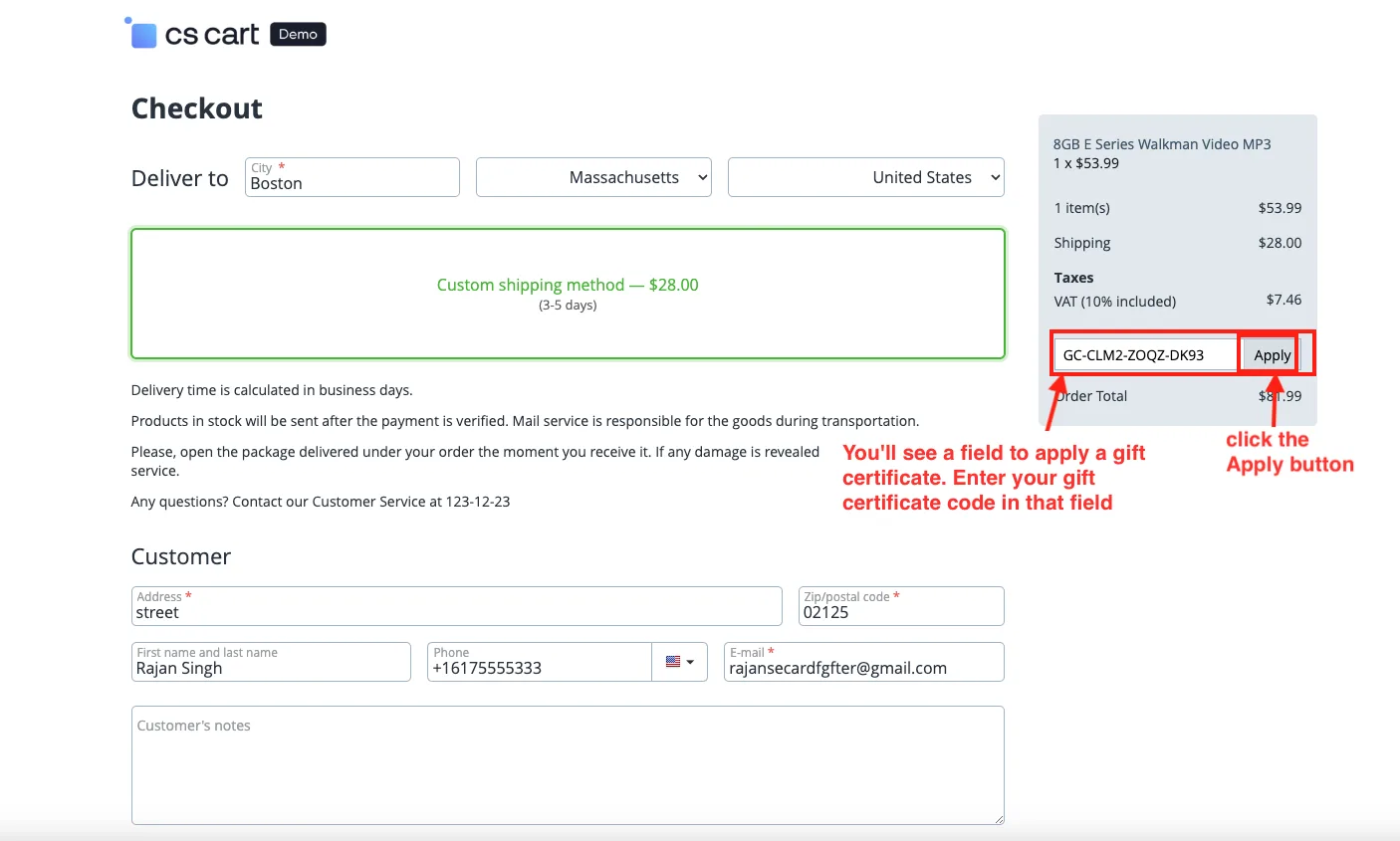
- Enter Gift Certificate Code:
You’ll see a field to apply a gift certificate. Enter your gift certificate code in that field.
- Click Apply:
After entering the code, click the Apply button. The gift amount will be automatically deducted from your total order amount.
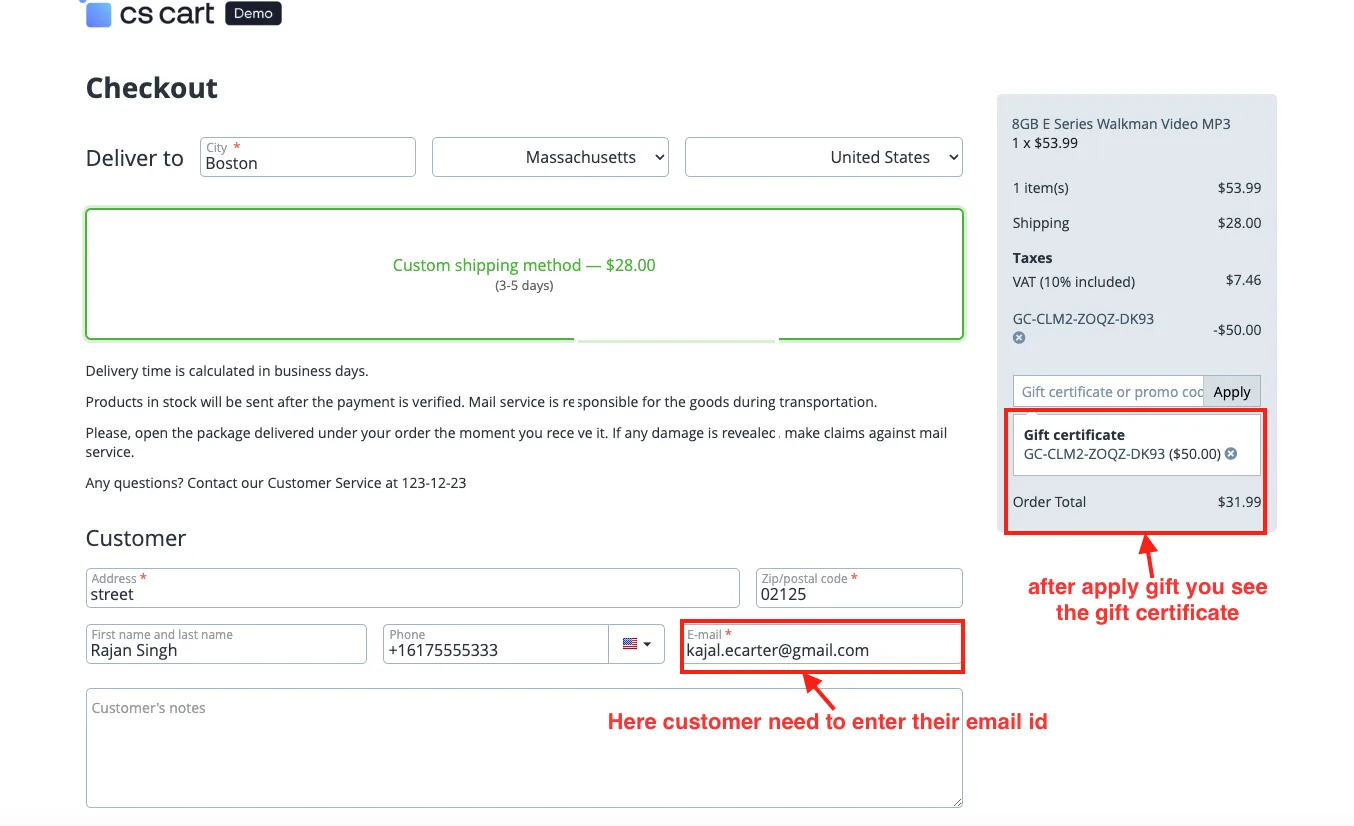
- Here customer needs to enter their email ID, and you see the gift certificate after applying.
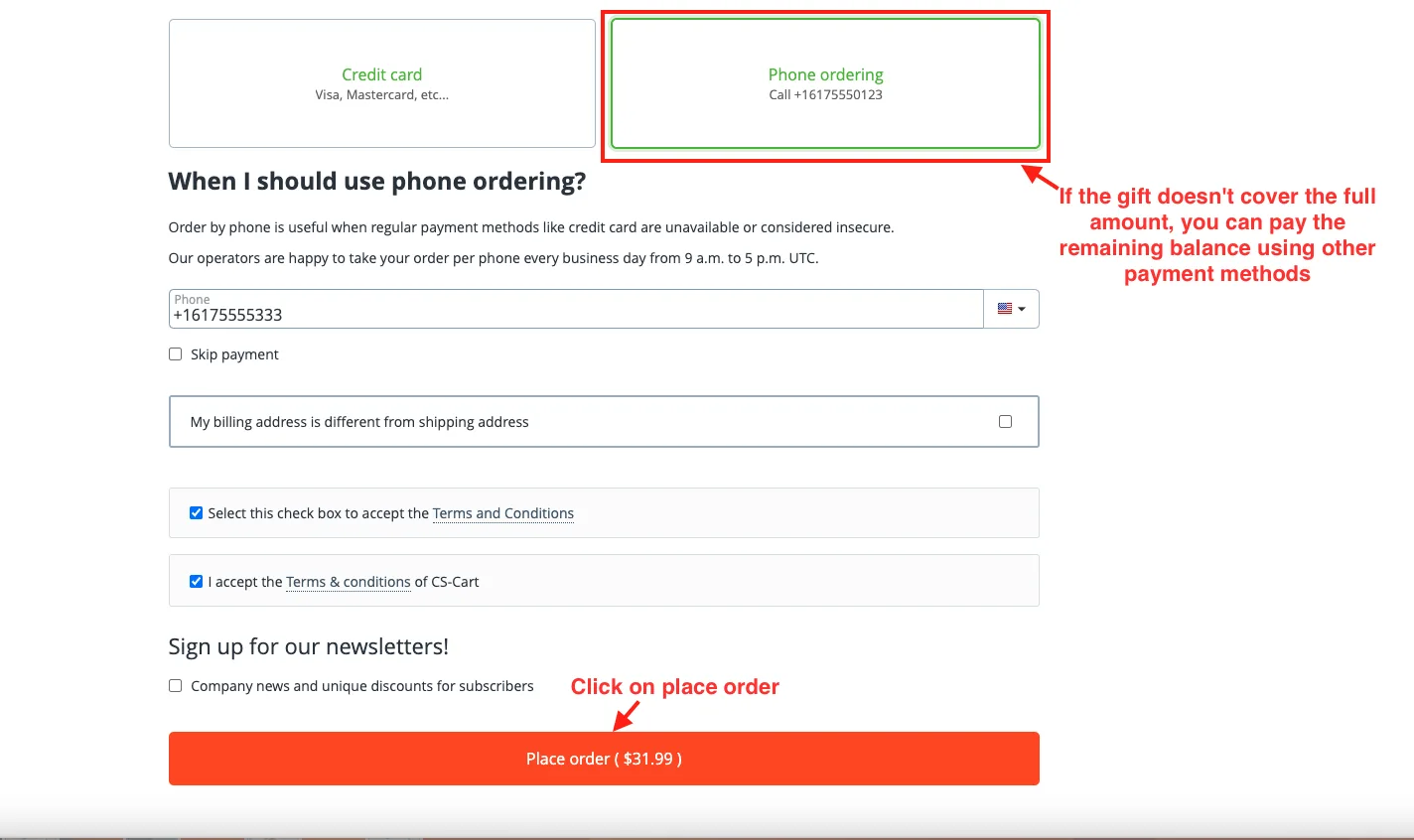
- Complete the order:
If the gift doesn’t cover the full amount, you can pay the remaining balance using other payment methods. Then, place your order.
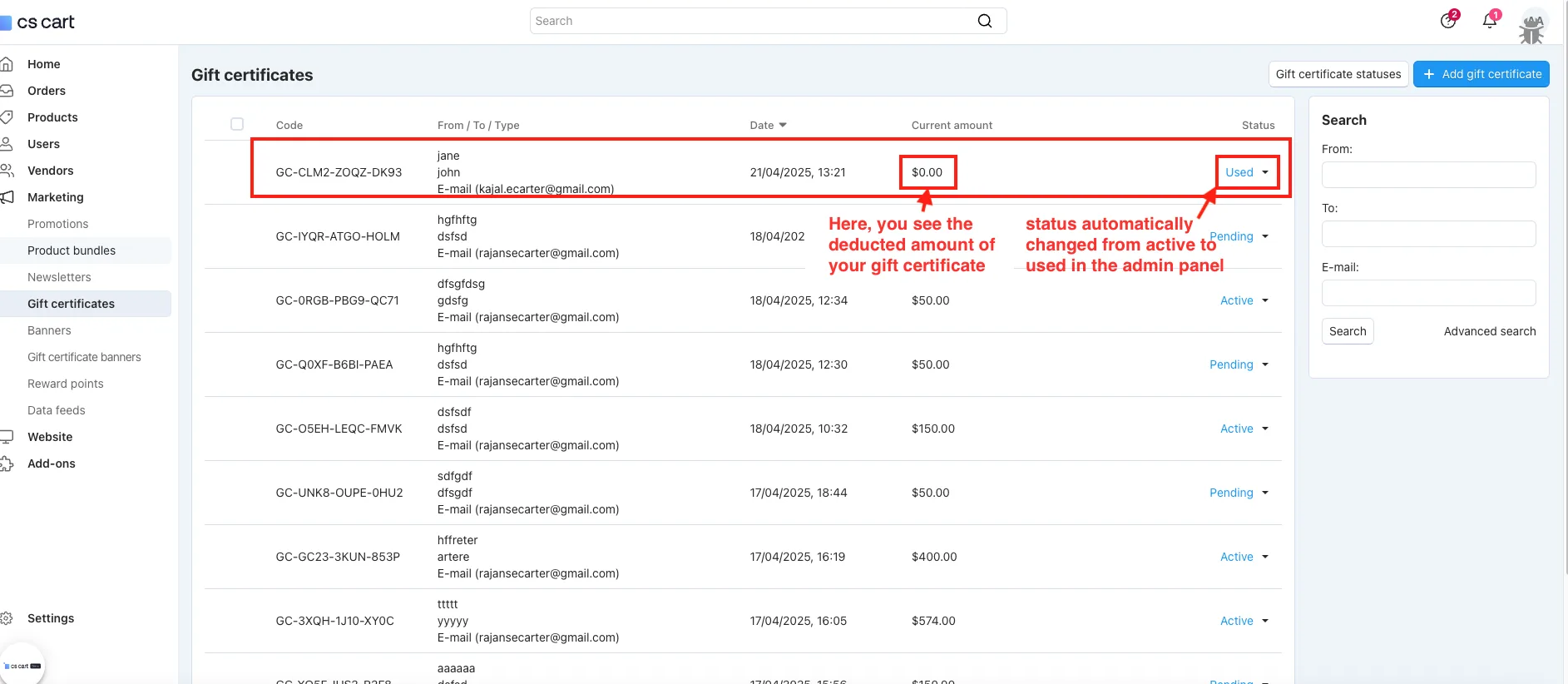
- Here, you see the deducted amount of your gift certificate, and the status automatically changed from active to used in the admin panel.
- Open the gift certificate and see the amount and the debit amount.
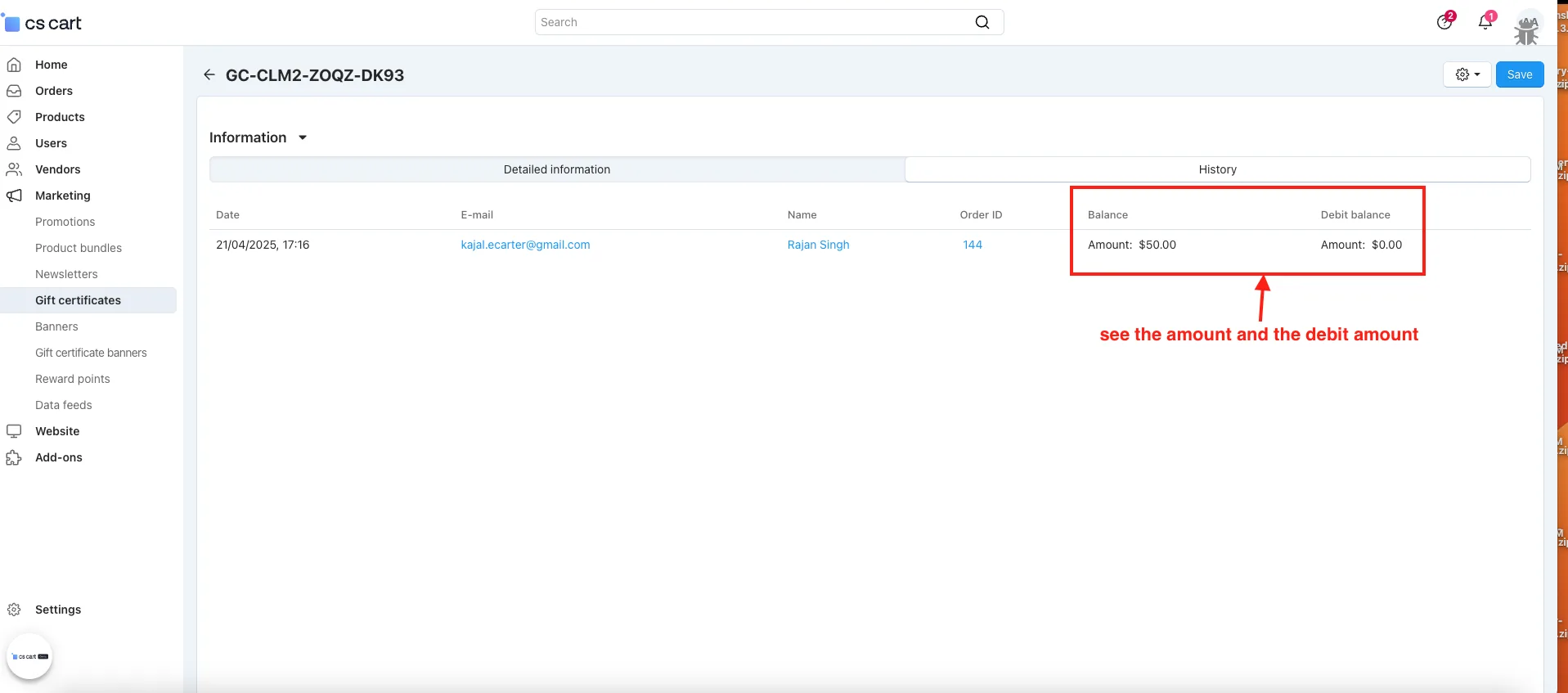
Step 6: Refund the Gift Certificate Amount
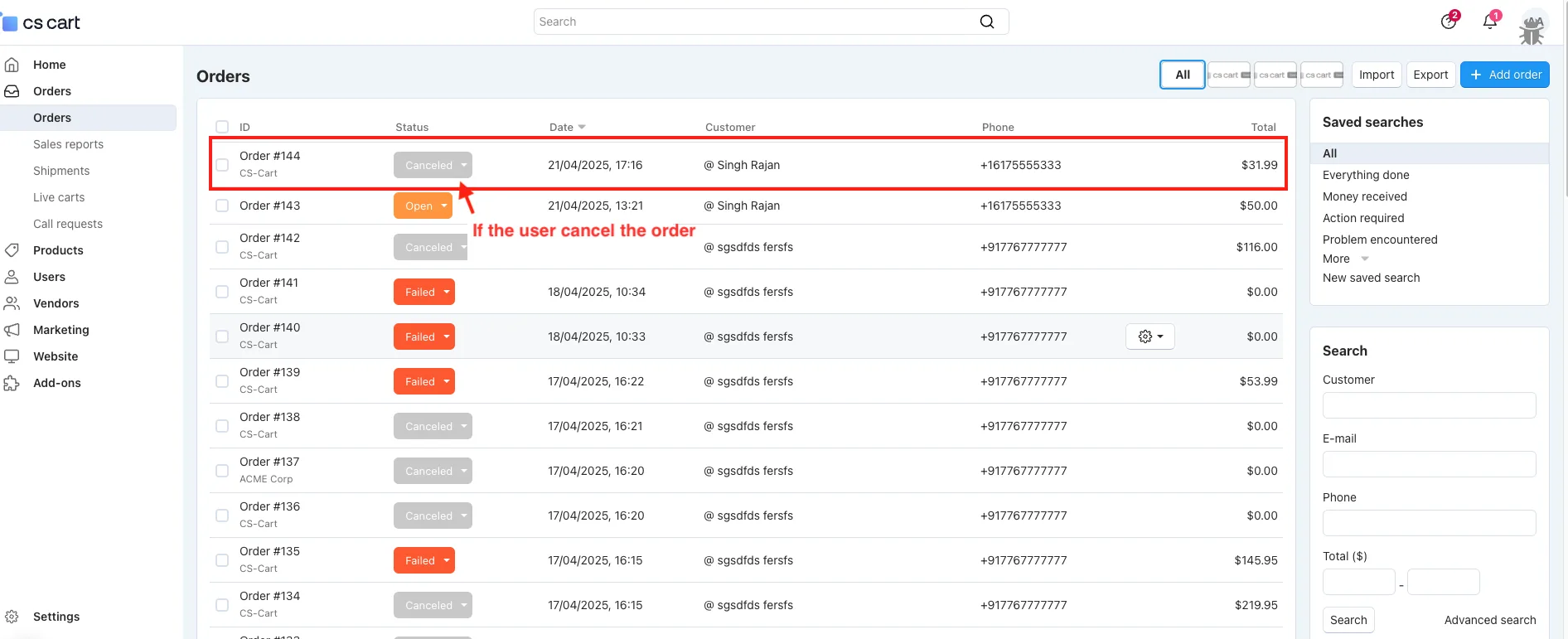
Quickly refund the customer’s amount after they cancel the order. Just follow the simple steps below
- If the user cancel the order.
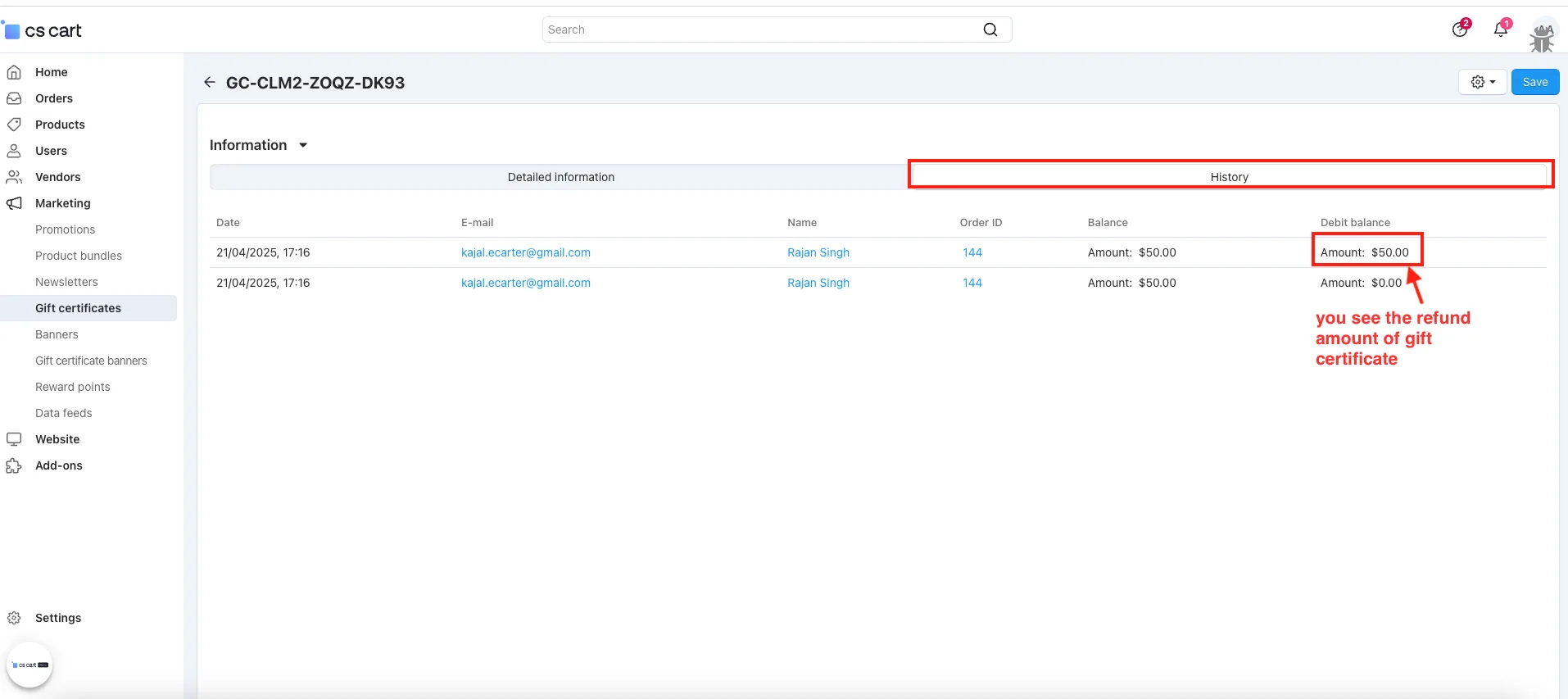
- Switch to the History tab.
- Then you see the refund amount of gift certificate.
Final thought:
CS-Cart Gift Certificate addon didn’t allow adding banners, setting validity periods, or offering refunds on canceled orders. But with the Advanced Gift Certificate addon, you can now do all of this easily.
Addon-Version:
Version-1.0
Supported Versions:
CS-Cart, CS-Cart Multivendor 4.8.x, 4.9.x,4.10x,4.11x,4.12,4.13x, 4.14x, 4.15x, 4.16x, 4.17x, 4.18x
Support:
This app is developed and published by Ecarter Technologies Pvt. Ltd., a CS-Cart developer. You are guaranteed quality add-ons.
Frequently asked questions
Does the Advance Gift Certificate add-on require the built-in CS-Cart Gift Certificate add-on?
Yes. It extends the native gift certificate feature, so you must activate the standard CS-Cart Gift Certificate add-on before installing this one.
Can admins control how long a gift certificate stays valid?
Yes. From the add-on settings, the admin can set the default number of months a gift certificate remains valid.
How do the gift certificate banners work?
The admin can add and manage multiple banner designs on the gift certificate banners page, and customers can then choose their preferred banner design when buying a gift certificate.
Is the add-on compatible with my version of CS-Cart or CS-Cart Multi-Vendor?
It is built for CS-Cart and depends on the platform's native Gift Certificate add-on. For confirmation on a specific CS-Cart or Multi-Vendor version, share your version and we will verify compatibility.
Kajal is a Technical Content Writer at Ecarter Technologies. She writes technical documentation and in-depth guides on eCommerce platforms, mobile commerce and AI in online retail.