
Advanced Product Tag With Filter
This addon allows the admin to restrict how many tags a product can have. It also allows creating a tag filter to help customers find products easily.

This addon allows the admin to restrict how many tags a product can have. It also allows creating a tag filter to help customers find products easily. Tags can be added to multiple products at once, saving time. While selecting tags, a list of all available tags will appear. The admin can simply choose from the list.
By limiting tag selection and providing a tag-based menu, it keeps the store well-structured. Bulk tag selection saves time, especially for large inventories. The tag filter improves search results, making the shopping experience better.
Features:
- Restrict Tag Selection: Addon allows admin to restrict selection of tags for a product.
- Tag Filter for Customers: Admin can create a tag filter in the backend that customers can use on the storefront.
- Add Tags to Many Products: Apply tags to multiple products at the same time.
- Tag Menu for Easy Search: Admin can make a tag menu to help customers find products faster.
- Support info: The addon is well integrated with CS-Cart Multi-Vendor and can be used with its standard, Plus, and Ultimate Versions.
How to install Addon
https://store.ecarter.co/blogs/how-to-install-addon/
How Addon Works
Addon-Settings:
- Maximum Tag Are Allow: Set a limit on the number of tags a product can have. If set to zero, there will be no restriction.
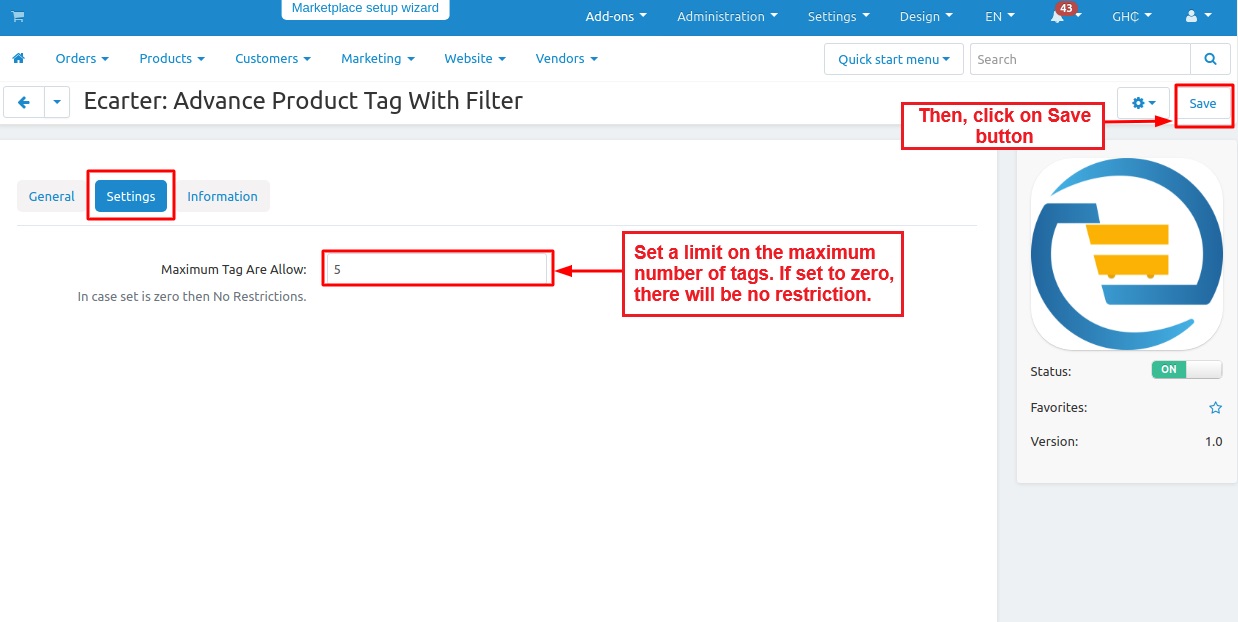
Let's see how to create tags
- Open >> Website Menu
- Click on >> Tags

On the Tags page, you can view the tag list, update statuses, and use the Save button to apply changes.
To add a new tag:
- Click on >> Add Tag.
- A pop-up window will appear.
- Enter the >> Tag Name and click >> Save to create the tag.


How to add tags for multiple products at once:
- Select a few products from the product list and click on "Edit selected".
- Then, enable the "Tag" checkbox and click on >> "Modify Selected" to add a tag on multiple products.


- On this page, the tags field allows to add Tags to particular products.
- If you select more than 5 tags for a product, it will be restricted according to the "Maximum tags allowed" setting.
- Also, you can use "Apply values to all the selected products" to add same tags on all selected products.
- Use "Save" at the end to apply changes.

Add Tags to a Single Product
- Go to the >> Products within products menu. The product list will open.
- Select any product.
- Switch to the >> Tags tab.
- Use the field and add multiple tags from the tags list.

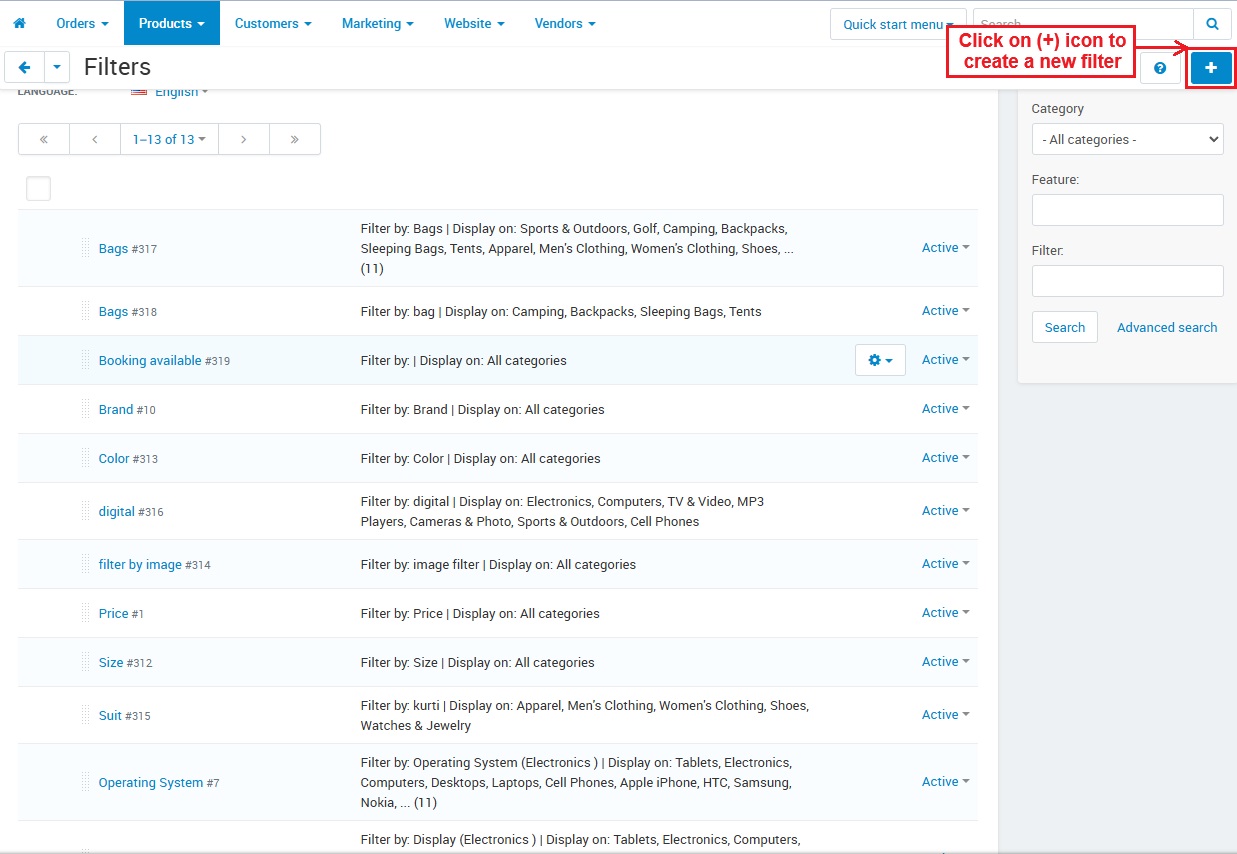
How to make a filter for tags:
- Go to >> Products.
- Click on >> Filters.

- Use (+) icon to create a new filter.
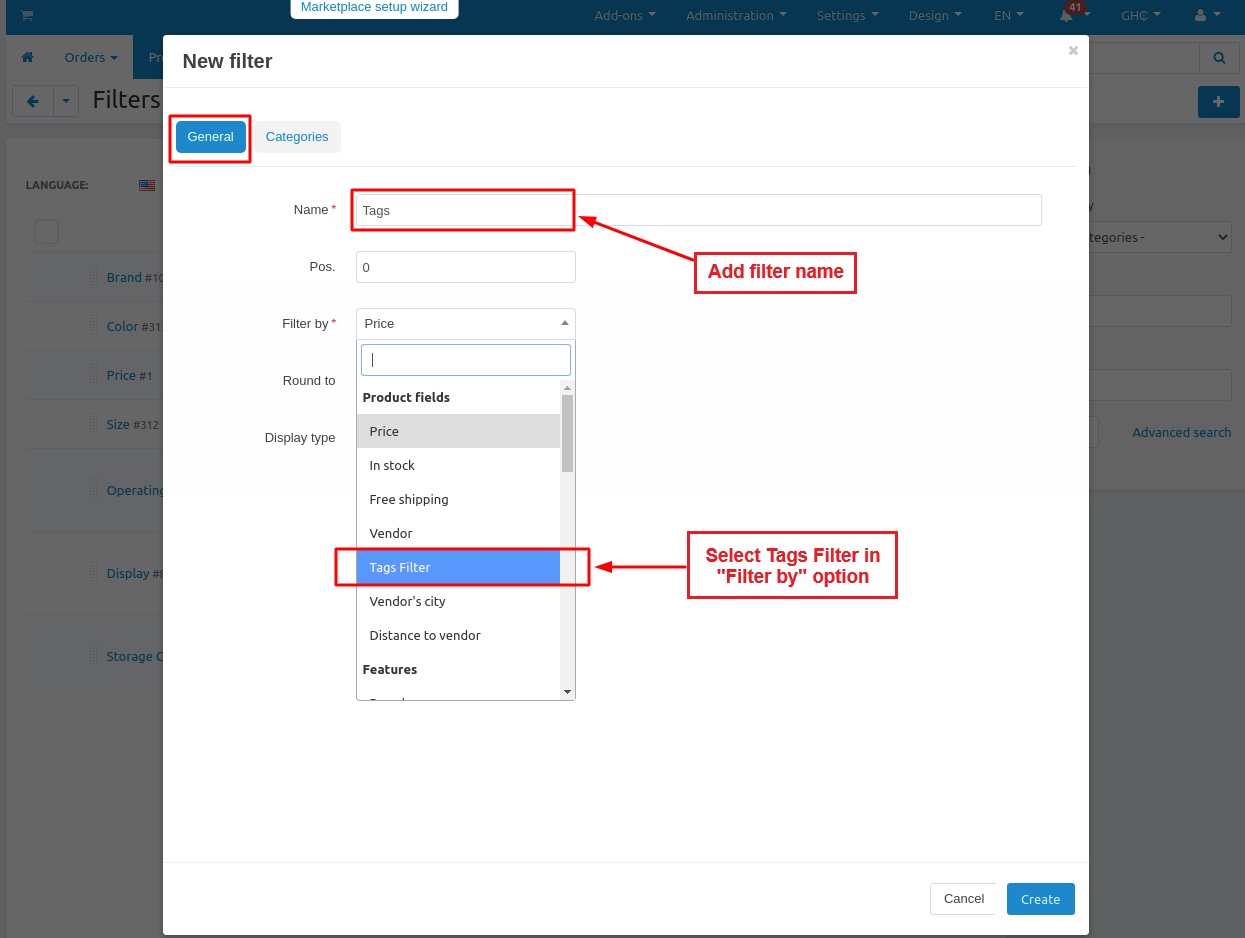
- In the General tab, add filter name and select "Tags Filter" in "Filter by" option.
- Switch to >> "Categories Tab"
- Use the (+) button to add categories. If no category is selected, the filter will apply to all categories by default.
- Then, click on "Create" button.

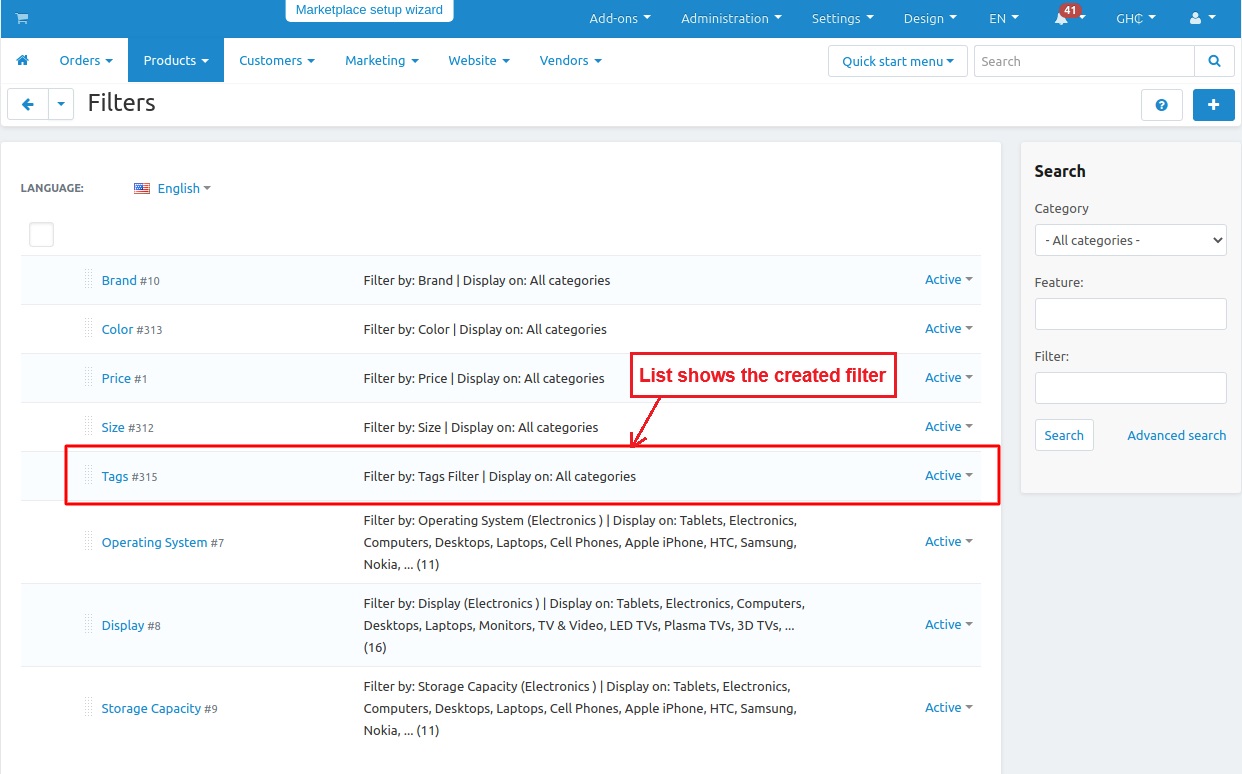
- This page shows the created filters.
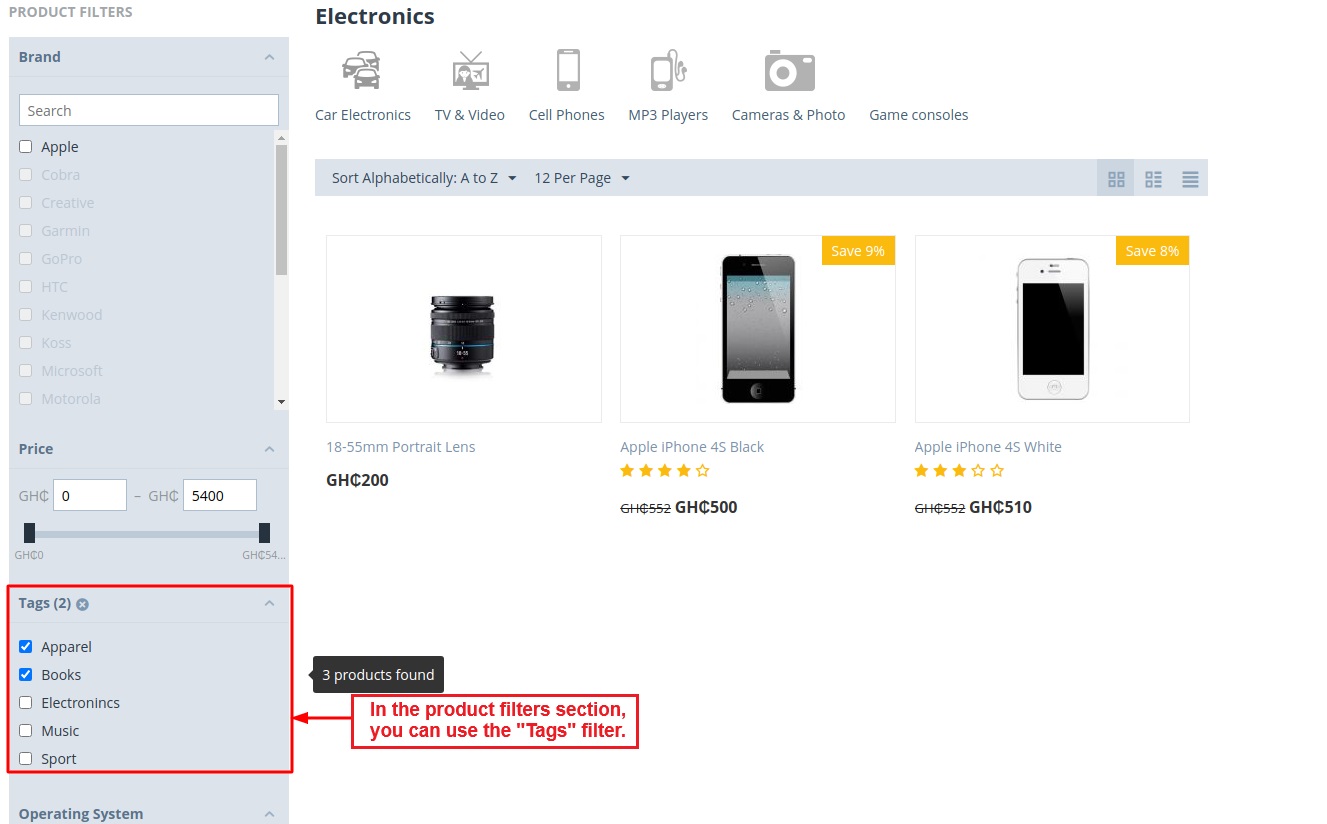
How tags filter looks like in Storefront:
- In the product filters section in the storefront, customers can use the "Tags" filter.
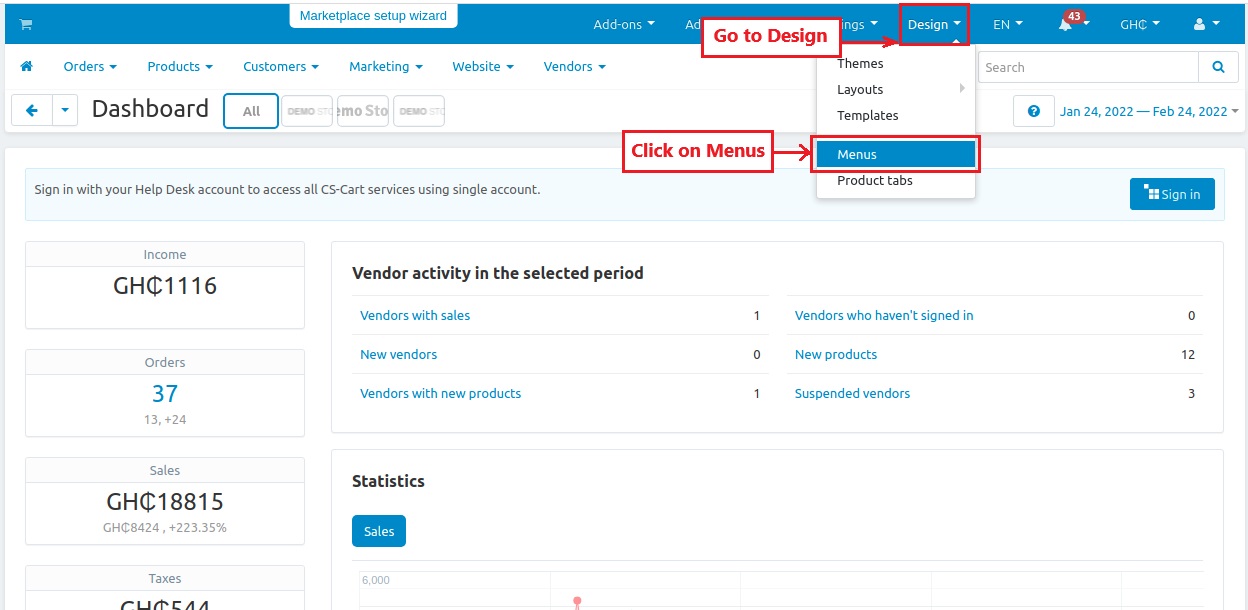
Create Tags as menu:
- Go to >> Design
- Click on >> Menus
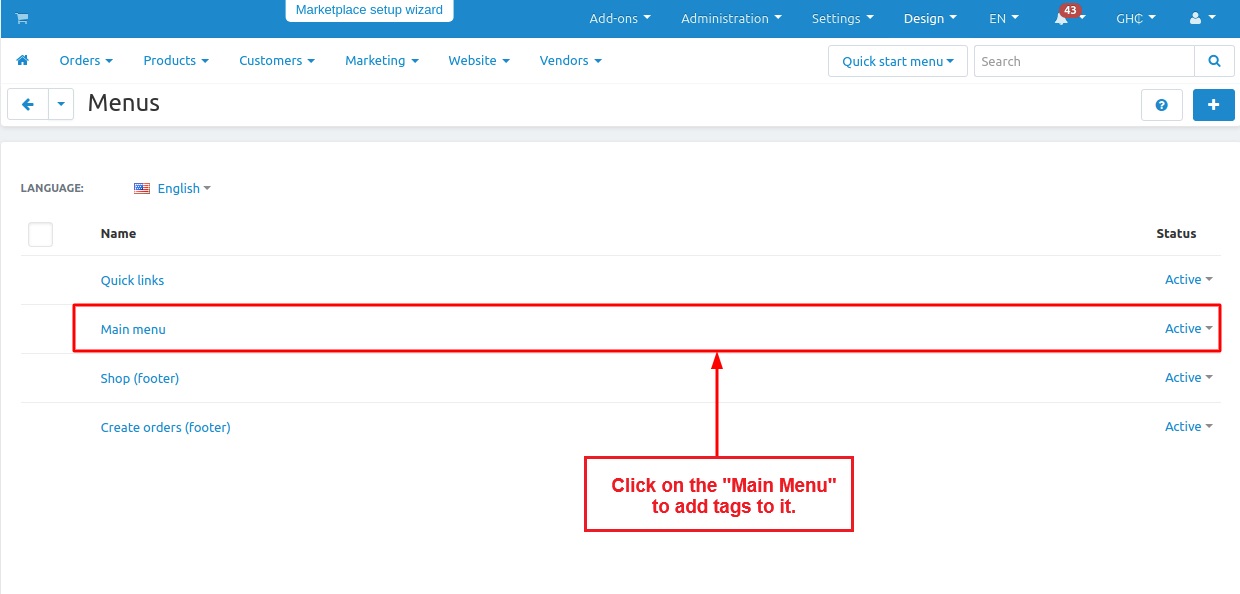
How Tags are added to the main menu:
- Tap on "Main Menu" and Use (+) icon to Add Menu.

- In the General tab, select a parent item for this menu, enter a menu name, and choose the tags.

- This is how the Tags Menu appears on the storefront.

Tutorial Link:
https://www.loom.com/share/041e13d09eb241c891f3d328f7cf5e65
Addon-Version:
Version-1.0
Supported Versions:
CS-Cart, CS-Cart Multivendor 4.8.x, 4.9.x,4.10x,4.11x,4.12,4.13x, 4.14x, 4.15x, 4.16x, 4.17x, 4.18x
Support:
This add-on is developed and published by Ecarter Technologies Pvt.Ltd., a CS-Cart developer. You are guaranteed a quality add-on supported by future versions. If you need help, please contact us via email at support@ecarter.co.
Kajal is a Technical Content Writer at Ecarter Technologies. She writes technical documentation and in-depth guides on e-commerce platforms, mobile commerce and AI in online retail.